


Part 1: Built-in PowerPoint Compression (Offline Method)
1. Compress images directly within PowerPoint
- Click on an image in your presentation, then go to the Picture Format tab and select Compress Pictures.
- In the compression settings, make sure “Apply only to this picture” is unchecked so the compression applies to all images in the presentation.
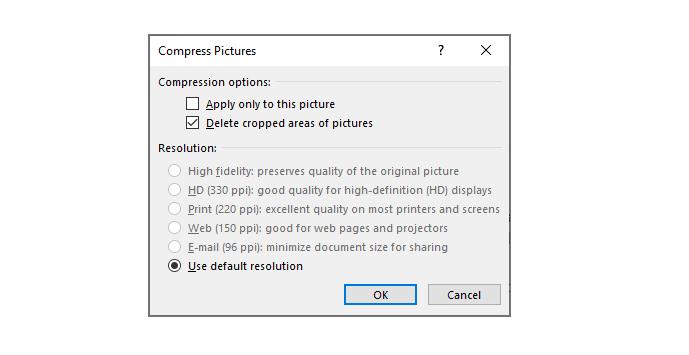
- Enable “Delete cropped areas of pictures” to permanently remove cropped parts of images (note that this cannot be undone).
- Under Resolution, select “Use default resolution” or choose a lower option such as 96 ppi for stronger compression.
- Click OK to apply the compression.
2. Remove unused slides, layouts, and embedded media.
3. Save the file in PPTX format for better compression.
Pros
- Works completely offline
- Keeps files private and secure
Cons
- Limited compression capability, especially for files with large media content
Part 2: Online Third-Party PPT Compressors
Online PowerPoint compressors are one of the fastest and most convenient ways to reduce file size without installing any software.
How it works
- Upload your PPT or PPTX file
- The tool automatically compresses images and media
- Download the optimized file
Web-Based PPT Compressors with No Registration
1. Vheer PPT Compressor

Vheer PPT Compressor offers a streamlined, high-speed solution for creating smaller presentations without the need for software installation. It is specifically designed to handle PPT and PPTX files efficiently, ensuring that your slides remain professional and clear even after significant size reduction.
This tool stands out for its simplicity and commitment to a clean user experience, offering a watermark-free service that is perfect for professional environments where document integrity is a priority.
Key Features:
- No installation or sign-up required
- Supports batch compression (up to 5 files)
- Preserves layout, images, and animations
- Works across Windows, Mac, and mobile devices
Best For:
Fast, hassle-free compression with minimal effort
2. CompressPPT.pro

CompressPPT.pro is a specialized online tool designed for high-efficiency PowerPoint compression across all formats, including .ppt and .pptx. It is particularly effective for users who need to handle media-heavy presentations without installing any software.
The tool is uniquely optimized for email delivery, helping users meet the strict attachment limits of platforms like Gmail or Outlook (25MB). With its custom compression targets, you can easily reduce files to 10MB or even 1MB while ensuring that images, videos, and embedded animations remain clear and readable.
Key Features:
- Free and secure, no registration needed
- Handles large PPT files (100MB+)
- Set target file size (e.g., 10MB)
- Optimized for media-heavy presentations
Best For:
Users who need precise size control and large file support
3. SlideChef PPT Compressor

SlideChef provides a highly flexible and user-centric approach to file reduction, offering a “menu” of compression options to suit different professional needs. It offers flexible compression options and supports batch processing for multiple files.
Key Features:
- Choose compression level (low, balanced, high)
- Batch file processing
- Browser-based with secure handling
Best For:
Users who want control over compression quality vs file size
4. PPTCompressor.online

PPTCompressor.online is a privacy-first utility designed for instant and secure file optimization. It stands out for its high security standards, as all files are processed entirely within your browser. This ensures that your sensitive presentations are never stored or accessed on any server, keeping your data private at all times.
Key Features:
- No file storage on servers
- Fast compression (up to ~80% reduction)
- No registration required
Best For:
Users who prioritize privacy and data security
Part 3: LightPDF AI Agent (AI Solution)
LightPDF AI Agent is an AI-powered solution that goes beyond basic compression by combining file optimization, conversion, and editing in one platform. Instead of manually adjusting compression settings, users can simply describe their needs in natural language (e.g., “compress this PPT to under 10MB”), and the system automatically processes the file.
This makes it especially useful for users who want a more automated and intelligent workflow when handling presentations. In addition to PPT compression, LightPDF also supports document conversion, PDF editing, and other productivity tasks, making it a multi-purpose tool for everyday file management.
How it works:
- Upload your PowerPoint file to the platform
- Enter a command
- The AI analyzes the file and optimizes images, media, and structure
- Download the compressed version after processing

Pros:
● Smart automation simplifies complex tasks without manual tuning
● Multi-functional platform (compression + conversion + editing)
● Suitable for users handling multiple document formats
Cons:
● Requires a stable internet connection
● Some advanced features may require login or a subscription
● Compression results may vary depending on file complexity
Best For:
Users who prefer an AI-assisted workflow and want to compress PPT files while also managing other document-related tasks in a single platform.
Part 4: Convert PPT to PDF, Then Compress
Another effective method to reduce PowerPoint file size is to first convert the PPT into a PDF format and then compress the PDF. This approach is especially useful when your presentation contains many images, charts, or embedded media that significantly increase file size.
PDF files are often more optimized for compression, allowing you to achieve stronger size reduction compared to compressing PPT files directly. This method is also commonly used when the final presentation does not need further editing.
How it works:
- Export your PowerPoint file as a PDF using PowerPoint’s built-in “Save As” or “Export” feature
- Upload the PDF to a compression tool such as LightPDF or other PDF compressors
- Select your desired compression level or target file size
- Download the optimized PDF file
Pros:
● Often achieves higher compression rates compared to direct PPT compression
● Ideal for sharing via email, uploading to websites, or archiving documents
● Reduces file size effectively without complex settings
Cons:
● Loses editability of the original PPT file
● Some animations and interactive elements may not be preserved
● Requires an additional conversion step before compression
Best For:
Users who prioritize file size reduction over editability, especially for final versions of presentations intended for sharing, printing, or archiving.
Summary Table
| Method | Best For | Pros | Cons |
| Built-in PowerPoint | Offline use | Private & secure | Limited compression |
| Online Tools | Quick compression | Easy & fast | Requires upload |
| LightPDF AI Agent | Automation | Smart & versatile | Needs internet |
| Convert to PDF | Sharing | High compression | Not editable |
Final Thoughts
If you need quick results, online tools like Vheer or CompressPPT.pro are ideal.
If you want more control, choose tools with customizable compression settings.
For automation and flexibility, AI solutions like LightPDF provide a smarter workflow.
In most cases, combining multiple methods will give you the best balance between file size reduction and presentation quality.


Leave a Comment