


1. Why Word Files Become Too Large
Word documents often grow in size due to:
- High-resolution images
- Embedded objects like charts or Excel sheets
- Track changes and comments
- Hidden formatting from copied content
👉 In most cases, images and formatting are the main reasons for large file sizes.
2. Compress Word Files Without Uploading (Direct Methods)
Option 1:Use Microsoft Word Built-in Compression
Microsoft Word provides a built-in feature to reduce file size, especially for documents with images.
Steps:
- Open your Word file
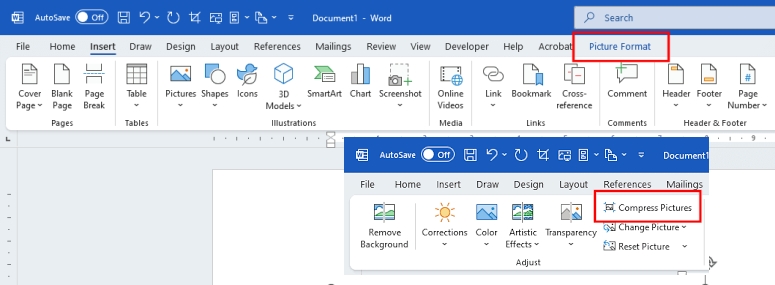
- Click on any image.
- Click Compress Pictures in the Adjust group.
- A dialog box will open where you can choose image quality and compression options. Choose a lower resolution. If you want to compress all images in the document, uncheck “Apply only to this picture.” Leave “Delete cropped areas of pictures” checked to permanently remove cropped parts and further reduce file size.
- Click the OK button and save file.
Key benefits:
- ✔ No need to upload files online
- ✔ Keeps document in original format
- ✔ Quick and easy for image-heavy files
Option 2: Remove Hidden Data in Word
Large file size is often caused by hidden elements inside the document.
Steps:
- Go to File → Info
- Click “Check for Issues” → “Inspect Document”
- Remove:
- Comments
- Track changes
- Hidden metadata
Key benefits:
- ✔ Reduces file size without affecting visible content
- ✔ Improves document cleanliness
- ✔ Useful for professional documents
3. How to Compress Word Files Online (3 Free Methods)
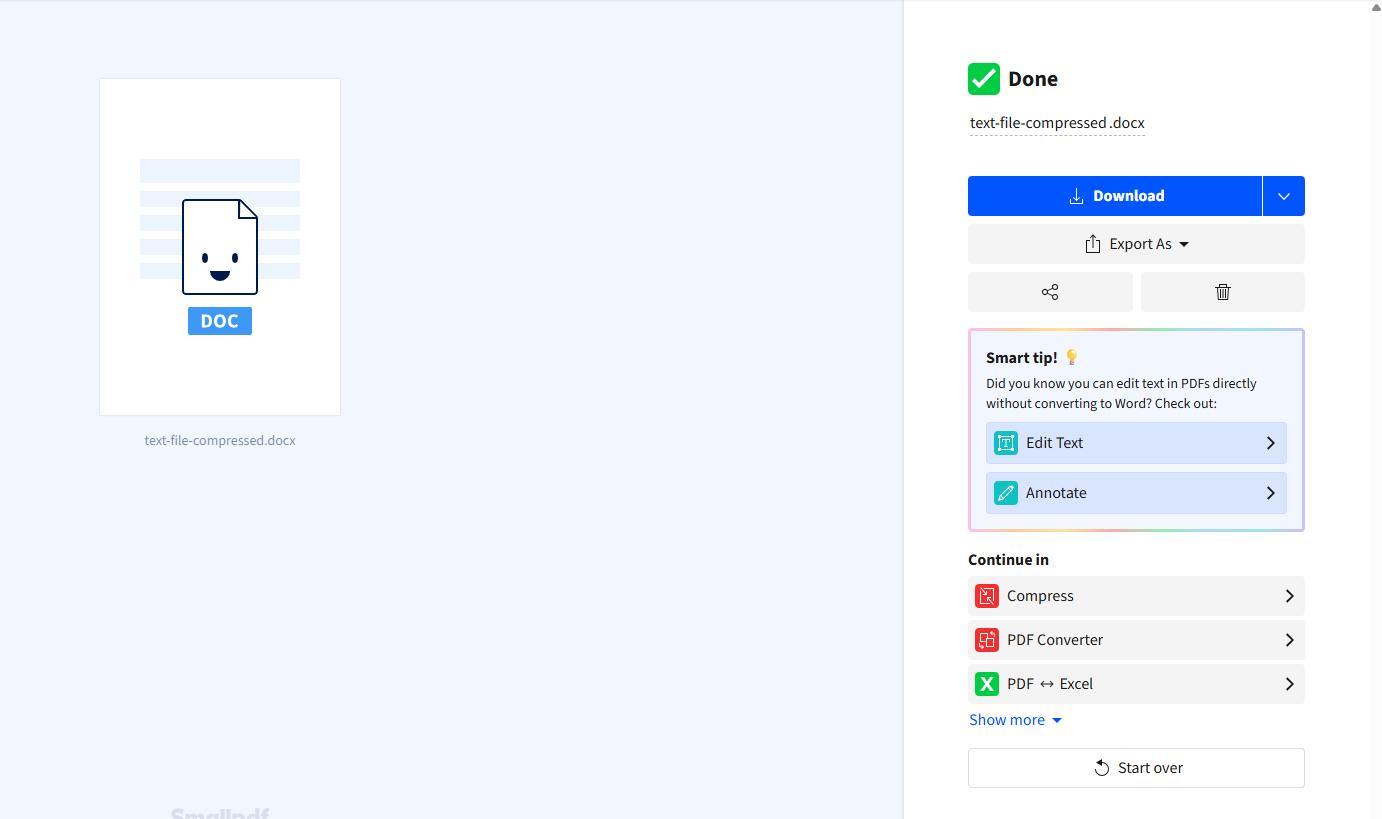
✅Method 1: Smallpdf
Smallpdf is a widely used online document tool that allows users to easily convert, compress, and manage files directly in the browser. It is especially popular for its simple interface and fast processing speed, making it suitable for users who need quick file size reduction without technical steps.
Smallpdf works by converting Word documents into optimized PDF files, which are then compressed using its built-in compression engine. This method is effective for reducing file size while keeping document readability intact.
Step 1: Upload Your Word File
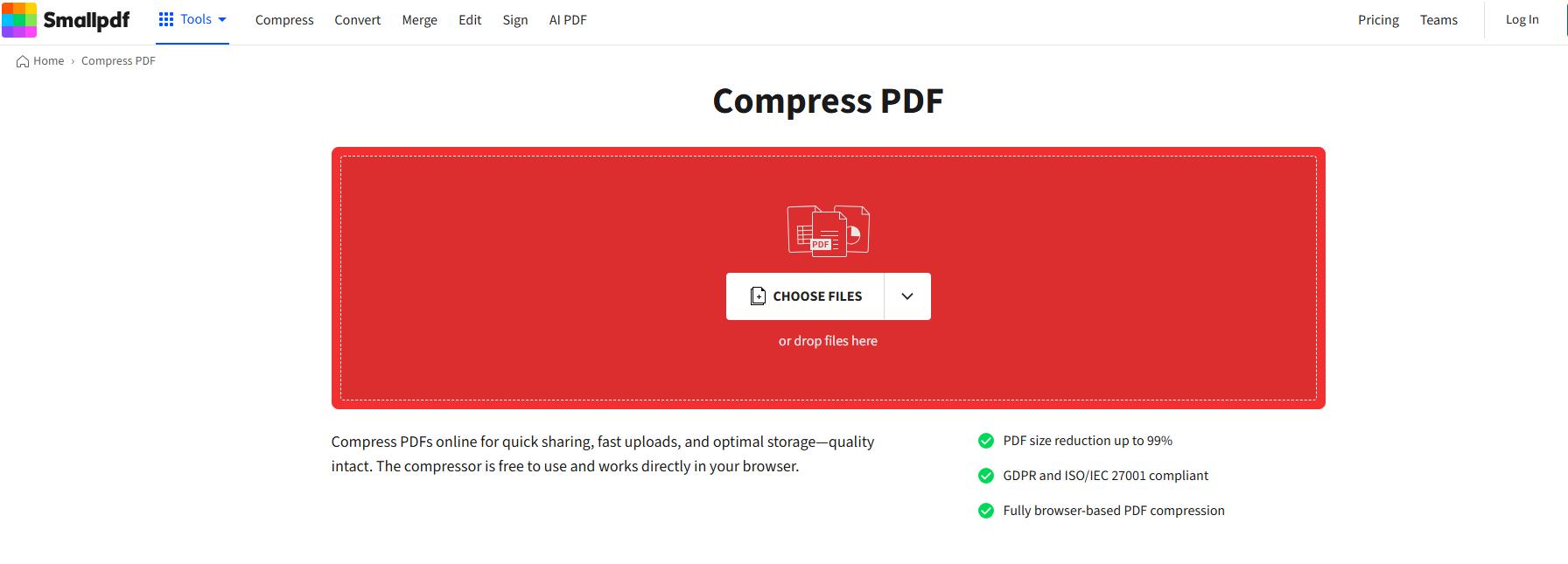
Open Compress PDF page and upload your Word document. You can also import from Google Drive, Dropbox, or OneDrive.
Step 2: Choose Compression Level
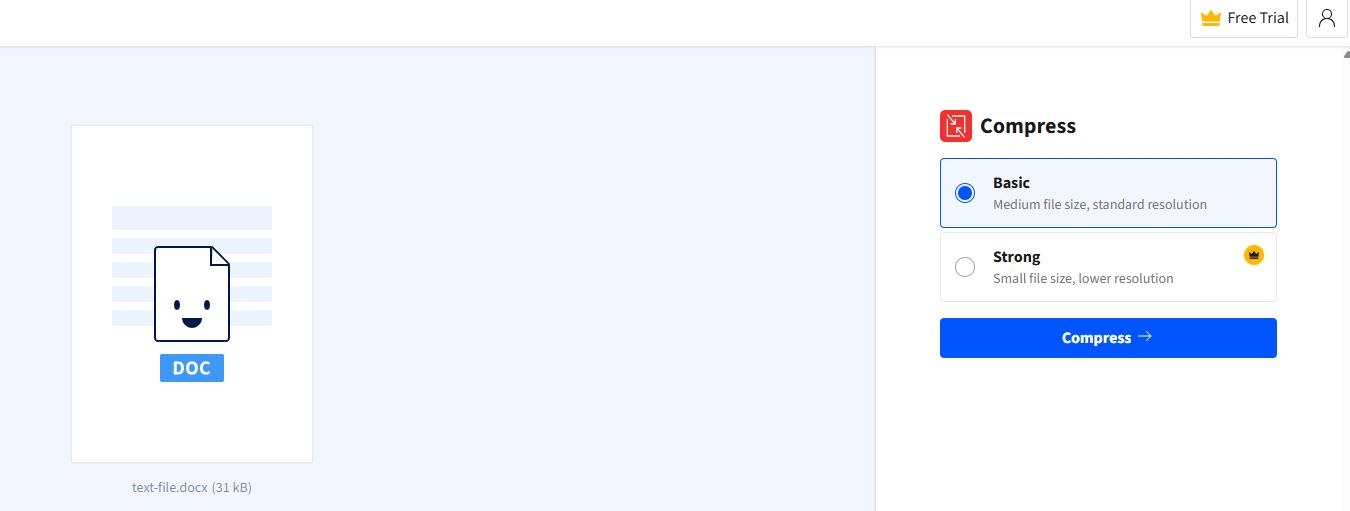
Select Basic compression for good quality or Strong compression if you need a smaller file size.
Step 3: Export as Word File
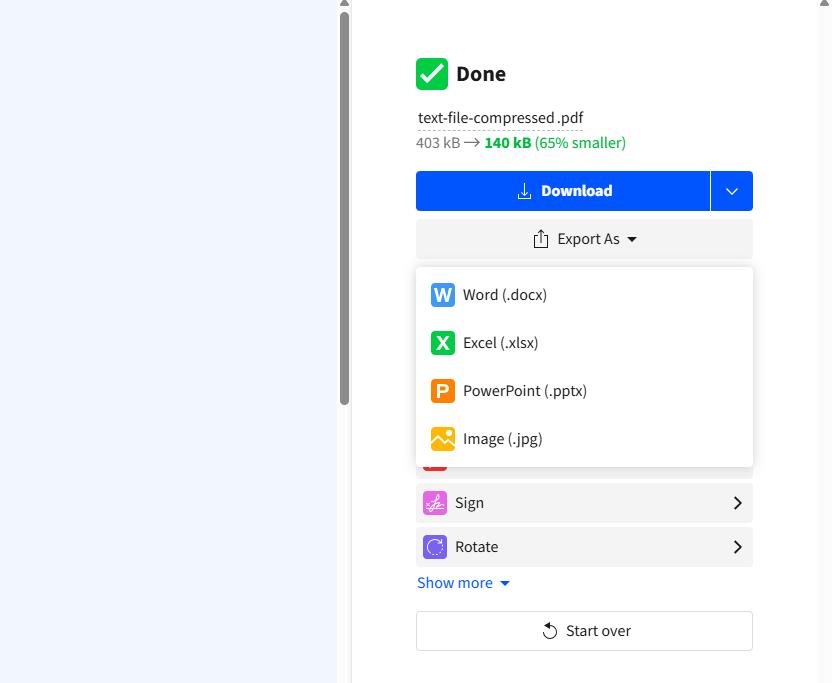
Click “Export As” and select “Word (.docx)” to convert the file back. You can also choose your preferred conversion level before exporting.
Step 4: Download or Save
Click Download to save it to your device, or save it to Google Drive, Dropbox, or OneDrive.
Key benefits:
- ✔ Easy-to-use interface
- ✔ Fast online processing
- ✔ No software installation needed
✅Method 3: Zamzar
Zamzar is a cloud-based file conversion tool that supports hundreds of file formats, including Word documents. It is known for its straightforward workflow and wide compatibility across different file types.
Unlike traditional compression tools, Zamzar focuses on format conversion, which can indirectly reduce file size depending on the output format. It is commonly used for quick conversions when users need lightweight files without advanced editing features.
Steps:
- Upload your DOC or DOCX file.
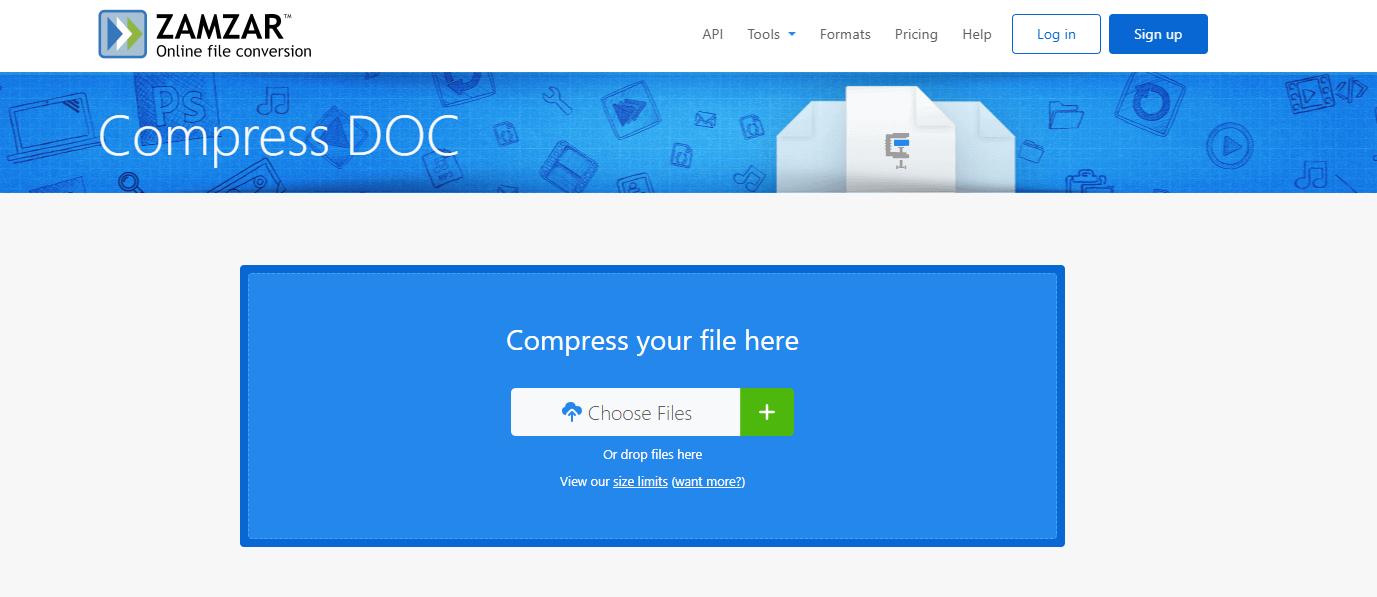
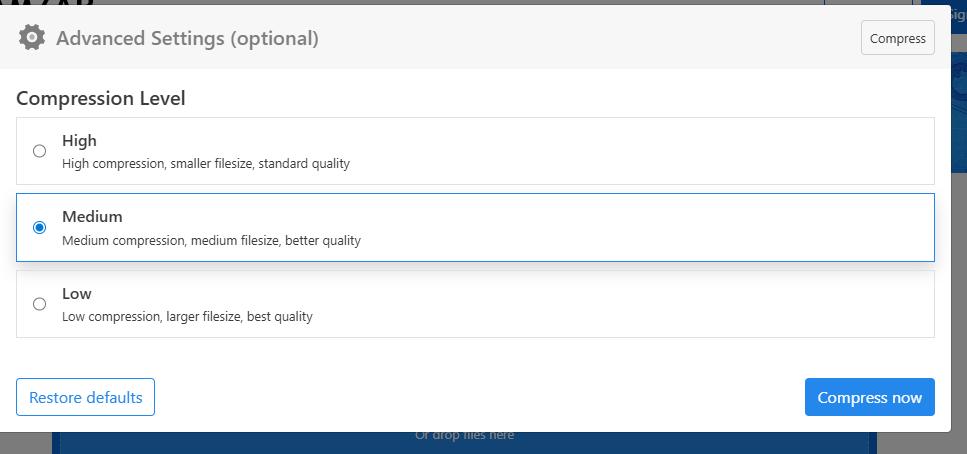
- Choose a compression level and click “Compress Now.”
- Wait for the process to finish, then download your compressed file.
Key benefits:
- ✔ Multi-format support
- ✔ No installation needed
- ✔ Simple and fast conversion
✅Method 3: AI Solution: LightPDF AI Agent

LightPDF AI Agent is an AI-powered document optimization tool designed to simplify file compression and formatting tasks. Instead of relying on manual steps, it automatically analyzes Word documents and reduces file size by optimizing images, cleaning hidden data, and adjusting internal structure.
This makes it especially useful for large or complex Word files that contain images, tables, or multiple formatting layers. The AI approach helps maintain visual quality while significantly reducing file size, making it suitable for professional and business use.
For users who want the most efficient method, LightPDF AI Agent provides intelligent compression.
Steps to Compress Word File with AI :
- Upload your Word document
- Enter your prompt (e.g., “compress this file”) and click Start
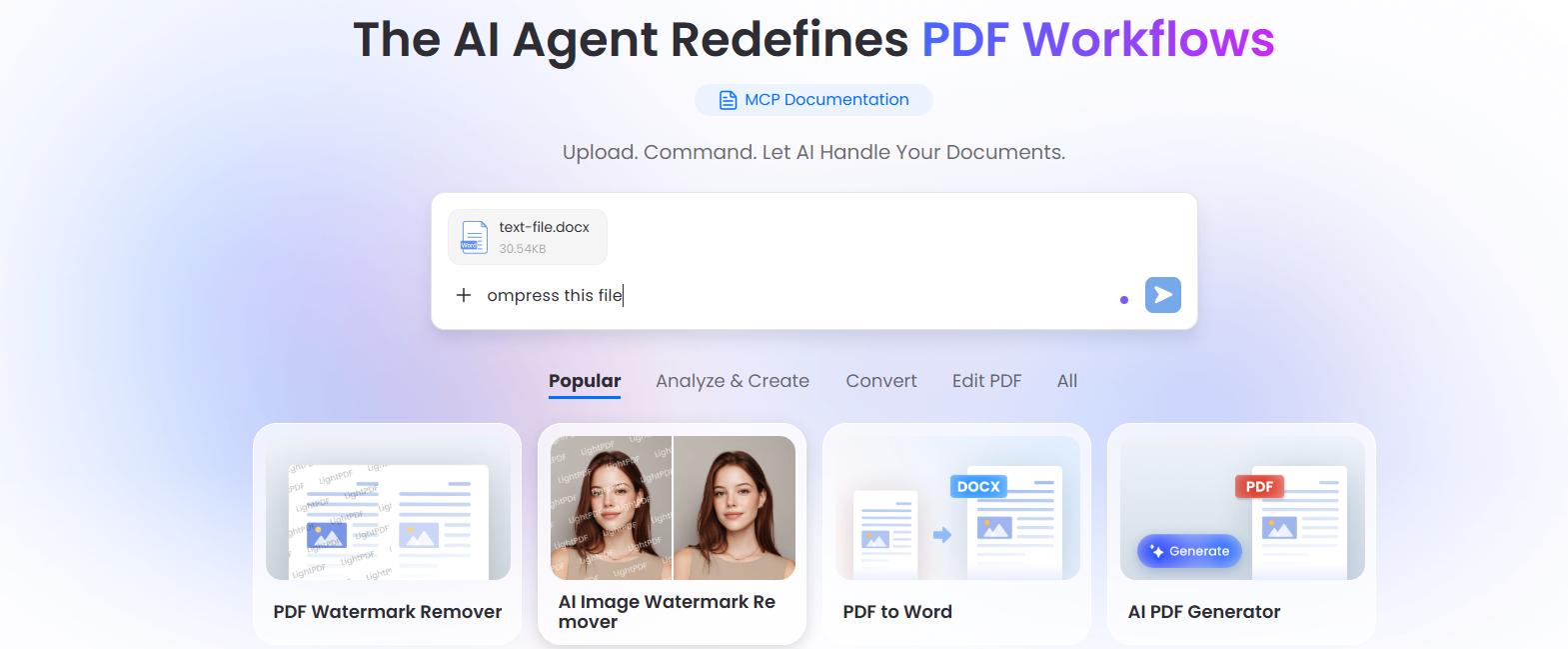
- The AI will automatically analyze and compress your file
- Download the compressed version
Key benefits:
- ✔ Direct Word compression (no conversion needed)
- ✔ Preserves layout and quality
- ✔ Faster for large files
- ✔ Fully automated process
👉 Ideal for users who need to compress large Word files without losing quality.
4. Comparison
| Method | Compression Quality | Speed | Key Advantage |
|---|---|---|---|
| Microsoft Word | Medium | Fast | No upload required, works offline |
| Smallpdf | Good | Fast | Simple browser-based workflow |
| Zamzar | Average | Medium | Supports many file formats |
| LightPDF AI Agent | Excellent | Very Fast | AI-powered smart optimization |
5. FAQ
❓My Word document is too large to upload. What can I do?
This usually happens when the file contains images, formatting data, or embedded objects. You can reduce the file size using online tools or AI-based optimization.
❓Why does a simple Word file become so heavy?
Even simple documents may contain hidden images, copied web formatting, revision history, or embedded elements that increase file size.
❓Is there a quick way to make a Word file smaller before sending it?
Yes, you can remove unnecessary images, clear comments, and use online compression tools to quickly reduce file size.
❓Some websites reject my Word file. What’s the reason?
This usually happens when the file exceeds upload limits set by platforms such as job portals, schools, or email systems.
❓What should I check before uploading a Word document?
It’s useful to check for hidden images, tracked changes, unused formatting, and embedded files that increase size without being visible.
❓Is there a way to reduce file size without changing the content?
Yes, optimization tools can reduce file size by compressing internal elements while keeping visible content unchanged.
❓What’s the easiest method when I need to compress multiple Word files?
Batch processing tools or AI-based compressors are best for handling multiple documents at once and saving time.
6. Conclusion:
If you need a quick solution, built-in tools and platforms like Smallpdf or Zamzar can help reduce Word file size easily.
However, for better results and less manual work, AI tools like LightPDF provide a smarter and more efficient way to compress Word files without losing quality.
👉 Direct methods = simple and safe
👉 Online tools = convenient and fast
👉 AI tools = best performance and quality


Leave a Comment