


What is a CBR File?
A CBR file is a comic book archive that uses RAR compression. It usually contains a sequence of page images, such as JPG or PNG files, which a compatible comic reader displays as a book.
Converting CBR to PDF packages those pages into a document that standard PDF readers can open. The result usually remains image-based: conversion alone does not make the dialogue searchable or editable as ordinary text.
1. Convert CBR to PDF Online with FreeConvert
FreeConvert provides a dedicated CBR to PDF converter. It accepts comic archives directly and includes options for PDF page size, orientation, margins, and image alignment.
This is a useful choice when you want to control how the artwork fits on each page.

How to use it:
- Open FreeConvert’s CBR to PDF page.
- Click Choose Files and select your CBR archive.
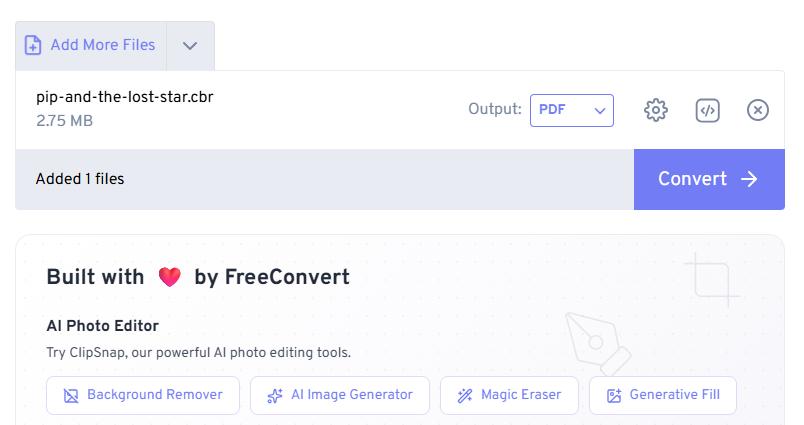
- Open Advanced settings if you want to adjust the layout.
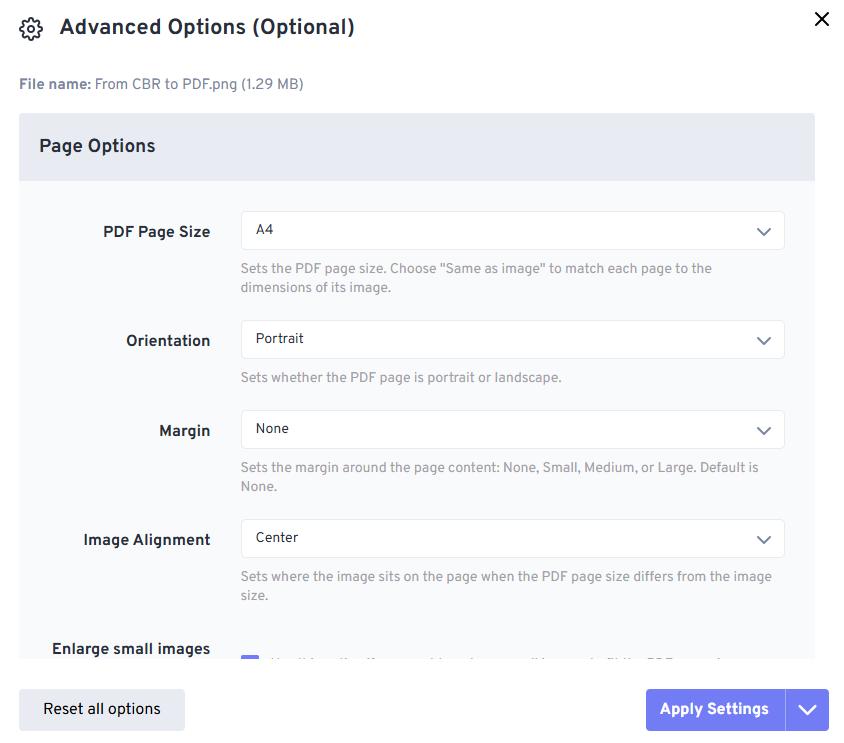
- Choose Same as image for page size to match each PDF page to its source image. Select None for margins if you want no added border.
- Click Convert, wait for processing to finish, and download the PDF.

Tip: Avoid enlarging small images unnecessarily. A larger page does not add detail to low-resolution artwork.
Free usage is subject to the service’s current limits, so check the upload page before converting a large collection.
2. Change CBR to PDF with Zamzar
Zamzar offers a simple browser-based conversion process. Upload the archive, select PDF, and download the result when it is ready.
Consider this method for an occasional conversion when you do not need to adjust many settings.
How to use it:
- Visit Zamzar’s CBR to PDF converter.
- Click Choose Files and upload your comic archive.
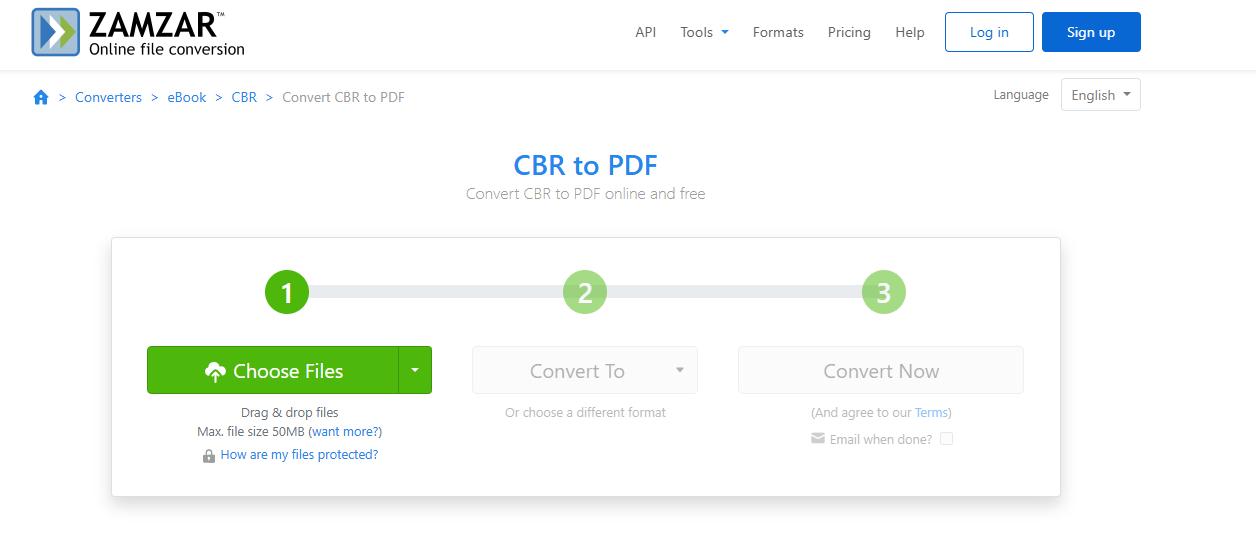
- Make sure PDF is selected as the output format.
- Click Convert Now.
- Download the converted PDF and open it to check the cover, page order, and image clarity.

Tip: Review the current free file-size allowance before uploading. Larger archives may require a paid plan.
After conversion, compare the first and last pages with the original comic to check that the complete book was included.
3. Convert CBR to PDF Online with CloudConvert
CloudConvert provides a dedicated CBR to PDF conversion page. You can select the comic archive in your browser and convert it directly, without extracting the page images yourself.
This is another option for readers who want a single online tool to handle the format change.
How to use it:
- Open CloudConvert’s CBR to PDF page.
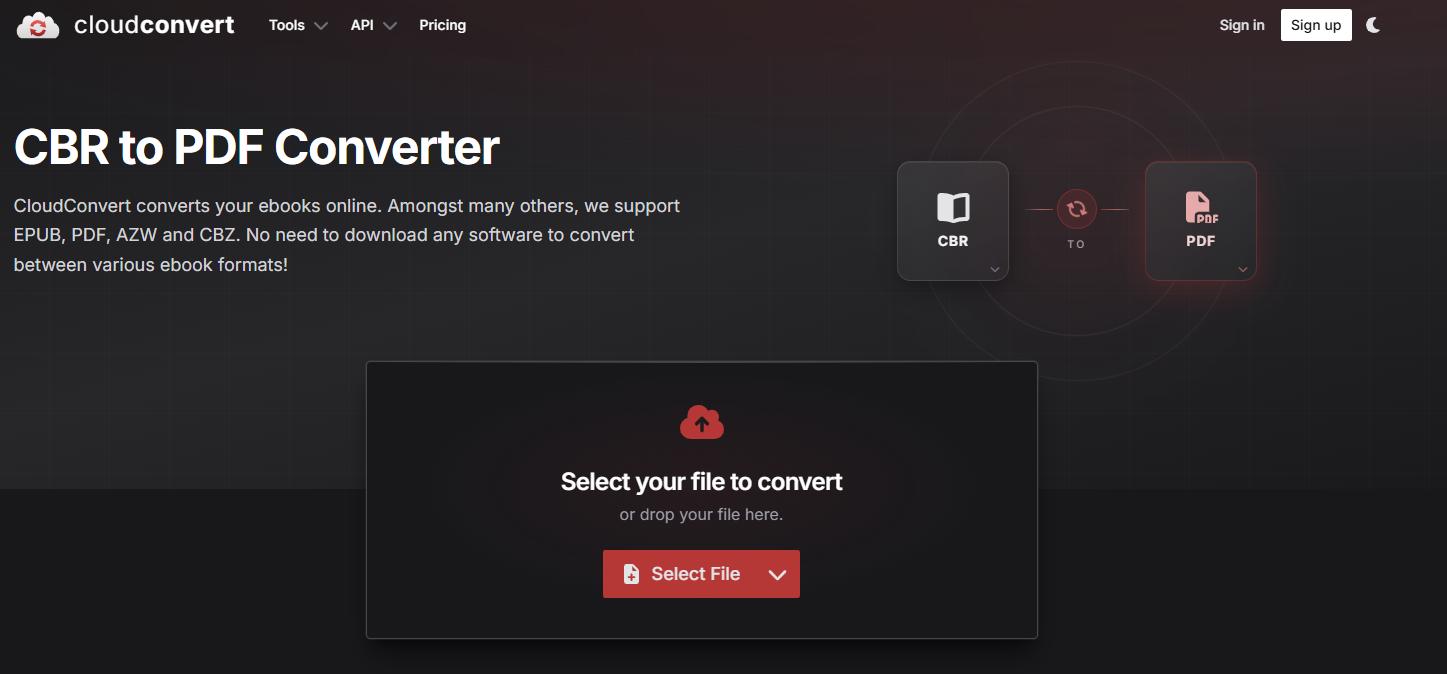
- Click Select File and choose your CBR archive.
- Confirm that the conversion is set from CBR to PDF.
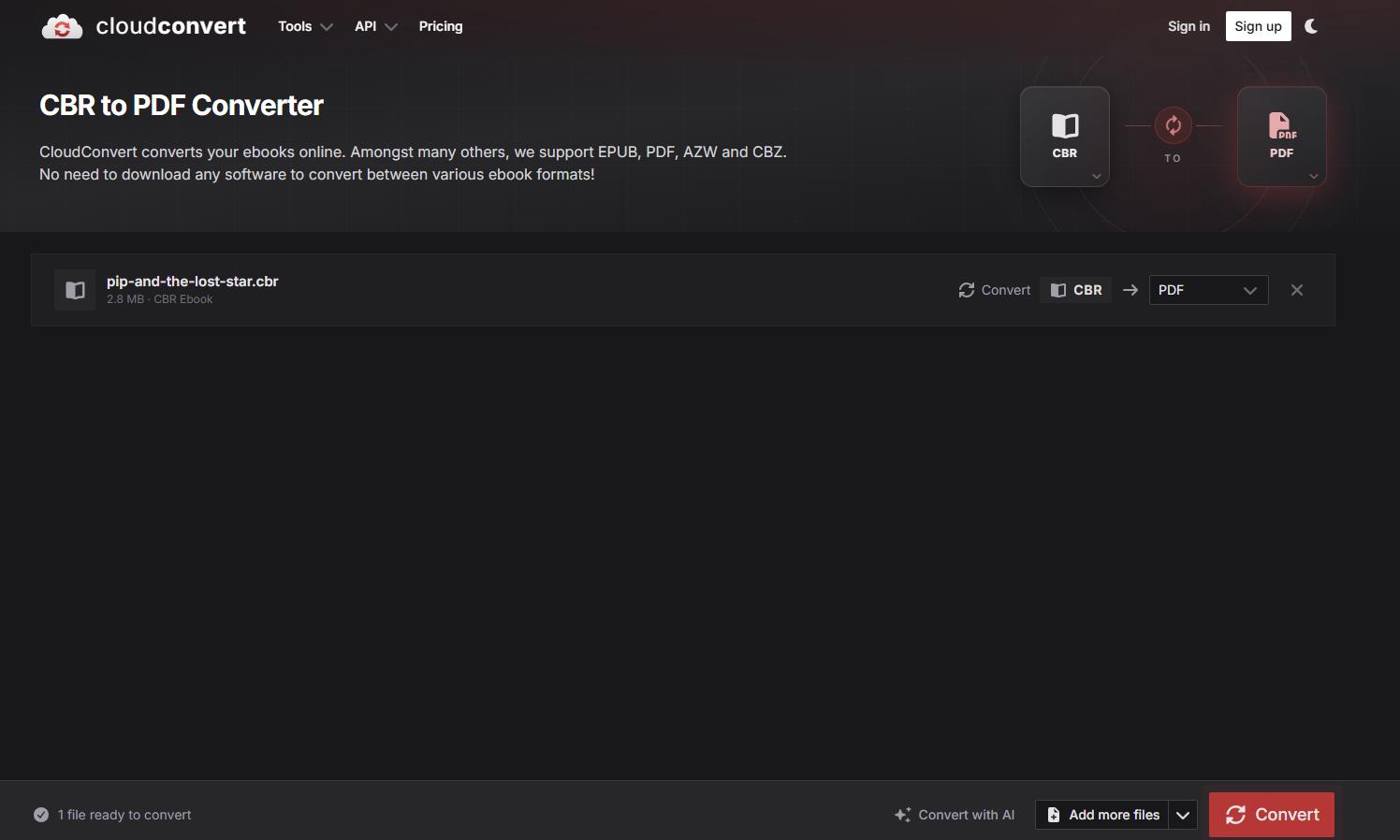
- Start the conversion and wait for the file to finish processing.
- Download the PDF and check the page sequence and artwork.

Tip: Keep the original CBR until you have reviewed the result. If a conversion crops a wide spread or changes the page proportions, you can try another method using the source file.
4. Extract CBR Online and Convert Images with LightPDF
For more control over the included pages, use ezyZip’s online CBR extractor to unpack the archive in your browser. Then use LightPDF to combine the extracted JPG or PNG images into a PDF.
This method uses two browser tools and lets you inspect the individual page images before building the document. LightPDF handles the image-to-PDF stage after extraction.
How to use it:
- Open ezyZip’s CBR extraction page and click Select CBR file to open.
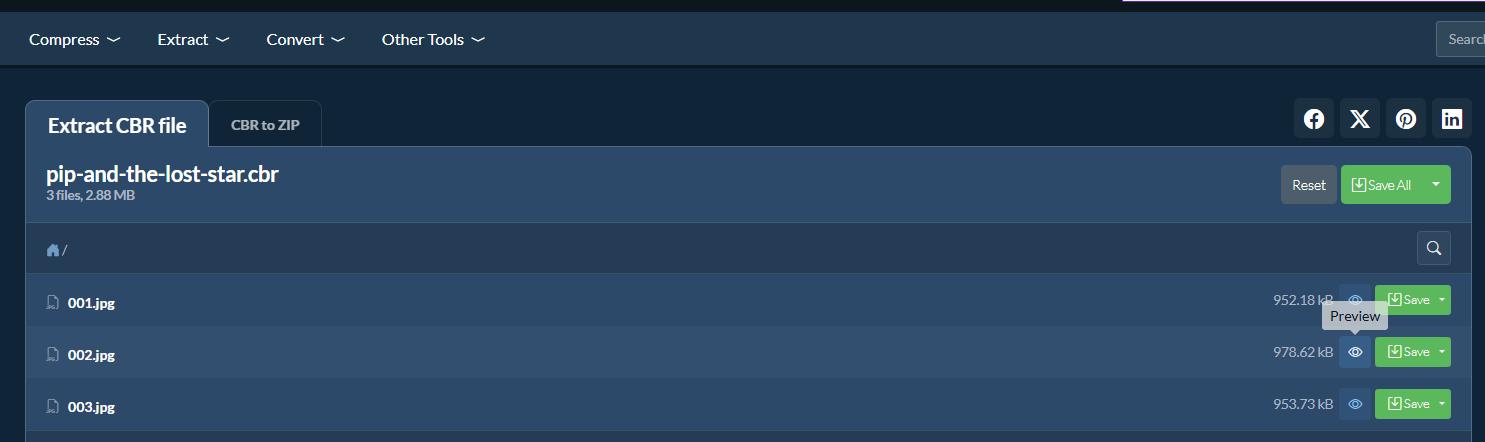
- Choose your archive and wait for its contents to appear.
- Save the page images to your device. Use Save All if your browser supports it, or save the files individually.
- Check the image sequence. Filenames such as
001.jpg,002.jpg, and003.jpghelp keep the order clear. - Open LightPDF’s JPG to PDF or PNG to PDF converter, depending on your extracted image format, and upload the pages.
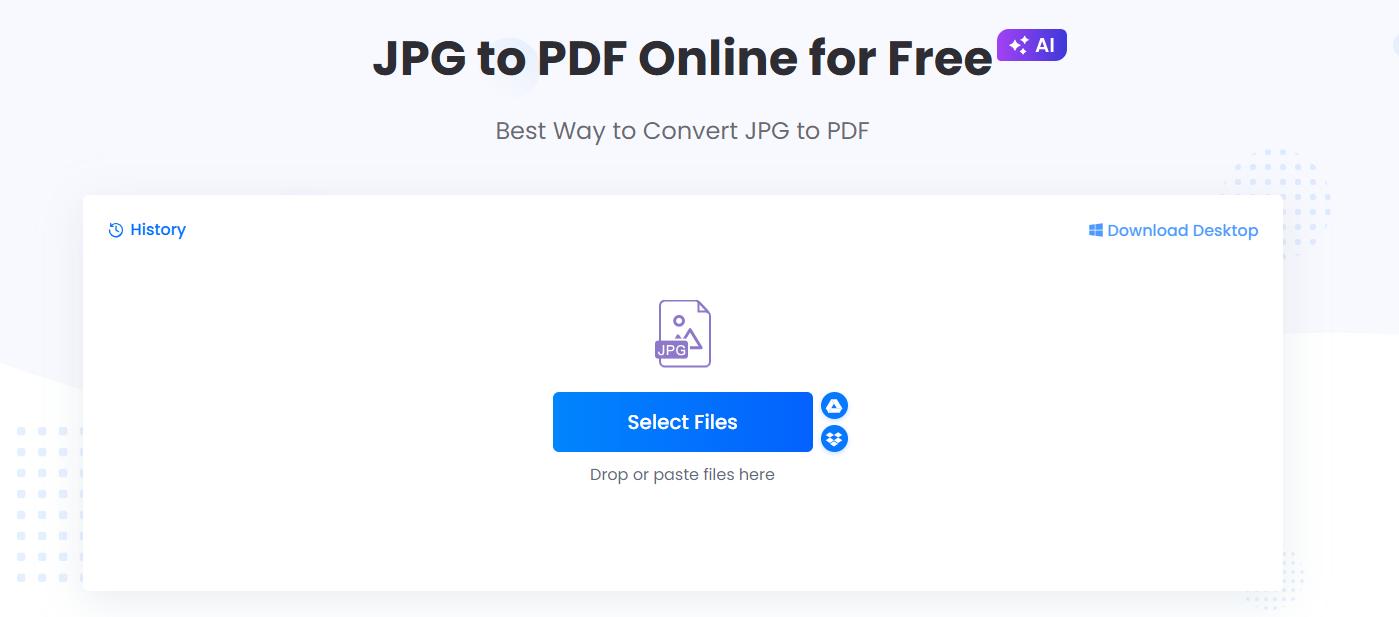
- Review the page order, size, orientation, and margins, then click Convert to PDF and download the result.

Tip: Keep the extracted images until you have checked the final PDF. They make it easier to fix a missing page or repeat the conversion with different settings.
Tips for Keeping Comic Pages Clear and in Order
A successful conversion should preserve the reading experience as well as the artwork. Check these details before keeping the final file:
- Page sequence: Check the cover, opening pages, and chapter transitions. Simple alphabetical sorting can put page 10 before page 2.
- Page proportions: Use a page size that suits the artwork. Avoid stretching narrow pages to fill a wider sheet.
- Double-page spreads: Inspect wide images to make sure panels and dialogue are not cropped.
- Image quality: Keep the original resolution where possible. Heavy compression can blur small lettering and fine lines.
If the PDF is too large to share, try LightPDF Compress PDF. Start with a lighter compression level and compare the dialogue and artwork before choosing a smaller result.
For reading notes, LightPDF Annotate PDF lets you add text boxes, shapes, and drawings over the pages. These annotations are useful for marking panels or leaving comments.
Conclusion
FreeConvert, Zamzar, and CloudConvert let you convert CBR to PDF directly online. For more control over the included pages, extract the comic images with ezyZip and combine them with LightPDF. Each method works through your browser; check the reading order, page proportions, and image clarity before keeping the final PDF.


Leave a Comment