


1. PicWish
Best for: Fixing or replacing existing text with minimal manual work

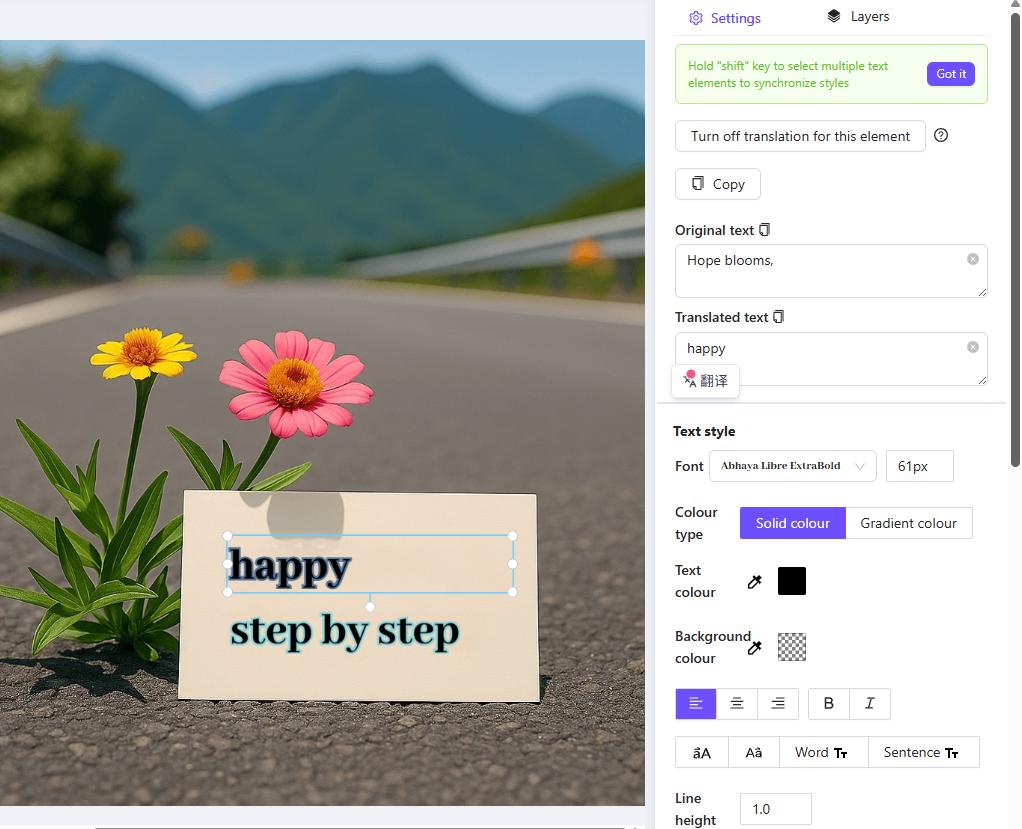
PicWish is a straightforward option if you want to change words that are already inside a screenshot. Its AI text editing tool can recognize existing text and make it editable. You can replace the wording, remove unwanted text, and adjust the font, size, color, and position to make the new text fit naturally with the original image.
This is useful for correcting:
- Typos
- Dates and numbers
- UI labels
- Product information
- Headlines and captions
How to Edit Text in a Screenshot with PicWish
- Open the PicWish image text editor.
- Upload your screenshot.
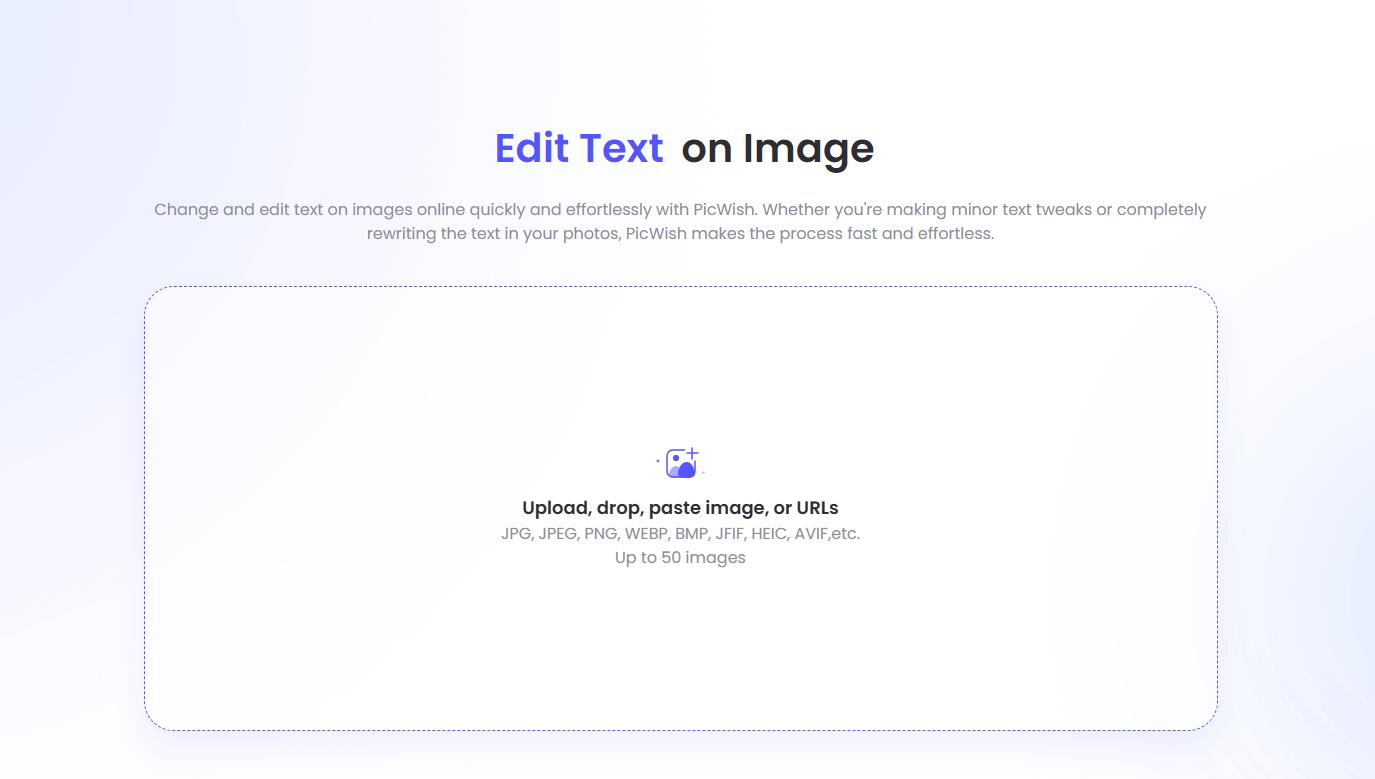
- Let the tool recognize the text.
- Select the text you want to change.
- Enter your replacement text.
- Adjust the font, size, color, or position if needed.
- Save the edited screenshot.
Pros
- Automatically recognizes existing text
- Easy to replace individual words or lines
- Includes text styling controls
- Beginner-friendly
- Works directly in a browser
Cons
- Very small or stylized text may be harder to recognize
- Unusual fonts may require some manual adjustment
2. Fotor
Best for: Replacing text while keeping the surrounding background natural
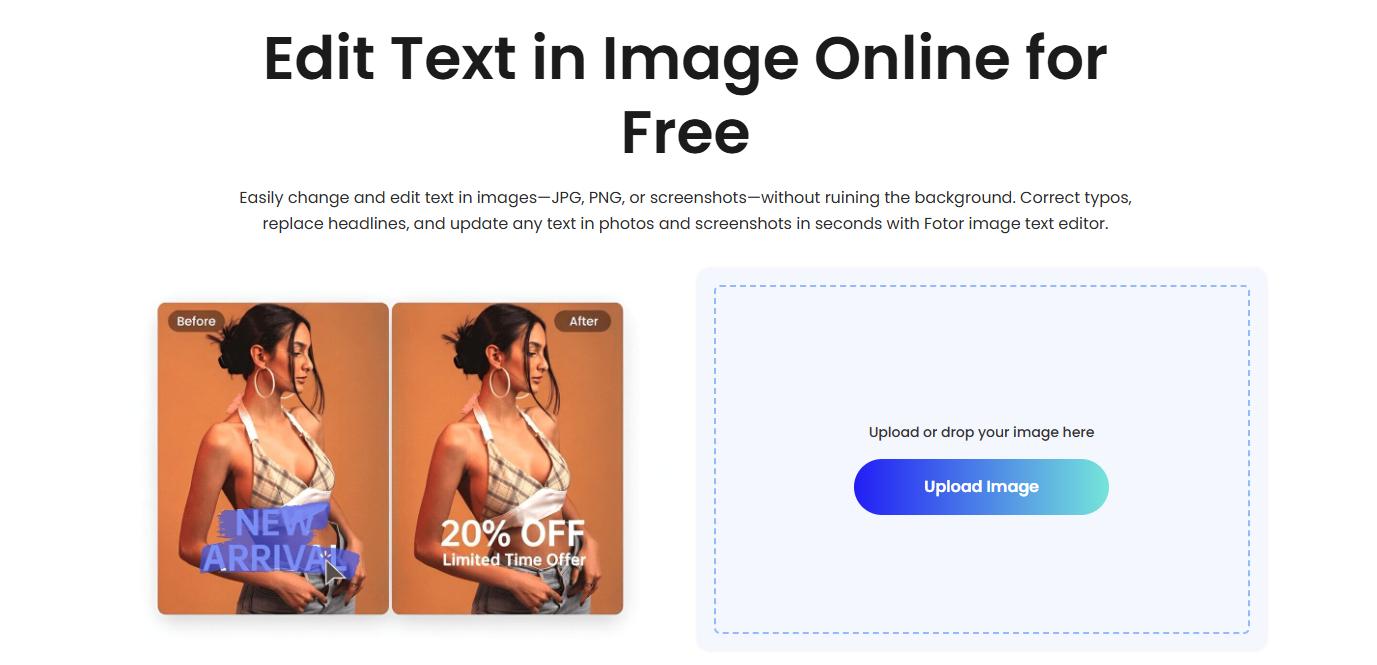
Fotor provides an AI image text editor that can be used with screenshots, JPG files, and PNG images.
It can recognize text inside an image and help remove or replace it without requiring you to manually rebuild the entire area. This can be especially helpful when the original text sits on a colored or slightly complex background.
You can also adjust the replacement text afterward to better match the original design.
How to Change Screenshot Text with Fotor
- Upload your screenshot to Fotor.
- Fotor will recognize text and choose the text area you want to modify.
- Remove or replace the existing wording.
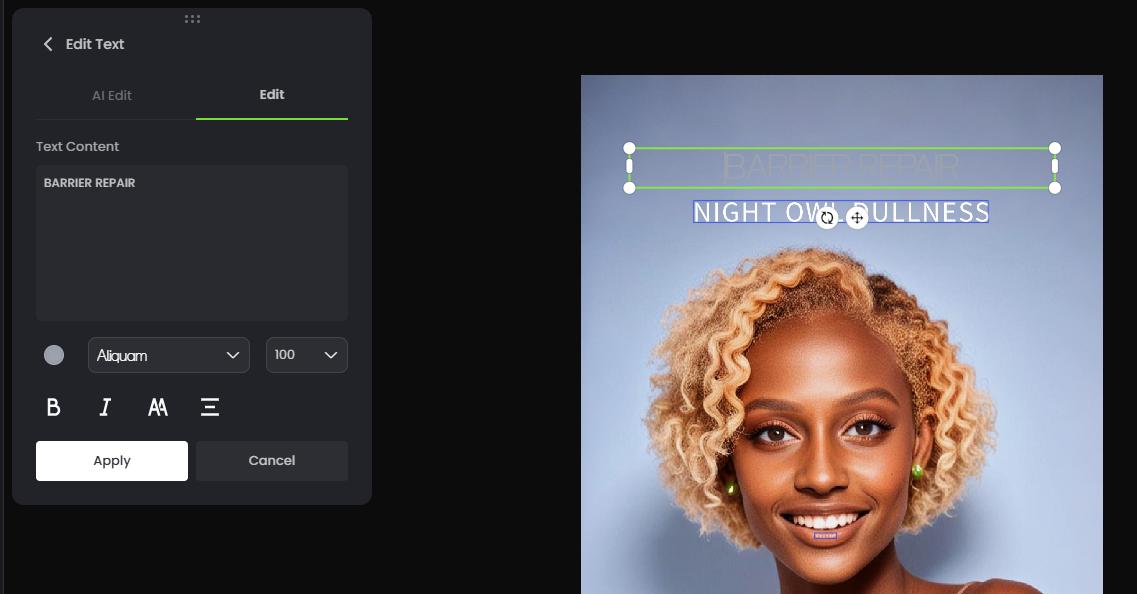
- Adjust the font, size, color, and placement.
- Export the finished screenshot.
Pros
- AI-assisted text replacement
- Helps reconstruct the background
- Suitable for quick corrections
- Includes additional image editing tools
Cons
- Results may vary on detailed backgrounds
- Some advanced features may require an account or paid plan
3. Canva
Best for: Changing text while also adding graphics, annotations, or other design elements
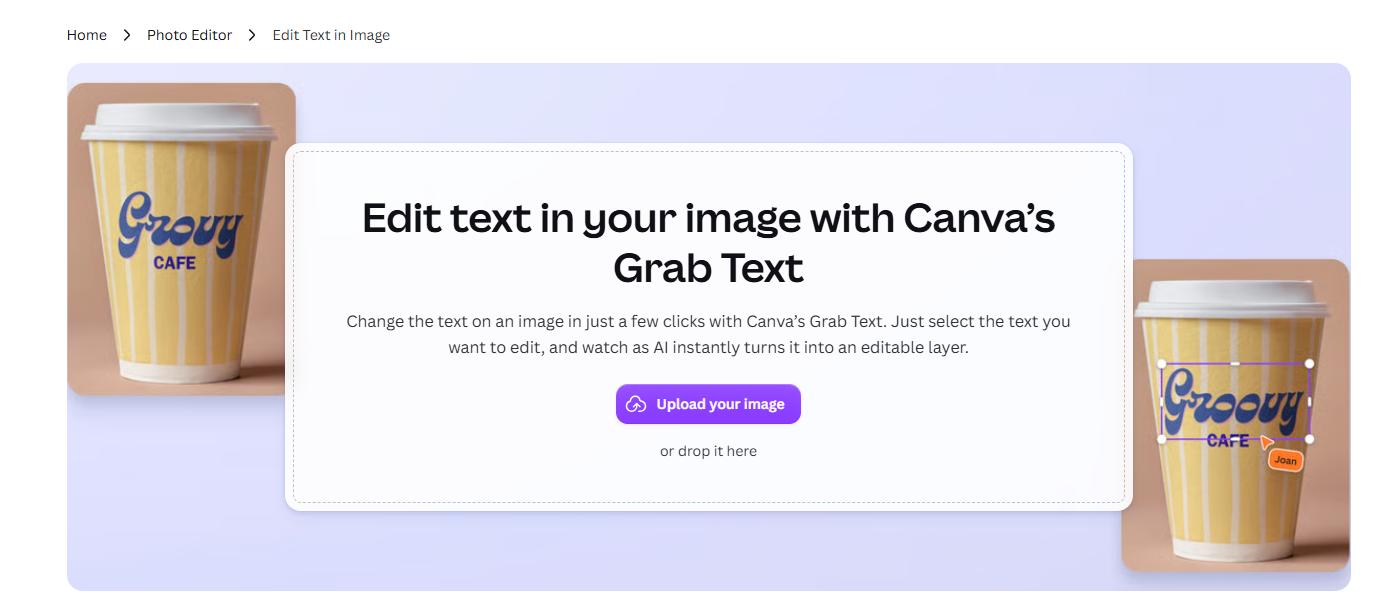
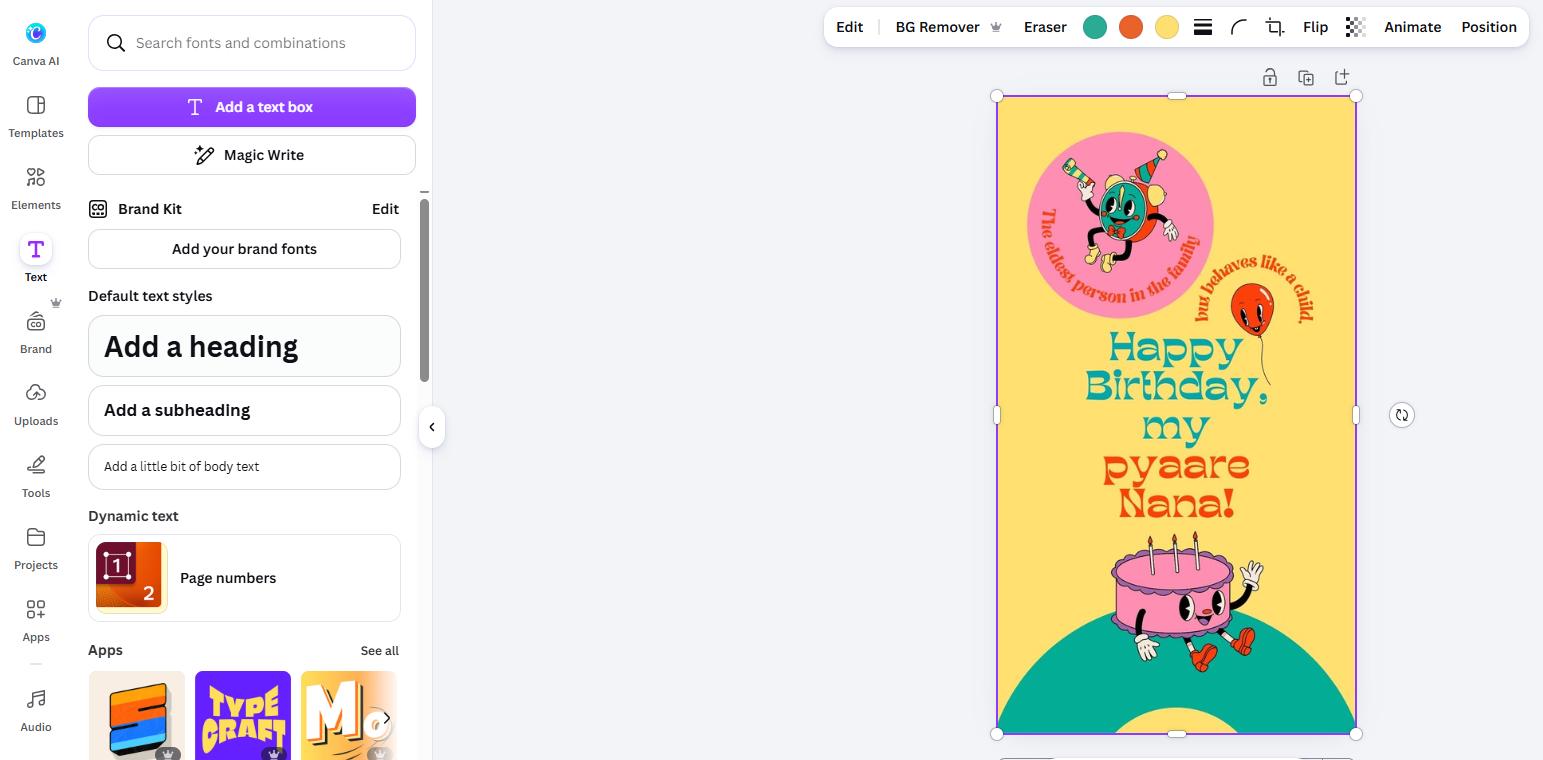
Canva is commonly used for graphic design, but it also includes tools that can help edit text that is already embedded in an image. With its text recognition and image editing features, you can isolate text in a screenshot, modify the wording, and then use Canva’s regular design tools to refine the result. It is particularly useful if you want to do more than correct one word—for example, adding arrows, shapes, highlights, icons, or other elements around the screenshot.
How to Edit Text in a Screenshot with Canva
- Upload the screenshot to Canva.
- Open the image editing tools.
- Select the text you want to change.
- Replace the wording or add the word.
- Adjust the font and design.
- Download the edited screenshot.
Pros
- Combines text editing with full design tools
- Large font library
- Easy to add annotations and graphics
- Good for social media and presentation images
- Browser-based
Cons
- Some AI editing features require Canva Pro
- More tools than necessary for a simple text correction
4. Picsart
Best for: Editing text together with other parts of the screenshot
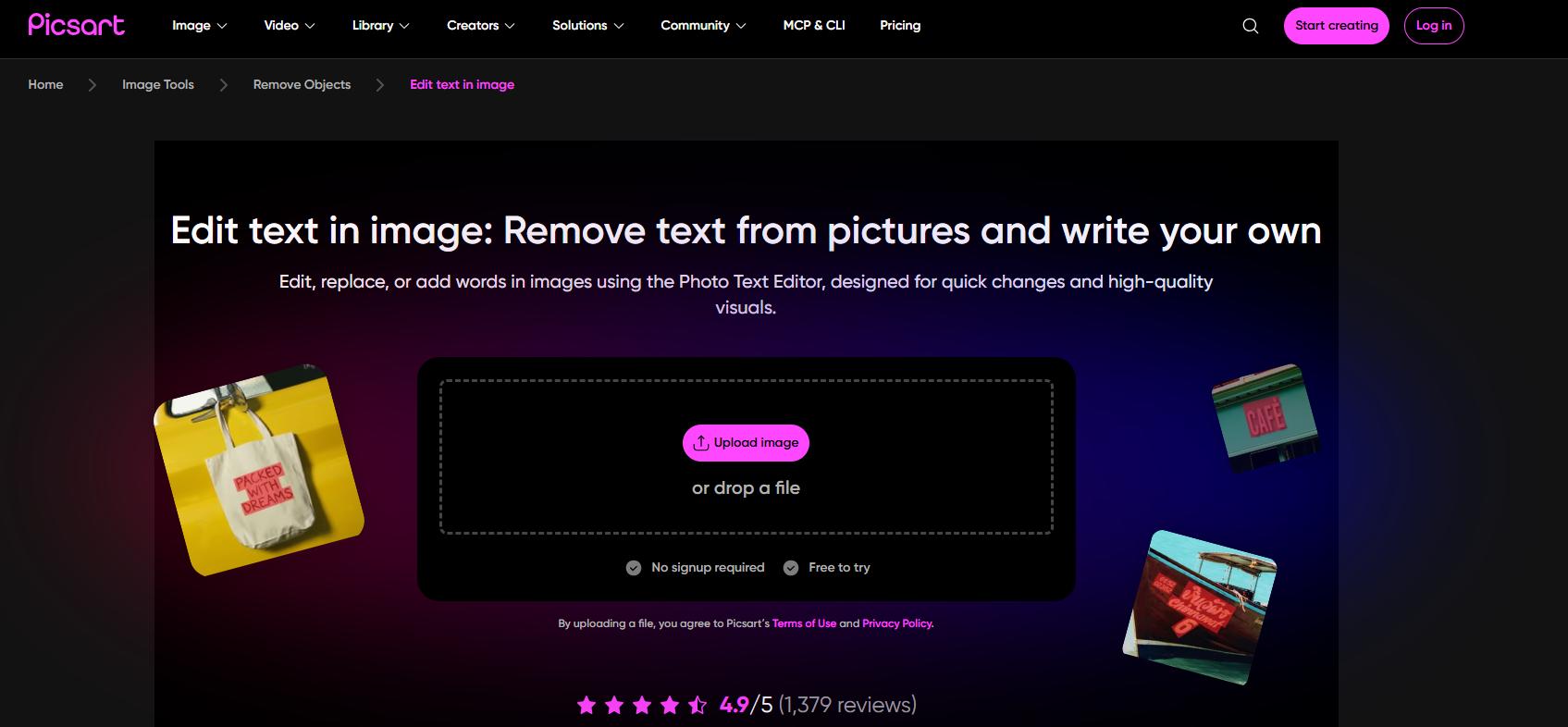
Picsart combines AI-powered image editing with more traditional design tools.
You can use it to remove existing words from a screenshot and then add replacement text using adjustable fonts, sizes, colors, and positioning. It also provides tools for removing objects, cleaning backgrounds, cropping images, and adding effects, making it useful when the screenshot needs several changes at once.
How to Edit Screenshot Text with Picsart
- Upload your screenshot.
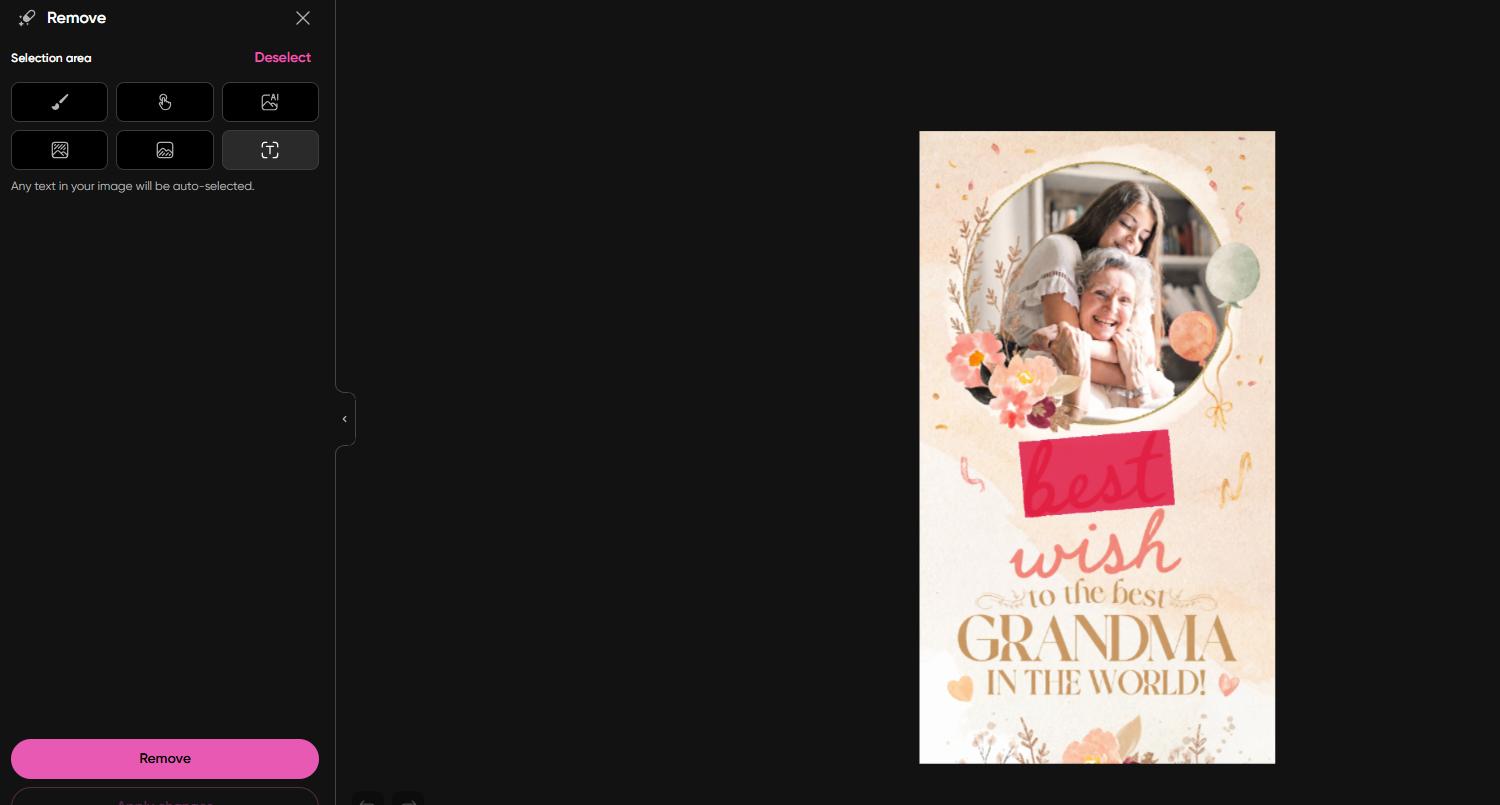
- Select the text or area you want to remove
- Remove the original text.
- Add your replacement wording.
- Adjust its style and position.
- Make any additional image edits.
- Export the final image.
Pros
- Good range of AI editing tools
- Supports text removal and replacement
- Many font and design options
- Useful for creative edits
Cons
- The interface can feel busy for simple edits
- Some AI and removal features may require a paid plan
5. Photopea
Best for: Precise edits when automatic AI tools do not give the result you want
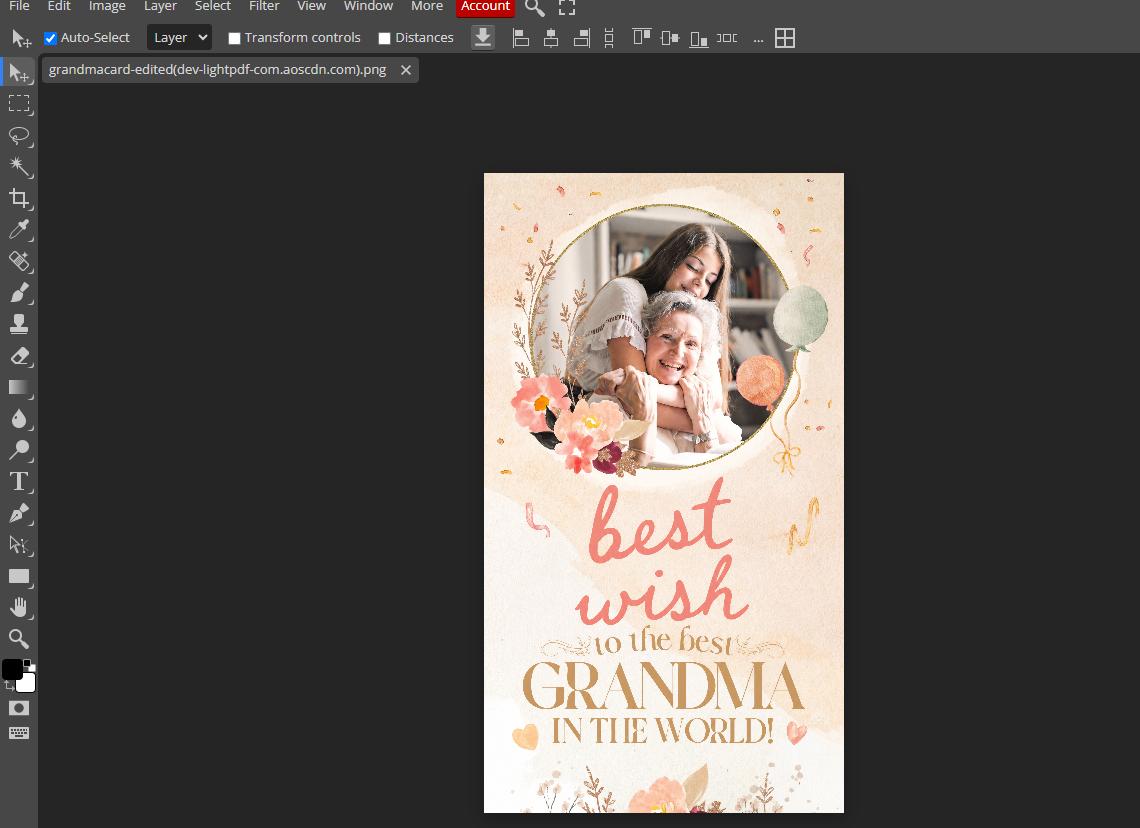
Photopea takes a more traditional image-editing approach. Instead of automatically turning screenshot text into editable text, you can manually remove the original words and place a new text layer over the same area. For screenshots with simple backgrounds, you can cover or clone the surrounding area over the original text, then use the Type tool to recreate the wording. The process takes more time, but it gives you more control over the final appearance.
How to Edit Screenshot Text with Photopea
- Open your screenshot in Photopea.
- Zoom in on the text you want to change.
- Use a brush, clone, or retouching tool to remove the original text.
- Select the Type Tool.
- Enter the replacement text.
- Match the font, size, color, and spacing.
- Export the edited image.
Pros
- Precise manual control
- Full browser-based image editor
- Extensive text settings
- Useful when AI recognition fails
- No desktop Photoshop installation required
Cons
- Does not automatically recognize existing text
- Requires more manual editing
- Matching fonts can take extra time
6. Edit Text in an screenshot with EditTextImage
Best for: Quickly replacing or correcting existing text in screenshots and images online.
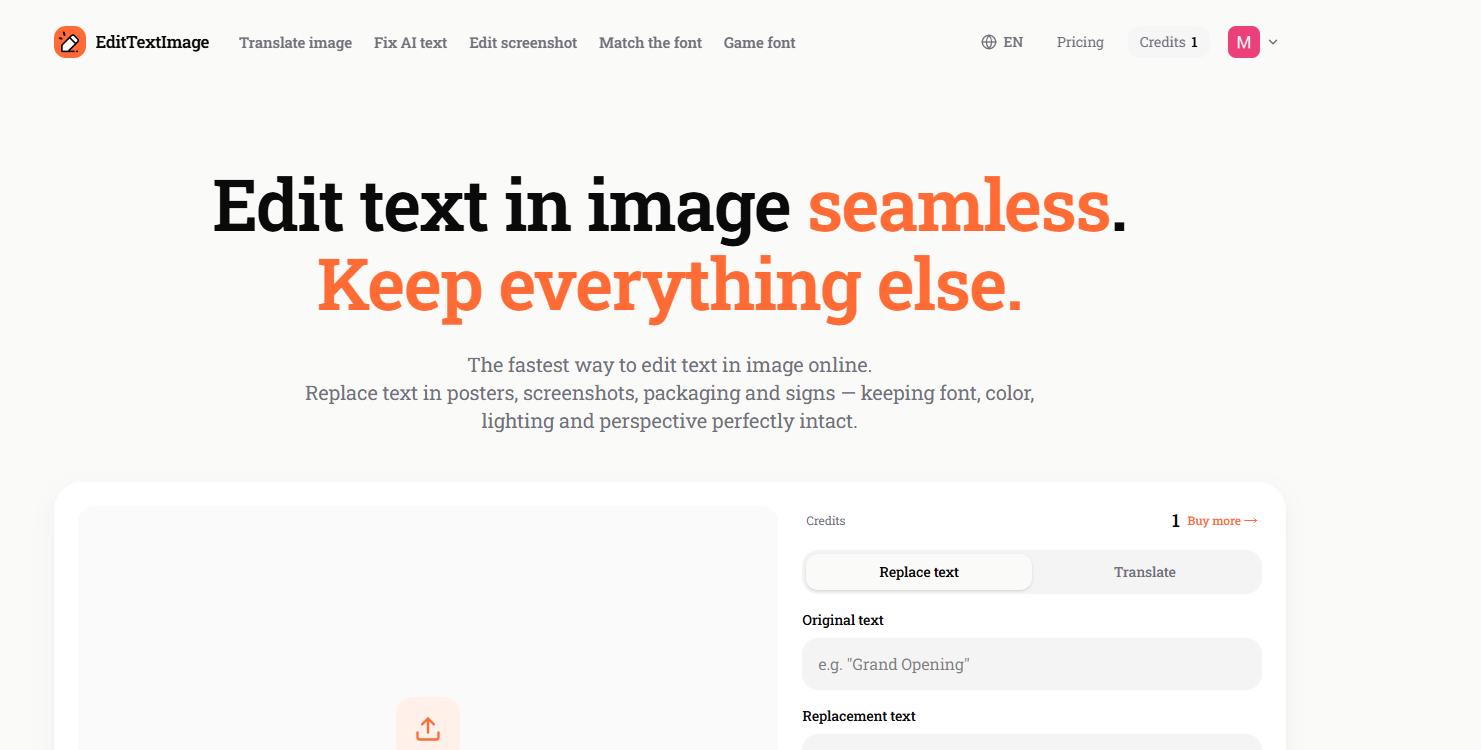
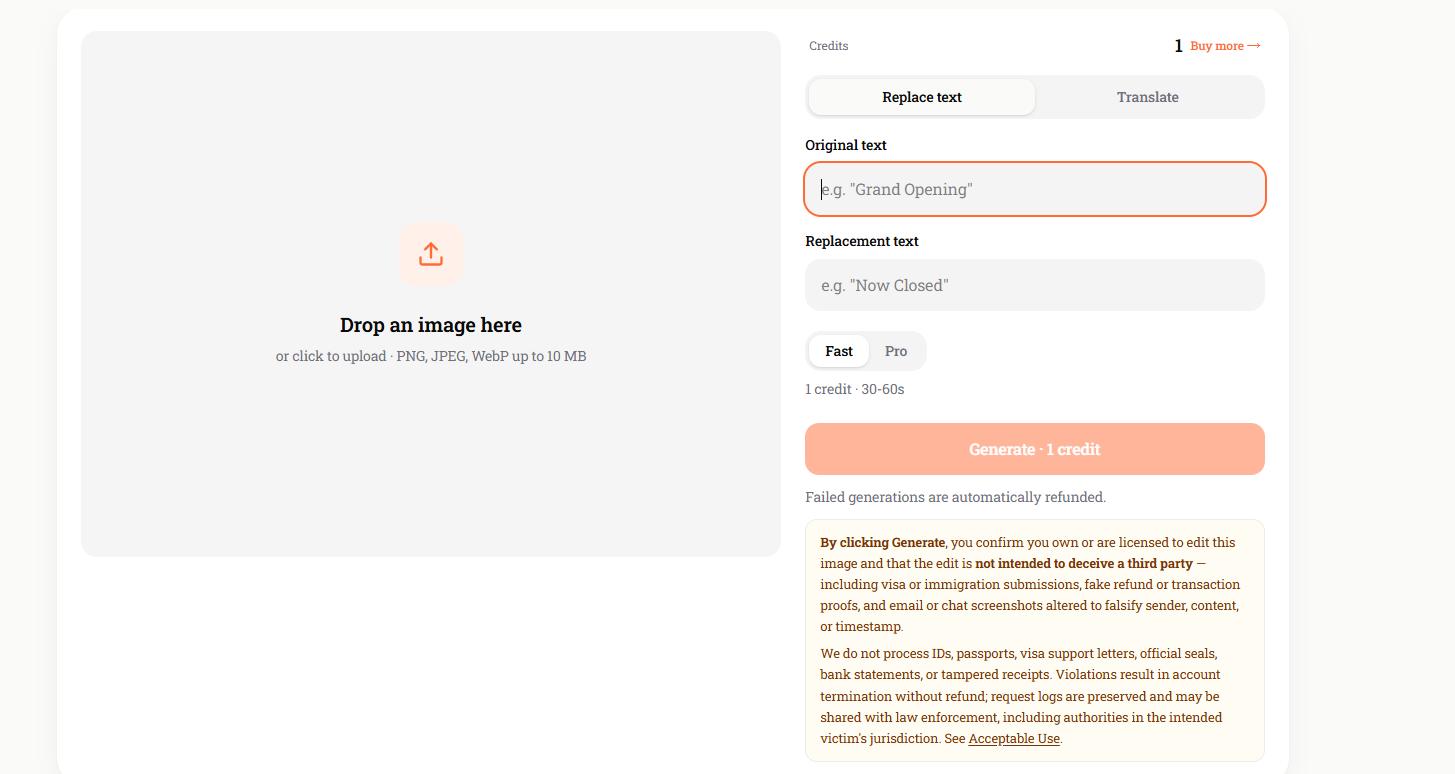
EditTextImage is an AI-powered online tool designed specifically for replacing existing text in images. Instead of manually covering the old words and trying to match the font, you simply enter the original text and the replacement. The AI then updates the image while trying to preserve the original font, color, size, perspective, and surrounding background.
It works well for screenshots, posters, product images, social media graphics, and other images where you want the new text to blend naturally with the original design. It supports PNG, JPEG, and WebP files up to 10 MB.
How to use EditTextImage:
- Open EditTextImage and upload your screenshot or image.
- Enter the text currently shown in the image.
- Type the new text you want to replace it with.
- Generate the edited image and download the result.
Pros
- Designed specifically for replacing existing image text
- Automatically tries to match the original font and visual style
- Works directly in a browser
- Useful for screenshots, posters, and social media images
Cons
- Requires sign-in to generate an edit
- Only one free credit is provided for new accounts
- Results may vary with handwriting or heavily stylized text
Tips for Getting Better Results
Whichever screenshot text editor you use, a few things can make the replacement look more natural:
- Start with the highest-resolution screenshot available.
- Edit short words or individual lines instead of large areas at once.
- Keep replacement text close to the length of the original.
- Check the font weight, size, color, and spacing.
- Zoom in to inspect the background after removing the original text.
- Use manual editing when text overlaps detailed graphics or photos.
Conclusion
Editing text in a screenshot no longer means recreating the entire image. Tools like PicWish, Fotor, Canva, Picsart, and Photopea can help you correct or replace existing words online, whether you prefer a quick AI edit or more precise manual control.


Leave a Comment