


Part.1 Quick Fix
If you have a blurry, crooked, or unreadable document, you can instantly fix it online. Using an automatic PDF quality enhancer is the fastest way to achieve a dramatic PDF quality increase without downloading heavy software. Whether you need to fix a faded contract or improve PDF quality for an important client presentation, modern cloud tools can restore your text clarity in seconds.
If you are looking to immediately enhance PDF quality, follow these three quick steps using LightPDF:
1. Open free PDF enhancer web online on any browser.
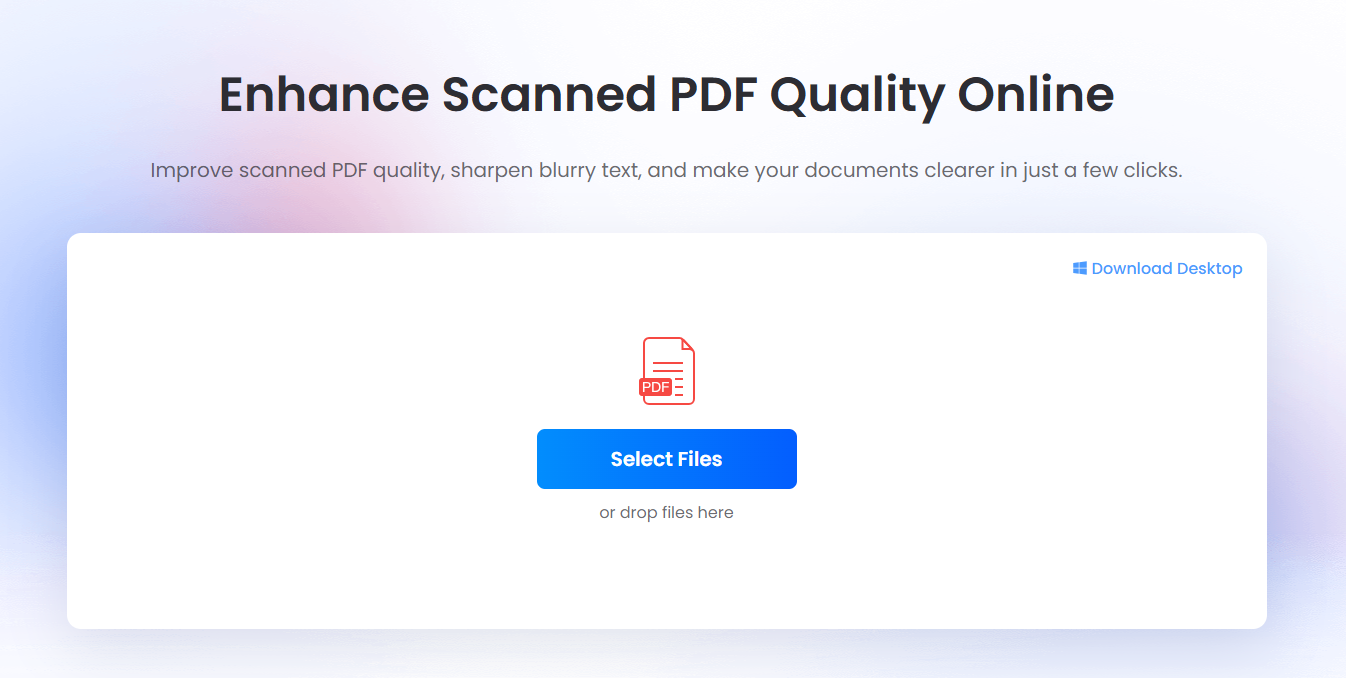
2. Upload the PDF file by clicking Select Files or dragging your document into the box.
3. Choose your optimization mode:
- Quick Enhance: Improve text clarity and readability in seconds.
- AI Restore: Recover blurry text and restore low-quality scans with AI.
- On this exact same screen, you can also click Add Files to upload and batch-process multiple documents simultaneously before running the engine.
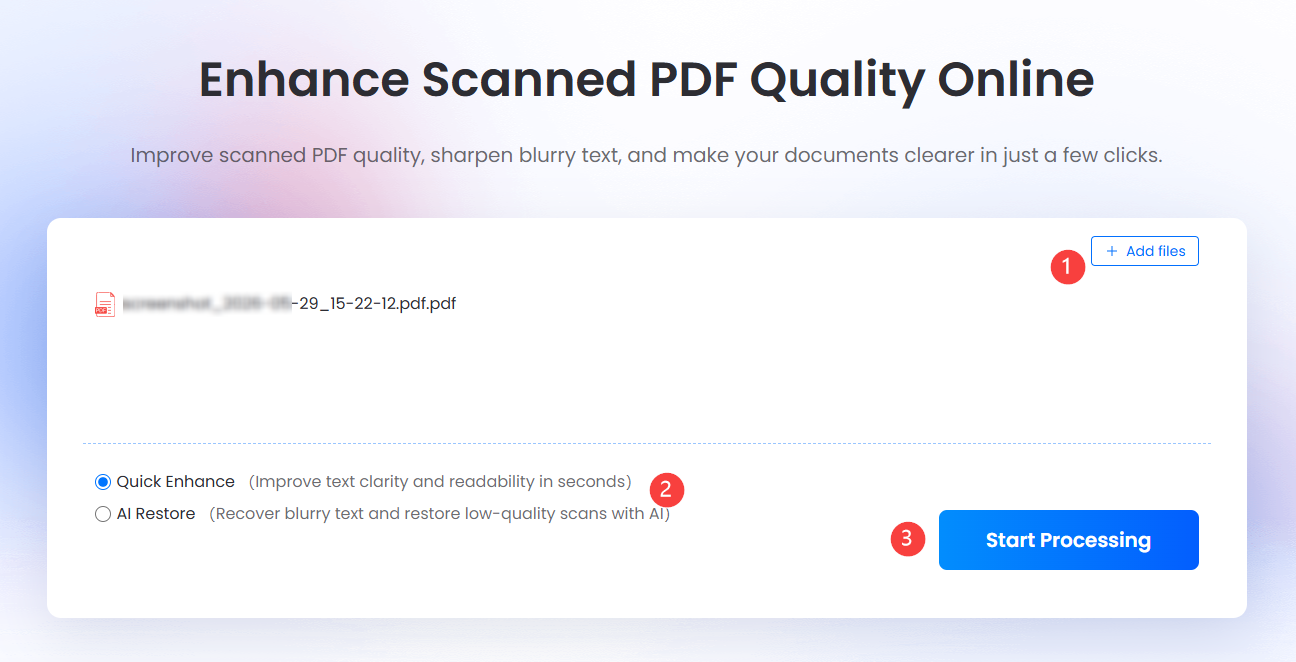
4. Once the backend automatically recognizes and sharpens the PDF text based on your choice, just download your crystal-clear file.
Part.2 Why Is Your PDF Blurry
We have all been there. You download an archived report or receive a scanned invoice from a vendor, only to find the text looks like an oil painting left out in the rain. When you try to improve PDF quality, you are usually fighting two distinct enemies: poor physical capture from legacy scanning hardware, or aggressive digital compression that introduces pixelated artifacts around the letters.
Simply changing a file extension or upscaling the resolution through basic image editors will not solve the underlying problem. If the initial input data is muddy, upscaling just gives you a larger, higher-resolution version of a muddy document. True optimization requires an engine that actively alters the structural layout of your file.
To achieve a meaningful PDF quality increase, professional software targets specific visual and structural anomalies:
- Deskewing: When paper goes into a physical feeder slightly sideways, the digital output tilts. Deskewing algorithms calculate the baseline angle of the text lines and instantly rotate the digital canvas back to a perfectly level grid. This is crucial because text alignment dramatically impacts how subsequent systems read the data.
- Despeckling: Old paper records carry dust, stray ink markings, and severe binding shadows near the margins. A dedicated scanned document enhancer analyzes the pixel density of these anomalies, separating actual character strokes from background noise, and cleans the canvas space completely.
- Contrast Boosting: Gray-scale scans often bleed together, making faded ink blend into a yellowed paper background. Contrast tuning forces those light grays into rich, deep blacks while bleaching the surrounding background space to a pure, stark white. This separation is exactly how you improve scanned PDF quality for long-term archiving.
- OCR Engine Integration: Optical Character Recognition is the real turning point. It reads the newly sharpened geometric forms of the characters and overlays an invisible, interactive text layer directly on top of the original image. Suddenly, a dead digital image turns into a dynamic asset you can actually search, copy, and highlight.
Part.3 The Best Tools to Enhance PDF Quality
Choosing the right application depends entirely on where your documents live, your security parameters, and how much manual tweaking you actually want to do. Let’s look at the absolute best options running right now.
1. LightPDF (Best Overall for Speed & Ease)
LightPDF is a highly efficient scanned document enhancer designed for zero-friction optimization. If you are stuck on a public terminal, working from a tablet, or simply do not want to deal with the endless software update prompts of traditional desktop apps, this platform offers an immediate escape route.
Its standout feature is complete automation. Instead of forcing you to decipher complex technical sliders, color-depth thresholds, or target DPI metrics, its cloud infrastructure utilizes an adaptive sharpening pipeline. The moment you drop a file onto the interface, it evaluates the contrast deficiencies and runs its text reconstruction models simultaneously.
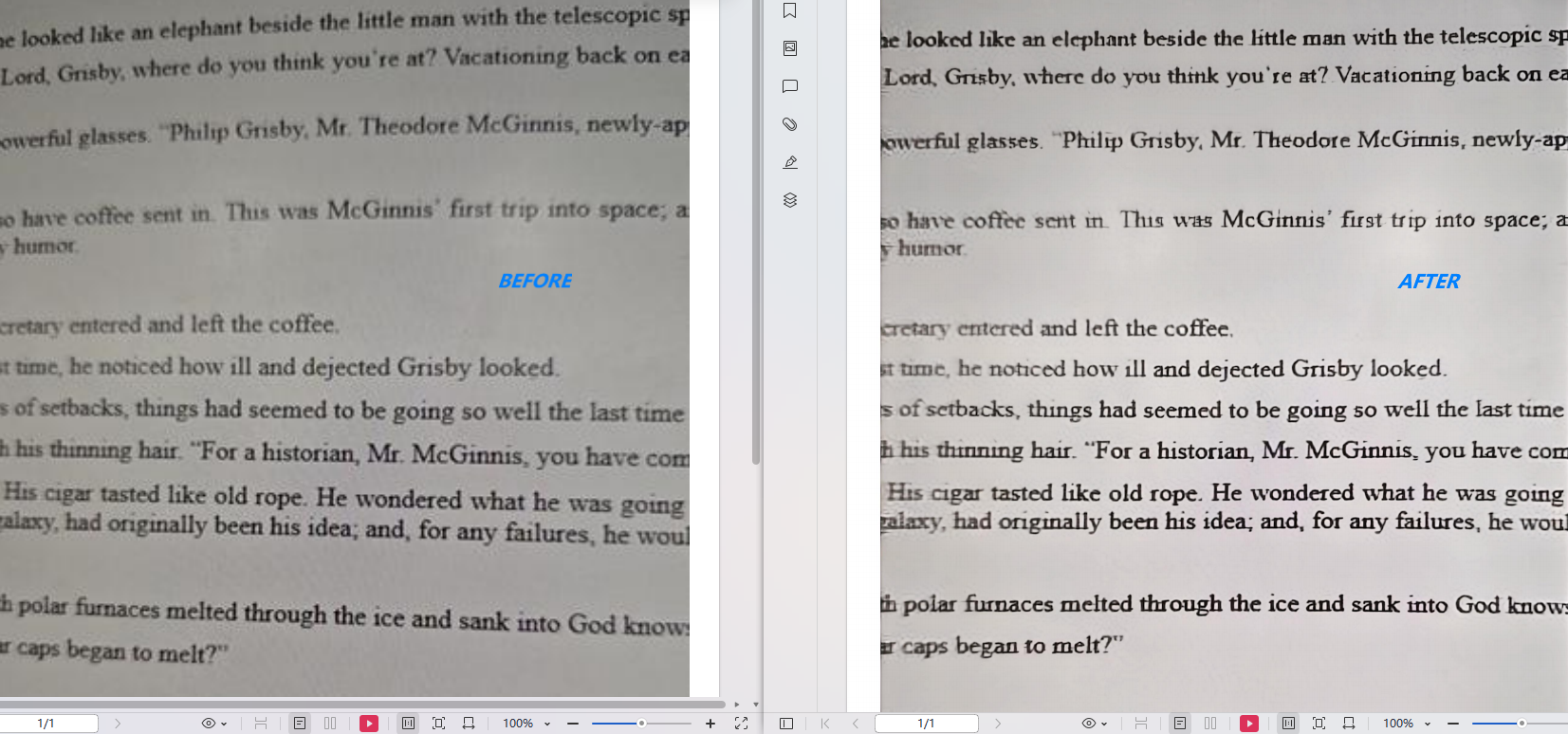
It is the ideal way to improve scanned PDF quality if you have a massive batch of mixed receipts or lecture notes and just need them readable within the next two minutes. It handles text-heavy sheets brilliantly, though like all automated web tools, highly specialized mathematical blueprints or music sheets might still require manual fine-tuning on local hardware.
2. Adobe Acrobat Pro (Best for Enterprise Compliance)
Acrobat remains the definitive, heavy-duty industrial standard for document management. If you are handling high-stakes corporate legal filings or preparing internal company documents that must comply with rigid accessibility rules, Acrobat’s Preflight engine is unmatched.
It allows you to explicitly rewrite the color profiles, force native downsampling controls, and manually replace low-resolution corporate logos with crisp vector shapes without breaking the alignment of your text paragraphs. Furthermore, it allows you to build hidden tag structures so that screen readers used by visually impaired individuals can read headings, tables, and lists in the proper order.
The downside? The interface is notoriously dense, the subscription cost is steep, and it feels like overkill if you just want to make a single blurry receipt legible.
3. Nitro PDF (Best for Fast Office Workflows)
Nitro positions itself perfectly between the casual online utility and the complex enterprise maze. Built with a familiar user interface that mimics the classic Microsoft 365 ribbon, it removes the steep learning curve for office staff.
When you use Nitro to enhance scanned PDF files, you get access to excellent localized precision. If a scan contains handwritten notes, coffee stains, or confidential numbers that should never be uploaded to a public cloud, Nitro allows you to whiteout custom zones, crop away messy page margins, and apply legally binding digital signatures directly onto your newly sharpened document sheets. It handles localized processing smoothly on Windows machines, making it a reliable daily driver for legal assistants and accounting teams.
Part.4 PDF Enhancer Comparison
The table below breaks down exactly where each platform shines, helping you pick the right tool based on your current task constraints rather than general marketing promises.
| Tool | Core Advantage | Deployment Model | Best Fit For | Processing Speed |
| LightPDF | 1-Click Auto-Sharpening | Web Online (Cloud-based) | Fast, friction-free text optimization on any device | Ultra-Fast (Seconds) |
| Adobe Acrobat Pro | Preflight Profiles & Accessibility Tags | Desktop & Mobile Apps | Enterprise compliance, print prep, and deep vector replacement | Moderate (Manual setup) |
| Nitro PDF | Localized Whiteout & eSign Layouts | Desktop Software (Windows) | Heavy corporate operations and secure local editing | Fast (Hardware dependent) |
Part.5 Beyond Enhancement
Let’s look at the bigger picture: nobody optimizes a document just to look at it. You are trying to enhance PDF quality because you have to actually use the information trapped inside that file. In a real-world office workflow, visual sharpening is merely the first link in a much longer administrative chain.
Once your document is clean, readable, and fully optimized, your daily routine almost always demands additional structural changes to make that data useful:
- Intelligent Split & Merge: You might have a 400-page scanned manual, but your team only needs Chapter 3. A proper setup lets you isolate those crisp, newly enhanced pages into a lean, standalone file, or bundle ten separate optimized invoices into a single package for the finance department.
- Dynamic Format Conversion: Sometimes text needs to be edited, not just read. Turning an optimized PDF into a clean Word document or an unsearchable data table into an active Excel sheet saves hours of manual data entry.
- Secure Signatures & Smarter Redaction: Before an optimized contract goes into long-term cloud storage, it needs a valid signature. At the same time, sensitive data like personal phone numbers or corporate bank codes need to be permanently blacked out so they don’t leak during a security audit.
Enter the Era of Document AI Agents
Instead of wasting time opening four different programs to handle these tasks individually, modern document management has shifted toward autonomous AI Agents. Think of an AI Agent as an intelligent, context-aware co-pilot that understands intent.
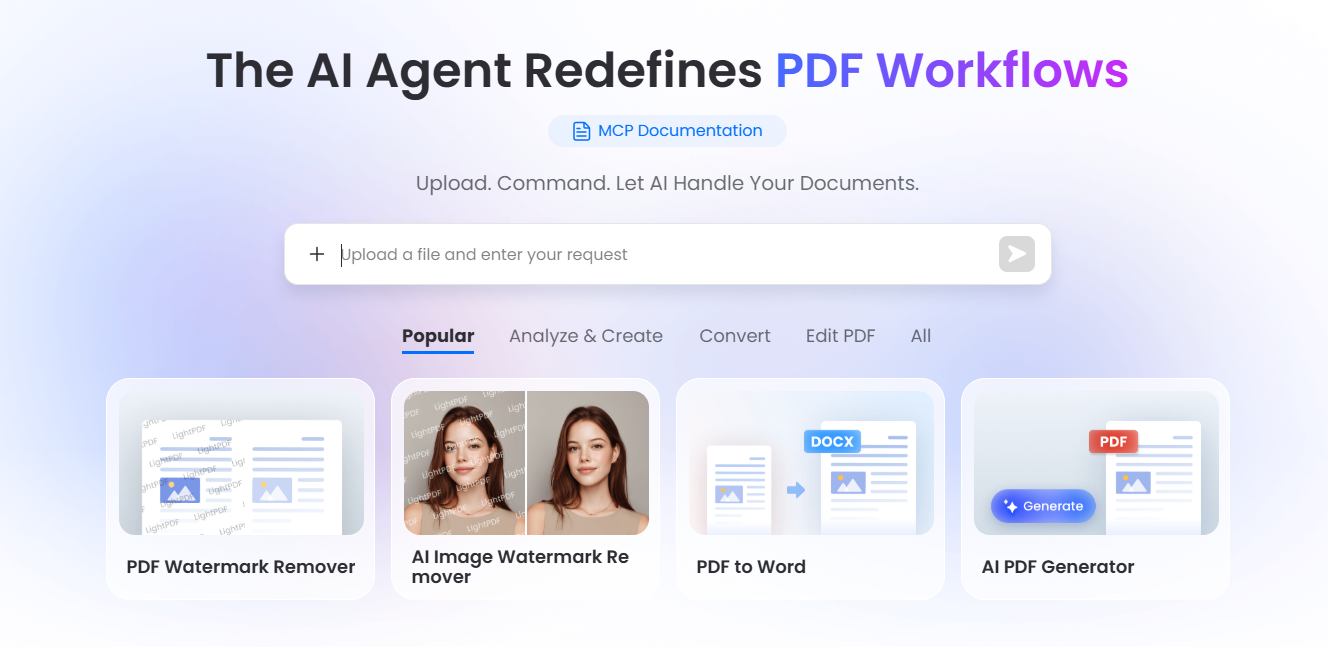
Instead of clicking through a series of menus to drop, clean, split, and convert your files, you converse with the system in plain English:
“Take these five crooked, blurry receipts from last week. Straighten them up so they look professional, merge them into a single file chronologically, convert the final document into an editable spreadsheet, and give me a quick bulleted summary of the total taxes paid.”
The underlying AI Agent takes that single prompt, commands the scanned document enhancer pipeline to clear up the background noise, organizes the sequence, runs the format conversion, and extracts the structural data automatically. It changes document management from a manual chore into a simple conversation.
Part.6 FAQ
1. How can I enhance PDF quality for free online?
The most direct method is to use a web-based service like LightPDF. You simply open the tool online, upload your target file, and let the cloud system handle the text sharpening automatically. Once the processing pipeline finishes cleaning the contrast, you can download the clean document instantly without navigating complex configuration screens.
2. Why do my scans look blurry even after changing the resolution?
Because artificially increasing a file’s dimensions or file size doesn’t create new visual data. If an original paper sheet was captured by a dusty scanner or a low-grade phone camera, the file just registers those blurry pixels on a larger scale. To achieve a real PDF quality increase, an optimizer must apply threshold filters to separate text shapes from the background before using an OCR engine to reconstruct the characters cleanly.
3. What is the best DPI setting for a PDF quality increase?
It depends entirely on your end goal. For reading on screens, sending email attachments, or uploading to cloud storage platforms, 150 DPI offers the ideal balance between a small file size and sharp readability. If you are archiving permanent legal records, architectural blueprints, or planning to reprint the pages on a physical printer, you should always target 300 DPI or higher.
4. Can an AI reader parse a low-quality or messy scan?
AI summaries and data extraction agents rely on clean data inputs. If your document is heavily faded, skewed, or filled with scanning artifacts, the AI’s accuracy rates will drop drastically, often leading to hallucinations or missed values. Always run your files through a utility to enhance scanned pdf clarity before handing them off to an AI assistant.
5. Is it safe to use an online web utility for confidential documents?
If you are handling highly sensitive corporate records, personal medical data, or proprietary financial charts, you must verify the tool’s data retention policies. Ensure the platform uses end-to-end HTTPS encryption and guarantees automatic file deletion from their cloud servers within an hour of processing. For highly regulated industries, running a local desktop editor like Nitro or Acrobat Pro keeps your data completely offline and within your local network perimeter.


Leave a Comment