


Official iStock Image Downloader Options
1. Download iStock’s Weekly Free Photos

iStock makes three photos available to download for free each week. This is a good starting point when you need a visual for a blog post or slide deck and have some flexibility on the subject.
- Open iStock’s Free Stock Photos page.
- Sign in or create a free iStock account.
- Choose a photo from the current selection and follow the on-screen prompts to download it.

2. How to Download a Watermarked Image from iStock
Download a watermarked preview to test how the photo looks in your draft layout.
- Open the photo’s detail page on iStock.
- Click Try below the image to start the download.
- Find the preview in your browser’s downloads.

Use Crop to adjust the framing and see how the subject fits in a wide banner or a square layout.

Click Save to add the photo to an iStock Board, where you can compare it with other picks or find it later.

3. Download a Specific iStock Photo With Credits or a Subscription
For a photo outside the weekly free selection, use iStock credits for an occasional download or a subscription that covers the photo’s collection. The detail page shows how many credits the photo costs.

- Sign in and open the photo’s detail page.
- Check the available dimensions. If iStock offers a choice of sizes, select the one you need.
- Select Download this image and confirm when prompted. If iStock takes you to checkout, complete the purchase, then return to the detail page and select the download option again.
How to Check Whether an iStock Photo Is Large Enough for 4K
For a landscape 4K UHD layout, the target is 3,840 × 2,160 pixels. Look for Largest size on the photo’s detail page and check both the width and the height. iStock provides the largest available image size by default.
- 4,500 × 3,000 px gives you enough pixels to crop to 16:9 and export at 4K UHD.
- 4,500 × 1,800 px is wide enough for 4K UHD, but falls short of the 2,160-pixel height needed to fill the frame at its current resolution.
The same size check applies to the weekly free photos. If you plan to crop tightly around the subject, choose an image with enough pixels in the area you want to keep.
Where to Find a Photo You’ve Already Downloaded
- Sign in to your iStock account.
- Click your profile icon, then select Download history.
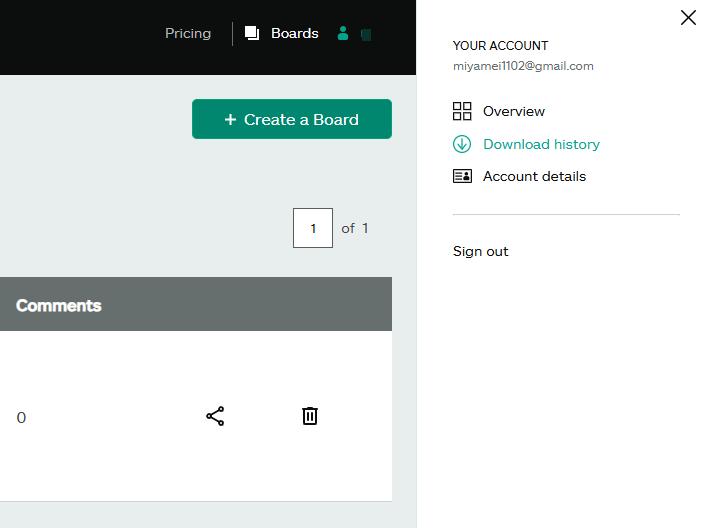
- Find the photo in the list. To download it again or choose a smaller size, click the download icon next to it.
You can download photos purchased with credits again at no extra cost. For subscription downloads, you can get another copy while your plan is active.

Free Stock Photo Alternatives to iStock
If you’re flexible about which photo you use, these stock photo sites offer free images you can download directly.
Pexels
Pexels is a good place to look for lifestyle and workplace photos, such as a team meeting or a home office setup. Use the orientation and size filters to find photos that fit your banner, slide, or social post.
Unsplash
Unsplash is useful for landscapes, travel photography, and full-width backgrounds. If you plan to place a headline over the image, look for a photo with clear space on one side. Open a photo with a Download free button and use the size menu to choose the original size if you need extra room to crop.
Pixabay
Start in Pixabay’s Photos section when you need a specific subject, such as a recipe ingredient or a holiday scene. Try adding a term like “overhead” or “close-up” if the composition matters. Once you find a photo, open its download menu and compare the available dimensions before choosing a size.
Enhance a iStock Photo With LightPDF
If a photo looks a little soft in a banner or slide, LightPDF’s Scanned PDF Enhancer also accepts images and can help sharpen details.
- Upload the largest suitable copy of your photo on LightPDF.

- Choose the Enhancement Mode and run the enhancement.
- Download the enhanced image.


Edit Text in Your Blog Graphics With LightPDF
Once you’ve exported a blog banner that uses an iStock photo, you can still correct a typo in your headline or update your caption directly in the image.
- Upload your graphic to LightPDF.
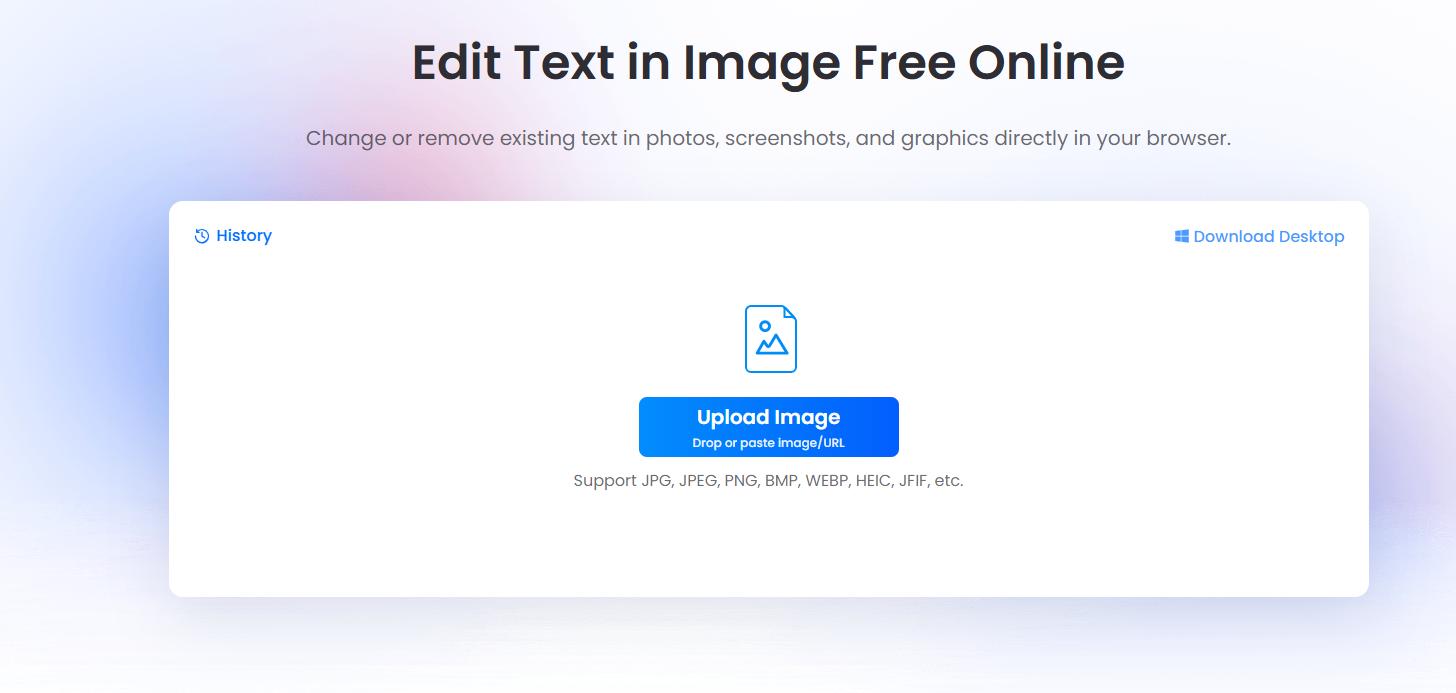
- Select the existing text and enter the new wording.
- Preview the edit and download the updated image.


Leave a Comment