


🔥 Edit Image Text Online
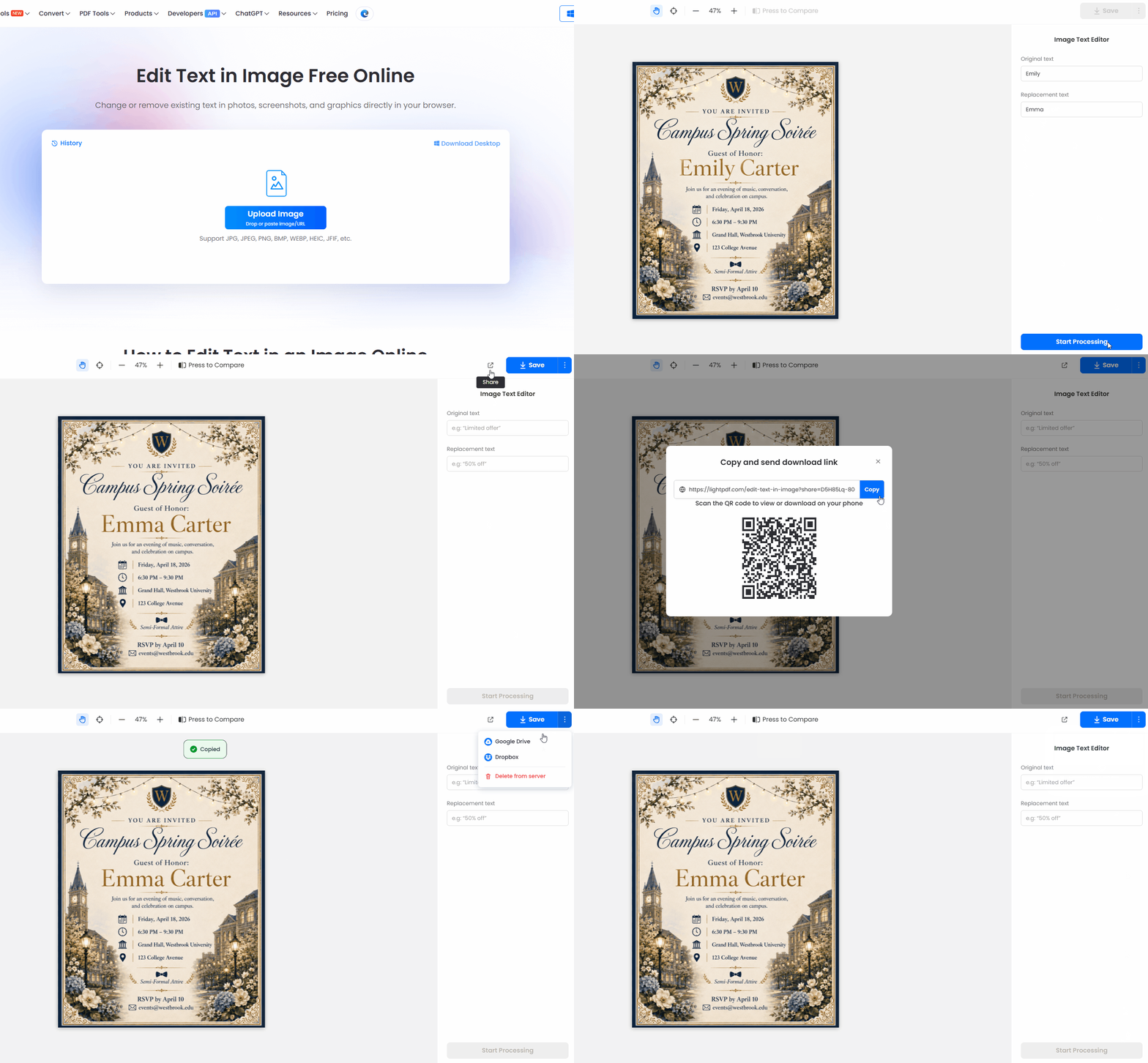
Edit text in images online without recreating the original design. With LightPDF’s AI-powered Image Text Editor, you can replace existing words, numbers, dates, or other text in photos, screenshots, scanned documents, and graphics while preserving the original text style and surrounding layout. The AI automatically analyzes the existing text and blends the replacement into the image for a natural, consistent result.
How It Works
Step 1: Upload your image to online image text editor.
Step 2: Enter the original text you want to change and type your replacement text.
Step 3: Click Start Processing. The AI automatically detects the existing text and prepares the replacement.
Step 4: The AI removes the original text and recreates the replacement while matching the original font, size, color, spacing, and surrounding visual style.
Step 5: Preview the result and click Save Image to download your edited image.
Perfect For
- Correcting text in screenshots
- Updating dates or prices in graphics
- Fixing typos in images
- Editing text in scanned documents
- Updating marketing materials
- Modifying text in posters and flyers
- Revising text in personal notes
- Updating text in existing designs
🔥 Enhance PDF Quality
Improve scanned PDFs, restore faded text, and increase document readability with AI-powered enhancement. Whether you’re working with old contracts, scanned reports, or photographed documents, LightPDF helps transform low-quality PDFs into clear, professional-looking files.
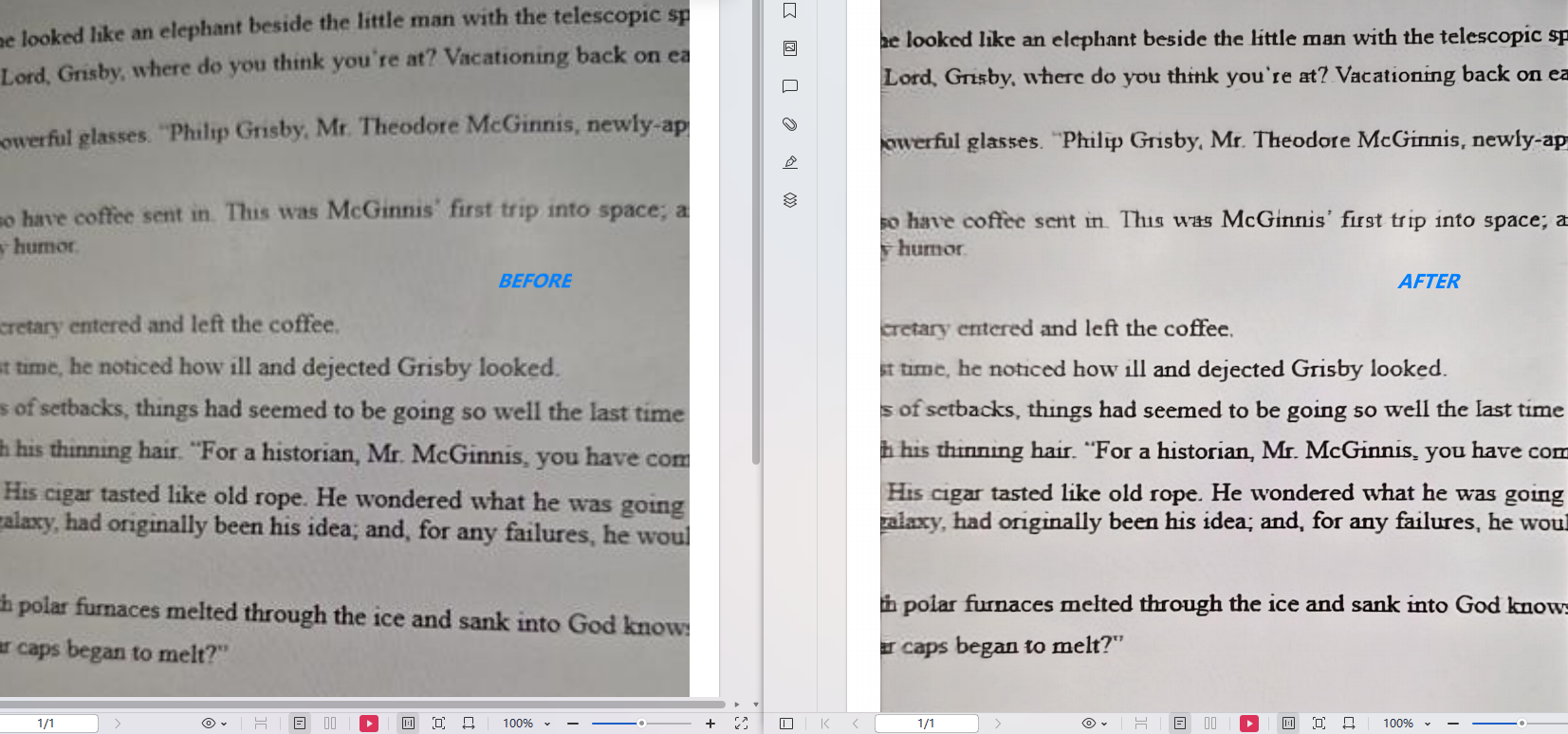
How It Works
Step 1: Upload your PDF document to online PDF enhancer.
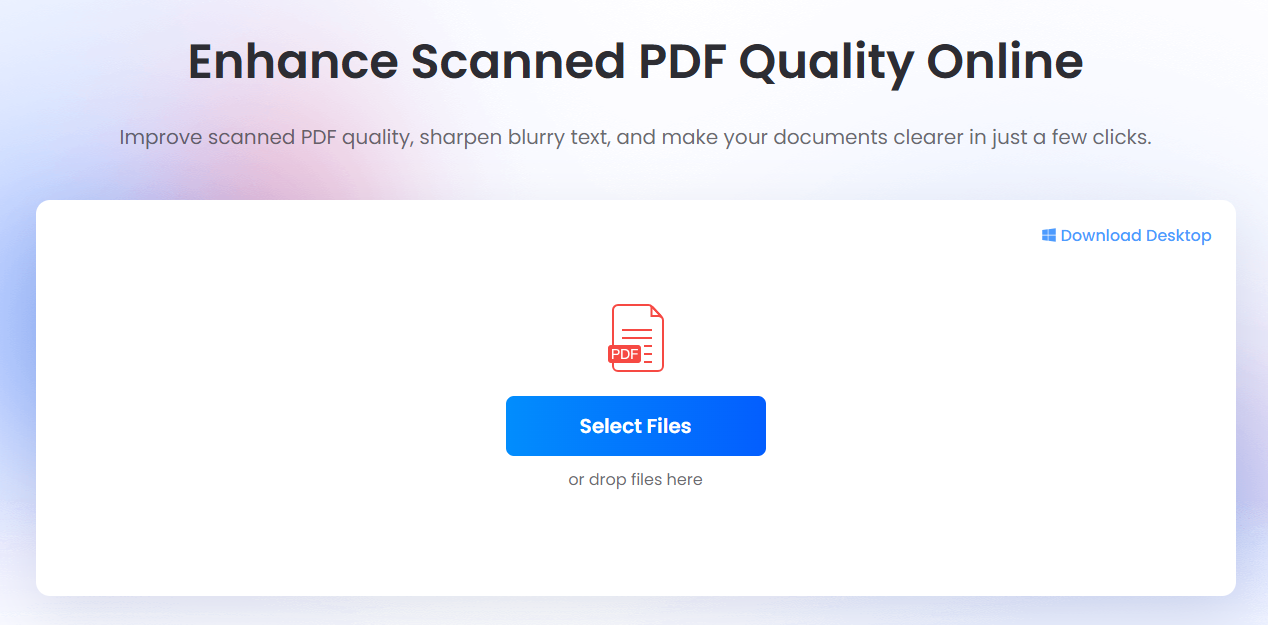
Step 2: Choose an enhancement mode.
Step 3: Click Start Processing. You can also click Add files for batch process.

Step 4: The AI automatically analyzes and improves document quality.
Step 5: Download the enhanced PDF instantly.
Perfect For
- Scanned contracts
- Historical archives
- Printed documents
- School notes
- Client presentations
Explore More Tools for Blurry PDFs
✍️Handwritten Notes Enhancer
Improve handwritten notes, classroom materials, and meeting notes.
🌗 PDF Shadow Remover
Remove shadows, uneven lighting, and dark backgrounds from scanned pages.
🧹 Cleanup PDF
Automatically clean visual noise, stains, smudges, and unnecessary artifacts.
🔥 PDF Form Filler
Create and fill out PDF forms online without rebuilding documents from scratch. Automatically detect form fields, preserve existing layouts, or create form groups from multiple related PDFs. You can also start with ready-made templates for tax, HR, healthcare, social security, and other common forms.
How It Works
Step 1: Open the PDF Form Filler and click Start Filling.

Step 2: Choose how you want to work with your PDF: automatically create fields with AI, fill an existing form, or create a form group from multiple documents.

Step 3: Review the detected fields or existing form structure, then enter the required information.
Step 4: For a faster start, choose a ready-made template from Form Templates for tax, business, HR, healthcare, and other common use cases.

Step 5: Complete your form and save the finished PDF.
Perfect For
- Filling out tax forms
- Completing business documents
- Preparing HR and onboarding forms
- Managing healthcare forms
- Completing social security documents
- Creating fillable PDF forms
- Filling multiple related PDF forms
🔥 Translate Images Online
Translate text in photos, screenshots, scanned documents, and graphics. LightPDF replaces the original text with the translation while maintaining the surrounding layout and visual style.
How It Works
Step 1: Upload your image to the Online Image Translator.
Step 2: Select the original language and the language you want to translate into.
Step 3: Click Start Processing to recognize and translate the text.
Step 4: The AI removes the original text and inserts the translation into the image.
Step 5: Preview the translated image and download the result.

Perfect For
- Translating screenshots
- Localizing marketing graphics
- Translating posters and flyers
- Understanding foreign-language documents
- Translating product images
- Translating comics and visual content
- Localizing social media images
🔹 Translate Scanned PDFs Online
Translate scanned PDFs without performing OCR separately. LightPDF recognizes image-based text, translates it into your selected language, and preserves the original document layout.
How It Works
Step 1: Upload your document to the Scanned PDF Translator.

Step 2: Select the original and target languages.
Step 3: Choose the files or pages you want to translate.

Step 4: Click Start Processing. LightPDF recognizes and translates the scanned text automatically.
Step 5: Preview the translated document and download the finished PDF.
Perfect For
- Translating scanned contracts
- Translating academic papers
- Processing multilingual business documents
- Translating scanned books and manuals
- Translating invoices and receipts
- Translating archived documents
- Preserving complex document layouts
🔹 Remove Handwriting from Images
Automatically remove handwritten notes, answers, marks, and annotations from images while preserving the printed content and background.
How It Works
Step 1: Upload your image to the Handwriting Remover.
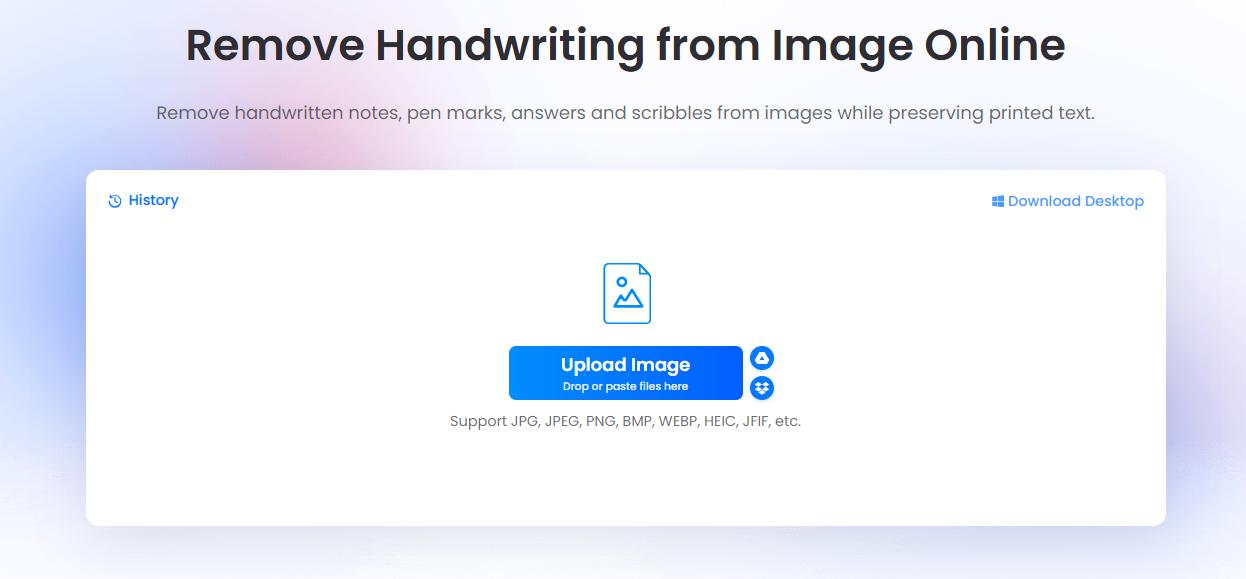
Step 2: Choose Basic Mode for faster processing or AI Mode for more complex handwriting.

Step 3: Click Start Processing to detect and remove the handwritten content.
Step 4: Review the cleaned image and make additional adjustments if necessary.
Step 5: Download the processed image.
Perfect For
- Cleaning completed worksheets
- Removing answers from practice tests
- Erasing notes from study materials
- Cleaning annotated documents
- Reusing teaching materials
- Removing pen marks from forms
- Preparing clean printable copies
🔹 Remove Handwriting from PDFs
Remove handwriting, pen marks, answers, and annotations from scanned PDF pages while keeping the printed text and original layout intact.
How It Works
Step 1: Upload your scanned document to the PDF Handwriting Remover.
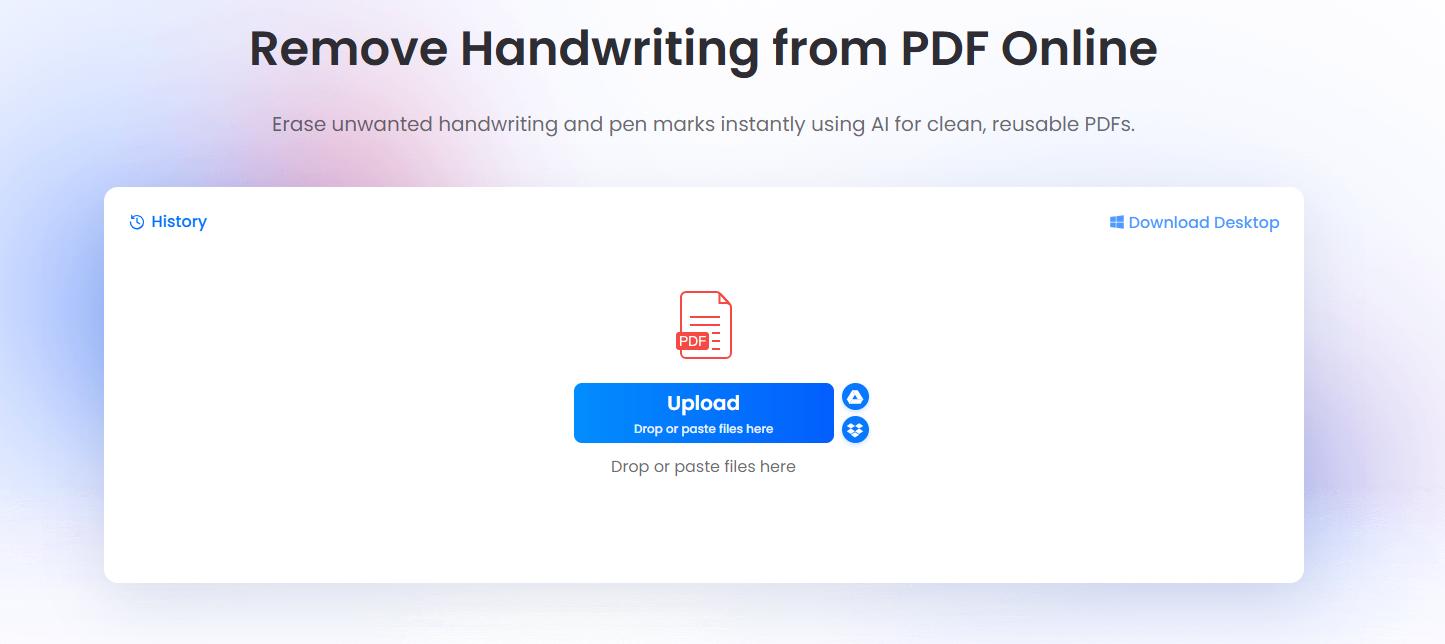
Step 2: Select the pages you want to process.
Step 3: Choose the appropriate processing mode for your document.
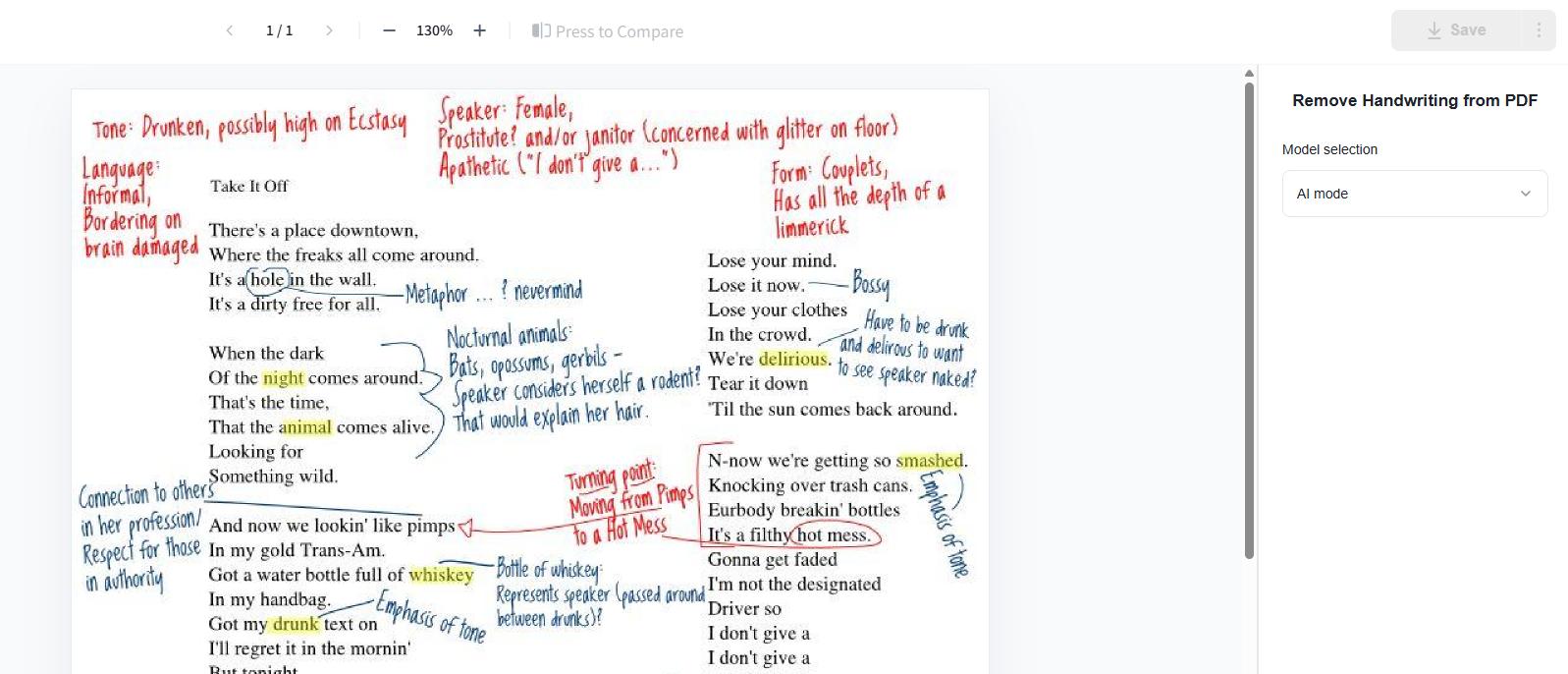
Step 4: Click Start Processing to detect and remove the handwritten content.
Step 5: Preview the cleaned pages and download the processed PDF.

Perfect For
- Cleaning scanned worksheets
- Removing handwritten answers from tests
- Erasing notes from PDF documents
- Restoring reusable forms
- Cleaning annotated study materials
- Preparing documents for printing
- Digitizing marked paper documents
🔥 Edit Text in Scanned PDFs
Edit existing text in scanned PDFs without converting them into editable documents first. LightPDF recognizes the text and replaces or removes it while preserving the original page layout.
How It Works
Step 1: Upload your scanned PDF to the Scanned PDF Text Editor.
Step 2: Enter the original text you want to change and type the replacement text.

Step 3: Enter the original text and replacement text on a specific page or across the entire document.

Step 4: Click Start Processing to detect and replace the selected text.
Step 5: Preview the result and download the edited PDF.
Perfect For
- Correcting errors in scanned PDFs
- Updating names, dates, or numbers
- Replacing repeated text in multiple pages
- Revising scanned forms and contracts
- Removing outdated information
- Editing archived documents
🔥 Screenshot to Text
Extract text from screenshots of web pages, documents, chats, and images. LightPDF recognizes the text in your screenshot and turns it into editable digital text while keeping the content easy to review, edit, and export.

How It Works
Step 1: Upload your screenshot to the Screenshot to Text converter.
Step 2: Click Convert to start recognizing the text in the screenshot.
Step 3: Review the recognized text on the editing page, where you can edit the content online if needed.
Step 4: If no changes are required, simply click Download in the top-right corner to save the result to your local device.
Perfect For
- Extracting text from screenshots of web pages and articles
- Copying text from screenshots of chats and social media posts
- Pulling text out of screenshots of documents and receipts
- Reusing text from screenshots of presentations and slides
- Converting screenshots of forms and tables into editable text
- Digitizing text from screenshots of scanned pages
- Capturing text from screenshots of product listings
Explore More Text Conversion Tools
Convert images to text and get editable content quickly. Ideal for photos and scanned graphics.
Convert handwritten PDFs and images into editable text without typing manually.
Magically convert PDF to TXT in seconds for easy editing and reuse.
Make your fonts uneditable and display-perfect across any device by converting text to outlines.
🔹 Markdown Editor
Edit Markdown files directly in your browser with a simple editing workspace and live preview. Format your content, add links, images, and tables, and see exactly how your Markdown will look as you work.
How It Works
Step 1: Open the Online Markdown Editor and click Select Files.
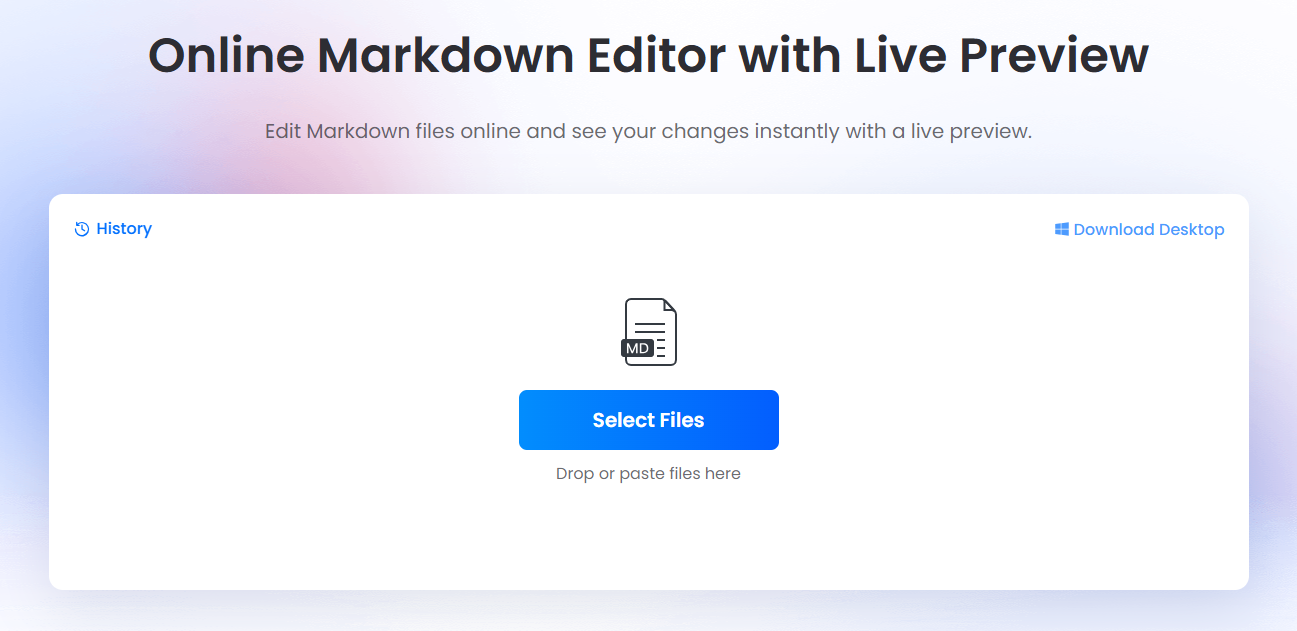
Step 2: Open your Markdown file in the editor and start making changes.
Step 3: Format text, add links, images, tables, and other content as needed.
Step 4: Check the live preview alongside the editing area to see your changes instantly.
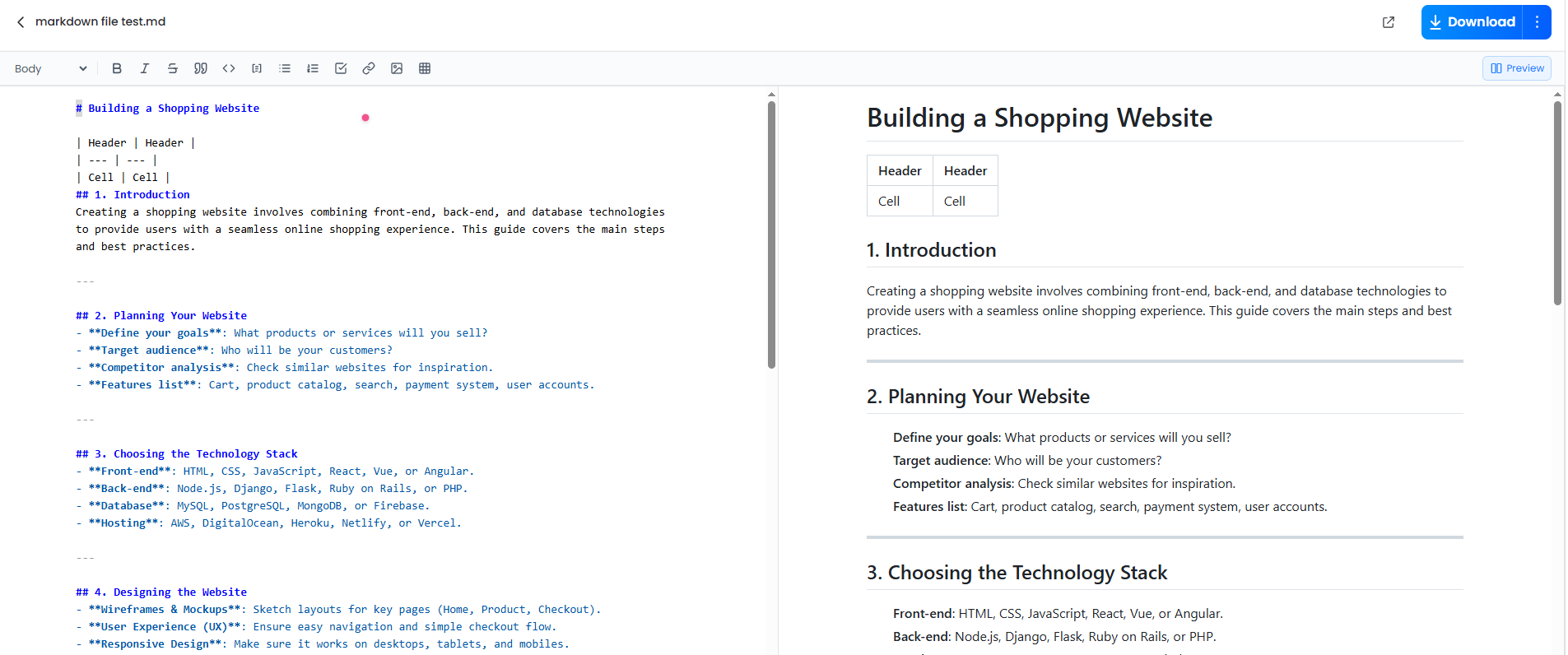
Step 5: Click Download to save the edited Markdown file to your device.
Perfect For
Updating existing Markdown documents
Editing Markdown files
Writing documentation
Creating README files
Formatting technical content
Adding images and tables
Previewing Markdown content
🔹 Document Data Extraction
Transform unstructured PDFs, forms, and scanned image files into clean, structured Excel, CSV, or JSON spreadsheets using AI-powered field and table recognition. Capture complex line items, subtotals, and key details automatically without manual data entry.
How It Works
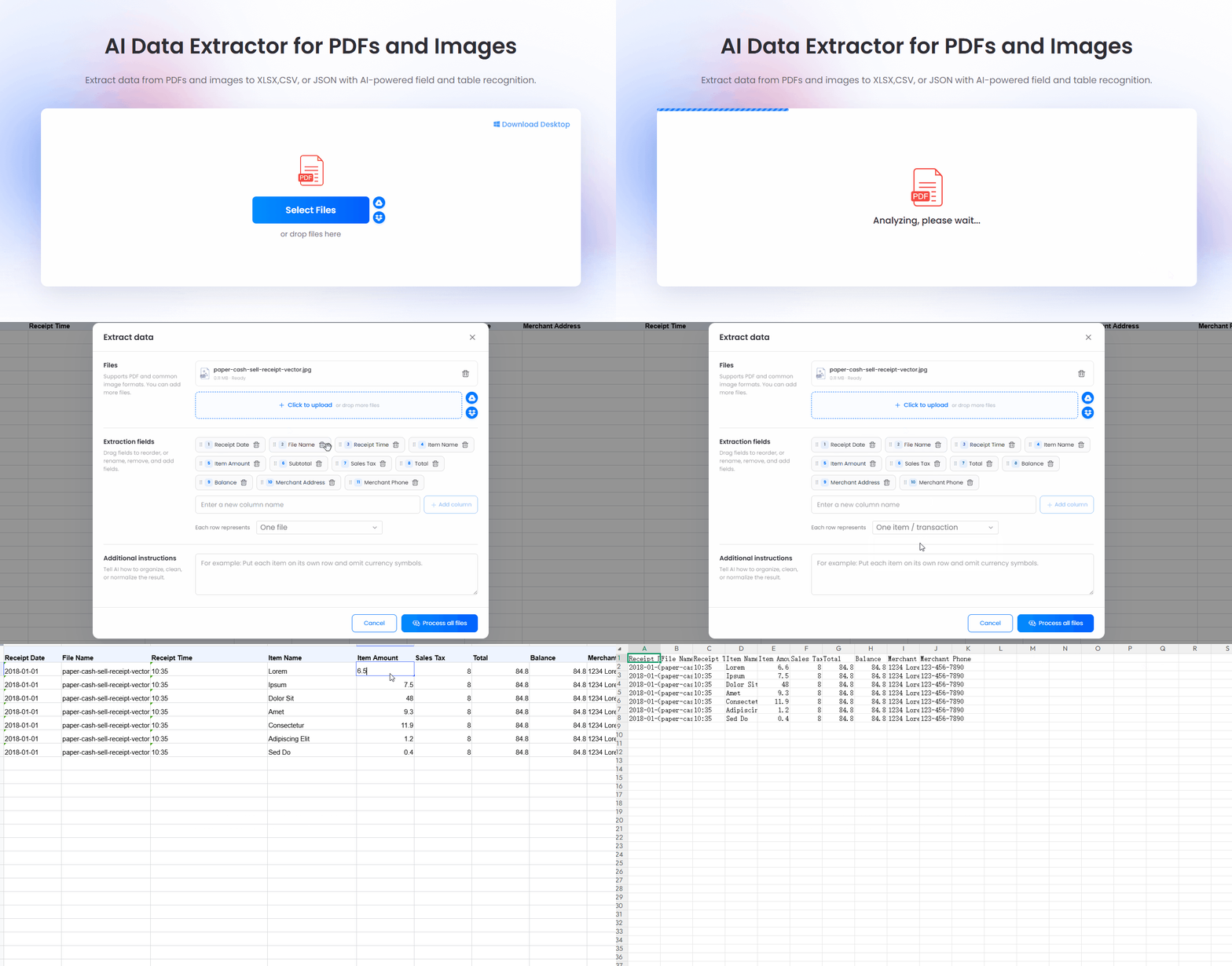
- Step 1: Upload your PDF or image files to the online data extraction tool.
- Step 2: Click Analyze Now to let AI map tables, text blocks, and key-value fields.
- Step 3: Customize your extraction fields or type natural language rules (e.g., “Format all dates as YYYY-MM-DD”).
- Step 4: Click Process all files to review and edit the data directly in an interactive browser preview.
- Step 5: Select your target format (XLSX, CSV, or JSON) and export your structured dataset.
Perfect For
- Accountants & Bookkeepers extracting line items from bank statements, invoices, and receipts straight into spreadsheets
- Procurement Managers capturing purchase order quantities, vendor addresses, and pricing tables automatically
- Data Analysts converting bulk multi-page PDF reports into raw JSON or CSV datasets for automated processing
- Administrative Staff eliminating manual copy-pasting from physical forms and scanned documents
Explore More Specialized Data Extraction Tools
Convert native or scanned bank PDFs into spreadsheets with clean, separated transaction columns.
Extract invoice numbers, line-item pricing, tax details, and vendor names directly into structured tables.
Snap photos of paper receipts and instantly capture dates, amounts, and item details for expense reports.
Automatically pull PO numbers, unit quantities, item descriptions, and vendor addresses without manual keying.
🔹 Remove PDF Annotations
Quickly clean up PDF documents by removing unwanted comments, highlights, and markups in a single click. Easily clear text overlays and freehand drawings without altering your original document text or underlying layout.
How It Works
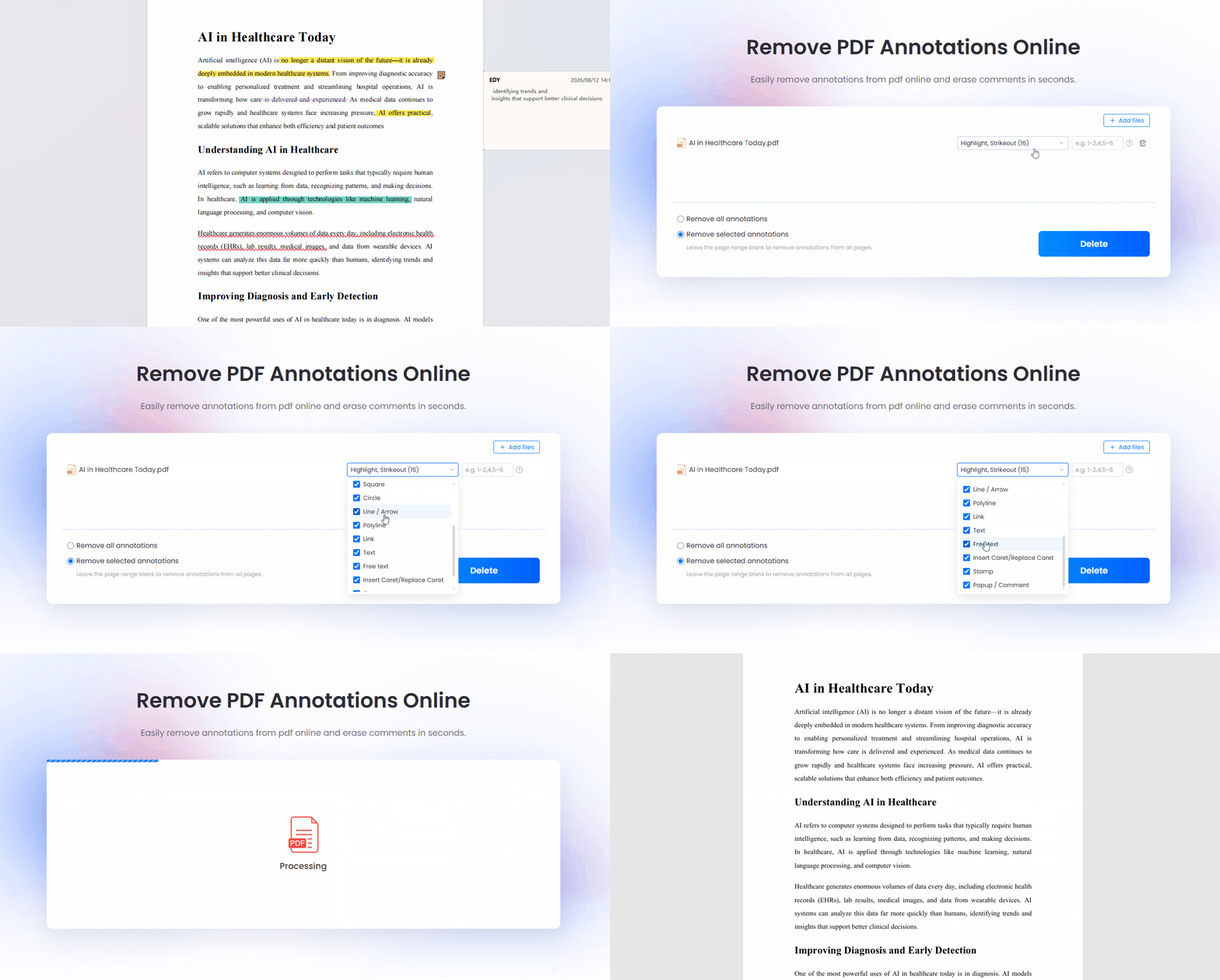
- Step 1: Visit the online PDF Annotations Remover page.
- Step 2: Drag and drop your file into the upload zone or click “+Add files” for batch processing.
- Step 3: Select your preferred mode: “Remove All Annotations” or “Remove Selected Annotations” to filter specific markup types.
- Step 4: Click the Delete button to let the cloud engine automatically clear the selected markups.
- Step 5: Click Download Files to save your clean, clutter-free PDF.
Perfect For
- Legal teams redacting internal draft notes and markup comments before client submission
- Students & Educators resetting shared study materials and textbooks for clean reading
- Business professionals cleaning up shared contract markups, stamps, and sticky notes before final archiving
- Designers & Engineers removing freehand ink marks, arrows, and shape outlines from technical blueprints
🔹 PDF to Scan
Convert digital PDFs into realistic scanned-style documents online without printing or using physical scanning equipment. Flatten selectable pages into image-based PDF pages with customizable resolution (DPI) and color settings.

How It Works
- Step 1: Access the PDF to scan converter in your web browser.
- Step 2: Click “+ Add files” to upload single or multiple digital PDF documents.
- Step 3: Choose your preferred DPI resolution (75, 150, 200, or 300 DPI) based on document detail needs.
- Step 4: Select Color or Grayscale mode depending on whether colored stamps or signatures need to be preserved.
- Step 5: Click Convert and download your final scanned-style PDF file.
Perfect For
- Job Applicants converting digital applications into scanned-style PDFs to meet strict portal requirements
- Legal & Compliance Officers flattening digital contracts so text cannot be easily modified or copied
- Remote Workers recreating authentic office scan aesthetics for signed forms, receipts, and official agreements without physical printers
- Archivists standardizing digital files into consistent, image-based PDF archives
🔹 ChatYouTube
Turn long YouTube videos into instant summaries, notes, and answers. Simply paste a video URL and start chatting with the content in seconds. No need to watch hours of footage to find the information you need.

How It Works
Step 1: Copy the YouTube video URL.
Step 2: Open ChatYouTube and paste the link.
Step 3: Click Start Chatting.
Step 4: The AI automatically extracts and analyzes the video’s transcript.
Step 5: Ask questions, generate summaries, locate key moments, or export results as a PDF.
Perfect For
- Students reviewing lectures
- Researchers analyzing interviews
- Professionals summarizing webinars
- Content creators studying competitors
🔹 eSign PDF
Sign PDF documents online or send them to others for signature in just a few clicks. Whether you need to sign a contract yourself or collect signatures from clients, teammates, or partners, LightPDF helps you complete the entire signing process in one place.
How It Works
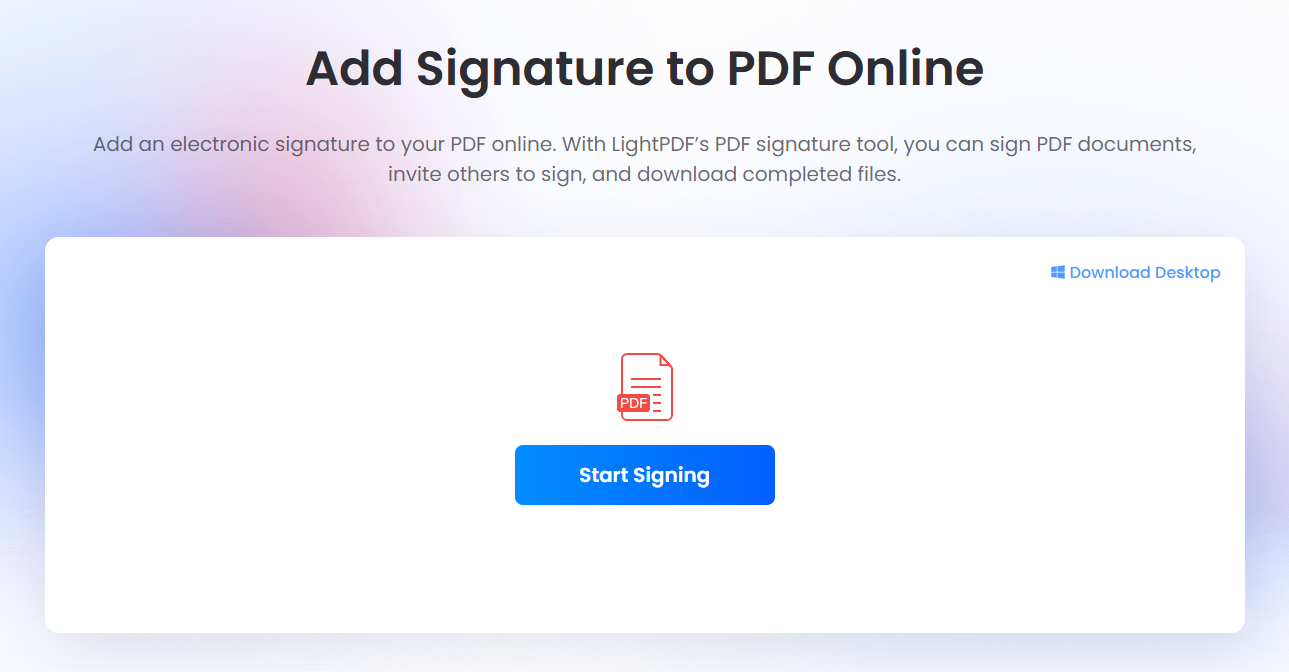
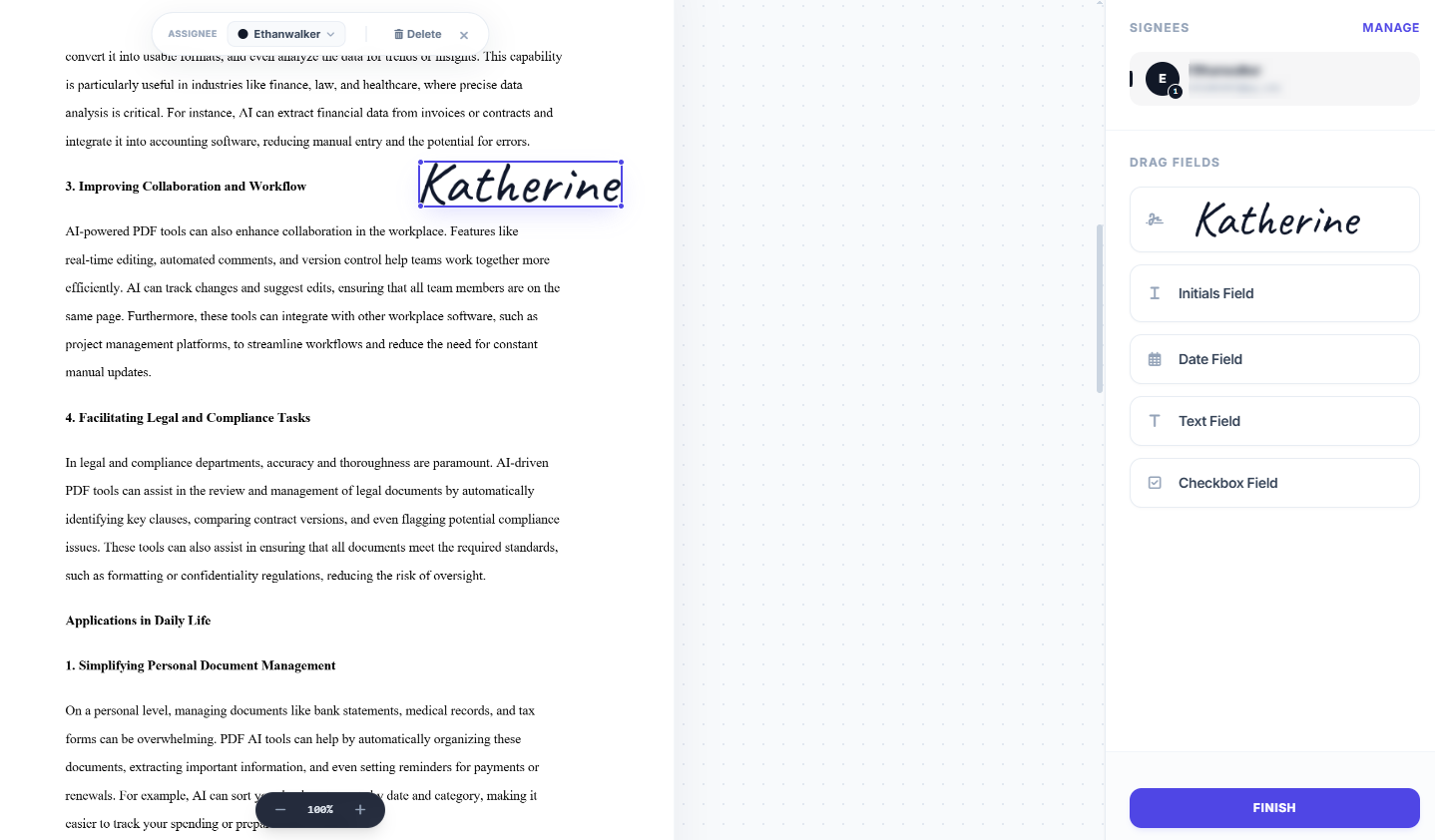
Step 1: Go to online PDF esigner. Click Start E-Signing and upload your contract or PDF document.
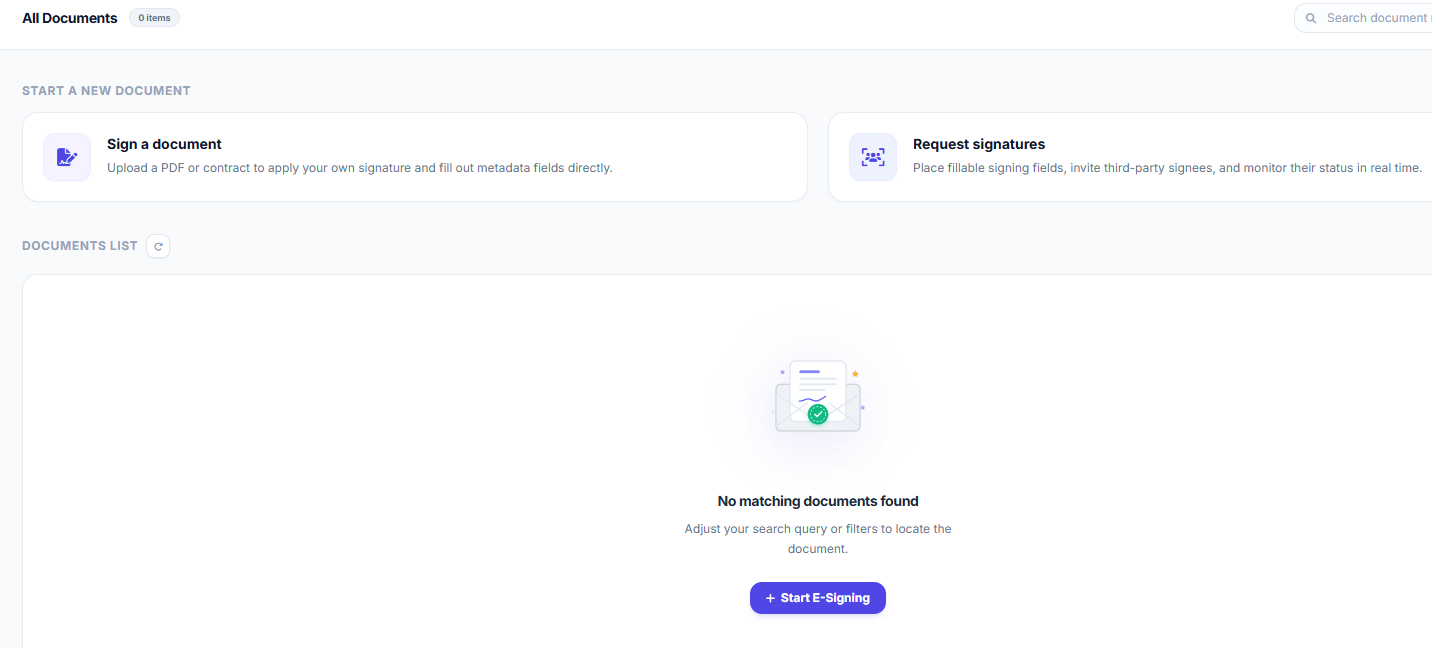
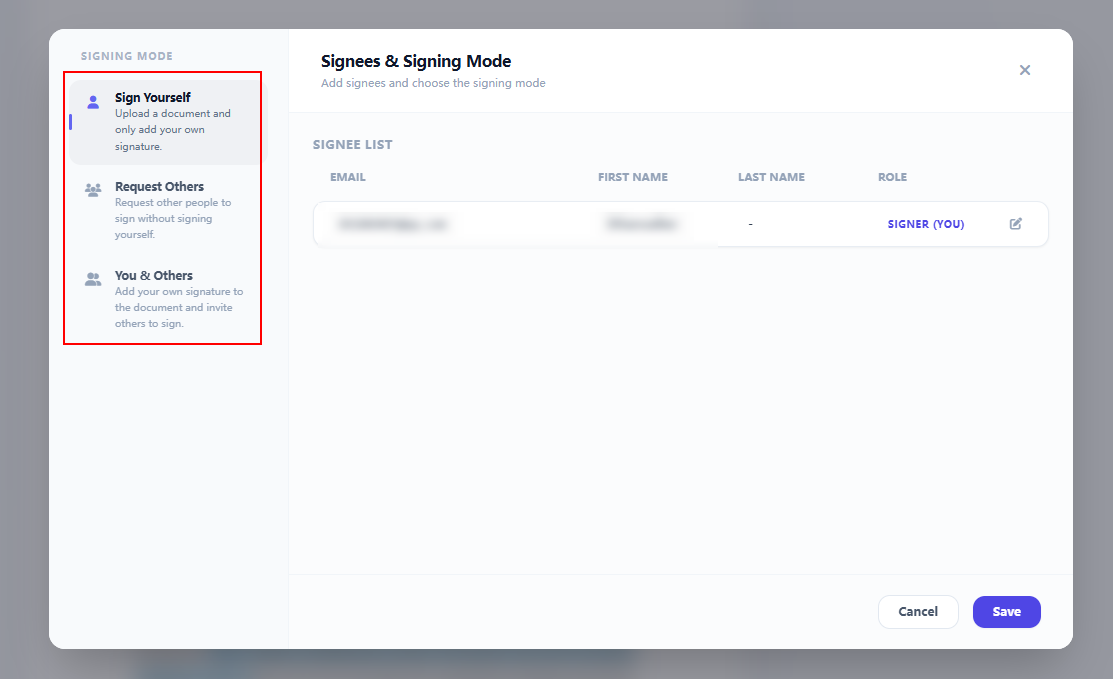
Step 2: Choose a signing mode: Sign Yourself, Request Others, or You & Others. Then, Add the signer information and click Save.
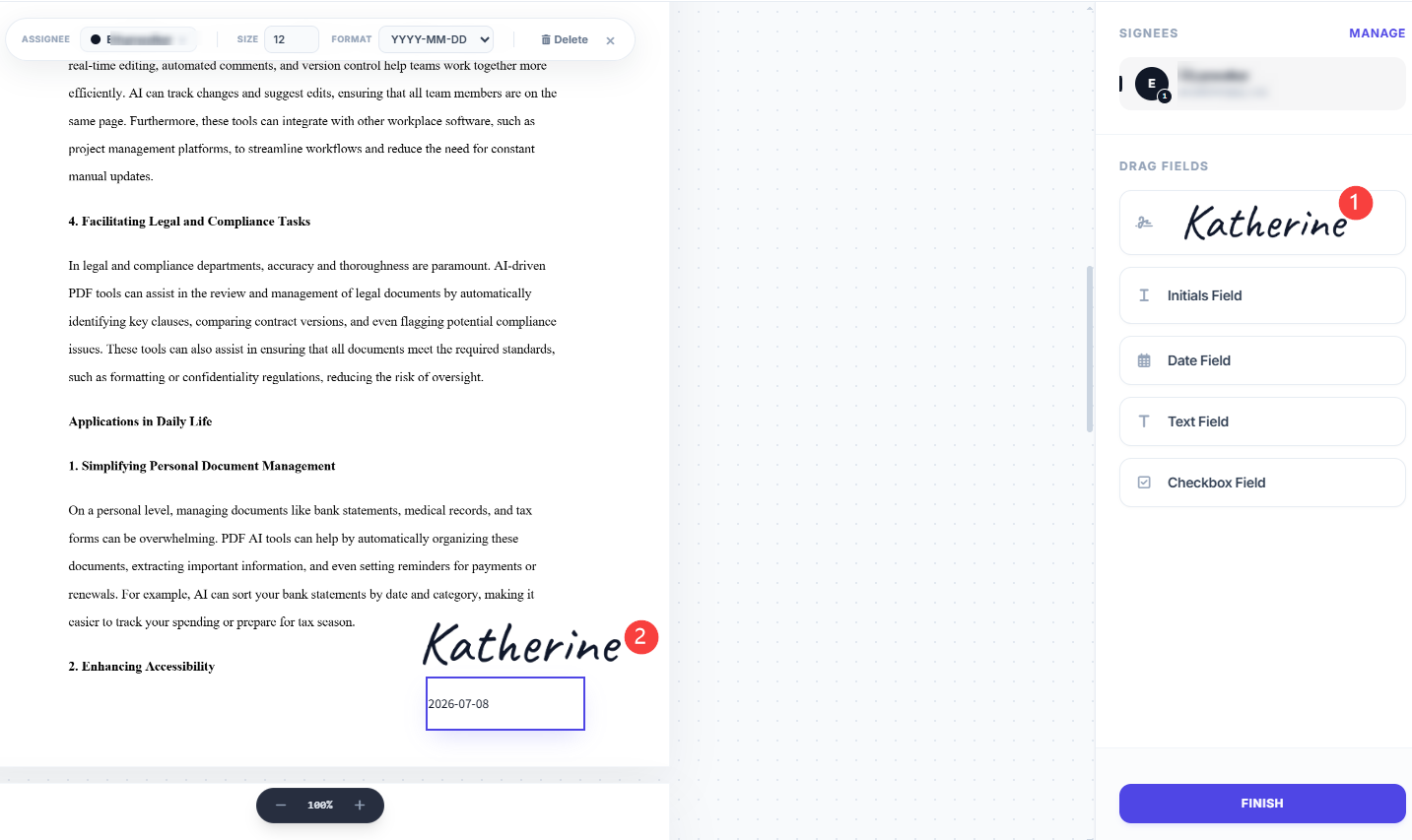
Step 3: Use the left panel to insert signature fields, initials, dates, text fields, and checkboxes wherever needed.
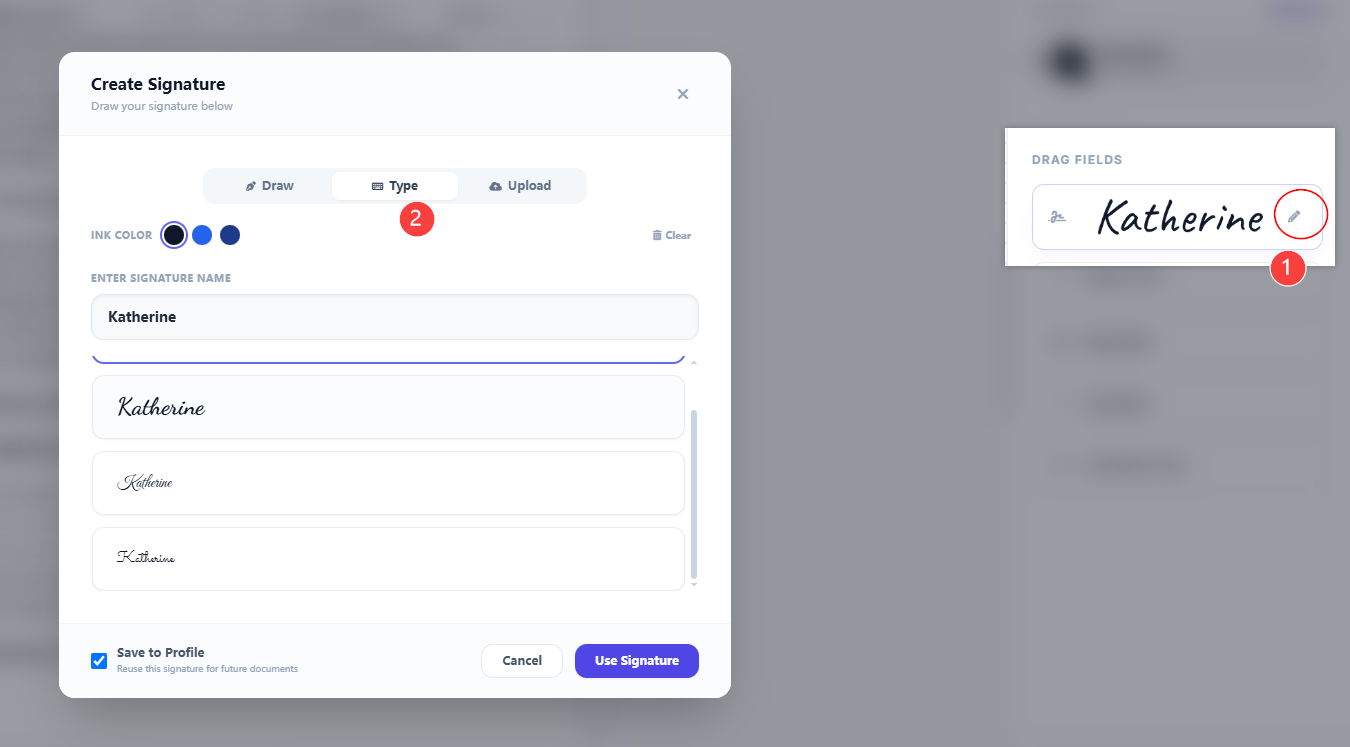
Step 4: Edit or replace signatures at any time, or use the top toolbar to clear existing signatures before finalizing.
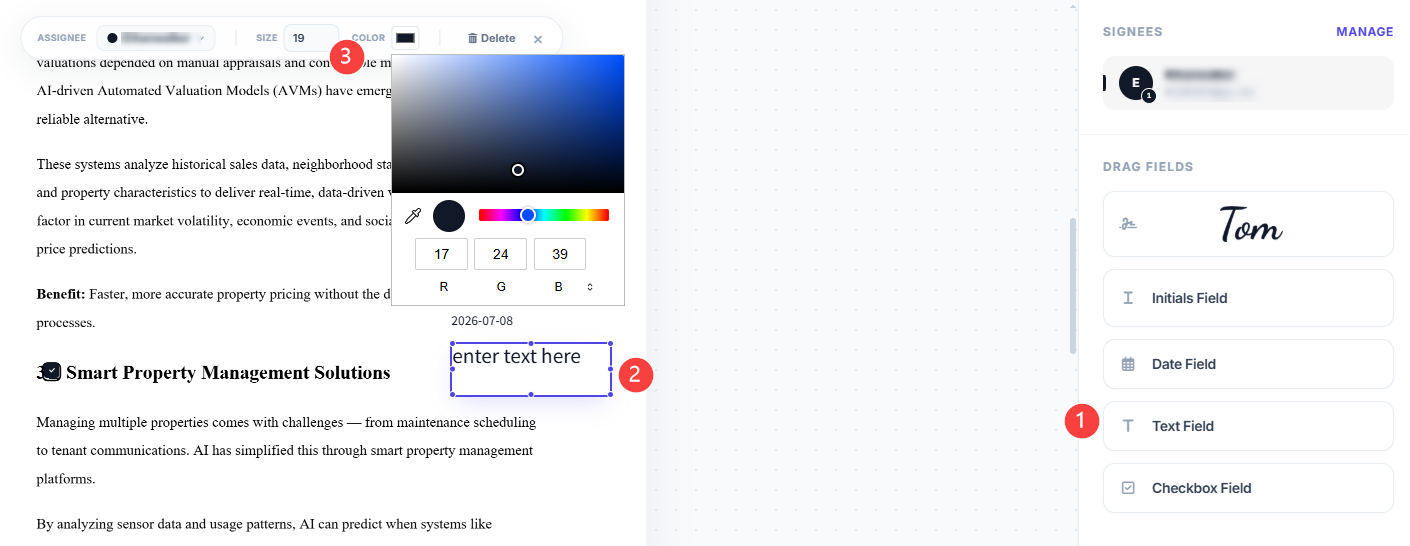
Any fields you add can be modified directly from the top menu bar. Simply click on a field (like a text box) to adjust its font size, change colors, or delete it entirely.
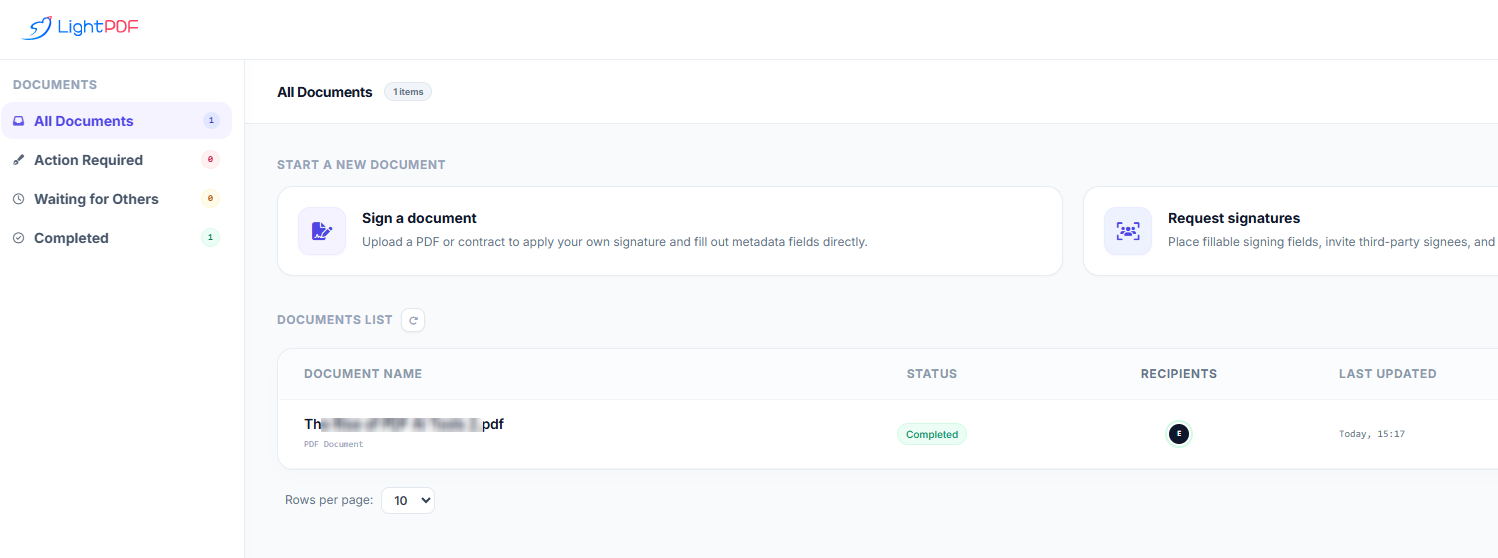
Step 5: Click Finish at the bottom right corner of the signing page, then select Go to Dashboard to view, manage, and download all your signed or pending contracts.
Perfect For
- Signing contracts and agreements
- Requesting signatures from clients or teammates
- HR onboarding and employee documents
- Legal forms, approvals, and business paperwork
🔹 Online PDF Editor
Directly edit text, modify layouts, and fill out forms online without ruining the document’s original formatting. This feature offers complete control over input fields, allowing you to seamlessly handle contracts, applications, and structured reports in your browser.
How It Works
Step 1: Upload your PDF to the online editor.

Step 2: Click on any existing text to modify content directly, or insert new images and shapes.
Step 3: Add or reposition interactive input fields like text boxes, checkboxes, and signature blocks.
Step 4: Use the top menu bar to fully customize added fields—adjust font size, change colors, or delete items instantly.
Step 5: Fill in the form, apply your digital signature, and export the finalized document.

Perfect For
- HR professionals updating onboarding forms and employee contracts
- Operations teams modifying structured business reports and layouts on the fly
- Freelancers and clients executing and signing digital agreements quickly
- Anyone who needs to fill out static PDF forms without printing or re-creating files
For desktop PDF editing, click here.
🔹 AI Invoice Generator
Create polished, professional PDF invoices in minutes—no spreadsheets, manual calculations, or template editing required. Enter your billing details or let AI autofill the invoice from pasted text or uploaded files. The tool automatically calculates taxes, discounts, shipping, and totals, then exports a ready-to-send PDF.
How It Works
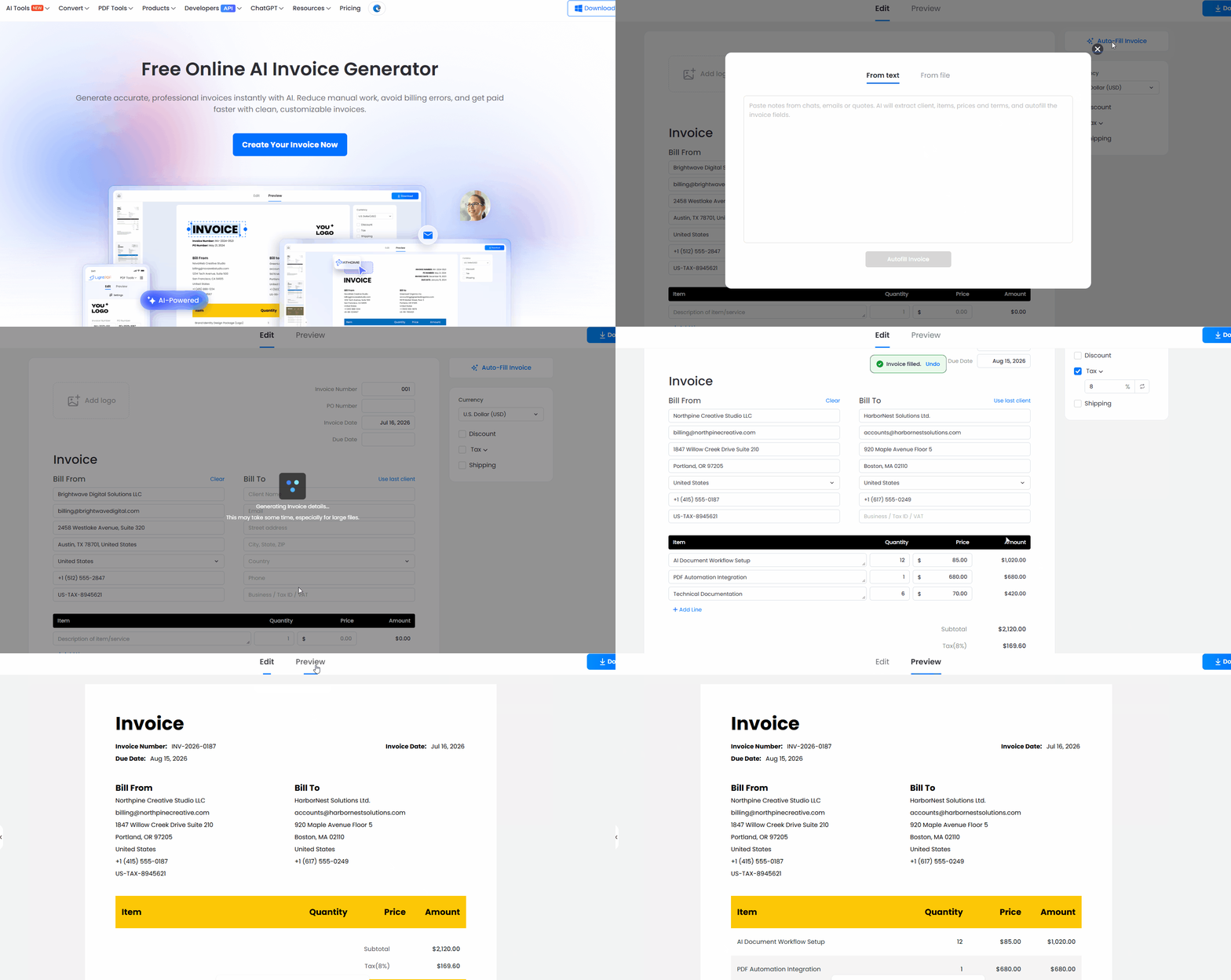
Step 1: Open the AI Invoice Generator and click Create Your Invoice Now.
Step 2: Enter your business, client, and billing details manually, or click Autofill Invoice to paste text or upload a file.
Step 3: The AI extracts invoice information and automatically fills in fields such as Bill From, Bill To, line items, rates, taxes, and totals.
Step 4: Preview your invoice and choose from multiple professional invoice templates.
Step 5: Download the invoice as a PDF and send it directly to your client.
Perfect For
- Freelancers billing clients
- Agencies and consultants creating professional invoices
- Small businesses generating invoices without accounting software
- Contractors and service providers who want to turn project details into invoices instantly


Leave a Comment