


Primary Solution: Edit Text in JPG Files Online
Fixing a typo on a scanned PDF invoice, updating price lists on promo posters, or fixing wrong dates on receipts usually turns into a nightmare if you rely on standard graphic software. Clone stamping background pixels by hand takes forever. LightPDF Image Text Editor changes that. Instead of fighting with layers, its underlying OCR detects text boundaries and uses generative inpainting to erase old text cleanly before inserting the new words in matching font geometry.
LightPDF Image Text Editor
- Overview: If you need to edit text in a JPEG file on the fly, LightPDF skips complex software installs entirely. It reads the image text layers, wipes out old words without leaving muddy smudge marks, and writes fresh text into the file straight from your browser.
- Key Features:
- Edit Text in Image Free Online: Change or remove existing text in photos, screenshots, and graphics directly in your browser without paywalls.
- Automated AI Text Replacement: Easily replace text in JPG files by matching original fonts without manual brush work.
- Wide Format Support: Full support for JPG, JPEG, PNG, BMP, WEBP, HEIC, and JFIF.
- Browser-Based Utility: Works as a lightweight jpg text editor online across Windows, macOS, iOS, Android, and Linux.
- Privacy Protection: Auto-deletes files from cloud processing servers shortly after download to keep sensitive receipts confidential.
How to Edit Words in JPG
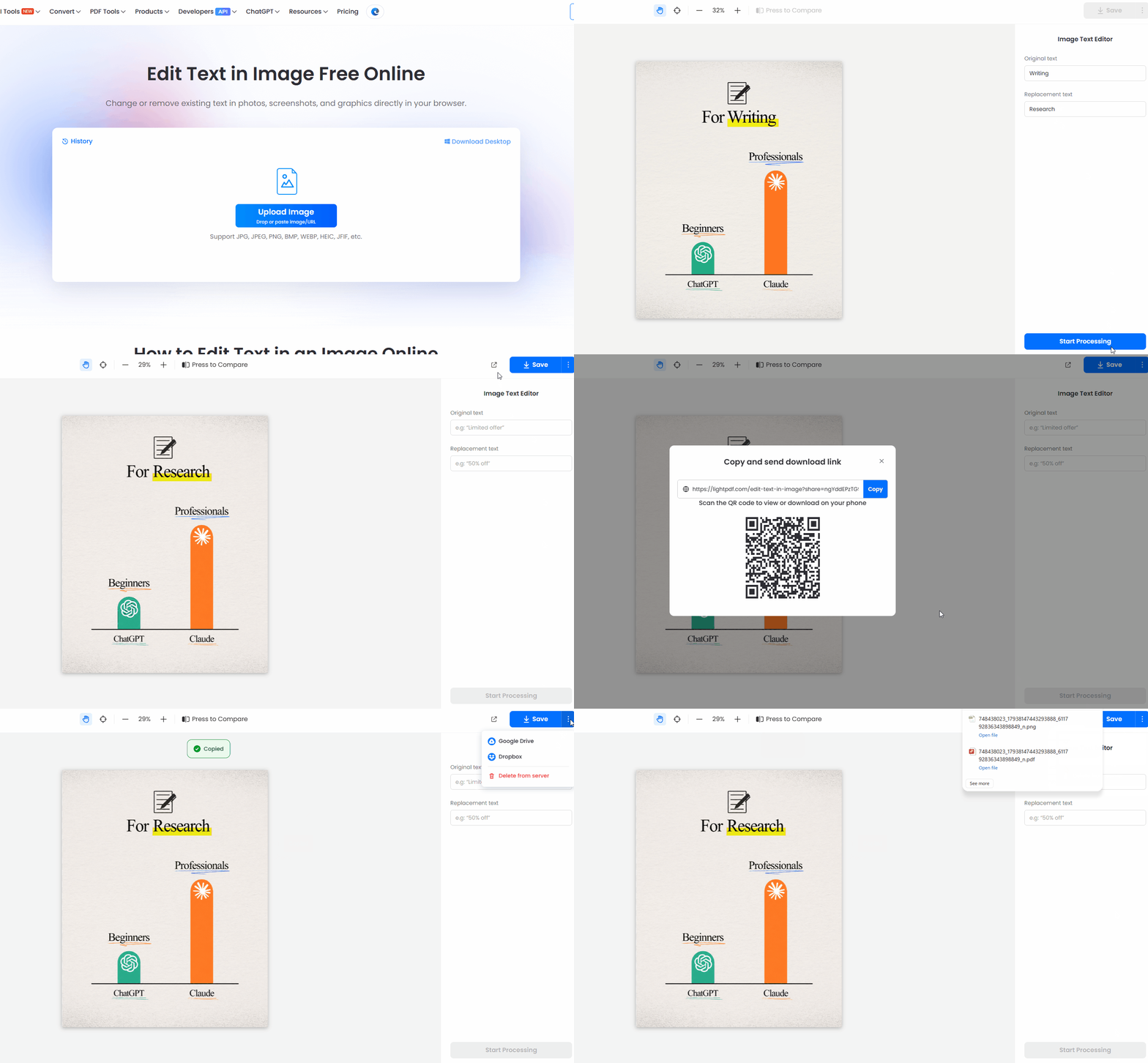
- Visit the Web Tool: Navigate to the photo text editor online page on LightPDF.
- Upload Your Image: Click Upload image or simply drop/paste your JPG/JPEG file or image URL into the uploading area.
- Set Your Replacement Copy: Enter the original text and the replacement text into their respective fields, then click Start Processing.
- Save Your File: Preview the output and click Save Image. Need to send it out immediately? Click the three-dot icon on the save button to share or upload the file directly.
Alternative Methods to Edit JPG Image Text Online
Every tool has trade-offs depending on what you’re working with. If you’re dealing with flat white backgrounds, heavy graphics, or multi-layered source files, here are alternative ways to edit jpg image text online and offline.
1. Photopea
Think of Photopea as Photoshop inside a web browser tab. If you need fine-grained control over complex textures, you can select the Healing Brush or Clone Stamp to patch over original text, then manually create a text box on top.
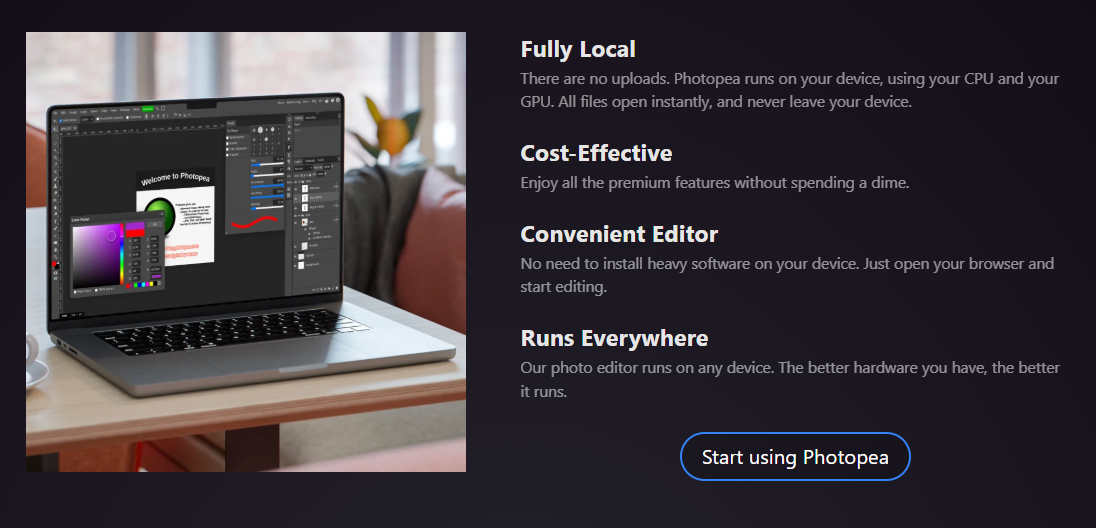
- Best For: Designers who need to work with PSD layers or custom typography tweaking without downloading Photoshop.
- The Reality: It’s slow for quick edits. You have to match fonts, set letter spacing, and repaint backgrounds manually.
2. Canva
Canva is built for quick social banners. To edit words in JPG images here, you usually place a colored rectangle over the existing text and drop a new text element on top.
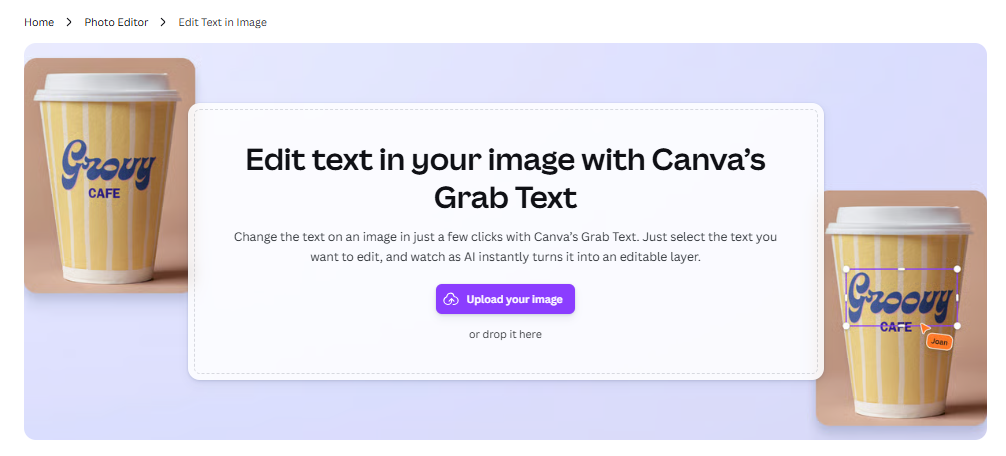
- Best For: Marketing assets with solid background colors where exact pixel matching isn’t required.
- The Reality: It won’t work on textured backgrounds, receipts, or photos because covering text with solid shapes looks patched.
3. Adobe Photoshop
Photoshop is the default choice for heavy raster retouching. You can draw a selection around text, apply Content-Aware Fill to erase pixels, and type out a vector text layer over the clean area.

- Best For: High-resolution print assets, complex photography, and raw file retouching.
- The Reality: Heavy monthly subscription cost, high RAM usage, and overkill for changing a simple sentence on a JPEG screenshot.
Feature & Utility Comparison: JPG Text Editors
| Editing Tool | Ease of Use | Automated Text Detection | Background Reconstruction | Installation Required |
| LightPDF Image Text Editor | Very Easy (Instant AI) | Yes (Automated OCR) | Automatic Inpainting | No (Browser) |
| Photopea | Complex / Manual | No (Manual Selection) | Manual Clone / Stamp | No (Browser) |
| Canva | Easy | No | Manual Patch / Shape Box | No (Browser / App) |
| Adobe Photoshop | High Skill Required | Partial (Select Subject) | Content-Aware Fill | Yes (Desktop Install) |
Additional Utilities in LightPDF
Once you finish using LightPDF as your jpg text editor online, you can use its connected document stack for other common workflows:

- OCR & Format Converter: Convert scanned PDFs and images directly into editable Word, Excel, PPT, PDF, or TXT documents while preserving original layouts.
- Document & Image Enhancer: Clear up blurry scans, boost resolution, and sharpen faint text across both PDF files and standard image formats.
- Watermark & Noise Remover: Strip away unwanted background noise, dates, stamps, and watermarks automatically without damaging underlying pixels.
FAQ
Q1: Can I edit text in a JPG file online without ruining the background image?
Yes. Tools like LightPDF Image Text Editor use generative inpainting to rebuild pixels under the erased text. This prevents the blurry background smudges common with manual clone stamping.
Q2: How do I change words on a JPG screenshot or scanned receipt quickly?
Upload your image to LightPDF’s photo text editor online, enter the exact original text and the new text, then hit process. The system handles text extraction and font alignment automatically.
Q3: Is it possible to edit text in a JPEG file without installing software?
Yes. Browser tools work directly in modern web browsers (Chrome, Safari, Edge, Firefox). You can finish the edit on desktop or mobile without downloading apps.
Q4: Why replace text directly in a JPG instead of converting it to Word?
Replacing text in a JPG keeps your original layout, graphics, and image file format intact. Converting to Word is better if you plan to completely rewrite or reformat a multi-page document.


Leave a Comment