


1. Download Images Directly From Getty Images

If you’ve found a photo you want to publish, start with Getty Images. You can buy a license for that image or download it through an eligible agreement already linked to your account.
- Open the image’s details page.
- Check the usage restrictions and choose a file size covered by your purchase or agreement.
- Complete the purchase, or select your account’s download option.
- Click Download to save the image.

Check the pixel dimensions before you pay, especially if the photo will fill a wide banner or appear in print. Getty’s download guide explains the options available to different accounts.
2. Download a Comp for a Draft Layout
Recommended for: Testing an image before committing to a final design.
A comp is a preview intended for test or sample use. Getty’s license agreement allows this use for up to 30 days after download. Without purchasing the appropriate license, you cannot use the comp in final materials or anything publicly available.

That makes comps useful for checking whether a photo fits a draft’s composition, crop, or visual style. Keep the draft within the permitted test use and replace the comp with the licensed asset before publication.
3. Embed Eligible Images on a Noncommercial Website
Recommended for: Displaying a supported image on a qualifying noncommercial page.
Getty Images offers an Embed feature for eligible photos. Its official workflow is:
- Search for an image and enable the Embeddable images filter.
- Open a supported image and select the Embed icon.
- Copy the supplied code into your noncommercial website or blog.

Getty states that Embed is not intended for selling products, fundraising, promotion, or endorsement. A business blog promoting a service should therefore plan for an appropriate license rather than assume that embedding is available for its use.
4. Getty Images Alternatives for Free Stock Photos
If you’re choosing a photo for a blog cover or presentation, a similar image may work just as well. These two libraries give you more options.
Unsplash

Unsplash has a free collection you can browse for website backgrounds, article covers, and presentation images. Its license allows commercial and noncommercial use, subject to its terms.
Watch for the Unsplash+ label while browsing. Those images belong to a separate paid collection.
Pexels

Pexels offers both photos and video clips, making it useful when a project needs a mix of still images and footage. Its license allows free personal and commercial use, including editing, and generally doesn’t require attribution.
Check the restrictions before reselling or redistributing content, and avoid suggesting that a person or brand in a photo endorses your business.
5. Improve Image Quality With LightPDF
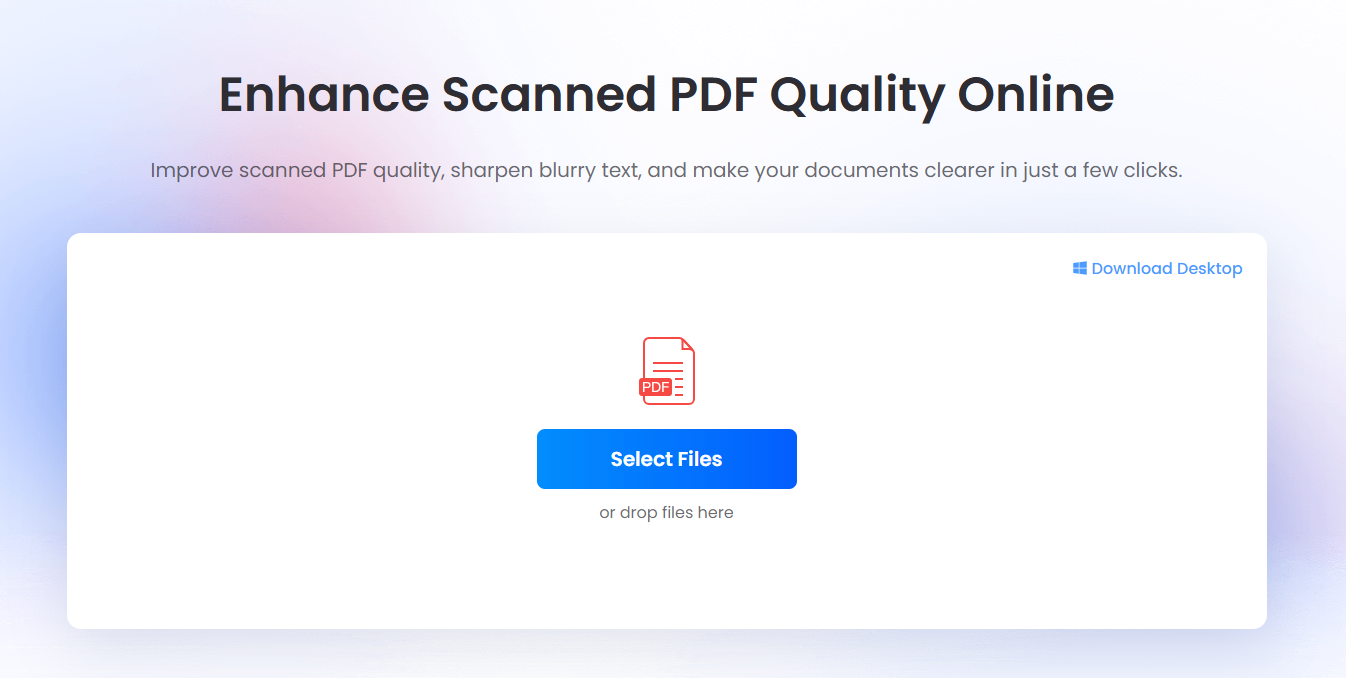
If a photo looks a little blurry in your article or presentation, try LightPDF’s Scanned Document Enhancer. It works with both scanned PDFs and images, helping make text and details clearer. Start with the highest-resolution version you have.
- Upload your image to LightPDF’s Scanned Document Enhancer.
- Compare the result with the original.
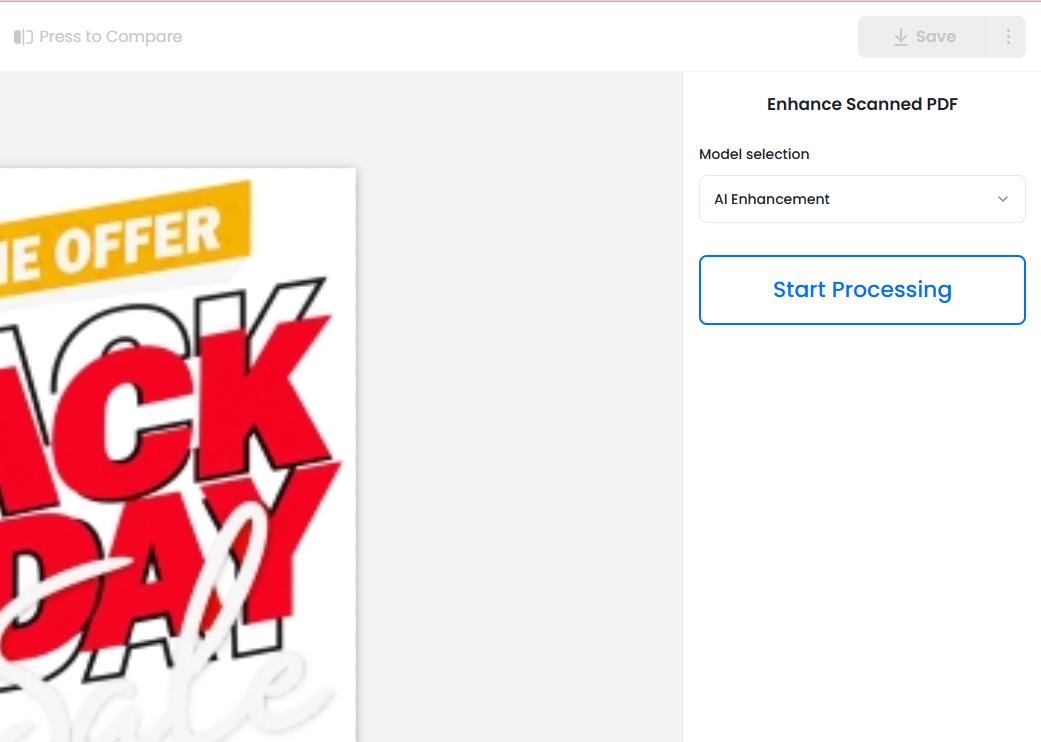
- Download the enhanced image as a separate copy so you can keep the original.
View the result at the size it will appear on the page, and inspect faces, lettering, and fine textures before publishing. Use the enhancer only when the image license and the tool’s terms allow AI processing.





Leave a Comment