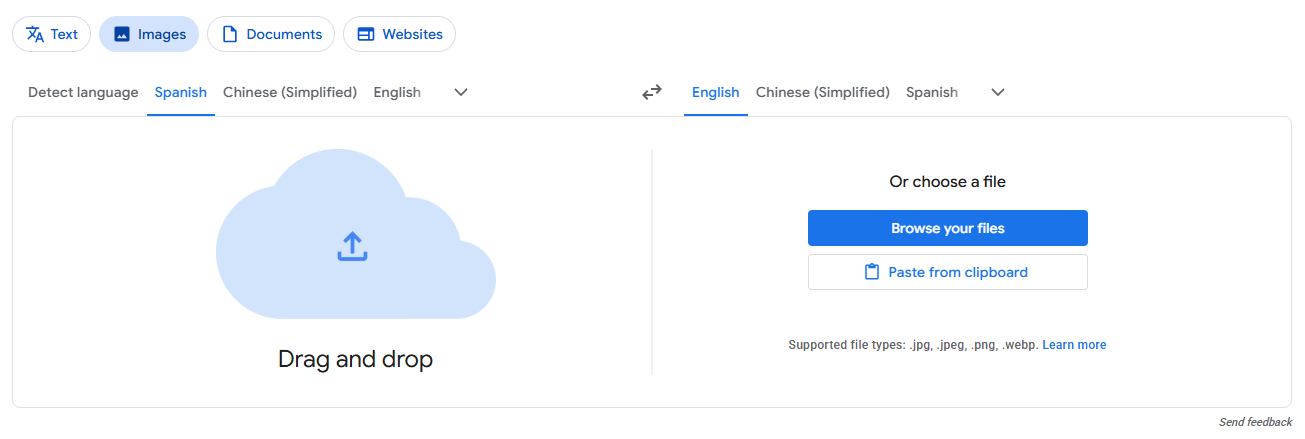
Snapping a quick photo of foreign text feels like the easiest way to get a translation—until you’re stuck with blurry letters or weird fonts that trip up the OCR. If you want to use google translate image online directly in your browser without downloading extra software, head over to translate.google.com and hit the Images tab up top. Drop in a JPG, PNG, or WEBP file, pick your target language, and Google Lens does the heavy lifting. It’ll swap out the source text with a translated overlay, so your picture looks almost as clean as the original.
Whenever you run a google translate image task, Google Lens handles all the grunt work: it finds the text, figures out where the letters are, translates them, and wipes out the old text before laying down fresh, translated words right onto your image.
Standard Image Translation Flow
1. Open & Select Languages: Go to Google Translate, click the Images tab at the top, set the left side to Detect language, and pick your target language on the right.
2. Upload Your Graphic: Drop in your file (JPG, PNG, WEBP, or HEIC) to trigger auto-translation.
3. Lens Scans & Renders: Lens scans character boundaries, removes original letters, and redraws translated text directly over the background to match its style.
4. Compare & Save Results: Toggle Show original to check side-by-side differences, click Copy text if you only need the words, or hit Download translation to save the translated graphic.
Pro Tips: Translate Image while keeping the same font
Google Translate Web is fast for single images, but if you’ve got a whole folder of receipts or screenshots, try LightPDF Online Image Translator. Just upload all your files (JPG, PNG, BMP, HEIC, JFIF… you get it), pick your output language, and run the batch. After processing, save your graphics or compare originals side by side. Hit “Press to Compare” on the top bar to see exactly what changed.
Technical Performance and Feature Comparison
Translating images in your browser means you get more room to work with and better precision when you translate language from photo files. On your phone, the camera app works better for snapping translations on packaging or street signs, right in real time.
Capability
Google Translate Web
Google Translate Mobile App
LightPDF Online Image Translator
Primary Input Method
Drag-and-drop uploads
Camera preview or gallery photos
Drag-and-drop uploads / Queue
Text Extraction Engine
Integrated Lens OCR for google translate picture to text
Integrated Lens OCR
Multi-engine Document OCR
Supported File Extensions
JPG, PNG, WEBP
Camera preview, system photos
JPG, PNG, BMP, WEBP, HEIC, JFIF
Multi-Image Processing
Single file per upload
Single photo per capture
Process batches via queue
Translation Output
Overlay downloads / copy text
Live lens view & audio readouts
Export high-res graphics
Side-by-Side Comparison
Toggle overlay
Flip camera on the go
Top toolbar Press to Compare
Specialized Language Scenarios & Recognition Techniques
Not all languages are treated equally by OCR tools. Simple English scans easily, but complex non-Latin scripts are where vision models usually struggle:
1. Google Translate Image Japanese to English
Manga panels, packaging labels, and vertical signs (Tatechugaki) usually mess up basic OCR. Running google translate image japanese to english workflows allows Google Lens to handle right-to-left and vertical columns properly so dense Kanji and Kana characters don’t get scrambled.
2. Google Translate Arabic to English Picture
Arabic’s flowing cursive script and right-to-left reading flow trip up simple software. Using google translate arabic to english picture features flips and spaces the translation properly, laying out Left-to-Right English text while keeping visual layouts intact.
3. Google Translate Image Korean to English
Korean Hangul letters bunch up into tight syllabic blocks. Running google translate image korean to english tools splits up dense Korean gaming UI menus, online shopping screenshots, and packaging labels, breaking character clusters into clear English words.
Advanced Google Web Translation Tips
Skip the download: In Chrome, just right-click any web photo and pick “Search image with Google” or “Translate image with Google Lens” to translate photos straight in your browser tab.
Grab only what you need: Instead of highlighting tons of garbled text, just drag your mouse cursor over the specific canvas area you want to extract.
Pre-edit your photo: Get rid of glares, dark spots, and useless empty space before uploading. Bump up contrast, too—it really helps OCR accuracy.
FAQ
How can I use google translate image online on a computer without installing software?
Just open translate.google.com, hit the Images tab, and drop your file right onto the page. Done.
Why does google translate picture to text fail to extract text from certain images?
OCR needs clear contrast between letters and the background. Blurry images, bad lighting, low resolution, or fancy fonts can mess it up. Try cropping or sharpening your image first.
Can I copy raw text directly after running an image translation?
Yep. Click the Copy text button after translation finishes, or highlight the exact phrase you’re after on the canvas.
What if I need to translate a bunch of images at once?
Google Translate only handles one image per upload. For batches, open LightPDF Online Image Translator and use its Add button to queue up everything before processing.
Is my image data private when using online translation tools?
These online tools process your images to read and translate text, and they use this data to improve their services under standard privacy policies. If you’re dealing with sensitive info—like medical docs or confidential contracts—stick to offline or enterprise-grade OCR tools.
Rating:4.3 /5(based on 29 ratings)Thanks for your rating!
Discover helpful PDF tips, feature tutorials, AI resources, and the latest updates to boost your PDF experience. Stay up to date with expert insights and practical guides.





Leave a Comment