


Method 1: Edit Text in PNG with LightPDF
Best For: small corrections where you want to keep the original layout and visual style.
If you only need to fix or replace text that already exists in a PNG, LightPDF Image Text Editor is one of the easiest options.
Instead of manually covering the old words, matching the background, and finding a similar font, LightPDF is designed to detect and modify existing image text directly.
How to Edit PNG Text with LightPDF
Step 1. Open LightPDF Image Text Editor
Go to the Edit Text in Image tool in your browser.
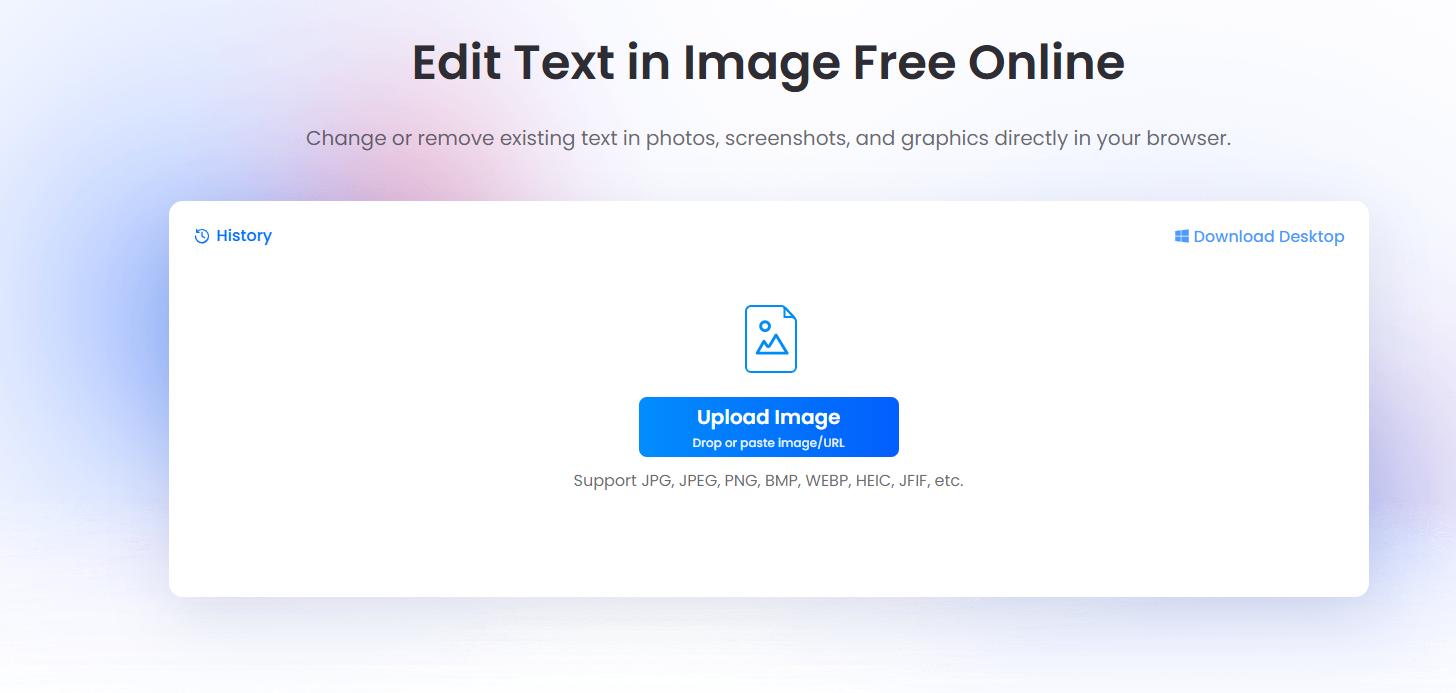
Step 2. Upload Your PNG
Choose the PNG file containing the text you want to change.
You can use screenshots, posters, social media graphics, product images, banners, and other common image types.
Step 3. Edit the Text
Enter the existing word, number, date, or sentence you want to edit.
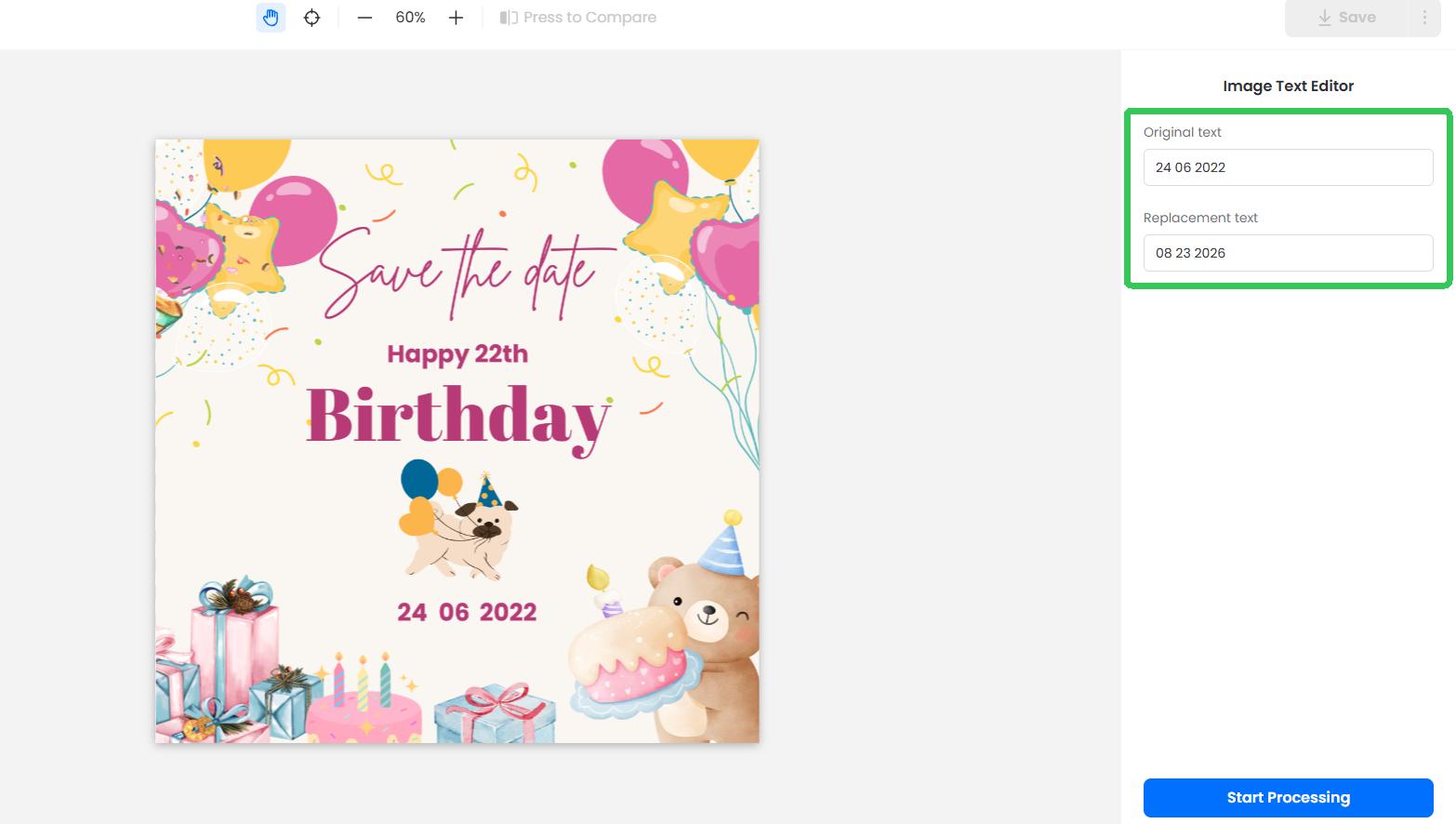
Step 4. Replace It
Enter your new text and click on Start processing.
LightPDF helps the new wording blend with the surrounding image so you don’t have to rebuild the entire area manually.
Step 5. Preview and Save
Check the result, make any necessary adjustments, and save the edited image.
Method 2: Cover the Old Text and Add New Text Manually
Best for: simple manual edits, adding new text, and adjusting fonts, colors, or text styles on clean backgrounds.
If the text is placed on a simple background, you can use Canva to manually cover the old wording and add new text on top.
How to Replace PNG Text in Canva
- Upload your PNG to Canva.

- Use Magic eraser to remove the text.
- Select Text feature and Insert a new text box.
- Adjust the font, size, color, and spacing to match the original design.
- Position the new text in the same area.
- Download the edited image as PNG.

This method works well for simple backgrounds and gives you more control over the new text. However, if the original text sits on a photo, gradient, or detailed background, covering it naturally can be more difficult.
Method 3: Replace PNG Text with Photopea
Best for : detailed manual edits, complex backgrounds, and users who want more control over font and text placement.
If you want more control over the editing process, Photopea is a useful browser-based option. It works especially well when the original text sits on a textured or complex background.
How to Edit PNG Text with Photopea
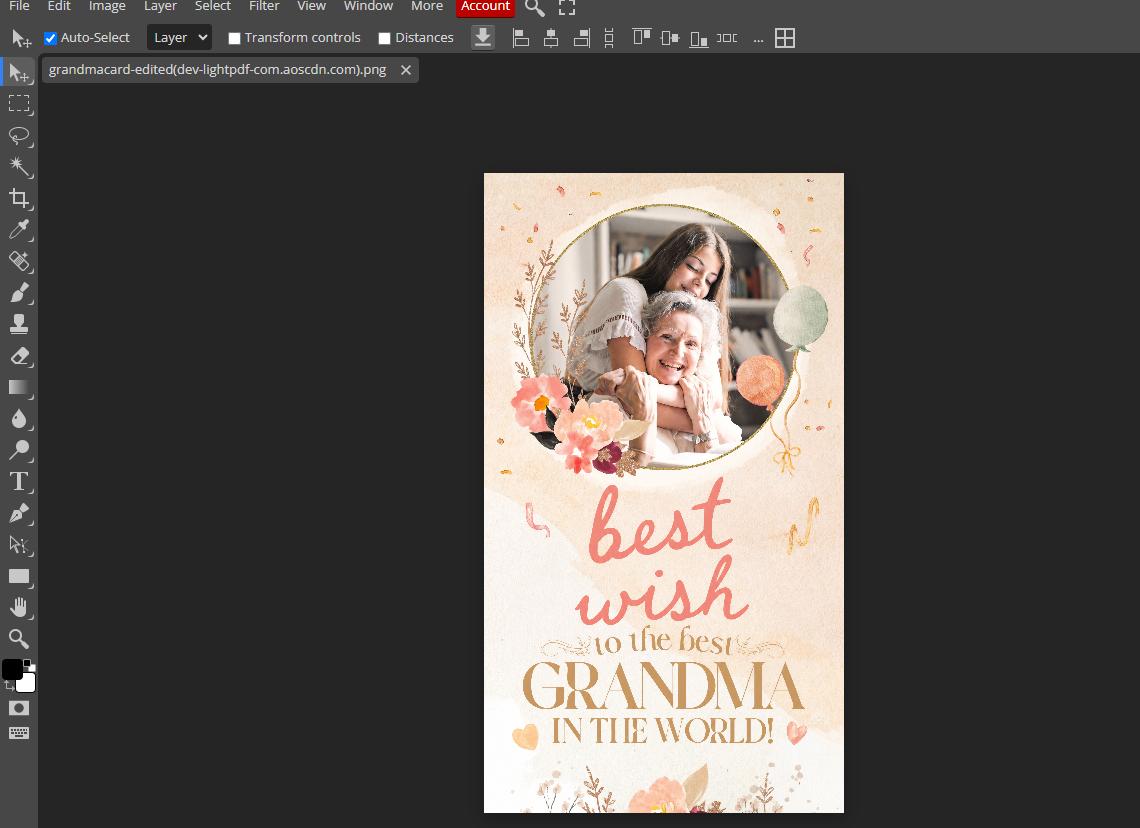
- Open your PNG in Photopea.
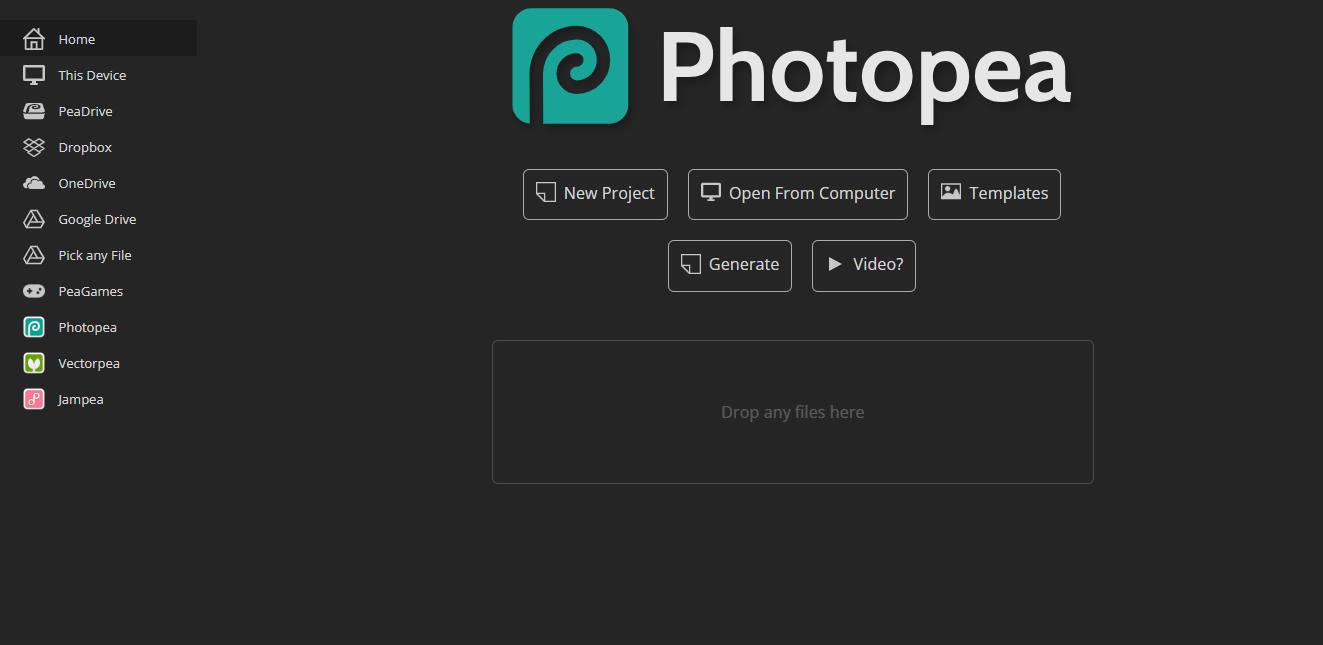
- Use the Healing Brush or Clone Stamp tool to remove the original text.
- Select the Type Tool and enter your new wording.
- Adjust the font, size, color, and position to match the original design.
- Export the edited image as PNG.
Method 4: Edit PNG Text with Pixlr
Pixlr is another online image editor that lets you remove unwanted text and replace it with new wording directly in your browser.
How to Edit PNG Text with Pixlr
- Upload your PNG to Pixlr.
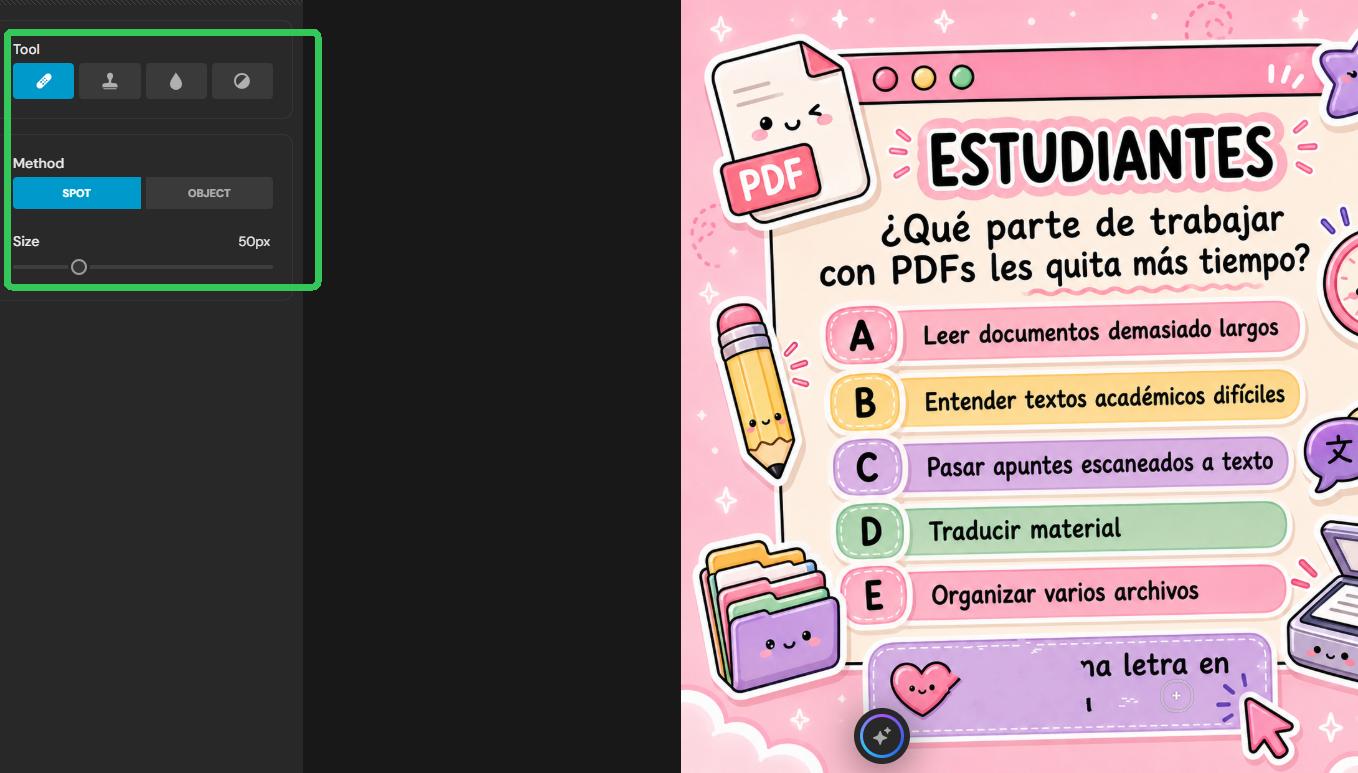
- Use the Heal or Clone tool to remove the original text.
- Add a new text layer.
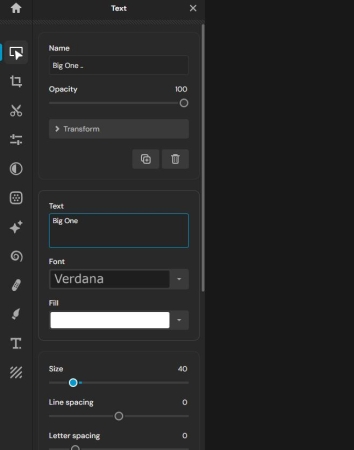
- Choose a font and adjust the size, color, spacing, and effects.
- Position the new text over the cleaned area.
- Save the final image as PNG.
Pixlr’s Heal tool can blend the edited area with surrounding pixels, which is useful when the text appears over photos or less uniform backgrounds.
Conclusion
To quickly edit text in PNG, LightPDF is a convenient option for replacing or removing existing words directly online. For adding new text or making larger design changes, a traditional image editor is more suitable.


Leave a Comment