


Why Is PDF Drive Not Downloading?
- The website or file server is down
If several books fail across different browsers, the problem may be on PDF Drive’s side. - The file is unavailable
If only one book fails, its link may be broken, expired, or removed. - Your browser is blocking the download
Pop-up settings, extensions, cookies, or cached data may stop the button from working. - Your internet connection is unstable
Large or scanned PDFs may fail when the connection drops during the download. - Your device has limited storage
The download may stop if there is not enough space or the download folder is unavailable.
How to Fix PDF Drive Download Problems
1. Try another book
Download a different title first. If other books work, the original file may have been removed or its link may be broken.
2. Open PDF Drive in a private window
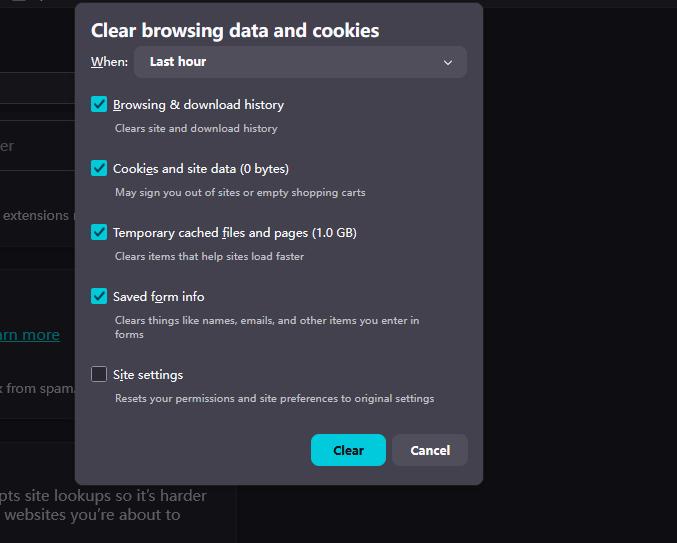
A private window can bypass cached data, cookies, and many browser extensions. If the download works there, clear the site’s cache and cookies or disable the extension causing the problem.
3. Try another updated browser
Open the page in Chrome, Edge, Firefox, or Safari. If it works in another browser, check the download, pop-up, and extension settings in your original browser.
4. Check your connection, storage, and download folder
Make sure your internet connection is stable, your device has enough free space, and the browser can access the selected download folder.
5. Check the Browser’s Download Message
Open your browser’s download panel to see whether the file was blocked, interrupted, or rejected by the server. Do not bypass security warnings or install unknown software just to download a PDF.
6. Try a Trusted Alternative
If several books fail to download across different browsers, PDF Drive or its file server may be temporarily unavailable. In this case, consider using a trusted source instead.
If only one book fails, the file may have been removed or the download link may no longer work. Stop trying if the page redirects to unrelated websites, asks you to install unknown software, requests unexpected payment, or triggers a browser security warning.
Instead, search for the book through a trusted library, publisher website, university repository, or open-access platform.

Read and Manage PDFs with LightPDF
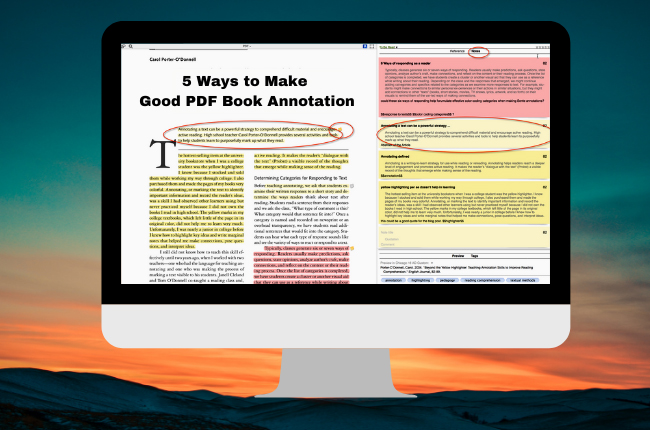
After downloading a PDF, open it in LightPDF to read, search, highlight, annotate, edit, or organize the document.
How to Read a Book in LightPDF
- Open LightPDF in your browser or desktop app.
- Upload the PDF.
- Use the reader controls to navigate, zoom, and search.
- Highlight key passages or add notes.
- Save the updated file when finished.

LightPDF does not download books from PDF Drive. It helps you read and manage PDF files already saved on your device.
Conclusion
When PDF Drive is not downloading, a few browser, network, or file checks may help resolve the issue. If the book is still unavailable, use a trusted source such as Project Gutenberg,, Google Books or DOAB instead of an unfamiliar mirror site.
After obtaining the document legally, open it in LightPDF to read, annotate, organize, convert, or summarize the PDF more efficiently.




Leave a Comment