


Why Remove Background from a PDF?
There are several reasons why you may want to clean or remove a PDF background.
- First, it improves readability. A noisy or dark background can make the text difficult to see, especially in scanned documents, notes, contracts, invoices, and forms.
- Second, it helps with printing. A clean white background saves ink and makes printed pages look better.
- Third, it can improve OCR results. If you want to convert a scanned PDF into searchable or editable text, a cleaner background helps OCR tools recognize the text more accurately.
- Finally, it makes the document look more professional when you need to share it with others.
Before You Start: Check Your PDF Type
Before choosing a method, check what kind of background your PDF has.
| PDF Type | Background Problem | Best Solution |
|---|---|---|
| Editable PDF | Background image, color, or shape | Use a PDF editor |
| Scanned PDF | Gray background, stains, shadows, noise | Use a PDF cleaner or enhancer |
| Complex PDF | Background cannot be selected | Convert and recreate the PDF |
Choosing the right method can save time and give you better results.
4 Methodes to Remove PDF from a PDF
Method 1. Remove Background with LightPDF
LLightPDF offers different tools for different PDF background problems. If your PDF has an editable background, such as a background image, color, or layer, you can remove it with LightPDF PDF editing tools.
If your PDF is scanned or photographed, the background is usually part of the page image. In this case, you can use LightPDF enhancement tools to clean the page, reduce shadows, improve text clarity, and make the PDF easier to read.
How to Use LightPDF for Editable PDF Backgrounds
- Open LightPDF Desktop and choose the PDF editing tool.
- Upload or open your PDF file.
- Go to the Edit feature, then click Background > Remove.
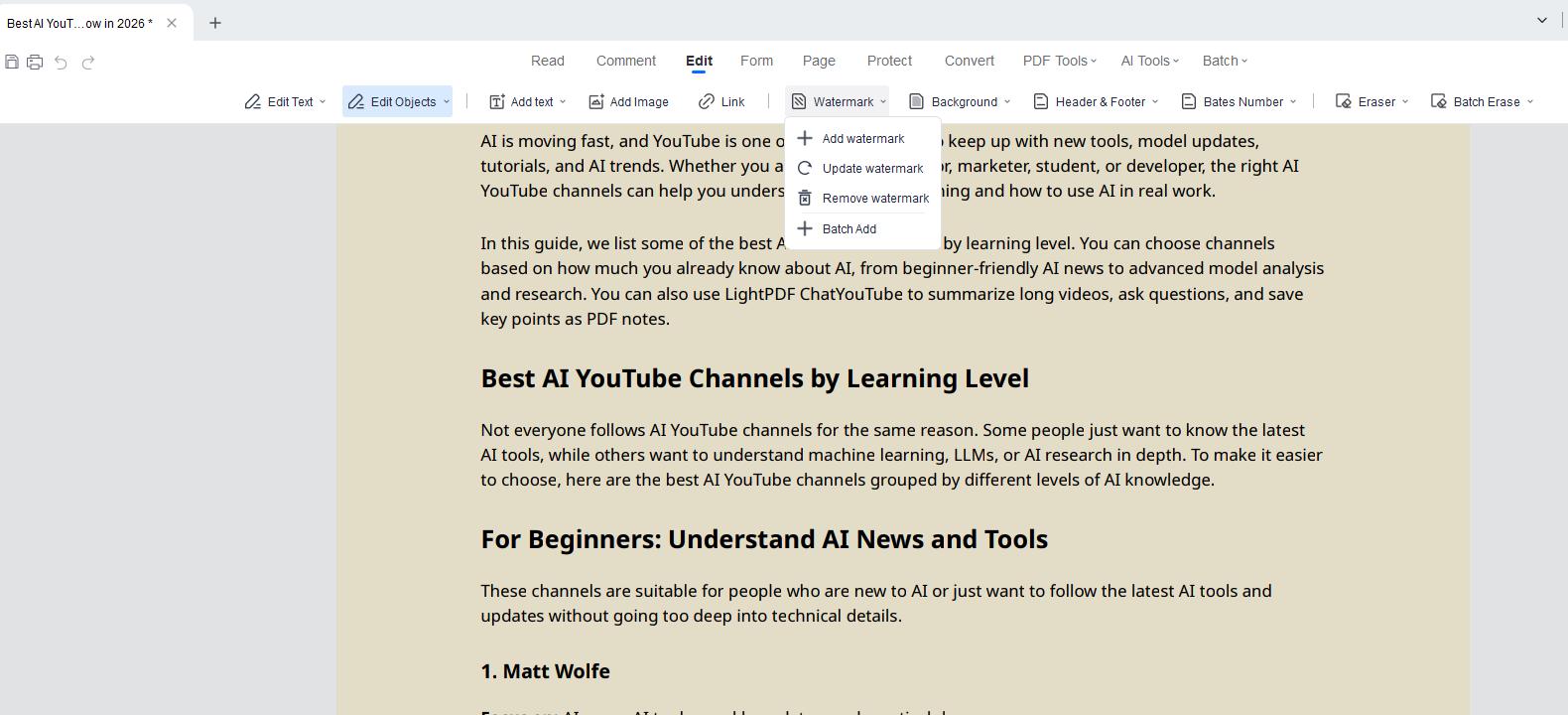
- Confirm the action to remove the editable background, such as a background image, color block, or layer.
- Preview the result.
- Save or download the cleaned PDF.
How to Use LightPDF for Scanned PDF Backgrounds
- Open LightPDF and choose a scanned PDF enhancement tool.
- Upload your scanned or photographed PDF.
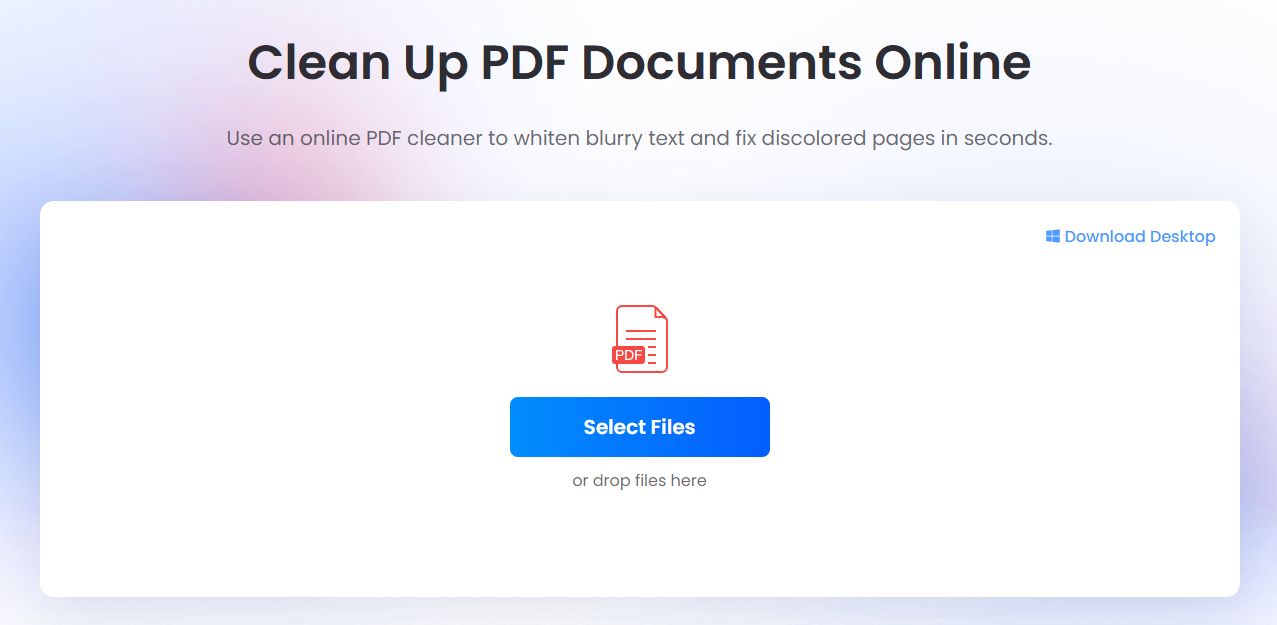
- Choose Face enhancement mode or AI mode to clean background.
- Click on Start processing.
- Download the clearer PDF.
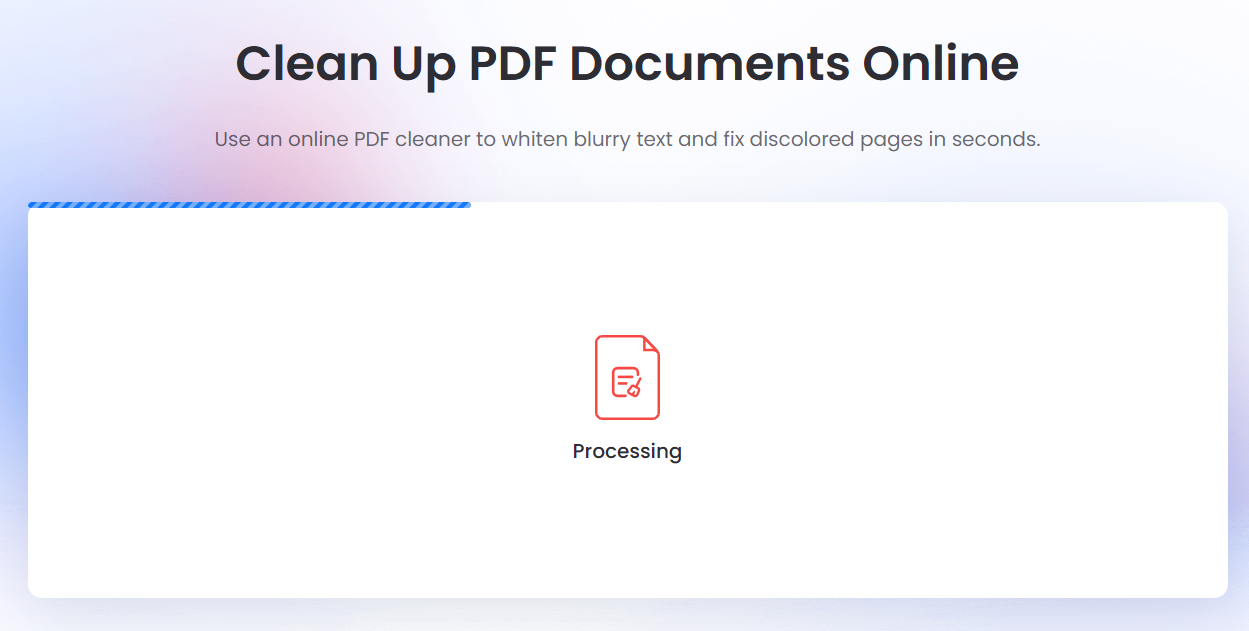
For scanned PDFs, you can also use LightPDF tools such as Scanned PDF Cleaner, PDF Shadow Remover, or Enhance Scanned PDF, depending on the problem you want to fix.
Method 2. Remove Background from PDF with Adobe Acrobat
Adobe Acrobat is a professional PDF editor. It is suitable for users who often work with business documents and need advanced editing features. You can use it to remove editable PDF backgrounds, such as background images, page colors, or added background layers.
How to Remove PDF Background in Adobe Acrobat
- Open Adobe Acrobat and click File to open your PDF file.
- Go to Tools and choose Edit PDF.
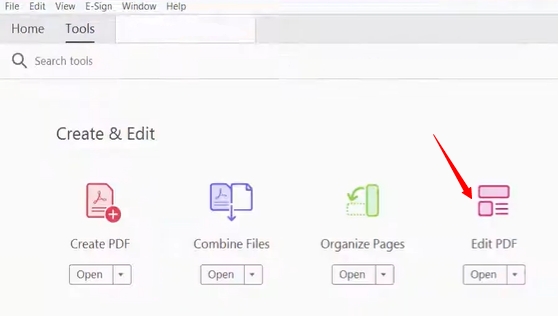
- In the toolbar, click More.
- Select Background and choose Remove.
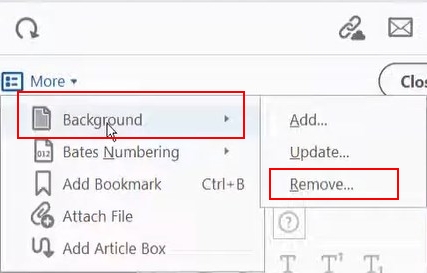
- Click Yes in the pop-up window to confirm.
- Click Save to save the new PDF file.
Pros
- Professional PDF editing features
- Good for office documents
- Works well with editable backgrounds
Cons
- Usually requires a paid plan
- May be too complex for simple tasks
- Not always ideal for scanned PDFs
Method 3. Remove Background in PDF Using Google Docs
Google Docs can be used as a free workaround to remove a background image from a PDF. It works by converting the PDF into an editable Google Docs file, where you can delete unwanted background images or page elements and then export the file as a new PDF.
This method is best for simple, text-based PDFs. If your PDF has a complex layout, scanned pages, or many design elements, the formatting may change after conversion.
How to Remove a PDF Background Image with Google Docs
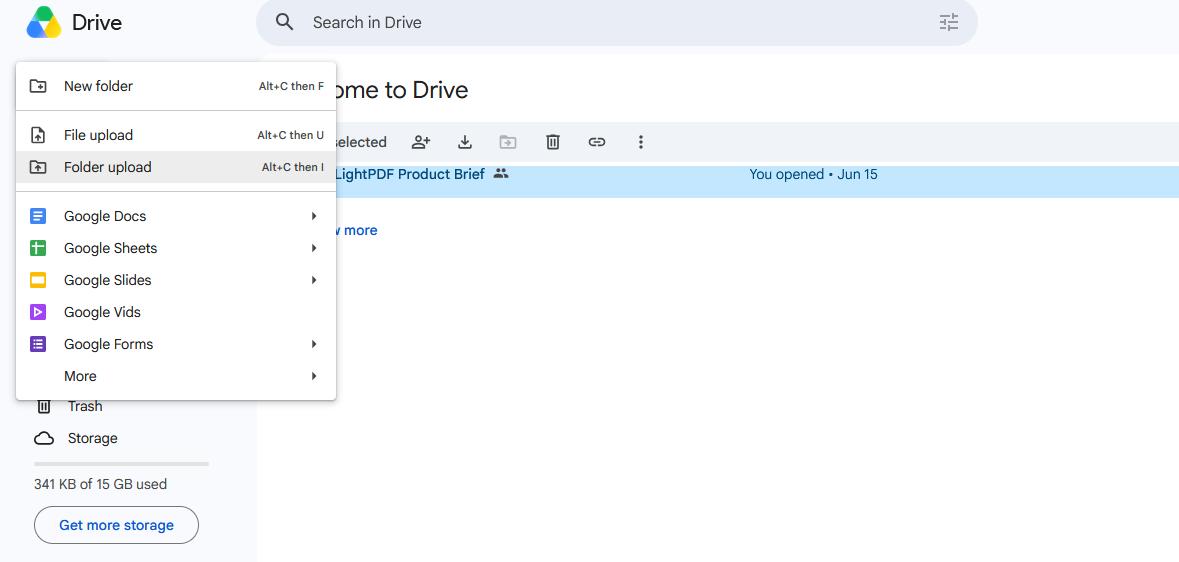
- Upload your PDF to Google Drive.
- Right-click the PDF and choose Open with > Google Docs.
- Google Docs will convert the PDF into an editable document.
- Select the background image or unwanted visual element.
- Press Delete to remove it.
- Adjust the text and layout if needed.
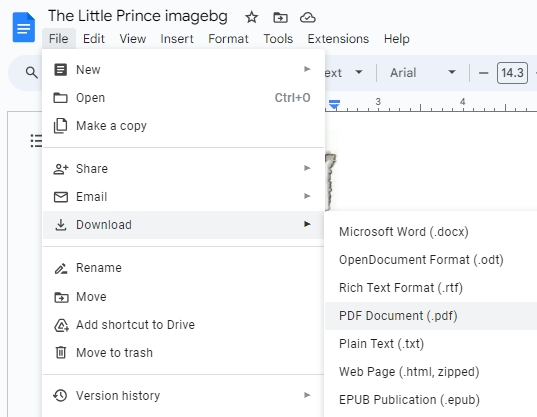
- Go to File > Download > PDF Document (.pdf) to save it as a new PDF.
Pros
- Free to use
- No extra PDF software required
- Good for simple text-based PDFs
- Allows you to edit the document before exporting
Cons
- May change the original formatting
- Not ideal for scanned PDFs
- Does not directly remove PDF background layers
- Complex designs, tables, and images may not convert perfectly
Method 4. Convert PDF and Create a Clean Version
If the background cannot be removed directly, you can convert the PDF first and then create a cleaner version. This method is useful for complex PDFs, old scanned files, or image-based documents.
Option 1: Convert PDF to Word
This works well for text-heavy files.
Steps:
- Convert PDF to Word via free online converter.
- Use OCR first if the PDF is scanned.
- If the background image can be selected, simply click it and press Delete on your keyboard.
- Adjust the text, images, and layout if needed.
- Go to File > Save As or File > Export, and save the document as a new PDF.
This method is suitable for reports, contracts, forms, and study materials.
Option 2: Convert PDF to Images
This works better for image-based PDFs or heavily scanned pages.
Steps:
- Convert the PDF pages to JPG or PNG images.
- Adjust the brightness, contrast, or black-and-white mode to make the text clearer. Or use an image background remover or editing tool to clean unwanted background
- Convert the cleaned images back to PDF.
- Compress the final PDF if the file size is too large.
This method gives you more control, but it may take more time. The text may also become unselectable unless OCR is applied again.
Which Method Should You Choose?
The best way to remove background from a PDF depends on your file type and what you want to fix.
| Situation | Best Method |
|---|---|
| The PDF has an editable background image, color, or layer | Use LightPDF Desktop or Adobe Acrobat |
| The PDF is scanned or photographed | Use LightPDF online enhancement tools |
| The page has gray, yellow, or dirty background | Use a scanned PDF cleaner |
| The PDF has shadows or dark areas | Use a PDF shadow remover |
| The text is blurry or hard to read | Use an scanned PDF enhancer |
| You want to remove a simple background image for free | Try Google Docs |
| The layout is complex or the background cannot be selected | Convert the PDF to Word or images, then recreate it |
| You need a professional editing tool | Use Adobe Acrobat |
| You want a quick and simple solution | Use LightPDF based on your PDF type |
In short, use a PDF editor when the background is editable. Use a PDF cleaner or enhancer when the PDF is scanned. If the background cannot be removed directly, convert the PDF to Word or images and create a cleaner version.
Tips for Better Results
- Always keep a copy of the original PDF before editing.
- If the background is editable, use a PDF editor. If the PDF is scanned or photographed, use a cleaner, shadow remover, or scanned PDF enhancer.
- For OCR, clean the background first. This can help improve text recognition.
- After editing, compress the final PDF if the file size becomes too large.
Conclusion
Removing background from a PDF can make the file cleaner, easier to read, better for printing, and more suitable for OCR.
For most users, LightPDF is a simple option because it offers different tools for different PDF types. You can remove editable backgrounds, clean scanned pages, reduce shadows, and enhance blurry text.
If you need professional PDF editing, Adobe Acrobat is another choice. If the background is too complex, converting the PDF to Word or images can help you recreate a clean version.


Leave a Comment