


1. LightPDF — For Editing Existing Text in Poster Images
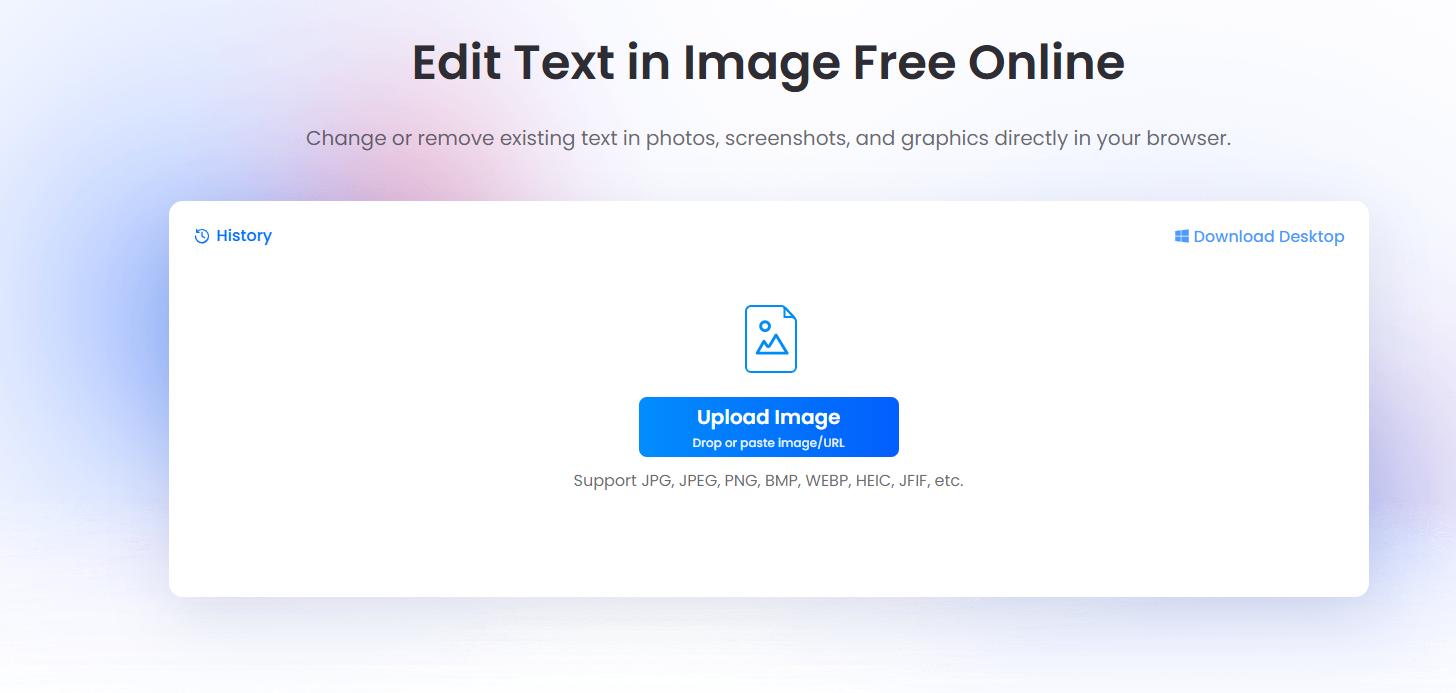
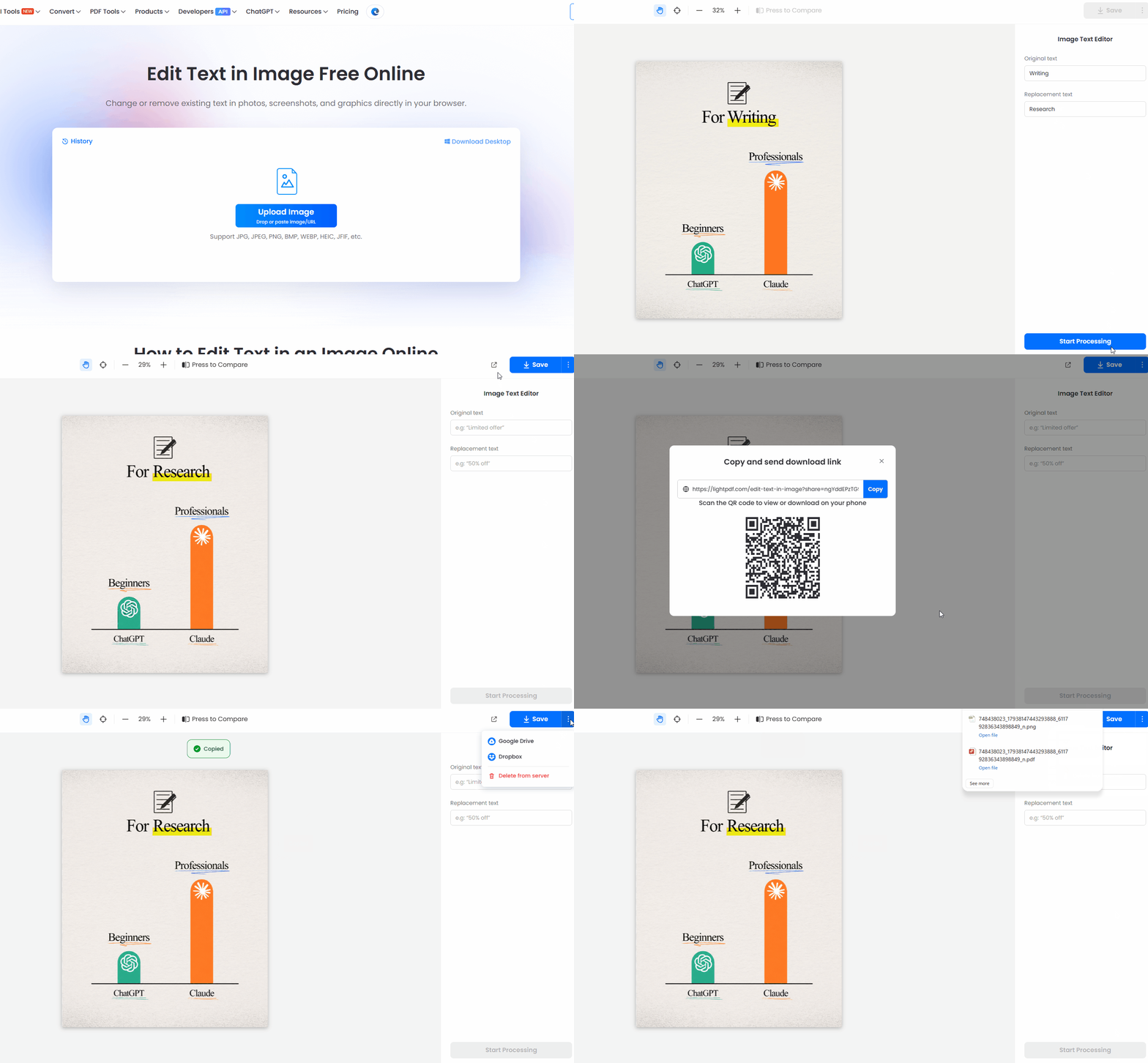
If your poster is already saved as an image, LightPDF’s Edit Text in Image is a focused option for changing its existing wording. The tool supports replacing, removing, and translating text directly in the browser, with a preview before downloading.
Consider it for a small correction, such as fixing a misspelled headline or updating an event location while trying to keep the surrounding design consistent.
Advantages
- Focuses on existing image text.
- Offers replacement, removal, and translation in one workflow.
- Lets you review the result before downloading.
Limitations
It is designed around existing text rather than building a new poster layout. For adding new text boxes, moving graphics, or redesigning the composition, choose a layout editor. Always inspect the result, especially around decorative lettering and detailed backgrounds.
2. Canva — For Poster Templates and Layout Changes

Canva is a useful starting point when you want to customize a template. Its poster library covers occasions such as concerts, retail promotions, and conferences, giving you an existing layout to adapt.
For example, a student organizing a club event could start with a poster template, replace its heading, and arrange the event details around a photo.
Canva also offers Grab Text, which turns recognized text inside an image into editable text boxes. This feature requires an eligible plan. Canva notes that font matching may need adjustment and that Grab Text currently works with Latin text.
Advantages
- A broad selection of poster templates.
- Suitable for changing the overall composition.
- Supports both template editing and a separate image-text workflow.
Limitations
Uploading a JPG or PNG does not automatically make every word editable. Grab Text has separate access requirements and recognition limits, so a free template workflow should not be confused with free image-text editing.
3. Adobe Express — For Event and Promotional Posters

Adobe Express offers an online poster maker with free templates and customization using fonts and icons. It is a practical option for creating school announcements, business promotions, and event posters.
Choose it when you want to create or refresh an editable design. Starting from a suitable template can reduce the work involved in arranging a headline, supporting text, and imagery.
Advantages
- Free poster templates provide a starting layout.
- Text, fonts, and icons can be customized.
- Suitable for posters built around a clear announcement or promotion.
Limitations
Its template-editing workflow should not be assumed to make lettering inside every uploaded image editable. Check whether the words you want to change are separate design elements before committing to the workflow.
4. Photopea — For Manual Poster Text Corrections

Photopea provides a manual way to change wording in a finished image. Its official tutorial describes removing the original text, then adding replacement wording with the Type tool. For plain backgrounds, this can involve painting over the lettering; more complex backgrounds require additional cleanup.
This approach is worth considering when you want control over individual corrections and are comfortable working with image-editing tools.
Advantages
- Offers a free browser-based editing workflow.
- Gives you control over text placement and appearance.
- Useful for small corrections on simple backgrounds.
Limitations
You need to recreate the lettering manually. Matching the original font, spacing, and background can take time, particularly when text overlaps a photograph or textured illustration.
How to Edit Text in Posters Online
Before choosing a tool, identify the type of poster file you have.
If You Have an Editable Design
Open the original project whenever possible. Select the text box, change the wording, and check the line breaks. This is usually the most reliable route when the poster needs several revisions, precise typography, or broader layout changes.
If You Only Have a Poster Image
For existing image text, LightPDF provides this workflow:
- Open Edit Text in Image and upload your poster.
- Select the existing wording and replace, remove, or translate it.
- Preview the edited image and download the result.

Use the highest-quality original image available. A screenshot of a screenshot gives an editor less detail to work with.
If You Prefer Manual Editing
Photopea’s approach is to remove the old lettering and add a new text layer. Start with a short phrase on a plain background before attempting a larger correction over a photograph.
Tips for Better Poster Text Edits
Keep replacement wording close to the original length. A much longer headline may crowd nearby elements or force an awkward line break.
Check the entire poster after each change. Look for leftover letters, uneven spacing, damaged background details, and text that no longer aligns.
Review at the intended viewing size. A heading may look clear when zoomed in but become difficult to read on a phone.
Keep an editable copy. If you expect future updates, retain the original project or layered file alongside the exported image.
Conclusion
The best online poster editor is the one that fits your starting file. Use Canva or Adobe Express when you need a template or broader layout changes. Choose Photopea if you want to make manual corrections.
If your design is already finished and only its existing wording needs updating, try LightPDF’s Edit Text in Image, then review the result carefully before sharing or printing.


Leave a Comment