Best SlideShare Alternatives for Finding and Downloading Presentations
The right SlideShare alternative can help you find useful slides, share your work, or customize a presentation. This guide compares seven platforms and their download options, then walks you through editing saved PPT files, converting PDF slides, and updating text inside slide images with LightPDF.
Some platforms below host presentations you can browse and download, while others offer editable templates or tools for creating and sharing your own slides.
1. SlideServe
Best for: Finding and downloading shared presentations.
SlideServe lets you browse presentations and read their slide content online. It is useful when you want to compare how different people explain a topic before putting together your own deck.
Search for a subject, open a presentation, and review the preview. If the page provides a download link, follow it to save the file. Download availability depends on whether the publisher still makes the file available.
Check the author’s terms before adapting or republishing downloaded material.
2. Speaker Deck
Best for: Exploring conference talks and PDF presentations.
Speaker Deck is worth exploring for programming, technology, and other presentation examples. Public decks can be viewed without an account.
Speaker Deck supports PDF presentations. When downloads are enabled, expect a PDF rather than an editable PowerPoint source file. Pro account holders can disable downloads for their decks.
This makes the platform convenient for reading talks and reviewing visual explanations. If you want to customize a downloaded PDF, the conversion method in Part 2 can help you prepare it for PowerPoint editing.
3. Google Slides
Best for: Collaborating on and sharing presentations.
Google Slides works well when you already know who needs to see your presentation. You can create or import slides, edit them in your browser, and share the file with classmates, colleagues, or clients.
Its sharing controls let you choose whether people can view, comment on, or edit the presentation. That makes it useful for group assignments and drafts that need feedback before publishing.
Basic use is available with a personal Google account. Download access depends on the owner’s settings, while work or school accounts may have additional sharing restrictions.
4. Slidesgo
Best for: Downloading themed PowerPoint and Google Slides templates.
Slidesgo is a practical option when you want a designed starting point for your own content. Its collections cover education, business, marketing, and other presentation needs.
How to get a template:
Open a template and review the included slides.
Choose Download this template.
Select PowerPoint to save the file, or Google Slides to create a copy in Drive.
Check the template’s access requirements before choosing it. For free use, Slidesgo requires you to keep its credits slide. Some fixed design elements may be located in the slide master and need to be edited there.
5. SlidesCarnival
Best for: Finding free templates for classroom and work presentations.
SlidesCarnival offers templates for PowerPoint and Google Slides. It is useful when you want a layout you can customize with your own content.
Choose a template, preview the slides, and use its PowerPoint download or Google Slides option. Then replace the sample wording and visuals with your own material.
The templates are free to use with appropriate credit. Keep the required attribution in your presentation, and check any separate credit requirements for photographs included in the design.
6. Canva
Best for: Customizing visual presentations and exporting PPTX or PDF files.
Canva lets you choose a presentation template, change the text and visuals in your browser, and download the finished design as PowerPoint or PDF.
It is useful when you want to adjust the design before saving a local copy. You can also import an existing PowerPoint presentation for further editing.
Check whether your chosen template includes premium elements, as these may require payment or a suitable plan. Review the exported PPTX in PowerPoint, too: fonts, animations, and embedded videos may look or behave differently after export.
7. Zoho Show
Best for: Publishing presentations online and embedding them on a website.
Zoho Show offers free individual use, with tools for creating presentations, importing existing files, and sharing your work online.
You can publish a presentation as a web link or embed it on a website or blog. This makes it useful for displaying a product overview, portfolio, or learning resource alongside related content.
For published decks, the owner can decide whether viewers may download a copy as PowerPoint or PDF. Zoho Show also supports exporting presentations for further editing in other applications.
Part 2. How to Edit Downloaded Presentations
A downloaded deck often needs a few changes before it fits your audience. You may want to shorten the text, replace examples, update a diagram, or rearrange the slides.
Start by checking the file format. PPT and PPTX files can be opened in a presentation editor. A PDF may need conversion, while text inside a screenshot or graphic needs a different editing approach.
1. Edit PPT or PPTX Files in PowerPoint or Google Slides
For native PowerPoint files, start with a presentation editor.
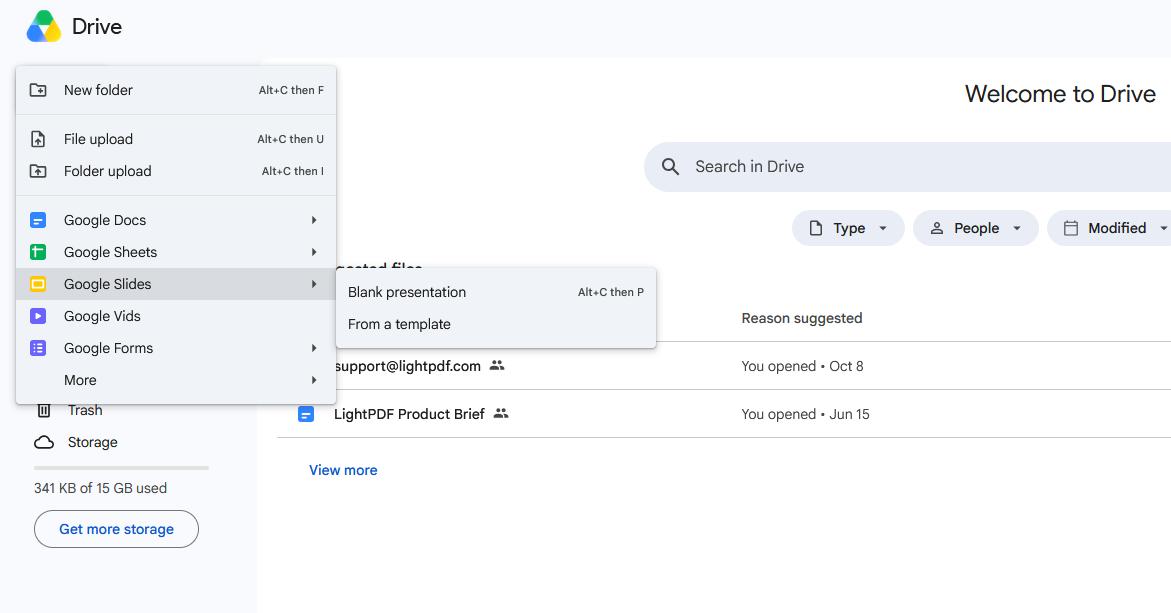
Open a working copy. Open the downloaded file in PowerPoint. To work in Google Slides, upload it to Google Drive and choose Open with Google Slides.
Update the content. Select editable text boxes and replace the wording. Add your own examples, images, and supporting information.
Adjust the layout. Rearrange or delete slides, choose suitable layouts, and make headings and body text consistent.
Review and save. Check line breaks, image placement, and slide order before saving your edited presentation.
If an element cannot be selected, it may belong to the slide master or be part of a picture. In desktop PowerPoint, check View → Slide Master for elements controlled by the template.
2. Convert Downloaded PDF Slides to PPT with LightPDF
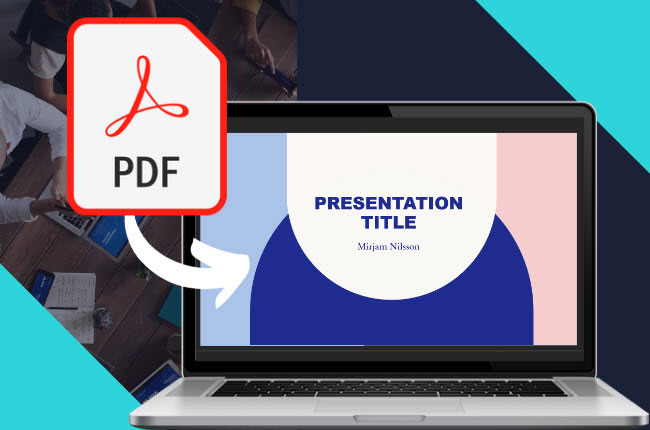
Some presentation sites provide PDF downloads. If you need to rearrange their content or revise the wording in PowerPoint, use LightPDF’s PDF to PPT converter to create a PowerPoint version.
How to convert and edit the presentation:
Open LightPDF’s PDF to PPT tool.
Upload the downloaded PDF presentation.
Use direct conversion for standard PDFs, or select OCR mode for scanned or image-based pages, then start the conversion.
Download the resulting PowerPoint file.
Open it in your presentation editor and revise the content.
Review text recognition, fonts, tables, and alignment after conversion. A PDF may not contain the animations, notes, or other source material needed to recreate the original deck completely.
3. Edit Text Inside Slide Images with LightPDF
Sometimes the wording you need to change is inside a screenshot, diagram, or graphic. Selecting the picture in PowerPoint only selects the whole image.
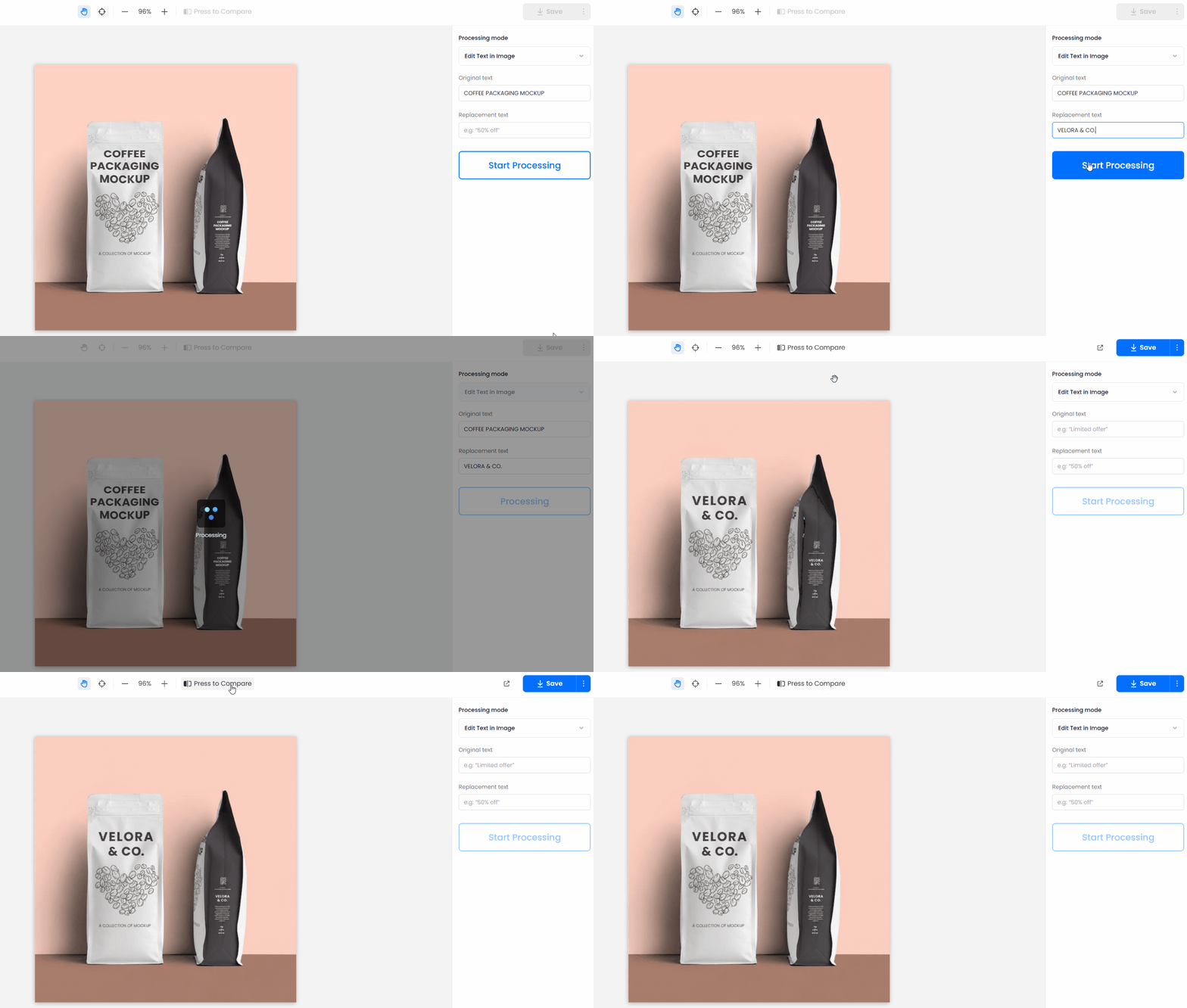
For an image you have permission to modify, LightPDF’s image text editor can help you replace, remove, or translate existing wording without rebuilding the graphic.
How to update image text:
In desktop PowerPoint, right-click the image and select Save as Picture to save it as a PNG or JPG file.
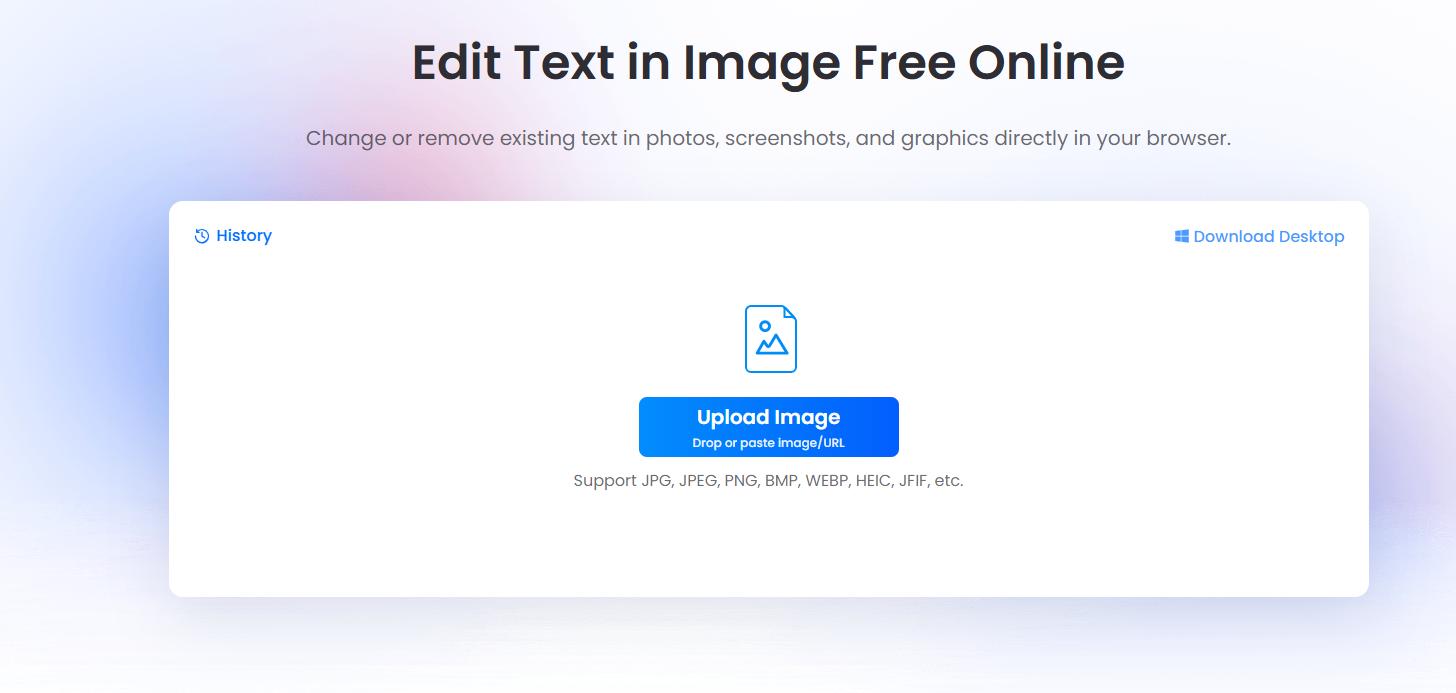
Open LightPDF’s Image Text Editor tool and upload the image.
Select the existing text and enter the replacement wording, or choose the available translation option.
Review the result and download the updated image.
Replace the original picture in your presentation with the updated image, then check its size and position.
The updated wording remains part of the image when you place it back into the deck. Check it at presentation size to make sure it is clear and readable.
Before sharing your finished presentation, run through it in slideshow view. Check the content, test links and media, and keep any required credits. Use LightPDF to convert PDF slides or revise text in slide images, then make any final adjustments in your presentation editor.
Rating:4.3 /5(based on 30 ratings)Thanks for your rating!
Sharing practical PDF tips, feature tutorials, AI resources, and the latest PDF updates to help you work smarter and faster. Follow for expert insights and actionable guides to elevate your PDF experience.





Leave a Comment