


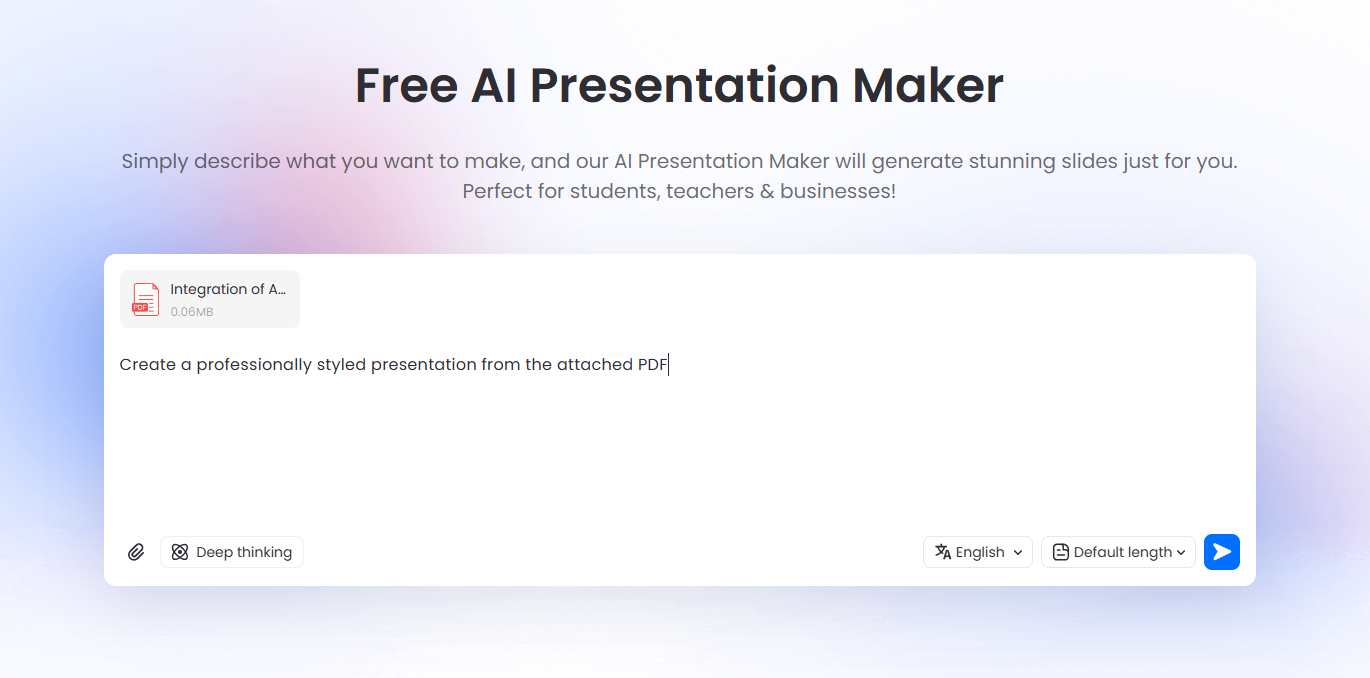
Tool #1 — LightPDF
Conclusion: LightPDF is the clear best PDF to PowerPoint converter for most users thanks to its powerful AI features, beautiful templates, and outstanding editability.
Problem it solves: It eliminates the pain of starting from scratch when a PDF contains valuable content—reports, research papers, or notes—that you want to turn into a polished presentation quickly.
How it works: Upload your PDF directly into LightPDF’s AI Presentation Maker. You can add a custom prompt (e.g., “Make this technical report into a 15-slide investor pitch with bullet points and visuals”), choose the target language, select presentation length (short, medium, or long), and pick from a wide range of modern templates. The AI analyzes the content, creates a logical outline, distributes text intelligently across slides, and applies professional design automatically.
Result / usable output: You receive a ready-to-use PPTX file with clean typography, balanced layouts, relevant icons, and fully editable elements. Open it in Microsoft PowerPoint or Google Slides, and you can modify text, rearrange slides, change colors, add animations, or insert new content without restrictions.
Tool #2 — PDF Guru
Conclusion: PDF Guru is a reliable online PDF to PowerPoint converter that prioritizes accuracy and is especially strong with structured documents.
Problem it solves: Handles business reports, contracts, and data-heavy files where preserving tables, charts, and precise formatting is critical.
How it works: After a simple login, upload your PDF. The platform uses advanced algorithms and optional OCR to detect and recreate headings, paragraphs, bullet points, and visual elements in PowerPoint-friendly structure.
Result / usable output: A clean, editable PPTX with intact tables, preserved fonts where possible, and logical slide breaks—ideal for quick refinements before a meeting.
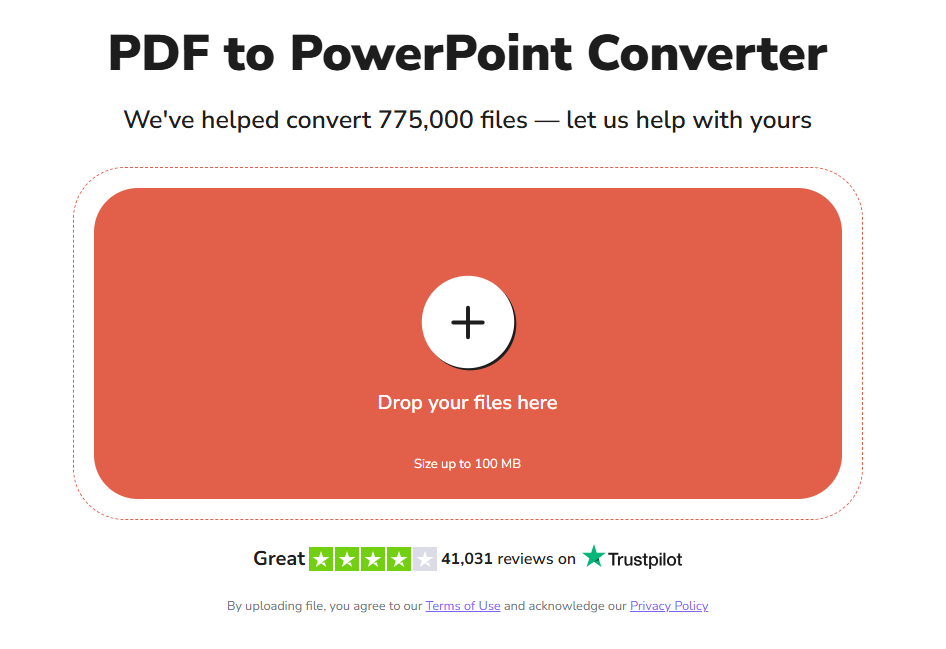
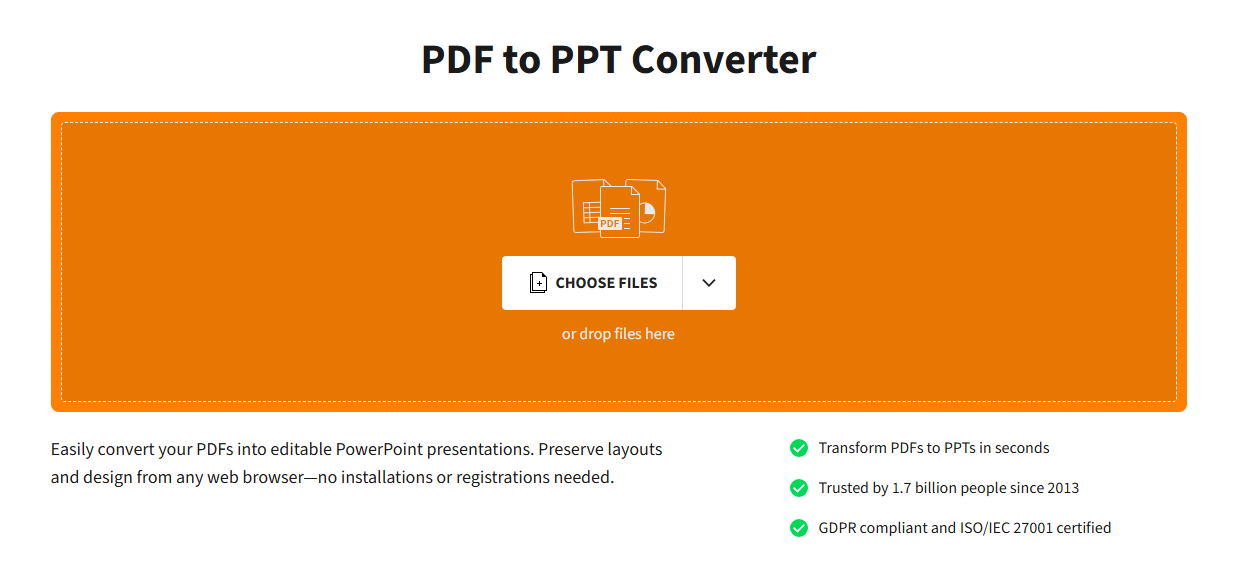
Tool #3 — Smallpdf
Conclusion: Smallpdf is one of the most popular free PDF to PPT converter options for fast, no-account-needed conversions.
Problem it solves: Perfect for one-off tasks where you have a visually rich PDF (brochures, magazines, or infographics) and need editable slides without installing anything.
How it works: Drag and drop the file into the browser tool. Smallpdf automatically detects pages, text layers, and images, then maps them to individual PowerPoint slides while keeping relative positioning.
Result / usable output: Editable slides that closely resemble the original design, allowing you to select and modify text boxes, resize images, and adjust layouts in PowerPoint.
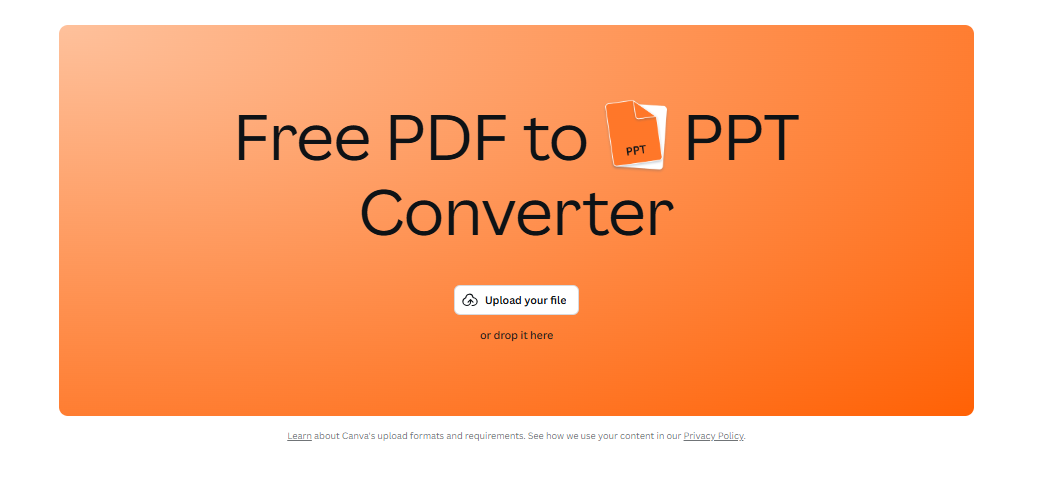
Tool #4 — Canva
Conclusion: Canva shines when you plan to convert PDF to editable PPT and want to elevate the design at the same time.
Problem it solves: Avoids the “bland slide deck” outcome of pure converters by giving you creative control during and after conversion.
How it works: Import the PDF pages as images or editable elements, then use Canva’s vast library of templates, icons, stock photos, and animations to enhance the content before exporting as PPTX.
Result / usable output: Visually impressive, modern presentations with smooth transitions and brand-consistent styling—fully editable once downloaded to PowerPoint.
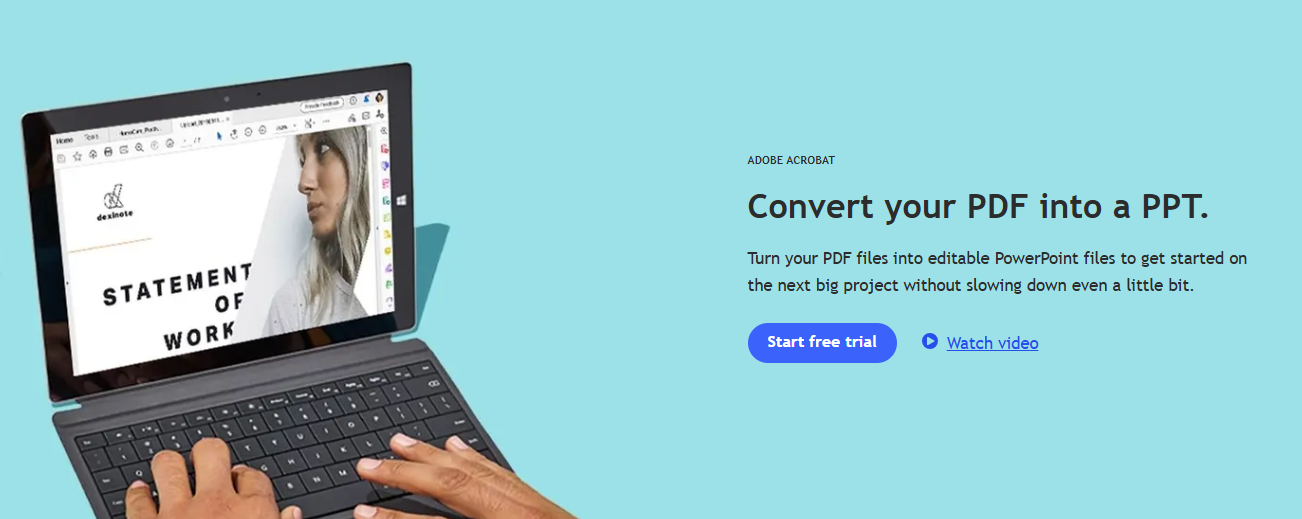
Tool #5 — Adobe Acrobat
Conclusion: Adobe Acrobat remains the gold standard online PDF to PowerPoint converter for professionals who demand maximum fidelity.
Problem it solves: Successfully transfers advanced PDF features—hyperlinks, comments, form fields, layered graphics, and complex tables—that most free tools cannot handle properly.
How it works: Upload through Acrobat’s web interface. Adobe’s industry-leading conversion engine analyzes the PDF structure and rebuilds it slide-by-slide in native PowerPoint format.
Result / usable output: Near-pixel-perfect editable PPTX files that retain interactivity and formatting details, making it ideal for legal, financial, or academic documents.
Tool #6 — iLovePDF
Conclusion: iLovePDF is a straightforward, effective free PDF to PPT converter for everyday use.
Problem it solves: Provides consistent results for standard multi-page PDFs without the bloat or ads found in lesser tools.
How it works: Upload the file, choose PowerPoint as the output format, and let the cloud-based engine process page-by-page conversion with emphasis on text and image placement.
Result / usable output: Clean, functional PPTX files with selectable text and resizable elements—ready for quick edits or direct presentation.
Comparison
| Tool | Key Outcome | Limitation | Best Use Case |
|---|---|---|---|
| LightPDF | AI-enhanced professional slides | Free tier credit limits | Smart, template-based presentations |
| PDF Guru | High data accuracy | Requires account | Detail-critical documents |
| Smallpdf | Fast layout preservation | Watermarks on free tier | Quick one-off conversions |
| Canva | Creative visual upgrades | More design than pure conversion | Stylish, branded presentations |
| Adobe Acrobat | Maximum fidelity | Subscription required | Complex professional files |
| iLovePDF | Simple accurate results | Premium for batch processing | Daily routine tasks |
FAQ
Q: What is the best online PDF to PowerPoint converter for everyday use?
A: LightPDF stands out for its AI intelligence, template variety, and seamless editable output—perfect for students, marketers, and professionals alike.
Q: How can I convert PDF to editable PPT for free?
A: LightPDF, Smallpdf, and iLovePDF all offer strong free tiers. For unlimited use without watermarks or daily limits, consider upgrading to premium.
Q: How to convert PDF to slides while keeping the original look?
A: Adobe Acrobat delivers the closest match, followed by LightPDF and Smallpdf. Expect some minor adjustments in most cases, as PDF and PowerPoint handle layouts differently.
Bonus: How to Edit NotebookLM Slides
NotebookLM creates excellent summarized slide decks from your sources, but it only exports them as static, non-editable PDFs. Here’s the easiest way to make them fully editable:
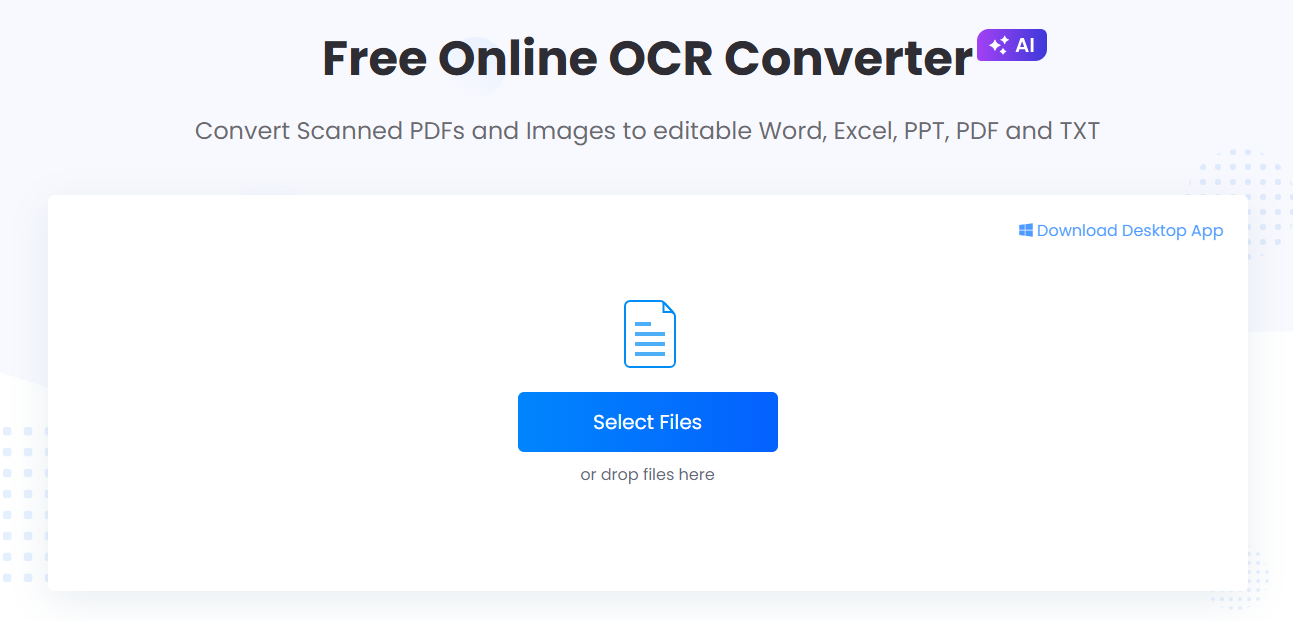
Upload the exported NotebookLM PDF to LightPDF and select the OCR to PPT conversion option (make sure to enable OCR mode). LightPDF’s advanced OCR accurately detects headings, bullet points, quotes, images, and overall slide structure—even when the PDF is image-based. It then reconstructs everything into a native, fully editable PPTX file.
Once downloaded, open the file in Microsoft PowerPoint. You can now:
- Edit or rephrase any text
- Rearrange or delete slides
- Update colors and fonts to match your branding
- Add transitions, animations, or speaker notes
- Insert additional charts or media
Conclusion: This method works reliably because powerful OCR separates text layers from background images and rebuilds them as selectable PowerPoint objects, giving you complete creative control over NotebookLM’s otherwise locked output.
Final Summary
- Want intelligent, beautiful slides with almost no work? Go with LightPDF.
- Need quick, free, and reliable conversions? Smallpdf or iLovePDF.
- Handling complex or sensitive documents? Adobe Acrobat is unmatched. For the majority of users who want speed, quality, and true editability, LightPDF is the best PDF to PowerPoint converter available today.


Leave a Comment