


Method 1: Edit Numbers in an Image with LightPDF
If you only need to correct an existing date, price, quantity, score, or other number, LightPDF Image Text Editor provides a quick way to do it online.
Instead of manually removing the original number and rebuilding the background, you can select the existing content and replace it directly.
How to Edit Numbers with LightPDF
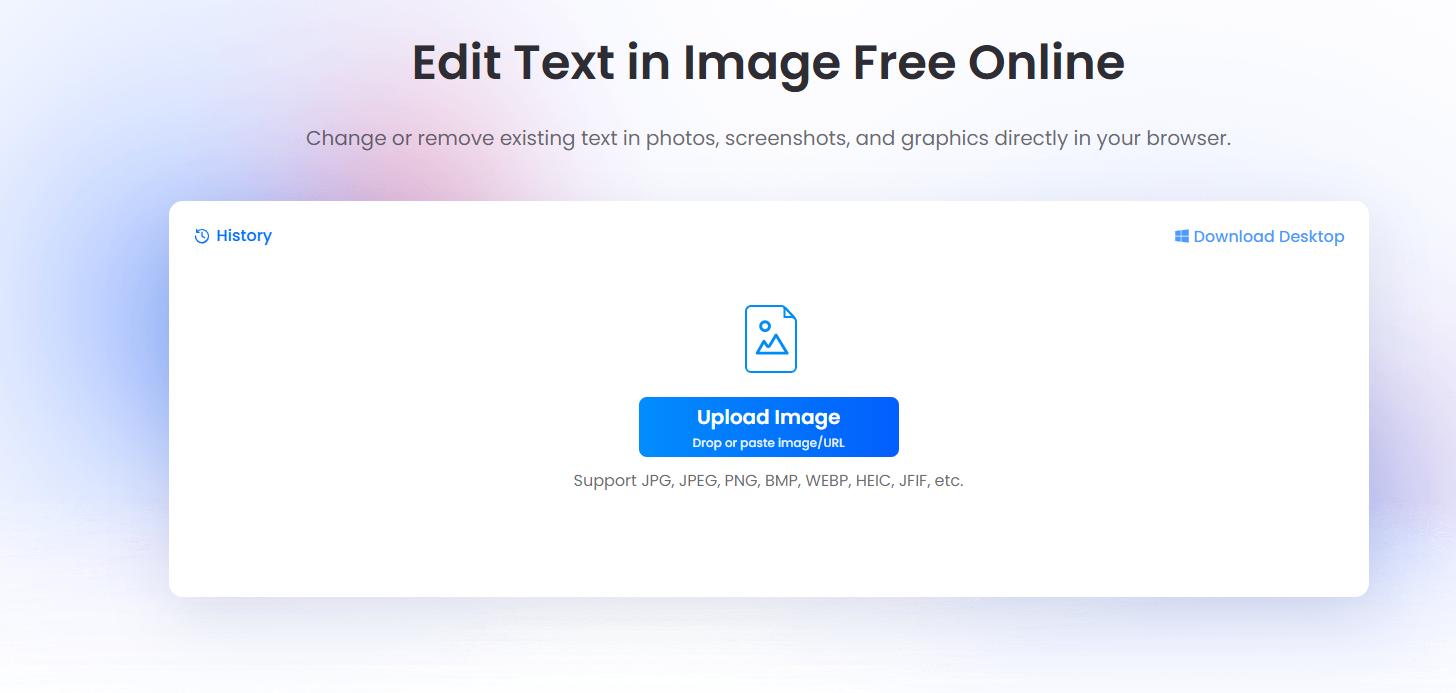
Step 1. Upload your image
Open LightPDF Image Text Editor and upload the image containing the number you want to change.
You can use common image formats such as JPG, JPEG, PNG, BMP, WEBP, HEIC, and more.
Step 2. Select the existing number
Keep the selection focused on the number itself instead of selecting a large surrounding area.
Step 3. Enter the new number
LightPDF removes the original number and generates the replacement while preserving the surrounding image as much as possible.
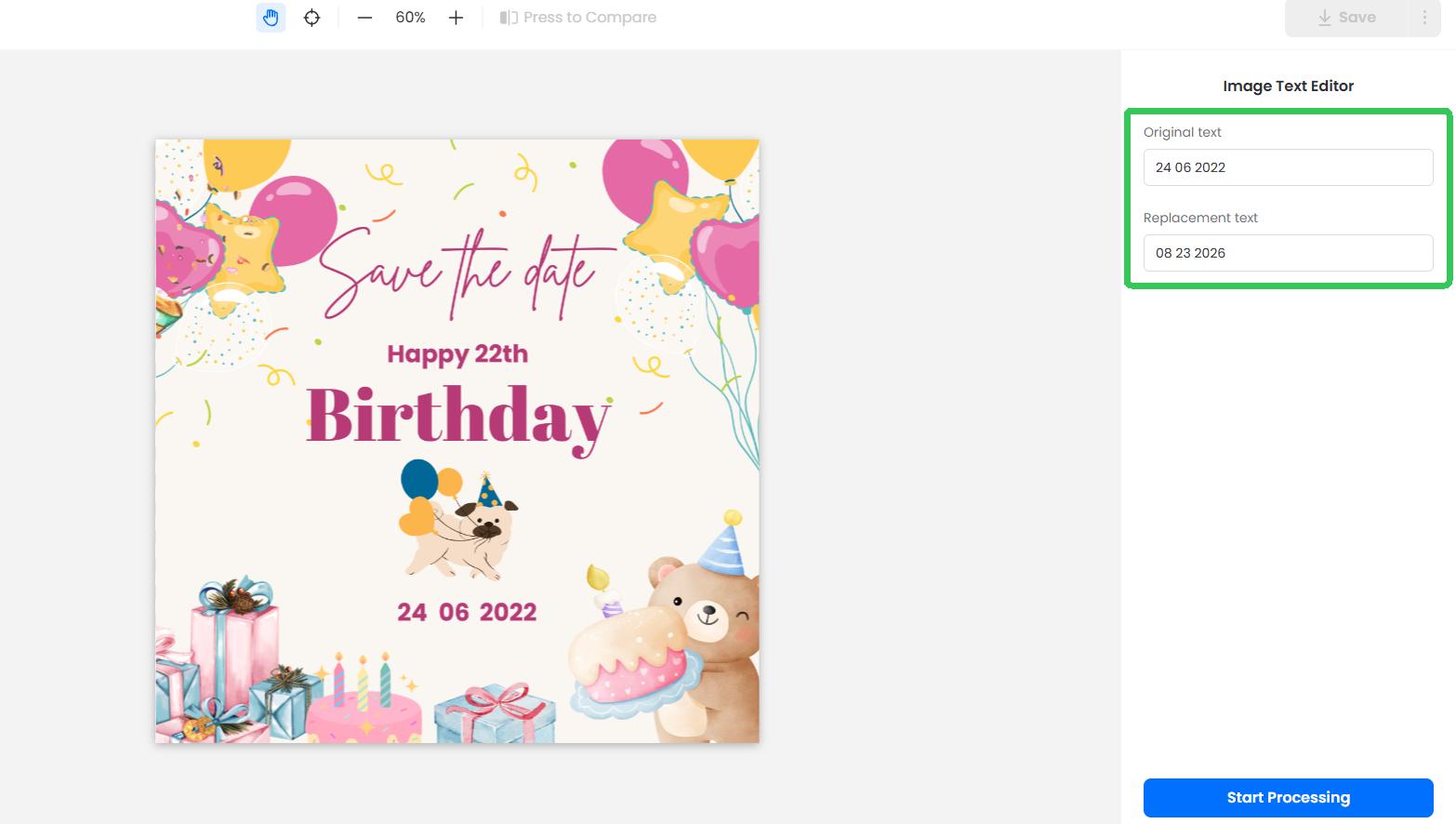
Step 4. Check the result and Download the edited image
Zoom in and inspect the edited area carefully. Once the new number looks correct, download the finished image.
What Numbers Can You Edit?
An image number editor can be useful for correcting many types of numerical information, including:
- Dates
- Prices
- Percentages
- Quantities
- Scores
- Times
- Page numbers
- Room numbers
LightPDF is particularly useful when the number appears over a photo, gradient, texture, or other background that would be difficult to recreate manually.
Method 2: Change Numbers in an Image with Canva
You can also use Canva to replace numbers manually.
This method does not directly edit flattened image text. Instead, you cover the original number and place a new text element over the same area.
It works best when the original number appears on a plain or simple background.
How to Edit a Number in Canva
Step 1. Upload the image
Open Canva, create a design, and upload your image.
Place the image on the canvas.

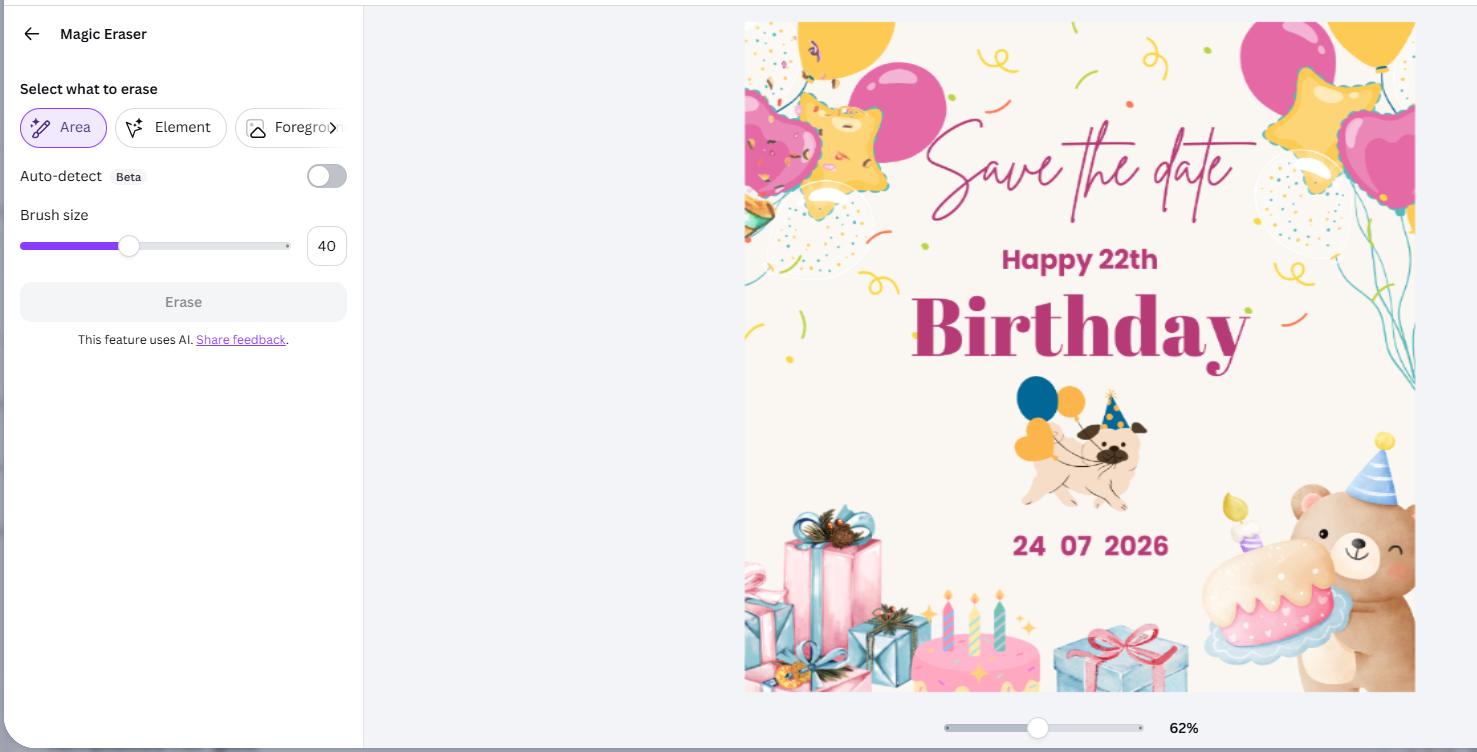
Step 2. Remove the old number
Go to Elements and click on Magic Erase. Use this tool to remove the old number.
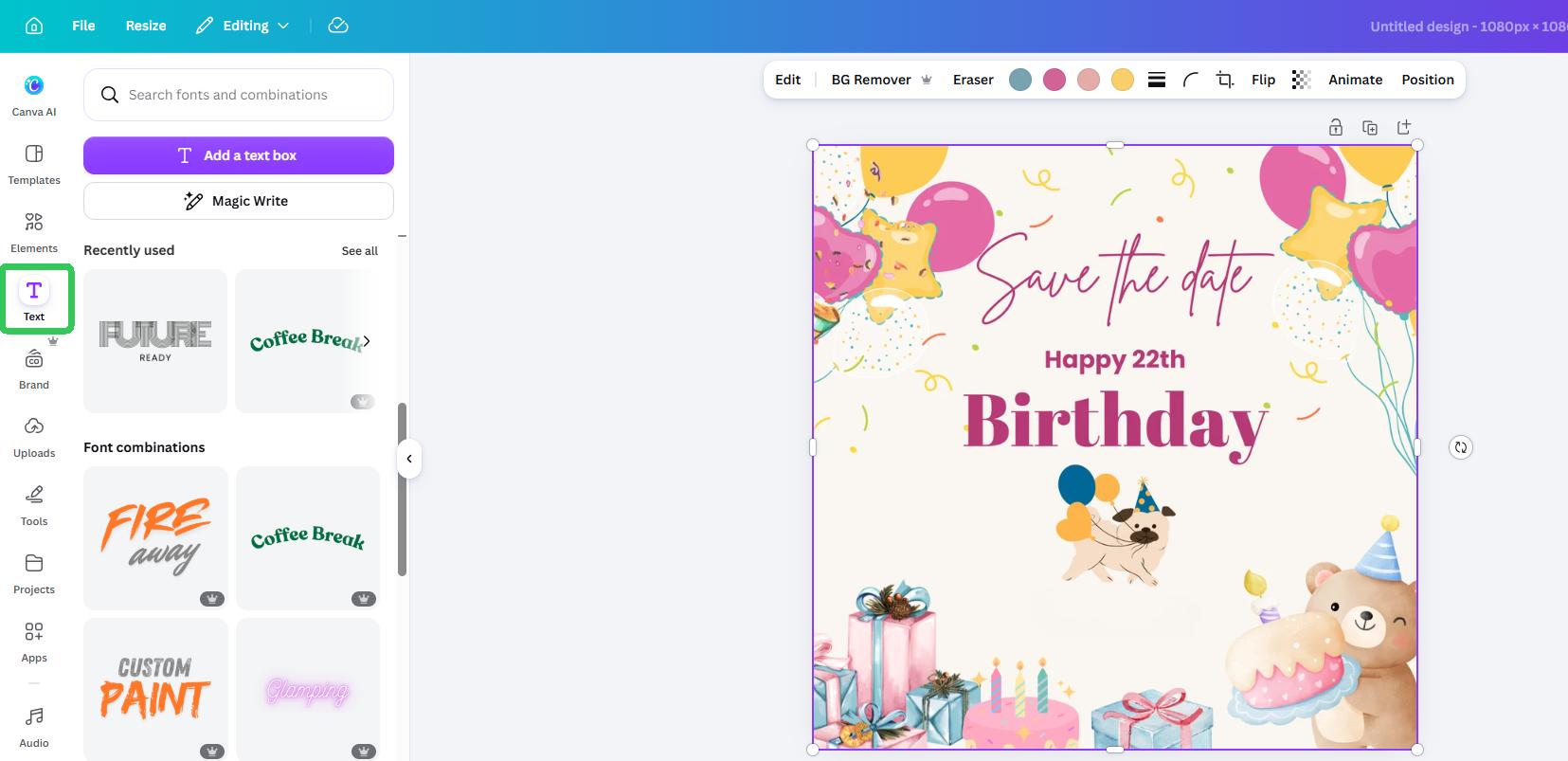
Step 3. Add the new number
Choose Text and add a text box.
Then position it where the original number appeared.
Step 4. Match the original style
Adjust the new number so it blends with the surrounding text.
Try to match:
- Font
- Font size
- Weight
- Color
- Spacing
- Alignment
Step 5. Export the image
Check that the replacement looks natural, then export the finished image as JPG or PNG.
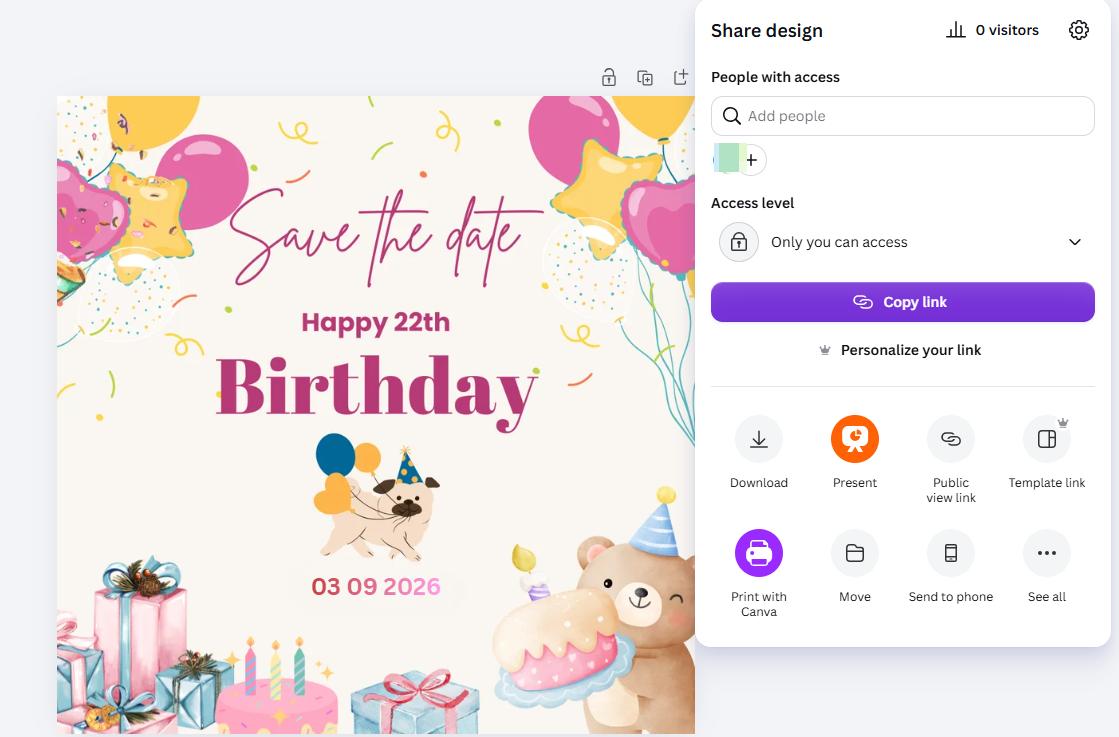
When This Method Works Best
Canva is useful for:
- Event posters
- Invitations
- Schedules
- Social media graphics
- Infographics
- Images with solid-color backgrounds
However, this method becomes more difficult when the number appears over photographs, gradients, shadows, or textured backgrounds because the shape used to cover the original text may remain visible.
Edit Numbers in an Image with ChatGPT
If you want a quick way to edit numbers in an image without manually matching fonts or rebuilding the background, ChatGPT can help with image editing.
This method works especially well for updating numbers in your own posters, signs, graphics, screenshots, labels, study materials, and other non-sensitive images.
Step 1: Upload Your Image
Open ChatGPT and upload the image containing the number you want to change.
For better results, use a clear, high-resolution image where the original number is easy to see.
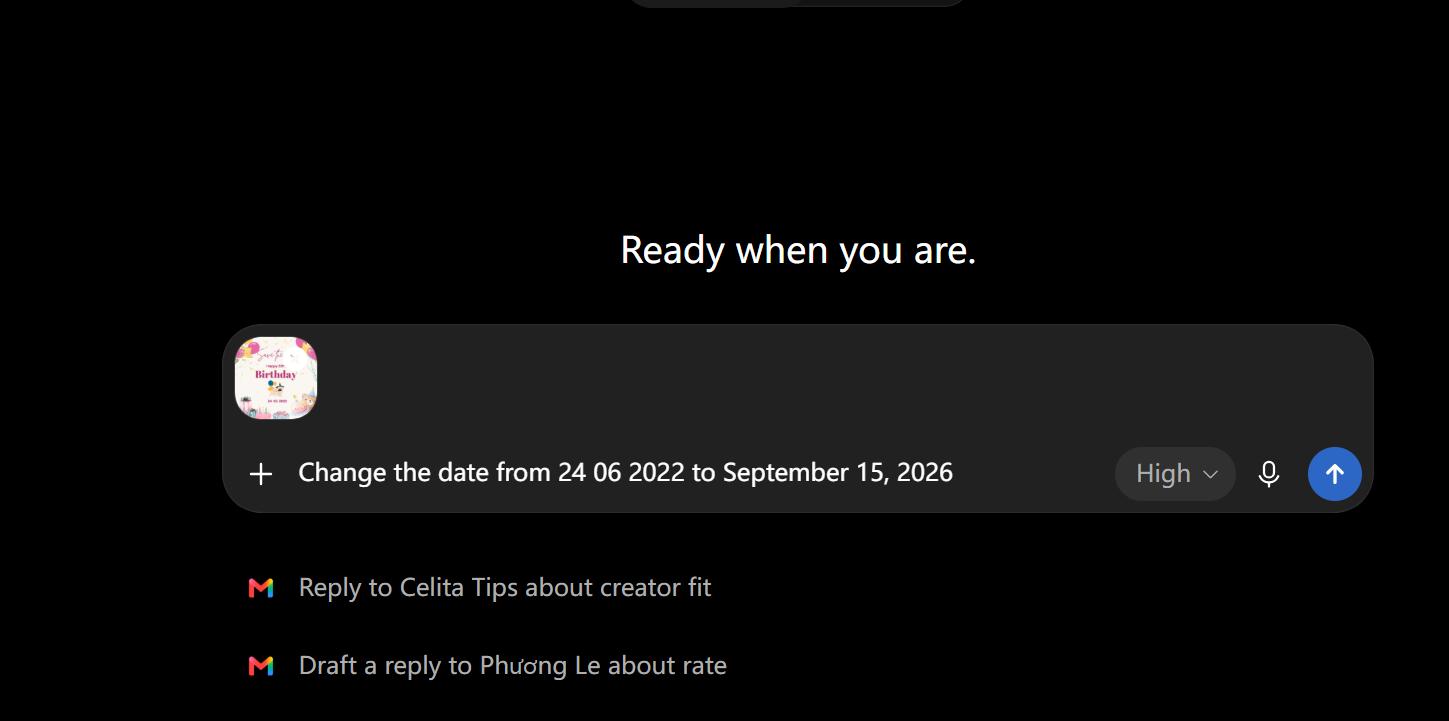
Step 2: Tell ChatGPT Which Number to Change
Describe the exact number you want to edit and, if necessary, mention where it appears in the image.
Prompt:
Replace the number “128” on the blue sign with “256”. Keep everything else unchanged.
If the image contains several numbers, be more specific:
Change the number “128” in the center of the blue sign to “256”. Do not change any other text or numbers.
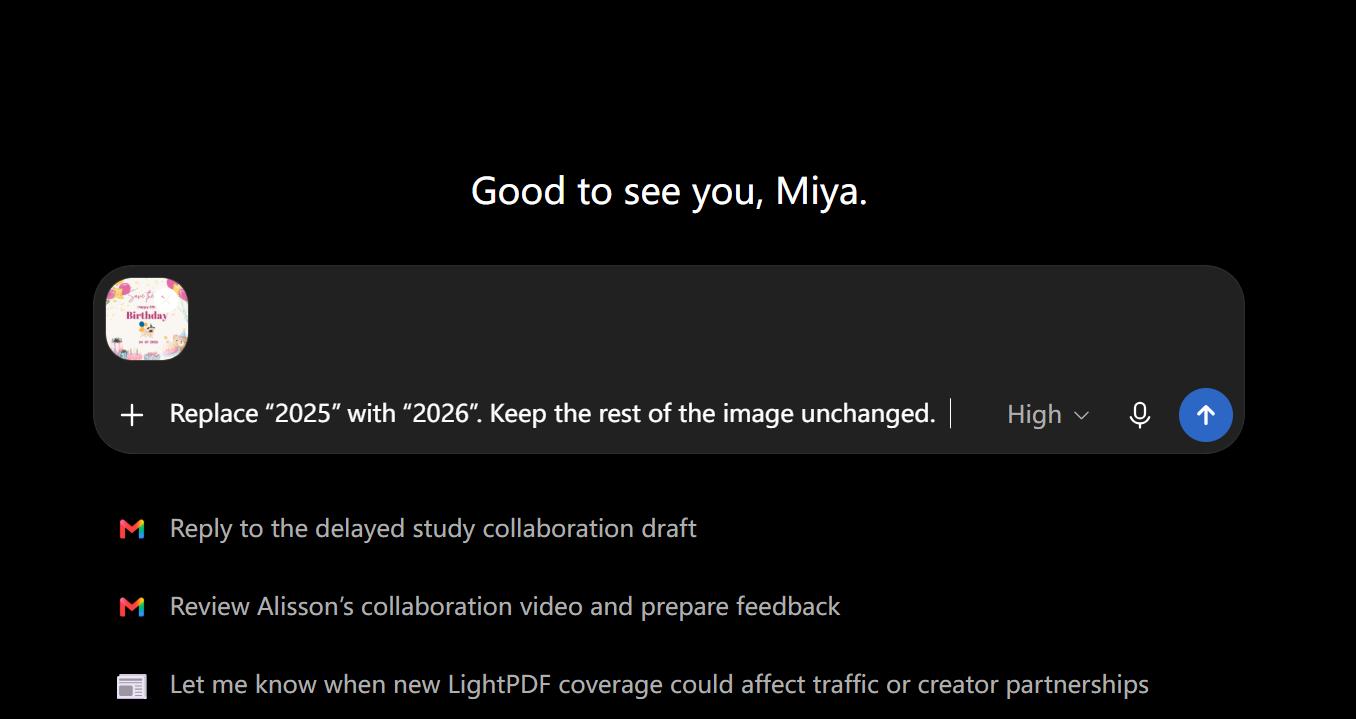
Step 3: Ask It to Match the Original Style
Simply replacing the digits may not always produce the most natural result. Include instructions about the font, size, color, lighting, spacing, perspective, and background.
A more detailed prompt could be:
Replace “128” with “256”. Match the original font style, white text color, size, spacing, perspective, lighting, and texture. Keep the blue sign and surrounding background exactly the same.
This gives the image editor more visual information about what should stay consistent.
Step 4: Review the Edited Number and Donwload
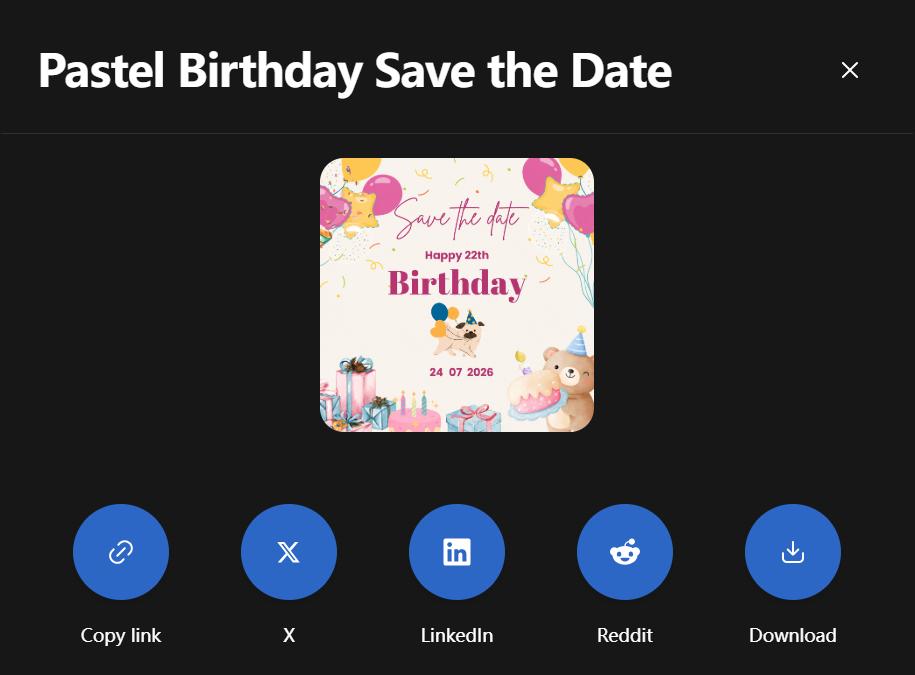
Check whether the new number matches the original image naturally.
If something looks slightly wrong, you can continue editing with another instruction instead of starting over.
For example:
Make “256” slightly smaller and align it with the original text position.
Or:
Keep the edit, but make the new numbers use the same font thickness as the original.
Here are several prompts you can adapt to different images.
Simple number replacement
Replace “2025” with “2026”. Keep the rest of the image unchanged.
Match the original formatting
Change “35” to “45”. Match the original font, size, color, spacing, and alignment.
Number on a photographed object
Replace the number “128” on the sign with “256”. Preserve the original perspective, lighting, shadows, and surface texture.
Edit a date
Change “May 12, 2025” to “May 12, 2026”. Keep the same typography, layout, and background.
Edit a number inside a graphic
Replace “50” with “75” in the highlighted area. Keep the surrounding design, colors, icons, and layout exactly the same.
Fix an unnatural result
Make the new number blend naturally into the image. Match the original font weight, text sharpness, lighting, and perspective.
Tips for Editing Numbers in an Image
No matter which image number editor you use, a few simple techniques can help the replacement look more natural.
1. Keep the Replacement a Similar Length
Changing:
25 → 28
is usually easier than:
25 → 1,899
because a similar number length requires less adjustment to the original layout.
2. Include Symbols When Necessary
Sometimes a number is visually connected to another symbol.
For example:
$29
29%
10:30
It may be better to replace the entire value instead of editing only individual digits.
3. Check Small Characters Carefully
Decimal points, commas, colons, and percentage signs can easily be missed.
Always check values such as:
2.99
2,999
10:30
29.5%
before saving the final image.
4. Zoom In Before Exporting
Look closely for:
- Blurred edges
- Incorrect digits
- Misaligned text
- Uneven spacing
- Background artifacts
Small imperfections are often much easier to notice once the image is enlarged.
Conclusion :
Whether you need to update a date, price, percentage, score, or quantity, you can use an image number editor to replace the existing value while keeping the rest of the image intact. For quick corrections, LightPDF offers a simple online option, while Canva and Photoshop can be useful when more manual control is needed.


Leave a Comment