


The official Everand app provides offline downloads for ebooks and audiobooks on supported Android and iOS devices. Start with the app linked from Everand’s official getting-started guide.
Safe Ways to Download Books from Everand
Download an Ebook or Audiobook
- Install the Everand app from Google Play or the Apple App Store.
- Sign in to the account with your active subscription.
- Search for a book and unlock it if required by your plan.
- Open the book’s About page and tap Download.
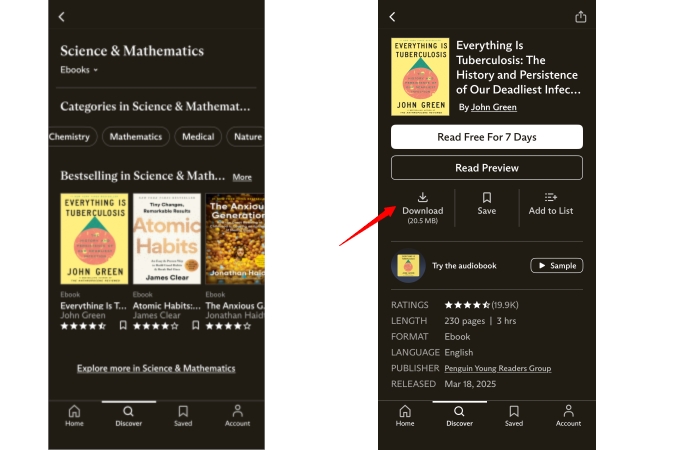
- Wait until the download finishes before disconnecting from the internet.
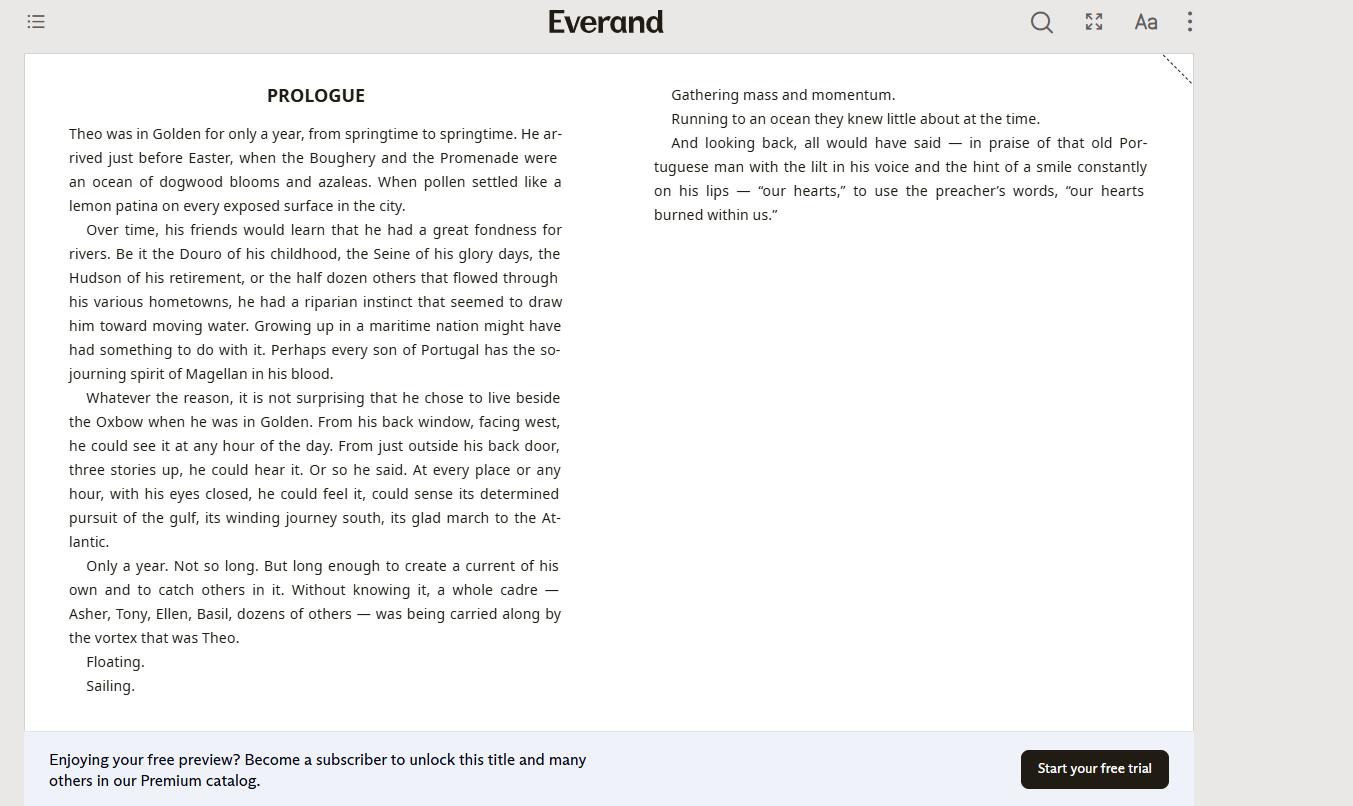
According to Everand’s official download guide, downloads are available through the app, and the website supports online reading.
Find and Open Your Downloaded Books
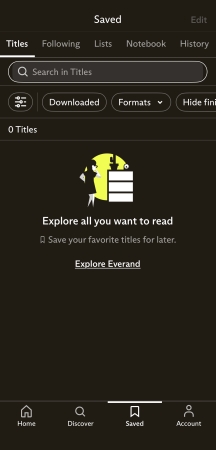
Open the Saved tab in the Everand app and enable the Downloaded toggle. Your list will then show the books stored on your device. Select a title to start reading or listening offline.
Before a long trip, download your books over Wi-Fi and open the app while connected so it can refresh the licenses needed for offline access.
Can You Download Everand Books as PDF or EPUB?
Everand’s official offline feature saves protected content for use inside the app. It does not provide a standard PDF or EPUB export for opening subscription books in another reader.
Your subscription gives you personal access to the available content during the subscription period. Once that access ends, downloaded subscription books become unavailable. The Everand Subscriber Agreement also restricts copying, redistribution, and bypassing digital rights management.
For a book you want to use in a separate reader, check whether its author or publisher offers an authorized downloadable edition and review the permitted uses of that file.
What to Do If an Everand Download Is Not Working
If an Everand download won’t start or finish, check your internet connection and make sure your device has enough free storage. Update the app to the latest version, then try downloading the book again.
If a downloaded book won’t open offline, make sure you’re opening it in the Everand app. If the issue continues, delete the downloaded copy and download it again while connected to the internet. After an extended period offline, reconnect to Wi-Fi and let the app sync to refresh the book’s license.
If you see a device-limit message, sign out of devices you no longer use. Everand currently supports downloads on up to four devices. If a title is locked, check whether it requires an unlock and confirm that your subscription is active.
Annotate and Summarize Books with LightPDF
Once you have a standalone book file, LightPDF can help you read more actively and turn what you learn into useful notes. Start with a PDF or EPUB provided separately by the author, publisher, or another authorized source, with permission to upload and process it. A public-domain edition that is available for your location is another option.
Everand’s protected in-app downloads cannot be uploaded directly to LightPDF. For a title you can only access in Everand, you can instead write your own reading notes and use LightPDF to organize those notes into a recap.
Annotate PDF Books

For a standalone PDF edition, use LightPDF’s online PDF annotation tool to mark ideas as you read:
- Upload your PDF book to the online tool.
- Read through the pages and highlight important passages or add text notes.
- Download the annotated PDF to keep your reading notes with the book.
Try using one highlight color for key arguments and another for questions you want to revisit. For a book club or study session, add a short note explaining why each selected passage matters.
Generate Book Summaries and Ask Questions

LightPDF Chat with PDF supports PDF and EPUB files and lets you ask questions about their content. You can request an overview, explore a difficult concept, or organize a chapter into revision notes.
- Open LightPDF Chat with PDF and upload your permitted book file.
- Specify the chapter or section you want to study.
- Ask for a summary with a clear format and level of detail.
- Review the response and use the source references, where available, to check it against the book.
Here are three prompts to adapt to your reading:
- Chapter overview: “Summarize Chapter 2 in five bullet points. Cover its main idea and supporting examples. Use only the uploaded text.”
- Concept explanation: “Explain [concept] in plain English and identify the section that supports your explanation.”
- Revision notes: “Create 10 review questions with short answers based only on this chapter.”
For fiction, specify how far you have read and ask for a summary limited to those chapters to reduce unwanted spoilers.
You can also use LightPDF’s AI Summarizer to upload a permitted document or enter your own reading notes, generate a concise overview, and refine the result with follow-up questions.
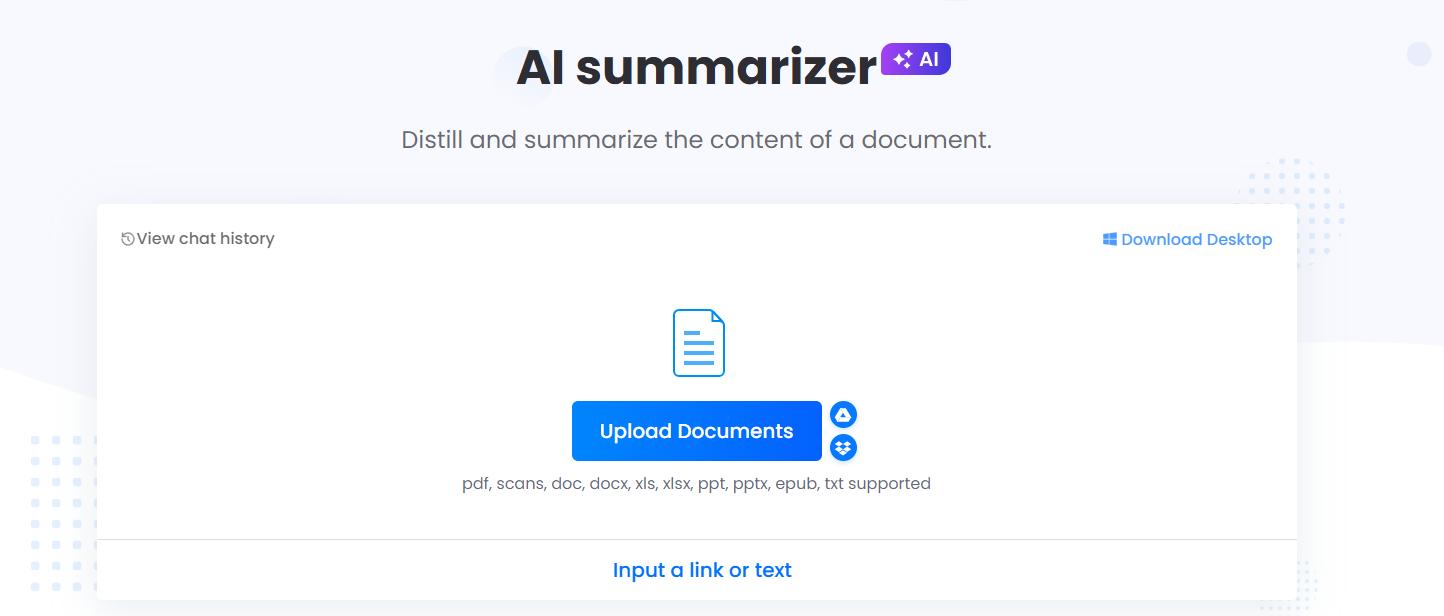
Try it: Choose one chapter, request a short summary, and add your own observations about what you learned or disagreed with. This gives you a useful record to revisit after finishing the book.
Conclusion
The official Everand app is the supported way to download subscription books for offline reading and listening. For separately available book files you are permitted to upload, LightPDF adds tools for annotation, summaries, and document questions. Choose the workflow that fits your file and the way you want to study it.





Leave a Comment