


How to Choose a PDF Book Reader
Start with the files you read most often and the device you use for longer sessions.
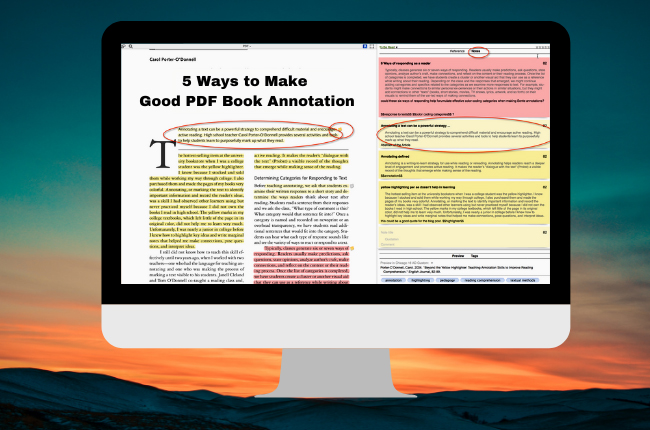
- For textbooks and research: Prioritize text search, highlights, comments, and bookmarks.
- For scanned books: Look for margin cropping, zoom controls, and comfortable page navigation. OCR can help when text cannot be selected or searched.
- For offline reading: Choose a desktop reader that can open locally stored books without an internet connection.
- For browser access: Check account requirements, upload limits, and how your annotations are saved.
- For difficult material: Document Q&A and summaries can help you review unfamiliar concepts.
PDFs usually preserve a fixed page layout. Adjustable fonts and line spacing commonly associated with EPUB reading may not be available for the same book in PDF format.
1. LightPDF
Best for AI-Assisted Reading and Studying
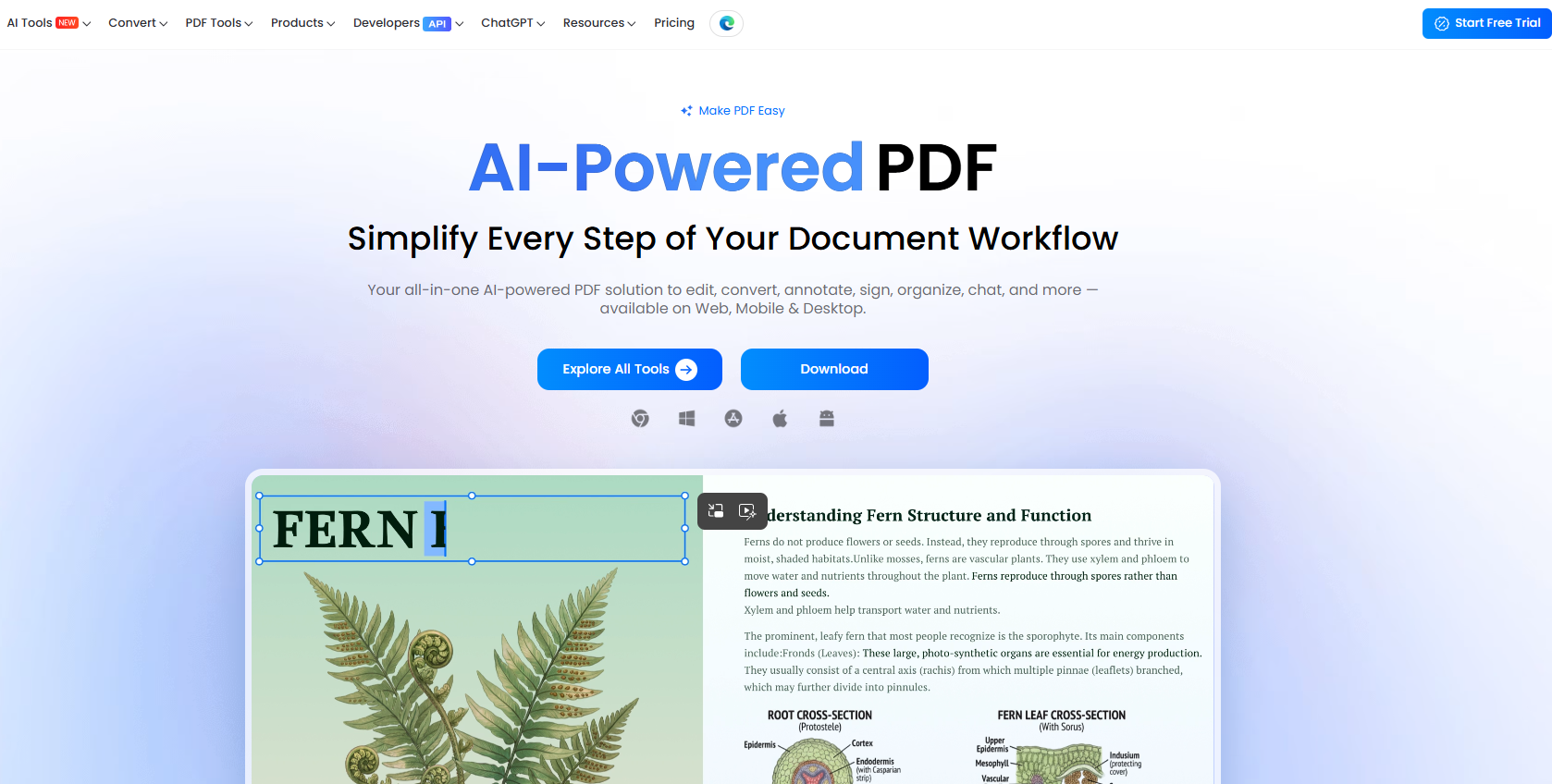
LightPDF is a useful choice when reading a PDF book involves taking notes and understanding unfamiliar material. Its Windows desktop reader includes bookmarks, text search, scrolling and split views, highlights, and comments.
For more interactive reading, LightPDF Chat with PDF lets you ask questions about an uploaded book, request a summary, or ask for a concept to be explained in simpler language. Answers include source references that help you return to the relevant content.

For example, a student working through a textbook could ask for the main ideas in a chapter and then review the cited passages in context.

Useful features:
- Ask questions about a PDF book and generate summaries.
- Follow source references to check an answer against the document.
- Use the Windows desktop reader to bookmark and annotate important passages.
Consideration: AI document chat requires an internet connection. Reading and annotation features differ between the web and desktop editions.
2. Adobe Acrobat Reader
Best for Everyday Reading and Comments

Adobe Acrobat Reader suits readers who want to open PDF books and add familiar study annotations. Its free tools include highlights, sticky notes, strikethroughs, and freehand drawing.
These features are useful for textbooks and reference materials where you need to mark a definition, leave a question beside a paragraph, or identify a section to revisit. Its desktop versions support readers working on Windows or Mac.
Useful features:
- View PDFs while preserving their page layout.
- Highlight text and add comments or drawings.
- Read and annotate on Windows and Mac.
Consideration: Editing the book’s existing text and images requires a paid Acrobat plan. The free reader covers viewing and annotation.
3. SumatraPDF
Best for Lightweight Reading on Windows

SumatraPDF is a free, open-source reader worth considering if you want a small application for opening local books. Its Windows version supports PDF, EPUB, MOBI, DjVu, and comic book formats, making it useful for a collection that includes several file types.
A portable Windows version can run without a regular installation. That makes it convenient for readers who want to keep a reader alongside their documents on a USB drive.
Useful features:
- Read PDFs and several ebook and comic formats.
- Use a portable Windows version.
- Customize keyboard shortcuts and the interface.
Consideration: This recommendation focuses on the established Windows version. An Apple silicon Mac edition is also available; check the features of your chosen edition before switching.
4. Foxit PDF Reader
Best for Annotating Study Materials

Foxit PDF Reader is a practical option for readers who regularly work through textbooks, course materials, or technical references. You can search for a term, highlight an explanation, and add comments while keeping the original PDF layout.
Its desktop reader opens local PDFs offline, and basic reading and annotation do not require a Foxit account. This makes it suitable for a study workflow built around files already saved on your computer.
Useful features:
- Search, highlight, and comment on PDFs.
- Read locally stored books offline.
- Use free reading and annotation tools on Windows and Mac.
Consideration: OCR and editing existing text or images require Foxit PDF Editor.
5. Google Play Books
Best for Reading Books in a Browser

Google Play Books lets you upload your own PDF and EPUB files and read them through the Play Books website after signing into your Google account.
It is useful when you want to access your personal book collection through a browser on different computers. You can upload files from your computer through the Play Books library and find them in the Uploads section.
Google also supports bookmarks, highlights, and notes for PDFs uploaded after January 20, 2026.
Useful features:
- Upload personal PDF and EPUB books.
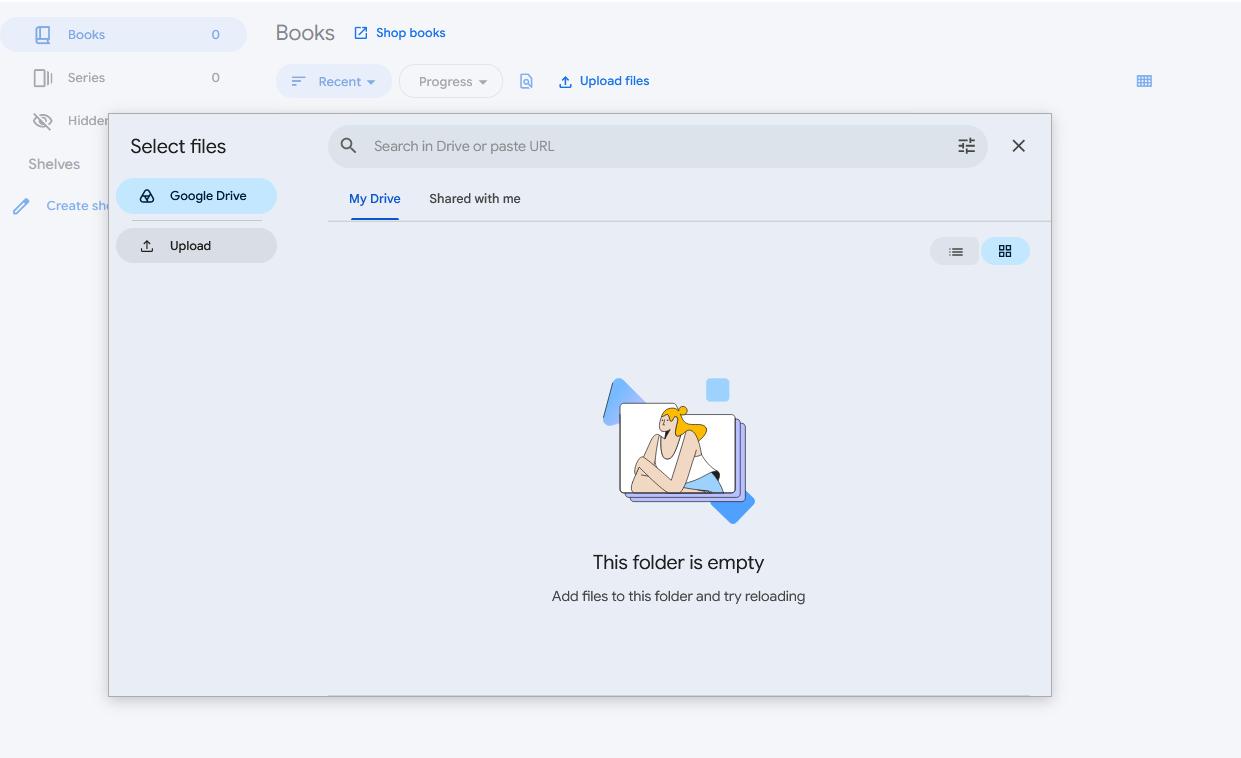
- Read uploaded books in a web browser through one account.
- Add bookmarks, highlights, and notes to supported PDF uploads.

Consideration: This workflow requires uploading your files to your Google account. If an older upload lacks annotation tools, check Google’s guidance for that file.
Conclusion
Choose a PDF book reader around your reading habits. SumatraPDF suits lightweight Windows reading, Adobe Acrobat Reader and Foxit offer familiar annotation tools, and Google Play Books provides browser access to a personal book library.
For readers who want help understanding and reviewing a book, LightPDF combines PDF reading tools with online document questions and summaries. Start with the features you use every day, then choose the reader that makes those tasks easier.



Leave a Comment