


Fast Solution
To extract text from image free online: Head to LightPDF OCR, click Select Files to upload your image, pick your processing engine (Standard Mode for fast clean copies or Enhance Mode for tricky scans), match the primary language, and export directly to editable Word, Excel, PPT, Searchable PDF, or TXT.
How to Extract Text from Image Free Online
Converting photos and screenshots into structured, editable files takes less than a minute. Here is the exact step-by-step workflow:
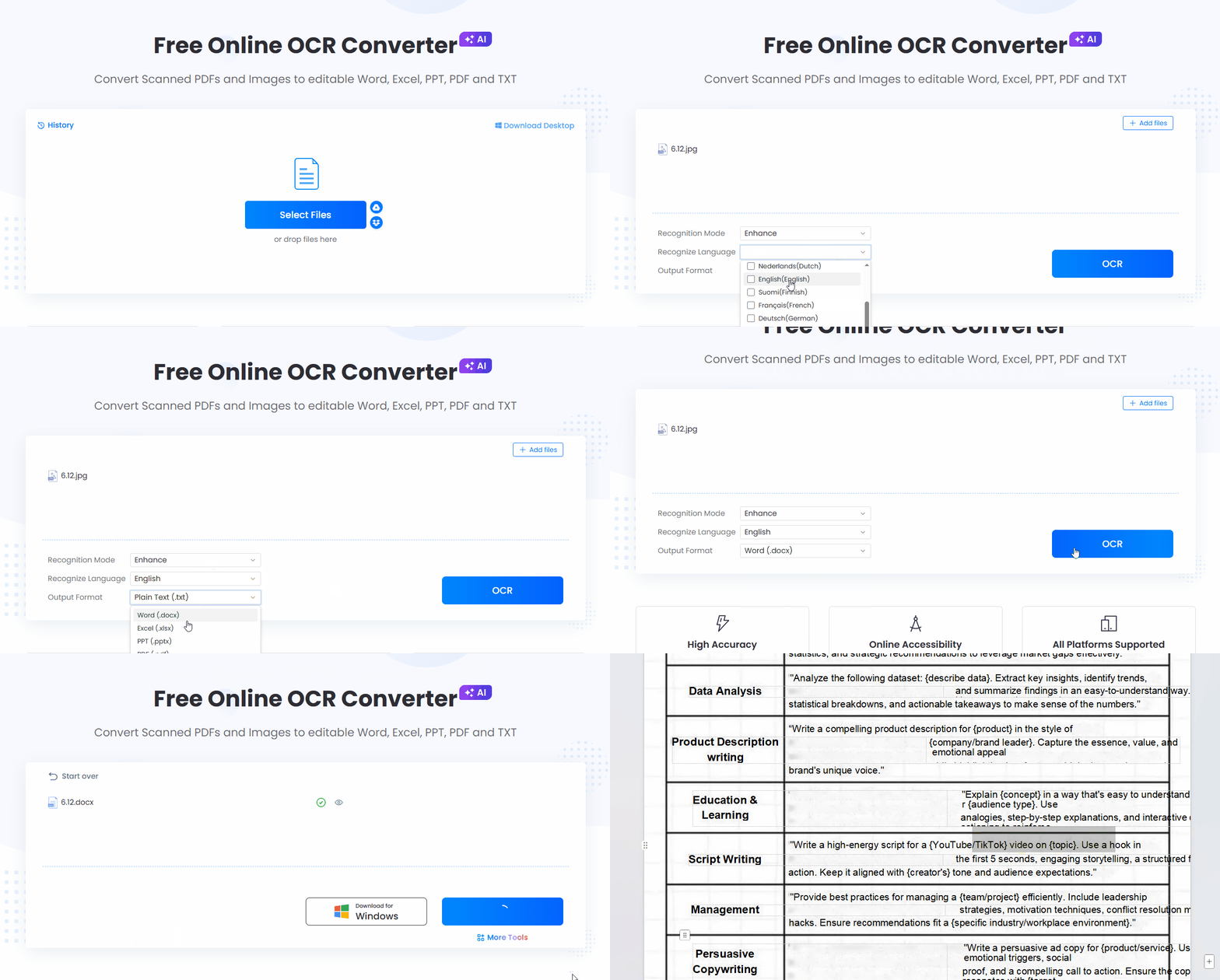
- Step 1: Upload Your File
Click Select Files or drop your image directly into the dropzone. It handles standard JPG, PNG, BMP graphics, screenshots, and even multi-page scanned PDF documents. - Step 2: Choose Your Recognition Mode
Pick the right engine for your file quality:- Standard Mode: Ultra-fast conversion built for crisp screenshots, digital infographics, and clean typography.
- Enhance Mode: Takes a few extra seconds, but dramatically cuts down character errors when reading noisy scans, skewed layouts, blurred handwriting, or dense tabular data.
- Step 3: Select Recognition Language
Set the document language before hitting convert. The tool covers over 20 global languages—including English, Spanish, German, French, Japanese, Chinese, and Portuguese—keeping accents and special symbols accurate. - Step 4: Select Output Format & Download
Select your preferred output file: Plain Text (.txt), Microsoft Word (.docx), Excel (.xlsx), PowerPoint (.pptx), or Searchable PDF. Click Recognize to process, then grab your editable file or copy screenshot text straight to your clipboard.
Top Methods to Copy Text from Image Free
Depending on whether you need a quick string of text or a fully structured spreadsheet, different platforms suit different jobs. Compare the main options to OCR image content:
| Method | Best For | Output Formats | Key Features |
| Web OCR (e.g., LightPDF) | Scans, tables & complex document layouts | Word, Excel, PPT, TXT, PDF | No installation, 20+ languages, preserves original grid and table layouts. |
| Desktop Snipping Tools | Instant single-line screen capture copying | Clipboard / Plain Text | Native hotkeys (Win + Shift + S / macOS Live Text); zero file downloads needed. |
| Cloud Drive OCR | Quick mobile photo conversions | Google Docs / Plain Text | Convenient if your scans are already sitting inside Google Drive. |
| Mobile OCR Apps | Scanning physical paper on the move | TXT, PDF, Word | Direct camera integration for instant document scanning. |
1. LightPDF Online OCR Engine
LightPDF works exceptionally well as a dedicated image to text copier because it actually preserves document structure. Instead of dumping a wall of broken text, it turns scanned PDFs and images into structured, fully editable Word, Excel, PPT, PDF, and TXT files without messing up margins or paragraph breaks.
2. Built-in OS Desktop Utilities
Features like Windows Snipping Tool or Apple’s Live Text are great if you just want to grab text from image popups or quick email signatures. They are fast, but they strip away all formatting, making them painful to use on tables or multi-column reports.
3. Cloud Document Browsers
Uploading a photo to Google Drive and opening it with Google Docs triggers a quick background script to run OCR on image content. It works fine for basic paragraphs, though complex headers and custom columns often get displaced.
Bonus Image Processing Tips
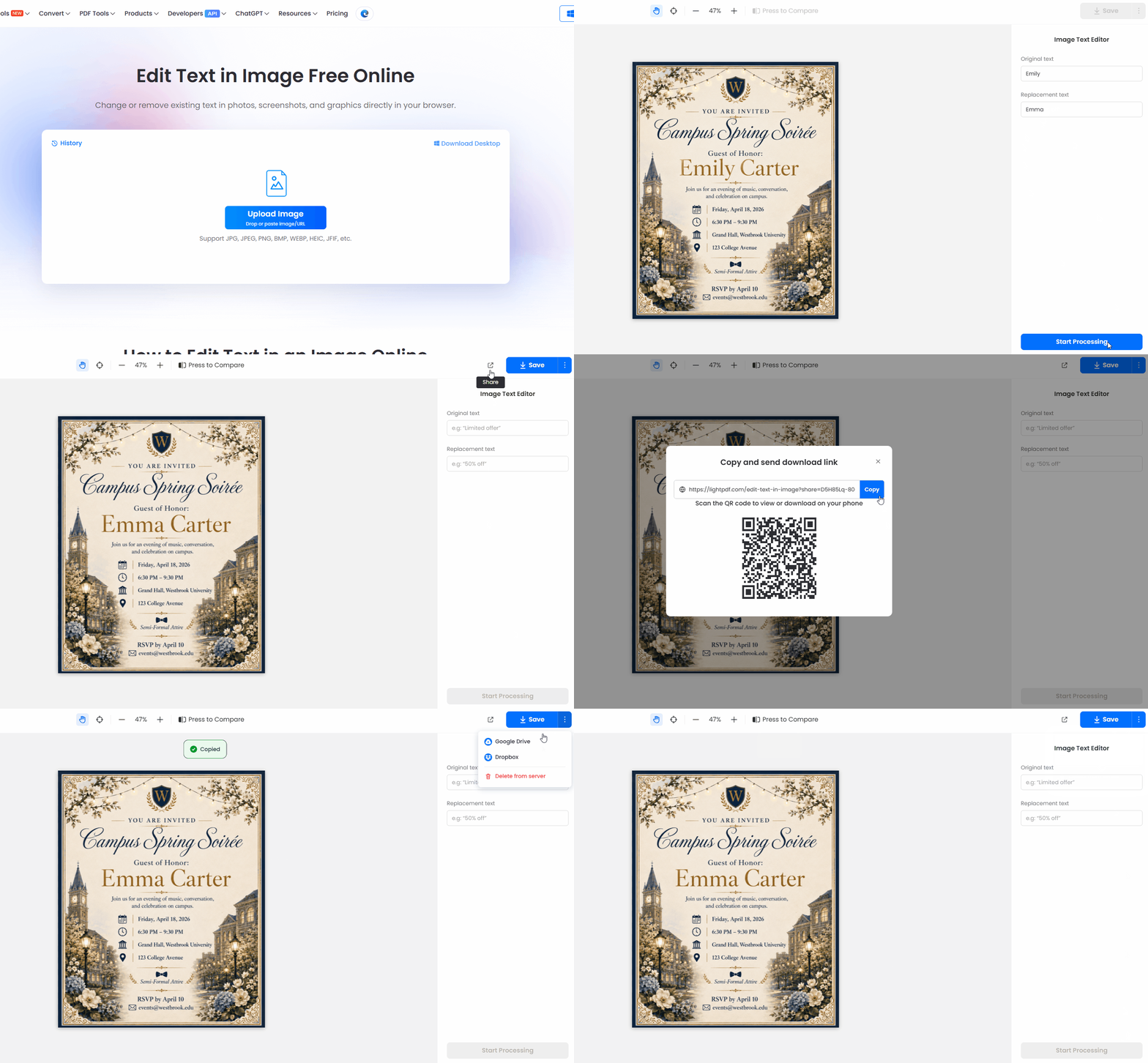
- Edit Image Text Post-Extraction: Extracting text into an editable Word or searchable PDF file lets you patch up typos in legacy scans, adjust pricing tables, or rebrand old slide decks without touching Photoshop.
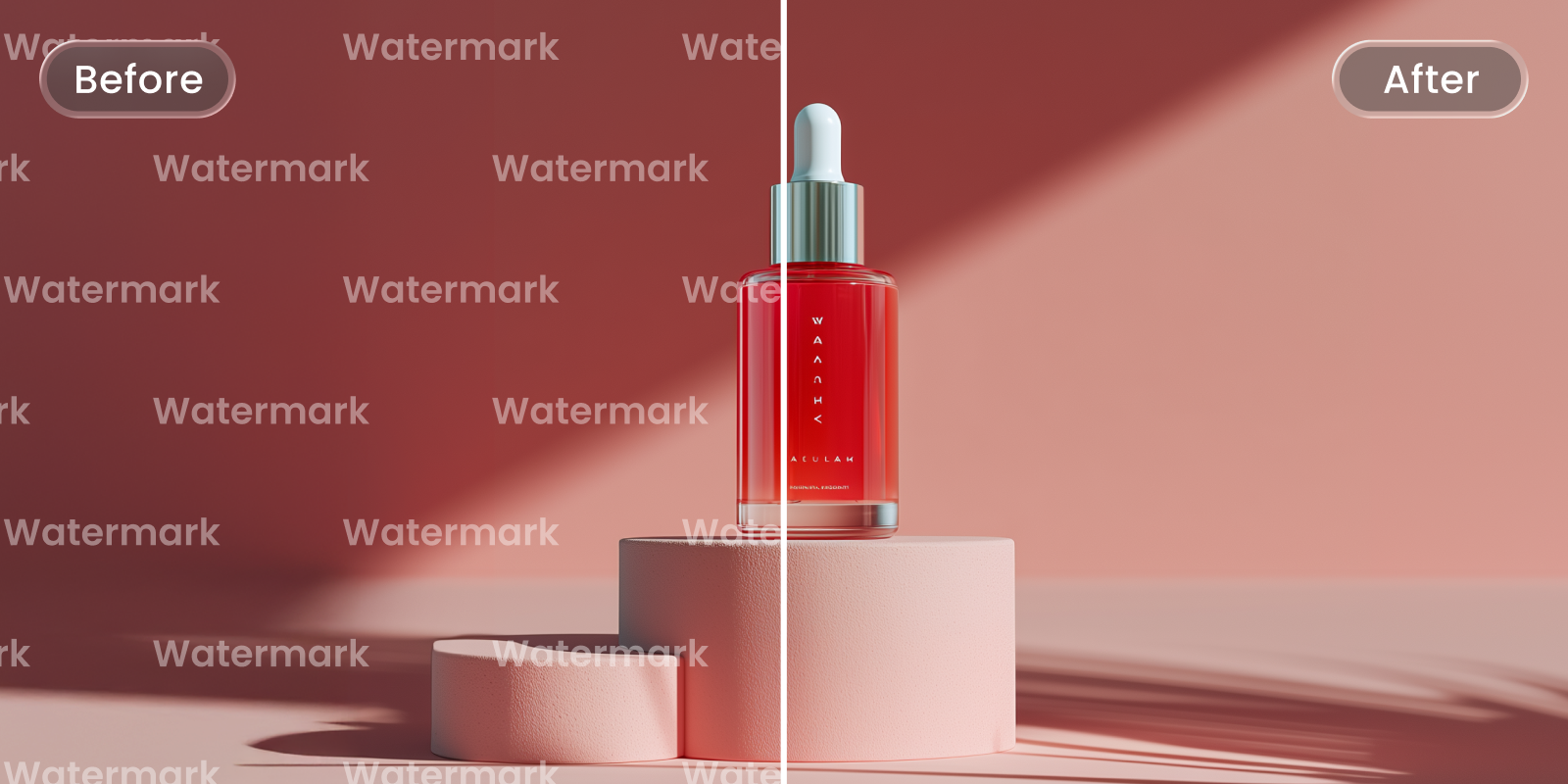
- Remove Image Watermarks First: Heavy watermarks, dark camera shadows, or low contrast throw off character recognition. Cleaning up background noise or removing watermarks beforehand boosts accuracy significantly—especially when processing files in Enhance Mode.
FAQ
Q1: Is it safe to copy text from image free online with sensitive documents?
Yes, as long as you stick to established tools. Reputable OCR platforms run on encrypted SSL connections and auto-delete uploaded files from their servers within 1 to 2 hours after conversion.
Q2: How do I extract table data from an image into Excel?
Don’t export to plain text or Word if you have grid data. Upload your image, toggle Enhance Mode for grid alignment, pick Excel (.xlsx) as your output format, and run recognition. The output file will keep columns and rows neatly separated.
Q3: Why is my OCR tool missing characters or spitting out weird symbols?
Usually, it comes down to low image contrast, odd decorative fonts, or a language mismatch. Double-check that you selected the actual language spoken in the document from the 20+ supported options before running the conversion.
Q4: Can I copy screenshot text from handwritten notes?
It depends on the handwriting. Clean, print-style handwriting usually works well—especially under Enhance Mode—but messy cursive will still produce character errors that require manual cleanup.
Q5: Are there file size limits on free image to text copiers?
Most browser tools cap free uploads around 10MB to 15MB per file. That is plenty of room for high-res PNG scans, multi-page PDFs, or screen captures.



Leave a Comment