


How We Selected These Tools
We selected browser-based tools with documented features for replacing image text or combining text removal with new text layers.
The comparison considers:
- Editing method: Can you modify existing lettering, or must you erase and retype it?
- Typography control: Can you adjust the replacement text yourself?
- Background repair: What tools are available to clean the original text area?
- Workflow fit: Is the tool focused on a correction or broader design work?
- Limitations: What recognition, access, or manual-editing constraints matter?
The recommendations below reflect those features. We have not tested the same image across all 4 tools, so this guide does not claim comparative accuracy, speed, or font-matching results.
1. LightPDF — For Replacing Existing Image Text
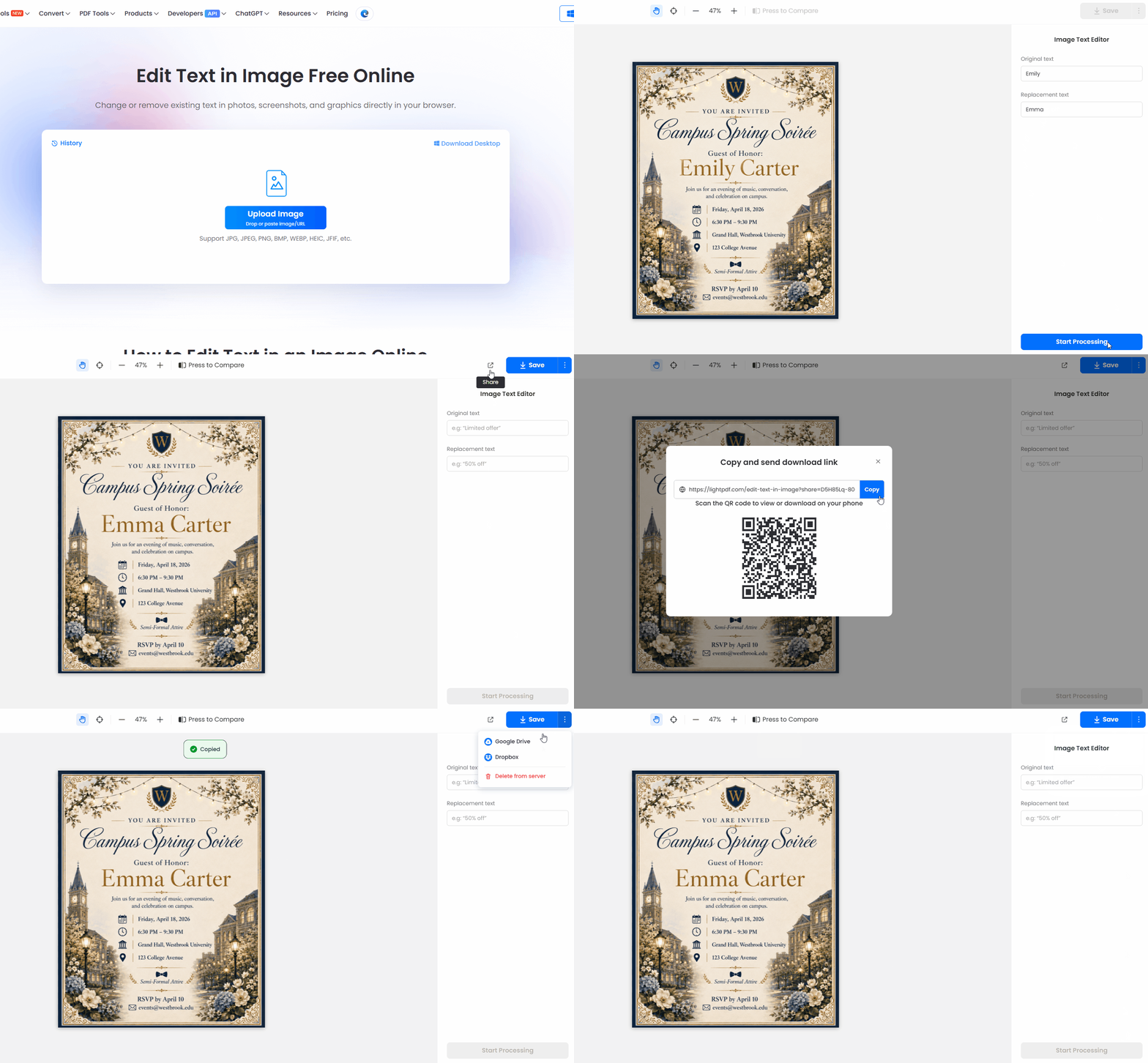
LightPDF Edit Text in Image provides a focused way to change words already visible in a graphic. Its workflow is to upload an image, select the existing wording, replace it, and review the result before downloading.
It also supports removing existing text. The tool aims to maintain visual consistency, but you should inspect the result rather than assume an exact font match.
How to Fix a Typo
- Upload the AI-generated image.
- Select the text containing the typo.
- Enter the corrected wording.
- Preview the lettering and surrounding background.
- Download the image when the correction looks acceptable.
Strengths
- Focused workflow for correcting existing wording.
- Supports both replacing and removing text.
Limitations
- Does not insert entirely new text boxes.
- Decorative lettering and detailed backgrounds need careful visual inspection.
When to consider it: You want to correct a word within an existing design. For a new headline in an empty area, choose an editor with text layers.
2. Canva — For Editing Recognized Text Within a Design
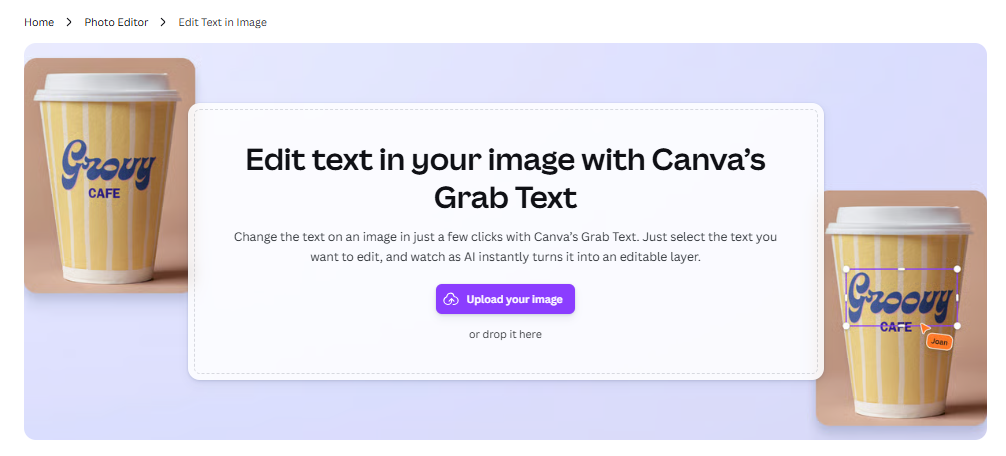
Canva converts recognized lettering in an image into editable text boxes. This makes it relevant when you want to correct a typo and continue adjusting the design.
Canva documents several restrictions: Grab Text supports Latin text, does not support rotated or arched lettering, and may leave traces that need cleanup. It attempts to match a similar font rather than guaranteeing the exact original.
How to Fix a Typo
- Add the image to a supported Canva design.
- Select the image and Canva will analyser your image.
- Select the wording and choose Grab.
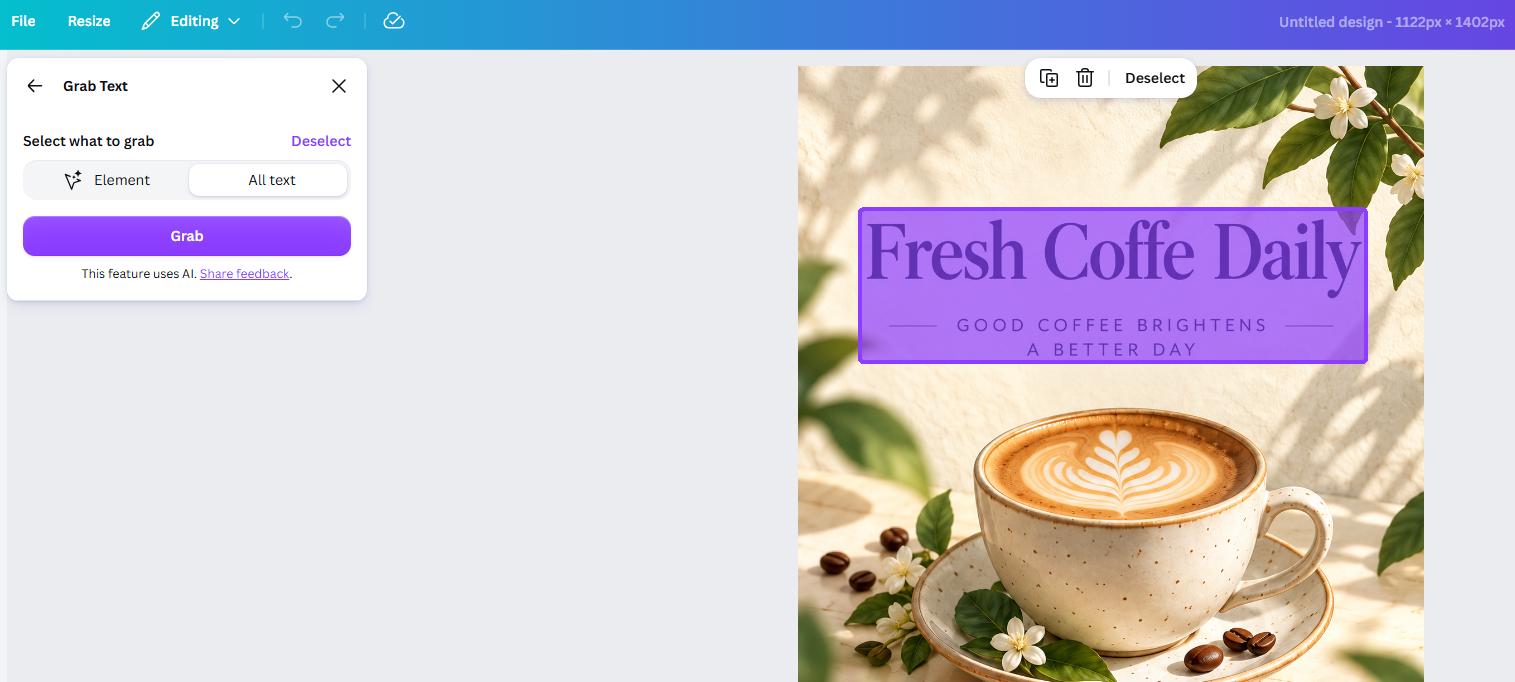
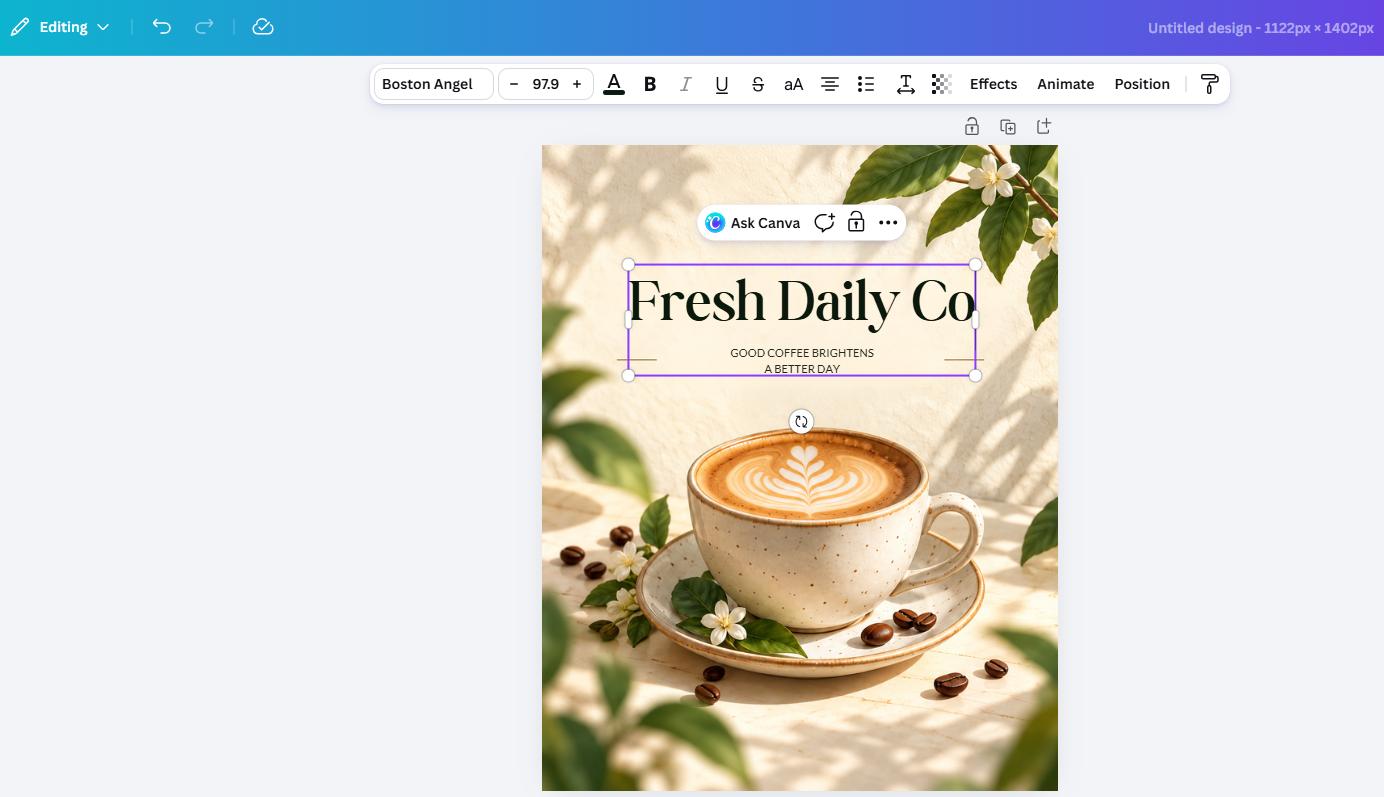
- Correct the recognized text directly and adjust its appearance.
- Check for leftover lettering before exporting.
Strengths
- Converts recognized wording into editable text boxes.
- Lets you continue arranging the surrounding design.
Limitations
- Plan, region, and design-type restrictions apply.
- Recognition and font matching may require correction.
- Curved and non-Latin lettering need another approach.
When to consider it: Your image contains straight Latin text, and you want to keep editing the layout after fixing the typo.
3. Photopea — For Manual Font and Background Control

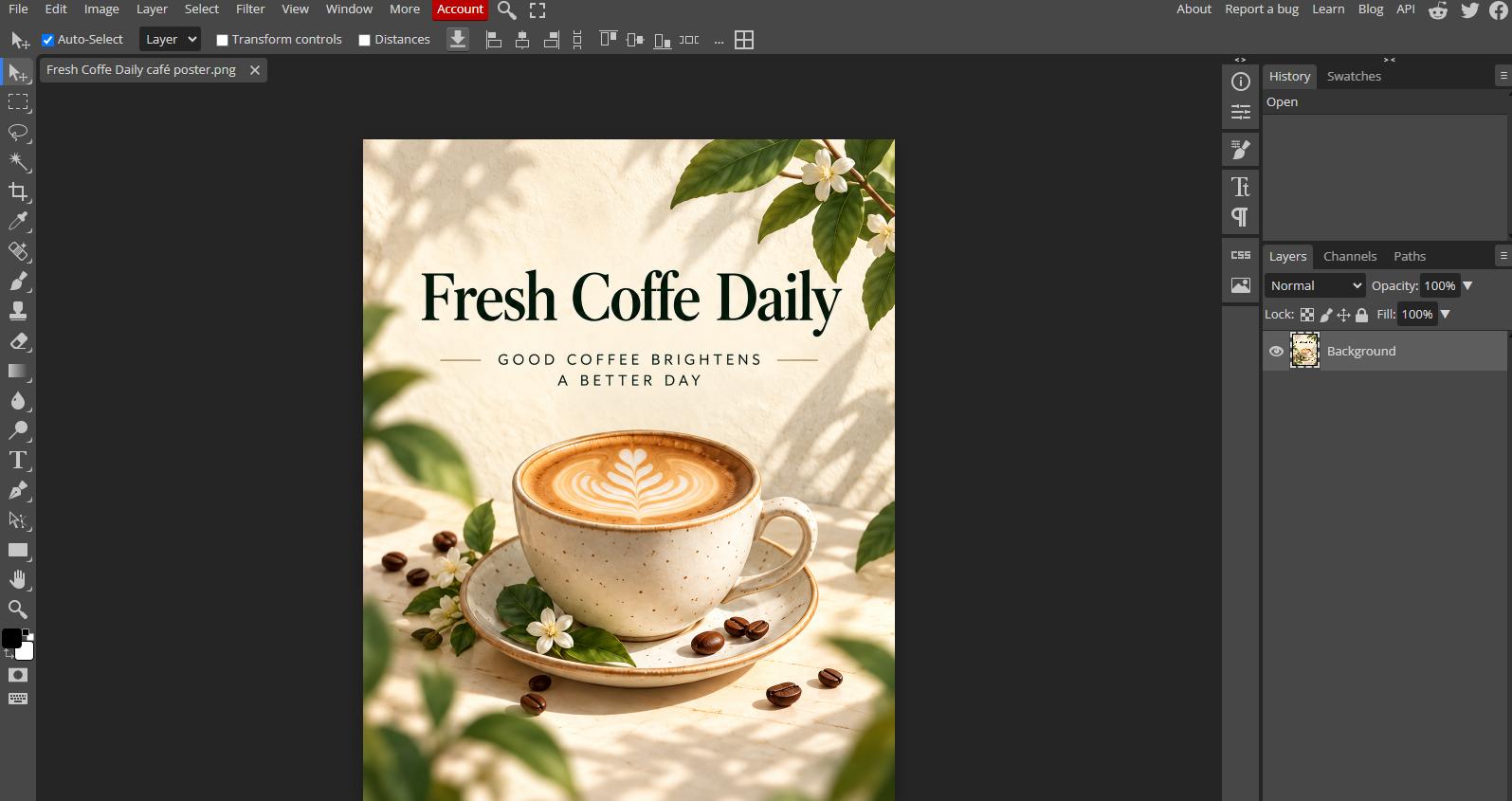
Photopea provides healing tools, Clone Stamp, and text layers. Its text controls include font family, size, color, and alignment. It also supports loading TTF and OTF font files.
For a flattened AI image, the suggested workflow is to repair the area occupied by the typo and create a replacement text layer.
How to Approach the Correction
- Open the image and keep a copy of the original layer.
- Use a healing tool or Clone Stamp to clean the text area.
- Create a new text layer with the corrected wording.
- Set the font, size, color, and placement.
- Save an editable project copy and export the finished image.
Strengths
- Gives you control over typography and background repair.
- Supports supplied fonts when you have permission to use them.
- Separate text layers make later revisions easier.
Limitations
- Requires familiarity with layers and retouching tools.
- You must identify or choose the replacement font.
- Perspective, shadows, and decorative effects may require additional work.
When to consider it: Precise typography matters more than minimizing the number of editing steps.
4. Pixlr — For Text Cleanup and Replacement Overlays
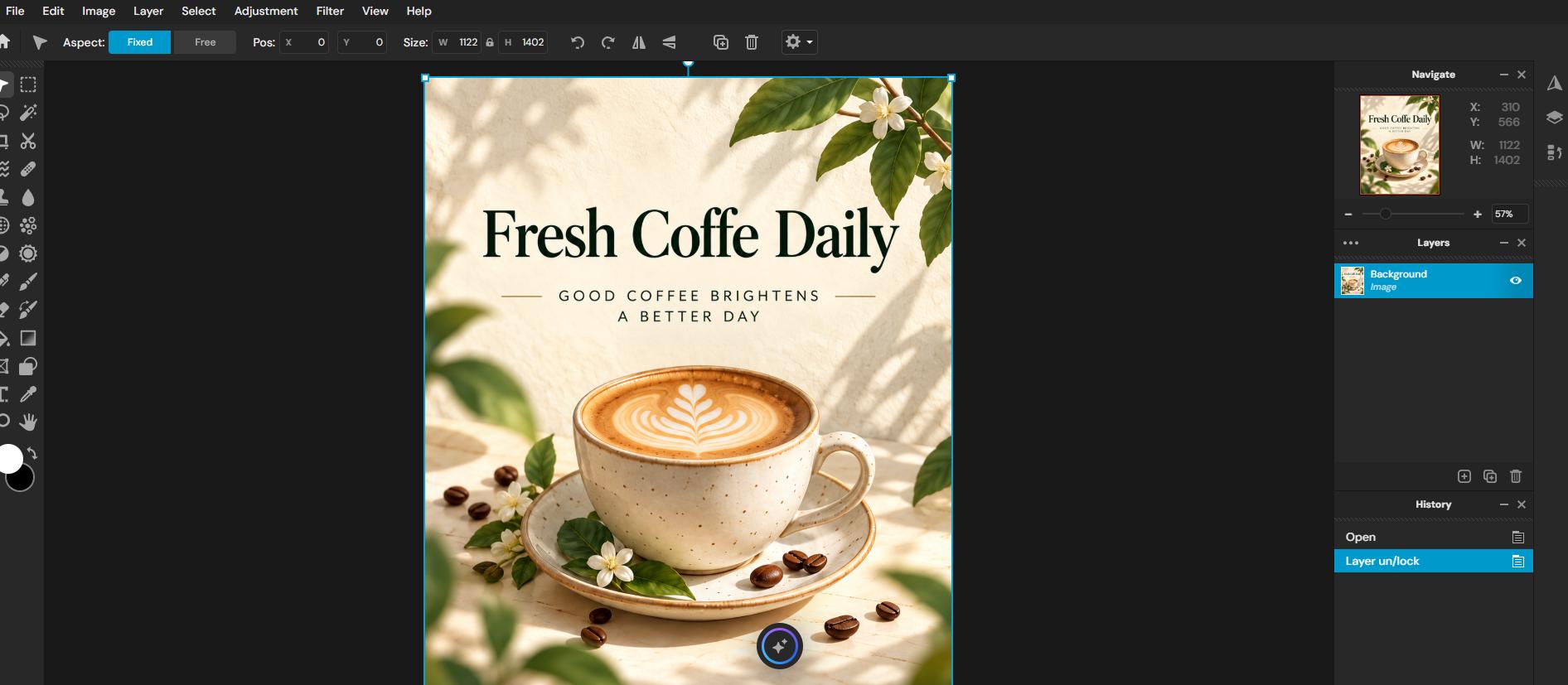
Pixlr offers healing tools and text layers. Its Heal/Repair documentation specifically includes removing text among its supported uses. A possible correction workflow is to remove the misspelled area and add the correct wording on a new text layer.
How to Approach the Correction
- Open the image in the relevant Pixlr editor.
- Use a healing or removal tool to clear the incorrect wording.
- Review the repaired background.
- Add the correction and adjust its style and position.
- Check the complete image before exporting.
Strengths
- Provides cleanup and replacement-text tools.
- Keeps newly added wording editable on a separate layer.
Limitations
- Healing removes content; it does not automatically correct spelling.
- Font matching and positioning require manual choices.
- Detailed textures may need additional retouching.
When to consider it: You want to rebuild a small text area and are comfortable styling the replacement yourself.
Which Method Should You Choose?
Start with the correction you need to make.
For a single misspelled word: Consider an existing-text workflow such as LightPDF or, for supported lettering, Canva Grab Text. Inspect the result before deciding whether to rebuild the line.
For exact brand typography: Use a text-layer workflow that lets you select the required font. A correctly spelled word can still look unsuitable if its lettering differs from the rest of the graphic.
For badly garbled text: Consider replacing the whole word or line. Correcting one character will not solve inconsistent shapes elsewhere in the headline.
For lettering integrated into artwork: Text that follows perspective, overlaps objects, or casts shadows requires more detailed inspection. Check the complete composition after editing.
Example: Correct One Word or Rebuild the Whole Line?
Suppose a poster reads “Grand Openning This Friday.”
You could first replace “Openning” with “Opening.” Check whether the shorter word leaves an awkward gap or changes the visual balance.
If the corrected word looks inconsistent, rebuild the full line on a text layer. This gives you control over spacing and typography, although you may need to recreate an outline or shadow.
This example illustrates the decision process; it is not a reported test result.
Conclusion
The best tool depends on how much of the text area you need to rebuild. LightPDF provides a focused existing-text workflow, while Canva converts recognized lettering into editable text boxes. Adobe Express, Photopea, and Pixlr offer ways to clean the background and add replacement wording.
Choose the method that provides enough control for your design, then proofread the exported image before publishing.


Leave a Comment