


Why Does Grok Fail to Upload Images?
Where the upload stops can help you decide which fix to try first.
| What you see | Where to start |
|---|---|
| One photo fails, while other images upload | Re-export or resize that photo |
| The photo never appears in the mobile picker | Check whether Grok can access it |
| The upload stalls on one network or browser | Try another connection or a private browser window |
| Small images fail on both the web and the app | Check for a Grok service incident |
How to Fix Grok Image Upload Errors
1. Upload One Image at a Time
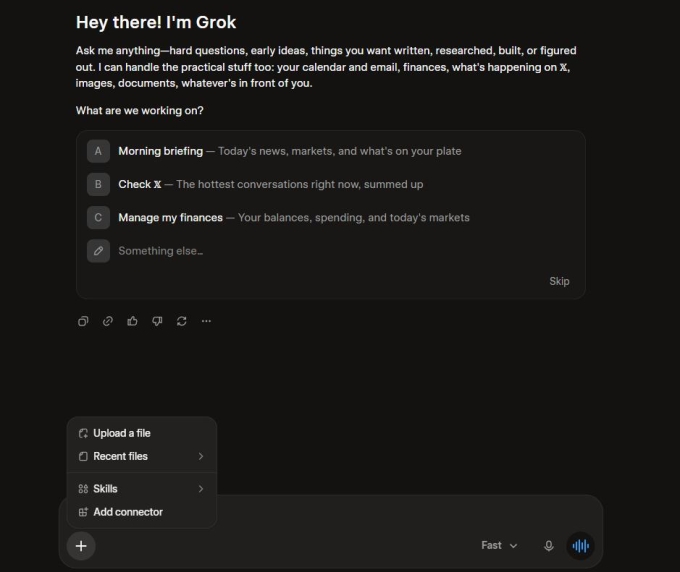
If a batch of photos fails, select + next to the message box and attach the originals individually. Start with a file you can open on your device, then see whether the error comes back with a particular image.
2. Re-export the Image as JPG or PNG
If a photo opens on your device but fails in Grok, use your image editor’s export option to create a fresh copy. Try JPG for a photo and PNG for a screenshot with small text.
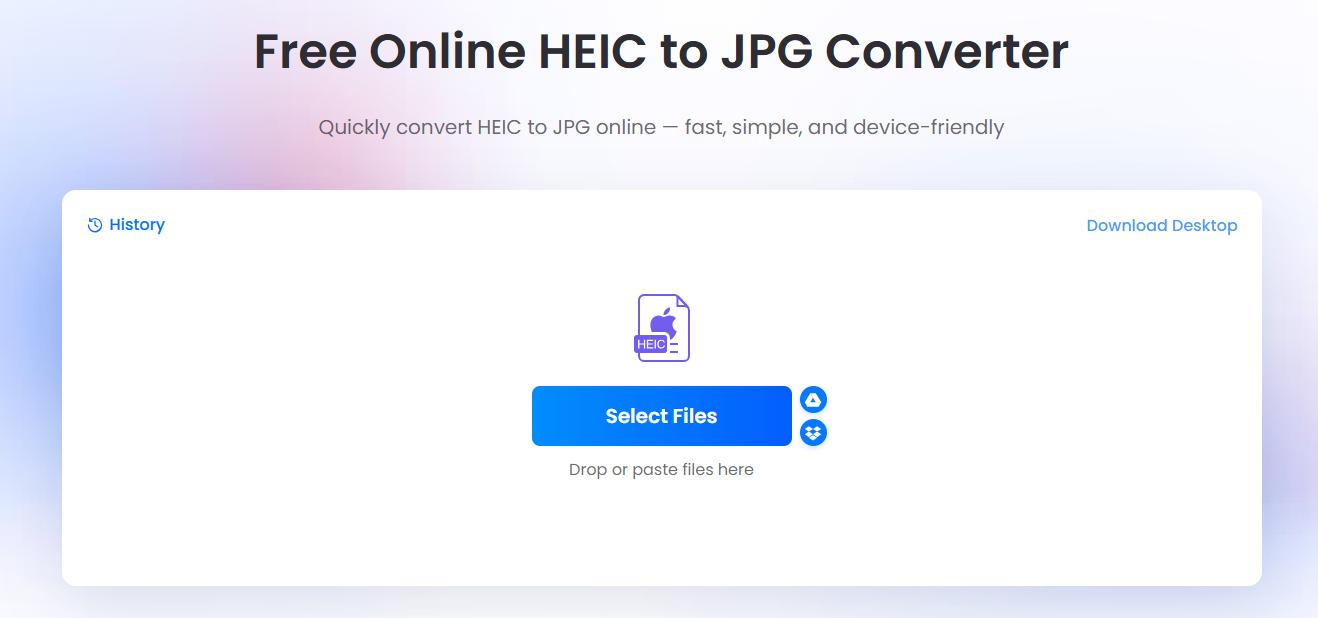
If an iPhone photo saved as HEIC won’t upload, open LightPDF in your browser, upload the HEIC file, and download the converted JPG. Then attach the JPG to your Grok chat.
3. Reduce the Image File Size
Crop out anything Grok doesn’t need, or export a copy with smaller dimensions. For a photo of a receipt, try cropping the table or countertop around the paper first. Open the saved copy and zoom in to check that the amounts are still readable before you upload it.
4. Retry on a Different Connection
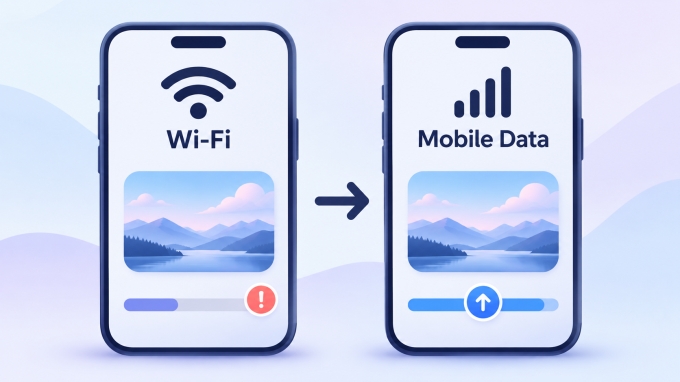
If the upload gets stuck partway through, switch from Wi-Fi to mobile data or try another Wi-Fi network. Use the same image in the same app or browser so you can see whether changing the connection helps.
5. Try a Private Browser Window
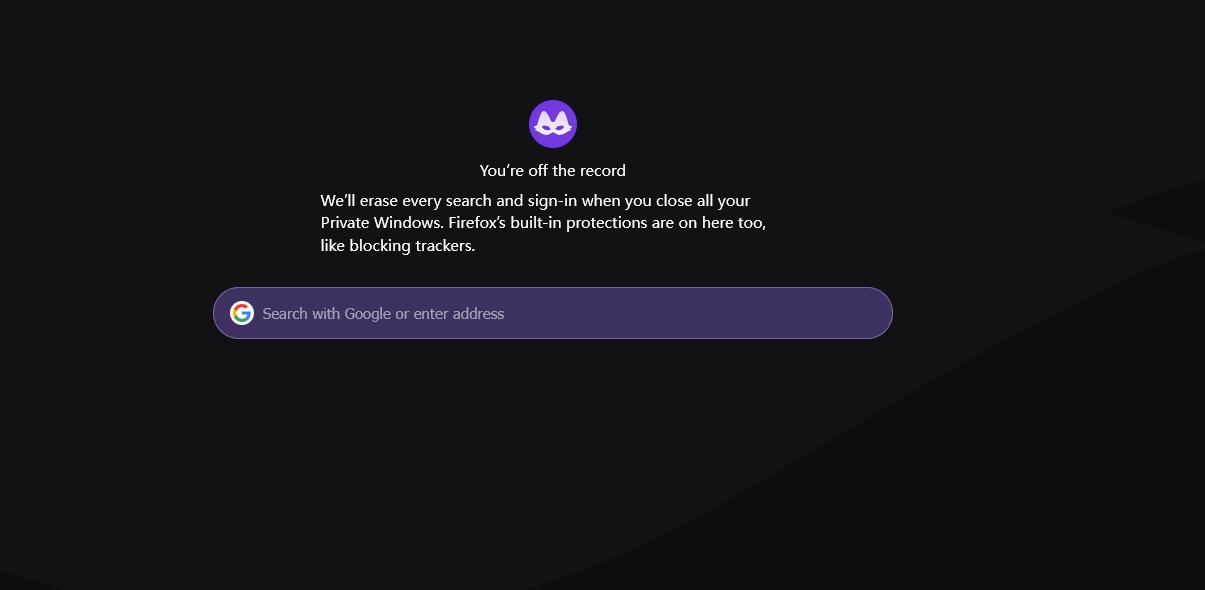
Press Ctrl + Shift + N, or click the three dots in the upper-right corner and select New Incognito Window. Open Grok in a Chrome Incognito window, sign in, and attach the same file. If it uploads there, go back to your regular browser window. Turn off your extensions one at a time and retry the upload after each change. You can also clear Grok’s site data and sign back in if the problem persists.
6. Check Photo Permissions on Your Phone
If you can see the photo in your gallery but it’s missing from Grok’s picker, check whether the app can access that image.
- iPhone. Go to Settings → Privacy & Security → Photos. If Grok appears in the list, allow it to access the photo you want to attach.
- Android. Go to Settings → Apps → Grok → Permissions. If Photos and videos is listed and access is denied, grant access and open the picker again.
7. Switch Between the Grok App and the Website
If the image fails in the app, open grok.com in your phone’s browser, sign in to the same account, and attach that file. If the browser upload fails, try the mobile app.
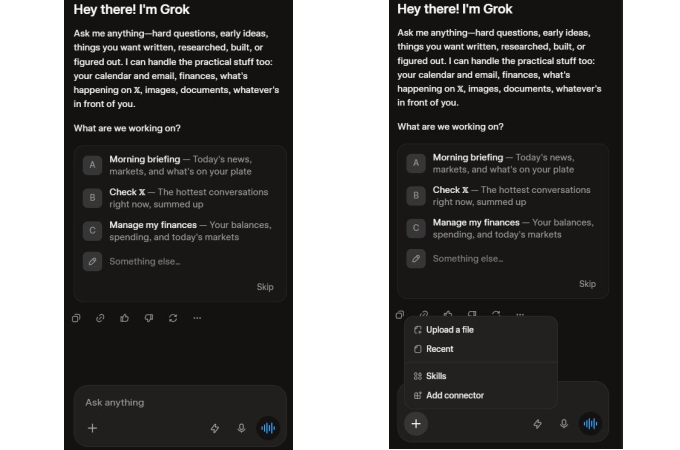
8. Check Grok’s Service Status
If several images fail across devices, look for a reported incident affecting the Grok website or the app you’re using. If an incident is listed, wait for it to clear and retry the upload.
If the error keeps coming back, use Report an issue in Grok. Include your device or browser, the image format and size, and the exact error message so support can narrow down the problem.
Still Can’t Upload? Extract the Text With LightPDF
If text chat still works and you only need the words in a screenshot, photo, or scanned page, use OCR to turn them into text you can paste into Grok. For example, you can extract an error message from a screenshot and ask Grok to explain it.
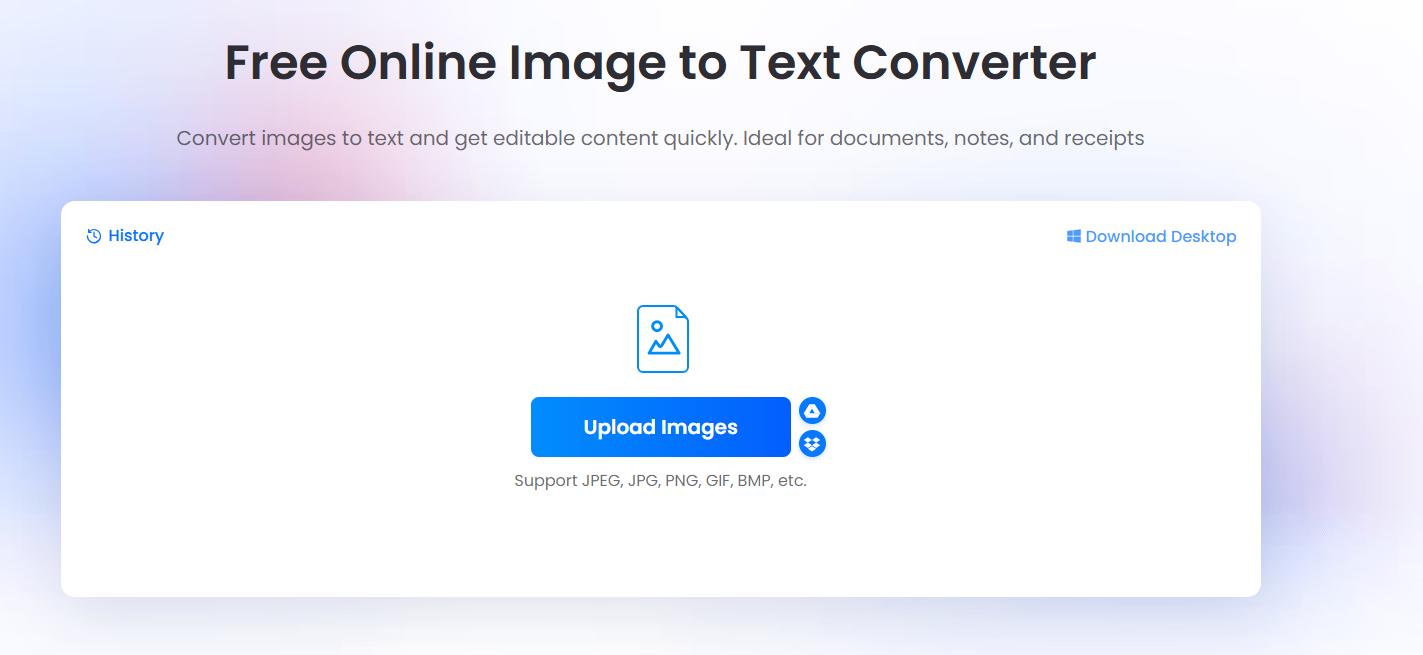
- Upload your screenshot or photo to LightPDF’s Image to Text tool.
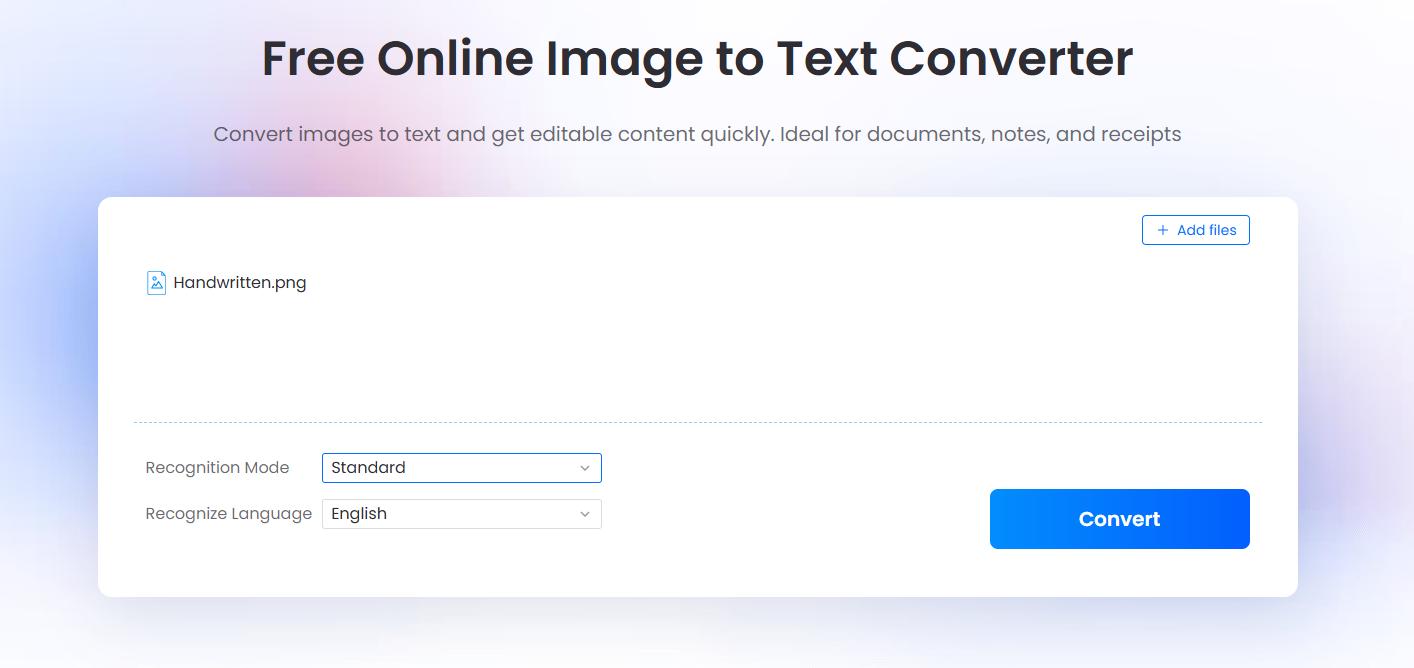
- Run the conversion and check the result against the original, especially error codes, numbers, and names.
- Download the text and paste the relevant lines into Grok with your question.


Leave a Comment