


What Is Base64?
Base64 is an encoding method that turns file data into plain text. It is often used in APIs, emails, databases, and web pages to transfer files as text. Base64 is not a file format. If a PDF is encoded as Base64, you need to decode it before you can open it as a normal .pdf file.
Why Convert Base64 to PDF?
You may need to convert Base64 to PDF when:
- An API returns a PDF invoice, report, ticket, or certificate as Base64.
- A database stores PDF content as text.
- A web page uses a PDF data URL.
- You receive encoded PDF data instead of a downloadable file.
- You need to open, print, share, or edit the document.
How to Know If Base64 Is a PDF
A Base64 PDF often starts with:
JVBERi0
You may also see this format:
data:application/pdf;base64,JVBERi0x...
If the string starts with data:application/pdf;base64,, the actual Base64 content begins after the comma.
Common Base64 signs:
| Starts with | Usually means |
|---|---|
JVBERi0 | |
data:application/pdf;base64, | PDF data URL |
iVBORw0KGgo | PNG image |
/9j/ | JPG image |
How to Convert Base64 to PDF
You can convert Base64 to PDF with an online Base64 to PDF converter. The process is simple, but you need to make sure the Base64 text is copied correctly.
Step 1: Copy the Base64 string
First, copy the complete Base64 string from your API response, database, email, or text file.
A Base64 PDF may look like this:
JVBERi0xLjQKJc...
Sometimes it may include a data URL prefix:
data:application/pdf;base64,JVBERi0xLjQKJc...
If your Base64 string is very long, make sure you copy it from the beginning to the end. If part of the string is missing, the converted PDF may not open.
Step 2: Remove the data URL prefix if needed
Some converters support data URLs, while others only accept raw Base64 text.
If the converter shows an error, remove this part:
data:application/pdf;base64,
Then keep only the Base64 content after the comma.
For example, change this:
data:application/pdf;base64,JVBERi0xLjQKJc...
to this:
JVBERi0xLjQKJc...
Step 3: Paste the Base64 text into a converter
Open a Base64 to PDF converter in your browser. Paste the Base64 string into the input box.
If the tool has an upload option, you can also save the Base64 string as a .txt file and upload it.
Step 4: Decode the Base64 into PDF
Click Decode, Convert, or Convert to PDF. The tool will decode the Base64 text and rebuild the original PDF file.
This may take a few seconds if the Base64 string is very long.
Step 5: Download and check the PDF
After conversion, download the generated PDF file. Open it with a browser, Adobe Acrobat, or another PDF reader.
If the PDF opens normally, the conversion is successful. If it cannot open, the Base64 string may be incomplete, damaged, or not actually a PDF file.
Make sure the Base64 string is complete. If part of it is missing, the PDF may not open.
Best Base64 Converter to PDF Tools
1. APIVoid Base64 to PDF
Tool: https://www.apivoid.com/tools/base64-to-pdf/
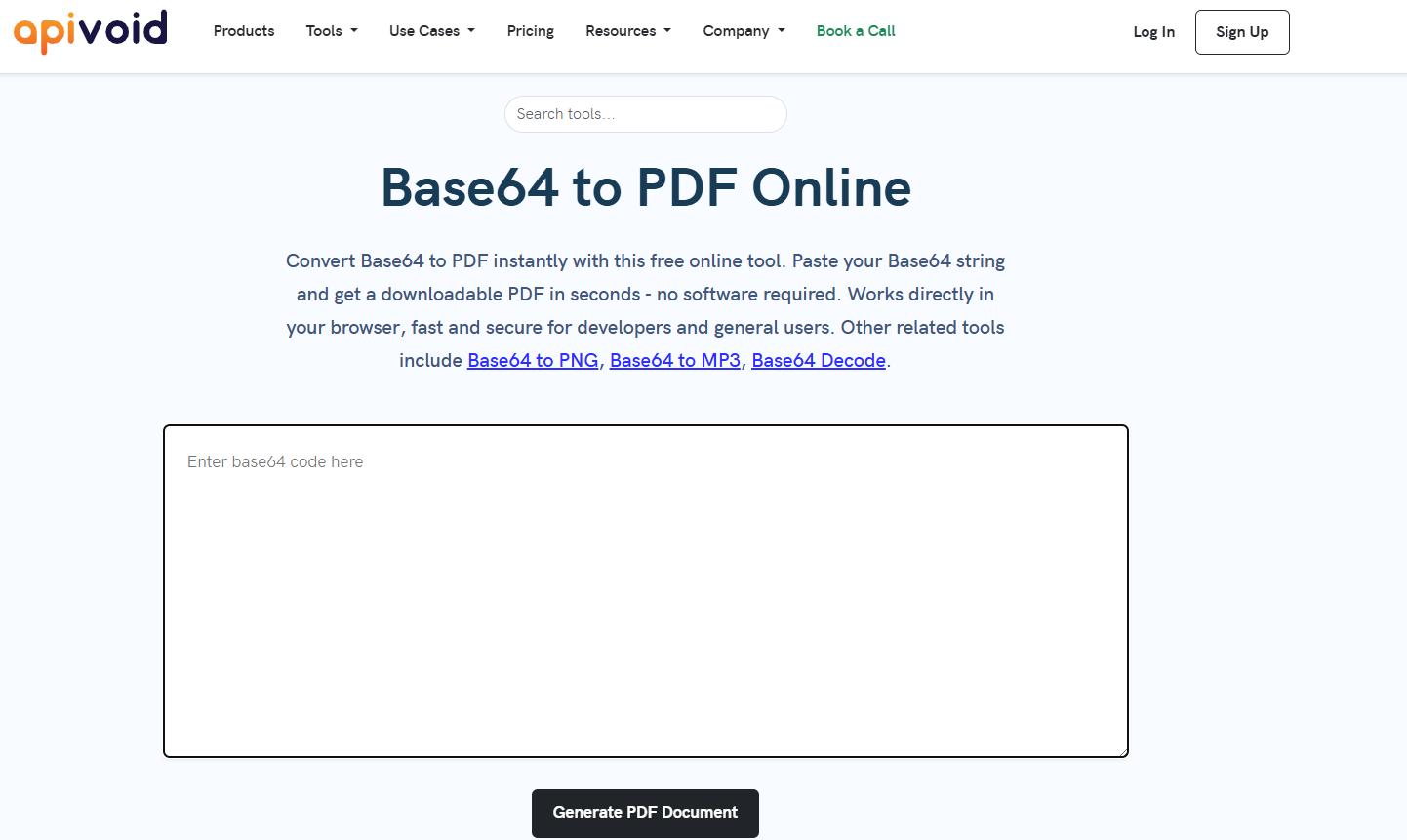
APIVoid offers a free online Base64 to PDF tool. You can paste a Base64-encoded PDF string into the input box and generate a downloadable PDF file directly in your browser.
It is useful when you receive PDF data from an API, database, or email and want to quickly turn it into a normal PDF file.
Best for: Quick Base64 to PDF conversion without installing software.
2. IPVoid Base64 to PDF
Tool: https://www.ipvoid.com/base64-to-pdf/
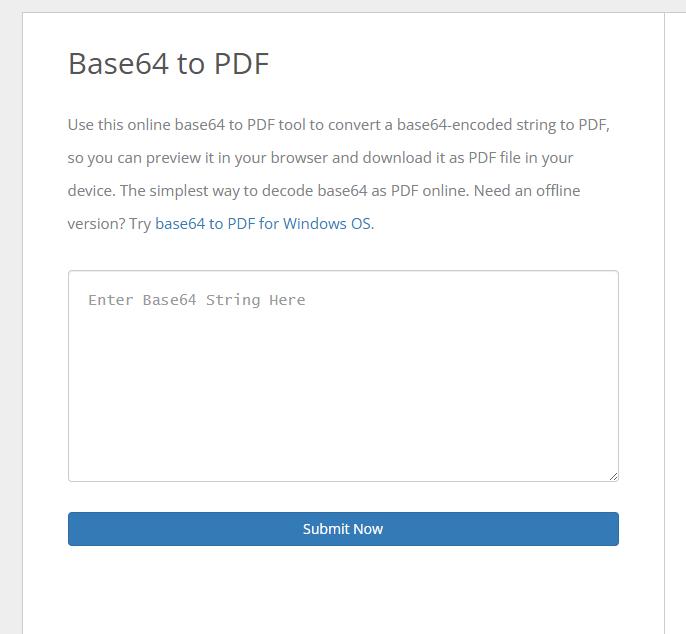
IPVoid provides a simple online Base64 to PDF converter. It allows you to convert a Base64 string into a PDF file, preview it in the browser, and download it to your device.
This tool is suitable for users who only need a clean and direct way to decode Base64 PDF data.
Best for: Previewing and downloading Base64-encoded PDF files.
3. Base64.guru Base64 to File
Tool: https://base64.guru/converter/decode/file
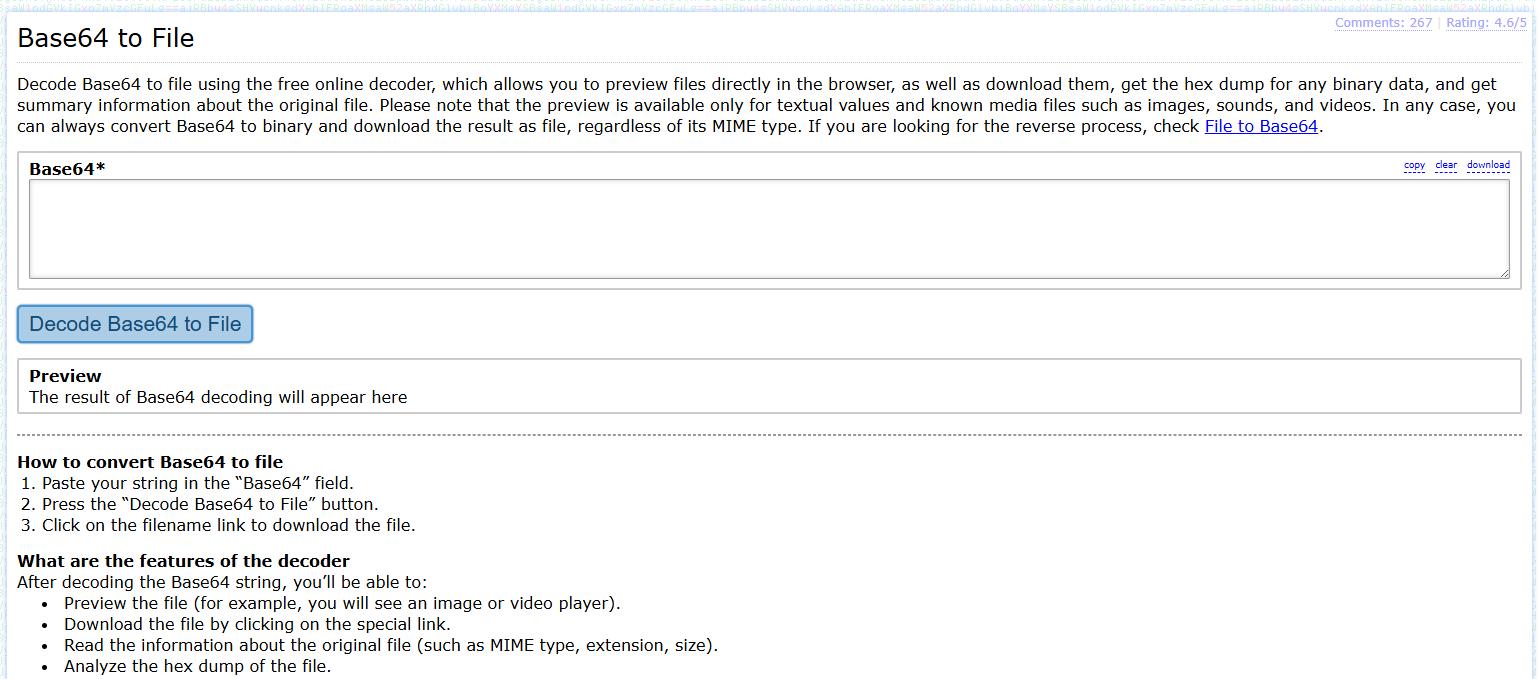
Base64.guru offers a Base64 to File decoder. Instead of only focusing on PDFs, it can decode Base64 data into a file and let you download the result.
This is useful when you are not completely sure whether the Base64 string is a PDF or another file type. If the original data is a PDF, you can download the decoded result and save it as a .pdf file.
Best for: General Base64 file decoding and checking unknown Base64 data.
Common Base64 to PDF Problems
1. The PDF cannot open
The Base64 string may be incomplete or damaged. Copy the full string again and retry.
2. The converter shows an error
Remove the data URL prefix:
data:application/pdf;base64,
Then paste only the Base64 content after the comma.
3. The PDF is blank
The Base64 data may not be a PDF. It could be an image, Word file, ZIP file, or another file type.
4. The string has spaces or line breaks
Remove extra spaces, line breaks, or hidden characters before converting.
5. The file is sensitive
Avoid pasting private contracts, IDs, invoices, or business files into unknown online converters. Use a trusted tool or offline method.
LightPDF Tips: What to Do After Converting Base64 to PDF
After you convert Base64 to PDF, the next step depends on what you want to do with the file. Some PDFs only need to be opened and saved, but others may need extra processing.
For example, if the converted PDF is a report, invoice, contract, scanned document, or study material, you may want to check the content, extract key details, make the text searchable, or convert it into another format.
In this case, a PDF tool with AI support can save time. With LightPDF AI Agent, you can upload the converted PDF and ask it to help with tasks such as summarizing the document, extracting important information, translating content, recognizing text from scanned pages, compressing the file, or converting it to Word, Excel, PPT, JPG, or PNG.
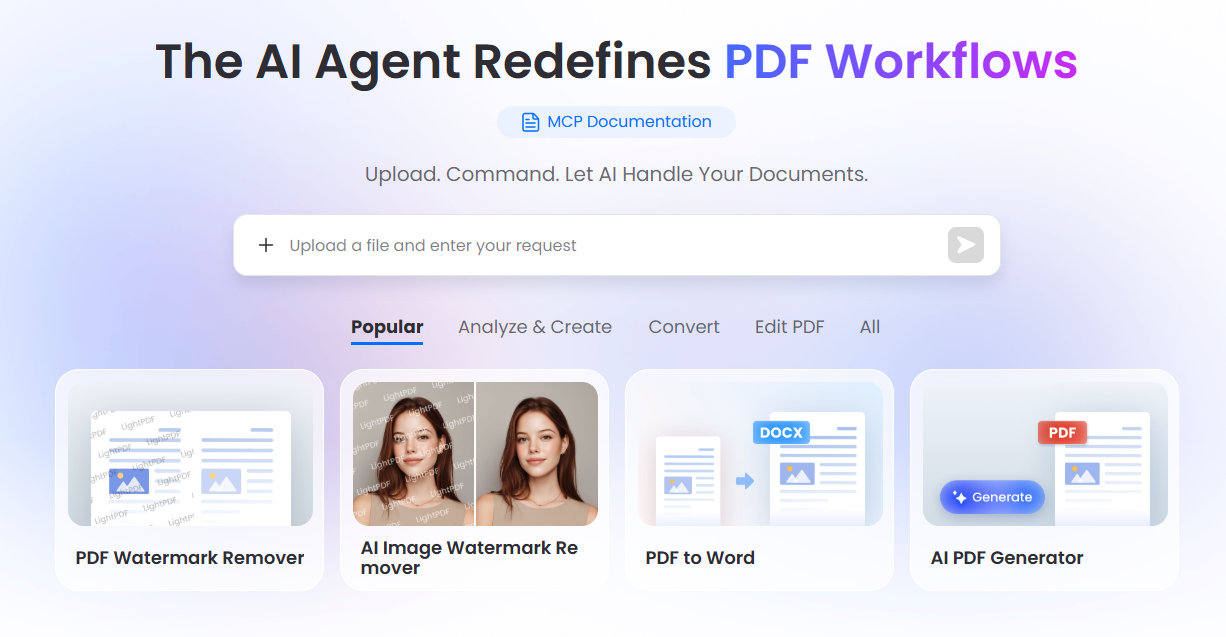
This is especially useful when the PDF is long, image-based, or not easy to reuse. Instead of handling each step separately, you can use AI Agent to understand and process the converted PDF more efficiently.
Conclusion
To convert Base64 to PDF, copy the full Base64 string, remove the data URL prefix if needed, paste it into a Base64 to PDF converter, and download the decoded PDF.
After conversion, use LightPDF to edit, OCR, compress, convert, sign, summarize, or translate the PDF.


Leave a Comment