


Method 1: Download PDF from Link in Browsers
The fastest and most obvious way is to download directly from your web browser. Steps:
- Click the PDF link to open the file in your browser viewer.
- Access the toolbar on the upper section of the screen.
- Click the Download icon (⬇). (If you cannot locate the icon, right-click the page and select “Save as” or “Save Page as”).
- Set the download location, name the file, and tap “Save”.

This method works perfectly on Chrome, Edge, Safari, and Firefox.
Method 2: Download PDF from Link Online via LightPDF
If the link is a webpage and you prefer not to install any software, use an online URL to PDF converter (such as LightPDF).
Steps:
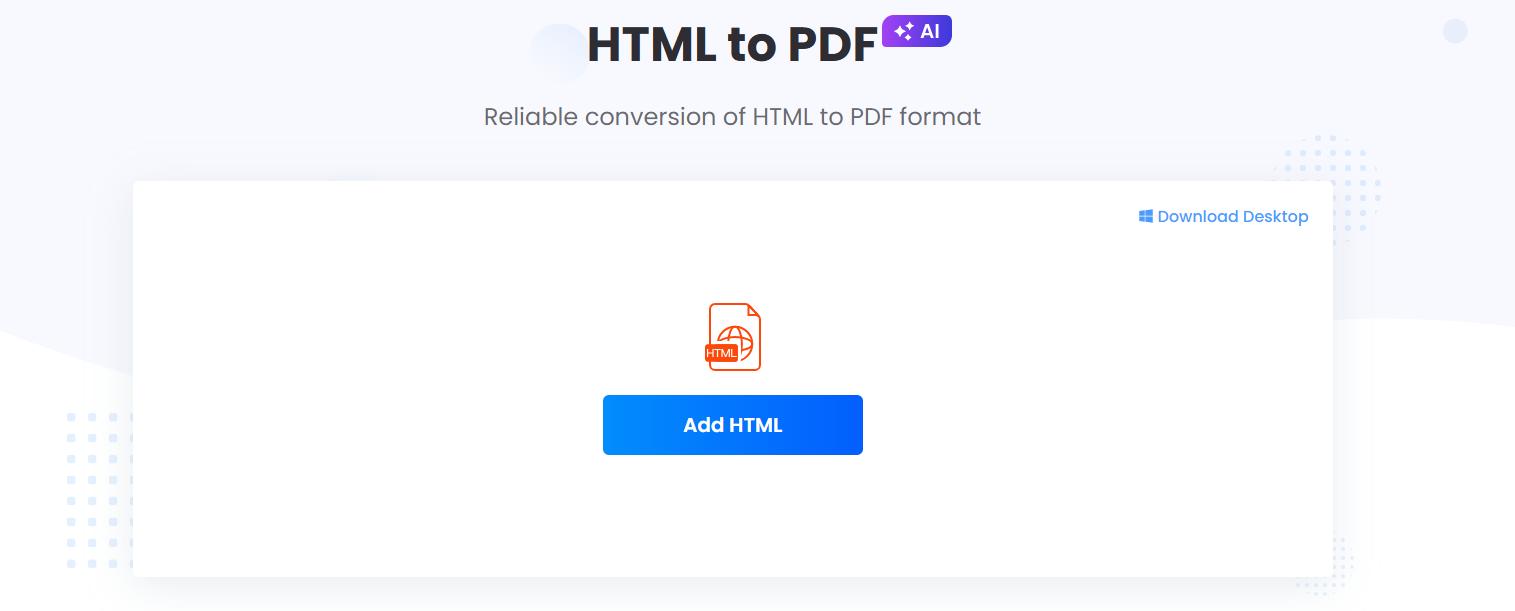
- Open a Web to PDF online tool andclick on Add HTML.
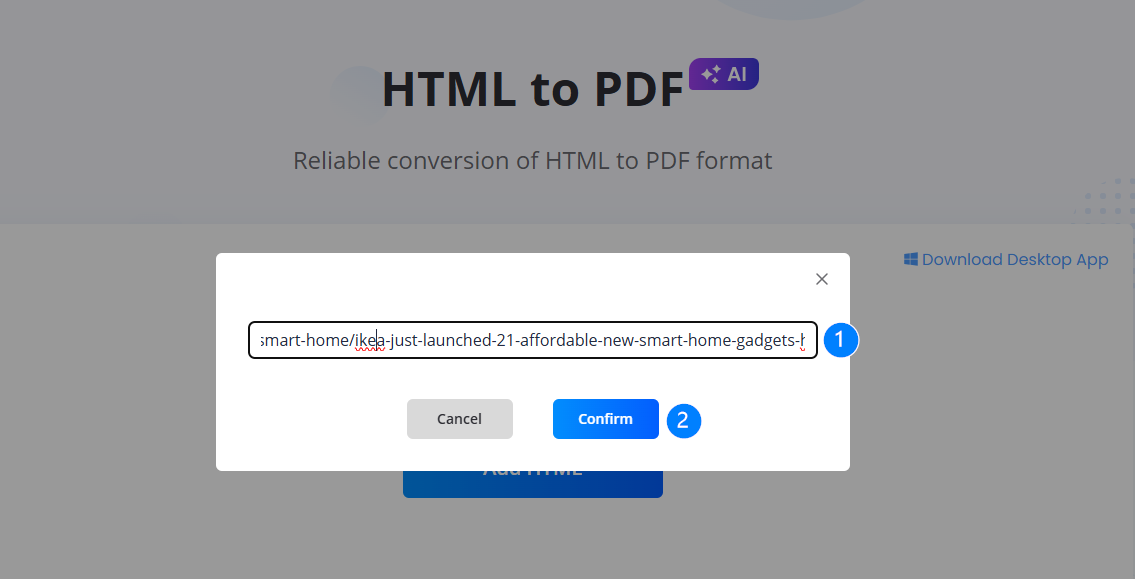
- Paste the webpage URL link into the input box and click the confirm button to start generating the file.
- Once processed, click the “Download” button to save the PDF file to your device.
Benefits:
- Convert any webpage into PDF easily.
- No software installation required.
- Works smoothly across all devices.
👉 This is one of the most searched solutions for download pdf from link online.
Method 3: Print to PDF (Alternative Method)
If there is no download button available when you open a PDF file on a browser, you can manually save the page.
Steps:
- Press Ctrl + P (Windows) or Cmd + P (Mac).
- Click “Save”.
- A prompt will appear allowing you to select the file location, rename the file, and tap “Save”.

This quick fallback option works for almost all web pages and documents.
Method 4: Download PDF from Google Drive Link (View-Only Files)
If someone gives you a Google Drive link but disables the download and print features (view-only), you can use a JavaScript (JS) trick via Developer Tools.
Steps:
- Open the document in Google Docs.
- Scroll to the bottom of your document to ensure all pages are loaded.
- Open the Developer Tools in your browser and select the Console tab.
- Paste the specific JS code to extract the images/pages.
- The script will iterate through the document and automatically download the content as a PDF.
Comparison Table: Best Methods to Download PDF from Link
| Method | Best for | Ease of Use | Output Quality | Overall Rating |
| Browser Download | Direct PDF links | ⭐⭐⭐⭐⭐ | ⭐⭐⭐⭐ | ⭐⭐⭐⭐☆ |
| Online Web to PDF | Webpages / articles | ⭐⭐⭐⭐⭐ | ⭐⭐⭐⭐⭐ | ⭐⭐⭐⭐⭐ |
| Print to PDF | Quick fallback option | ⭐⭐⭐ | ⭐⭐⭐ | ⭐⭐⭐⭐ |
| JS Script Download | View-only Google Drive files | ⭐⭐ | ⭐⭐⭐⭐ | ⭐⭐⭐ |
FAQs – Download PDF from Link
1. How do I force a PDF to download instead of opening it? You can disable browsers from automatically opening PDFs. In Google Chrome, go to “Settings” > “Privacy and Security” > “Site Settings”. Navigate to “PDF Documents” and activate the “Download PDFs” option.
2. How can I download any PDF from any website? Just open the link of the PDF in a browser, click the three-dot menu icon (or the toolbar), and select “Download”.
3. How do I download a PDF that cannot be downloaded? If there is no download button when you open a PDF file on a browser, simply press Ctrl + P (or Cmd + P on Mac) and choose to print the file to PDF.
4. Why can’t I download a PDF on my phone? If you don’t have a PDF app on your phone, your browser might be unable to open and download the PDF. Alternatively, the PDF file or app might be corrupted, making it impossible to download.
Final Thoughts
There are several reliable ways to download PDF from a link, depending on the type of content you are working with:
- For direct files, browser download is the fastest option.
- For webpages and articles, online Web to PDF tools provide the simplest solution.
- For restricted Google Drive files, using JS scripts or the Print to PDF trick can be a lifesaver. ver. Using the right method ensures you can always save, access, and share important content in a clean and portable PDF format.



Leave a Comment