


Direct Solutions: How to Make a PDF Searchable Right Now
Pressing Ctrl + F on a PDF only to watch your reader do absolutely nothing is annoying, but it’s a super common issue. Most paper scans, receipt photos, and old archived documents are saved as flat images. Your computer doesn’t see words on those pages—it just sees a collection of black and white pixels.
To make a pdf file searchable, you have to run the file through Optical Character Recognition (OCR). OCR maps the physical shapes of letters and drops a transparent, copyable text layer right on top of your original scan.
How it actually works under the hood:
- What you start with: A scanned PDF image (just picture pixels, zero searchable text).
- What happens during processing: OCR runs character pattern matching across the file.
- What you end up with: A dual-layer PDF. The scan stays visually identical, but now
Ctrl + FandCmd + Fwork perfectly.
Here is how to get it done depending on what tools you have on hand.
Method 1: Make PDF Searchable Online via Web Tools
If you are dealing with a quick work deadline and don’t want to mess around with downloading heavy software like Adobe Acrobat, using a web engine is easily the most practical way to make a PDF searchable online.
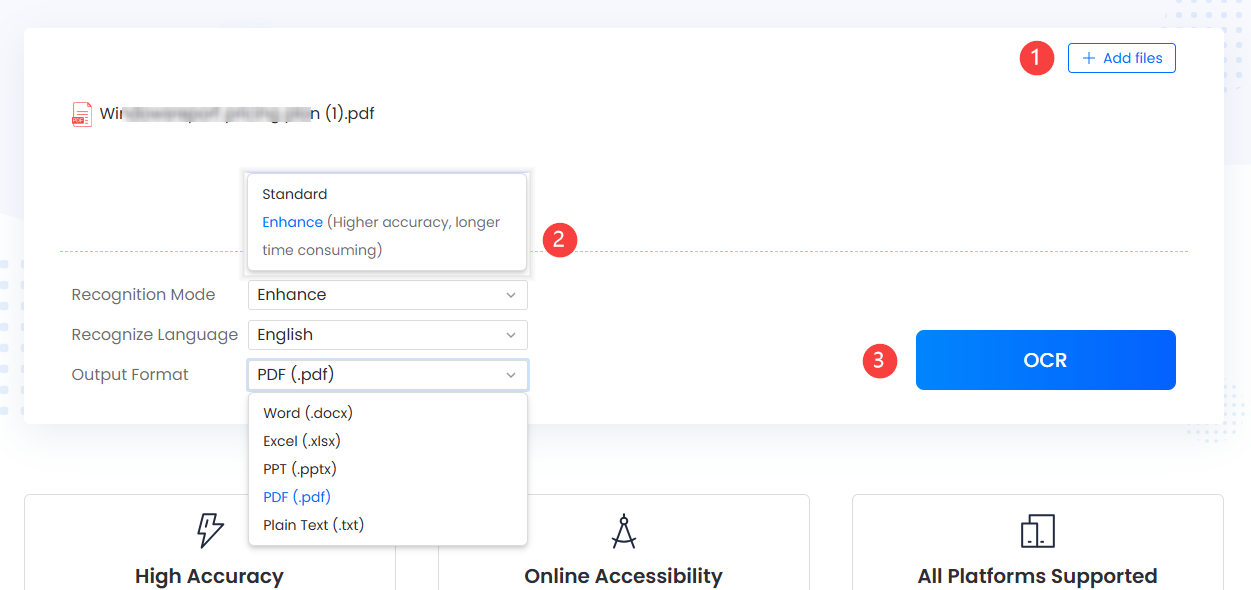
How to run it step-by-step:
- Upload Your File: Open the online OCR processor and hit Select Files to bring in your scanned PDF or raw images (
.jpg,.png,.tiff). - Batch Processing (Save Time on Big Folders): Working through a massive stack of invoices or multi-chapter research? Click Add Files to queue up several documents and run them together instead of doing them one by one.
- Adjust Your OCR Settings:
- Recognition Mode: Go with Standard Mode if your document is a clean, modern scan—it finishes much faster. If you’re dealing with blurry smartphone uploads, low-DPI faxes, or faded ink, switch to Enhance Mode. It takes a bit longer, but the recognition accuracy is night and day.
- Recognize Language: Select the exact language matching your original document from 20+ available options (including English, French, Italian, Portuguese, Spanish, Japanese, German, Traditional Chinese, and more). Pro tip: If you forget to match the language, you’ll end up with scrambled output characters.
- Output Format: Choose Searchable PDF if you want to keep the visual design intact while making text interactive. You can also export straight to Word (
.docx), Excel (.xlsx), PowerPoint (.pptx), or Plain Text (.txt).
- Run OCR:Hit the OCR button and let the engine handle character matching.
- Download:Grab your processed, searchable file and save it to your local disk.
Method 2: Make PDF Text Searchable by Converting to Word
If your original document has typos, formatting glitches, or missing numbers that need hands-on fixing, learning how to make pdf text searchable by converting to Microsoft Word is usually a better route than standard PDF OCR.
- Upload & Convert: Feed your image PDF into a PDF-to-Word conversion tool to spit out a clean
.docxfile. - Search and Clean Up: Open the output in Word. Use
Ctrl + F(orCmd + Fon Mac) to test your searches, clean up misread words, or pull paragraphs directly into your notes. - Export Back to PDF: Click File > Save As and pick PDF. The newly exported PDF file carries clean, native text searchability out of the box.
Method 3: Alternative Desktop & Cloud Workarounds
- Google Drive / Docs: Upload your scan to Google Drive, right-click it, and select Open with > Google Docs. Google runs a quick background OCR pass. Fair warning: It’s fine for simple text, but it completely destroys multi-column tables and page layouts.
- Adobe Acrobat Pro: Open your scan in Acrobat, head to Tools > Recognize Text > In This File, pick your language, and run it. Works great, but requires a paid subscription.
- Apple Live Text (macOS / iOS): On modern Macs or iPhones, open your scanned image in Preview or Photos. Apple’s system OCR automatically highlights text on the fly—no separate tool required.
How to Search Text Inside a Searchable PDF File
Once you make a scanned PDF searchable, pulling data out of a hundred-page contract takes just a couple seconds:
- Single Page Search (
Ctrl + F/Cmd + F):Works in Chrome, Edge, Safari, Adobe Reader, or Apple Preview. Type your keyword and tapEnterto step through highlighted instances. - Folder-Wide Search (
Ctrl + Shift + F):If you use Adobe Acrobat, pressingCtrl + Shift + Flets you query every single PDF stored inside a specific folder at once without opening them individually. - Exact Case Matching:Toggle “Match Case” in your search bar settings if you’re hunting down strict serial numbers or legal citations to bypass irrelevant matches.
Which Option Should You Use?
| Solution / Method | Best Real-World Use Case | Accuracy & Layout Quality | Batch Capability | Cost & Setup Friction |
| LightPDF | Fast web conversion for scanned reports & images | High (Standard/Enhance options keep layout crisp) | Yes (Add Files support) | Free / No software installation |
| PDF to Word Conversion | Documents that need heavy text editing & cleanup | High (Rebuilds text into editable paragraphs) | Yes (Supported via web tools) | Free / No software installation |
| Adobe Acrobat Pro | Enterprise teams managing heavy offline archives | Very High (Top-tier OCR accuracy) | Yes (Automated batch actions) | Paid monthly subscription |
| Google Drive / Docs | Quick text pulls from simple single-page scans | Moderate (Loses margins, fonts, and tables) | No (Must open files individually) | Free (Google Account required) |
FAQ
Q1: Why is my PDF text not searchable or selectable?
Your file was created as a raster image rather than a structured text document. PDF viewers treat these files like JPEG photos—they don’t register individual letter characters. You have to process the file with an OCR tool to make a pdf file searchable.
Q2: How do I make a scanned PDF searchable online for free?
Use an online OCR browser tool. Click Select Files to upload your scan, choose the right language and recognition mode (Standard for clean files, Enhance for faint/blurry prints), click OCR, and download your processed file.
Q3: What’s the practical difference between Standard Mode and Enhance Mode?
- Standard Mode: Blazes through clean, clear scans at high speed by reading standard character contours.
- Enhance Mode: Applies image cleanup filters first—straightening crooked pages, removing background shadows, and sharpening faint ink—so the OCR engine doesn’t misread characters.
Q4: Will running OCR ruin my PDF’s original formatting?
No, as long as you choose Searchable PDF as your output format. The software keeps your original scan completely untouched on the visual surface while laying a transparent text grid behind it.
Q5: Why is Ctrl + F still missing words even after running OCR?
If your search isn’t pulling up text after OCR, it usually comes down to three things:
- Wrong Language Selected: Setting the engine to English when processing a German or Spanish document.
- Poor Scan Resolution: Scans under 150 DPI often blur characters together beyond recovery.
- Password Protection: Document permissions locked down text extraction.
Quick fix: Re-run the file using Enhance Mode and double-check your language selection before clicking process.


Leave a Comment