


A PDF can be digitally created but still need to look like a scanned copy. You don’t have to print it out and scan it again. A PDF-to-scanned-PDF converter can turn the pages into image-based PDF pages directly.
For most documents, 200 DPI is a good place to start. If the file has tiny text or detailed tables, use 300 DPI. And if the document contains a colored signature, stamp, or highlight, keep the output in Color instead of Grayscale.
PART.1 How to Make PDF Look Scanned Online
To make PDF look scanned online, upload the file, choose how you want the pages rendered, and convert it. The whole process is fairly straightforward.
1. Upload your PDF
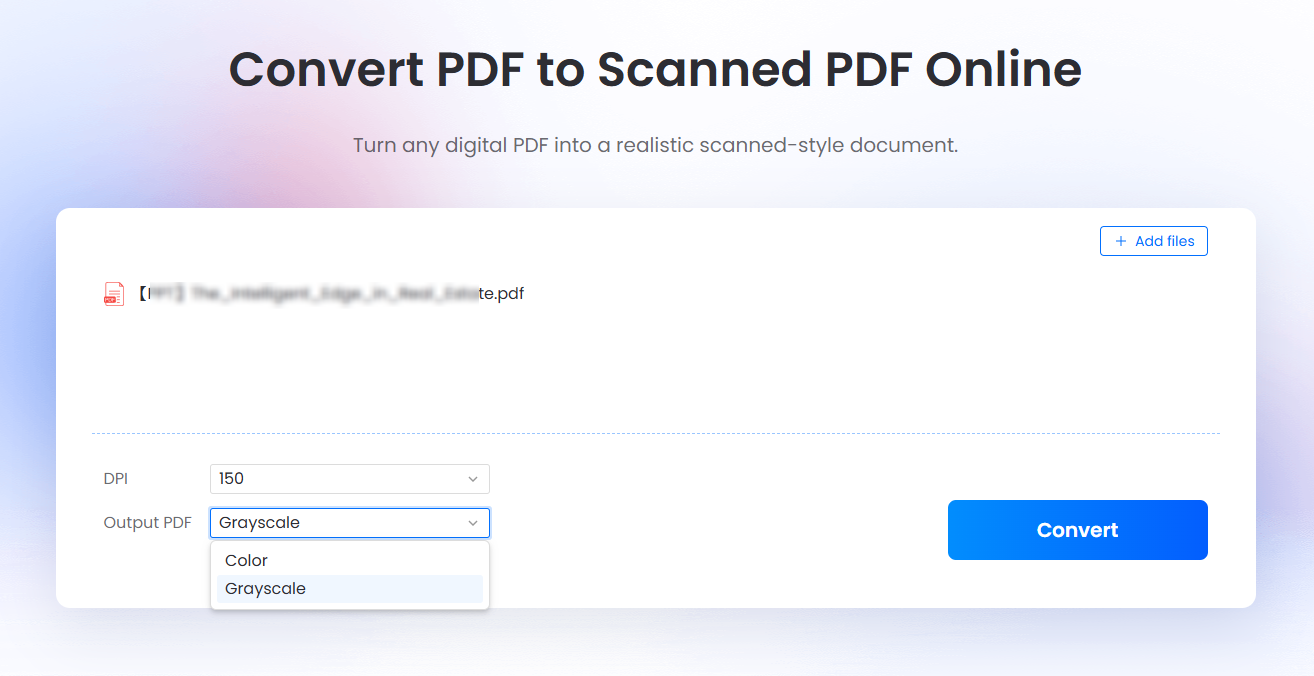
Visit PDF to scan converter online. Select the file from your computer or drag the file to the uploading area.
2. Add your PDF
Click “+ Add files” and select the PDF you want to convert.
Working with several files? Add them together instead of repeating the process for each document. This can save quite a bit of time when you’re dealing with a folder of forms, invoices, applications, or reports.
3. Pick a DPI
You can choose 75, 150, 200, or 300 DPI.
Here’s the practical difference:
| DPI | Good choice for | File size |
|---|---|---|
| 75 | Quick previews, simple pages | Small |
| 150 | Basic document sharing | Small |
| 200 | Most everyday PDFs | Medium |
| 300 | Small text, detailed pages, OCR | Larger |
If you don’t have a particular reason to go higher or lower, I’d use 200 DPI. It usually gives a clean result without making the PDF unnecessarily heavy.
4. Choose Color or Grayscale
This one depends on the document.
Go with Color if there’s a blue signature, red stamp, company logo, highlighted text, or anything else where the color actually tells you something.
For a plain contract or black-and-white form, Grayscale is usually enough.
5. Click Convert
Once the settings look right, click Convert.
If you added several files, the tool can process them together.
6. Download the converted PDF
Download the result and give it a quick check before sending it on.
Look at the small stuff first: dates, account numbers, table cells, signatures, and footnotes. Those are the details most likely to become difficult to read when the resolution is too low.
PART.2 Which DPI Should You Choose?
The highest DPI isn’t automatically the best setting.
A 300 DPI PDF contains more image detail, but that detail comes with a larger file. If you’re converting a six-page report just to email it to someone, you may not notice much difference between 200 and 300 DPI.
For a document with tiny text, though, the difference is more useful.
75 DPI is mainly for lightweight copies or previews. I wouldn’t pick it for a form with small fields.
150 DPI works for simple documents that will mostly be read on a screen.
200 DPI is the practical middle ground for contracts, reports, forms, and other ordinary PDFs.
300 DPI makes more sense for detailed pages, fine print, or documents that will go through OCR afterward.
So, as a quick rule:
200 DPI for general use. 300 DPI when detail matters.
PART.3 Color or Grayscale for a Scanned PDF?
If you’re trying to recreate the feel of an ordinary office scan, Grayscale may be all you need.
But don’t switch everything to grayscale automatically.
A colored stamp can become difficult to distinguish from the surrounding text. A blue signature may end up looking almost identical to black text. Highlighted sections obviously lose their purpose.
Here’s a simpler way to decide:
| Your PDF contains… | Use |
|---|---|
| Black-and-white text | Grayscale |
| Forms without color elements | Grayscale |
| Colored stamps | Color |
| Colored signatures | Color |
| Highlighted text | Color |
| Charts using different colors | Color |
| Photos or illustrations | Color |
If the document is basically black text on a white page, Grayscale is usually the sensible choice.
PART.4 Convert PDF to Scanned PDF: What Changes?
When you convert PDF to scanned PDF, the pages are treated more like images than normal editable PDF pages.
That’s useful if the appearance or structure of a scanned copy matters. There is one trade-off, though: text that was selectable in the original file may no longer behave that way.
For example, you might normally click into a paragraph, select a sentence, and copy it. After conversion, that same sentence may simply be part of the page image.
If you need to edit the document, do it before conversion.
If you need to search or copy the text afterward, OCR can be added as a separate step.
This is also why 300 DPI can be worth using for OCR-heavy documents. Better source images generally give OCR more detail to work with.
PART.5 PDF to Scanned Document: When File Size Matters
A scanned document isn’t necessarily smaller than the original PDF.
In fact, the opposite often happens.
A normal digital PDF can store a paragraph as text using a relatively small amount of data. A scanned version has to store the visual information of the page as an image. At 300 DPI, that adds up quickly.
If a converted file is much larger than expected, don’t immediately assume something went wrong.
Try 200 DPI instead of 300 DPI if you don’t need the extra detail. Grayscale can also be a reasonable choice for documents that don’t contain meaningful color.
The goal isn’t to use the highest settings. It’s to use enough quality for the actual document.
PART.6 Best PDF to Scanned PDF Converters
If you only need to turn a PDF into a scanned-style document, a simple converter may be enough. But PDF work rarely stops there.
You might need OCR afterward. Or compression. Or a quick edit before creating the final scanned copy.
That’s where broader PDF platforms become useful.
| Tool | Best suited to | OCR | Editing | Other PDF tools |
|---|---|---|---|---|
| LightPDF | Broader PDF workflow | Yes | Yes | Yes |
| Adobe Acrobat | Professional PDF work | Yes | Yes | Extensive |
| Smallpdf | Quick online PDF tasks | Yes | Yes | Yes |
| iLovePDF | Everyday PDF utilities | Yes | Yes | Yes |
| Dedicated scan converters | Scan-style conversion | Varies | Limited | Limited |
LightPDF
LightPDF is a good fit if converting the PDF is only one step of the job.
For example, you might convert an editable document into a scanned PDF and then realize you need the text searchable again. Or perhaps the resulting file is too large and needs compression.
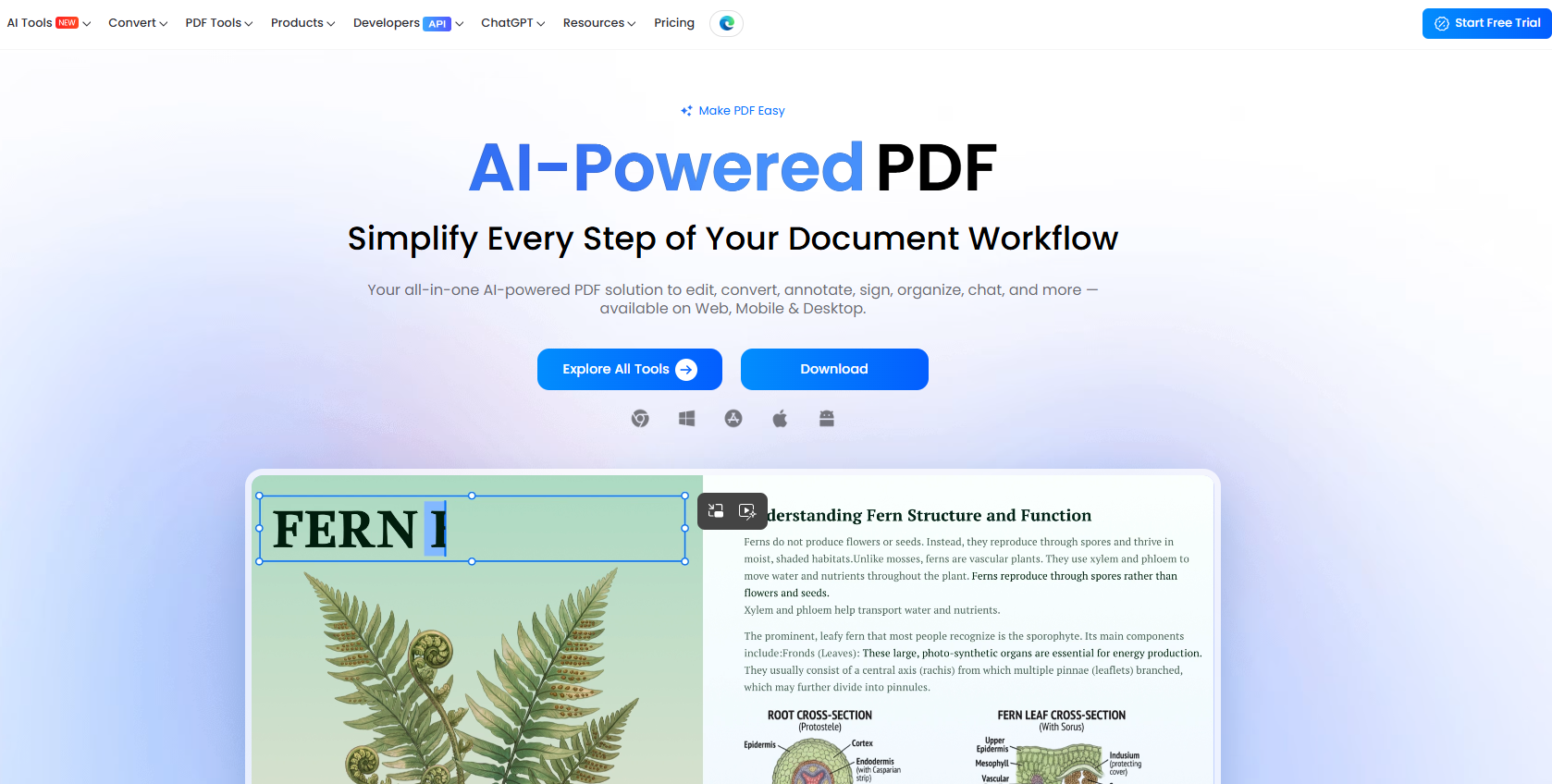
Having OCR, PDF editing, enhancement, compression, and conversion tools in the same place makes that workflow less fragmented.
Best for: users who need more than just a one-time PDF conversion.
Adobe Acrobat
Adobe Acrobat is the more established option for professional PDF workflows.
It covers editing, OCR, conversion, signing, and other document tasks, so it’s useful when scanned PDFs are part of a larger document process.
Best for: professional and business PDF work.
Smallpdf
Smallpdf focuses heavily on browser-based PDF utilities.
It’s convenient when the job involves familiar tasks such as converting, compressing, editing, signing, or running OCR.
Best for: straightforward online PDF work.
iLovePDF
iLovePDF has a wide selection of PDF utilities, including conversion, compression, merging, splitting, editing, and OCR.
Best for: users who regularly need basic PDF tools.
PART.7 FAQ
How do I make a PDF look scanned?
Upload the PDF to a PDF-to-scanned-PDF converter, choose the DPI and output mode, and convert it. 200 DPI is a good starting point for most documents.
Can I make a PDF look scanned online?
Yes. You can convert a digital PDF into scanned-style pages directly in your browser without printing the document first.
How do I convert PDF to scanned PDF?
Add the PDF, select 75, 150, 200, or 300 DPI, choose Color or Grayscale, and click Convert.
How do I convert an editable PDF to a scanned PDF?
Convert the editable pages into image-based PDF pages. If you still need to make changes, finish editing the original document first.
What DPI should I use for a scanned PDF?
For most documents, 200 DPI is enough. Use 300 DPI for small text, detailed pages, or OCR.
Should I use Color or Grayscale for a scanned PDF?
Use Grayscale for straightforward black-and-white documents. Choose Color when stamps, signatures, highlights, or other color elements matter.
Can I convert multiple PDFs to scanned PDFs at once?
Yes. Click “+ Add files” to add multiple PDFs, choose your settings, and convert them together.
Can I make a scanned PDF searchable?
Yes. If the converted file is image-based, run OCR afterward to recognize the text and make it searchable.
Why is my scanned PDF larger than the original?
Because scanned pages are stored as images. Higher DPI produces more image data, so a scanned PDF can be much larger than a text-based original.



Leave a Comment