


Grayscale vs. Black and White
Before converting your PDF, it is helpful to understand the difference between the two common output modes.
Grayscale replaces colors with different shades of gray. It preserves more detail in photographs, charts, logos, and shaded backgrounds.
Black and white, also called monochrome, uses only black and white. It creates stronger contrast but may remove light text, shadows, and image details.
For image-heavy PDFs, grayscale is usually the better choice. Pure black and white works well for forms, receipts, contracts, and text-based scans.
Best Ways to Convert a Color PDF to Black and White Online
Method 1: Convert a Color PDF with Sejda
Sejda lets you control how the text and images in your PDF are converted. You can turn text completely black while changing images to grayscale or keeping their original appearance.
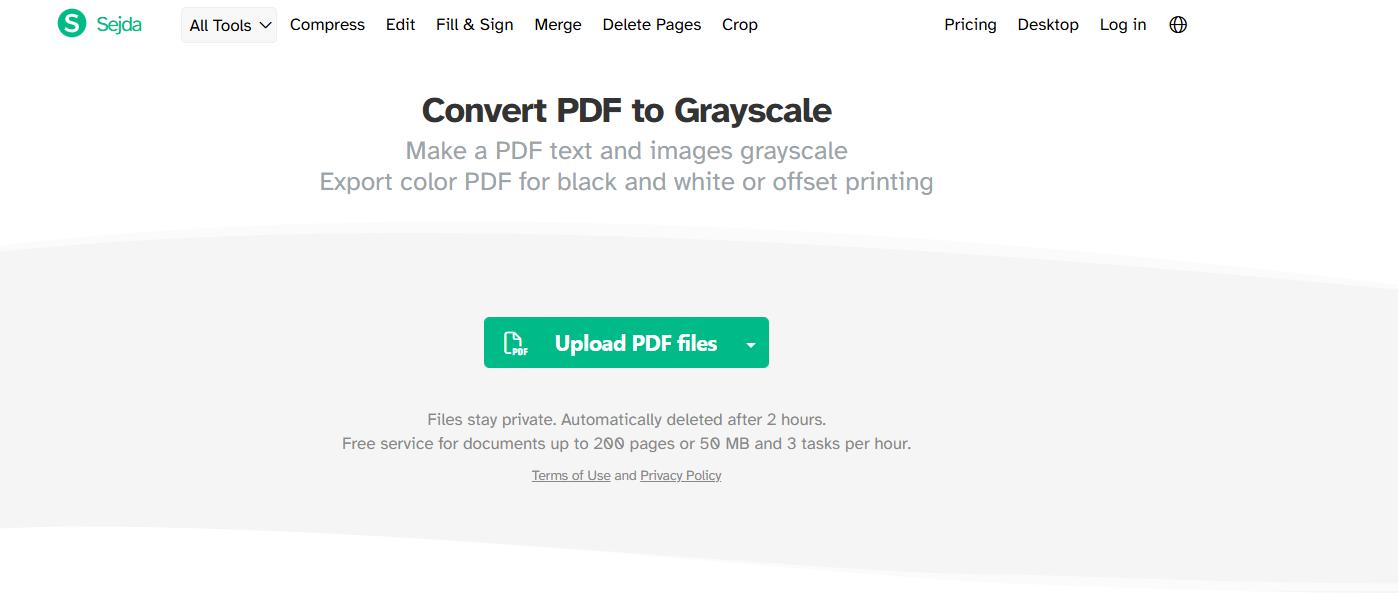
How to Use Sejda
- Open Sejda’s grayscale PDF tool.
- Upload your color PDF.
- Choose how to convert the text.
- Select a setting for the images.
- Start the conversion.
- Download the new PDF.
Choose Sejda when you want separate control over PDF text and images.
Method 2: Make a PDF Grayscale with AvePDF
AvePDF provides a simple way to remove colors from an entire PDF. It converts text, images, annotations, and form fields into grayscale for a consistent result.
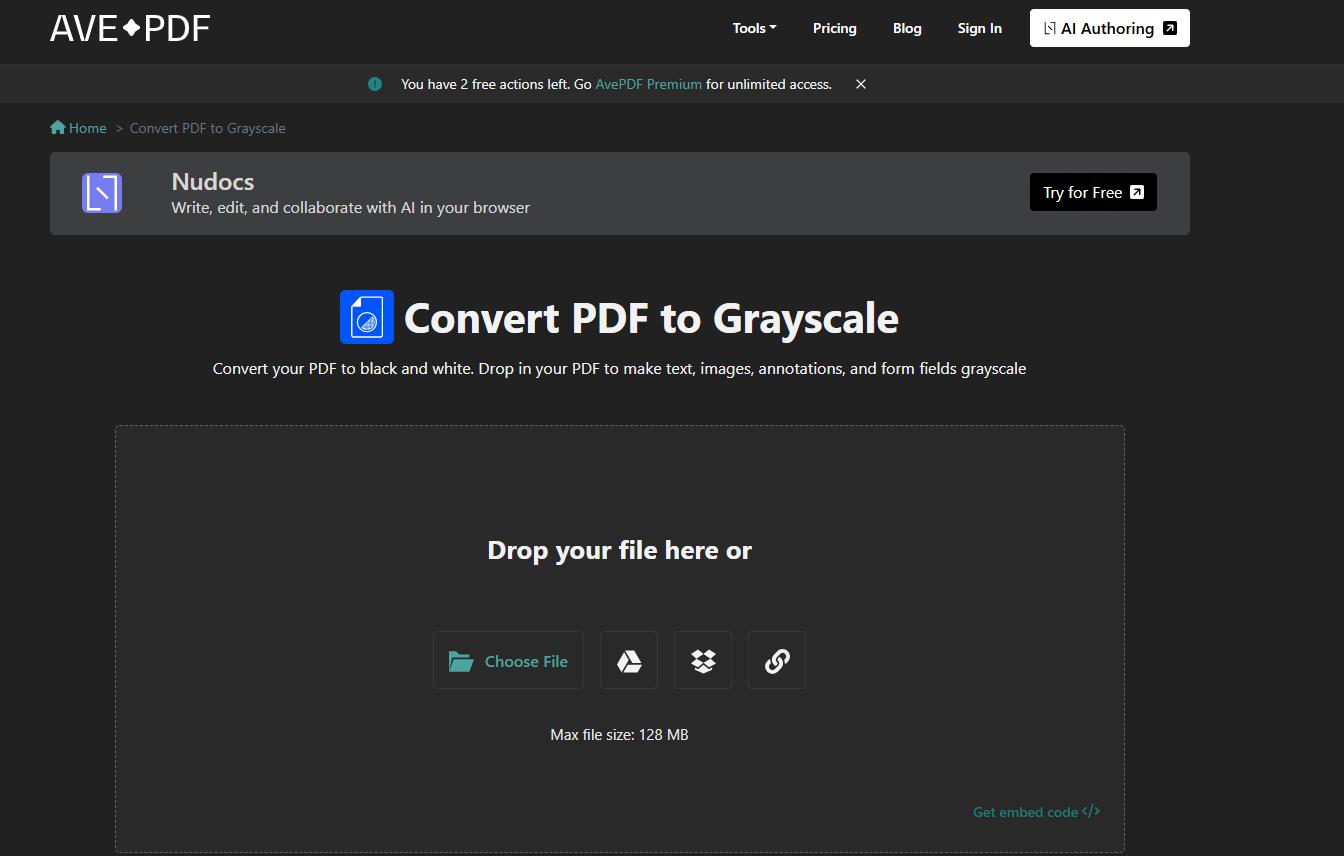
How to Use AvePDF
- Open the AvePDF grayscale converter.
- Upload your PDF.
- Wait for the conversion to finish.
- Check the result.
- Download the grayscale PDF.
Choose AvePDF when you need a quick conversion without advanced settings.
Method 3: Convert a PDF to Black and White with Online2PDF
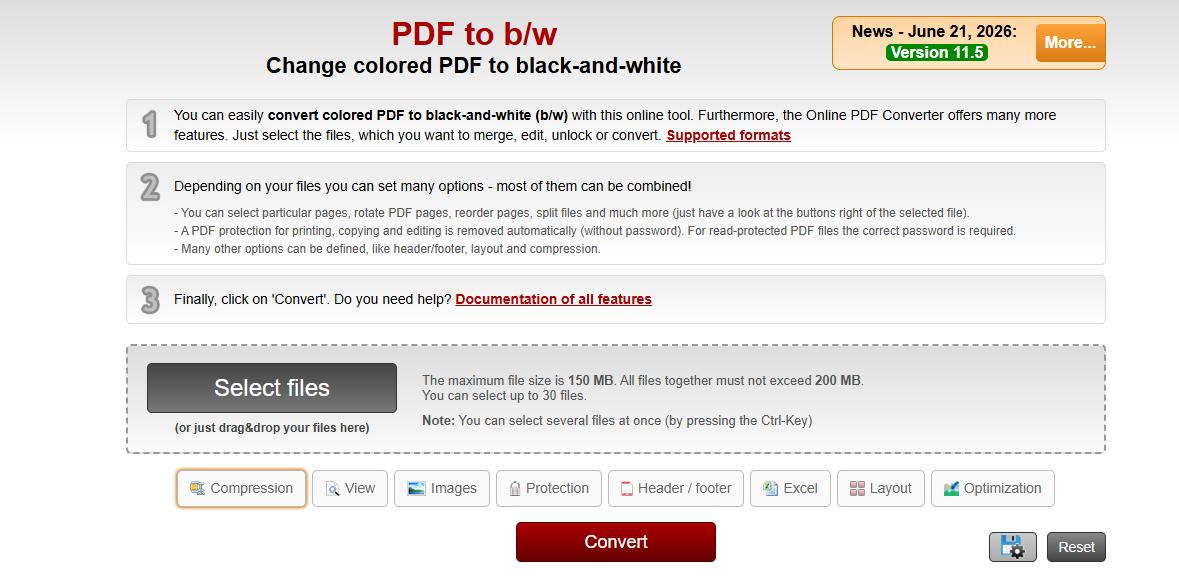
Online2PDF combines color conversion with other PDF tools. You can select specific pages, rotate or rearrange them, adjust compression, and apply OCR when needed.
How to Use Online2PDF
- Open the PDF black-and-white converter.
- Upload your document.
- Select PDF as the output format.
- Choose the black-and-white setting.
- Adjust the pages or other options.
- Click Convert.
- Download the processed file.
Choose Online2PDF when you also need to rotate, rearrange, compress, or process selected pages.
Method 4: Change a Color PDF with i2pdf
i2PDF is a simple online tool for converting color PDFs to grayscale. It works in your browser and requires no software installation.
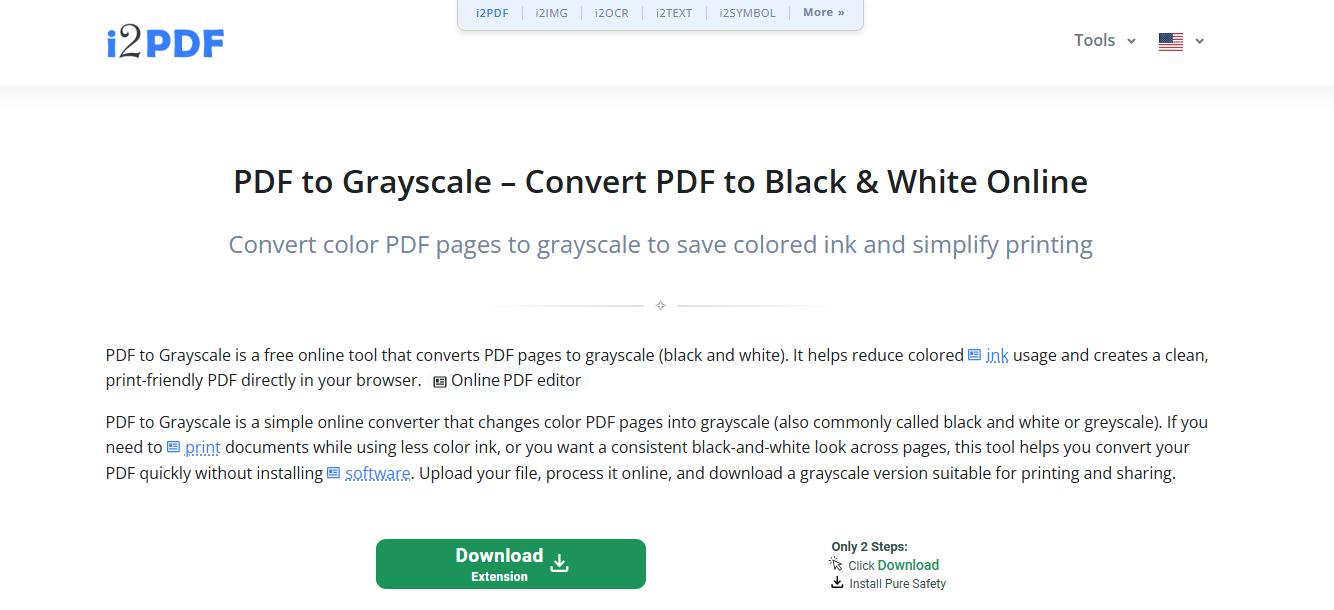
How to Convert a Color PDF with i2PDF
- Open the i2PDF PDF to Grayscale tool.
- Upload your color PDF.
- Start the conversion.
- Download the grayscale PDF.
Which Method Should You Use?
The best method depends on your document and the level of control you need:
- Use Sejda when you want more control over how text and images are converted.
- Use AvePDF for a quick and straightforward grayscale conversion.
- Use Online2PDF when you also need to adjust, compress, rotate, or reorganize the PDF.
- Use i2PDF when you want a simple browser-based tool for converting a color PDF to grayscale.
Choose grayscale for photographs, illustrations, presentations, and detailed charts, as it preserves more visual detail. For text-heavy scanned documents, forms, or receipts, pure black and white may produce a cleaner and more readable result.-heavy scans, forms, or receipts, pure black and white may create a clearer result.
How to Edit the Converted PDF with LightPDF
After converting your PDF, you may still need to update its content.
LightPDF’s online PDF editor lets you add text, replace existing content, highlight information, insert images, and make other changes directly in your browser.
A simple workflow is:
- Convert the color PDF to grayscale or black and white.
- Review every page.
- Edit the PDF with LightPDF.
- Compress the file if it is too large.
- Download and share the completed document.

LightPDF can also help you organize, convert, compress, sign, and manage PDF files without switching between multiple desktop programs.
Conclusion
You can convert a color PDF to black and white online in only a few steps. Sejda, AvePDF, Online2PDF, and iScanner all provide practical solutions for removing color from PDF files.
Choose grayscale when you need to preserve images and visual details. Use pure black and white for text documents that need stronger contrast.
After conversion, use LightPDF to edit, compress, organize, or further process the PDF before printing or sharing it.



Leave a Comment