


1. Translate a Screenshot with LightPDF Image Translator
Best for: Creating an English version of a screenshot while keeping its visual context.
LightPDF Image Translator recognizes text in an image and places the translation back into the picture. This makes it useful for app screens, social media graphics, product images, and slides where the position of each label matters.
- Save the screenshot to your device.
- Open LightPDF Image Translator and upload the image.
- Choose English as the target language and start the translation.
- Preview the translated screenshot. Check that small labels, numbers, and text inside buttons remain readable.
- Download the result.

If the screenshot contains unnecessary borders or unrelated content, crop it before uploading. Keep complete sentences in the image so the translator has enough context.
2. Translate a Screenshot with Google Translate
Best for: Quickly translating a screenshot in a desktop browser and copying the resulting text.
Google Translate has an Images tab that accepts pictures saved on your computer. After translation, you can compare the original and translated image, copy the translated text, or download the translated image.
- Visit Google Translate and select Images.
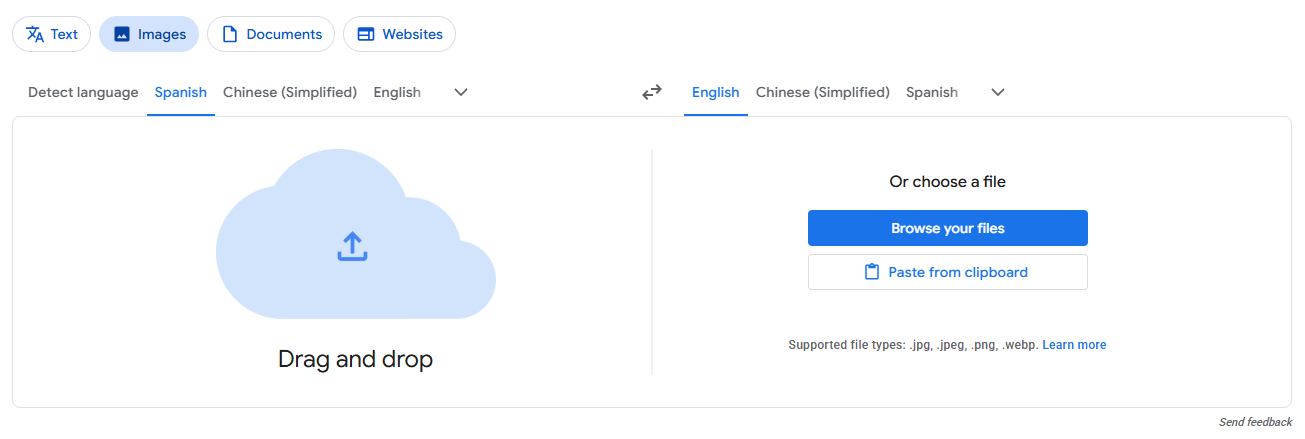
- Set the source language, or choose Detect language.
- Choose English as the target language.
- Click Browse your computer and upload your screenshot.
- Review the translation. Use Show original to compare the text, or download the translated image.

Google notes that small, unclear, or highly stylized text can reduce translation accuracy. Use a sharp screenshot and check any important details yourself.
3. Translate a Screenshot with iPhone Live Text
Best for: Understanding or copying a few lines from a screenshot already saved on an iPhone.
If your iPhone supports Live Text, you can translate recognized text directly from an image in Photos.
- Open the screenshot in the Photos app.
- Tap the Live Text button when it appears.
- Select the text you want to understand and tap Translate.
- Choose English if prompted, then read or copy the translation.
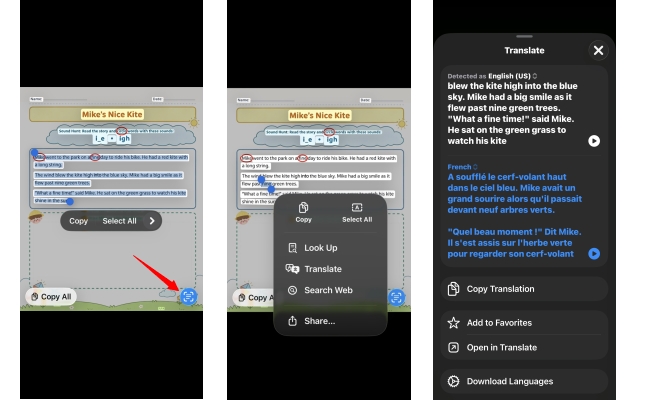
This method is convenient when you only need the meaning of a message or button. Language availability depends on your device and region.
4. Translate a Screenshot with Yandex Translate
Best for: Translating and downloading a screenshot directly in your browser.
Yandex Translate lets you upload an image and view the translation within the screenshot.
- Open Yandex Translate and select the Images tab.
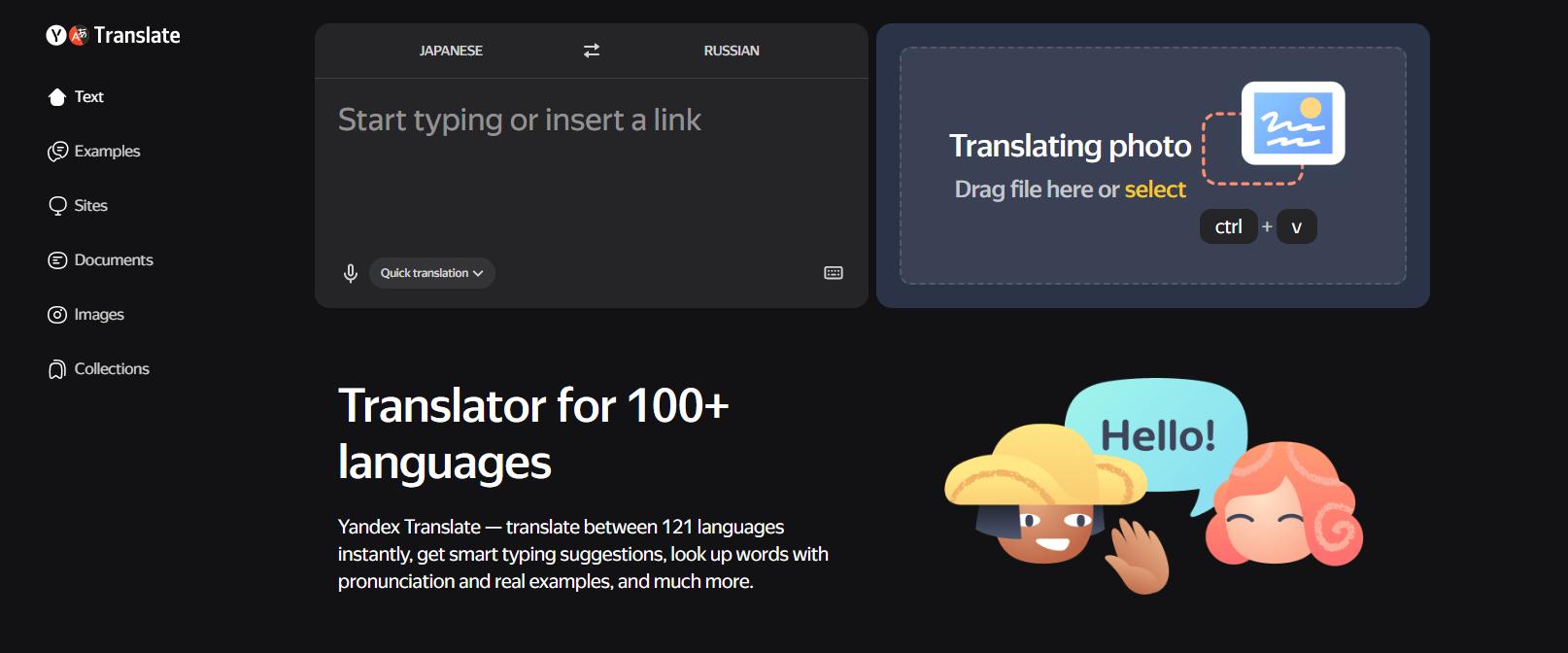
- Upload your screenshot, or drag it into the translation page.
- Check the detected languages and choose English as the target language if needed.
- Switch between Original and Translation to review the result.
- Click Download to save the translated screenshot. If you need the words separately, choose Open as text.
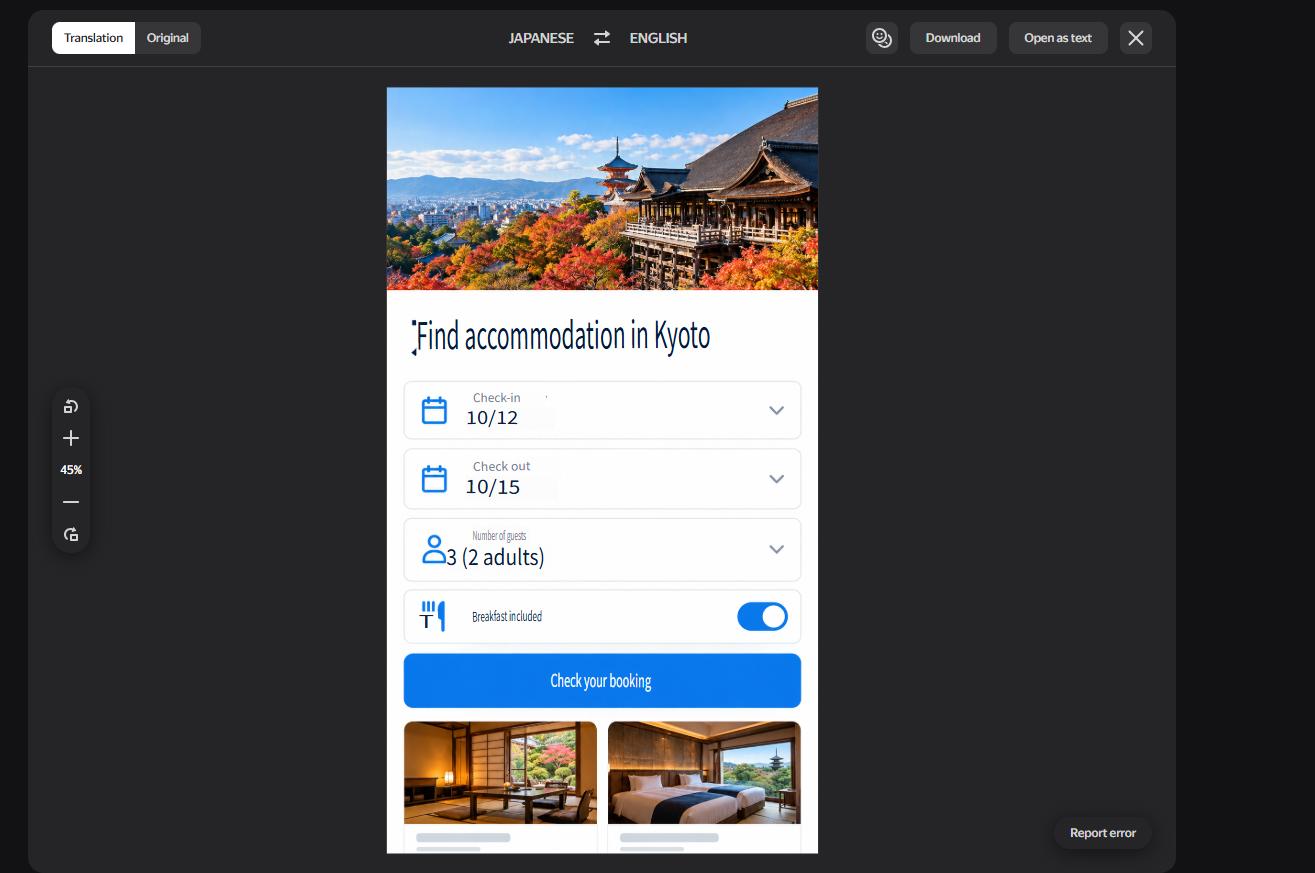
This method works well when you want an English image you can save, while also having the option to copy its text.
Tips for Better Screenshot Translation
- Capture clear text. Avoid blurry, heavily compressed, or very small screenshots.
- Include the whole sentence. A single cropped word may have more than one meaning.
- Check buttons and numbers. Dates, prices, account details, and short interface labels deserve a second look.
- Compare with the original. A translation can change the length of the text, making narrow buttons or columns harder to read.
- Remove private information before uploading. Crop or cover passwords, personal messages, and sensitive account details when they are unrelated to the text you need translated.
Final Thoughts
Translating a screenshot to English takes only a few steps. Upload it to LightPDF Image Translator to create a translated image that keeps the original visual context. Google Translate and Yandex Translate also let you translate screenshots in a browser, while iPhone Live Text is handy for reading a short passage already saved on your phone. Whichever method you choose, check names, numbers, and important instructions against the original before using the translation.


Leave a Comment