


White Out a PDF document Online
1. LightPDF
LightPDF is a convenient option if you want to remove unwanted or sensitive information directly in your browser. Its PDF redaction tool lets you select specific text or areas and apply the redaction without installing desktop software.
How to White Out a PDF with LightPDF
- Open the LightPDF in your browser.
- Upload the PDF you want to edit.
- Select or mark the text and areas you want to remove.
- Apply the redaction to the document.
- Download the processed PDF to your device.

This is a better choice than simply covering sensitive information with a white rectangle because redaction is designed to remove the selected content.
2. Sejda PDF Editor
Sejda PDF Editor includes a dedicated Whiteout tool. It is useful when you want to quickly hide words, numbers, images, or another small section of a page.
How to Use Sejda Whiteout
- Open Sejda PDF Editor.
- Upload your PDF document.
- Choose Whiteout from the editing toolbar.
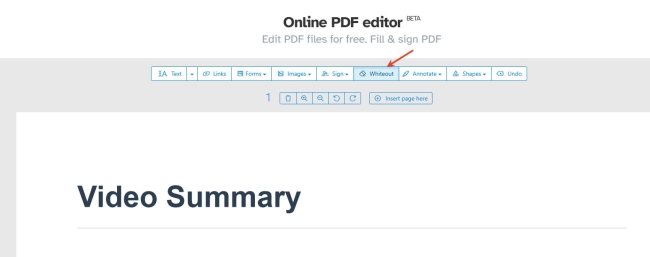
- Drag over the content you want to cover.
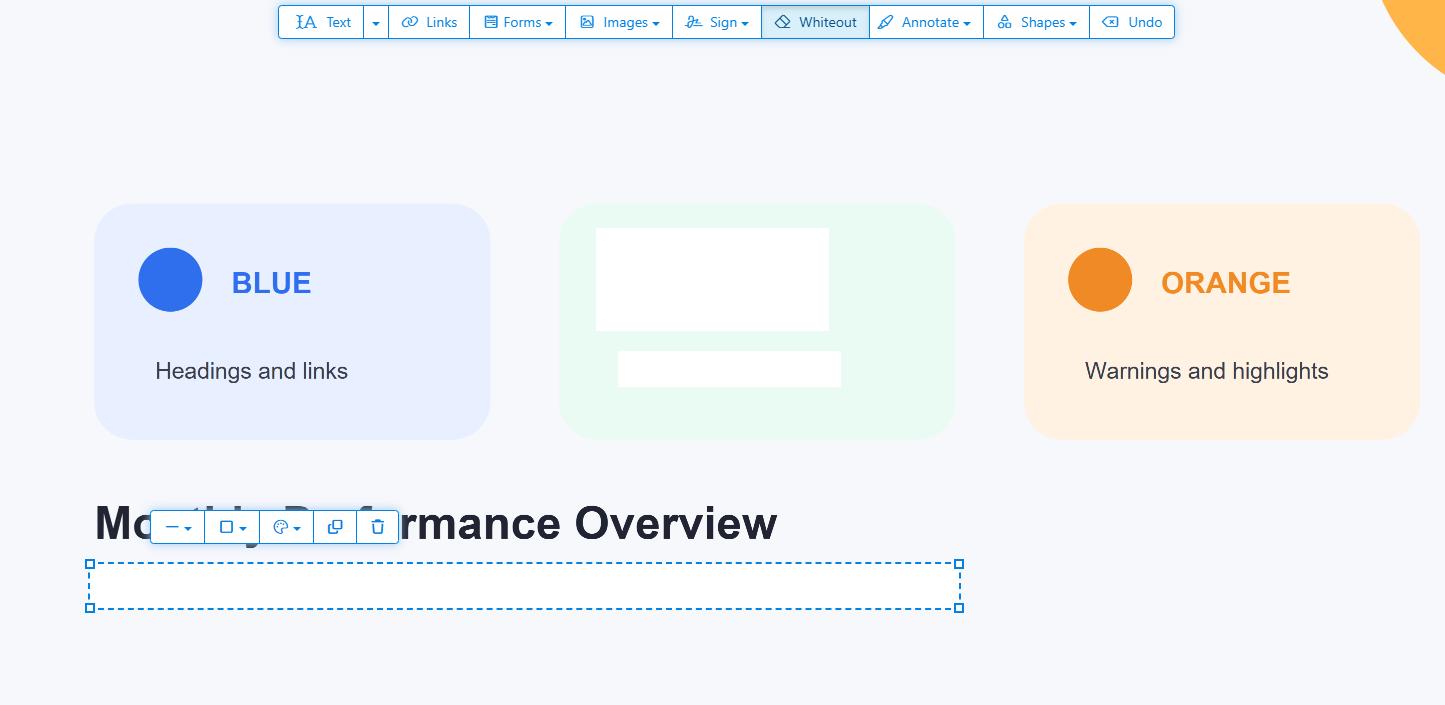
- Repeat the process for any other areas.
- Apply the changes and download the edited PDF.
Sejda works well for visual cleanup, but whiteout should not be treated as secure redaction when dealing with confidential information.
3. PDFescape
PDFescape is another browser-based PDF editor that provides a Whiteout feature. You can use it to cover unwanted text or other visible elements without installing software.
How to White Out a PDF in PDFescape
- Open PDFescape Online.
- Upload the PDF you want to edit.
- Find and select the Whiteout tool.
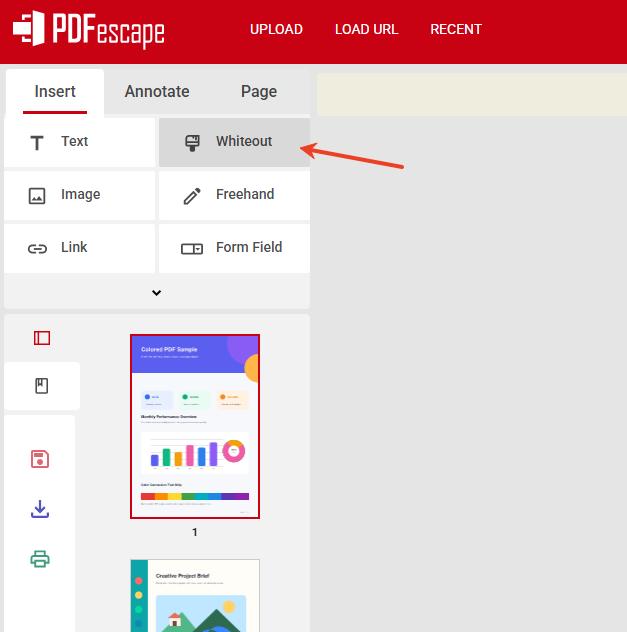
- Select the content you want to hide.
- Save and download the edited PDF.
This method is useful for forms, drafts, worksheets, and other documents where you only need a visual change.
4. Smallpdf
Smallpdf provides a Redact PDF tool for users who want to remove information rather than simply cover it visually.
It can be useful when a document contains personal details, account information, addresses, or other content that should no longer remain in the final PDF.
How to Redact a PDF with Smallpdf
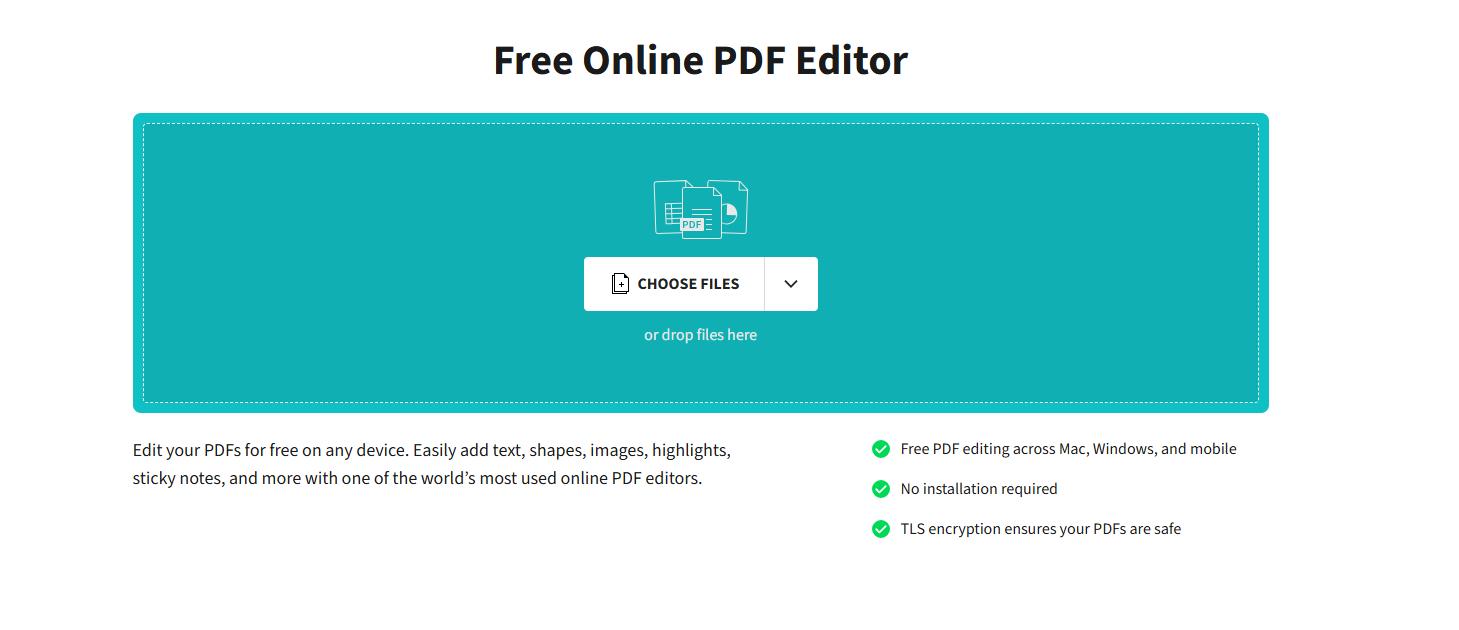
- Open the Smallpdf PDF Editor.
- Upload your PDF.
- Select “Rectangle” from the shapes option.
- Select the text or areas you want to hide.
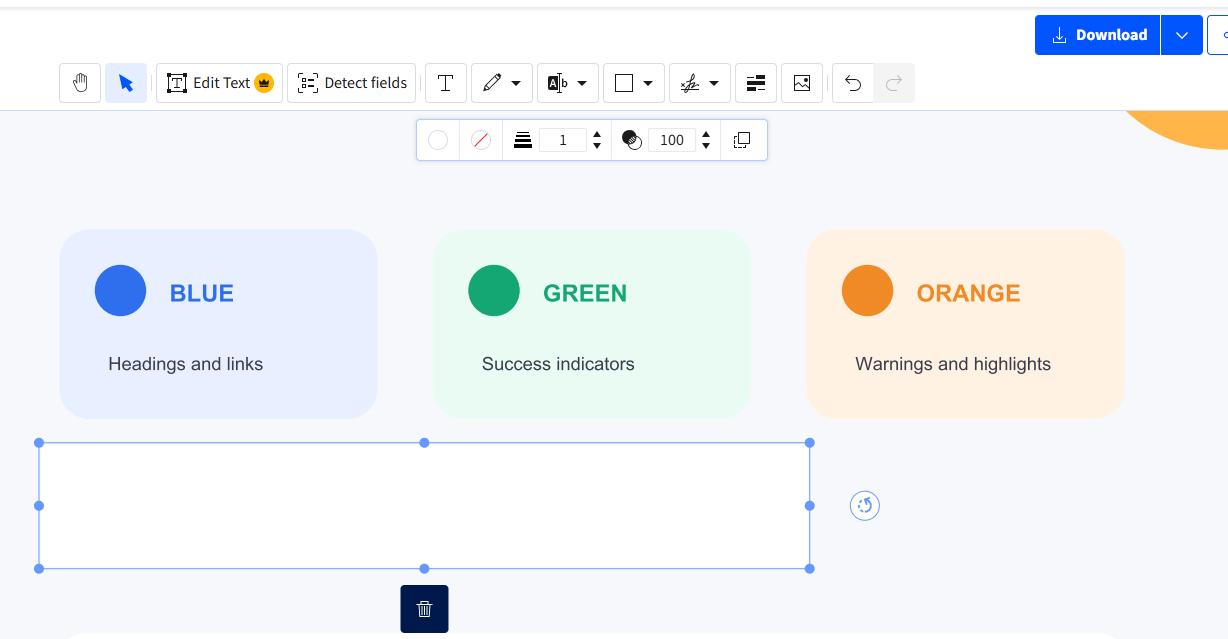
- Review the marked sections carefully.
- Download the finished PDF.
How to White Out a PDF Without an Online Tool
You do not always need an online PDF editor. If you prefer to work locally, several programs already available on your computer can handle basic PDF edits.
5. White Out a PDF on Mac with Preview
Preview comes built into macOS and includes markup tools that can be used to cover part of a PDF with a white shape.
How to White Out a PDF in Preview
- Open your PDF with Preview.
- Open the Markup Toolbar.
- Choose the rectangle shape.
- Change the rectangle’s fill color to white.
- Remove or adjust the outline if necessary.
- Resize the rectangle and place it over the content you want to hide.
- Save the PDF.
This is quick and requires no additional software, but the white rectangle is primarily a visual cover rather than secure redaction.
6. With Microsoft Word
Microsoft Word can open many PDFs by converting them into editable Word documents. Instead of adding a white layer, you can delete the unwanted text and then export the document as a new PDF.
How to Edit PDF Content in Microsoft Word
- Open Microsoft Word.
- Go to File > Open and select your PDF.
- Allow Word to convert the PDF into an editable document.
- Find the text or content you want to remove.
- Delete or replace it.
- Review the layout to make sure the conversion has not changed the document too much.
- Export or save the edited document as a PDF.

This method works best with PDFs that contain mostly text. Complex formatting, graphics, and scanned pages may not convert accurately.
7. Cover PDF Content in Microsoft Edge
Microsoft Edge includes a built-in PDF reader and basic annotation features. For simple documents, you may be able to use its editing or markup options to cover visible content.
How to White Out a PDF in Microsoft Edge
- Open the PDF in Microsoft Edge.
- Click the Draw tool (pen icon) in the PDF toolbar
- Select a suitable pen thickness and choose a solid color, such as white or black.
- Draw over the text, image, or other content you want to hide until it is fully covered.
- Save a copy of the edited PDF.

The available tools may vary depending on your Edge version. Like Preview, this method is better for simple visual edits than secure redaction.
PDF Whiteout Methods Compared
| Method | Security | Cost | Permanent? | Platform |
|---|---|---|---|---|
| LightPDF | High | Free | Yes | Web |
| Smallpdf | High | Free / Pro | Yes | Web |
| Sejda | Low | Free with limits | No | Web |
| PDFescape | Low | Free with limits | No | Web |
| Mac Preview | Low | Free | No | Mac |
| Microsoft Word | Medium | Microsoft 365 / Office | Depends | Win/Mac |
| Microsoft Edge | Low | Free | No | Win/Mac |
Whiteout vs. Redaction: Which Should You Use?
The right method depends on what you are trying to remove.
If you only want to clean up the appearance of a document, a basic PDF whiteout tool is usually enough. For example, you might want to cover an old answer on a worksheet, remove a note from a draft, or hide something before printing the document.
For confidential information, use redaction instead. A proper redaction tool is designed to remove the underlying content rather than simply place a white layer over it.
A simple rule to remember is:
- Use whiteout for visual cleanup.
- Use redaction for private or sensitive information.
Conclusion
There are several easy ways to white out a PDF, whether you prefer an online editor or a tool already available on your computer. For simple visual changes, Sejda, PDFescape, Preview, and Edge can work well. If you need to remove sensitive information permanently, use a dedicated PDF redaction tool such as LightPDF or Smallpdf.


Leave a Comment