


1. FontSpace: For Finding Downloadable Gaming Fonts
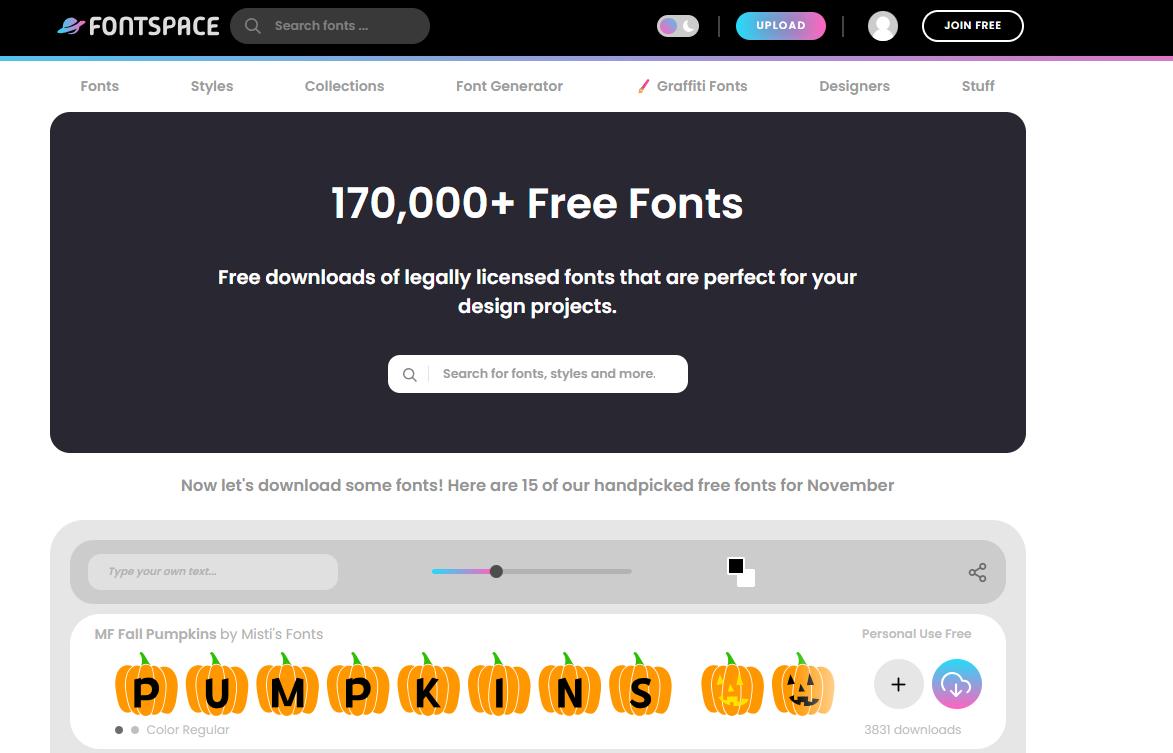
FontSpace is a useful place to start when you want a font you can reuse across gaming designs. Its Games font collection includes pixel, retro, futuristic, and other display styles, with examples such as Press Start 2P and Pixeloid.
Enter your own wording in the preview field to compare how a channel name or game title looks in different typefaces. You can also sort the collection by popularity, trends, or newest additions and use the commercial-use filter to narrow your search. Once you choose a font, download it for use in a compatible design application.
Why choose it: It suits projects that need consistent typography across several assets, such as thumbnails, banners, and event posters.
What to check: FontSpace is primarily a font library. Individual listings distinguish between fonts that are free for personal use and those with broader permissions, so read the license for your chosen font.
2. FontBolt: For Creating Game-Inspired Text Graphics
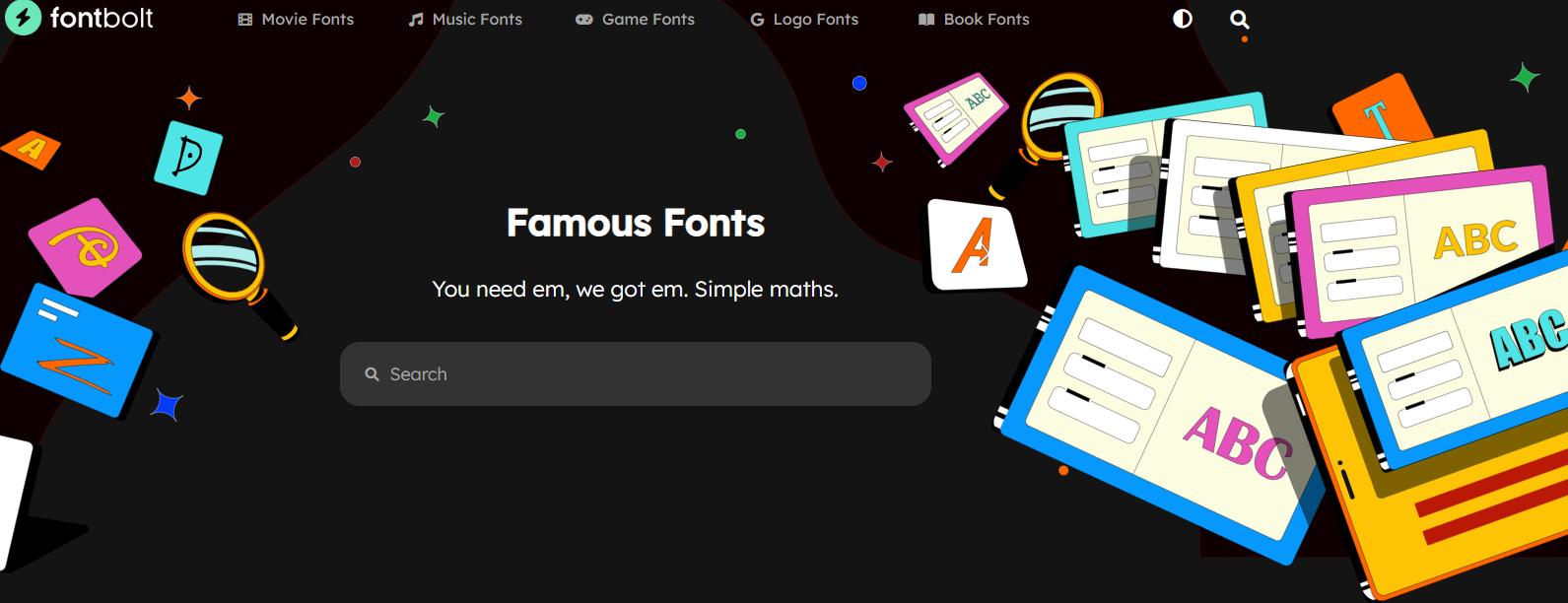
FontBolt combines information about recognizable fonts with online text generators. Its game font collection includes entries for Minecraft, Fortnite, Super Mario, Stardew Valley, and other familiar titles, making it useful when you already have a visual reference in mind.
Individual pages let you try your own wording in the featured lettering. The Fortnite font generator, for example, includes controls for font size, text and background colors, outlines, gradients, shadows, and letter spacing. Generate the result and save it as an image for your design.
Why choose it: You can explore a recognizable game-title style and customize a text graphic from the same page, which is convenient for themed thumbnails and fan projects.
What to check: Read the font description and licensing links. Some pages distinguish between a similar typeface and a replica; the generator image and the downloadable font are also separate assets.
3. FancyFontPro: For Copy-and-Paste Gaming Names
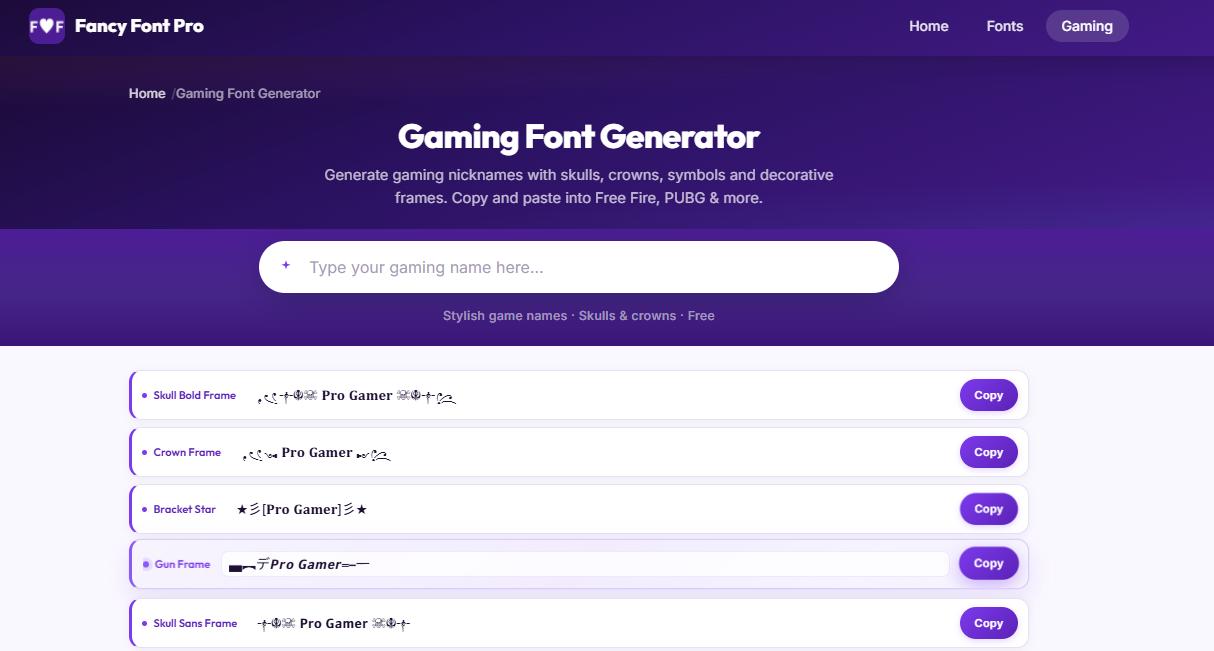
FancyFontPro’s Gaming Font Generator focuses on player names, clan tags, and profile text. Type a name into the input box, browse the decorated versions, and use the Copy button beside the style you like.
The options combine styled letters with skulls, crowns, stars, brackets, and other decorative frames. Its gaming page also links to dedicated Free Fire and PUBG name generators, along with bold and gothic text styles. This makes it a convenient way to try several nickname treatments without collecting special characters individually.
Why choose it: It is a free game font generator for users who need text they can paste into a nickname or profile field.
What to check: The results use Unicode characters rather than downloadable font files or logo images. Character support varies between games, so test your chosen name in its destination. If a decorated version fails, try a simpler frame with fewer symbols.
4. Atomm: For Creating Game Lettering from a Reference
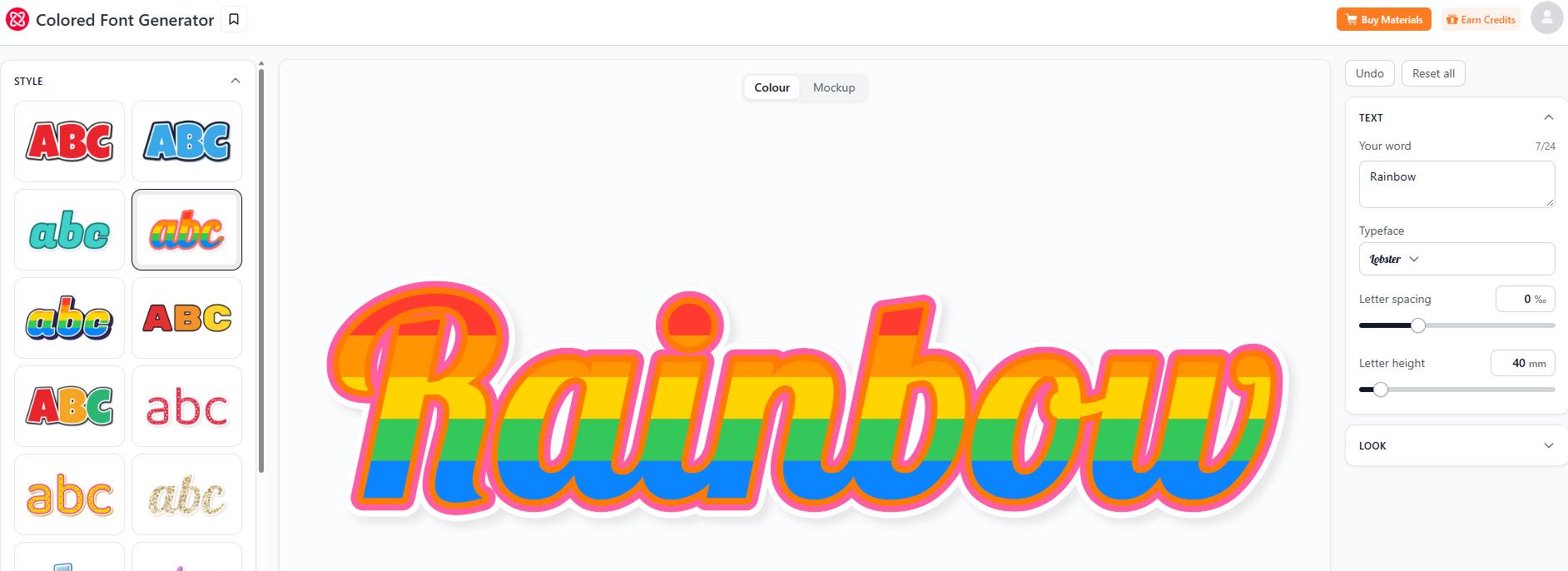
Atomm’s Game Font Generator takes a reference-based approach to arcade and game-title lettering. Start with an original lettering image, such as an arcade sign or title card, and use a short word to develop a new text treatment.
Its workflow centers on bold outlines, bright fills, shadows, and lettering that stays readable at a glance. The page presents examples for stream badges, quest cards, stickers, and scoreboard titles, using short words such as “LEVEL” and “BOSS.” These examples offer a starting point for exploring how a lettering style could work in a finished layout.
Why choose it: It suits creators who have a visual direction in mind and want to develop text artwork around a reference.
What to check: Review the generated letter shapes, spelling, and outline contrast before using the result. For badges or small stickers, test the artwork at its intended size so decorative details do not obscure the word.
5. TextStudio: For Colorful 3D Game Text Effects
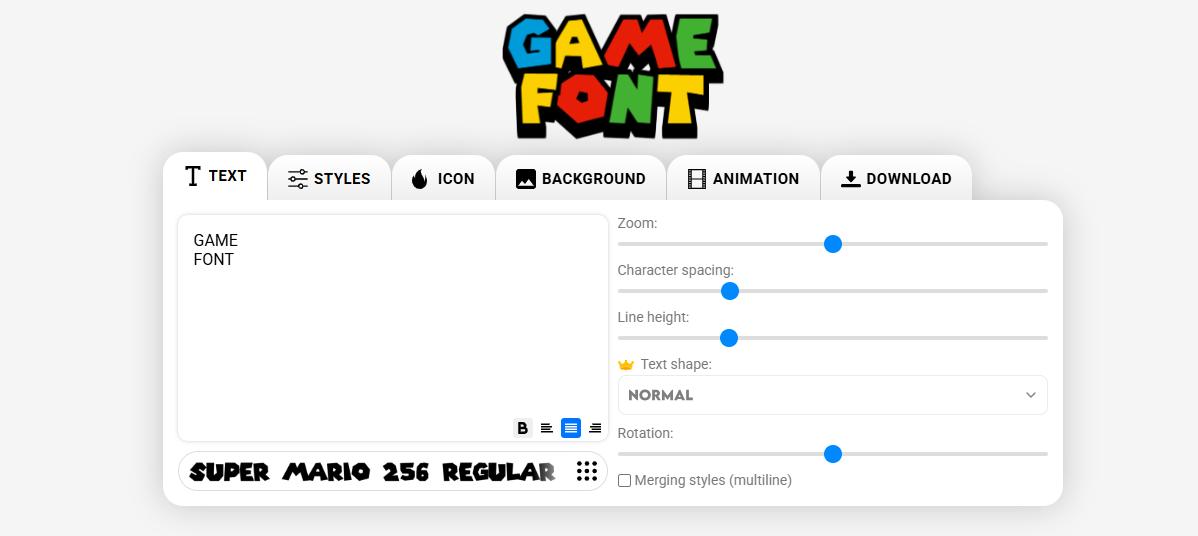
TextStudio’s Game Font template offers a ready-made starting point for colorful, dimensional lettering. Its playful, Super Mario-inspired treatment can suit a personal gaming graphic or themed title.
Enter your wording, then explore controls for character spacing, line height, fills, gradients, outlines, shadows, and 3D projection. The editor also includes background options and lists download formats such as PNG, transparent PNG, and JPG, with availability depending on the selected options and plan.
Why choose it: It gives you detailed control over a text effect without having to build every outline, shadow, and extrusion manually.
What to check: The specific template linked here is marked personal use only. TextStudio’s free download option requires an attribution link, while its Premium plan unlocks additional features and formats. Check the template’s usage terms separately from the subscription features.
How to Create Game-Style Text Online
For a gaming title or thumbnail, choose a tool that produces text graphics. Here is a simple workflow using FontBolt:
- Open a game font page. Browse the game font collection and choose a style, such as the Fortnite font generator.
- Enter your wording. Try a channel name, event title, or short phrase such as “FINAL ROUND.”
- Customize the appearance. Adjust the size, colors, outlines, shadows, and letter spacing using the available controls.
- Generate and review. Check spelling, spacing, and contrast before saving the text image.
- Use it in your layout. Place the image in your thumbnail, banner, or poster, following the selected font’s usage terms.
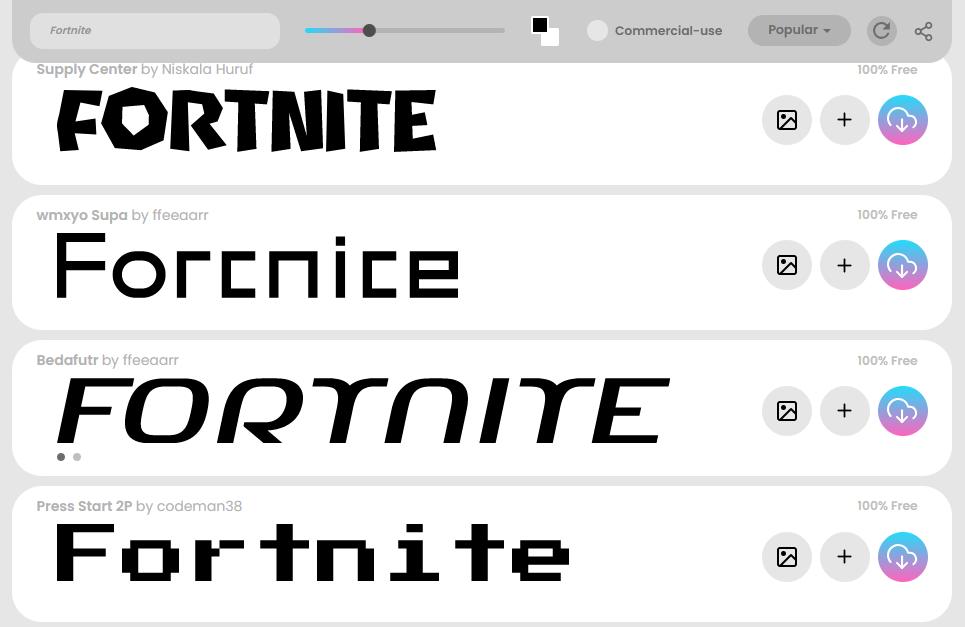
Check the finished design at a small size. If the lettering becomes difficult to read, simplify the effect or shorten the title.
How to Edit Game Font in a Screenshot
You may already have a tournament poster or gaming announcement with the layout you want. If only the date, subtitle, or event name needs updating, LightPDF’s Edit Text in Image can replace existing wording in an image while aiming to keep its visual style consistent.
For example, you could update an old event date on a poster you created:
- Open Edit Text in Image. Visit the LightPDF tool in your browser.
- Upload your graphic. Choose the image containing the wording you want to change.
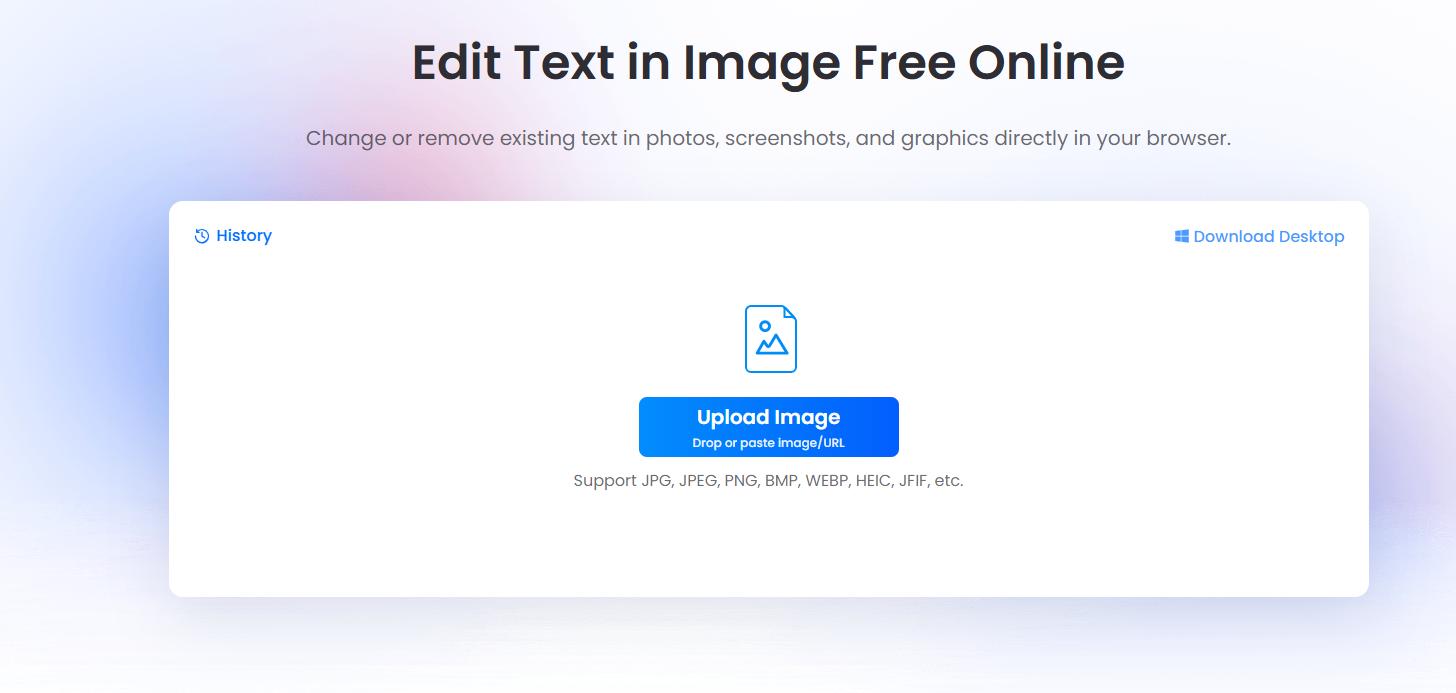
- Replace the existing text. Select or specify the original wording and enter the replacement.
- Process and compare. Review the updated image, paying attention to letter shapes, spacing, and the surrounding background.
- Download the result. Save the edited graphic once you are happy with it.
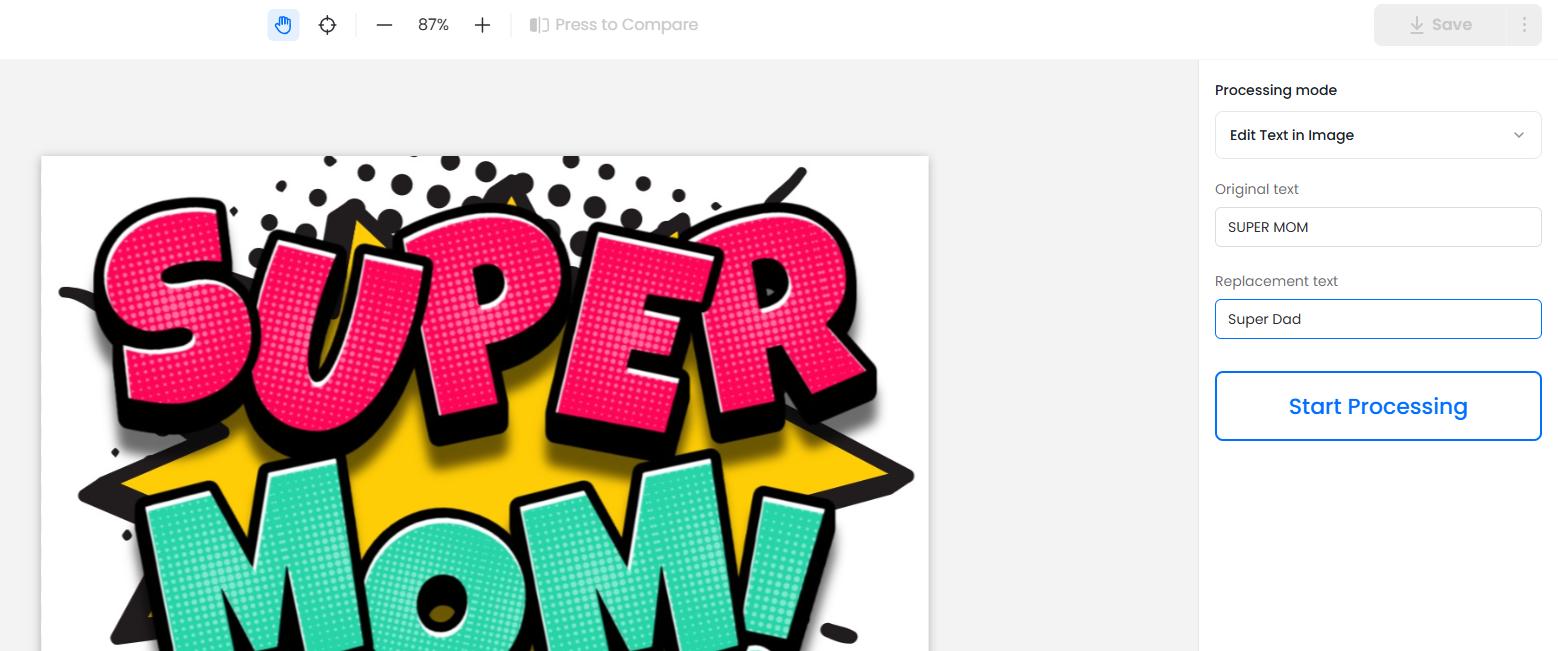
Use this workflow for existing text in images you own or have permission to edit. Intricate game lettering deserves a careful visual check before publication.


Leave a Comment