


Why Are My Scanned Documents Crooked?
Scanned documents usually become crooked when paper enters a feeder at a slight angle, the scanner guides are too loose, or a page shifts while the scan is being captured. Phone photos can introduce additional tilt or perspective distortion when the camera is not held directly above the document. Bound books, curled paper, uneven margins, and inaccurate automatic cropping may also make text lines appear slanted even when the page itself looks nearly straight.
How to Straighten Scanned Pages?
1. LightPDF — Balanced Online Deskew PDF Tool
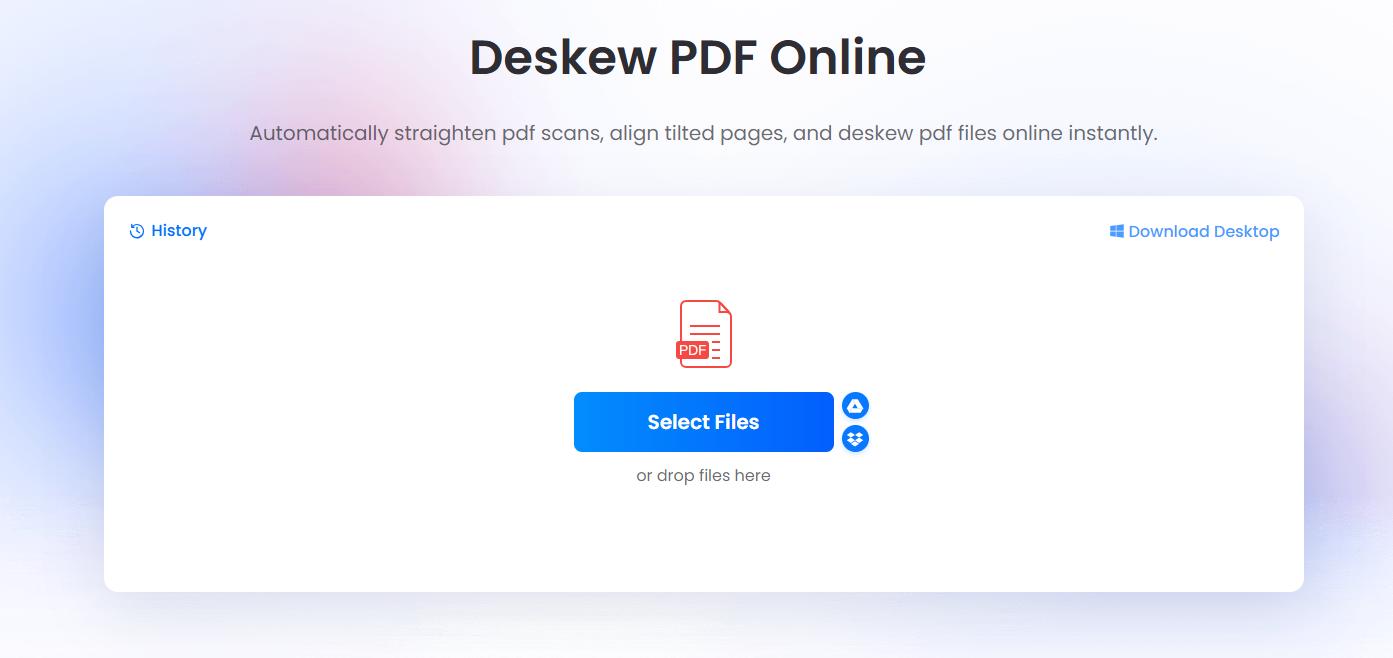
LightPDF provides a dedicated browser tool for automatically straightening PDF scans and aligning tilted pages. It is designed for documents created with flatbed scanners, mobile cameras, email attachments, and other sources that can leave text lines or page margins slightly uneven.
How to Deskew a PDF with LightPDF
- Open the LightPDF Deskew PDF page.
- Select the tilted PDF from your device, Google Drive, or Dropbox.
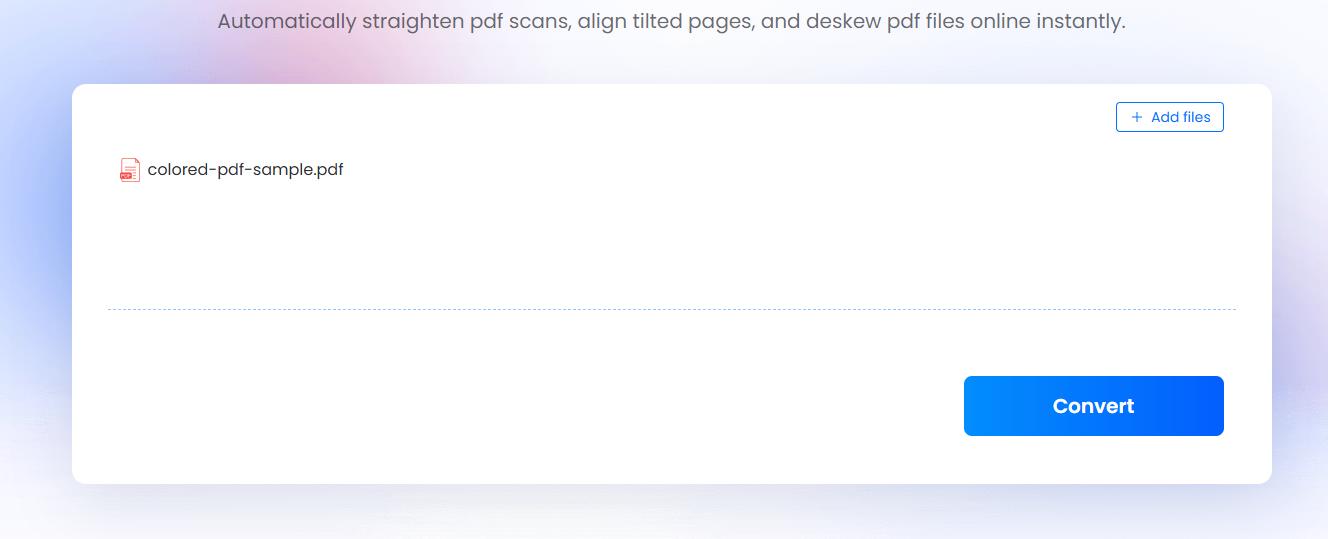
- Start the deskew process so the tool can detect and correct page angles.
- Download the straightened PDF.
Pros
- Dedicated automatic deskew workflow with a simple upload, process, and download sequence.
- Supports files from a computer, Google Drive, and Dropbox.
- Suitable for multi-page scanned PDFs, with precise rotation controls shown on the current tool page.
Cons
- Batch processing may require a premium plan.
- Heavily curved pages, perspective distortion, shadows, or damaged originals may require additional cleanup.
- Automatic detection performs best when the scan has clear text lines or recognizable page edges.
2. Sejda — Best for Automatic and Manual Angle Control
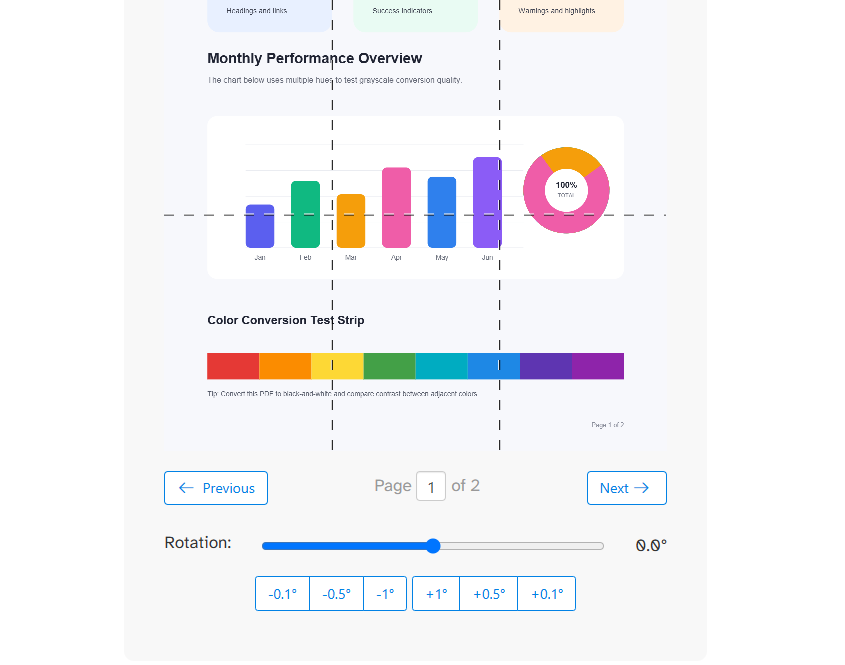
Sejda offers one of the most detailed online deskew workflows in this comparison. After uploading a PDF, users can choose automatic correction or review pages manually. Manual mode includes a rotation slider and small adjustment buttons for corrections of 0.1, 0.5, or 1 degree in either direction.
The page also supports page ranges and an option to target only strongly skewed pages. This makes Sejda useful when a long scan contains a mixture of straight and tilted pages or when automatic correction needs a small manual adjustment.
How to Deskew a PDF with Sejda
- Upload the scanned PDF from a computer, supported cloud service, or web address.
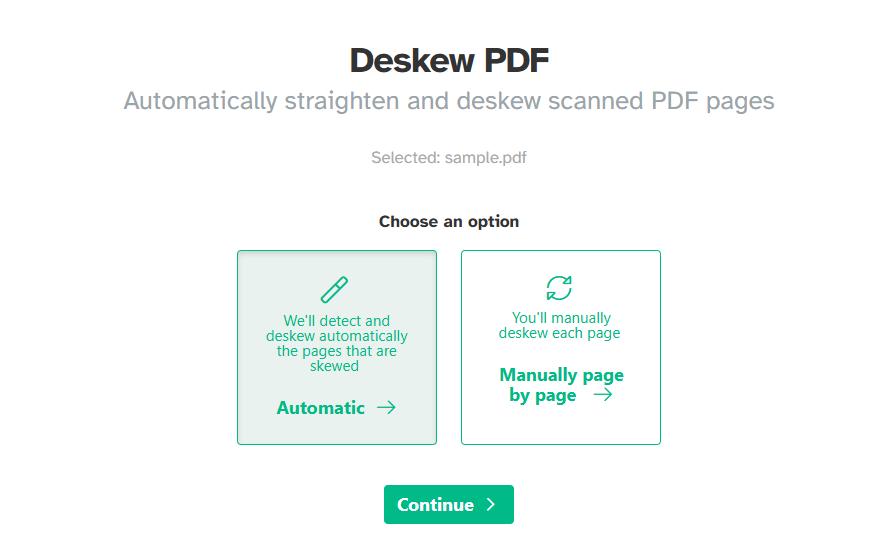
- Choose Automatic to let Sejda detect tilted pages, or select the manual page-by-page option.
- If working manually, use the slider or angle buttons to correct each affected page.
- Apply the deskew process and download the result.
Pros
- Offers both automatic correction and manual page-by-page deskewing.
- Provides a rotation slider and small angle adjustments for precise corrections.
- Supports page ranges and an option to target only strongly skewed pages.
Cons
- The free service has document-size and hourly task limits.
- Correcting many pages manually can take longer than a fully automatic workflow.
- Files must be uploaded, so sensitive documents require a careful privacy review.
3. i2PDF — Best for DPI and Color Profile Settings
i2PDF provides a focused online tool that automatically straightens scanned PDF pages. In addition to correcting common scan tilt, it lets users select the output DPI and color profile, which can be useful when the resulting document needs to fit a particular reading, printing, archiving, or OCR workflow.
Its interface follows a direct sequence: upload the scan, select the desired output settings, run the automatic deskew process, and download the result. The provider describes the tool as free to use in a browser without installing software.
How to Deskew a PDF with i2PDF
- Choose the scanned PDF from your device.
- Choose the appropriate mode : Auto or Manual Deskew
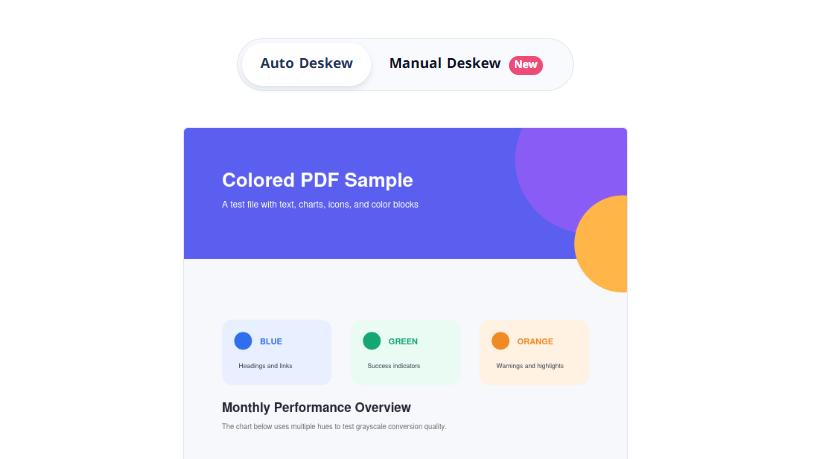
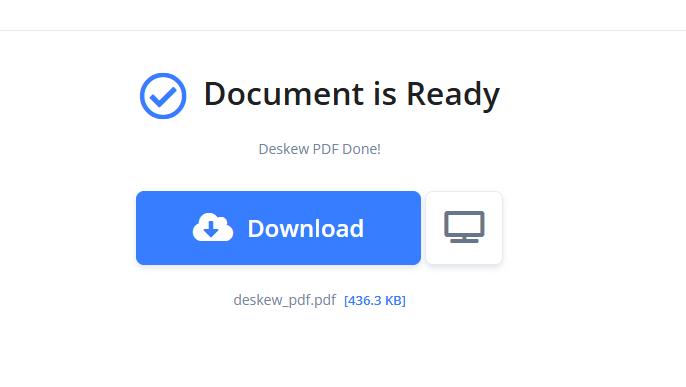
- Press Start button and download the corrected PDF.
Pros
- Automatically straightens scanned PDF pages without requiring software installation.
- Lets users control output DPI and select a color profile.
- Provides a focused workflow for preparing cleaner source pages before OCR.
Cons
- Results depend on scan quality and the presence of clear text lines or page edges.
- Extremely skewed, curved, or heavily distorted scans may not straighten perfectly.
- Sideways or upside-down pages may still require a separate rotation tool.
4. Online2PDF — Best for Broader PDF Processing
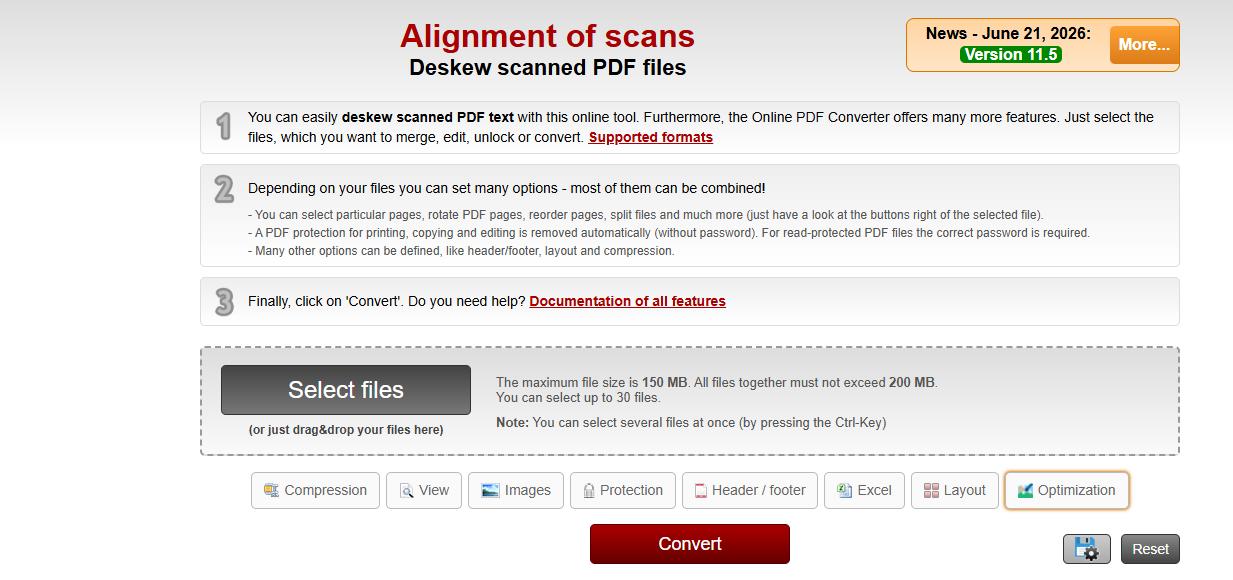
Online2PDF includes scan alignment within a broader online PDF converter. Alongside deskewing, the service provides controls for selecting pages, rotating and reordering them, splitting files, adjusting layout, applying compression, and converting documents.
This wider toolset can reduce the need to move a document through several separate websites. For example, users can straighten scanned pages, reorder them, and define other output settings as part of one workflow.
Pros
- Combines deskewing with page selection, rotation, reordering, splitting, compression, and conversion.
- Supports multiple files in one broader PDF workflow.
- Useful when scan alignment is only one part of a larger document-processing task.
Cons
- The number of available settings may feel less focused than a dedicated deskew tool.
- The current page limits individual files to 150 MB and all selected files to 200 MB combined.
- Users should verify current file limits and data policies before processing large or confidential documents.
5. AvePDF — Best for Deskewing and Cleaning Noisy Scans
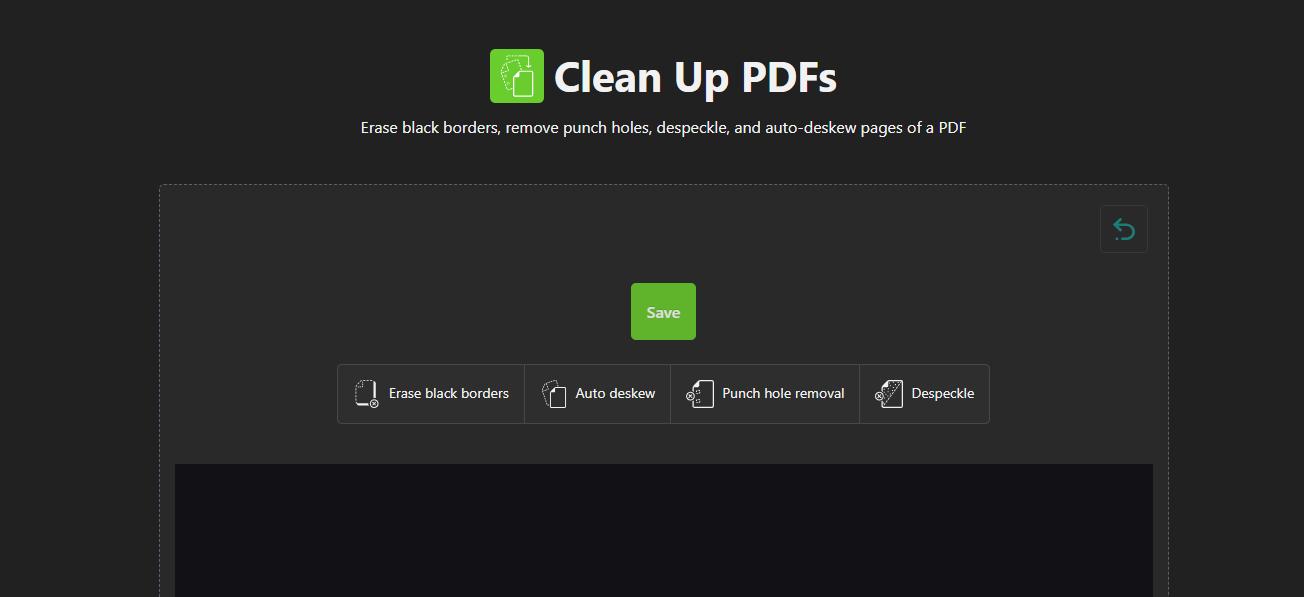
AvePDF approaches deskewing as part of a broader scan-cleanup process. Its Clean Up PDFs tool can automatically deskew pages while also offering filters to erase black borders, remove punch holes, and reduce speckles. This makes it useful when page alignment is not the only problem in the source scan.
The workflow allows users to upload from a device or supported cloud storage, select the required cleanup filters, process the document, and save the result. The page currently lists a maximum file size of 128 MB.
Pros
- Combines automatic deskewing with black-border removal, punch-hole removal, and despeckling.
- Can correct several common scanning artifacts in one cleanup workflow.
- Well suited to older records, photocopies, and visibly noisy scans.
Cons
- Users should review the latest privacy notice carefully before uploading sensitive documents.
- The current page lists a maximum file size of 128 MB.
- Its free-service privacy notice says uploaded files may be retained to improve services, including model training.
Final Thoughts
The best online tool depends on what is wrong with the scan. LightPDF offers a balanced automatic workflow, Sejda provides detailed page-level control, i2PDF adds output settings, Online2PDF combines deskewing with broader PDF operations, and AvePDF handles alignment together with scan cleanup.
Whichever tool you choose, review the output at full size before sharing, printing, archiving, or running OCR. Automatic correction can save considerable time, but pages with curved paper, strong perspective distortion, handwriting, faint text, or complex backgrounds may still need manual adjustment or a new scan.




Leave a Comment