


1. LightPDF: For Downloading Screenshot Text
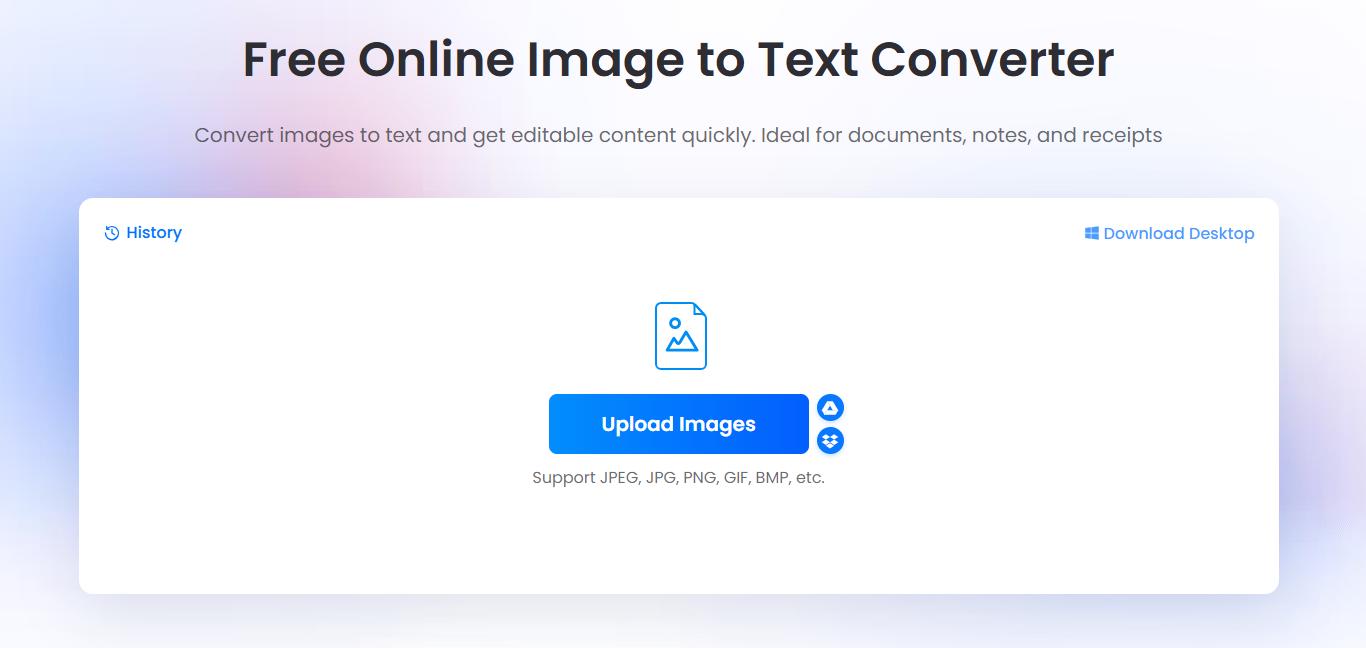
LightPDF Image to Text provides a direct way to extract words from a saved screenshot. Upload the image, wait for recognition, and download the result as a text file.
This workflow suits screenshots you want to turn into study notes, reference material, or text for another document. It supports common image formats, including PNG and JPG, and runs in a browser without a software installation.
LightPDF currently lists free access for up to five images per day, with a maximum size of 10MB per image. Batch conversion is available through paid access.
When to choose it: You have saved screenshots and want editable text that you can use elsewhere.
What to check: Review paragraph breaks and reading order, especially when a screenshot contains a sidebar, captions, or several separate text blocks. Downloaded plain text will not reproduce the original visual design.
2. OnlineOCR: For Language and Output Choices
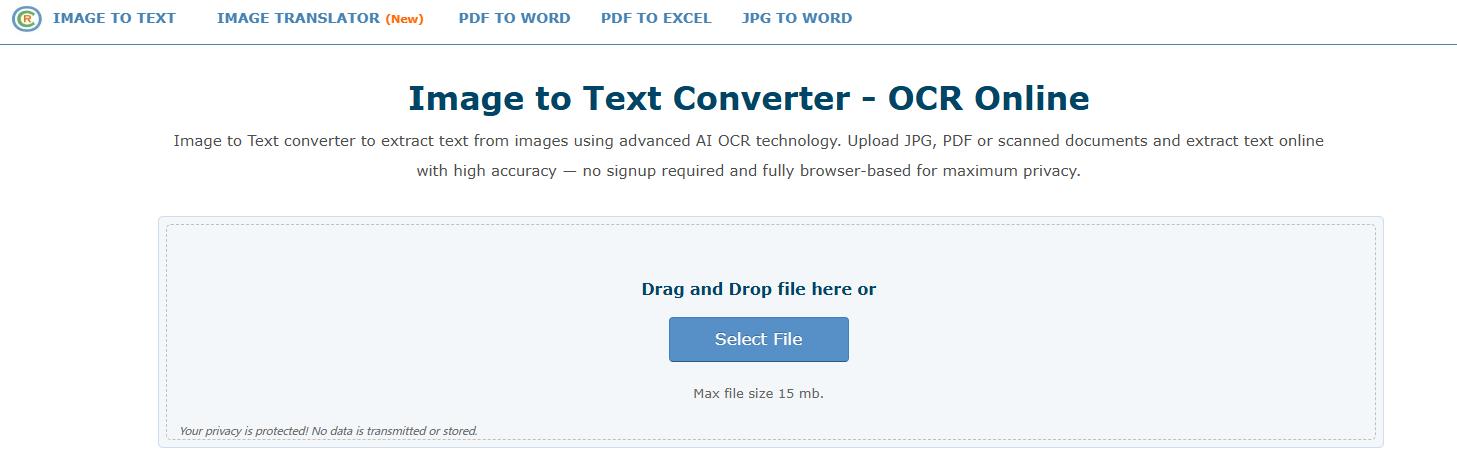
OnlineOCR lets you select a recognition language and an output format before conversion. After processing, you can copy the extracted text or download a converted file.
The service lists output options including Word, Excel, and plain text. That makes it worth considering when you need something beyond a block of copied text.
Its published guest limits are five files per hour and a maximum file size of 15MB. Registration is required for certain additional capabilities, including uploading multiple files in a ZIP archive.
When to choose it: You know the screenshot’s language and want to choose how the result is exported.
What to check: A document export still needs review. For tables, confirm that values appear in the correct rows and columns rather than assuming the spreadsheet is ready to use.
3. OCR.space: For More Recognition Controls
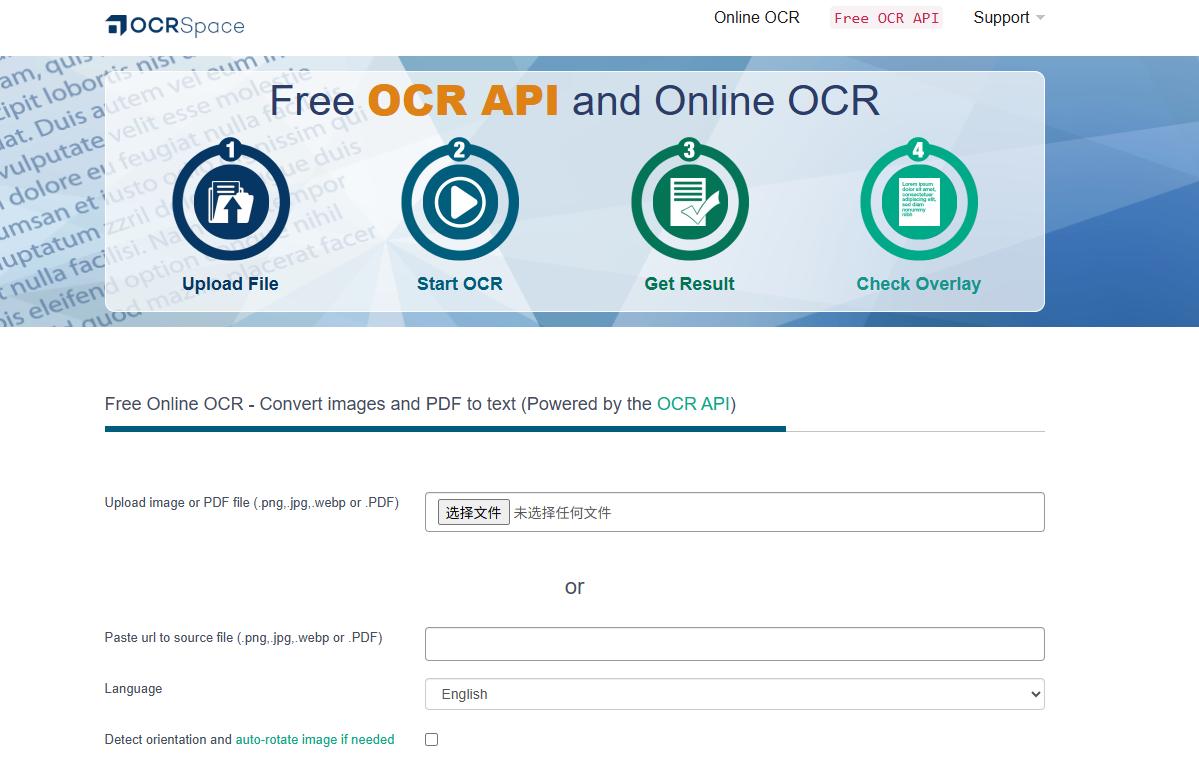
OCR.space offers settings that may help when a basic conversion needs adjustment. Its interface includes orientation detection, content enlargement, and table recognition options.
You can upload an image or enter a source file URL. Besides extracting text, the tool can generate a searchable PDF, which is useful when you want to keep the screenshot visible while adding searchable text.
The free online service does not require registration and currently lists a 5MB file limit. ocr.space
When to choose it: You want control over recognition settings or need a searchable PDF rather than only a text file.
What to check: Start with the default settings and change one option at a time. Comparing the results is easier than changing several settings together.
4. ImageToText.info: For Pasting a Screenshot
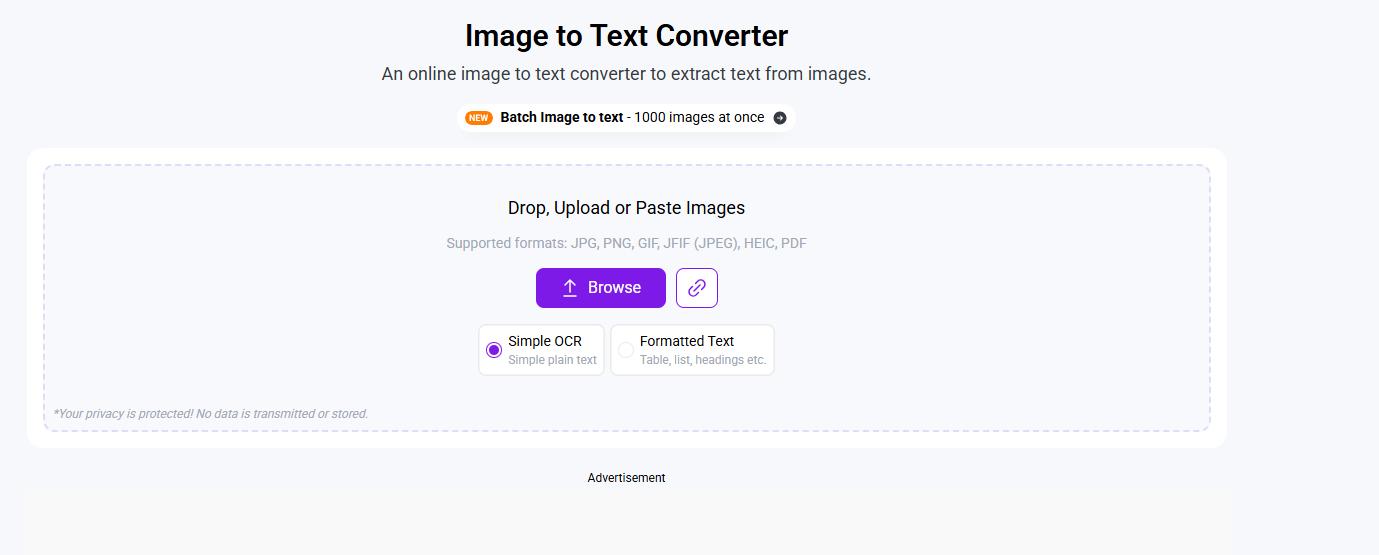
ImageToText.info accepts images through upload, drag and drop, or pasting. The paste option is convenient if you have just captured a screenshot and it is still on your clipboard.
Once the text is recognized, you can copy it or download a text file. The interface also provides plain text and formatted text modes. Additional features, such as conversion history, are offered through premium access.
When to choose it: You want to move from a copied screenshot to extracted text with fewer file-handling steps.
What to check: Compare the output with the image before using it. Pay attention to punctuation, missing spaces, and text that sits close to icons or other interface elements.
5. Google Drive and Docs: For Editing in a Document
Google Drive offers a screenshot OCR workflow that is easy to overlook. On a computer, upload your screenshot to Drive, right-click the file, and choose Open with → Google Docs.
Google Docs opens a converted document containing the recognized text. This is useful if your next step is editing, commenting, or organizing the material in a document.
Google recommends using files of 2MB or smaller, with text at least 10 pixels high. Its documentation also notes that lists, tables, columns, and footnotes are unlikely to transfer correctly.
When to choose it: You already use Google Drive and want to continue working in Google Docs.
What to check: Use it for readable paragraphs rather than expecting an exact reconstruction of a complicated screenshot.
How to Convert a Screenshot to Text
If you simply need to extract a paragraph from an image, the process should only involve a few steps.
1. Choose the Original Screenshot
Use the original image rather than a compressed copy forwarded through a messaging app.
If you can still access the source, increase the text size before taking a new screenshot. This gives the converter clearer characters to recognize.
2. Crop to the Content You Need
Remove unrelated browser tabs, menus, sidebars, and notifications. Keep complete words and lines visible.
For a screenshot with two columns, consider extracting each column separately. This makes the reading order easier to review.
3. Upload and Run Recognition
Open LightPDF Image to Text, upload the screenshot, and let the tool extract its text. Download the result when processing finishes.
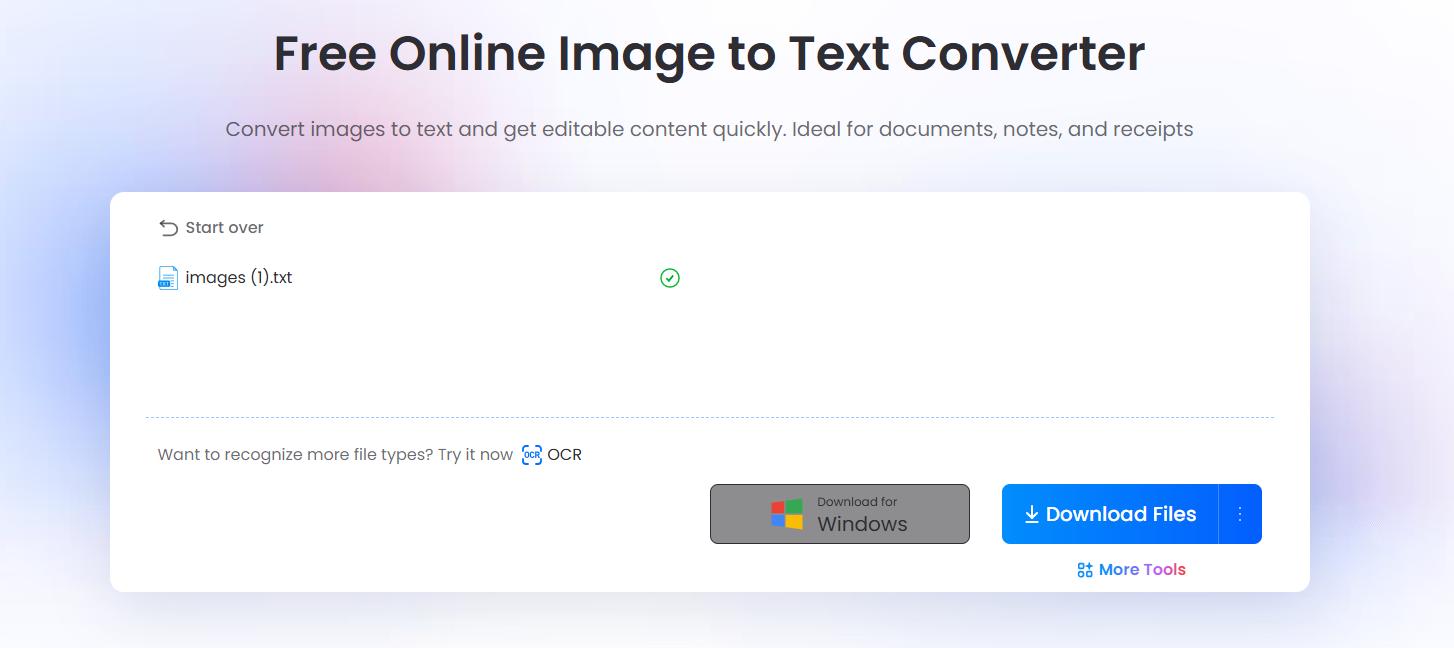
4. Check Before Copying It
Compare the extracted text against the screenshot. Focus on details where a single character changes the meaning:
- Numbers: Prices, dates, percentages, and measurements.
- Similar characters: “0” and “O,” or “1,” “I,” and “l.”
- Links: Missing dots, slashes, or hyphens.
- Reading order: Headings, captions, and columns mixed into paragraphs.
- Special notation: Equations, superscripts, and symbols.
Conclusion
A screenshot to text converter saves you from retyping content from slides, webpages, and other screen captures. Choose a tool based on the output you need, whether that is plain text, an editable document, or a searchable PDF.
For a straightforward way to convert screenshots to text, try LightPDF Image to Text. Always check the extracted text against the original, especially names, numbers, and table data.


Leave a Comment