


Why InPage Files Are Difficult to Convert
An InPage document may contain:
- Urdu Nastaliq fonts;
- right-to-left text flow;
- manually positioned text boxes;
- custom page dimensions;
- headers, footers, images, and decorative elements;
- line spacing and character positioning created specifically for Urdu publishing.
General document converters may not interpret these elements correctly. Some online tools advertise broad conversion support but do not support InPage’s native .inp format.
Renaming an .inp file to .pdf does not convert it. Opening the file in Word, Google Docs, or LibreOffice may also damage the layout because these programs do not understand the original InPage structure.
Use one of the following methods instead.
Best InPage to PDF Converter
Method 1: Convert INP to PDF with the Official InPage Tools Utility
The official InPage Tools Utility is a convenient option when you have an .inp file but cannot access the InPage desktop software.
The service supports INP-to-PDF conversion for files created with InPage 4.0 and earlier. It also provides INP-to-TXT and INP-to-EPUB conversion for files from InPage 3.6 and earlier. Newly registered users currently receive a trial allowance covering 50,000 words.
How to Use It
- Open the official InPage Tools Utility.
- Create an account or sign in.
- Upload your
.inpfile. - Select PDF as the output format.
- Start the conversion.
- Download the completed PDF.
- Compare the result with the original document.

Method 2: Print the InPage Document to PDF
When the file opens correctly in InPage, printing it to PDF is usually the most reliable option.
InPage first renders the Urdu text, fonts, images, and page layout. A PDF printer then captures the rendered pages, reducing the risk of another program misinterpreting the .inp file.
Microsoft Print to PDF is included with Windows 10 and Windows 11 and works through the standard print menu.
How to Print an InPage File to PDF
- Open the
.inpfile in the appropriate version of InPage. - Confirm that the text and layout display correctly.
- Select File > Print.
- Choose Microsoft Print to PDF.
- Set the page range to All Pages.
- Check the paper size, orientation, margins, and scaling.
- Select Print.
- Choose a filename and save the PDF.
- Review the output before sharing or printing it.

Method 3: Export Each Page as an Image and Combine the Images into a PDF
Sometimes a document looks correct in InPage but changes after direct PDF printing. This may be caused by font compatibility, printer-driver settings, or unusual page elements.
Exporting each page as an image preserves its visible appearance. InPage supports page export in formats including EPS, GIF, PNG, and TIFF.
How to Create an Image-Based PDF
- Open the document in InPage.
- Select the page export function.
- Choose a file as picture.
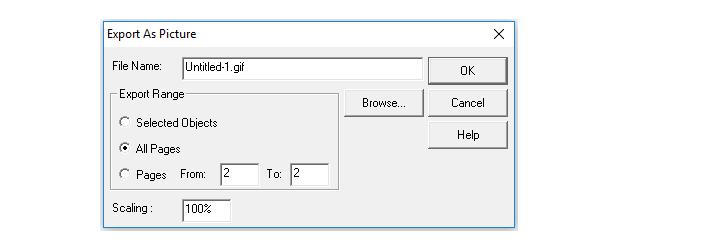
- Select a suitable resolution.
- Export all page.
- Name the files in sequence, for example:
page-001.pngpage-002.pngpage-003.png
- Convert the images into an image-to-PDF tool.
- Once finished, you can click Download to get your PDF files.
Approximately 300 DPI is a useful starting point for normal printing. Documents with small Urdu text, detailed calligraphy, or professional print requirements may need a higher resolution.
Advantages
- Preserves the visible Urdu layout.
- Reduces the risk of font substitution.
- Keeps text boxes and decorative elements in position.
- Works well for certificates, posters, advertisements, and highly designed pages.
Limitations
The resulting PDF is usually image-based, which means:
- text cannot be selected normally;
- Urdu word search may not work;
- the file size may be larger;
- individual words are difficult to edit;
- OCR may be needed to make the document searchable.
Urdu Nastaliq OCR accuracy can vary, so any recognized text should be checked carefully.
Method 4: Export Pages as EPS and Convert Them with Adobe Acrobat
EPS is a professional graphics and publishing format that can preserve high-quality page output. It is useful when preparing files for printers, publishers, designers, or prepress teams.
InPage supports exporting pages as EPS, and Adobe Acrobat can create PDFs from EPS and PostScript files.
How to Convert InPage Pages Through EPS
- Open the
.inpfile in InPage. - Export each required page as an EPS file.
- Name the files in sequence.
- Open Adobe Acrobat.
- Select Create PDF from File.
- Choose the EPS or PostScript file.
- Convert the exported pages to PDF.
- Combine them into one document.
- Check the page order and output quality.
- Save the final PDF.
Limitations
EPS is generally intended for single-page output, so longer documents may need to be exported one page at a time. PostScript is usually more suitable for multi-page print workflows.
This method also requires additional software and involves more steps than direct printing.
Which InPage-to-PDF Method Should You Choose?
For most users, try the methods in this order:
- Print directly from InPage to PDF.
- Use the official InPage Tools Utility when InPage is unavailable.
- Export pages as images when the layout changes during printing.
- Use EPS and Acrobat for professional publishing or prepress work.
What to Do After Converting the File
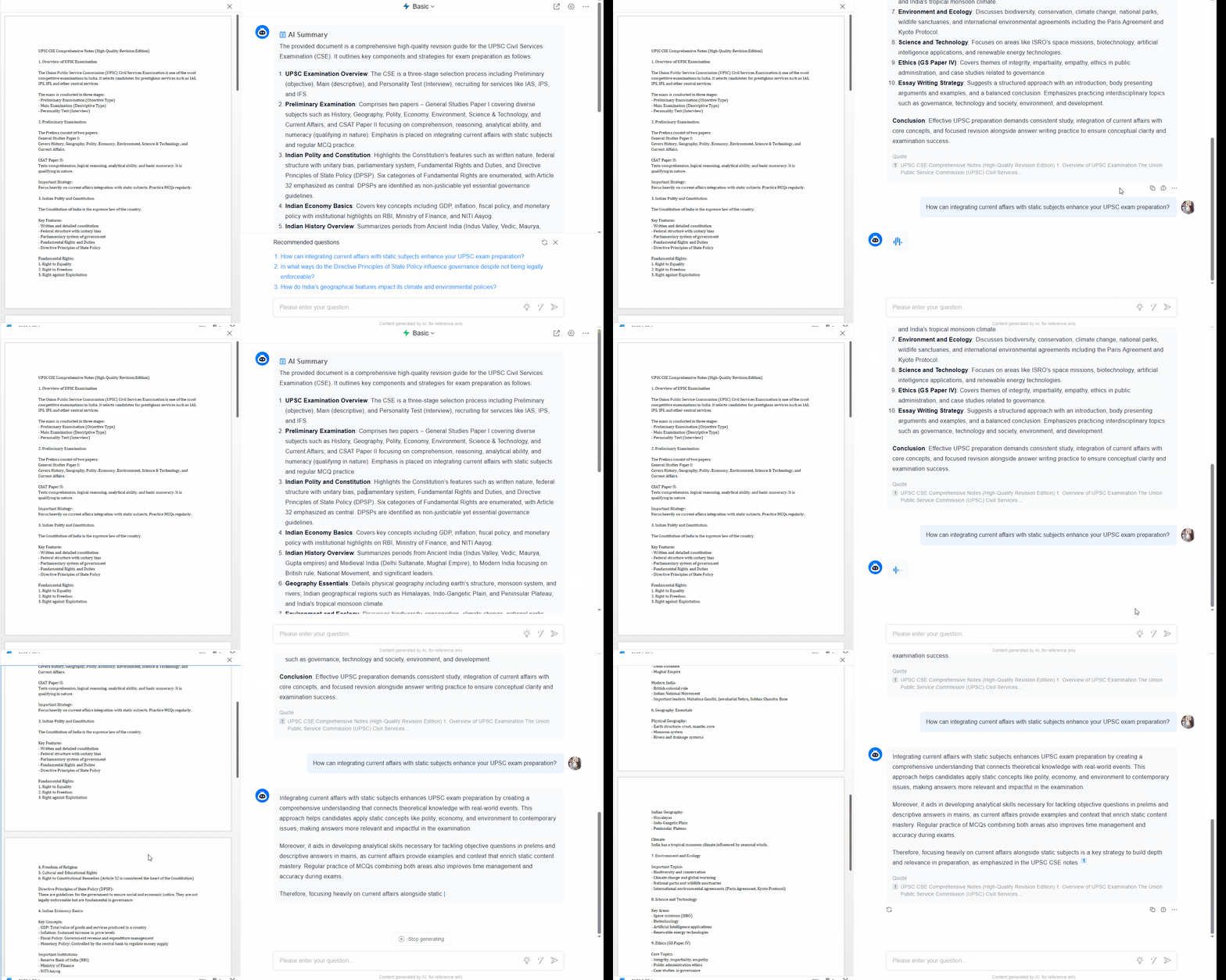
After converting the InPage file, LightPDF can help you prepare the PDF for sharing or printing.
You can use LightPDF to:
- merge separately converted pages;
- compress large image-based PDFs;
- enhance unclear scanned or image-based pages;
- protect the document with a password;
- summarize the PDF with AI.
Check the Urdu characters, page order, margins, line breaks, columns, images, and page dimensions before downloading the final version. Avoid excessive compression because it may make small Urdu characters less clear.
Conclusion
The best InPage-to-PDF method depends on the file version, available software, and required output quality.
Direct PDF printing is usually the easiest and most dependable choice when InPage is available. The official utility is useful when it is not, while image and EPS export provide greater control for complex layouts and professional printing.
Always compare the converted PDF with the original InPage document before distributing it.


Leave a Comment