


1. LightPDF
Best for: Quickly converting scanned tables into editable Excel spreadsheets
LightPDF PDF to Excel provides two conversion modes: direct conversion for editable PDFs and OCR for scanned PDFs. Its OCR mode recognizes text, numbers, rows, and columns from image-based pages and converts them into an editable Excel file.
How to Convert a Scanned PDF to Excel with LightPDF
- Open LightPDF Online OCR.
- Click Select Files and upload your scanned PDF.
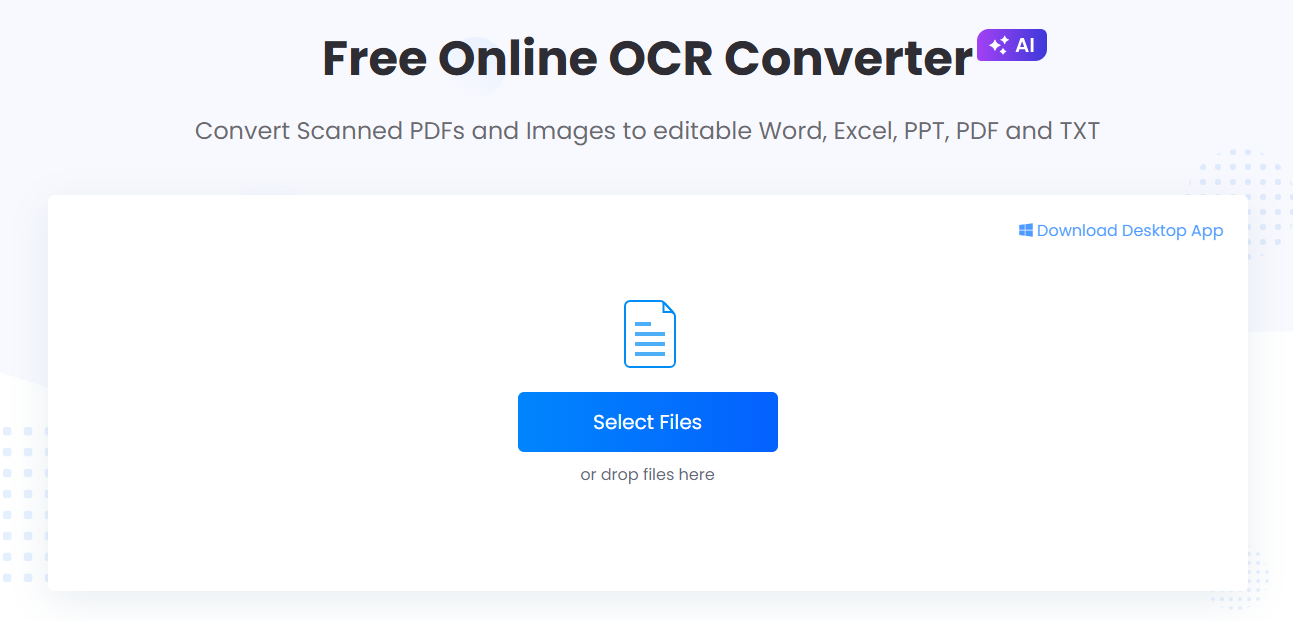
- Choose Excel as the output format.
- Click OCR to start recognizing the document.
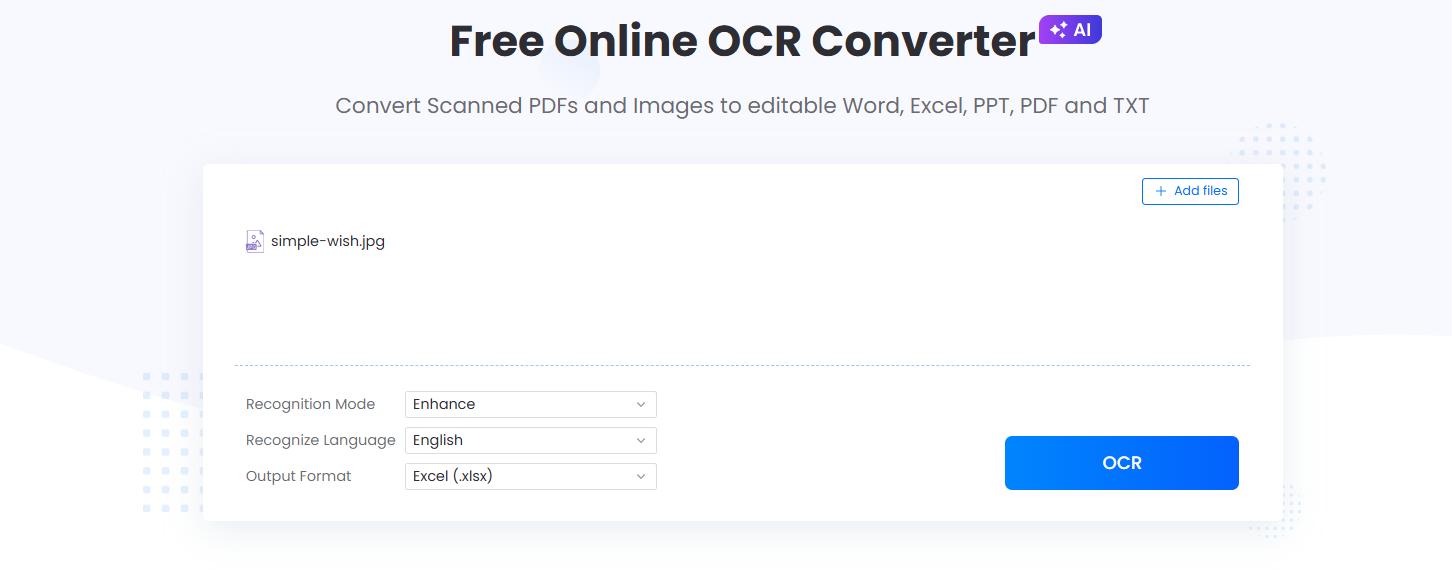
- Preview the result and download the converted Excel file.
- Open the spreadsheet and review the extracted data.
Advantages
- Dedicated OCR mode for scanned PDFs
- Converts data directly to an editable spreadsheet
- Works entirely in a browser
- Keeps pages organized in separate worksheets
- Suitable for scanned reports, invoices, forms, and tables
Limitations
- Complex or low-quality scans may require manual corrections.
- Handwritten content may not be recognized as accurately as printed text.
2. Adobe Acrobat Online
Best for: Scanned documents with detailed tables and structured layouts
Adobe Acrobat Online uses OCR when exporting scanned PDFs into editable formats such as Excel. Its export tool supports scanned documents and can preserve much of the original structure during conversion.
How to Use Adobe Acrobat Online
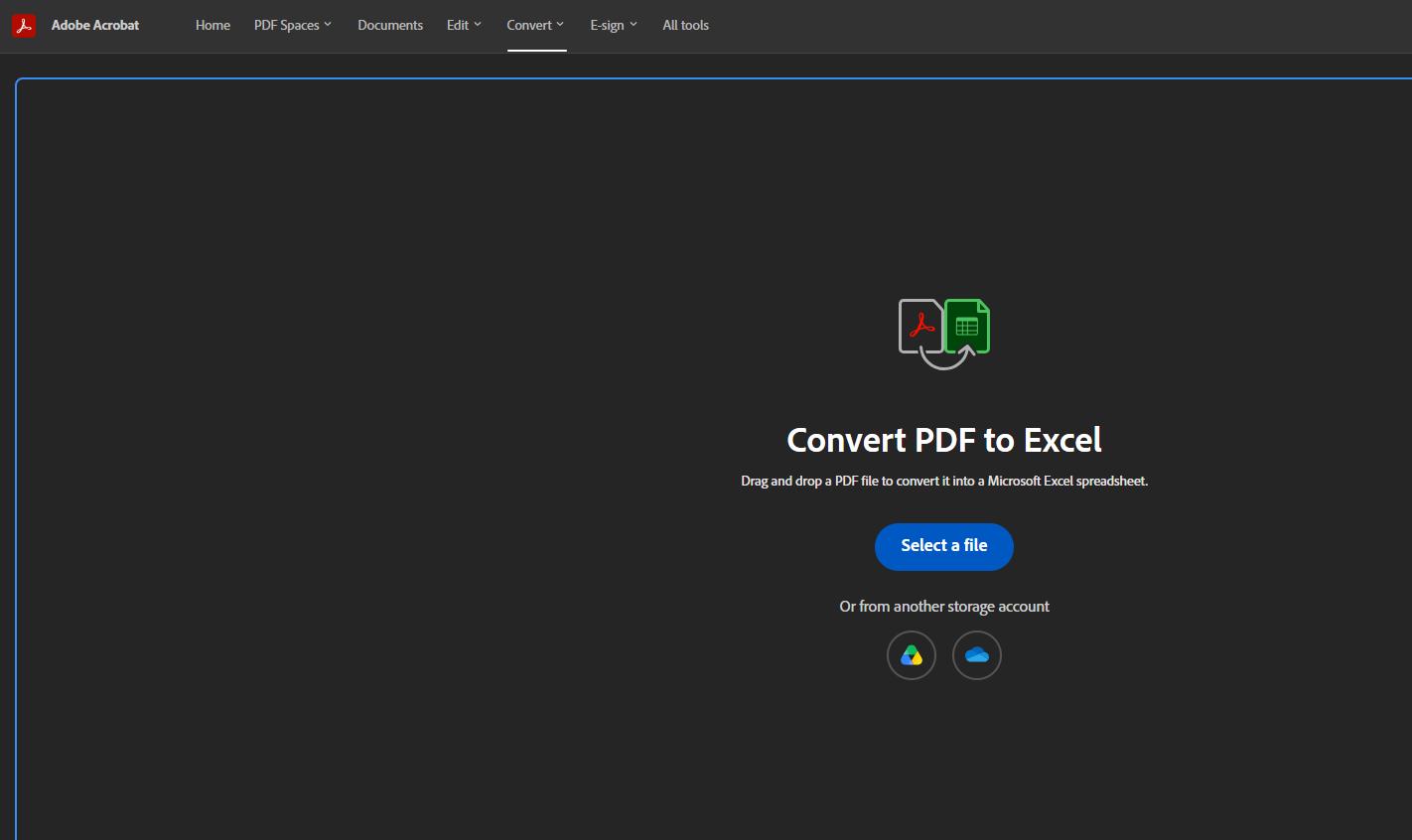
- Open Adobe’s online PDF-to-Excel converter.
- Upload the scanned PDF.
- Sign in if required.
- Click on Convert to excel.
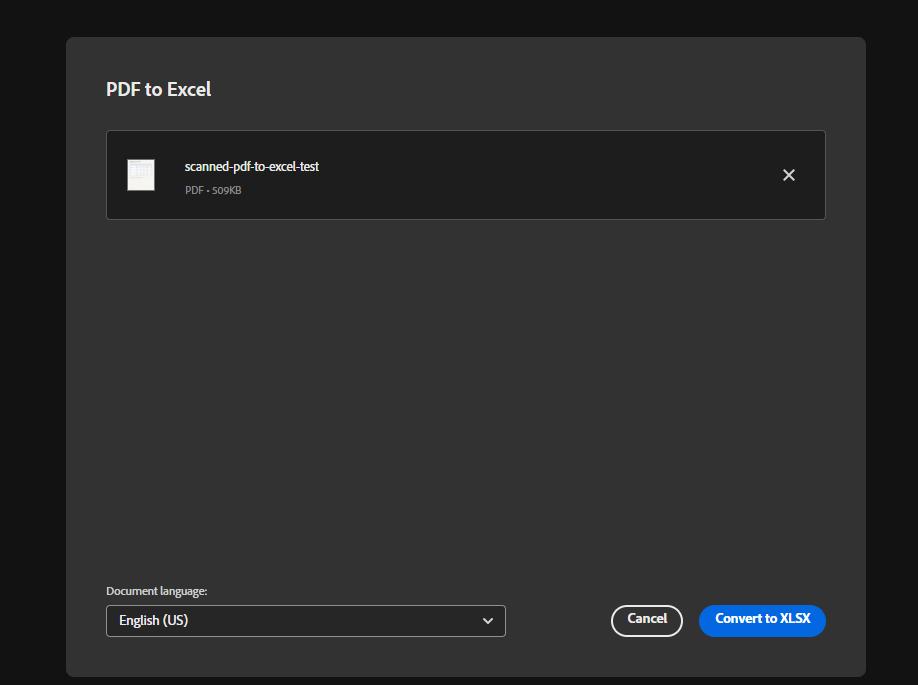
- Let Acrobat recognize and convert the scanned content.
- Download the XLSX file.
- Review the cells, columns, and number formats.
Advantages
- Built-in OCR for scanned documents
- Good support for standard business tables
- Maintains much of the original document structure
- Supports XLSX output
Limitations
- Some conversion or download features may require an Adobe subscription.
- Complicated tables can still produce merged or misplaced cells.
3. Smallpdf
Best for: Occasional conversions with a simple interface
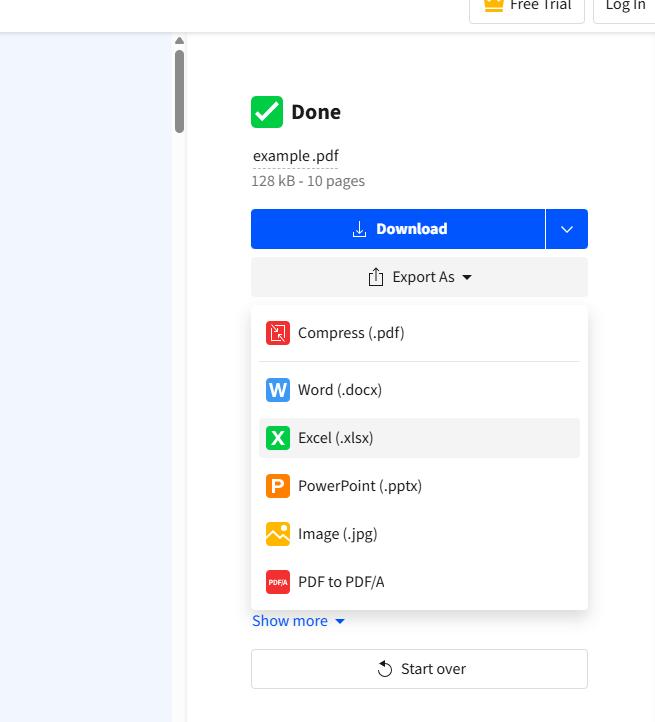
Smallpdf provides a PDF-to-Excel converter that can process image-based PDFs using OCR. However, OCR conversion for scanned PDFs is listed as a Pro feature.
How to Convert the File
- Visit the Smallpdf PDF-to-Excel tool.
- Upload or drag and drop your scanned PDF.
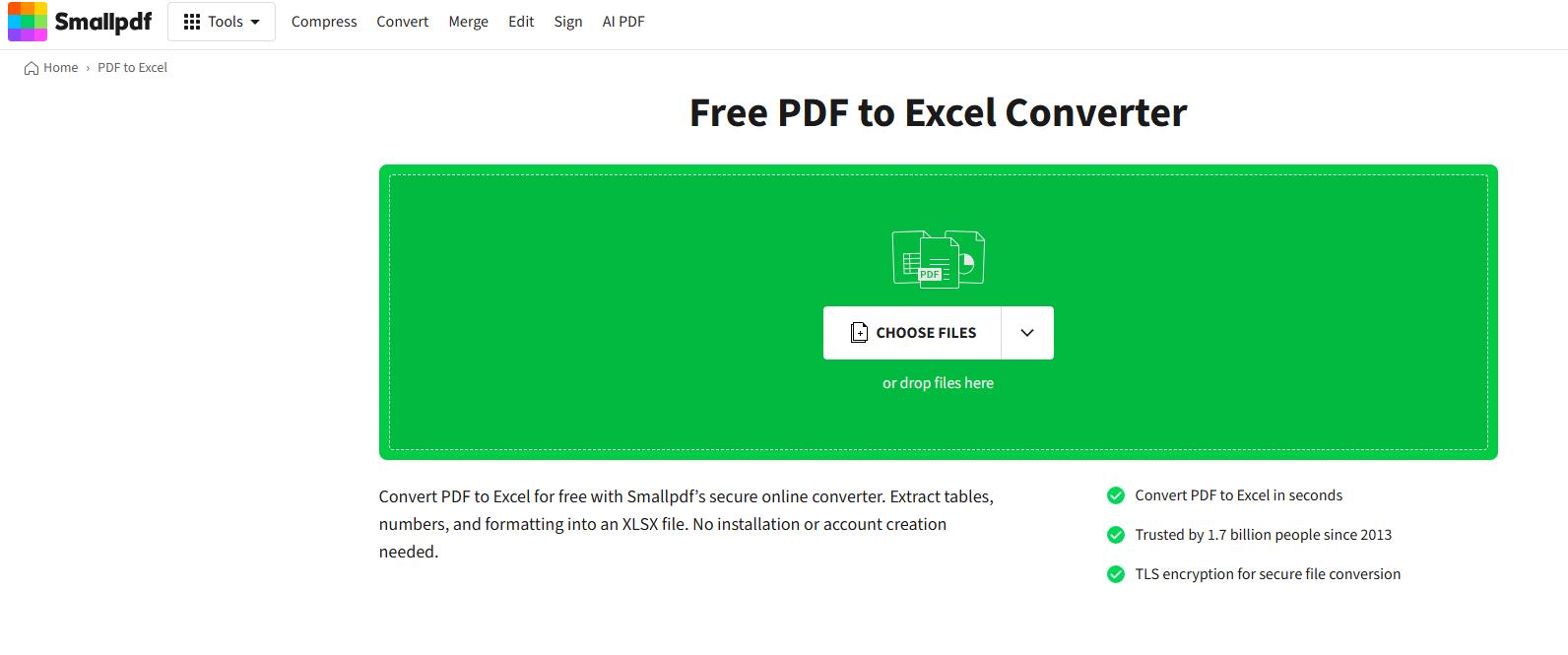
- Choose the OCR conversion option.
- Wait for Smallpdf to recognize the tables.
- Download the converted XLSX file.
- Check the spreadsheet for recognition errors.
Advantages
- Clean and beginner-friendly interface
- Automatically extracts tables into Excel
- Works on Windows, macOS, and mobile browsers
Limitations
- OCR for scanned PDFs requires Smallpdf Pro.
- Free usage and file processing may be limited.
4. iLovePDF
Best for: Choosing how extracted tables are arranged in Excel
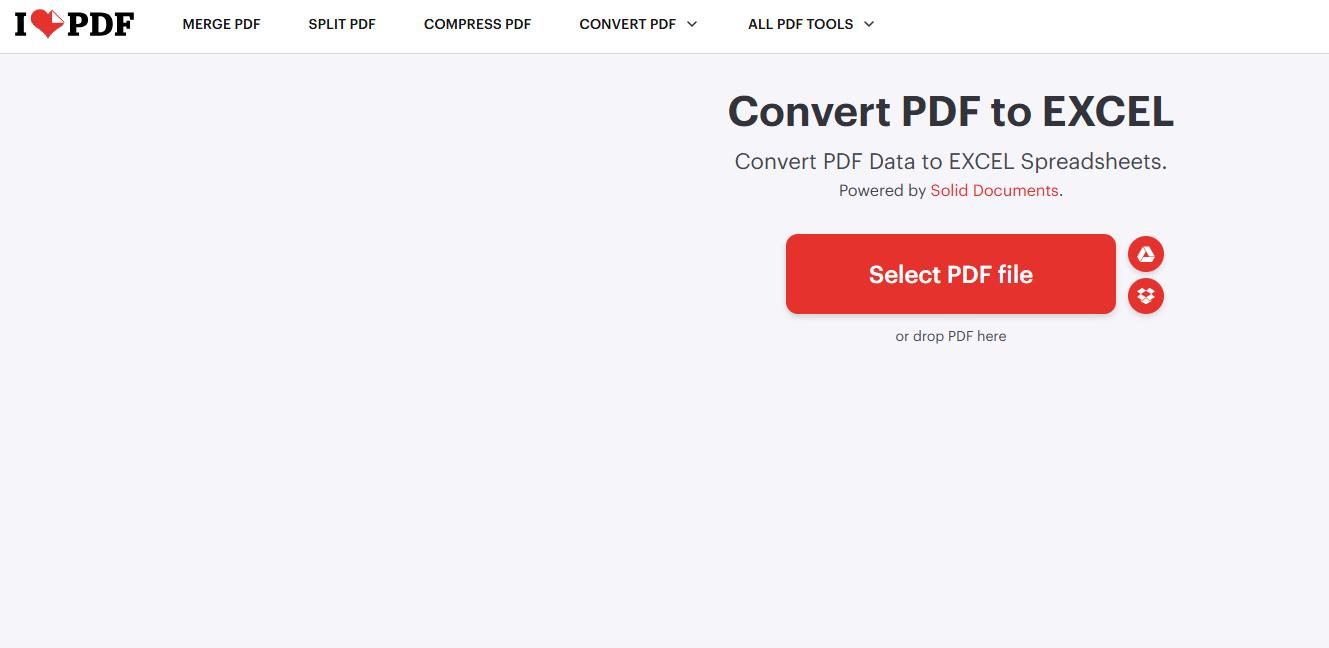
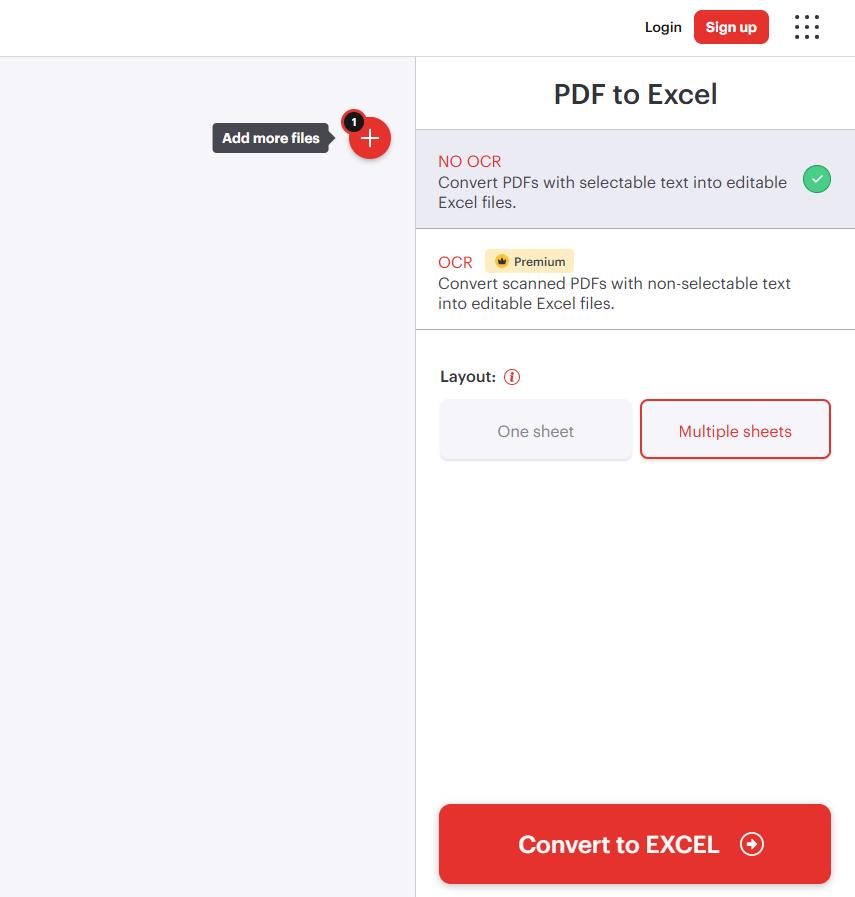
iLovePDF detects when a PDF contains scanned pages and offers an OCR option for extracting the content. Users can also choose whether tables should appear on one worksheet or multiple worksheets. Its OCR option for scanned PDFs is a Premium feature.
How to Use iLovePDF
- Open the iLovePDF PDF-to-Excel converter.
- Upload your scanned PDF.
- Select OCR Premium.
- Choose one sheet or multiple sheets for the output.
- Click Convert to Excel.
- Download the converted spreadsheet.
Advantages
- Automatically detects scanned pages
- Offers different worksheet layout options
- Easy drag-and-drop workflow
- Useful for PDFs containing several tables
Limitations
- OCR conversion requires a Premium account.
- Irregular table structures may need reformatting.
5. Nanonets
Best for: Invoices, bank statements, receipts, and complex financial tables
Nanonets uses AI-powered OCR to extract tables from scanned PDFs and convert them into structured Excel or CSV data. It is particularly useful when a document contains line items or fields that need to be organized rather than simply copied.
How to Extract Scanned PDF Data
- Open the Nanonets PDF-to-Excel tool.
- Upload the scanned PDF.
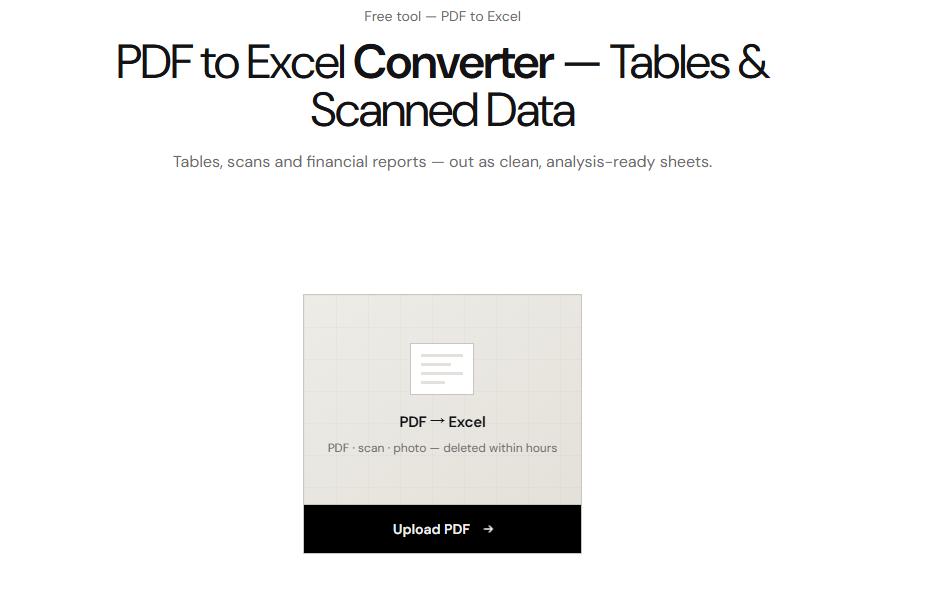
- Let the OCR engine detect its tables and fields.
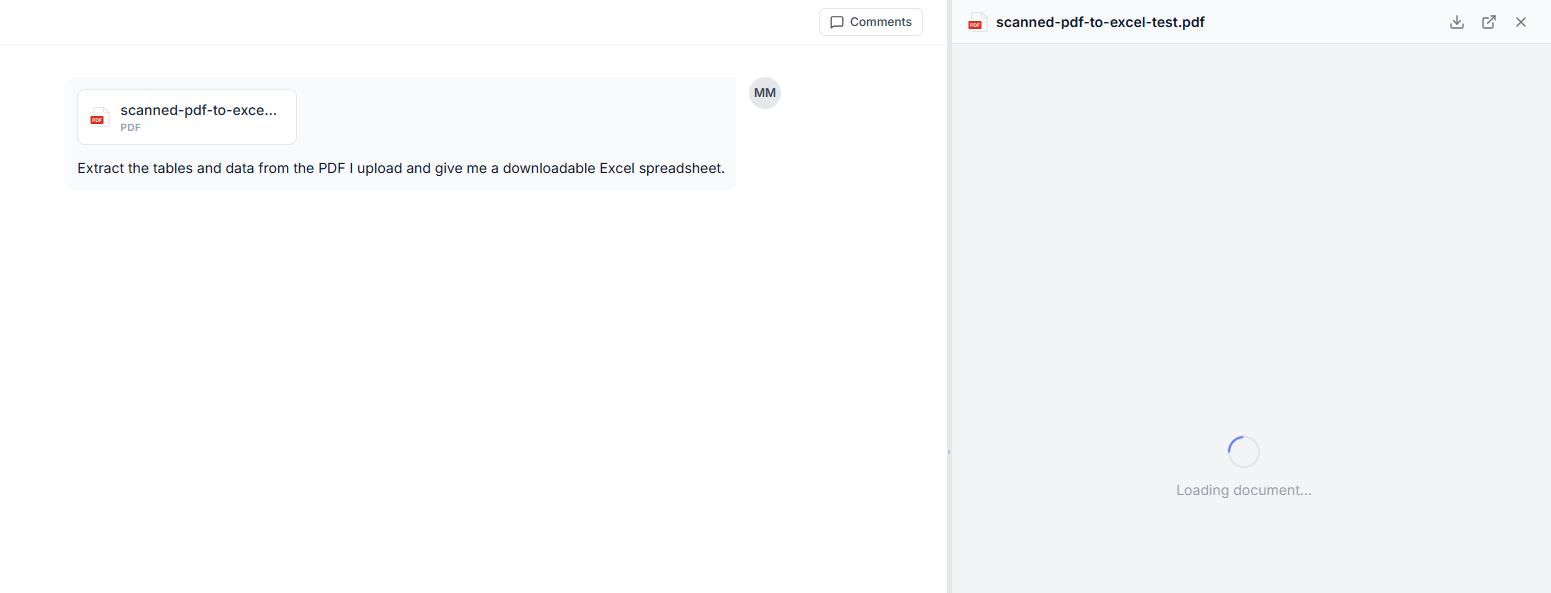
- Review the extracted information.
- Export the result as an Excel or CSV file.
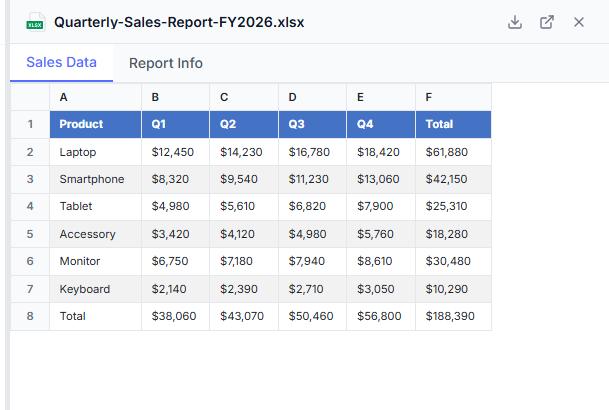
- Correct any missing or incorrectly recognized values.
Advantages
- Designed for structured data extraction
- Suitable for invoices, receipts, and bank statements
- Can recognize multi-page tables
- Provides Excel and CSV output options
Limitations
- Advanced workflows may require an account or paid plan.
- It may be excessive for a simple one-page table.
Tips for Better Conversion Results
- Use a clear scan with a resolution of approximately 300 DPI.
- Make sure the document is straight and correctly oriented.
- Remove shadows, dark edges, and background noise before conversion.
- Select the correct OCR language.
- Convert tables with visible borders whenever possible.
- Compare totals, dates, decimal points, and currency symbols with the original PDF.
- Avoid uploading confidential financial documents to an online service unless its privacy terms meet your requirements.
Conclusion
For a quick and straightforward solution, LightPDF can convert a scanned PDF directly into an editable Excel spreadsheet using OCR. Adobe Acrobat is suitable for more detailed layouts, while Smallpdf and iLovePDF offer accessible conversion workflows with paid OCR options. For invoices, receipts, and complex financial records, Nanonets provides more specialized data extraction.
Regardless of the tool you choose, always review the final spreadsheet. OCR can save considerable time, but unclear scans, unusual fonts, and complex tables may still cause recognition or formatting errors.




Leave a Comment