


Which Data Extraction Tool Should You Choose?
| Your Main Need | Best Tool | Why Choose It | Main Limitation |
|---|---|---|---|
| Extract text or tables online without coding | LightPDF | Simple browser-based tools for PDFs, scans, screenshots, and images | Not designed for large automated workflows |
| Extract fields from invoices and business documents | Nanonets | Recognizes fields, line items, totals, and document types | More setup than a basic converter |
| Process documents received by email | Parseur | Extracts data from emails and attachments without coding | Best suited to repeatable workflows |
| Extract data from documents with similar layouts | Docparser | Uses custom rules, zones, keywords, and table patterns | Rules may need adjustment |
| Preserve headings, tables, figures, and reading order | Adobe PDF Extract API | Returns detailed PDF structure for applications | Requires development work |
| Build document workflows in Microsoft Azure | Azure AI Document Intelligence | Provides prebuilt and custom document models | Requires an Azure account |
| Extract tables from text-based PDFs for free | Tabula | Free, open-source, and runs locally | Does not support scanned PDFs |
1. LightPDF
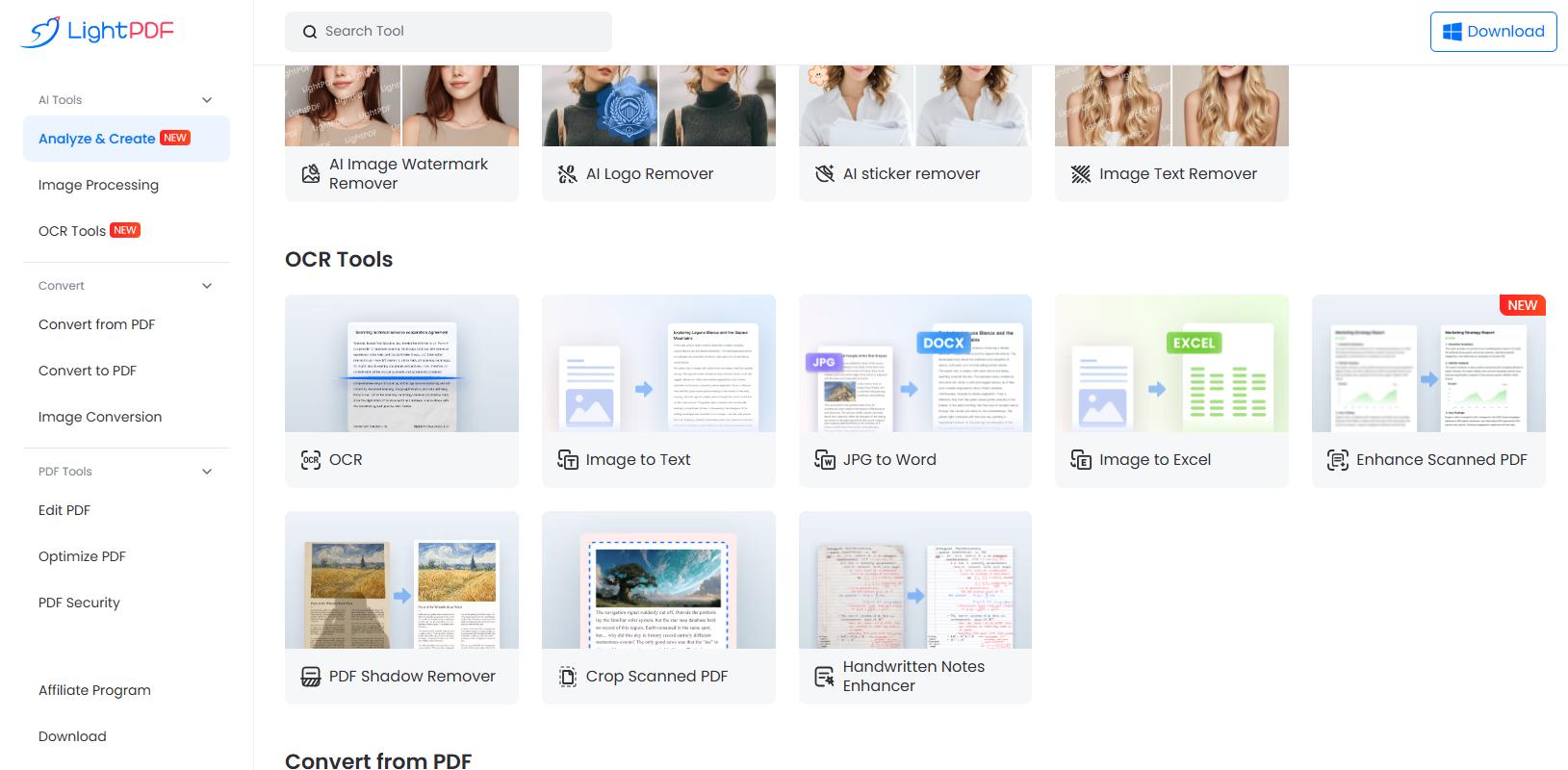
Best for: Quickly extracting data from PDFs and images without coding
LightPDF is the easiest option on this list for users who want to upload a file, extract the content, and download the result.
It provides separate tools for different document tasks:
- Image to Text
- Image to Excel
- PDF to Excel
- PDF to TXT
- OCR
- JPG to Word
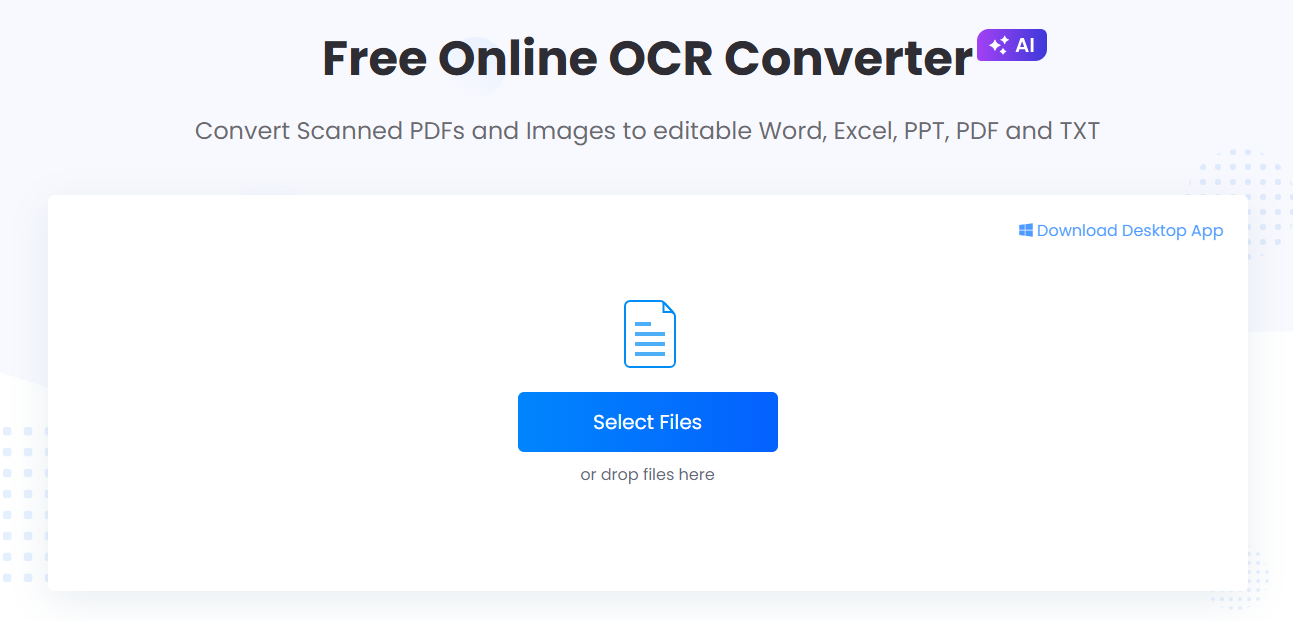
You can use it to extract text from screenshots, turn photographed tables into Excel, convert PDF tables into spreadsheets, or recognize text in scanned documents.
Choose LightPDF When You Need To:
- Extract text from an image or screenshot
- Convert a PDF table to Excel
- Turn a document photo into editable data
- Apply OCR to a scanned PDF
- Process a small number of files online
- Avoid coding, templates, and API setup
Output Formats
Depending on the selected tool, extracted content can be downloaded as text, Word, or Excel.
Not the Best Choice For
LightPDF is not intended for companies that need to automatically classify, validate, and process thousands of documents.
Verdict: Choose LightPDF for quick, manual PDF and image extraction.
2. Nanonets
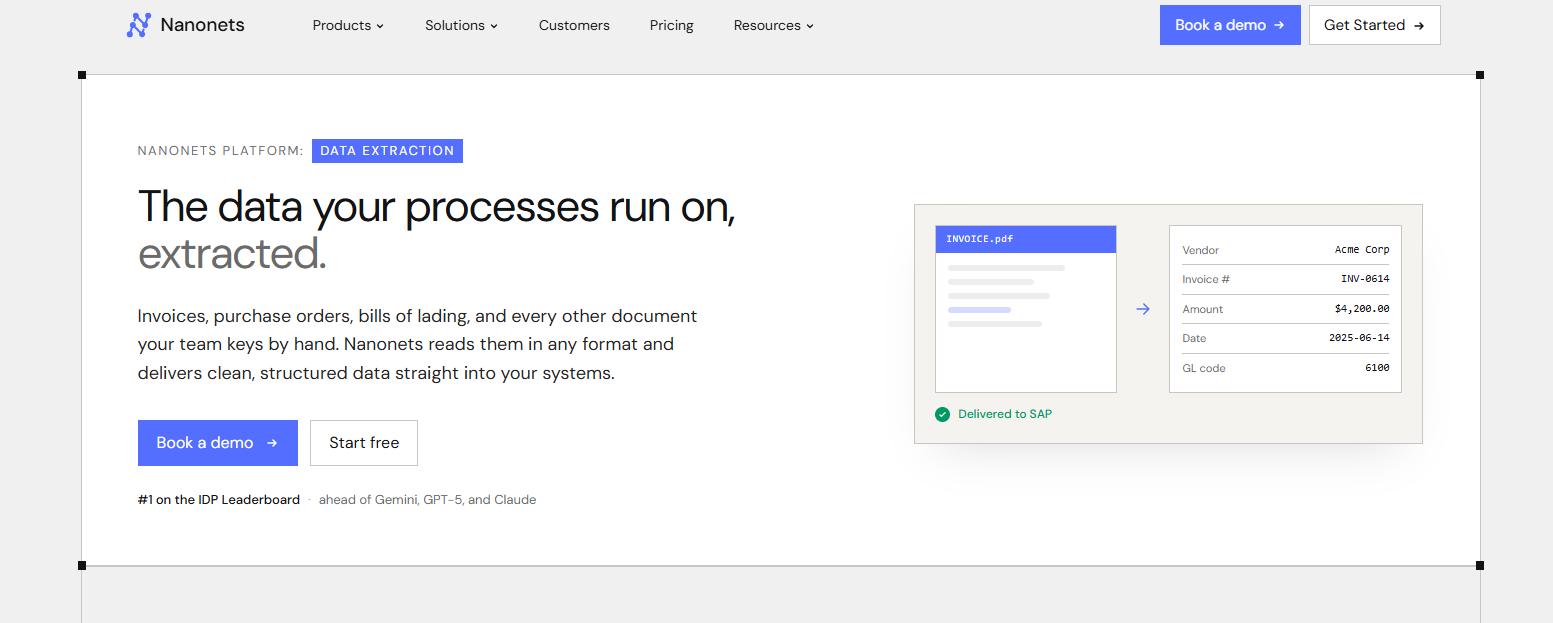
Best for: Extracting structured data from invoices and business documents
Nanonets is designed for documents that contain recognizable business fields.
Instead of returning the entire document as plain text, it can identify specific information such as:
- Supplier name
- Invoice number
- Invoice date
- Due date
- Line items
- Taxes
- Total amount
- Payment details
It can process invoices, receipts, purchase orders, bank statements, claims, contracts, and other business documents.
Nanonets also supports document classification, validation, approval workflows, APIs, email ingestion, and cloud storage integrations.
Choose Nanonets When You Need To:
- Extract fields from invoices or receipts
- Capture line items and totals
- Process different business document types
- Validate extracted information
- Send structured data to another system
- Automate a recurring document workflow
Output Formats
Nanonets can provide structured data in formats such as CSV, Excel, and JSON.
Not the Best Choice For
It may be unnecessarily complex when you only need to extract one paragraph or convert one simple table.
Verdict: Choose Nanonets for AI-powered business document processing.
3. Parseur
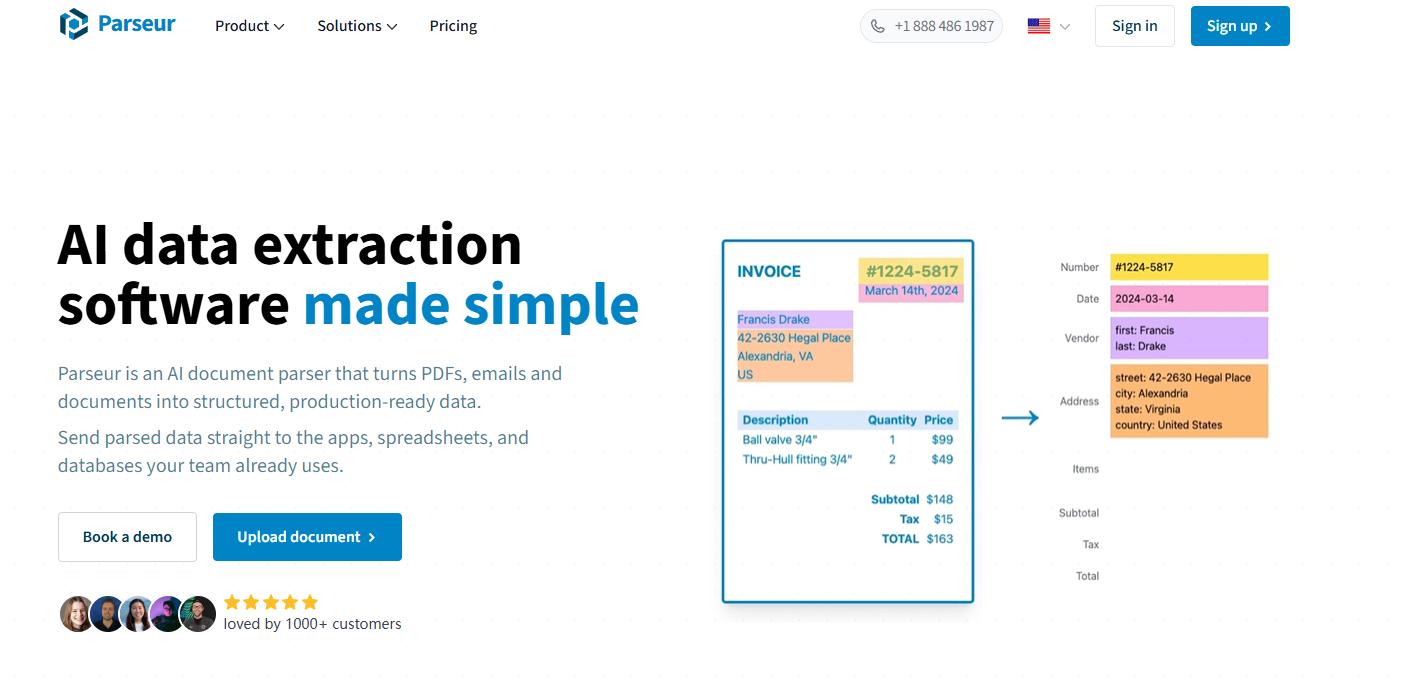
Best for: Extracting data from emails and document attachments
Parseur is a no-code data extraction tool for emails, PDFs, scans, and images.
It is especially useful when documents regularly arrive through email. For example, it can extract order details from email confirmations or invoice information from PDF attachments.
Users specify the fields they want to collect, such as:
- Customer name
- Order number
- Invoice total
- Delivery address
- Booking date
- Product details
- Contact information
The extracted data can then be sent to Excel, Google Sheets, databases, n8n, or other workflow tools.
Choose Parseur When You Need To:
- Extract data from incoming emails
- Process PDF email attachments
- Send results to spreadsheets automatically
- Build a workflow without coding
- Handle recurring orders, leads, or shipping notices
Output Formats
Parseur can return structured fields and JSON or send the data directly to connected applications.
Not the Best Choice For
It is less useful for occasional one-time document conversion because users must first define the fields and workflow.
Verdict: Choose Parseur when email is the starting point of your document workflow.
4. Docparser
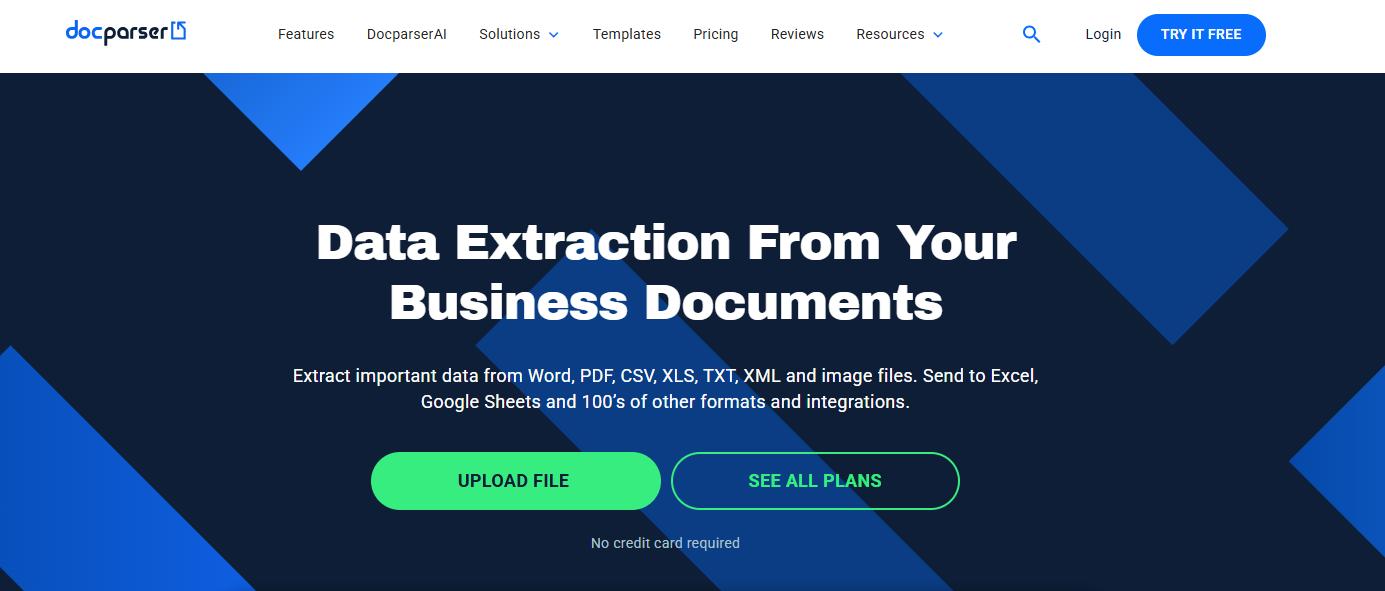
Best for: Extracting data from documents with recurring layouts
Docparser combines OCR, AI extraction, and configurable parsing rules.
Users can define where and how the tool should find information. Rules can be based on:
- A specific area of the page
- A keyword or label
- A text pattern
- A table row or column
- A repeated document structure
This makes Docparser useful for forms, statements, purchase orders, price lists, shipping documents, and other files that follow similar layouts.
Choose Docparser When You Need To:
- Process documents with consistent designs
- Extract tables using custom rules
- Capture information near specific keywords
- Send data to Excel, databases, or business apps
- Combine OCR with rule-based extraction
Output Formats
Extracted data can be sent to Excel, CSV, JSON, Google Sheets, databases, APIs, and integrations.
Not the Best Choice For
Documents with completely different layouts may require additional rules and ongoing maintenance.
Verdict: Choose Docparser when control over extraction rules is more important than instant setup.
5. Adobe PDF Extract API
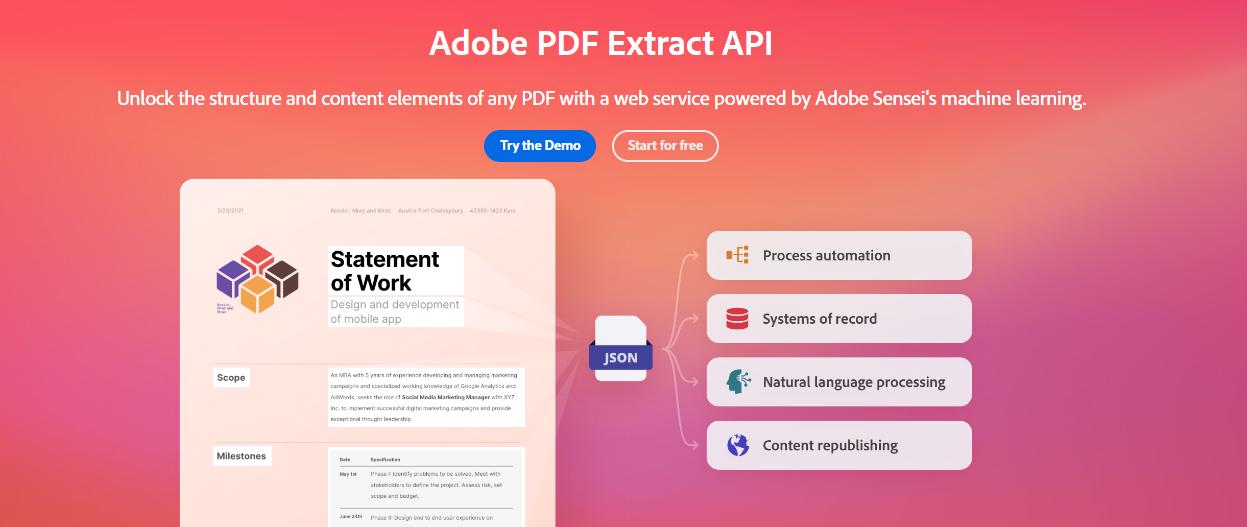
Best for: Extracting complete PDF structure for applications
Adobe PDF Extract API is built for developers who need more than plain text.
It can identify:
- Headings
- Paragraphs
- Lists
- Tables
- Figures
- Footnotes
- Reading order
- Text formatting
- Page positions
This structure is useful when building search tools, knowledge bases, RAG systems, accessibility workflows, or document analysis applications.
Choose Adobe PDF Extract API When You Need To:
- Preserve headings and paragraphs
- Understand the reading order of a PDF
- Extract tables and figures
- Convert PDF content into structured JSON
- Prepare documents for search or AI applications
Output Formats
The API can return JSON or Markdown. Tables may be exported as CSV or XLSX, while figures can be extracted as images.
Not the Best Choice For
It is not intended for users who want a simple upload-and-download PDF scraper. It also focuses mainly on PDFs rather than general image files.
Verdict: Choose Adobe when document structure is as important as the text itself.
6. Azure AI Document Intelligence
Best for: Enterprise document extraction in the Microsoft ecosystem
Azure AI Document Intelligence extracts text, handwriting, tables, selection marks, key-value pairs, and structured fields from PDFs and images.
Microsoft provides prebuilt models for documents such as:
- Invoices
- Receipts
- Contracts
- Identity documents
- Bank checks
- Tax documents
Organizations can also create custom models for their own forms and document layouts.
Choose Azure AI Document Intelligence When You Need To:
- Extract printed or handwritten text
- Use prebuilt invoice or receipt models
- Create a custom document model
- Process large document collections
- Connect extraction with other Azure services
Output Formats
The service returns text, tables, fields, layout data, and structured JSON.
Not the Best Choice For
It requires an Azure account and technical implementation. It is not the fastest option for someone processing only a few files.
Verdict: Choose Azure when your organization already uses Microsoft cloud services.
7. Tabula
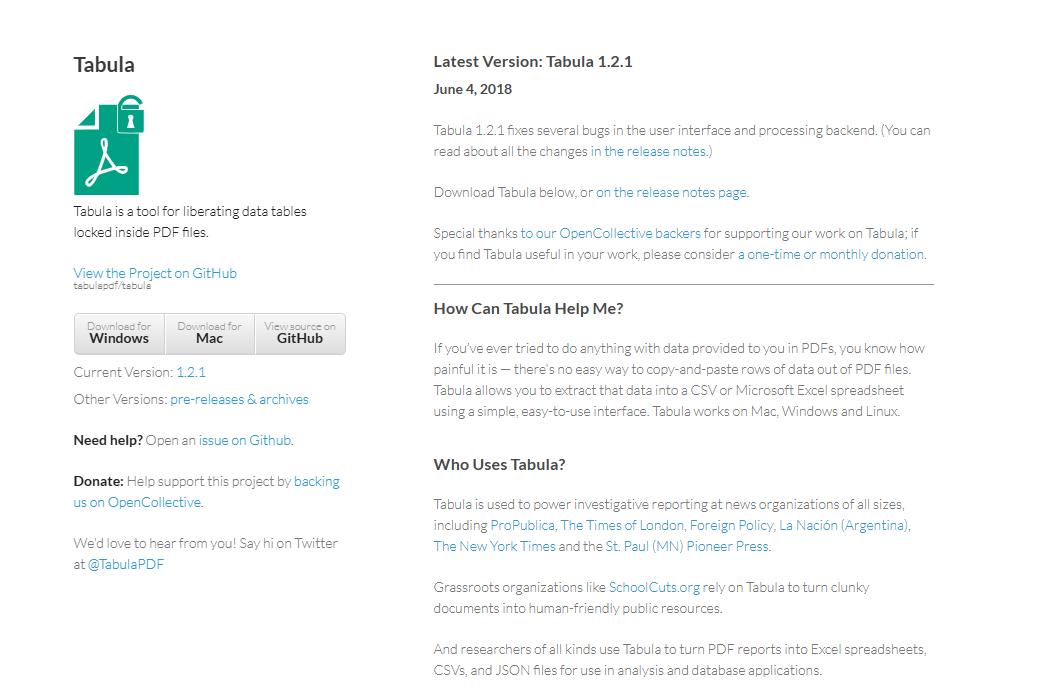
Best for: Free table extraction from text-based PDFs
Tabula is a free, open-source PDF scraper created specifically for extracting tables.
To use it:
- Open a PDF in Tabula.
- Select the table area.
- Preview the detected rows and columns.
- Export the table to CSV or Excel.
Because Tabula runs locally, documents do not need to be uploaded to an external online service.
Choose Tabula When You Need To:
- Extract a table from a selectable PDF
- Export PDF tables to CSV or Excel
- Use a completely free tool
- Process the document locally
- Avoid cloud-based services
Output Formats
Tabula exports tables as CSV or Excel.
Not the Best Choice For
Tabula does not include OCR. It cannot extract data from scanned PDFs, screenshots, or document photos.
It also does not identify invoice fields or automate document workflows.
Verdict: Choose Tabula only for tables in text-based PDFs.
Final Recommendation
Choose the tool according to the result you need:
- LightPDF: Best for quickly extracting text or tables from PDFs and images
- Nanonets: Best for invoices, receipts, and structured business data
- Parseur: Best for documents received through email
- Docparser: Best for recurring documents with similar layouts
- Adobe PDF Extract API: Best for preserving complete PDF structure
- Azure AI Document Intelligence: Best for Microsoft-based enterprise workflows
- Tabula: Best free option for tables in text-based PDFs
For most individual users, LightPDF is the most straightforward choice. For business document automation, start with Nanonets, Parseur, or Docparser. Developers should choose Adobe, Azure, or Amazon according to their existing technical environment.



Leave a Comment