


Managing digital paperwork efficiently shouldn’t require expensive subscriptions or slow down your computer with heavy software installations. If you are looking for an immediate way to upgrade your workflow, discovering how to edit document online for free gives you the ultimate flexibility to work from anywhere. From quick textual tweaks to advanced modifications, using browser-based platforms allows you to write text on pdf free and finalize your documents instantly on any operating system.
Online vs. Desktop PDF Editors
Before diving into the step-by-step tutorials, here is a quick overview of how online tools stack up against desktop applications for your document editing needs.
| Feature / Capability | Online PDF Editors (e.g., LightPDF) | Desktop PDF Editors |
| Installation Required | No (Run directly in your browser) | Yes (Requires download and disk space) |
| Core Functions | Type on PDF online, add images, basic editing | Advanced formatting, heavy batch processing |
| AI Capabilities | Summarization, translation, AI mindmaps | Limited to premium desktop upgrades |
| Accessibility | Any device (Windows, Mac, Mobile, Linux) | Tied to the specific installed device |
| Best For | Quick edits, fillable forms, on-the-go tweaks | Offline workflows, massive file organization |
Method 1: How to Edit Documents Online for Free
If you need to make swift changes without installing anything, using an online platform is your best bet. Robust platforms like LightPDF offer a massive suite of web-based tools that handle everything from simple text insertion to advanced AI analysis.
Comprehensive Online Annotation & Editing
When you need to interact with an existing document, a good online PDF web editor lets you do much more than just read. You can easily:
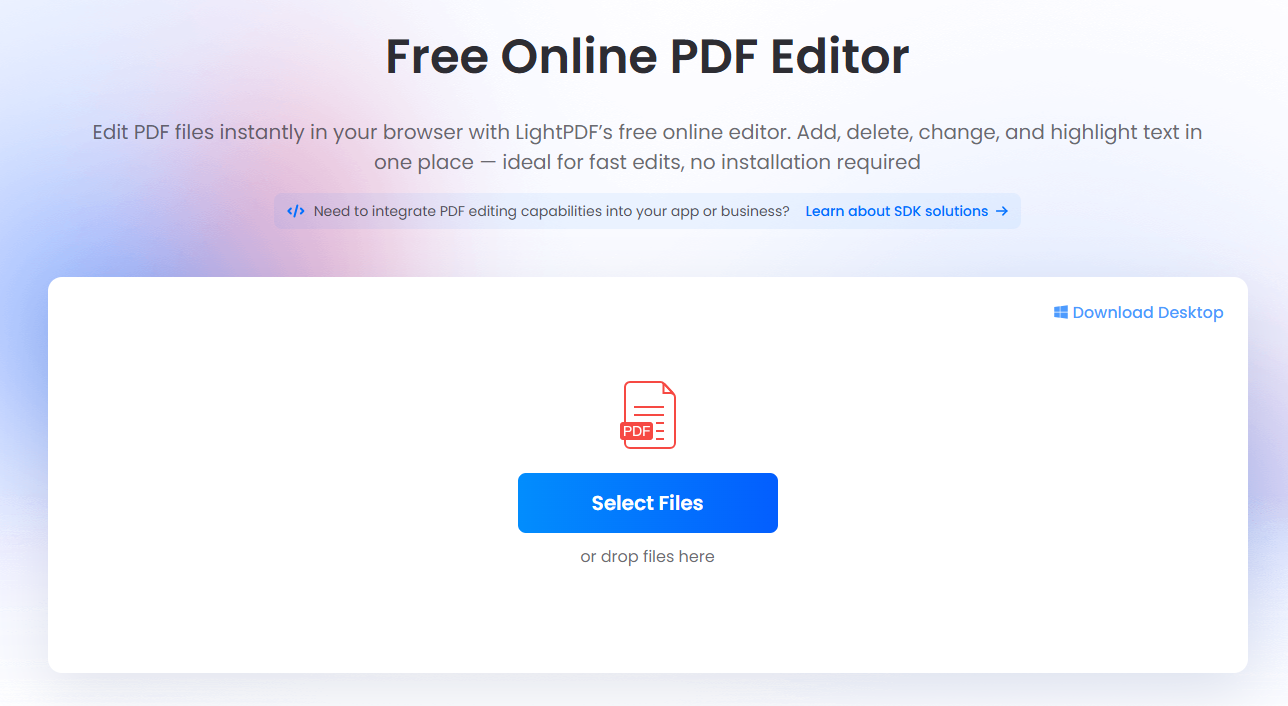
- Write text on pdf free to fill out non-interactive applications.
- Add image on pdf online to insert logos, profile pictures, or scanned signatures.
- Highlight & Area Highlight: Draw attention to crucial sentences or specific zones of a document.
- Markup Text: Use strikeout and underline tools to request copy edits or cross off completed tasks.
- Draw Shapes: Insert squares, circles, lines, and arrows to create diagrams or emphasize sections.
- Create & Add Stamps: Apply standard business stamps like “Approved,” “Draft,” or custom graphics.
All-in-One Document Toolkit & AI Features
Beyond basic markups, a premium free online platform provides comprehensive solutions for every file scenario. If you deal with scanned, unsearchable documents, you can utilize online OCR (Optical Character Recognition) to extract text, or easily convert files to and from Word, Excel, and PowerPoint formats. You can also unlock password-protected files, secure sensitive data, compress large files for email, resize pages, and remove distracting watermarks.
Furthermore, modern online editors feature built-in AI Agents capable of handling multiple PDF tasks simultaneously. You can leverage cutting-edge AI features, including:
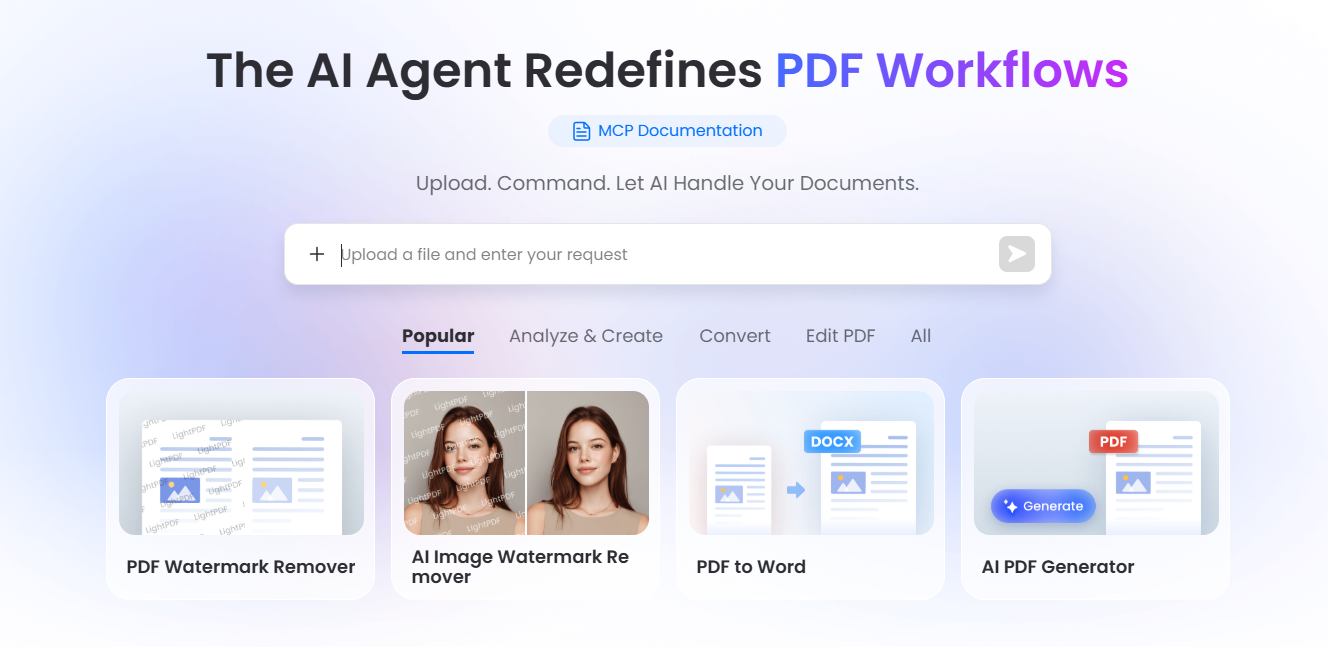
- AI PDF Generator & AI PPT: Build documents and presentations from text prompts instantly.
- AI Summarize & Analysis: Digest 100-page reports in seconds.
- PDF Translation: Translate entire documents while keeping the original layout intact.
- PDF to Mindmaps: Visually map out complex document hierarchies automatically.
Pro Tip: If you are dealing with standard static forms, you can easily make pdf fillable online, transforming flat layouts into interactive forms with text fields, checkboxes, and radio buttons that anyone can complete digitally.
Step-by-Step: Editing Online in 4 Simple Steps
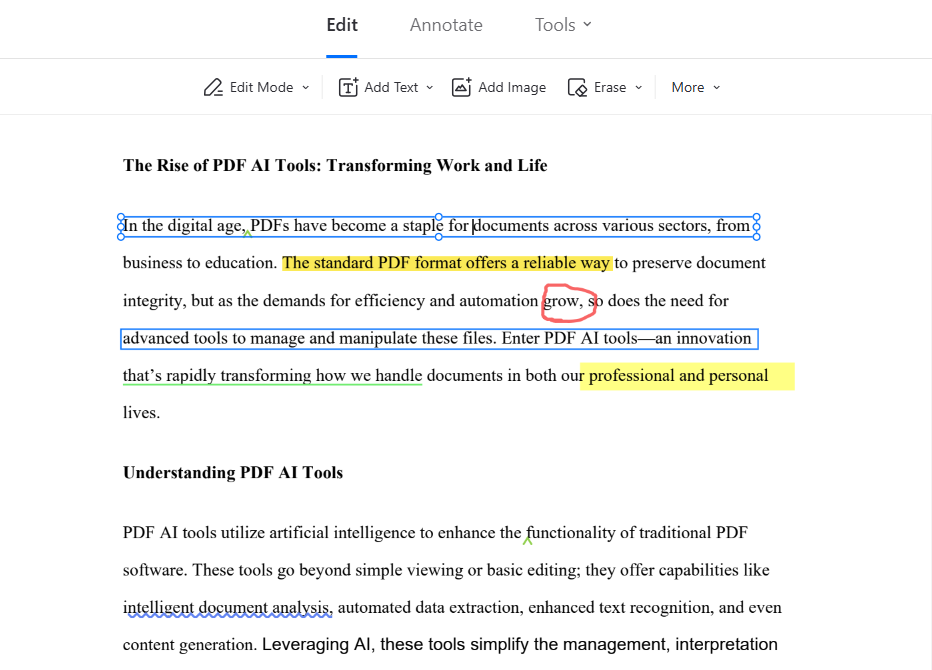
- Visit the online free PDF editor: Open your browser and navigate to the LightPDF online editing tool.
- Upload your document: Drag and drop your file into the secure upload zone, or click to browse your local storage.
- Modify your text: Select the Edit section from the top menu bar. Click directly on the document to type new text, delete existing typos, or adjust formatting.
- Download your file: Once you are satisfied with the edits, click the Download button in the top right corner to save the updated file directly to your local computer or mobile device.
Method 2: How to Edit Documents via Desktop Software
While web tools are incredibly convenient, a desktop application provides a more stable environment for offline work and deep textual adjustments. Here is how to utilize a desktop PDF editor to edit document online for free alternatives when you prefer local processing.
[ Install & Launch ] ➔ [ Open File ] ➔ [ Select Edit Mode ] ➔ [ Modify & Save ]Step-by-Step: Deep Editing on Desktop
- Install and launch the desktop PDF editor: Download the software version of your preferred PDF manager and open it on your PC or Mac.
- Open your file: Click the Open button on the main dashboard and select the specific file you need to modify from your local drive.
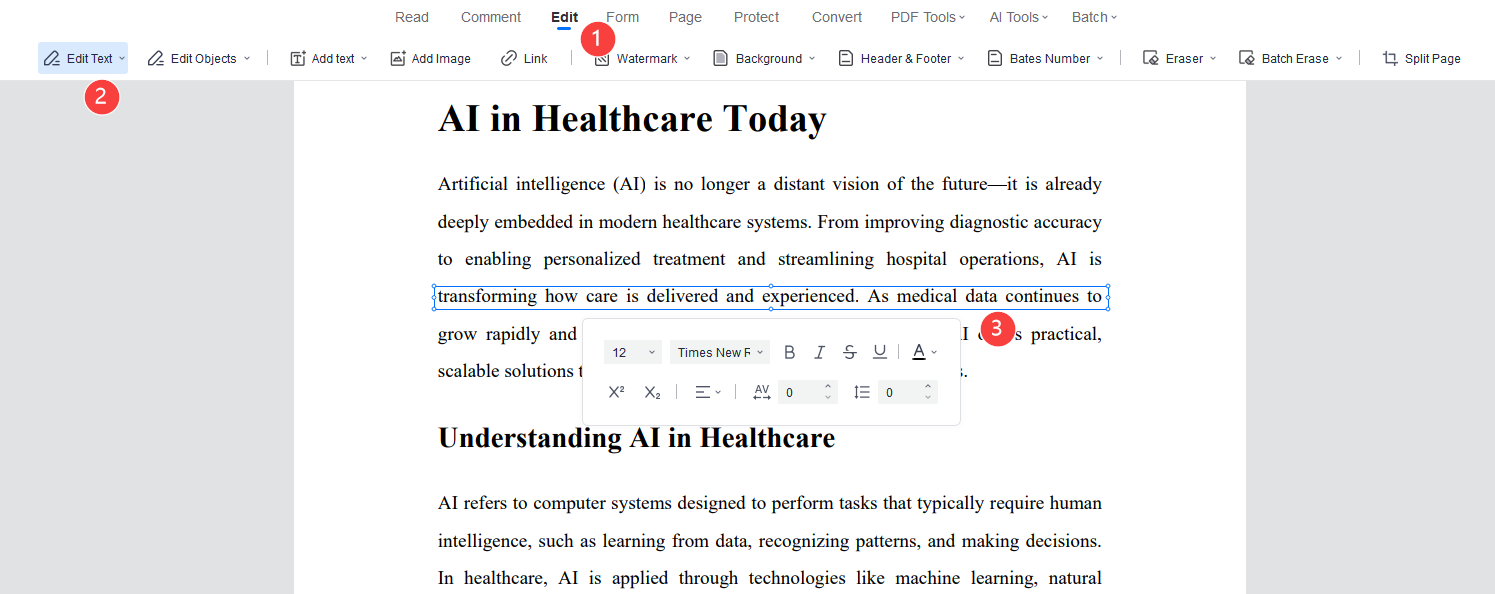
- Activate editing mode: Click on the Edit tab located in the top toolbar, then click Edit Text.
- Choose your editing mode: You can select either Paragraph Mode (which groups sentences into a cohesive block for fluid rewrites) or Line Mode (ideal for pinpointing specific lines without altering the rest of the page layout). Click on the target area and start typing or deleting.
- Save your progress: When you are done making changes, don’t forget to save your file (
Ctrl + Son Windows orCmd + Son Mac) before exiting the program.
FAQ
Q1: Can I truly edit document online for free without hidden catches?
Yes! Many web platforms offer free tiers that allow you to type on PDF online, add annotations, and convert files without requiring a credit card. Some advanced batch actions or heavy AI tools might have daily caps, but standard editing is widely accessible for free.
Q2: How do I write text on PDF free if the document is scanned?
If your document is an image or a scanned piece of paper, standard text editors won’t recognize the words. You will need to use an online platform equipped with an OCR (Optical Character Recognition) feature. This tool scans the image layer and converts it into selectable, editable text.
Q3: Is it safe to upload confidential files to an online editor?
Reputable online tools prioritize user privacy by employing secure SSL encryption during file transfers. Furthermore, automated systems typically purge your uploaded documents from their cloud servers within a few hours of processing to ensure your data remains completely private.
Q4: Can I edit transcript files using these online methods?
Absolutely. If you have a downloaded audio or video transcript in PDF or Word format, you can easily upload it to a free online editor. From there, you can edit transcript text, fix speaker labels, highlight key quotes, or use integrated AI summarizers to extract key takeaways instantly.
Q5: How do I add image on pdf online without ruining the layout?
When using an online editor, such as LightPDF, simply click the “Add Image” tool under the edit or edit/insert menu, upload your JPG or PNG file (like a transparent signature), and place it on the page. The editor allows you to freely resize and drag the image into place without distorting the underlying text.


Leave a Comment