


1. LightPDF
LightPDF’s Scanned PDF Editor lets you work on scanned documents by describing changes in a chat. You can request a text correction, remove unwanted wording, or clean up a scan while reviewing the processed result.
This approach suits targeted updates to handouts, worksheets, and reference documents. A precise instruction helps identify the page and wording you want to change.

Steps:
- Open LightPDF’s Scanned PDF Editor in your browser.
- Upload your scanned PDF.
- Describe the change. For example: “On page 2, replace ‘Workshop 2025’ with ‘Workshop 2026’ and keep the surrounding layout.”
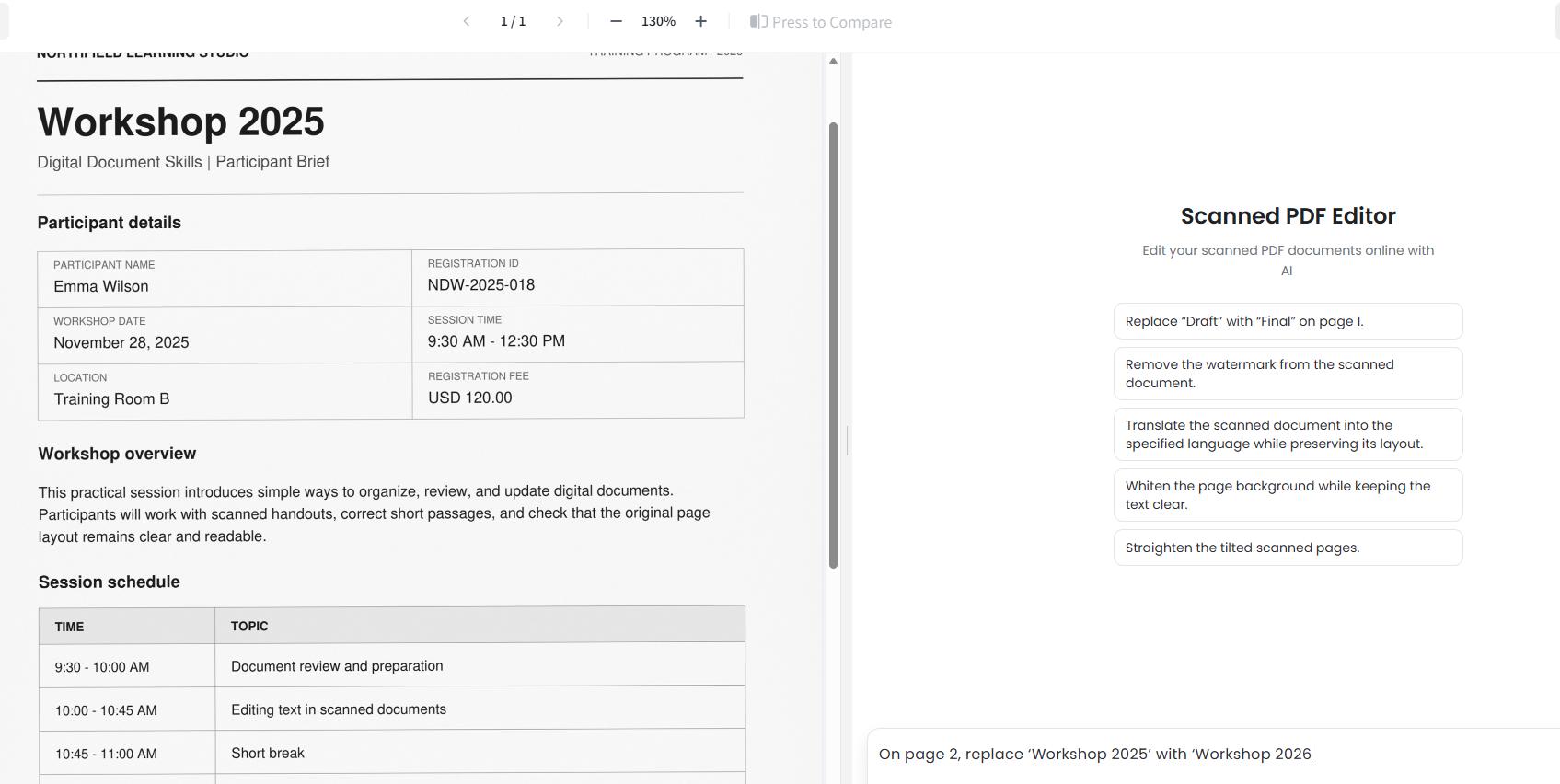
- Review the processed preview. Check the replacement text, spacing, and nearby graphics.
- Refine your instruction if needed, then download the edited PDF.
Tip: For repeated text changes, LightPDF also provides an Edit Text in Scanned PDF tool. Enter the original text and its replacement, then choose the pages where the change should apply.
AI processing may use credits. Review the current access requirements before processing a longer document.
2. EditScannedPDF.com

EditScannedPDF.com offers a browser-based editor with a scanned PDF mode and OCR. Its editing tools include text, erasing, images, and signatures, giving you a visual way to make changes on the page.
It is an option when you prefer to select an area and adjust the replacement text yourself.
Steps:
- Visit EditScannedPDF.com and select the scanned PDF editing mode.
- Upload your scanned PDF and wait for text recognition to complete.
- Click the text you want to edit and make your changes.
- Review your changes and download the edited PDF.

Tip: Start with one short correction. Check the result against the original scan before making changes across several pages. Recognition errors and mismatched text widths can affect the final appearance.
3. Smallpdf and Google Docs
Smallpdf’s PDF to Word converter uses OCR to turn scanned pages into an editable Word document. You can then open that file in Google Docs, revise the text in your browser, and export it as a PDF.
This workflow is useful when you need to rewrite paragraphs or reorganize content.
Steps:
- Open Smallpdf’s PDF to Word tool and upload the scan.
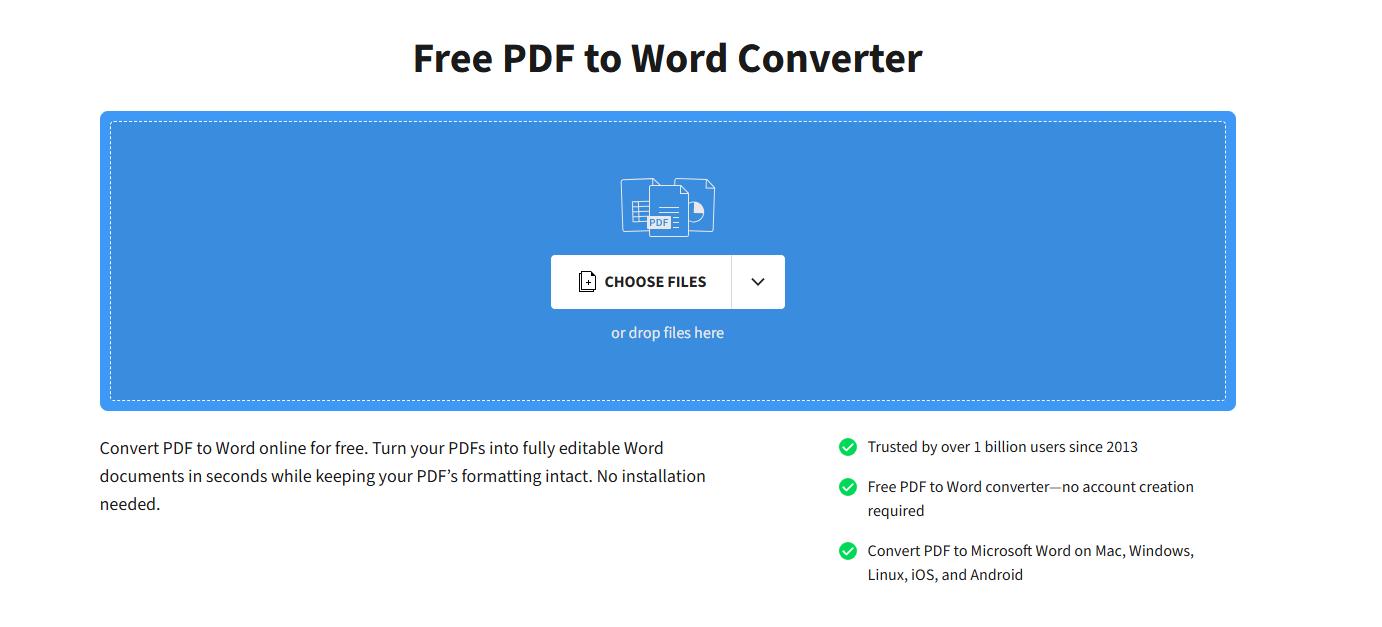
- Select the OCR option when prompted.
- Convert the file and download the editable DOCX.
- Upload the DOCX to Google Drive and open it.
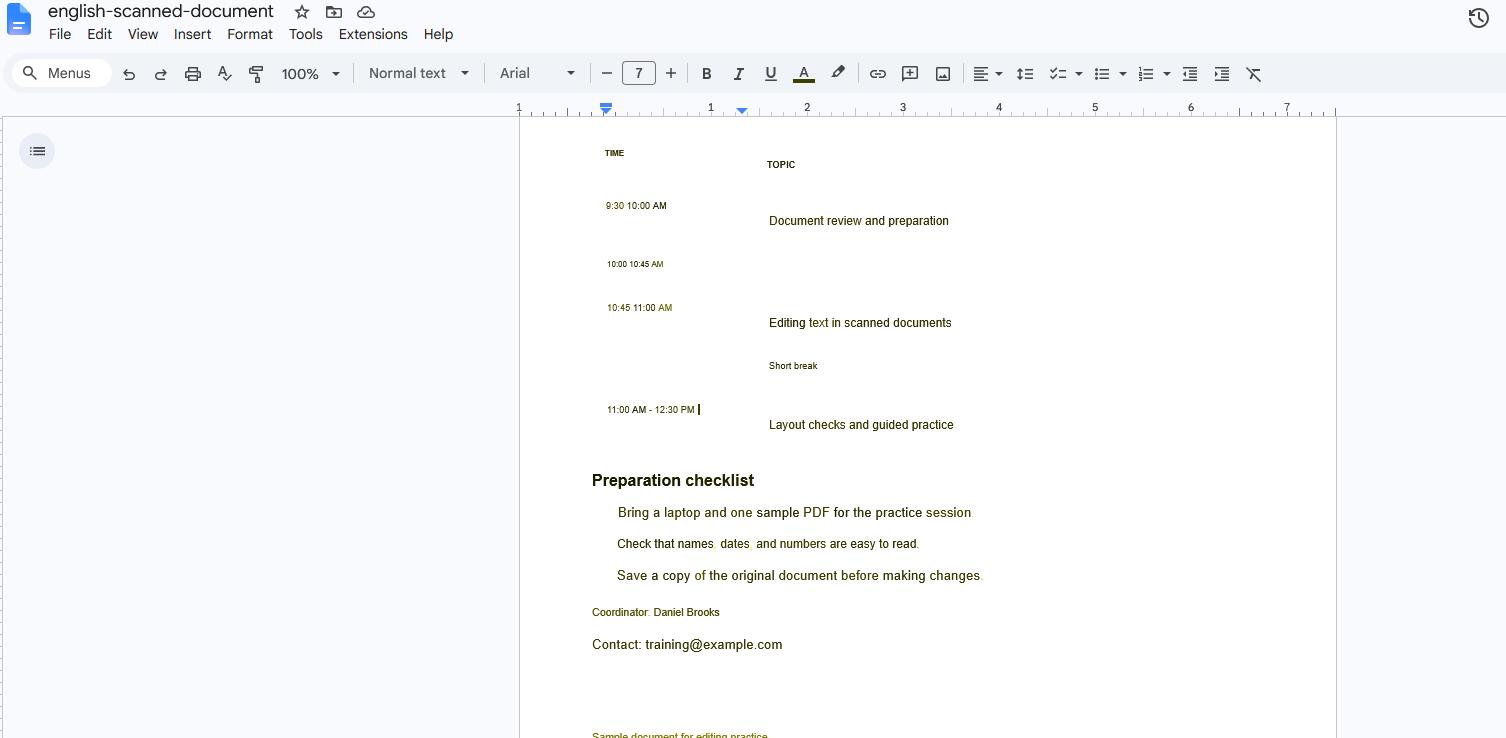
- Edit the text and check the paragraph breaks, tables, and page spacing.
- In Google Docs, select File → Download → PDF Document (.pdf).

Tip: Smallpdf’s OCR option may require a paid plan or trial. Conversion can also change formatting, so allow time to review the rebuilt document.
4. Google Drive and Google Docs
Google Drive can recognize text in a scanned PDF when you open it with Google Docs. You can edit the extracted wording and save the revised document as a PDF.
This method works best for simple text pages when recovering and revising the content matters more than matching the original design.
Steps:
- Sign in to Google Drive in your browser.
- Upload the scanned PDF.
- Right-click the file and select Open with → Google Docs.
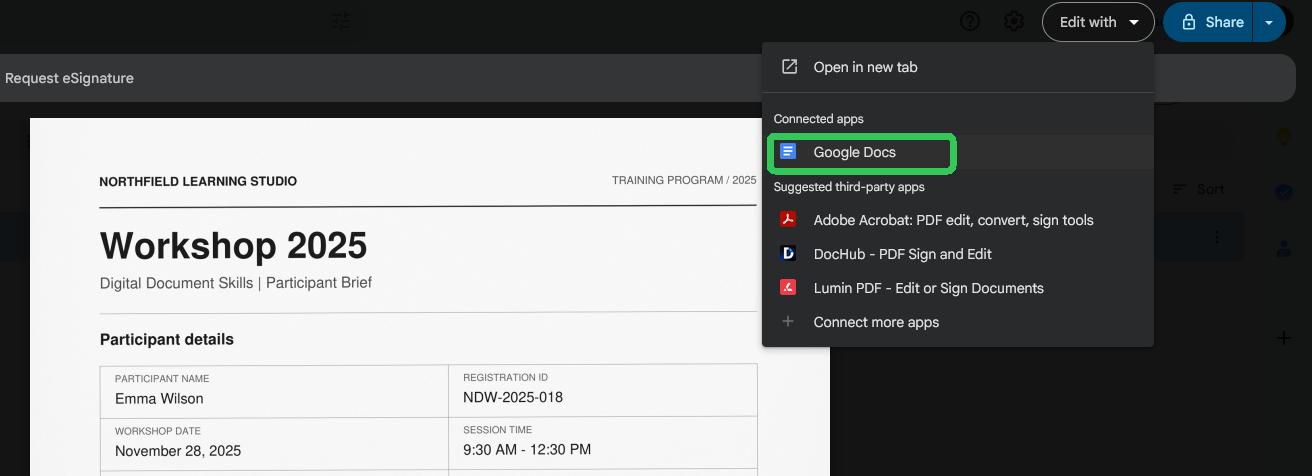
- Review the recognized text and correct any errors.
- Edit the wording and rebuild the formatting where needed. Remove the original page image from the Google document if you only want the revised text in the output.
- Select File → Download → PDF Document (.pdf).
Tip: Google recommends files of 2 MB or smaller for text conversion. Tables, columns, lists, and footnotes may not transfer correctly. Keep the original PDF available for comparison.
Tips for Better Results When Editing a Scanned PDF
Start with a clear scan. Blurred characters, shadows, and tilted pages make text recognition harder. If your document is difficult to read, improve the scan before editing. LightPDF’s Enhance Scanned PDF tool is a related option for preparing the document.
Keep corrections within the available space. Replacing a short label with a long sentence can cause crowding or new line breaks. Check how the replacement fits before changing the font size.
Proofread recognized text. Pay particular attention to names, dates, punctuation, and similar-looking characters such as O and 0.
Review the downloaded PDF. Open the final file and inspect the edited areas at a readable zoom level. Check page dimensions, tables, images, and any nearby text.
Save a separate copy. Keep the original scan so you can compare the result and repeat an edit if necessary.





Leave a Comment