


Method 1: Edit Text in a Handwritten Image with LightPDF
Best for: Study notes, handwritten lists, photographed worksheets, annotations, and quick text corrections.
LightPDF Image Text Editor is an online AI tool designed to replace or remove text that already exists inside an image.
Instead of manually covering the incorrect word with a brush and typing new text over it, LightPDF handles the existing text and surrounding image together. It is designed to keep the edited area visually consistent with the rest of the image.
This makes it useful when you need to edit handwritten text in an image but do not want to recreate the whole page.
How to Edit Handwriting in an Image with LightPDF
Step 1. Upload Your Handwritten Image
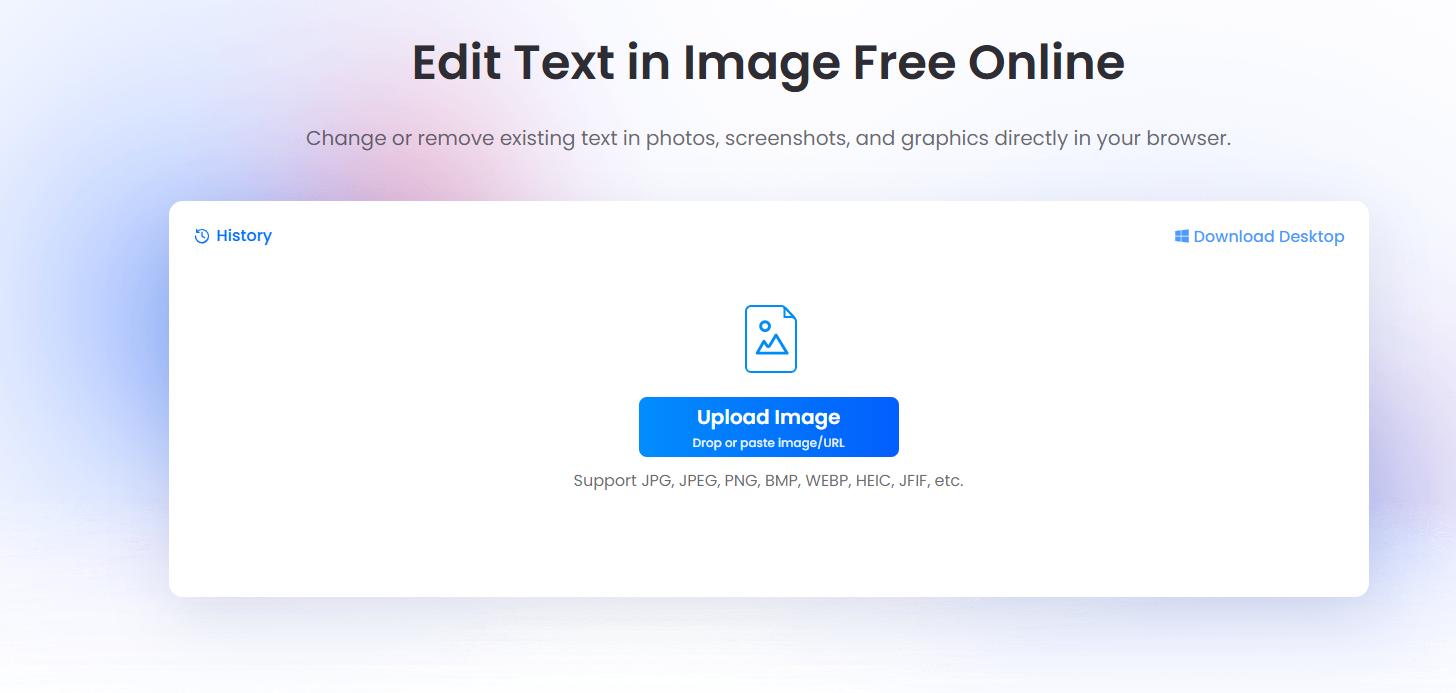
Open LightPDF Image Text Editor and upload the image you want to change.
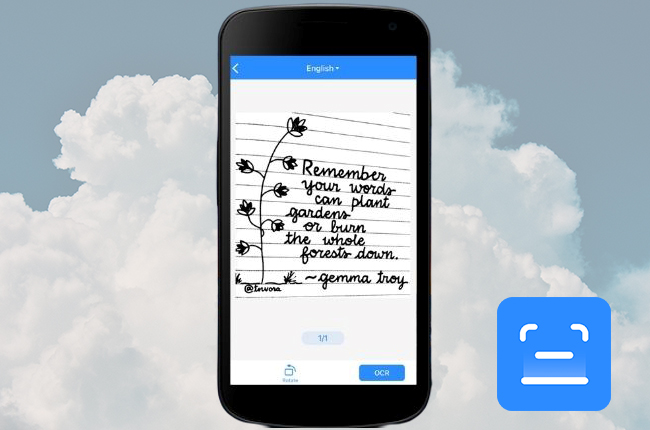
You can use it for content such as:
- Lecture notes
- Revision sheets
- Personal study notes
- Handwritten lists
- Whiteboard photos
- Personal planners
- Hand-lettered graphics
Step 2. Enter the Existing Text and replacement text

Step 3. Click on button start processing and preview the result

Method 2: Edit Handwritten Text Online with TextHeal AI
Best for: Handwriting where ink appearance, letter slant, paper texture, and stroke consistency matter.
TextHeal AI offers a dedicated handwritten text editor online for photos and scanned images.
Rather than simply placing a digital font over the original word, the tool is designed to consider characteristics of the surrounding handwriting, such as stroke thickness, spacing, baseline, ink appearance, and paper texture.
This can make it useful when you want to edit handwriting in an image while preserving more of the original handwritten appearance.
How to Use TextHeal AI
Step 1. Upload the Handwritten Image
Upload a JPG, PNG, or WebP image containing the handwriting you want to modify.
TextHeal AI currently accepts these image formats and asks users to convert PDF pages to images before editing them.

Step 2. Describe the Change
Instead of only selecting text, describe exactly what should be replaced.
For example:
Replace “Tuesday” with “Thursday” on the second line. Keep the same handwriting style and blue ink color.
Being specific about the location helps the AI identify the correct handwritten area.

Step 3. Generate the Updated Image
The AI processes the image, removes or replaces the target text, and attempts to rebuild the edited area while preserving nearby visual characteristics.
TextHeal AI specifically emphasizes matching details such as handwriting slant, stroke thickness, spacing, ink tone, and background paper texture.
Step 4. Review the Handwriting
Zoom in and check whether the edited word blends naturally into the rest of the line.
If not, try editing one word at a time rather than replacing a long sentence.
Method 3: Edit Text in Handwritten Notes with EditTextImage
Best for: Personal lecture notes, study sheets, journals, recipe cards, personal lists, and handwritten creative work.
EditTextImage provides another AI tool specifically built to edit text in handwritten notes.
Its workflow is very straightforward: upload your handwritten image, enter the text currently shown, then enter the text you want to replace it with.
The service says its handwriting tool analyzes visual characteristics such as slant, letterforms, pen-pressure variation, ink color, and surrounding handwriting when generating the replacement.
How to Edit Handwritten Text with EditTextImage
Step 1. Upload Your Notes
Upload a PNG, JPEG, or WebP image. The tool currently accepts files up to 10 MB.

Step 2. Enter the Original Text
Type the exact word or phrase appearing in your image.

Step 3. Enter the replacement text
This is particularly convenient when ou already know exactly which text needs to be changed.
Step 4. Generate the Edited Version
The tool processes the handwritten area and generates a replacement intended to resemble the surrounding writing.

It is primarily designed for personal or authorized handwritten content such as lecture notes, journal entries, recipe cards, study sheets, and creative materials.
Tips for Editing Handwriting in an Image
Using an AI handwritten text editor online is easier when the source image is prepared properly.
1. Use a High-Resolution Photo
Blurry handwriting gives AI less information about the shape of each letter.
Use the original photo rather than a compressed screenshot whenever possible.
2. Keep the Page Flat
Curved notebook pages can distort letters and make replacement text harder to align naturally.
Flatten the page before photographing it.
3. Avoid Strong Shadows
Shadows crossing a word may be interpreted as part of the ink or background.
Soft, even lighting usually gives better results.
4. Keep the New Text a Similar Length
Replacing:
May → June
usually requires less reconstruction than:
May → September Examination Week
Large differences in text length can make spacing harder to preserve.
5. Check Numbers Carefully
If you’re changing formulas, quantities, dates, or statistics in your own study materials, inspect the result carefully.
Conclusion :
You can now edit text in a handwritten image without recreating the entire page. LightPDF is a convenient choice for quick edits, while TextHeal AI and EditTextImage offer more handwriting-focused options.
For better results, use a clear image and keep your edits short.



Leave a Comment