


❓ Why Google Lens Is Not Working in 2026?
We’re seeing a shift in why these tools fail. It’s rarely just “bad internet” anymore. With the rollout of Android 16 and iOS 19, the most common culprits are AI Permission Conflicts (where multiple AI models compete for the camera) and tighter “Sandboxing” protocols that block background data sync.
💡 11 Practival Fixes For Google Lens Not Working
Through testing and user reports, here are 11 effective ways to get Google Lens back on track:
1. Check Your Network
Google Lens relies heavily on cloud-based AI processing. A weak or unstable connection is one of the most common reasons Google Lens not working on iPhone or Android. Switch between Wi-Fi and mobile data, restart your router, or toggle airplane mode on and off to refresh connectivity. Once the connection stabilizes, Lens usually resumes normal operation.
2. Resolve AI Assistant Conflicts (2026 Special)
Since the latest Gemini updates, we’ve noticed a recurring issue: two AI brains fighting over one camera. If your phone is trying to “pre-scan” your environment with a global assistant, it might lock Google Lens out. Head over to your Default App settings—you’ll want to make sure Lens isn’t being throttled by your primary assistant’s background processes.
3. Restart Your Device
The “Golden Rule” of tech. It sounds like a cliché, but the ‘turn it off and on again’ trick still works wonders. I’ve seen it fix more Lens glitches than almost any other step on this list.
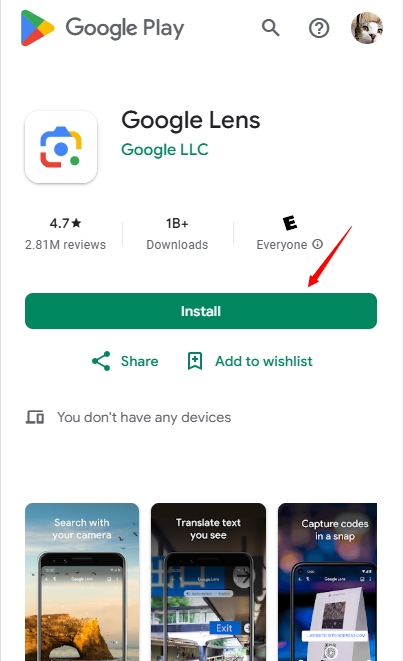
4. Update Google Lens & the Google App
Outdated apps are prone to bugs. Check the App Store or Google Play Store for updates. Installing the latest version ensures compatibility with your device and fixes known issues that prevent Lens from working.
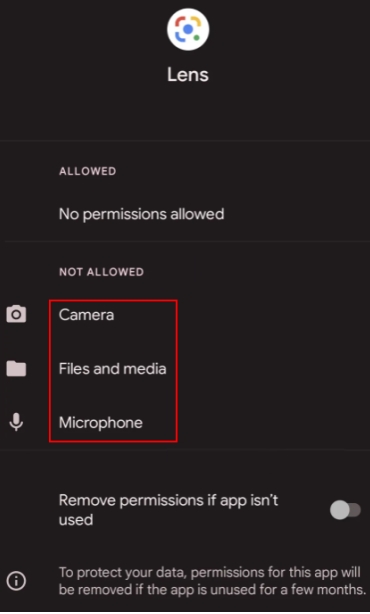
5. Verify App Permissions
Lens needs access to your camera and storage to work.
iOS: Settings → Google → Permissions → Ensure Camera and Photos are set to “Always.”
Android: Long-press the Lens icon → App Info → Permissions → Enable Camera, Location, and Storage.
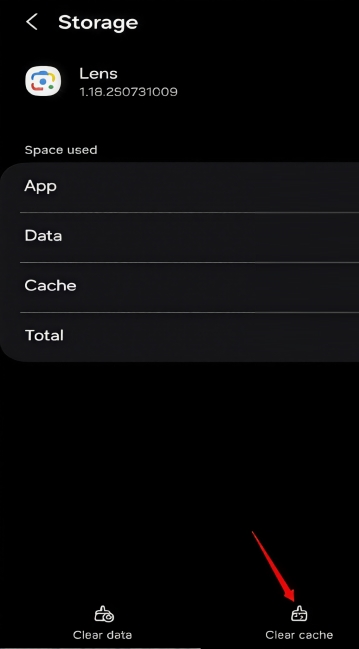
6. Clear Google Lens Cache
Accumulated cache or residual app data can prevent Google Lens not working properly. Go to Settings → Apps → Google Lens → Storage, and tap Clear Cache or Clear Data. This often fixes persistent issues without affecting your photos or personal files.
7. Check Device Storage and Performance
Low storage or heavy background apps can prevent Google Lens is not working correctly. Free up space and close unnecessary apps to improve performance.
8. Test with a Different Image or Lighting
AI recognition requires high-fidelity input. Sometimes, the issue isn’t the app but the image itself. Poor lighting, blurred photos, or unsupported file types can make Lens fail. Try Cleaning your camera lens of fingerprints, avoid high-glare surfaces and ensure the object is well-lit.
9. Check Your Google Server
If you’ve tried all the previous fixes and Google Lens is still not working, it’s possible that the issue is related to Google’s servers. Lens relies on proper server connectivity for smooth performance and accurate image recognition. Slow responses or failures can sometimes be caused by server-side problems. Here’s how to quickly check the server status within the app:
Step 1: Open the Google Lens app and tap the three horizontal lines (menu) in the top corner.
Step 2: Scroll down and select Settings → About.
Step 3: Look for Server Status and tap it to see the current connection and status information.
Checking the server ensures that the problem isn’t on Google’s end before moving on to other troubleshooting steps.
10. Sign out and Sign in Google Account
If problems persist after all other fixes, signing out and back in can reset account-related settings, refresh permissions, and restore connection to Google servers.
11. Update your Device OS
Running an outdated operating system can affect app compatibility. Check for system updates and install them. Once updated, Lens should work more reliably.
Applying these steps one by one usually resolves most issues. However, if my Google Lens is not working despite all troubleshooting, it’s helpful to have an alternative solution.
✔️ Google Lens Alternative: Extract Text from Images Using LightPDF
If Google Lens is not working despite all troubleshooting, you can use LightPDF instead when you are in a rush to extract text from images. There are two tools are particularly helpful:
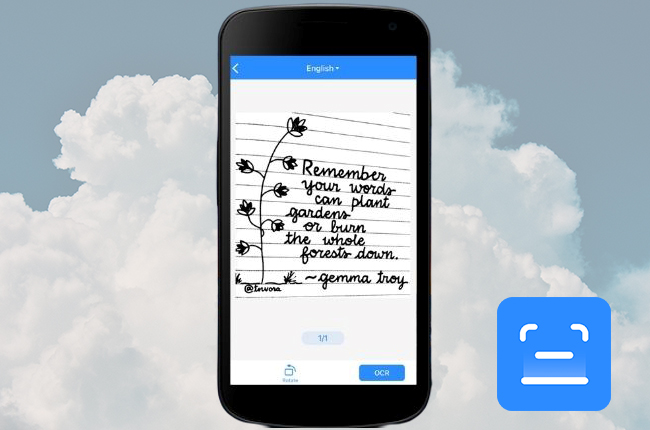
This AI OCR tool lets you quickly extract text from images. Just open the website on your browser, upload your photo or screenshot, and the tool instantly converts it into editable text. You can select the language if needed and download or copy the extracted text. It’s fast, accurate, and works directly in your browser, making it perfect when Google Lens is not working on iPhone or Android.
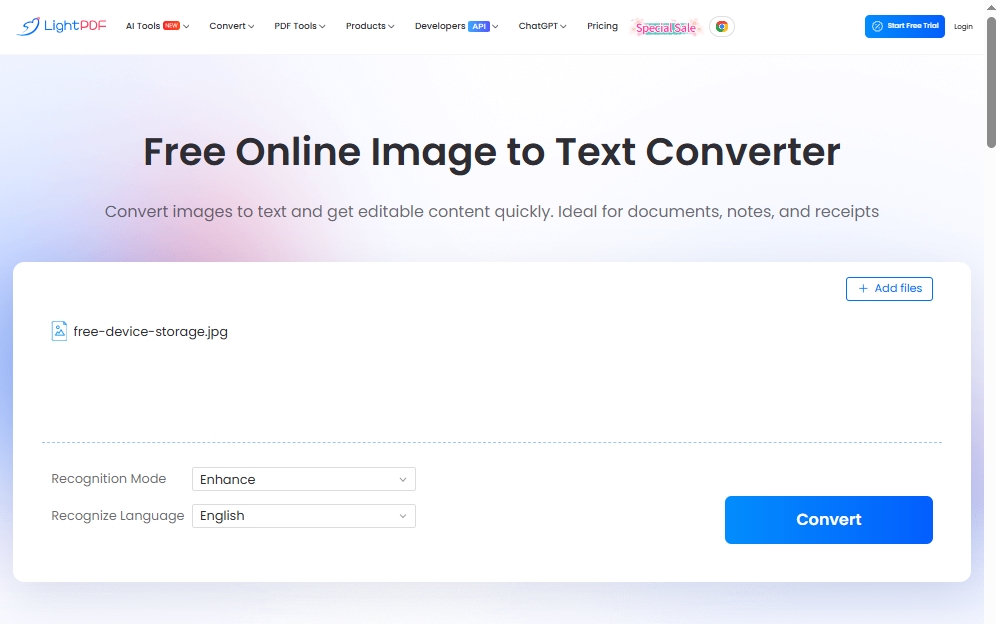
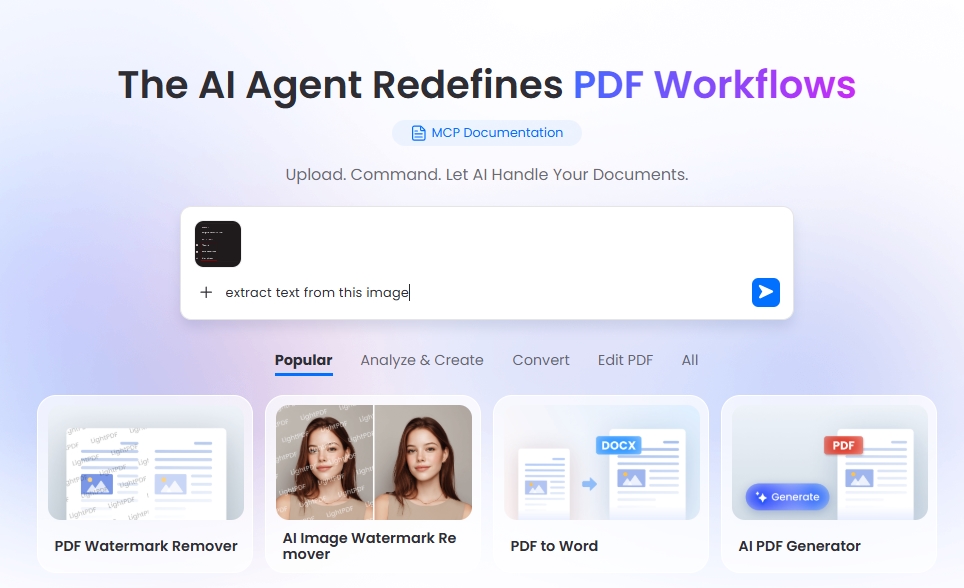
This is more than just OCR; it’s a conversational assistant. You can upload an image and say “Translate this menu” or “Extract text from this image,” and it handles the context far better than standard scanners.
Final Thoughts
Most Google Lens issues are solved by checking Connectivity, Permissions, or Cache. However, if you’re dealing with a persistent system bug, switching to a specialized tool like LightPDF ensures your productivity doesn’t skip a beat.


Leave a Comment