


1. LightPDF
Best for: Converting PDFs to Word in your iPhone browser.
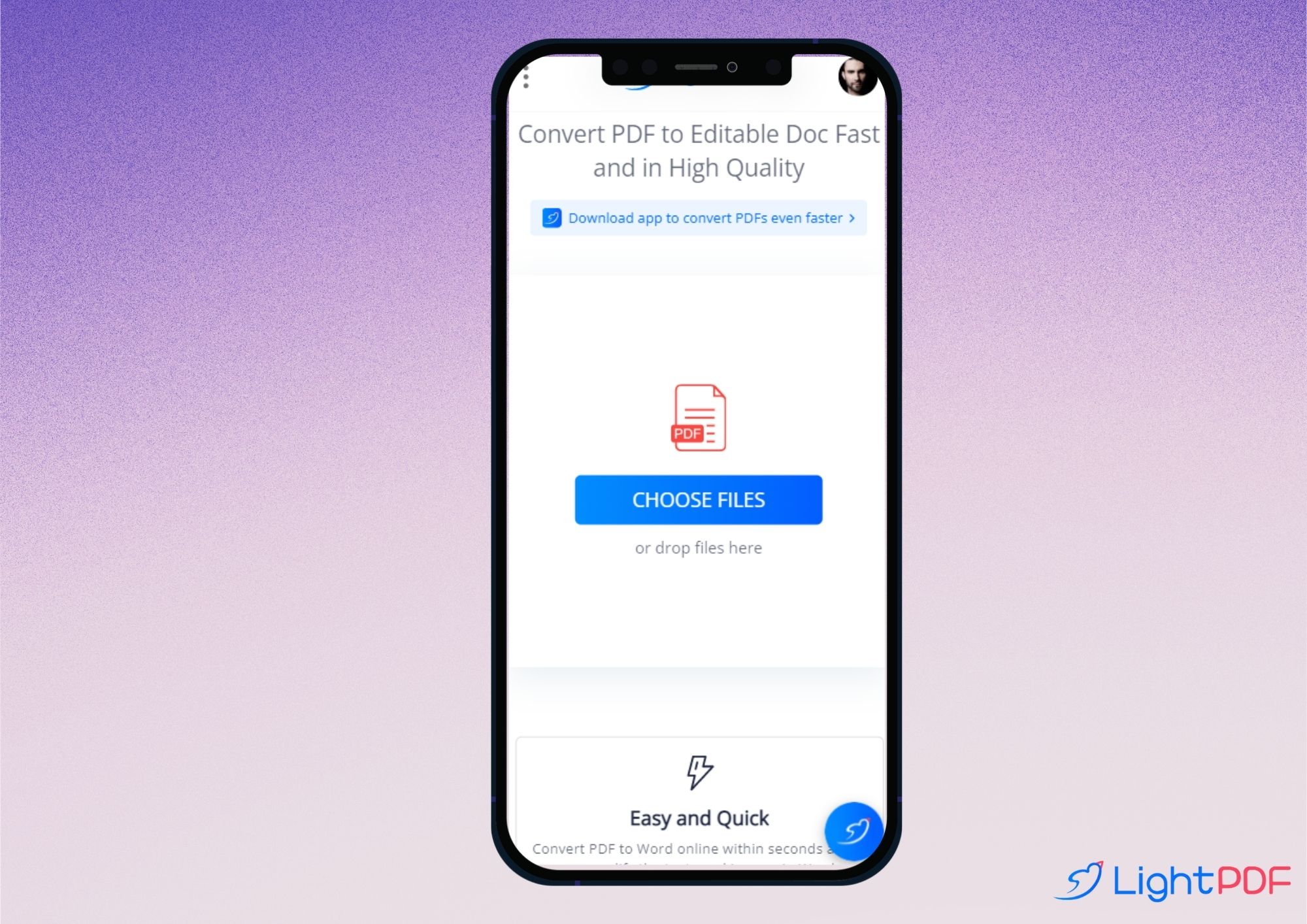
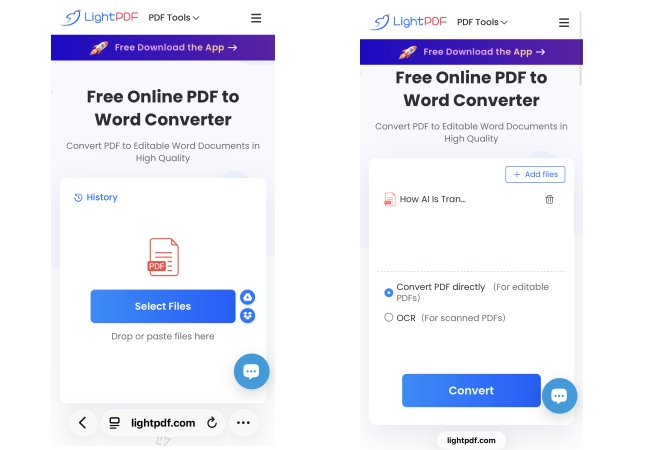
LightPDF lets you convert PDFs into editable Word documents online. Its PDF to Word tool supports iOS, so you can open it in Safari without installing an app. It also supports OCR for scanned PDFs.
This makes it a useful option when you receive a document on your phone and need to change its text. After conversion, open the DOCX file in a compatible editor and check the layout before sharing it.
How to use LightPDF on iPhone
- Open LightPDF’s PDF to Word converter in Safari.
- Upload your PDF from your iPhone.
- Tap Convert to process the document.
- Download the Word file and save it to Files.
Pros
- No app installation needed for the web tool.
- Converts PDFs into editable DOCX files.
- Supports scanned documents through OCR.
Cons
- Requires an internet connection.
- Free access is limited to selected features; file and processing restrictions may apply.
Free access: LightPDF offers a limited free web plan. Premium features require an upgrade.
2. iLovePDF
Best for: Combining PDF conversion with other document tasks.
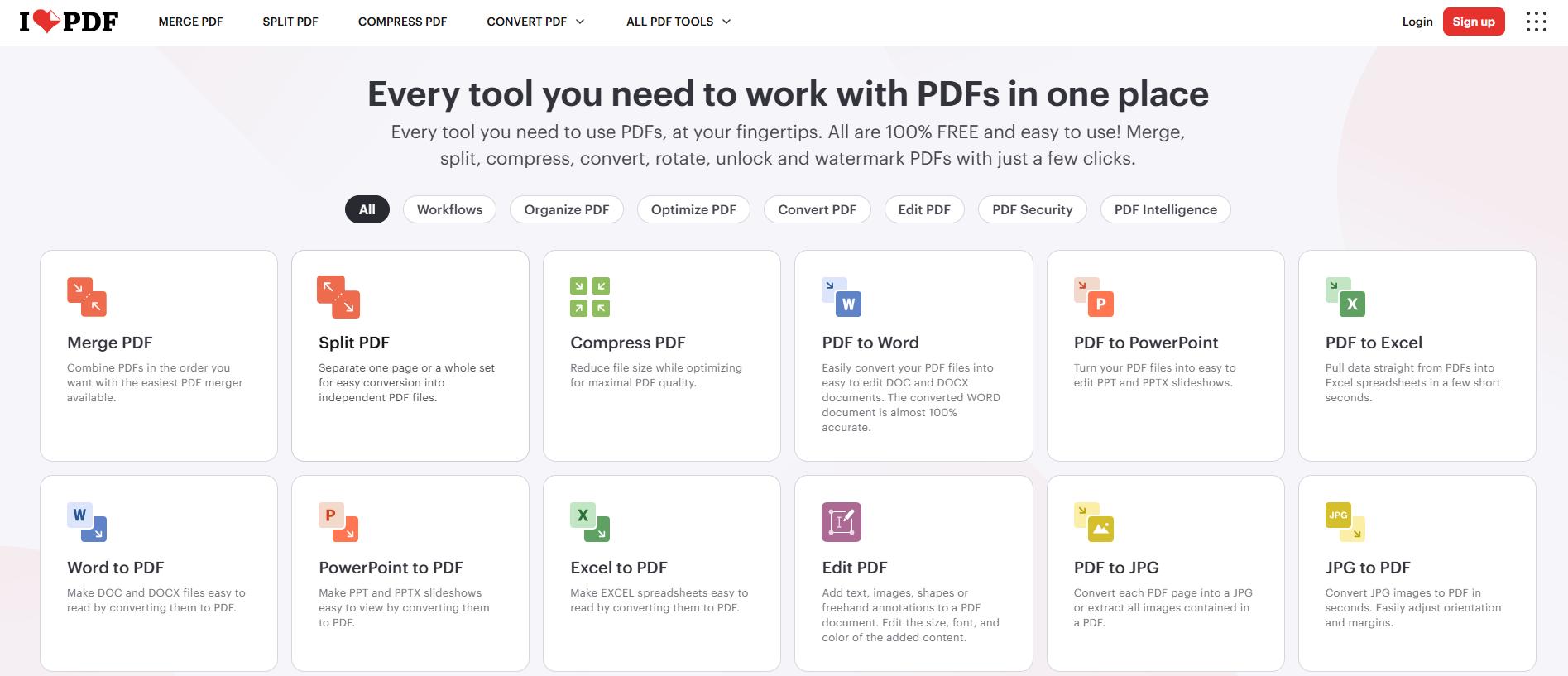
iLovePDF offers conversion tools such as Word to PDF, PDF to Word, and JPG to PDF. You can use its website or choose its iPhone app for a mobile document workflow.
It is a practical choice if conversion is only one part of your task. For example, you might create a PDF from images, then compress it before sending it by email.
How to use iLovePDF on iPhone
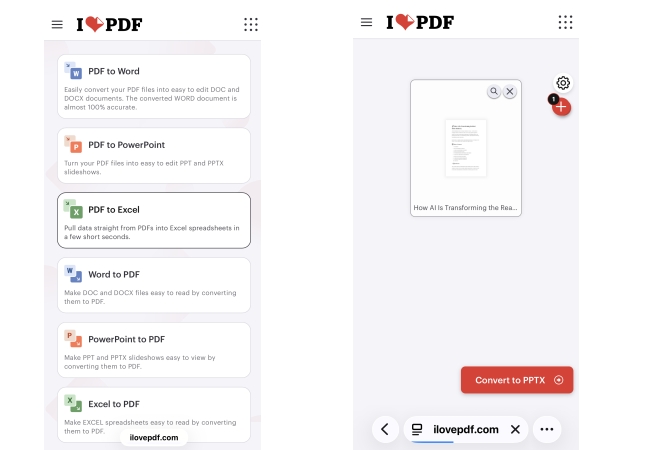
- Open iLovePDF in Safari and select the conversion tool you need.
- Upload the file from your device.
- Start the conversion.
- Download the result and save it to Files.
Pros
- Covers common Office and image conversion tasks.
- Offers an iOS app as well as online tools.
- Includes PDF organization and compression tools.
Cons
- Free usage has limits.
- Some features, including certain OCR options, require Premium.
Free access: Basic tools are available with restrictions. The mobile app provides limited daily tasks for free users.
3. Smallpdf
Best for: Occasional document and image conversions.
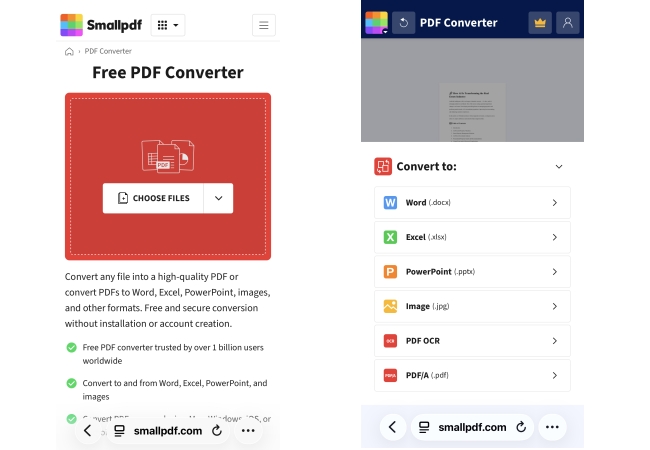
Smallpdf provides an online converter for common Office files, images, and PDFs. Its browser tool is an option for one-off tasks, such as turning a report into a PDF or converting a PDF into an editable file.
For this workflow, start with the website rather than assuming every web conversion feature is included in the free iPhone app.
How to use Smallpdf on iPhone
- Open Smallpdf’s PDF converter in Safari.
- Upload your document.
- Choose the conversion option available for your file.
- Download and save the converted document.
Pros
- Supports common document formats.
- Works without installing software through its web converter.
- Provides additional PDF tools.
Cons
- Free downloads and mobile app access are limited.
- OCR and other advanced features are included in paid plans.
Free access: Smallpdf offers a free plan with limited document downloads. It is better suited to occasional use than frequent conversion.
4. Adobe Acrobat Online
Best for: A one-off conversion using Adobe’s browser tools.
Adobe Acrobat Online supports Safari on iOS. Its online tools include Word, Excel, PowerPoint, and image conversion to PDF, along with PDF export to Word and other formats.
The browser service is worth distinguishing from the free Acrobat Reader app: installing a free PDF reader does not mean all conversion features are free.
How to use Adobe Acrobat Online on iPhone
- Open the relevant Acrobat online conversion tool in Safari.
- Select your file from Files.
- Wait for the conversion to finish.
- Download the result, signing in if prompted.
Pros
- Officially supports Safari on iOS.
- Covers several Office and image formats.
- Can be used without installing an app.
Cons
- Free conversion access is tightly restricted.
- Repeated use of premium tools requires a subscription.
Free access: Adobe states that most tools allow one free transaction without signing in. Signed-in free users can try premium tools once per rolling 30-day period.
5. PDF24 Tools
Best for: Free browser-based conversion without registration.
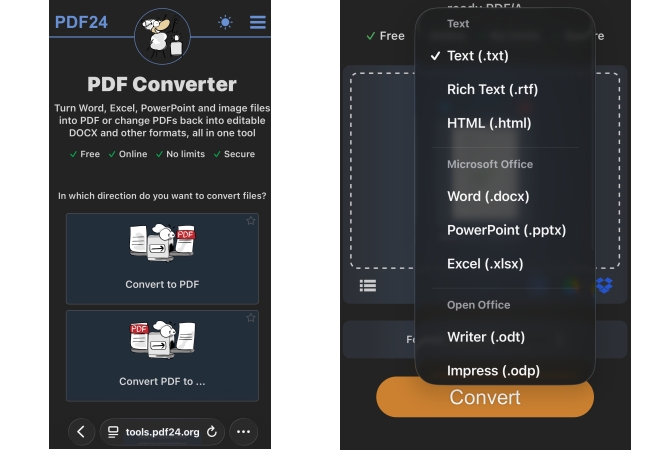
PDF24 Tools works on iPhone through a browser. You can convert Office documents and images into PDFs or choose tools that convert PDFs into other formats.
Its online service is funded by advertising. PDF24 states that its tools are free and do not require registration, making it worth considering if you want to avoid a subscription for routine conversions.
How to use PDF24 on iPhone
- Open PDF24’s online PDF converter.
- Select Convert to PDF or Convert PDF to….
- Upload the file and choose the output format.
- Start the conversion and download the result.
Pros
- Free online tools without registration.
- Supports iPhone browsers.
- Handles several document and image formats.
Cons
- The website displays advertisements.
- Online conversion requires uploading your file.
- PDF24 Creator, its desktop software, is for Windows.
Free access: The online service is free and supported by advertising.
Tips for Converting PDFs on iPhone
Choose the output format based on what you need next. Word is useful for editing text, JPG for sharing pages as images, and PDF for keeping a document ready to read or print.
For scanned documents, look for OCR support. A regular conversion may leave the text as an image rather than making it editable. Check the result for missing text, shifted tables, or changed page breaks.
When downloading, use Save to Files if the result opens in a preview. Give the file a clear name so you can find it before attaching it to an email.
Conclusion
For PDF-to-Word conversion in Safari, start with LightPDF. iLovePDF is useful when you also need to organize or compress documents, while Smallpdf suits occasional conversions. Adobe Acrobat Online offers limited free access for one-off tasks, and PDF24 is an option for free conversion without registration. Choose the tool that supports your file type, then check the converted document before sharing it.



Leave a Comment