


In this guide, we’ll walk you through detailed methods for removing text from different types of PDF files.
🔍 What “Erasing Text in a PDF” Actually Means
Before getting into tools, it helps to clarify something most people only realize halfway through editing:
“Erasing text” in a PDF can mean very different things depending on the file.
Sometimes the text is real, selectable content. Other times it’s just part of an image. And in many cases, what you actually want is not just removal—but making sure the information cannot be recovered later.
So in practice, it usually comes down to three situations:
- The text is editable and can be directly removed.
- The PDF is a scanned image and needs recognition first.
- The content is sensitive and must be permanently hidden or removed.
Once you see it this way, the editing process becomes much more straightforward.
✅ How to Delete Text in Editable PDFs Online
If you open a PDF and can click into the text, you’re dealing with a fully editable document layer. This is the simplest case.
With LightPDF, you can just open the file in your browser and start editing immediately—almost like working in a word processor. Here are the simple steps.
1. Open and Upload
Open LightPDF’s Free Online PDF Editor and upload your PDF file that you want to remove the text from your device.

2. Edit and Remove Text in PDF
Edit out or replace the unwanted information if necessary. The PDF editor will automatically match the text font, size and style. You don’t need to change any settings.

3. Save and Download
After that, click the “Save PDF” button on the upper right corner to save the edited file into your computer.
This method is especially useful when you’re dealing with:
- Contracts that need small corrections
- Reports with outdated figures
- Forms that require quick updates before submission
✅ How to Remove Text from Scanned PDFs
Things work differently when your PDF is not made of selectable text, but is instead an image of a document. This is more common than you might expect—especially with scanned contracts, printed paperwork, or older archives.
In such cases, you can’t simply click and delete text because there is no actual text layer. You’ll first need to use an OCR (Optical Character Recognition) tool to convert the scanned file into an editable PDF. Once the text becomes editable, you can remove it just like in a standard PDF.
1. Open LightPDF’s OCR tool and upload your scanned document.
2. Select the appropriate settings, such as recognition mode, language, and format.

3. Click “OCR” and wait for the process to complete.
4. Download the converted, editable PDF file.
5. Open the file in the LightPDF online editor and delete the text as needed.
This approach is commonly used for:
- Scanned agreements
- Paper-based records
- Old documents that need digitization and cleanup
✅ How to remove sensitive information in PDF Files
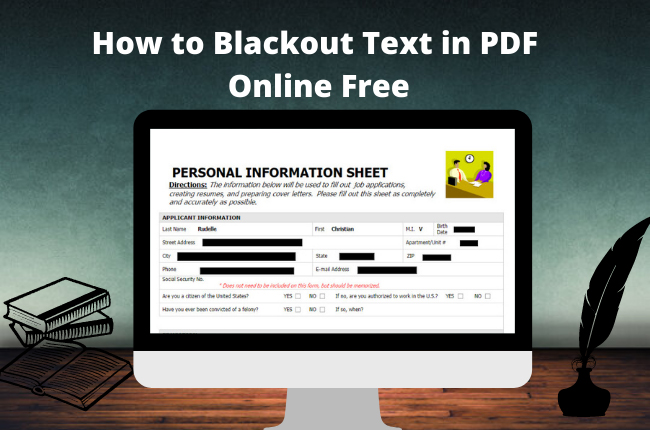
There are situations where simple deletion isn’t enough. When privacy is the goal—such as removing personal identifiers, confidential business details, or internal notes—you need more than basic editing. This is where redaction comes in. Unlike standard deletion, which may only hide text visually, redaction permanently removes information so it cannot be recovered after the document is exported.
Typical cases include:
Removing ID numbers or personal data
Hiding internal comments before sharing documents
Cleaning client reports before sending them externally
Preparing legal or financial documents for public distribution
The important difference here is intent: you are not just editing—you are permanently removing information from the document output.
Follow these steps to securely redact sensitive information in your PDF.
1. Open the Redact PDF tool and upload your document.
2. Select the text or areas you want to redact using your mouse.

3. Apply the redaction to permanently remove the selected content.
4. Download the redacted file, where the sensitive information can no longer be recovered.
❓ Frequently Asked Questions About Removing Text In PDF
1. How do I erase text in a PDF without leaving a trace?
To completely remove text without leaving any trace, you can use LightPDF—an AI-powered PDF tool that supports editing, deleting, and redacting content. It works with both editable and scanned PDFs, allowing you to permanently remove text so it cannot be recovered from the final file.
2. Can I delete text from a scanned PDF?
Not directly. Scanned PDFs are images, not editable text. You first need OCR to convert the document into editable content. After that, the text can be deleted or modified like a normal PDF.
3. What is the safest way to remove sensitive information from a PDF?
The safest method is using PDF redaction. Unlike basic deletion or highlighting, redaction permanently removes sensitive content so it cannot be recovered after saving or sharing the file.
4. Why can’t I edit text in my PDF?
This usually happens because the PDF does not contain editable text layers. It may be a scanned document or a flattened export. In such cases, you’ll need OCR or a PDF editor that supports image-based document handling.
📌 Final Takeaway
Erasing text in a PDF is less about a single tool and more about recognizing what type of document you’re working with. Once you understand that distinction, the workflow becomes simple. With tools like LightPDF combining all three functions in one place, most editing tasks can be completed without conversion or formatting issues.


Leave a Comment