


When choosing an adobe alternative, the focus is rarely on features alone. The real need is to handle everyday PDF tasks in a faster and more flexible way—without heavy software or unnecessary complexity.
That usually includes:
- Editing text directly without layout issues
- Filling and creating forms in seconds
- Working with scanned or locked PDFs
- Managing files without installing desktop software
Instead of relying on multiple separate tools, platforms like LightPDF bring these workflows together in one place.
1. Basic PDF Editing (Core Everyday Workflow)
Basic editing is usually the first reason people search for how to edit PDF without Acrobat or look for ways to edit a PDF without Adobe. In most cases, the need is straightforward: open a document, make changes, and save it without breaking formatting or spending time converting files unnecessarily.
With LightPDF, PDF editing is handled directly all in one place, allowing content to be modified in a way that feels closer to editing a standard document rather than working with a locked file format.
The editing experience typically includes:
- Direct modification of existing text without recreating the file
- Easy replacement of words, sentences, or entire sections while preserving layout structure
- Insertion of images or visual elements into existing pages
- Annotation tools such as highlighting, underlining, and commenting for review workflows
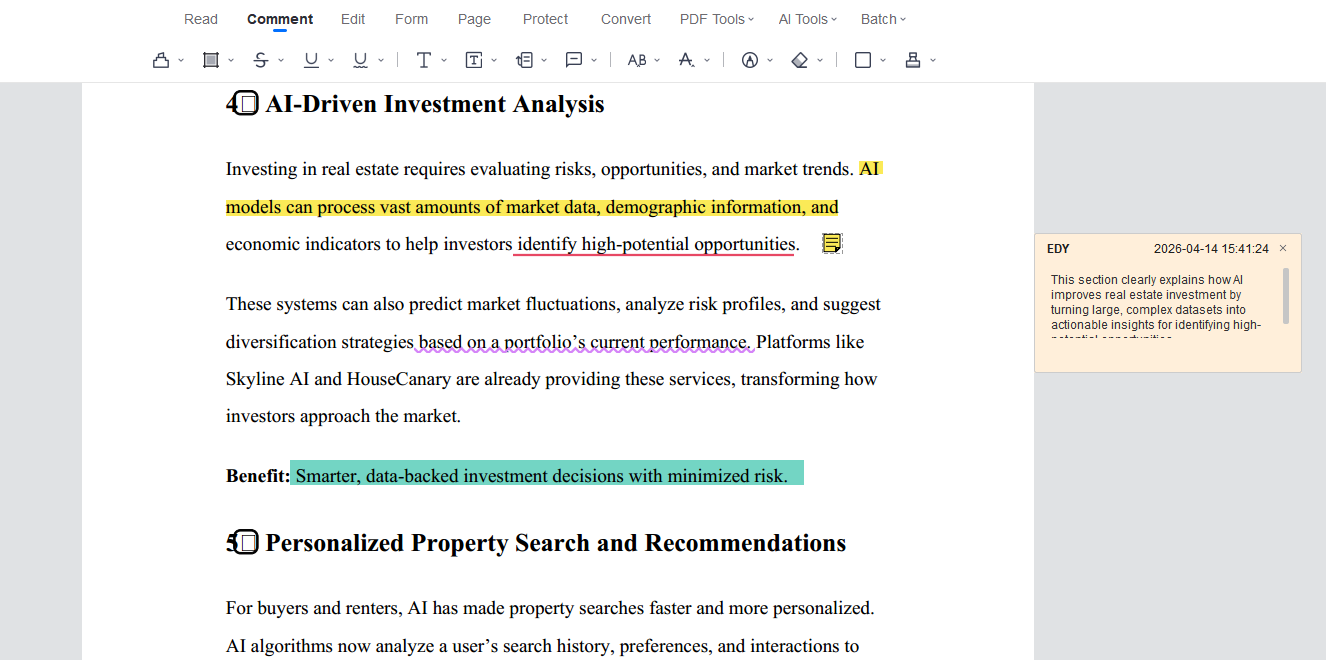
What makes this approach practical is that it removes the need for intermediate conversion steps. Instead of exporting to Word and re-importing back into PDF, changes are applied directly, which helps maintain consistency in formatting and reduces time spent on file management.
2. Forms, Filling, and Digital Signatures
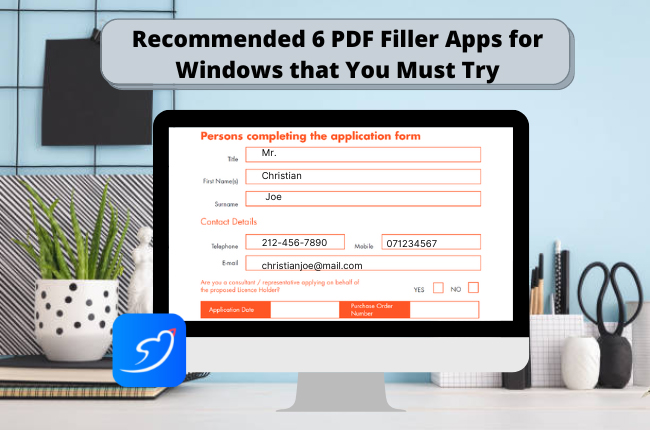
A large portion of PDF-related tasks revolves around forms, especially in administrative, business, and academic contexts. Searches like how to make a fillable PDF form without Acrobat or how to fill out a PDF form without Adobe reflect this everyday requirement.
Using LightPDF, form handling becomes a continuous process rather than a technical challenge. Existing forms can be completed directly, while non-interactive PDFs can be turned into fillable documents by adding input fields manually.
Typical capabilities include:
- Filling out existing PDF forms by typing directly into fields
- Creating new fillable areas such as text boxes and checkboxes
- Adding electronic signatures for approvals or document validation
- Saving completed forms instantly for sharing or submission
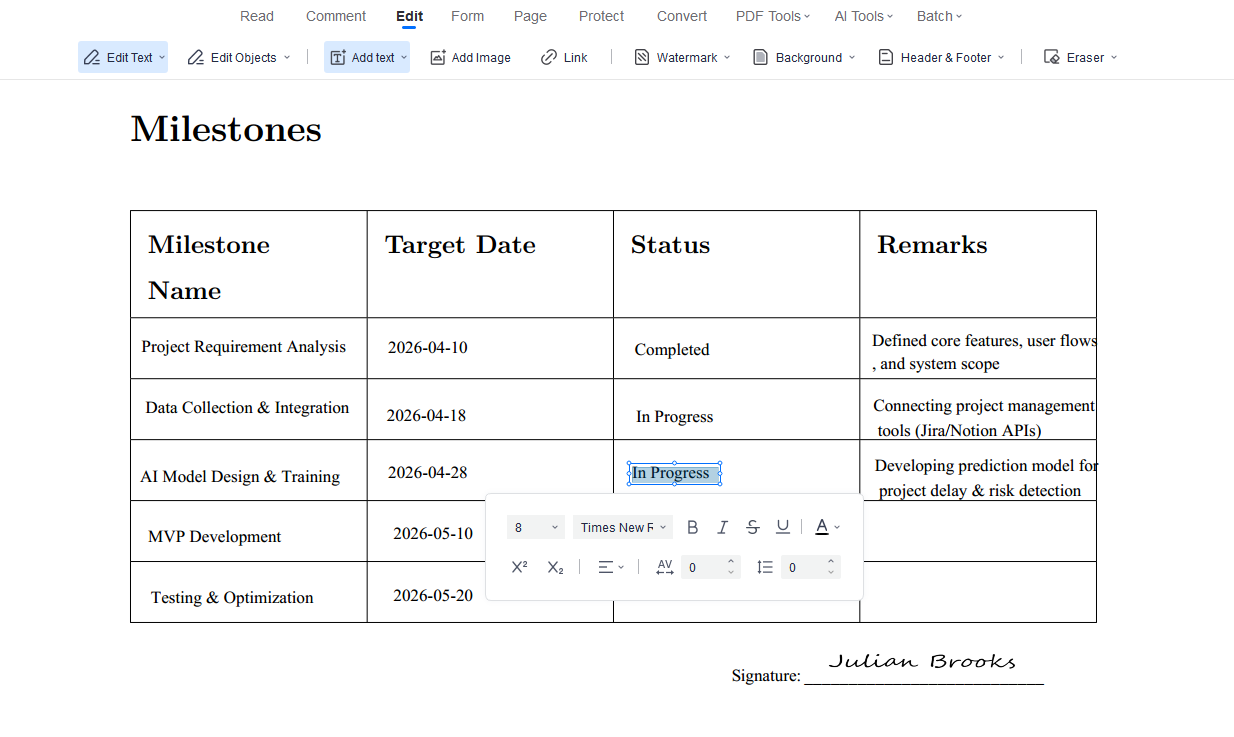
This removes the dependency on specialized desktop software and makes form handling accessible across devices, including mobile environments.
3. AI-Powered PDF Tools (Beyond Traditional Editing)
One of the key differences between modern tools and traditional editors like Adobe Acrobat is the integration of AI-driven workflows. Instead of treating PDFs as static documents, LightPDF introduces automation and content intelligence into the process.
Rather than manually reading, editing, or restructuring documents, AI agent tools can assist with interpretation and transformation.
Core AI capabilities include:
- Generating complete PDFs from prompts, including structured documents and reports
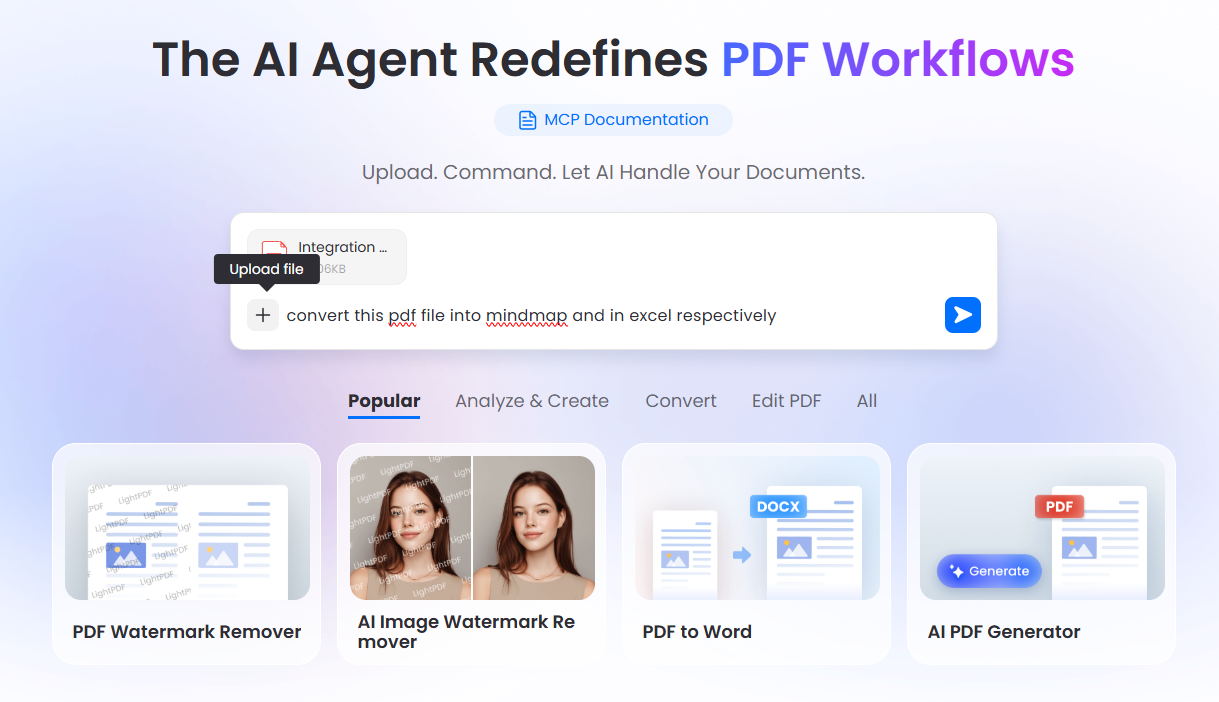
- Converting PDFs into mind maps to visualize structure and key ideas
- Translating full documents into multiple languages while preserving formatting
- Extracting summaries from long or complex content for quicker understanding
In addition to content processing, AI also supports enhancement tasks:
- Removing watermarks, logos, or unwanted visual elements from PDFs or images
- Improving clarity of images embedded in documents
- Supporting multi-step workflows through an AI assistant that handles conversion, compression, encryption, and formatting in a single request
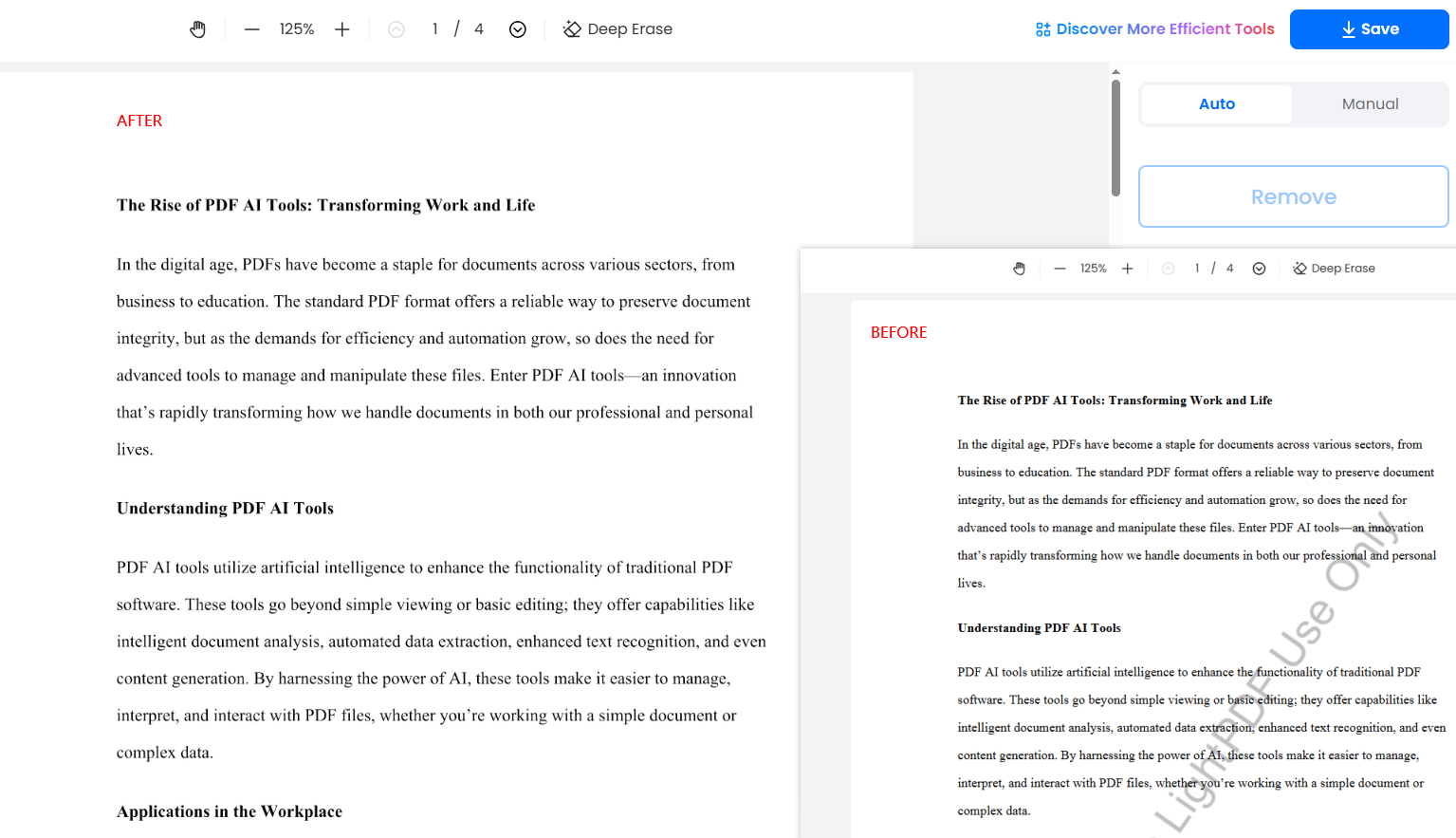
This layer of functionality shifts PDF management from manual editing to assisted document processing.
4. OCR for Scanned and Image-Based PDFs
One of the most common limitations in traditional workflows is dealing with scanned documents. These files behave like images rather than editable text, which makes modification difficult without additional tools.
With LightPDF, OCR technology is used to bridge this gap by recognizing text inside images and converting it into editable content.
The process allows:
- Conversion of scanned PDFs into fully editable documents
- Extraction of text from images for reuse or editing
- Transformation of printed material into digital formats that can be modified
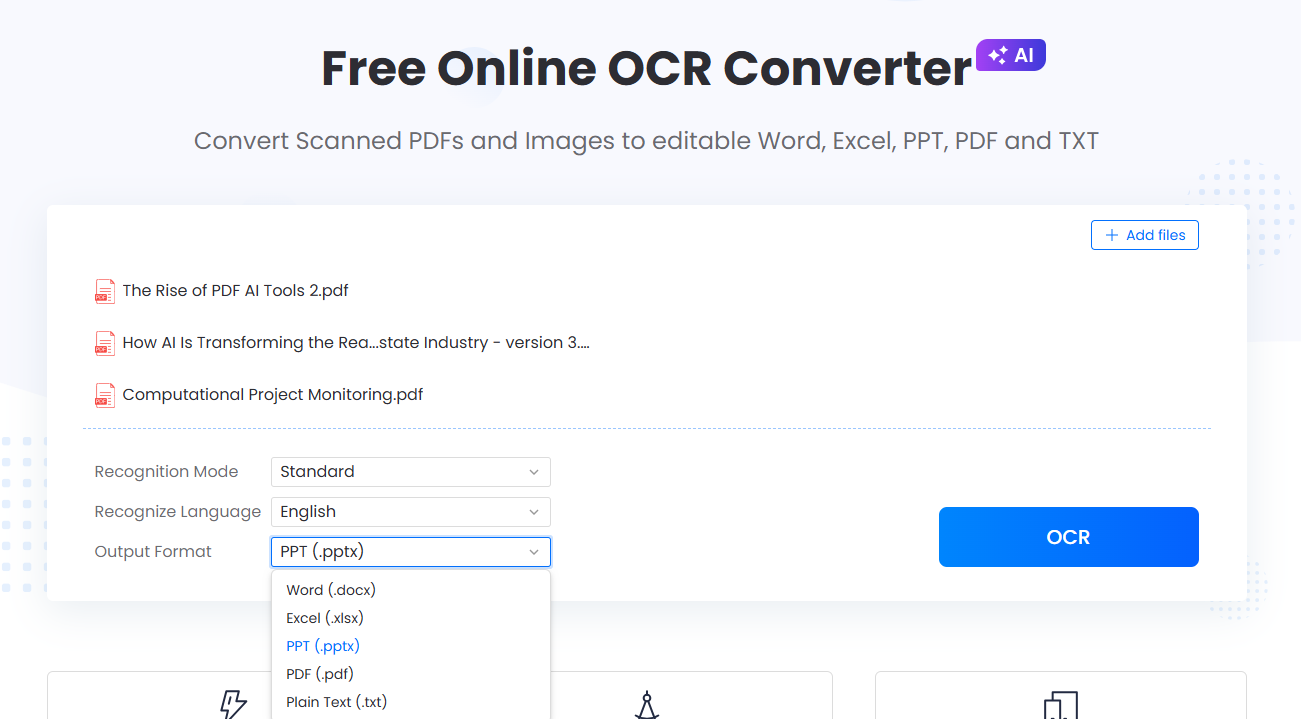
This is particularly useful for contracts, printed reports, invoices, and academic materials that are often received in non-editable formats. Instead of retyping content manually, the document becomes editable within minutes.
5. Conversion and Format Flexibility
In many workflows, editing a PDF directly is not always the most efficient option. Instead, converting the file into another format provides more flexibility for deeper modification or reuse.
LightPDF supports extensive format conversion in both directions.
Common conversion scenarios include:
- PDF to Word for detailed text editing
- PDF to Excel for structured data extraction
- PDF to PowerPoint for presentation use
- PDF to image formats for visual sharing or archiving
- PDF to Markdown for documentation workflows
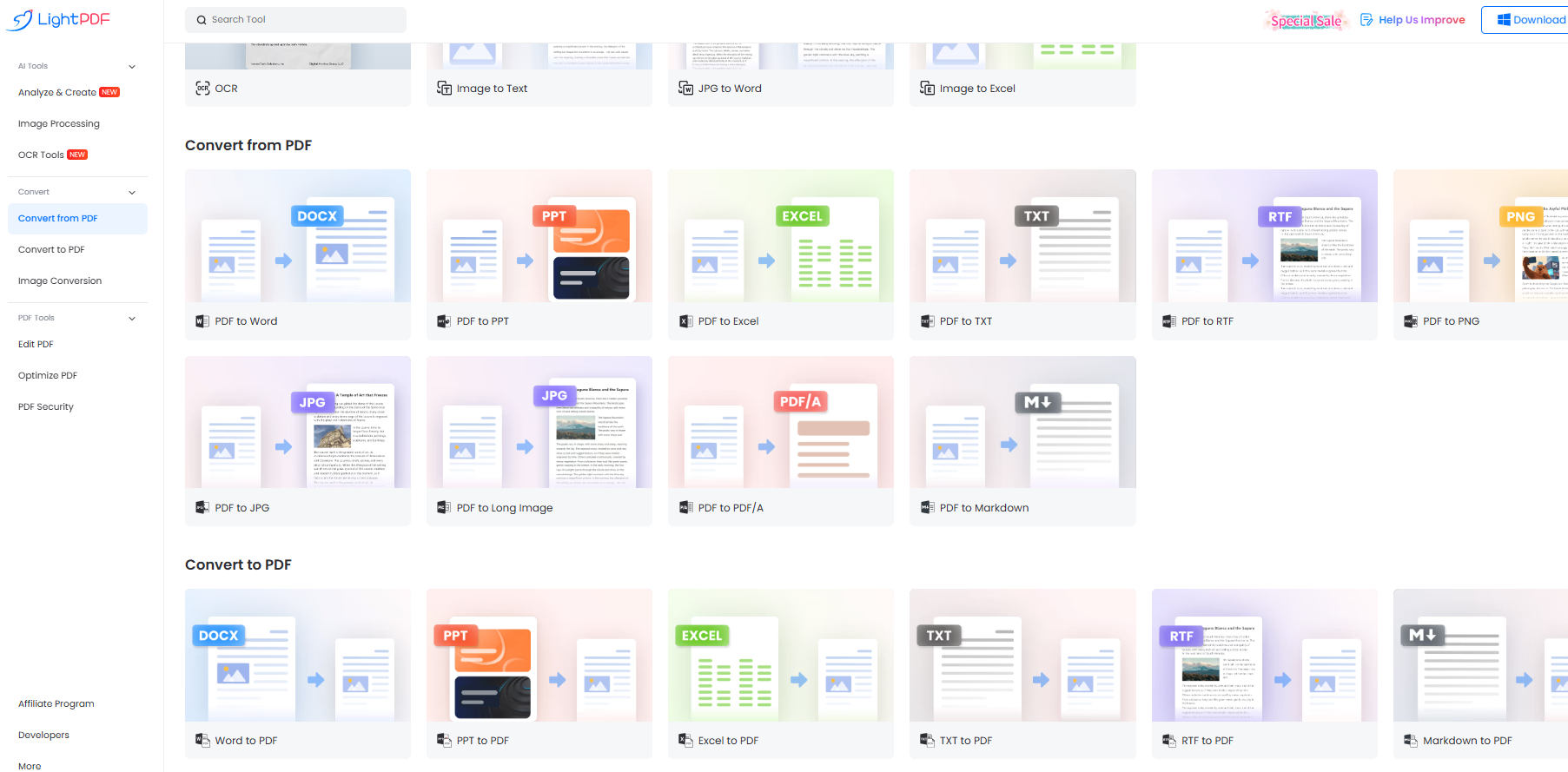
It also supports reverse conversion into PDF from formats such as Word, Excel, HTML, EPUB, and image files. This flexibility allows documents to move freely between different work environments without losing usability.
6. File Management, Compression, and Optimization
Beyond editing and conversion, managing document size and structure is an important part of working with PDFs, especially in professional environments where files need to be shared or stored efficiently.
With LightPDF, file management tools cover both structural and performance-related needs.
Typical functions include:
- Merging multiple PDFs into a single document for consolidation
- Splitting large files into smaller, more manageable sections
- Rotating, cropping, or reorganizing pages for better structure
- Compressing PDFs to reduce file size without significant quality loss
Additional optimization and security tools include:
- Repairing corrupted or damaged PDF files
- Flattening PDFs to ensure compatibility across platforms
- Encrypting and decrypting sensitive documents
- Adding signatures and redacting confidential information
These features ensure that PDFs are not only editable but also practical for real-world distribution and storage.
7. Why LightPDF Works as a Strong Adobe Alternative
As an adobe alternative, the value of LightPDF comes from combining simplicity with breadth of functionality. Instead of relying on a heavy desktop installation like Adobe Acrobat, everything runs online and adapts to different document needs in a single environment.
The main advantages include:
- Browser-based access without installation
- Unified platform for editing, AI, conversion, and optimization
- Support for multiple file formats and workflows
- Faster access for everyday document tasks
Academic research and use cases: For long-form documents such as research papers or reports, LightPDF provides additional utility beyond standard editing.
It allows documents to be summarized, translated, and reorganized into visual structures like mind maps, making it easier to process complex information. Academic PDFs can also be converted into editable formats or ebook-style outputs for further study and annotation.
8. FAQ
| Question | Answer |
|---|---|
| Is it really possible to edit a PDF without Adobe Acrobat? | Yes. It is possible to edit PDFs without Adobe Acrobat using tools like LightPDF. You can edit text, add images, annotate, and sign documents directly in a browser, without installing desktop software. |
| Can I edit text inside a PDF without converting it to Word first? | Yes, LightPDF allows direct editing of text-based PDFs, so you can click and modify content without converting the file. This helps preserve formatting and saves time. |
| What if my PDF is scanned and I cannot select text? | That means the file is image-based. LightPDF uses OCR (Optical Character Recognition) to extract text from scanned PDFs and turn them into editable documents, making it possible to modify printed or scanned files. |
| How can I fill out a PDF form without Adobe? | You can open the PDF in LightPDF, click into form fields, and type your information directly. If the form is not fillable, you can add text boxes manually and then save or download the completed file. |
| Can I create a fillable PDF form without Acrobat? | Yes. LightPDF allows you to create fillable forms by adding input fields such as text boxes and checkboxes. The final file can be shared with others for digital completion. |
| Is it safe to use an online tool for editing PDFs? | Generally yes, if you use a trusted platform like LightPDF. It uses secure processing for uploaded files. However, for highly sensitive documents, it is always recommended to be cautious and review privacy terms. |
| Can I edit PDFs on my phone without Adobe? | Yes. LightPDF works in mobile browsers, so you can edit PDFs, fill forms, and sign documents directly from a phone or tablet without installing Adobe software. |
| Why do people choose Adobe alternatives instead of Acrobat? | Many users prefer Adobe alternatives because they are faster, simpler, and do not require installation. Tools like LightPDF combine editing, conversion, and AI features in one platform, making document workflows more efficient. |



Leave a Comment