


Remove Handwritten Answers from a Worksheet Image
Best for: Photos and scanned worksheets saved as JPG, PNG, or WebP files.
LightPDF Remove Handwriting from Image is designed to erase handwritten answers and working notes while keeping the printed questions and page layout as intact as possible.
- Take a clear photo of the worksheet or use an existing scanned image.
- Upload it to LightPDF Remove Handwriting from Image.
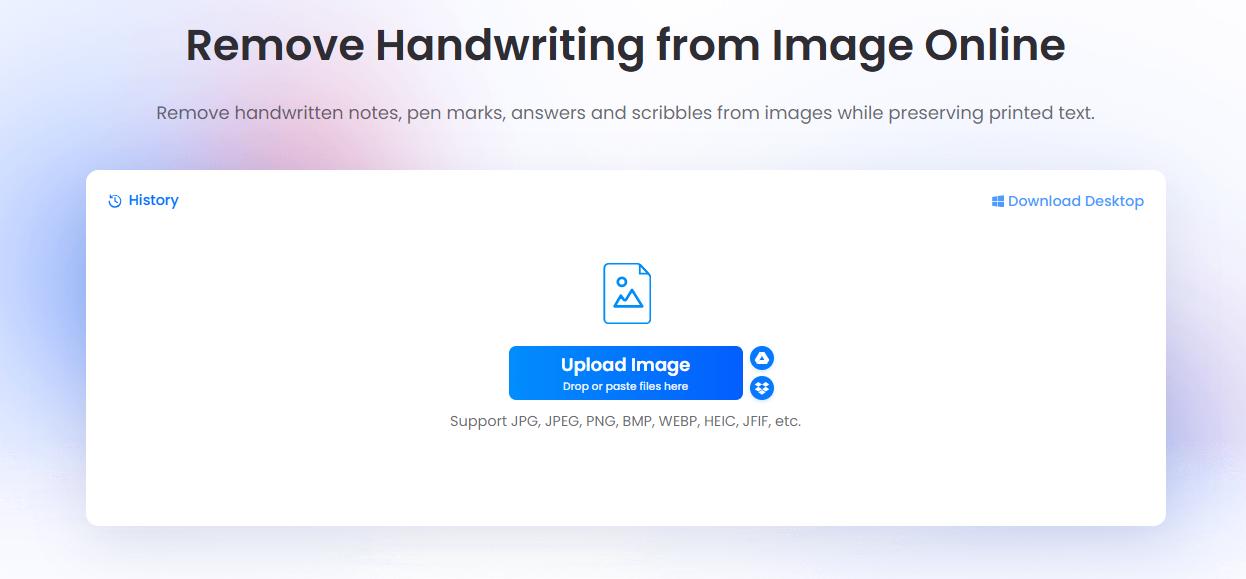
- Choose a removal mode and click Start Processing.
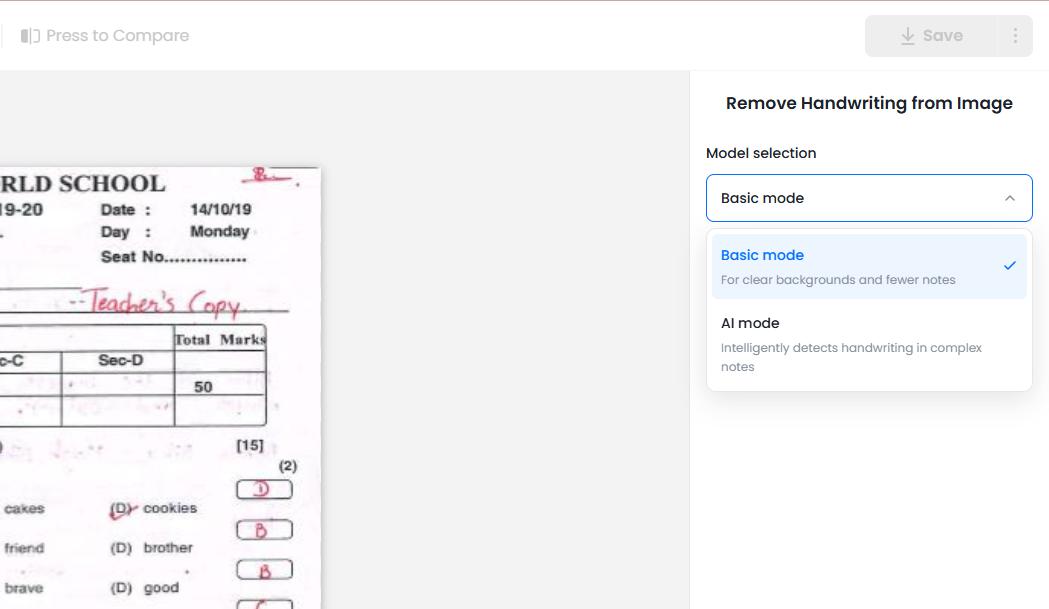
- Preview the result, especially where answers overlap printed text or diagrams. Download the cleaned worksheet to print or share.

If you have several worksheet images, you can upload multiple files for batch processing.
Remove Handwritten Answers from PDF
Best for: Scanned worksheets saved as PDFs, including documents with multiple pages.
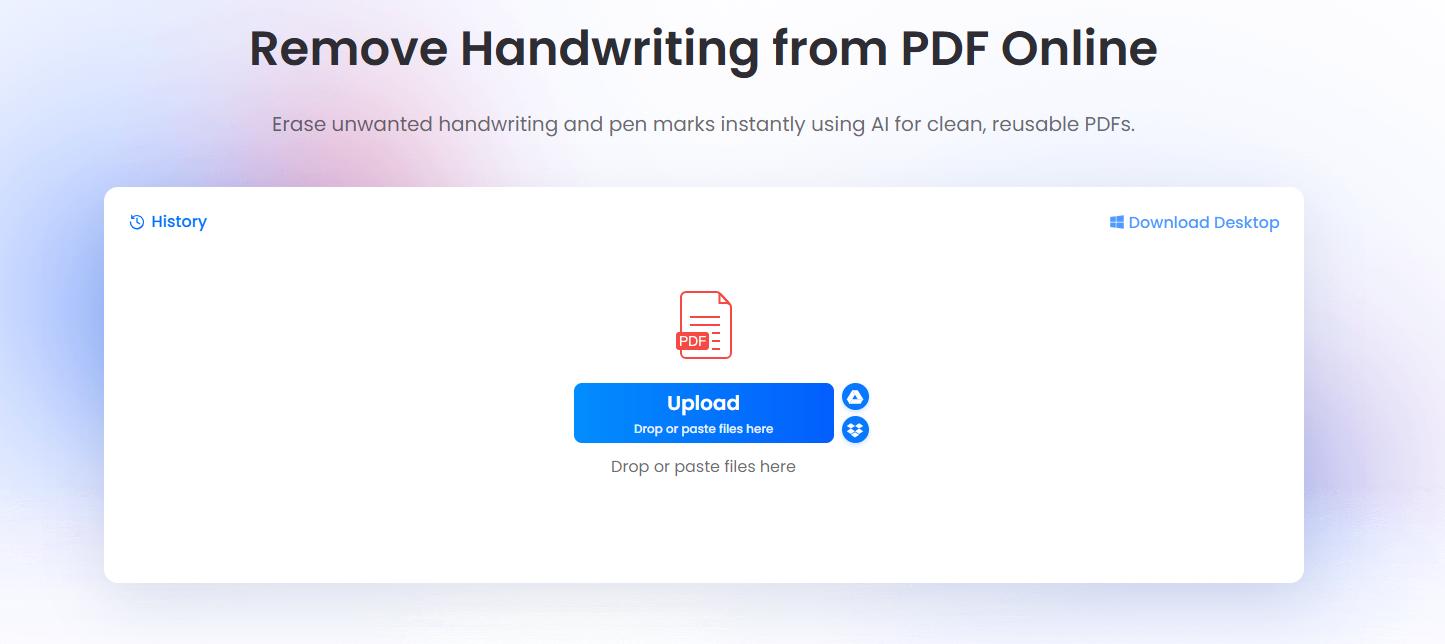
Open LightPDF Remove Handwriting from PDF and upload the completed worksheet. The tool identifies handwritten marks on the PDF pages and produces a cleaned copy that you can download. Check the result before printing, especially where handwriting crosses question text, lines, or illustrations.
Remove Typed Answers or PDF Annotations
If you still have the original Word or Google Docs worksheet, delete the typed answers there and save a separate blank copy. This is usually the simplest option because the questions remain editable.

If the answers were added as PDF text boxes, comments, or other annotations, use a PDF annotation remover. LightPDF’s Remove PDF Annotations tool lets you select the types of markups to clear. If the answers are part of a scanned page image, use a handwriting removal tool instead.
Other Ways to Remove Answers from Worksheets
Use Canva Magic Eraser for a Few Handwritten Answers
Best for: A worksheet photo with only a few answers to remove.

Upload the worksheet image to Canva, open Magic Eraser, and brush over each handwritten answer. Review the cleared areas before downloading the image. Canva’s tool removes selected parts of a photo, so you need to mark the answers yourself.

Pros: Lets you choose exactly which marks to remove; useful for small corrections.
Cons: Removing answers one by one takes time, and marks that cross printed questions may be difficult to clean up. Magic Eraser is a Pro feature.
Remove Answers with Handwriting Remover
Best for: Completed worksheet images or multi-page PDF packets with handwritten answers.
Handwriting Remover is designed to remove handwritten answers, pencil notes, pen marks, and teacher corrections while keeping printed questions and worksheet layouts as intact as possible.
- Upload a worksheet photo, scanned image, or PDF.
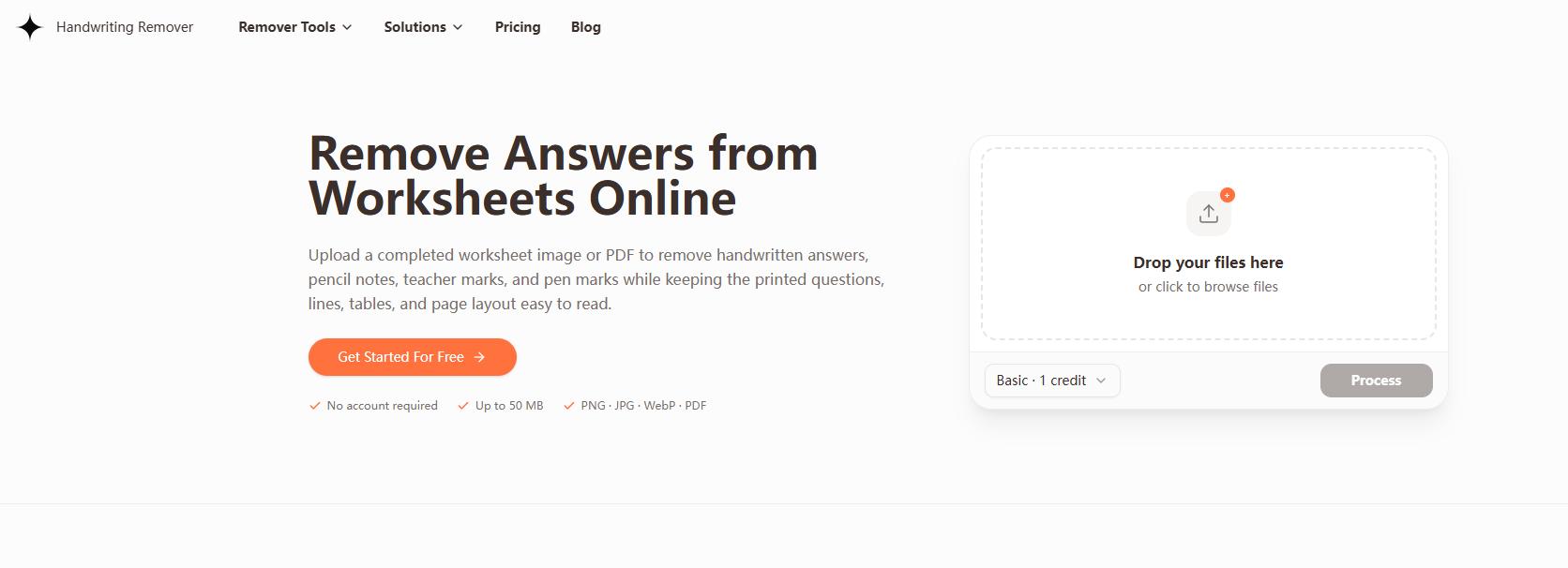
- Choose Basic for a simple black-and-white worksheet or Advanced when you need to retain more page color and detail.
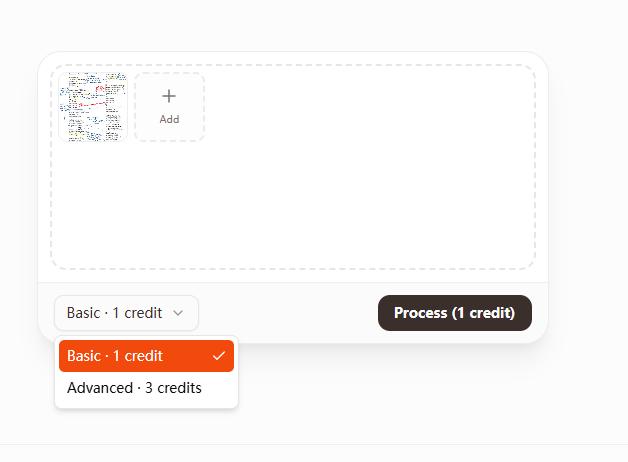
- Click Process to remove the handwritten marks.
- Check the result. If marks remain, use the manual editing option before downloading the cleaned worksheet.
Pros: Accepts both images and PDFs; offers automatic removal plus manual cleanup for remaining marks.
Cons: Results may need extra editing when answers overlap printed questions or diagrams. Processing uses credits, so avoid calling it an unlimited free tool.
Conclusion
To remove answers from worksheets, first check how the answers were added. For handwritten answers on a photo, use LightPDF Remove Handwriting from Image. For a scanned PDF, use Remove Handwriting from PDF. Typed answers and PDF annotations can be removed from their original editable files or annotation layers.




Leave a Comment