


Method 1. LightPDF
Best for: Scanned PDFs, worksheets, forms, test papers, and documents with multiple handwritten marks
LightPDF provides dedicated tools for removing handwriting from both scanned PDFs and images. Instead of asking you to paint over every mark manually, the AI identifies handwritten notes and pen strokes automatically while trying to retain the original printed text, images, tables, and page layout.
How to Use LightPDF
- Open the LightPDF Remove Handwriting from PDF tool if your scanned document is a PDF. For JPG, PNG, or WEBP scans, use the image handwriting remover.
- Upload the scanned document containing pen marks or handwritten notes.
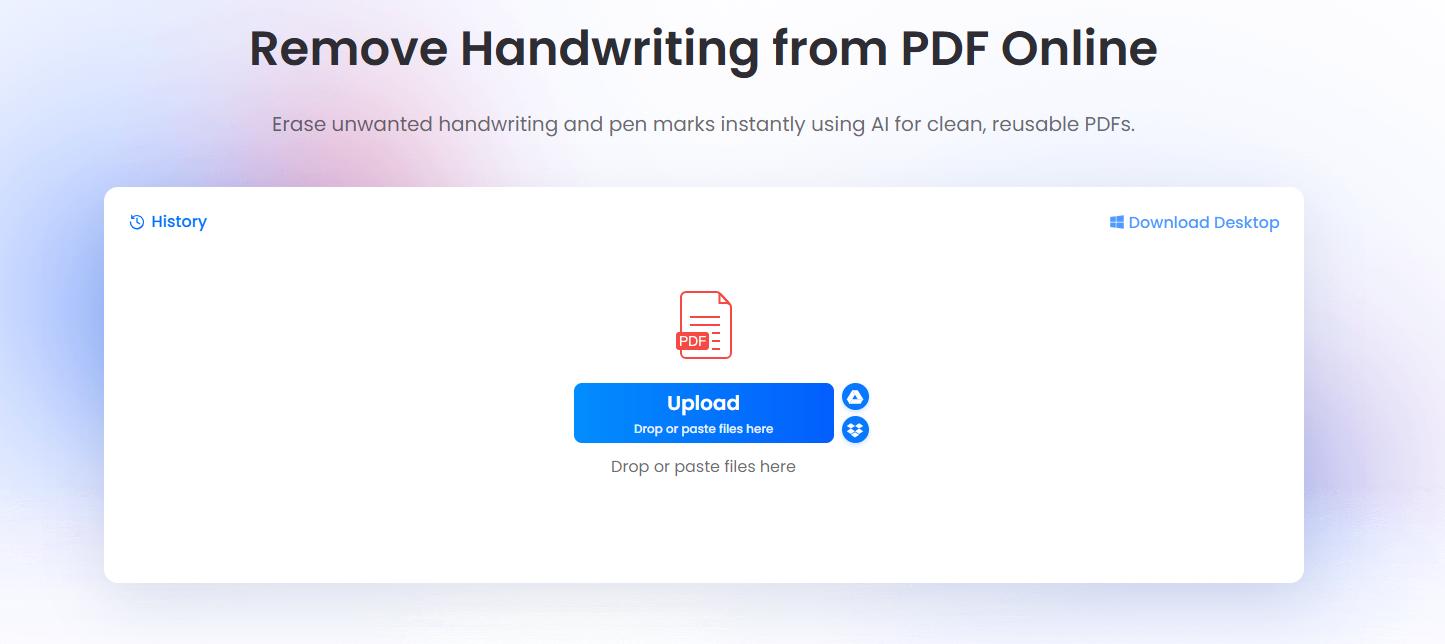
- Choose AI Mode or Basic Mode, then click Start Processing. LightPDF will automatically detect and remove handwritten content from the page.
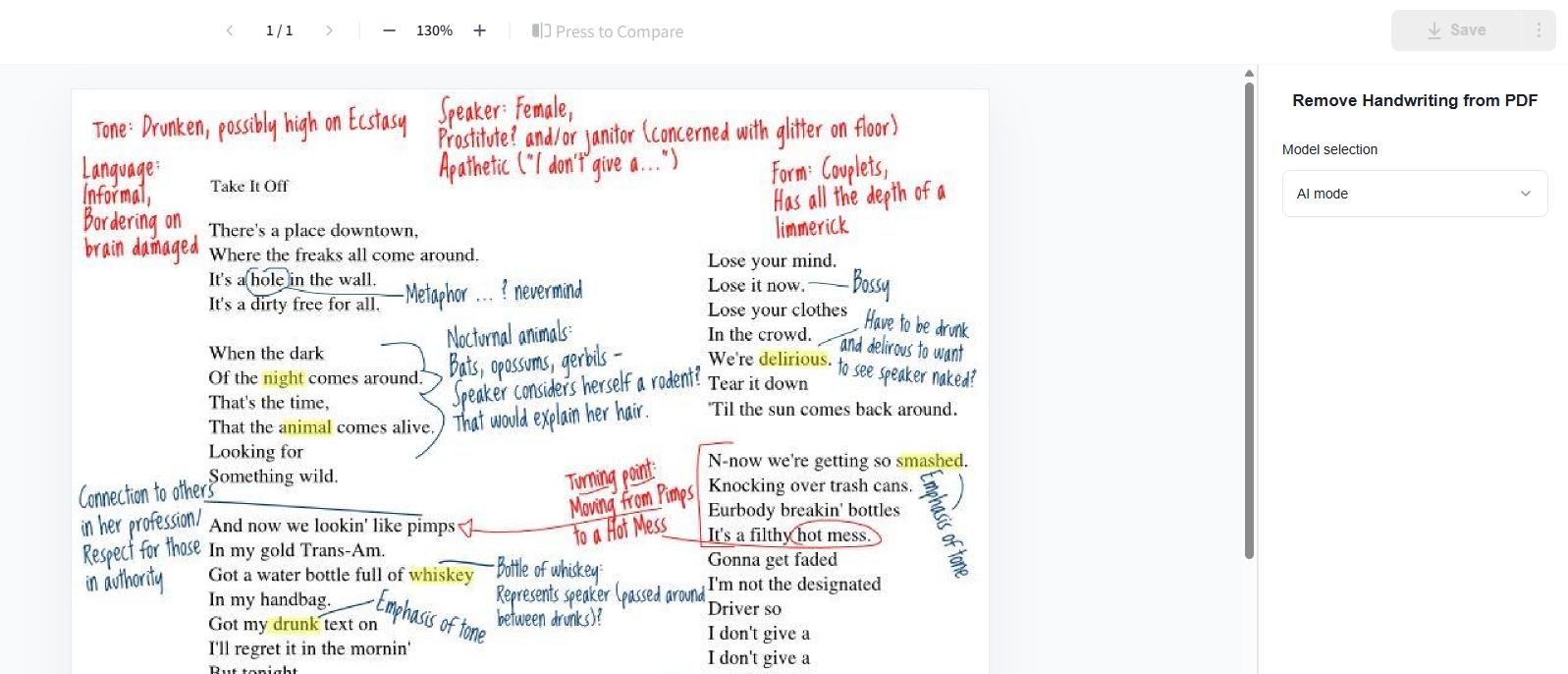
- Preview the cleaned document and check areas where handwriting overlaps printed text.
- Download the cleaned PDF or image.

Pros
- Automatically detects handwriting and pen marks.
- Designed specifically for scanned documents rather than general photos.
- Supports both PDFs and images.
- Helps preserve printed text, tables, images, and the original page structure.
- Supports batch processing for multiple files or pages.
- No need to manually brush over every handwritten area.
Cons
- Very dense handwriting that overlaps printed words or diagrams may not always be removed perfectly.
- Poor-quality, blurry, or heavily shadowed scans can affect the final result.
- Free use may be subject to trial or usage limits.
Method 2. RemoveHandwriting.com
Best for: Automatically cleaning handwriting from PDFs and document images
RemoveHandwriting.com is another specialized AI tool designed to distinguish handwriting from printed document content. It supports scanned images as well as PDFs and can remove notes, annotations, scribbles, and pen marks while attempting to preserve tables, forms, diagrams, and printed text.
How to Use RemoveHandwriting.com
- Go to the handwriting removal tool.
- Upload your scanned image or PDF.
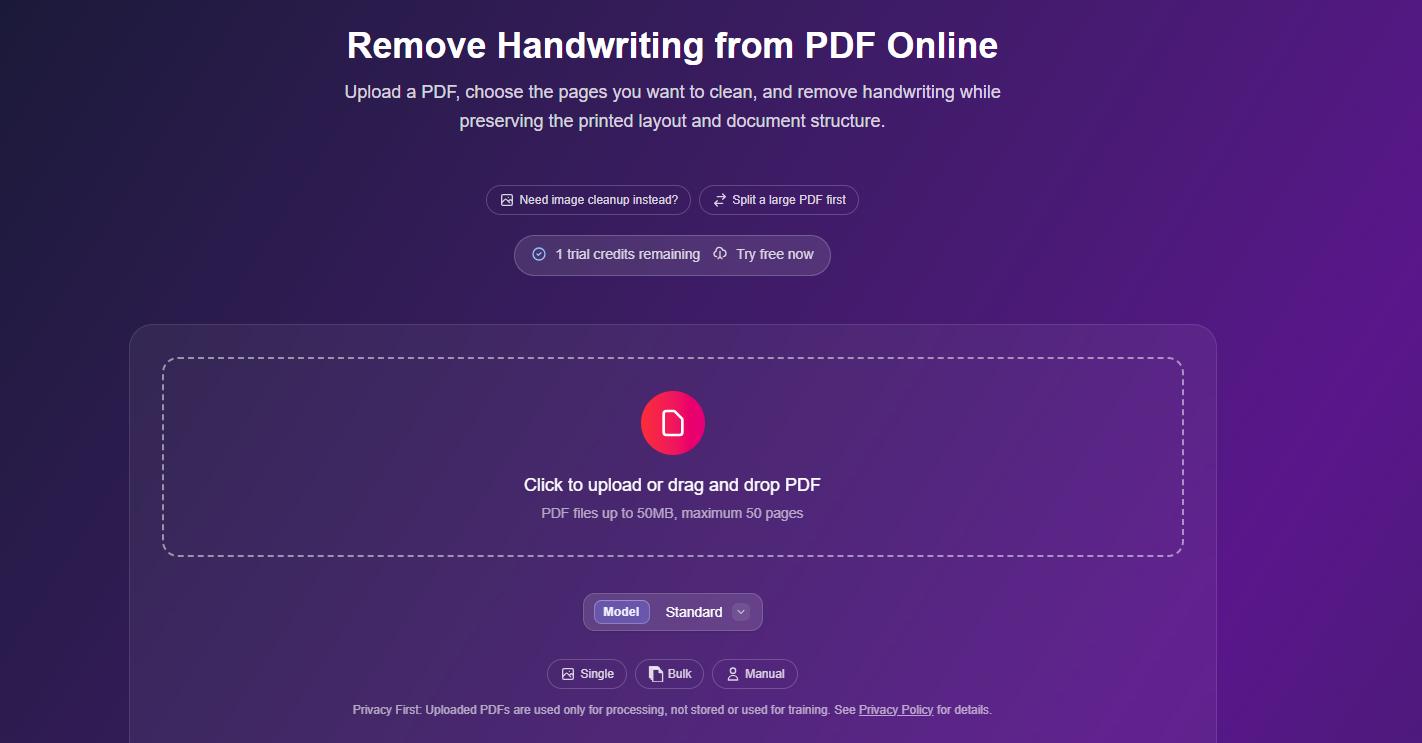
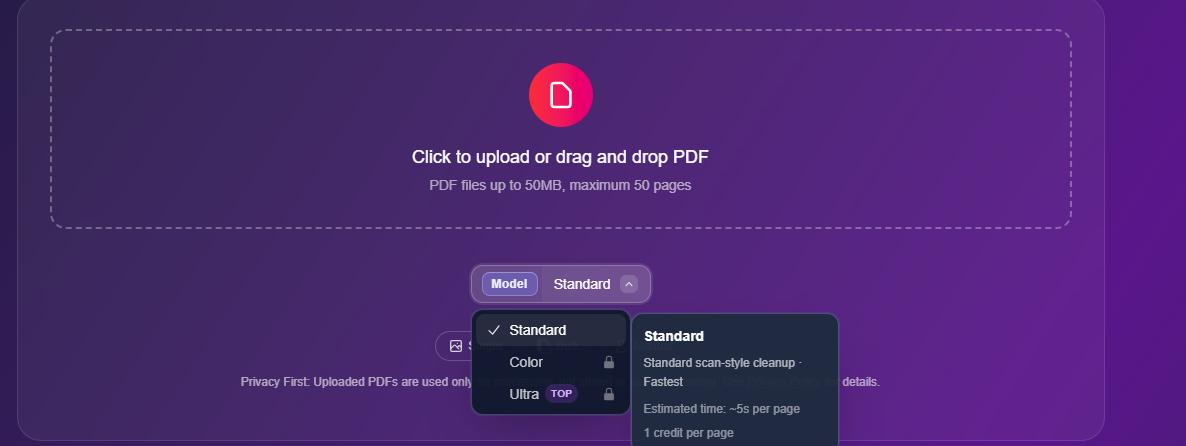
- Choose an available processing mode.
- Let the AI identify and remove handwritten content.
- Review the processed pages.
- Download the cleaned document.

For PDFs, you can also select the pages that need to be processed instead of cleaning the entire document. The PDF tool currently lists a limit of up to 50 MB and 50 pages.
Pros
- Built specifically for handwriting and document cleanup.
- Works with images and PDFs.
- Can preserve document layouts, tables, and diagrams.
- Supports page selection for PDFs.
- Offers automatic processing without requiring you to mark every pen stroke manually.
Cons
- PDF size and page limits apply.
- Dense handwriting over printed characters can still be difficult to reconstruct.
- Low-resolution, blurry, or shadowed scans may reduce accuracy.
- Some advanced processing options may have usage restrictions.
Method 3. Manually Erase Pen Marks with Cleanup.pictures
Best for: Removing a few small pen marks from a scanned image
Cleanup.pictures works differently from dedicated handwriting removers. It is an AI inpainting tool: you manually brush over the part of an image you want to remove, and the AI reconstructs the background underneath it. The free version allows unlimited images, although free exports are limited to 720p.
How to Use Cleanup.pictures
- Convert your scanned PDF page into an image first if necessary.
- Upload the scanned image to Cleanup.pictures.
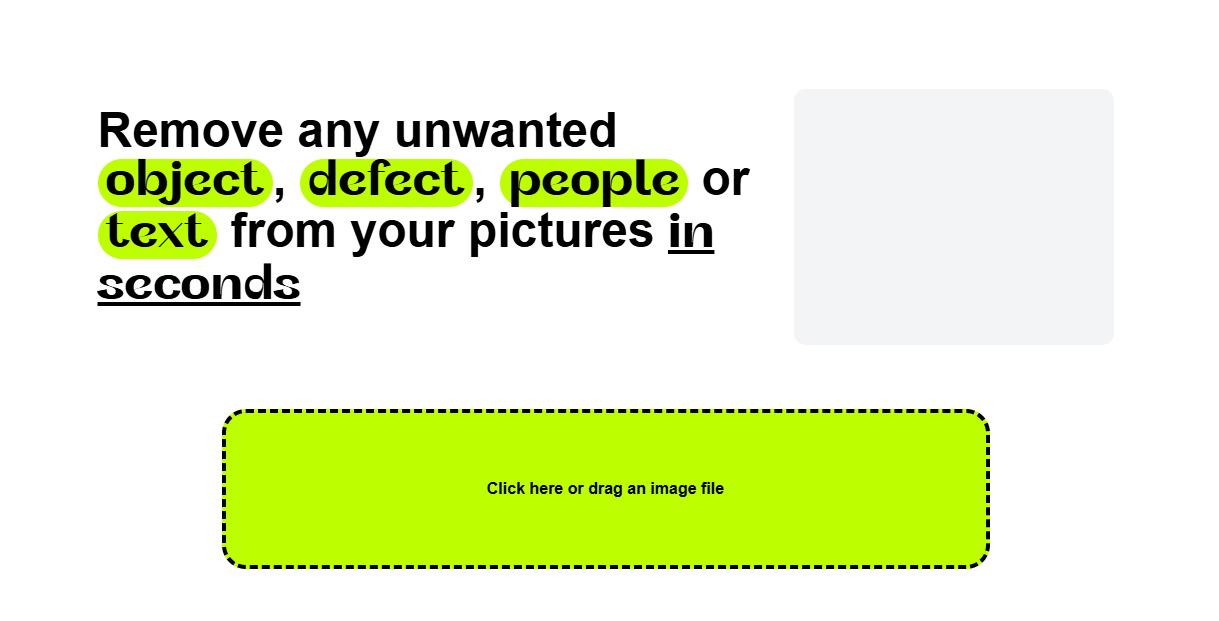
- Adjust the brush size.
- Paint over the pen mark, handwritten word, or scribble you want to erase.
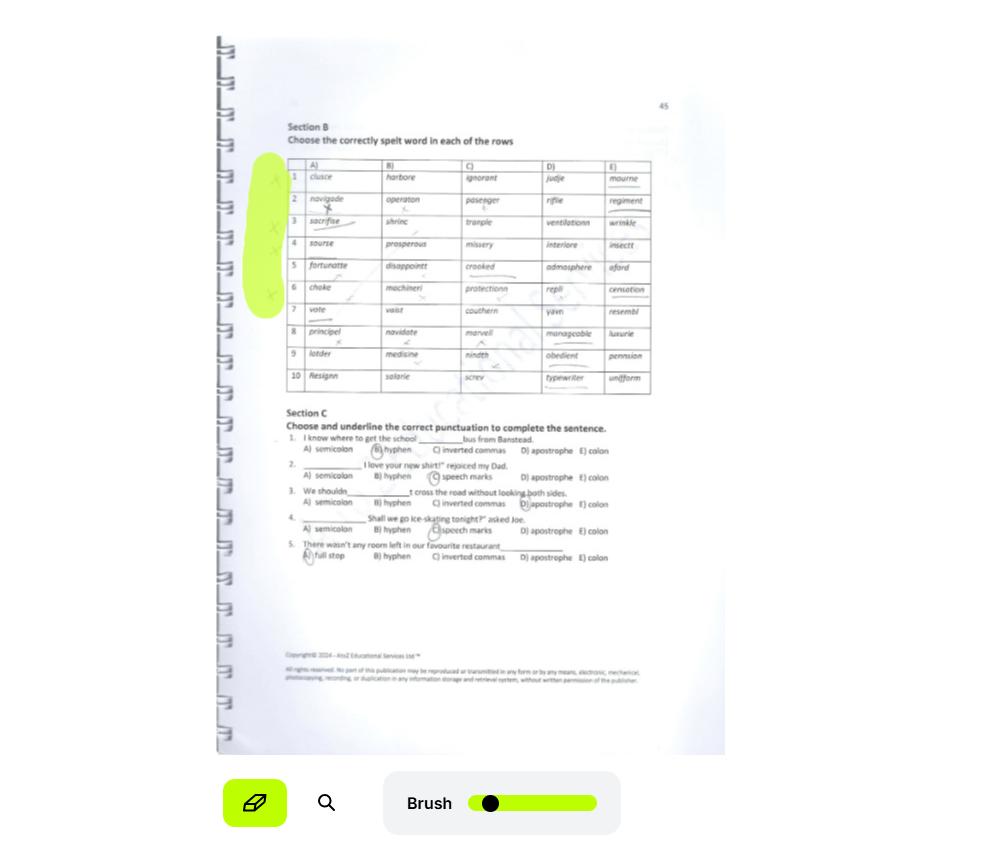
- Wait for the tool to reconstruct the selected area.
- Repeat the process for any remaining marks.
- Download the cleaned image.
For better results, cover the entire unwanted mark rather than tracing only the center of each pen stroke.
Pros
- Very simple browser-based interface.
- Gives you precise control over exactly what gets removed.
- Useful for isolated lines, ticks, circles, or small handwritten notes.
- Free version allows unlimited image processing.
- No complicated photo-editing skills are required.
Cons
- Does not directly process multi-page PDF documents.
- You must manually select every area you want to erase.
- Free output resolution is limited to 720p.
- It is a general image inpainting tool rather than a document-specific handwriting remover.
- Removing handwriting directly over printed text may also reconstruct or alter the text underneath.
Method 4. Fotor Object Remover
Best for: Manually cleaning pen marks from JPG, PNG, WebP, or HEIC scans
Fotor’s AI Object Remover can also be used as a document cleanup tool. You paint over the unwanted element with a brush, and its AI attempts to fill the selected area based on the surrounding image. The tool supports common image formats including JPG, PNG, WebP, and HEIC.
How to Use Fotor
- Upload the scanned document image to Fotor’s Object Remover.
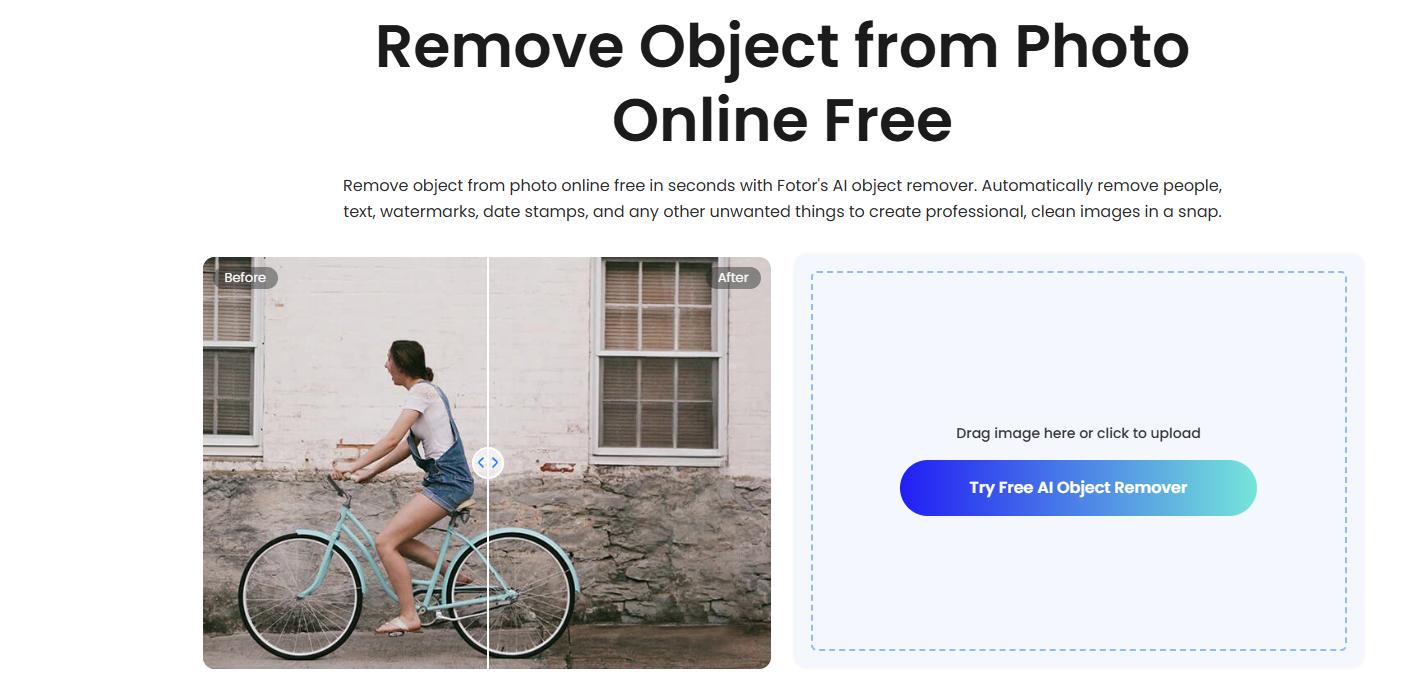
- Select the brush tool.
- Adjust the brush size so it closely covers the pen marks.
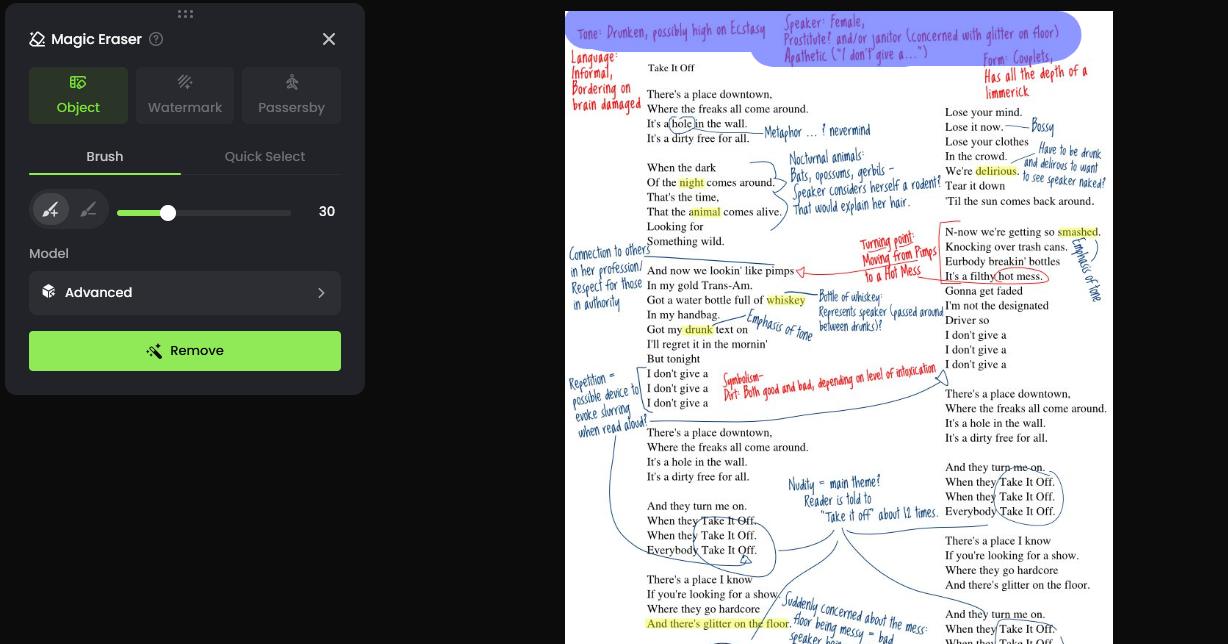
- Paint over the handwriting or scribbles you want to erase.
- Apply the AI removal.
- Inspect the reconstructed background.
- Repeat if any marks remain, then download the image.
Pros
- Easy brush-based editing.
- Gives you control over which marks are removed.
- Supports several common image formats.
- Useful for isolated pen strokes, dates, notes, or other unwanted elements.
- No desktop image editor is required.
Cons
- Primarily an image editing tool rather than a document handwriting remover.
- Requires manual selection.
- Not ideal for dozens of handwritten answers across a full page.
- Does not directly provide a multi-page PDF handwriting-removal workflow.
- AI inpainting may affect nearby printed characters when handwriting overlaps them.
Tips for Better Pen Mark Removal
Whichever tool you use, the quality of the original scan makes a significant difference.
Try to use a scan that is:
- sharp and high resolution;
- evenly lit;
- straight rather than heavily skewed;
- free from strong shadows;
- clear enough to distinguish handwriting from printed text.
You should also review any areas where the handwriting crosses printed words, numbers, tables, or diagrams. These are usually the most difficult areas for AI removal tools to reconstruct accurately.
Conclusion
You do not need Photoshop to remove pen marks from a scanned document. For simple marks on a scanned image, manual tools such as Cleanup.pictures and Fotor allow you to brush over unwanted areas. But when you have a worksheet, form, or multi-page PDF covered with handwritten notes, an AI handwriting remover can save much more time. LightPDF, for example, automatically removes handwriting and pen marks from scanned PDFs and images while keeping the original printed content and layout as intact as possible, making it suitable for creating clean copies that can be reused, printed, or shared.



Leave a Comment