


Stop wasting your time re-typing text from static graphics. If you have a workflow that requires you to translate words in image files, you just need a browser tab and a decent cloud extractor to do the grunt work for you. You drop the file, the text swaps out, and you move on with your day.
Part 1. Choosing a Photo Language Translator
Do not just download the first app you find in the app store. Most basic translation apps fail the moment an image has complex layouts or low lighting. If you want an efficient online image translation platform that allows direct image uploads, look for these capabilities:
- Intelligent Block Detection: The system must isolate multi-column text cleanly without reading across distinct paragraphs.
- Font Matching Layer: A quality photo language translator places the new English text directly over the original foreign characters.
- Contextual Matching: The translator should prioritize industry jargon and regional idioms rather than doing a literal word-for-word swap.
- Bulk Queueing: If you have ten or twenty screenshots, look for a tool that handles batch imports instead of forcing single file uploads.
Part 2. Best Direct Image Language Translators
1. LightPDF OCR & Translator
When you are dealing with complex graphics, multi-column layouts, or large batches of images, basic mobile apps fall short. Running your files through LightPDF’s cloud infrastructure combined with a dedicated document translator gives you crisp text extraction without losing your original structural layout.
Step-by-Step Translation Guide:
1. Upload Images: Upload local image files to the converter.
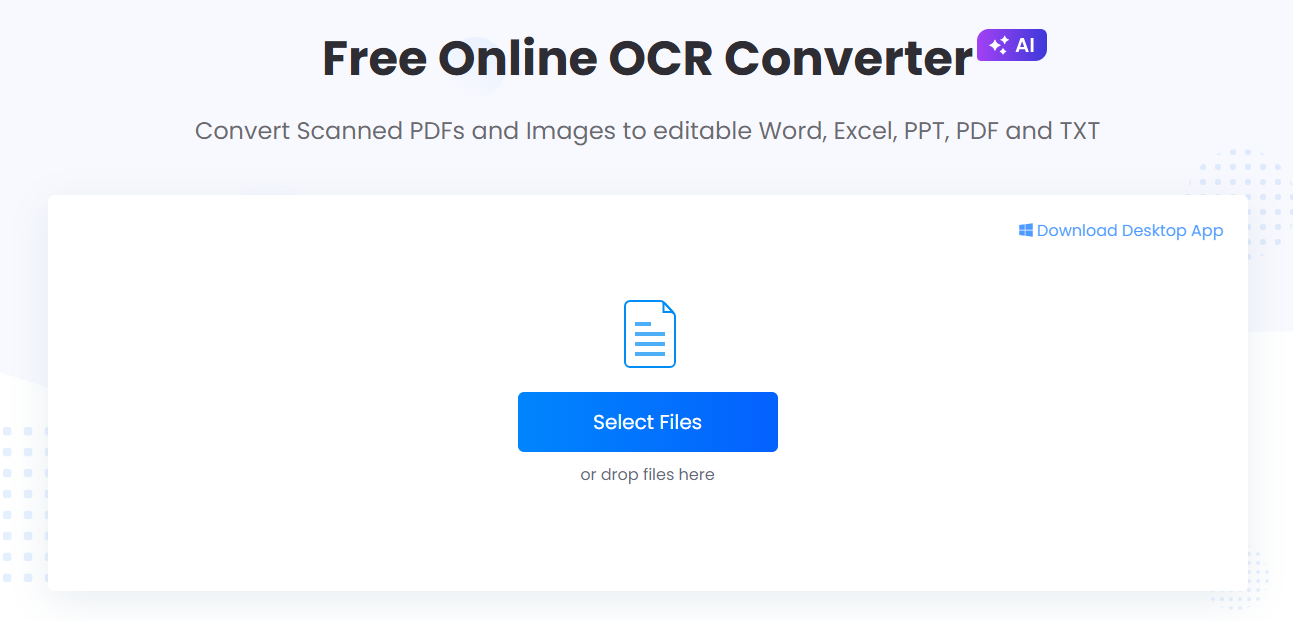
Go to the free online OCR converter. Click Select Files to upload your graphic (JPG, PNG, or TIFF). Hit Add Files if you have multiple images to process together.
2. Choose OCR Mode: Select speed vs. precision overrides.
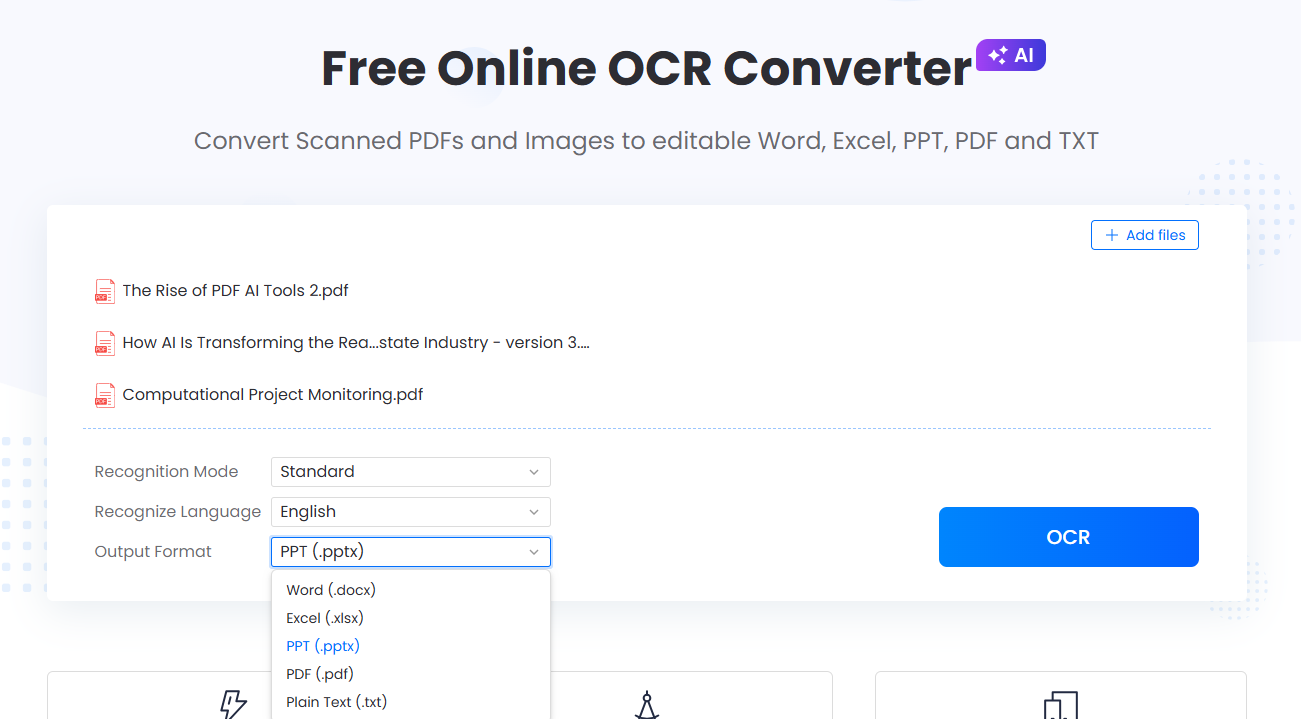
Pick your setting. Standard Mode handles clean text quickly. Switch to Enhance Mode if your images have small fonts, low contrast, or handwritten text.
3. Set Output and Language: Configure your language mappings.
Select the source language shown in your image. LightPDF supports 24 global languages, including Spanish, Portuguese, German, Italian, Japanese, Slovenian and more.
Next, choose your output format. While it lets you export to Word, Excel, PPT, or raw TXT, you’ll want to choose PDF here to keep things moving smoothly for the next step.
4. Translate File: Run the final translation sweep.
Take your newly converted document and drop it into your online translator of choice. Set the target language to get a naturally phrased, fully formatted translation.

2. Google Translate (Web Version)
Google Translate features a dedicated “Images” tab directly on its main web interface, allowing for instant browser-based translation without downloading an app.

- How it works: Click the “Images” tab, and upload any JPG, JPEG, or PNG file. The platform processes the text layout and overlays the English translation directly onto your original picture.
- The Good: Completely free, automatically detects the source language, and requires no registration.
- The Bad: Highly stylized fonts or overlapping design elements can cause the text alignment to glitch.
3. Yandex Translate (Web Version)
Yandex provides an incredibly smooth desktop web interface specifically built as an ocr translator online tool for direct drag-and-drop file processing.

- How it works: Open the Yandex Translate OCR page, drop your graphic directly into the browser, and watch it scan. It renders the English text while trying to match the original layout formatting and font sizes.
- The Good: Excellent processing for Cyrillic and complex Eastern European scripts. Allows you to toggle between seeing the original text and the new layer.
- The Bad: It enforces a strict 5 MB file size limit per upload, which frequently blocks high-resolution RAW or PNG screenshots.
4. DeepL Translator (Web & Desktop Client)
DeepL offers high-precision neural translation via direct file processing right inside your internet browser or desktop app workflow.

- How it works: Open the tool, click on “Translate files”, click “Select file from device”, and upload your target image. Choose your target language (English) and click the “Translate” button to download your processed file.
- The Good: World-class contextual accuracy that handles complex sentence structures and professional vocabulary better than standard engines.
- The Bad: Free tier users face a character limit penalty per day, meaning large batches of text-heavy screenshots will require a paid Pro account.
5. Canva Online Image Translator
Canva features a built-in web application designed specifically to extract and translate text embedded inside design elements and promotional graphics.

- How it works: Open your image layout inside the design editor workspace, select your graphic, click Edit, and choose “Grab Text” from the panel. Next, search for “Translate” under the Apps tab in the sidebar, select your language, and click the blue “Translate” button to replace the text seamlessly.
- The Good: Perfect for marketers or creators who need to translate an asset and immediately edit the fonts or colors afterwards.
- The Bad: Requires working inside a graphic design project space rather than a simple one-click upload-and-download interface.
Part 3. Tool Comparison
| Tool | Upload Method | Layout Preservation | Contextual Accuracy | Max File Limit |
| LightPDF | Multi-file Batch Web | High (Retains structural columns) | Outstanding | Unrestricted |
| Google Translate | Web Browser / Single File | Moderate (Text layer can shift) | Good | Standard Web Image |
| Yandex Translate | Drag & Drop Web Browser | Moderate (Matches font colors) | Fair | Strict 5 MB Limit |
| DeepL Engine | Translate Files Portal | High (Clean visual text swap) | Exceptional | Character Restrictions |
| Canva Translator | Grab Text App Workspace | High (Fully editable vector text) | Good | Workspace Standard |
Part 4. FAQ
Why do Japanese image translations often look mixed up?
Japanese reads both horizontally and vertically, and Kanji meanings change depending on context. Most basic apps read left-to-right only, scrambling the message. You need a layout-aware ocr translator online to map the reading path accurately before translating.
Can online translation tools handle text on busy backgrounds?
Standard tools struggle because visual noise hides the letters. If your image features heavy watermarks, dark patterns, or textured backgrounds, use an advanced picture language translator with an enhanced recognition mode to clean up contrast before processing.
Is it safe to upload confidential business screenshots?
Public, free translation tools often log your uploads to train their language models. If you are handling proprietary corporate data or legal screenshots, pick an enterprise cloud utility that runs over encrypted channels and flushes files immediately after conversion.
How do I translate handwritten text from an image?
Handwritten scripts do not match standard digital fonts. To read them properly, run your image through a cloud-based extractor first. This normalizes the text paths into clean, editable digital data that a translator can read without generating errors.




Leave a Comment