


Quick Comparison: Best Ways to Make a PDF Editable
| Method | Best For | Key Feature | Supports OCR | Batch Processing | Platform |
|---|---|---|---|---|---|
| Online OCR Tool | Quick tasks | No install needed | Yes | Yes | Web |
| Desktop OCR Software | Large files & frequent use | Higher control & speed | Yes | Yes | Windows / Mac |
| Mobile OCR App | On-the-go edits | Scan & edit instantly | Yes | Limited | iOS / Android |
Why Is My PDF Not Editable?
Before jumping into solutions, it’s important to understand why your PDF is not editable in the first place.
Common Reasons:
- Scanned PDFs: These are essentially images, not text-based documents
- Flattened files: Content has been merged into a non-editable layer
- Security restrictions: Editing permissions are disabled
- Incorrect format: The file wasn’t created with editable elements
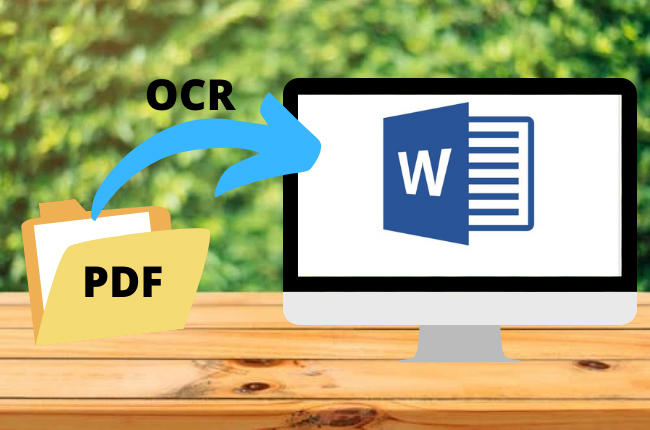
👉 This is exactly why tools with OCR (Optical Character Recognition) are crucial—they allow you to convert to editable PDF by recognizing text from images.
Method 1: Online OCR – Convert Scanned PDF to Editable PDF
If you’re looking for the fastest way to convert scanned PDF to editable PDF, an online OCR tool is the easiest solution.

Steps:
- Visit the online OCR tool
- Click Select files or drag your PDF into the upload area
- Add more files if needed (batch supported)
- Choose recognition settings:
- Standard Mode: Faster processing
- Enhance Mode: Higher accuracy (slower)
- Select language (supports 20+ languages like English, Spanish, Japanese, etc.)
- Choose output format:
- Word
- Excel
- PPT
- Editable PDF
- TXT
- Click Convert and download your editable file
Why this works:
- Instantly solves pdf not editable issues
- Great for quick conversions
- No installation required
Method 2: Desktop OCR – Convert to Editable PDF with More Control
For users handling sensitive files or large batches, a desktop solution is more efficient.

Steps:
- Download and install LightPDF
- Launch the program
- Click Tools → OCR
- Upload your PDF file(s)
- Configure settings:
- Recognition mode
- Language
- Output format
- Output folder
- (Optional) Add multiple files using + Add Files
- Click Recognize
- Done — your file is now editable
Benefits:
- Faster processing for bulk files
- Works offline
- Better for professional workflows
Method 3: Mobile OCR – Make a PDF Editable on Your Phone
Need to edit documents on the go? Mobile OCR makes it easy.

Steps:
- Download the app from:
- Open the app
- Tap OCR
- Select your PDF file
- Tap Next
- Choose:
- Target language
- Output format (.PDF or others)
- Tap Recognize Text
- Done
Best for:
- Quick edits anywhere
- Capturing scanned documents via camera
- Instant pdf to word converter online ocr functionality
When Should You Use Each Method?
| Scenario | Recommended Method |
|---|---|
| Quick one-time edit | Online OCR |
| Large volume files | Desktop OCR |
| Traveling or mobile use | Mobile OCR |
| High accuracy needed | Desktop (Enhance mode) |
Key Tips to Improve OCR Accuracy
- Use high-resolution PDFs (300 DPI recommended)
- Avoid blurry or skewed scans
- Select the correct language before conversion
- Use enhance mode when accuracy matters
FAQ
Q: Can I really make a PDF editable without Acrobat?
A: Yes. You don’t need Adobe Acrobat to edit a PDF. By using OCR (Optical Character Recognition), you can convert scanned or non-editable PDFs into fully editable formats such as Word, Excel, or even editable PDF files. Many online and desktop tools now provide this functionality with high accuracy, making it easy to update text, forms, or layouts without specialized software.
Q: How do I convert scanned PDF to editable PDF step by step?
A: The process is straightforward:
- Upload your scanned PDF to an OCR tool
- Select the recognition language (important for accuracy)
- Choose an output format (Word, Excel, or editable PDF)
- Run OCR processing
- Download the converted file
This process transforms image-based content into selectable and editable text, solving most “PDF not editable” issues.
Q: Why is my PDF not editable even though I created it myself?
A: There are several possible reasons:
- The file was exported as a flattened PDF (no editable layers)
- Text was converted into outlines or images during export
- Editing permissions were restricted
- The PDF contains scanned pages instead of real text
In these cases, you’ll still need OCR to convert the file back into an editable format.
Q: What’s the difference between convert to editable PDF and convert to Word?
A:
- Convert to editable PDF: Keeps the PDF format but makes text selectable and editable within the file
- Convert to Word (DOCX): Gives you full editing flexibility, especially for rewriting content, formatting, or restructuring
If you need heavy editing, Word is usually better. If you want to keep layout and format, editable PDF is more suitable.
Q: Which method is best for large batches of PDFs?
A: Desktop OCR tools are the best choice for batch processing. They offer:
- Faster performance
- Stable processing for large files
- Better control over output settings
- Offline privacy protection
Online tools also support batch uploads, but may be slower for very large workloads.
Q: How accurate is OCR when converting scanned PDFs?
A: OCR accuracy depends on several factors:
- Scan quality (clear, high resolution works best)
- Language selection (must match document language)
- Font clarity and layout complexity
With high-quality scans and correct settings, modern OCR tools can reach 90–99% accuracy.
Q: Can I use a pdf to word converter online OCR for free?
A: Yes, many tools offer free OCR conversion with limitations such as:
- File size limits
- Limited number of conversions per day
- Fewer advanced features
For occasional use, free versions are usually sufficient.
Q: Is it safe to upload PDFs to an online OCR tool?
A: Most reputable platforms use encrypted connections and automatically delete files after processing. However:
- Avoid uploading highly sensitive documents online
- Use desktop OCR software for confidential files
Q: Why does my converted file look different from the original?
A: Formatting differences may occur due to:
- Complex layouts (tables, columns, images)
- Unusual fonts or handwriting
- Low-quality scans
To minimize this, use enhance mode and high-quality source files.
Q: Can I make a PDF editable on my phone?
A: Yes. LightPDF mobile app allow you to:
- Upload or scan documents
- Recognize text instantly
- Export editable files
This is especially useful for quick edits or when working remotely.
Q: What’s the fastest way to fix a PDF not editable issue?
A: The fastest solution is:
- Use an online OCR tool
- Upload your file
- Convert it to Word or editable PDF
This usually takes less than a minute and requires no installation.
Q: Do I always need OCR to make a PDF editable?
A: Not always. If your PDF already contains selectable text, you can edit it directly using a PDF editor. OCR is only needed when:
- The PDF is scanned
- Text cannot be selected
- The file behaves like an image


Leave a Comment