


When searching for a functional free pdf editor macos x or a reliable pdf editor for mac free download, you usually end up with a utility that merely pasts text boxes over your document instead of rewriting the core file.
To help you skip the trial and error, we tested and compiled the 7 best mac pdf editor choices for 2026. This review focuses heavily on real text modification, the practical difference between browser engines and local offline setups, and how these apps handle messy, real-world documents.
1. LightPDF — ★★★★★ The Seamless Hybrid
LightPDF is easily our top pick for anyone needing to edit pdf document on mac systems without tearing their hair out. It completely avoids the typical software lock-in by providing two distinct modes: a fast, zero-installation online pdf editor for browser work, and a highly optimized native desktop app (free install available) that runs locally on Apple Silicon (M1–M4 chips) or older Intel Macs.
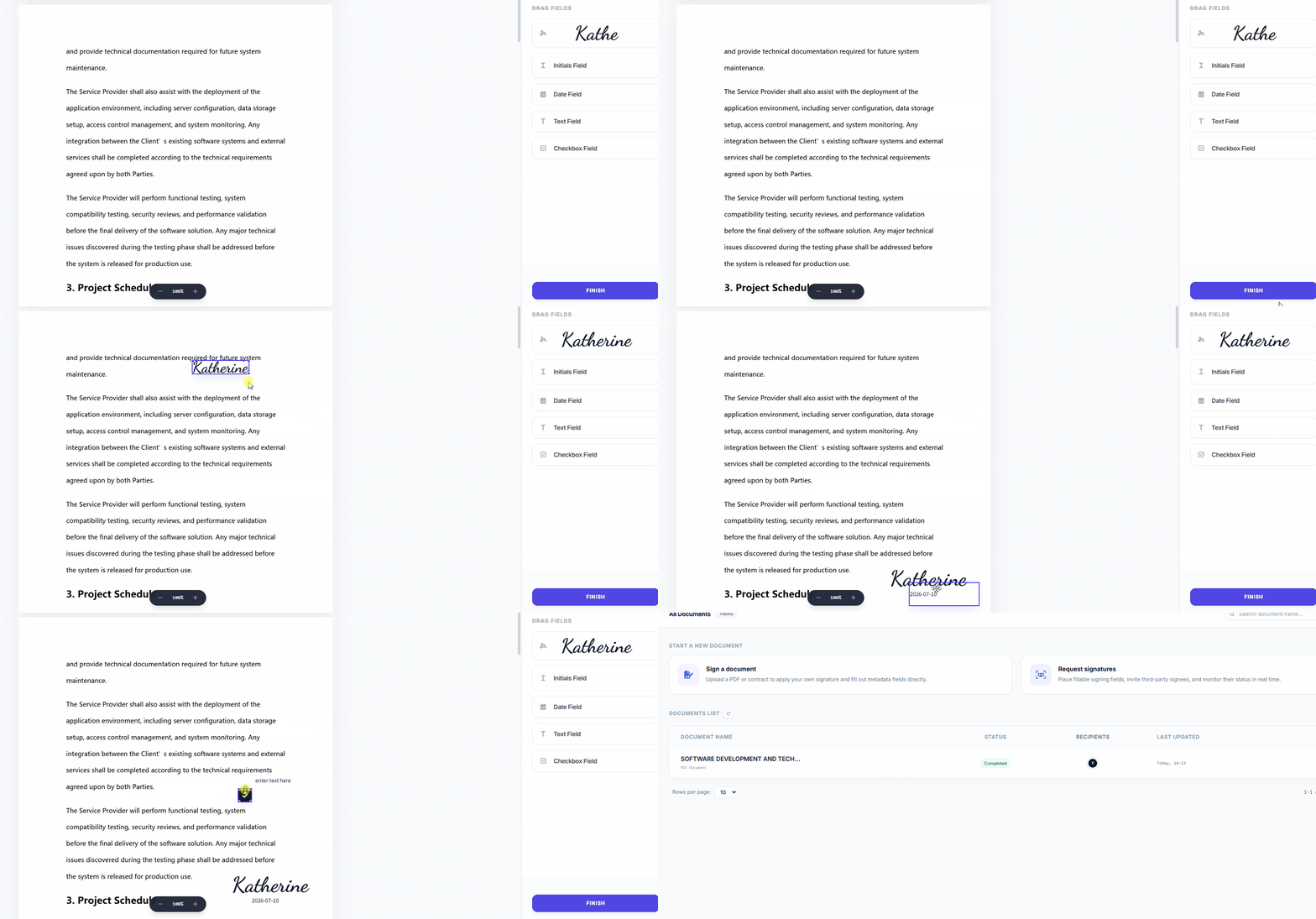
The real standout feature here is the text engine. Most online tools just let you slap geometric shapes or whiteout blocks over pre-existing layouts. LightPDF treats the document like a regular word processor. You can click into any complex paragraph block to edit pdf text on mac, change font sizing, or restructure columns, and the file automatically handles the typography spacing for you.
Core Editing & Workflow Capabilities:
- True Document Editing: Click any sentence to add or rewrite words natively. It matches font weights instantly so your edits don’t look patchy or misaligned.

- Total Page Control: Need to clean up an messy file? You can edit pdf pages online or offline to crop layout margins, delete unwanted sheets, reorder pages, or split heavy contracts.
- Forms & Electronic Signatures: Fill interactive corporate forms or apply legal signatures and encrypted approval stamps without printing anything out.
The AI & Advanced Media Ecosystem:
Instead of just offering basic annotations, LightPDF packages an entire automated workspace:
- AI Presentation & Document Generators: Turn prompts straight into formatted PDFs or generate editable PowerPoint presentations in over 20 languages.
- Visual Data Mapping: Transform dense 80-page financial reports or research files into visual, editable mind maps with one click.
- Smart AI Eraser: Cleanly wipe away unwanted watermarks, background logos, or old signature stamps without ruining the text behind them.
- High-Fidelity OCR & File Conversion: Turn flat paper scans into searchable files, or convert documents between formats like Word, Excel, PPT, HEIC, WebP, PNG, and JPG.

Best For: Professionals, remote workers, and academics who want an adaptable tool that handles basic text fixes in a browser but scales up to massive local tasks when offline.
2. PDF Expert — ★★★★☆ The Fluid, Native macOS App
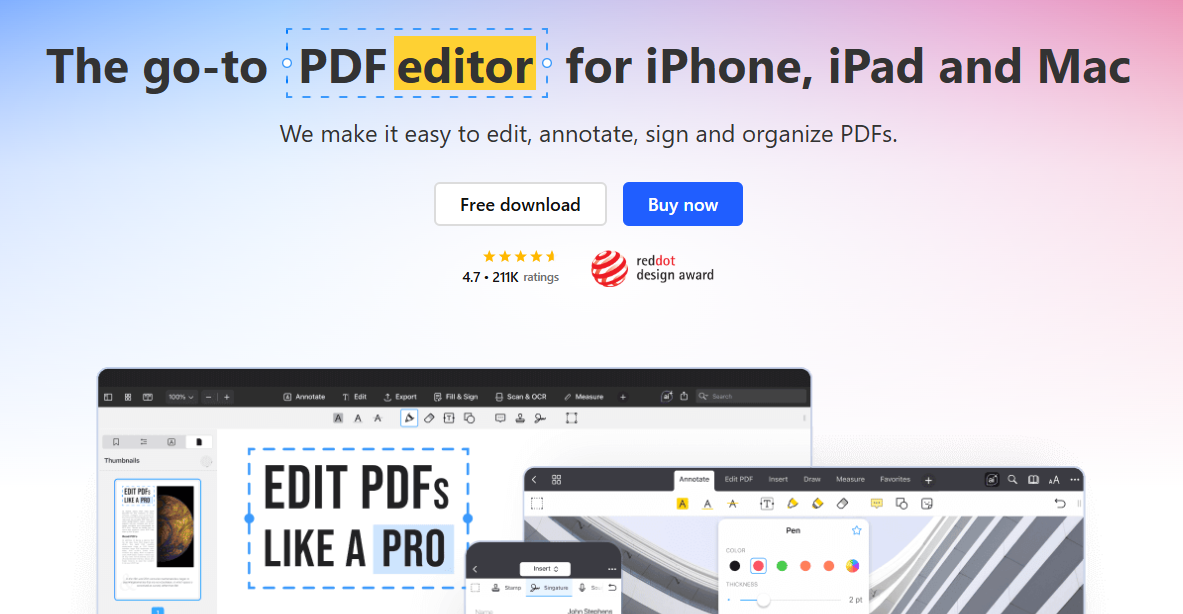
PDF Expert has been a staple choice in the Mac ecosystem for years. It is a strictly native desktop application, meaning it runs entirely offline on your Mac’s local hardware. If you are looking for a pdf editor for mac free download to test out pure desktop performance, this app is exceptionally polished. It feels lightning fast, handles large files smoothly, and mirrors the clean design philosophy of macOS.
Real-World Performance:
- Excellent inline text editing that identifies and matches original system fonts instantly.
- Smooth scrolling and annotation, making it great for reviewing text with an Apple Pencil via Sidecar.
- Clean page management to quickly merge project files or extract specific pages for a client review.
The Reality Check: PDF Expert is brilliant for native desktop reading and direct text modification, but it doesn’t offer a web-browser version for quick cloud edits on non-Mac devices, and its automated AI utilities are basic compared to full cloud suites.
3. Adobe Acrobat Pro — ★★★★☆ The Enterprise Heavyweight
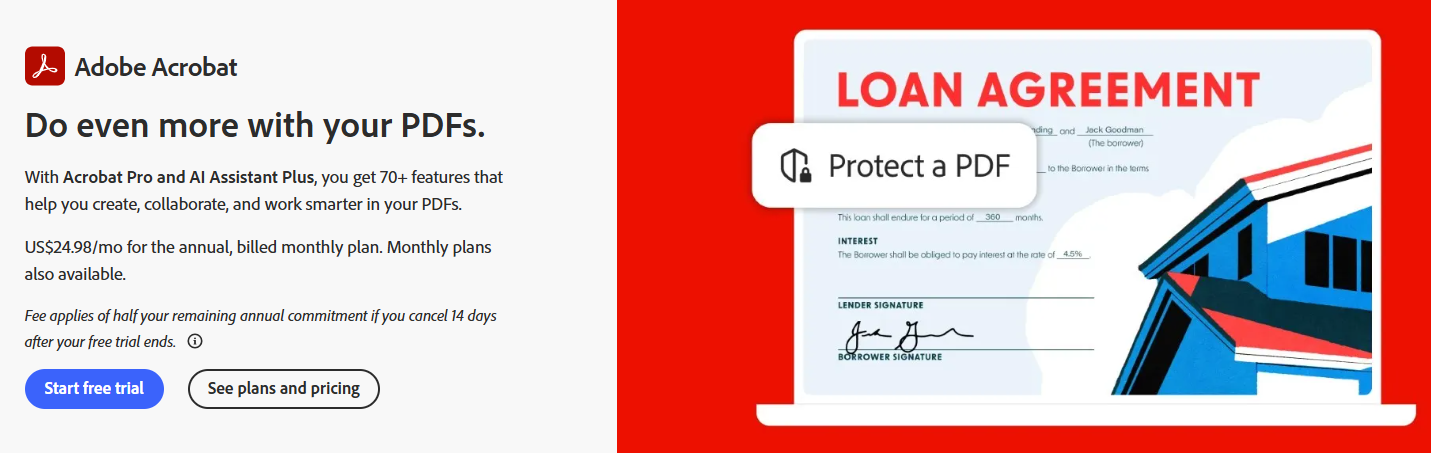
Adobe Acrobat Pro is the original industry standard for managing corporate files. It is a comprehensive osx pdf editor built primarily for large companies and compliance teams who need deep formatting control, preflight print verification, and strict file security. It relies on a heavy desktop installation paired with Adobe Document Cloud storage.
Real-World Performance:
- Highly precise text block modification that handles complex multi-column document layouts without breaking alignment.
- In-depth corporate form-field creation with custom validation logic and automatic data extraction.
- Advanced document security, permanent text redaction, and multi-layered access permissions.
The Reality Check: Acrobat handles heavy corporate tasks flawlessly, but the interface feels overly complicated and bloated for casual users. The high monthly subscription cost is rarely worth it if you just need to update basic invoices or fill out occasional forms.
4. Foxit PDF Editor — ★★★★☆ Feature-Rich Desktop Utility
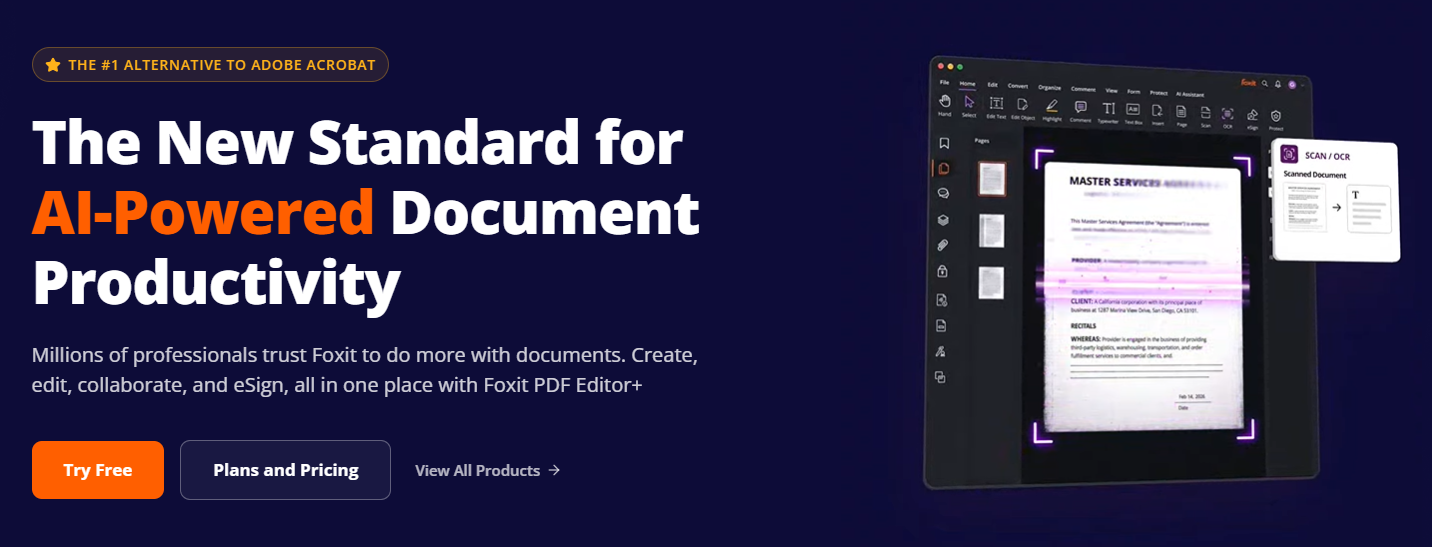
Foxit PDF Editor brings a detailed, Microsoft Office-style ribbon layout to the Mac platform. It serves as an incredibly dense desktop environment for power users who need to track document versions, manage access rights, and alter detailed text layouts locally on their machines.
Real-World Performance:
- Highly granular inline text tools that let you adjust character tracking and font properties inside paragraph cells.
- Excellent internal audit trails for teams who need to see exactly who edited a document.
- Advanced scripting controls to build smart, interactive forms for enterprise data collection.
The Reality Check: It is a robust tool for corporate data management, but the learning curve is steep. If you aren’t already used to the dense Windows-style interface, it can feel a bit cluttered on a clean macOS desktop.
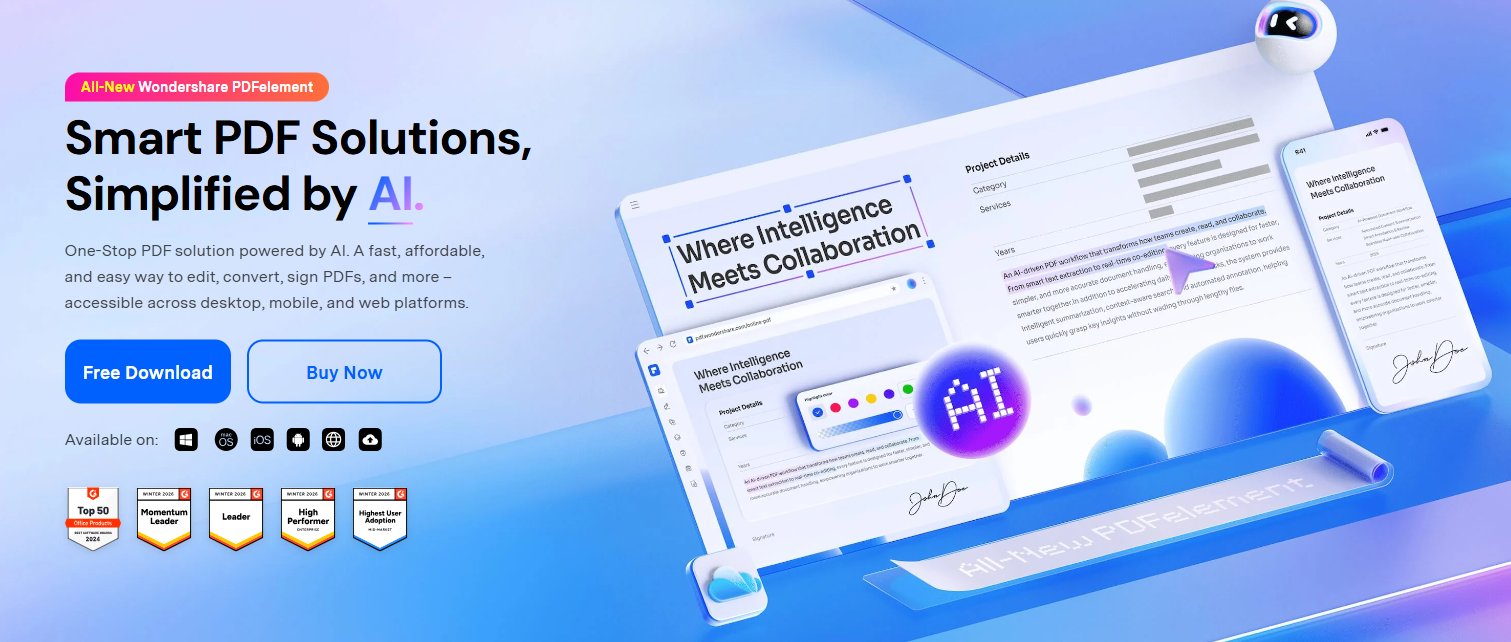
5. Wondershare PDFelement — ★★★★☆ Approachable Text Modifier
PDFelement is a great alternative if you want a reliable free pdf editor macos x trial option with a modern, friendly design. It packs direct text editing, form recognition, and page organizing tools into a simple interface that won’t require reading through a long user guide.
Real-World Performance:
- Clean inline text modifications that allow you to correct sentences while keeping font styles intact.
- Simple drag-and-drop mechanics for rotating, cropping, and joining single document pages.
- Helpful form recognition tools that instantly turn flat, static layouts into interactive fields.
The Reality Check: While it covers all the basic document needs effortlessly, its OCR engine sometimes struggles with complex multi-language layouts or low-quality handwriting scans.
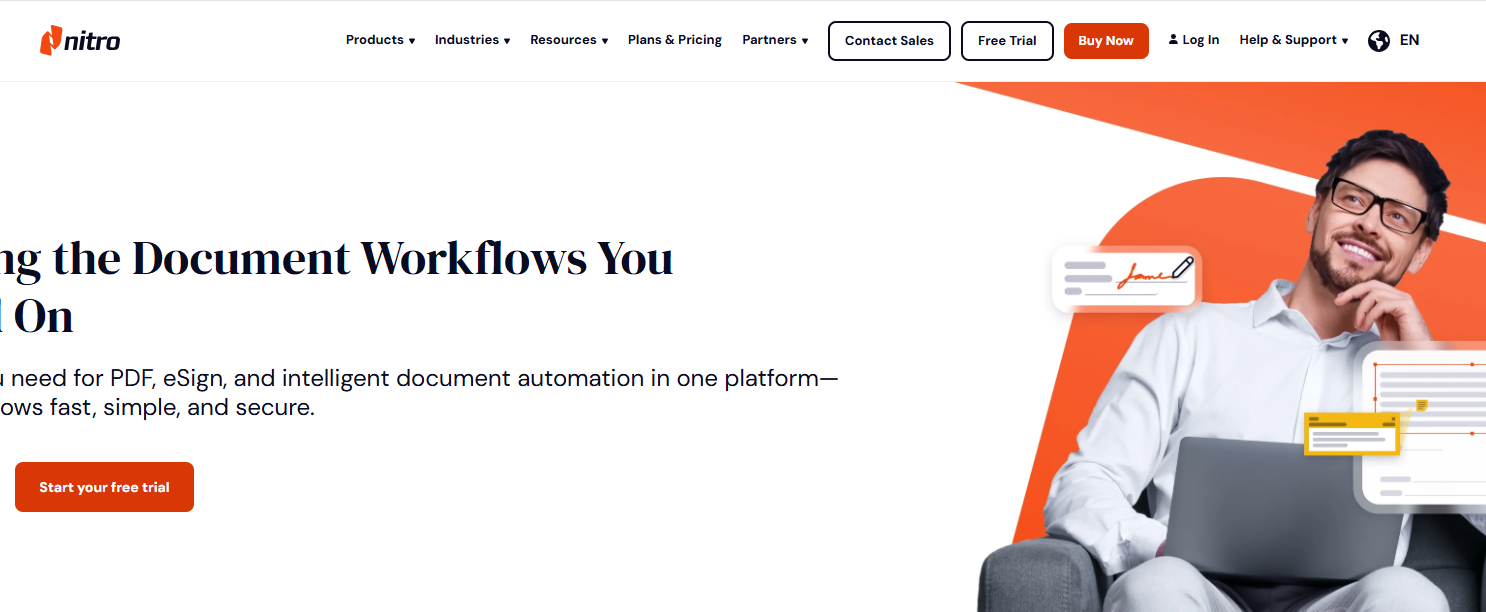
6. Nitro PDF Pro — ★★★☆☆ The Document Utility Choice
Nitro PDF Pro (built on the foundation of the classic Mac application PDFpen) focuses heavily on processing scanned paperwork, verifying legal files, and signing documents offline. It is a straightforward desktop app that cuts out flashy design choices in favor of practical administrative tools.
Real-World Performance:
- Direct text selection and alteration inside original paragraph blocks to fix typos quickly.
- Solid local OCR processing to pull copyable text out of legacy image files or scanned books.
- Strong focus on offline data protection, secure file redaction, and custom stamp creation.
The Reality Check: Nitro handles basic administrative tasks perfectly well, but the interface feels slightly outdated compared to more modern, fluid applications.
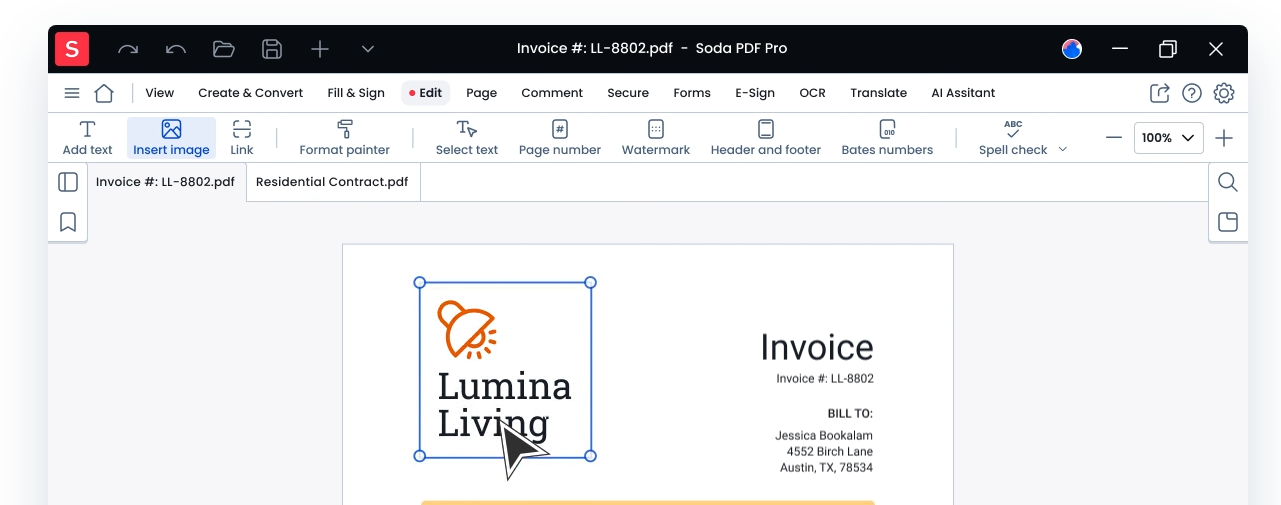
7. Soda PDF — ★★★☆☆ The Flexible Multi-Device Tool
Soda PDF offers a highly flexible design for users who switch between different devices. It gives Mac users the choice to use an online pdf editor application directly inside Safari, or load their local desktop app to continue handling document changes entirely offline.
Real-World Performance:
- Comfortable text editing and paragraph changes through a cloud-based web interface.
- Robust file conversion options to quickly turn PDFs into Word or Excel sheets.
- Easy page management tools to delete, insert, or split pages inside a browser.
The Reality Check: The cloud-desktop balance is highly convenient, but you may experience occasional upload lag when dropping exceptionally large, graphic-heavy files into the web application.
★ Comparison Matrix
Choosing the right tool depends entirely on what your daily workload looks like. Here is an honest breakdown of how these Mac editors match up against key real-world requirements:
| App Name | Editor Style | Direct Text Editing Quality | Page Management | Automated AI Features | Offline App Work |
| LightPDF | Hybrid (Online Web + Desktop) | Full Inline (Font Matching) | Advanced (Crop/Split/Merge) | Yes (Full Suite) | Yes (Free Install) |
| PDF Expert | Desktop Only | Full Inline (Font Matching) | Standard Shifting | Minimal Tools | Yes |
| Adobe Acrobat | Desktop-Heavy Hybrid | Full Inline (Layout Aware) | Complete Control | Standard Tools | Yes |
| Foxit PDF Editor | Desktop Only | Full Inline (Granular Cells) | Complete Control | Limited Tools | Yes |
| PDFelement | Desktop Only | Moderate Inline Tweaks | Standard Shifting | Standard Tools | Yes |
| Nitro PDF Pro | Desktop Only | Moderate Inline Tweaks | Standard Shifting | No | Yes |
| Soda PDF | Hybrid (Online Web + Desktop) | Basic Frame Overlays | Standard Shifting | No | Yes |
★ FAQ
Q: What is the difference between an online pdf editor and an offline desktop application?
A: An online pdf editor runs completely inside your web browser (like Safari or Chrome). It doesn’t take up hard drive space, making it perfect for quick edits from any device with an internet connection. An offline desktop application is a local software installation that runs directly on your Mac’s hardware. Local apps are much faster for massive files, work perfectly when you have no Wi-Fi, and offer higher privacy since your documents never leave your local machine.
Q: Why do some tools fail to edit pdf text on mac layouts cleanly?
A: Simple annotators don’t actually read your document’s underlying code; they just drop a new text layer on top of the old page, which often leads to overlapping words or broken formatting. Advanced editors like LightPDF use complex layout algorithms that scan the original file’s typography parameters, matching the font weight and character tracking so your new edits blend in seamlessly.
Q: Can I safely drop confidential contracts into an online browser application?
A: Yes, but you have to pick a platform you actually trust. Reliable cloud tools protect your transfers using secure HTTPS encryption layers. Top-tier services like LightPDF back this up with strict data-handling policies, meaning their cloud servers automatically wipe your processed files after a short window to prevent unauthorized access.
Q: Is there a functional free pdf editor macos x application built into my Mac?
A: macOS comes with Preview, which is fantastic for reading files, filling out form fields, and saving your signature. However, Preview lacks a structural text engine, meaning it cannot alter any sentences already printed on the page. To change existing text without paying for a premium subscription, you can use the free, flexible tiers of specialized software like LightPDF.
Q: Why is my PDF file locked and refusing to let me make text edits?
A: This happens when a file has security permissions applied to it by the author to protect copyrights or sensitive data. If editing tools are grayed out on your Mac, you either need to enter the original structural password or run the document through an authorized permissions utility to restore editing rights.


Leave a Comment