


Waiting for a physical printer to spit out a three-page agreement just so you can sign it, scan it, and email it back feels entirely outdated. Yet, many people still do it because desktop PDF suites are heavy, expensive, and constantly demanding paid updates. If you are a creator locking in project terms, a manager dealing with onboarding forms, or a scanlation coordinator managing international distribution permissions, you just need a reliable free online pdf signer that works on the spot.
Learning how to sign a pdf document online keeps your digital pipeline moving. It ensures your contracts remain legally binding without locking you into a premium subscription wall. It is less about scribbling a digital mark on a screen and more about finding a secure pdf signer online ecosystem that tracks your files in real time.
Part.1 Why Desktop PDF Software Fails
Standard desktop PDF software takes up too much disk space and bogs down your operating system. When your sole objective is to add signature to PDF contracts instantly, browser-based tools strip away that technical friction.
- Zero setup lag: Drop the document in, stamp your signature, and export. No accounts required for fast, personal tasks.
- True device independence: Work from a MacBook, edit on a PC, or sign off on a contract from your phone while commuting.
- Live routing loops: Instead of emailing individual attachments back and forth and losing track of versions, you send a single link to multiple stakeholders sequentially.
Part.2 How to Sign a PDF Document Online
LightPDF runs entirely in the cloud, handling multi-party contracts without forcing you to buy enterprise software. If you are collecting signatures from a remote team or validating a creative licensing agreement yourself, the system keeps the workflow highly organized.
Here is exactly how to sign pdf documents online using the platform:
1. Upload the Contract
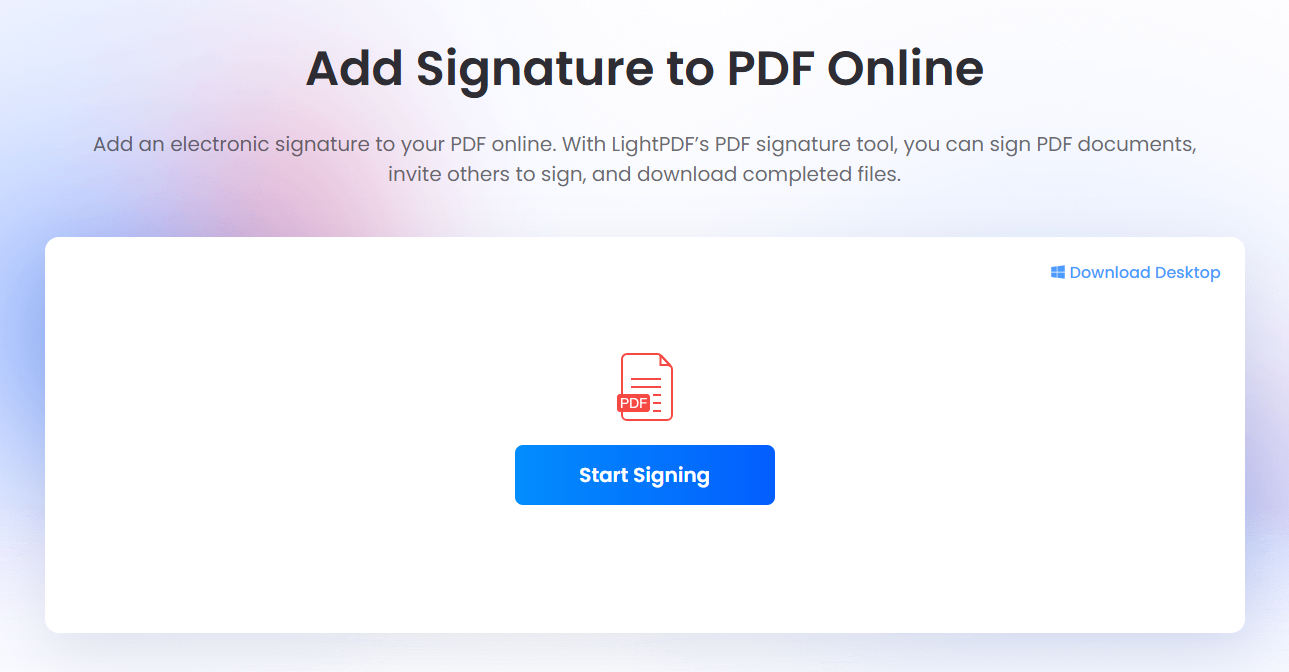
Open the online PDF signer. Click Start Signing and choose your document or drag it directly into the drop zone.
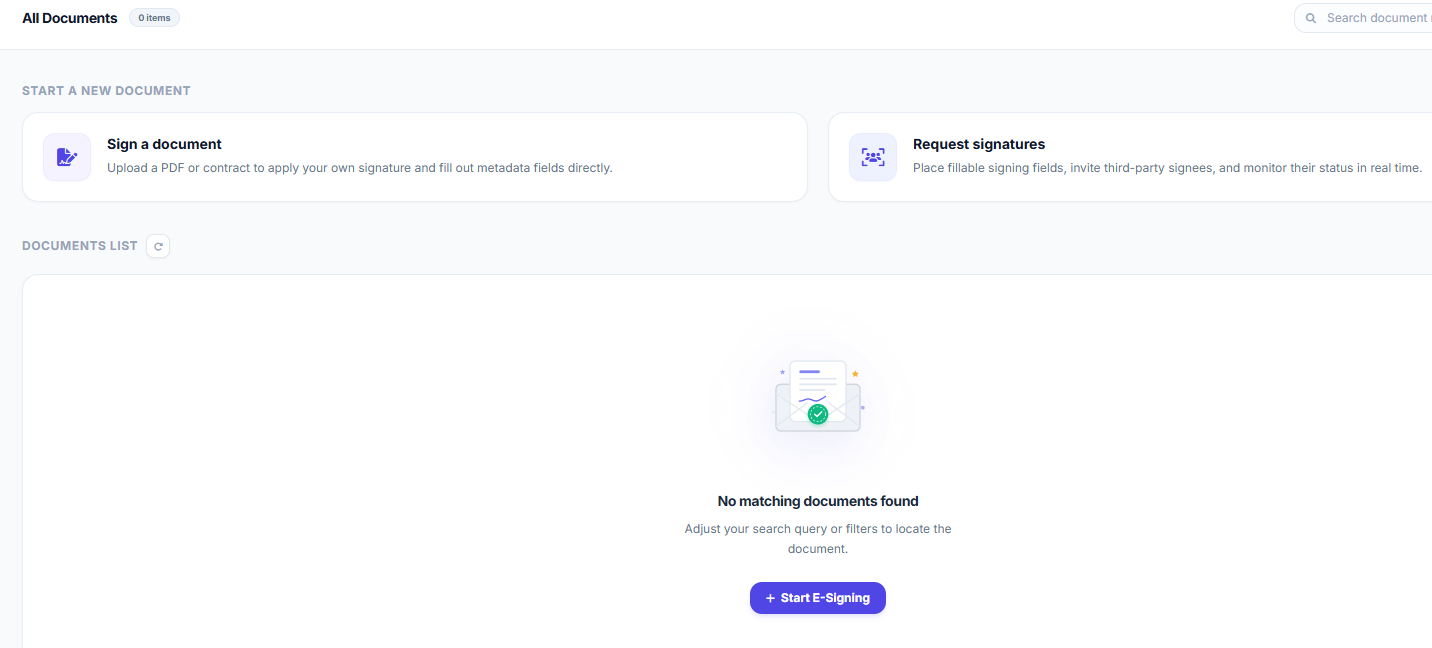
Then, click Start E-Signing.
2. Select Your Workspace Mode
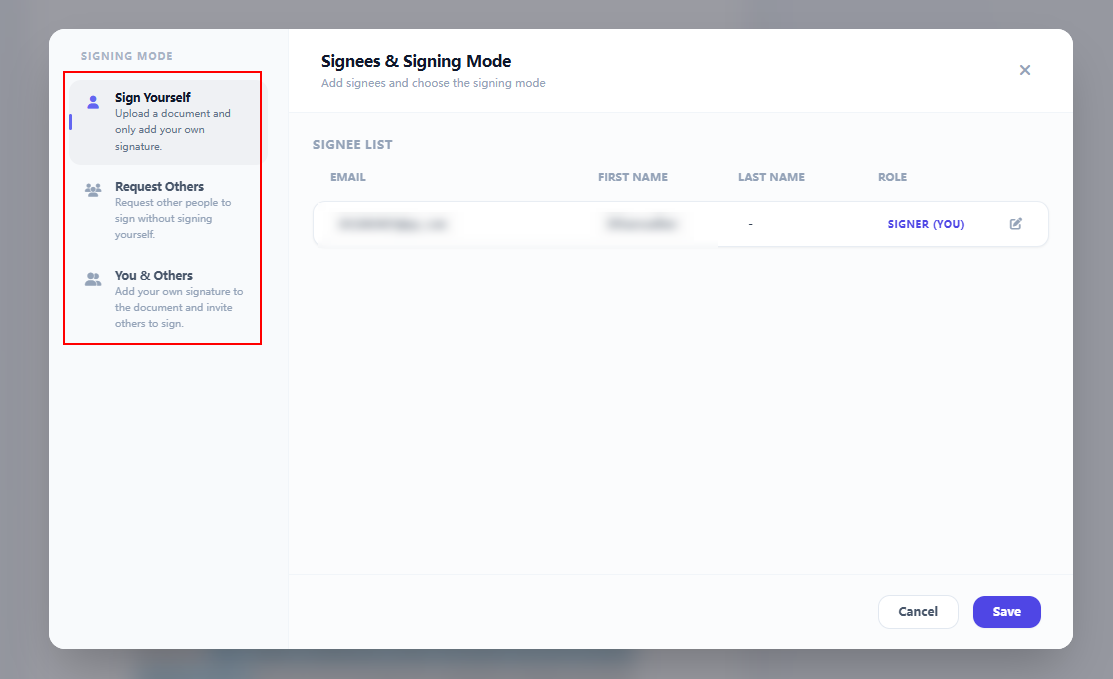
Pick the workflow option that fits your situation:
- Sign Yourself for immediate personal validation
- Request Others to collect signatures from your clients
- You & Others for mutual agreements. Enter the recipient info and hit Save.
3. Place Interactive Fields
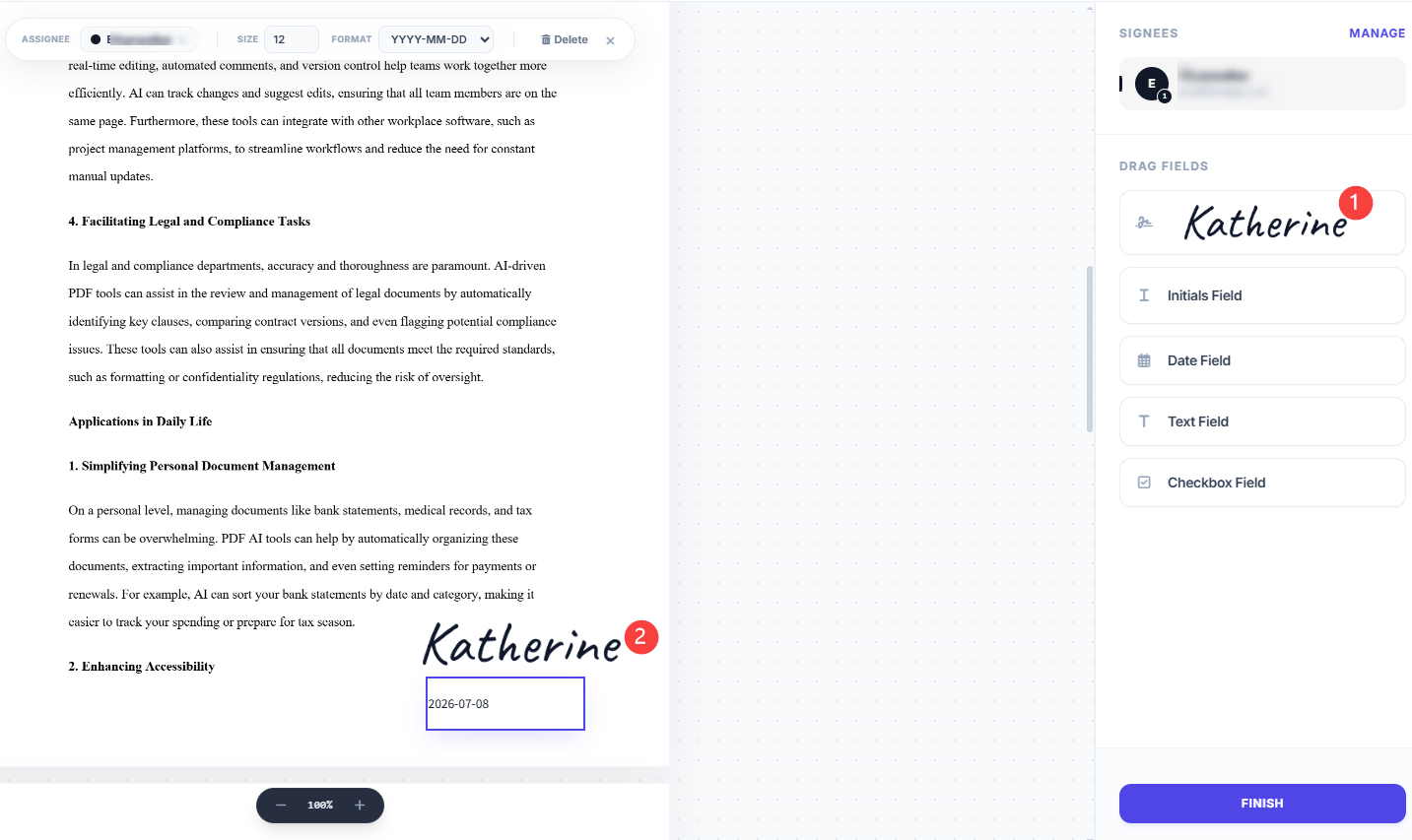
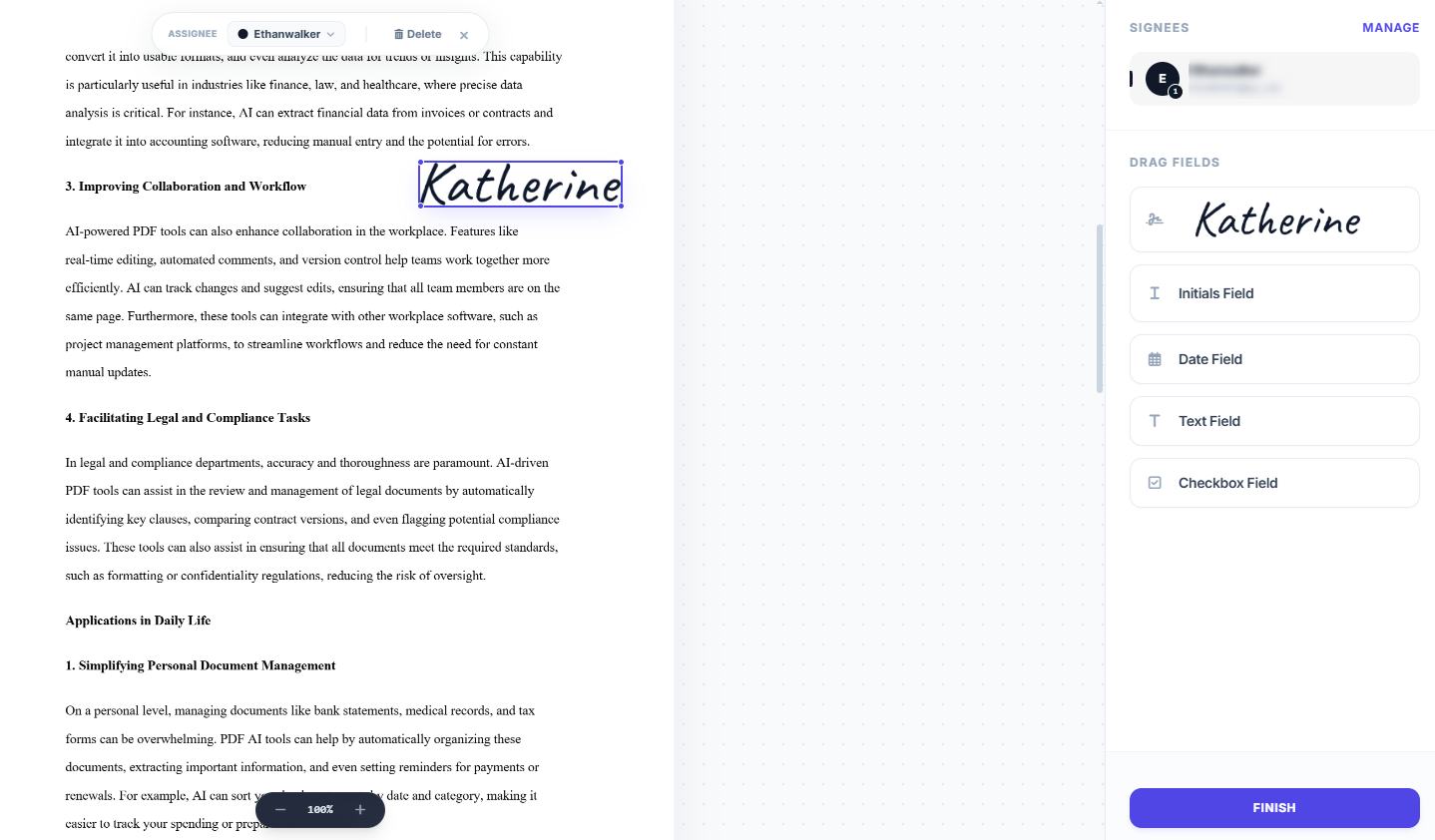
Use the navigation panel on the left side of the screen to drag and drop your form fields. You can place designated signature blocks, initials, live date trackers, customized text inputs, and checkboxes exactly where you need them.
4. Modify Input Fields
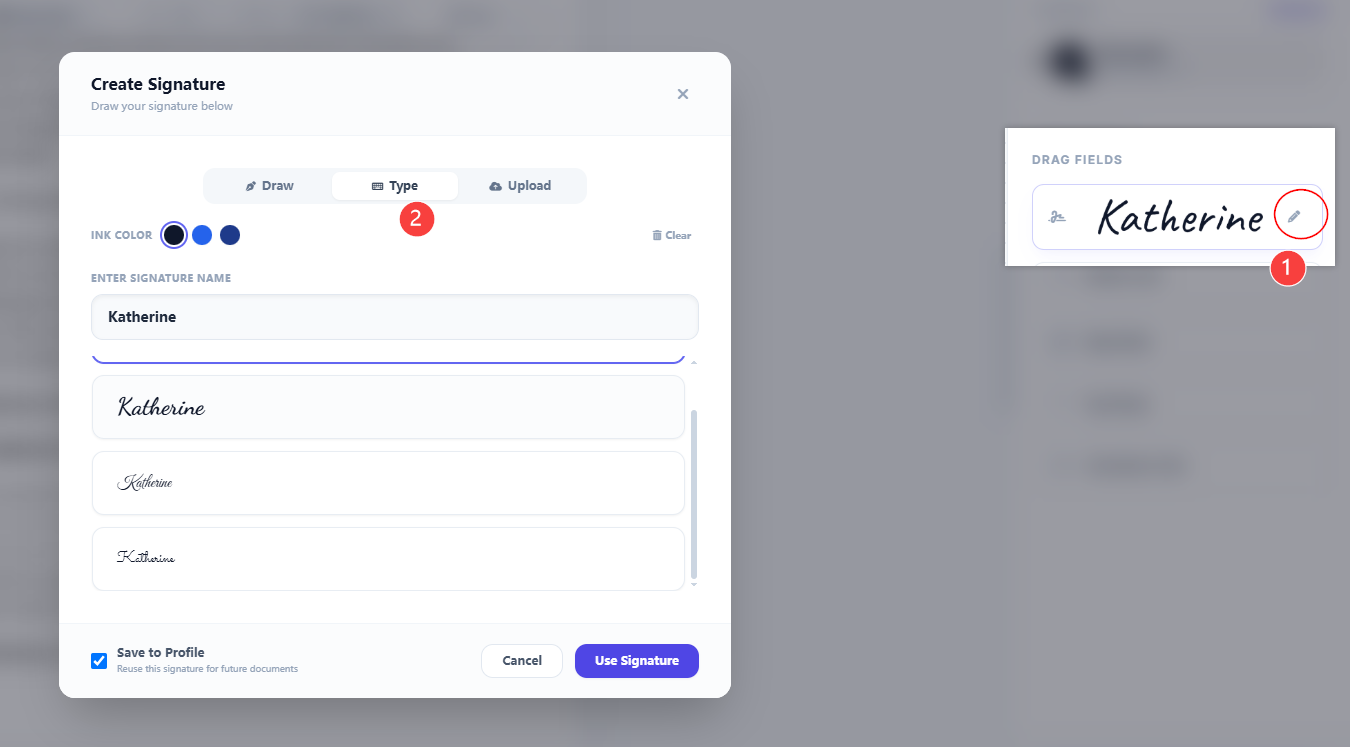
You can reposition, scale down, or switch out signature boxes instantly. If a field looks off, clear your changes using the top action bar prior to sealing the document.
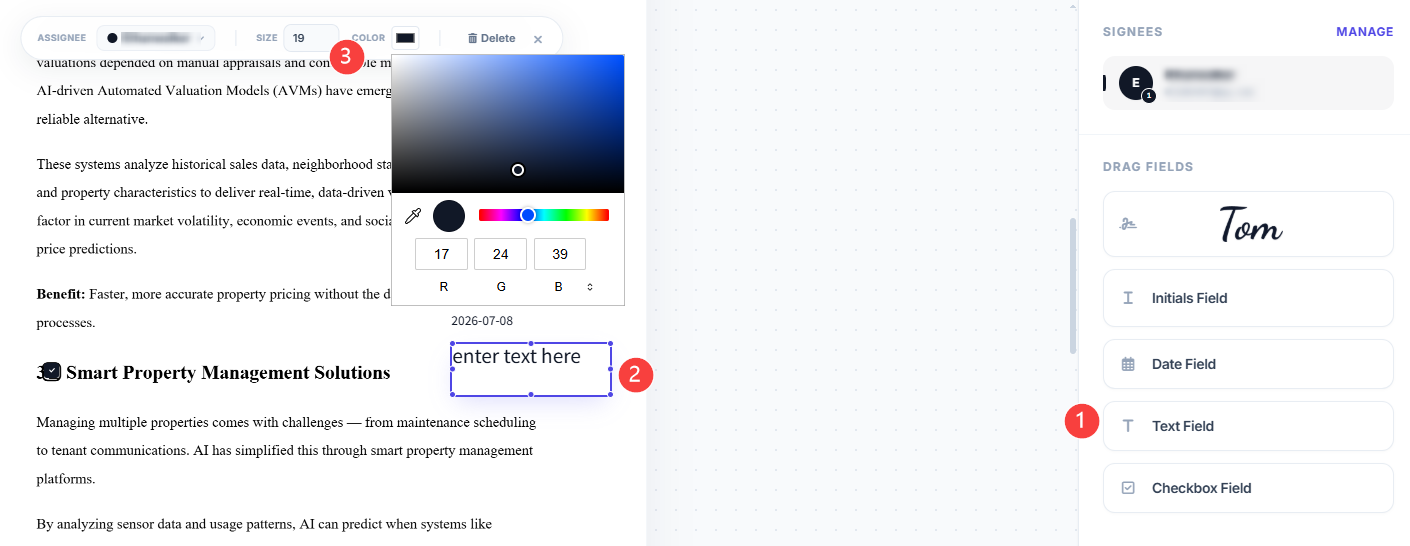
Any added fields can be fully customized via the top menu bar. For example, when you select a text field, you can easily change its font size, modify the color, or delete it.
5. Download via Your Dashboard
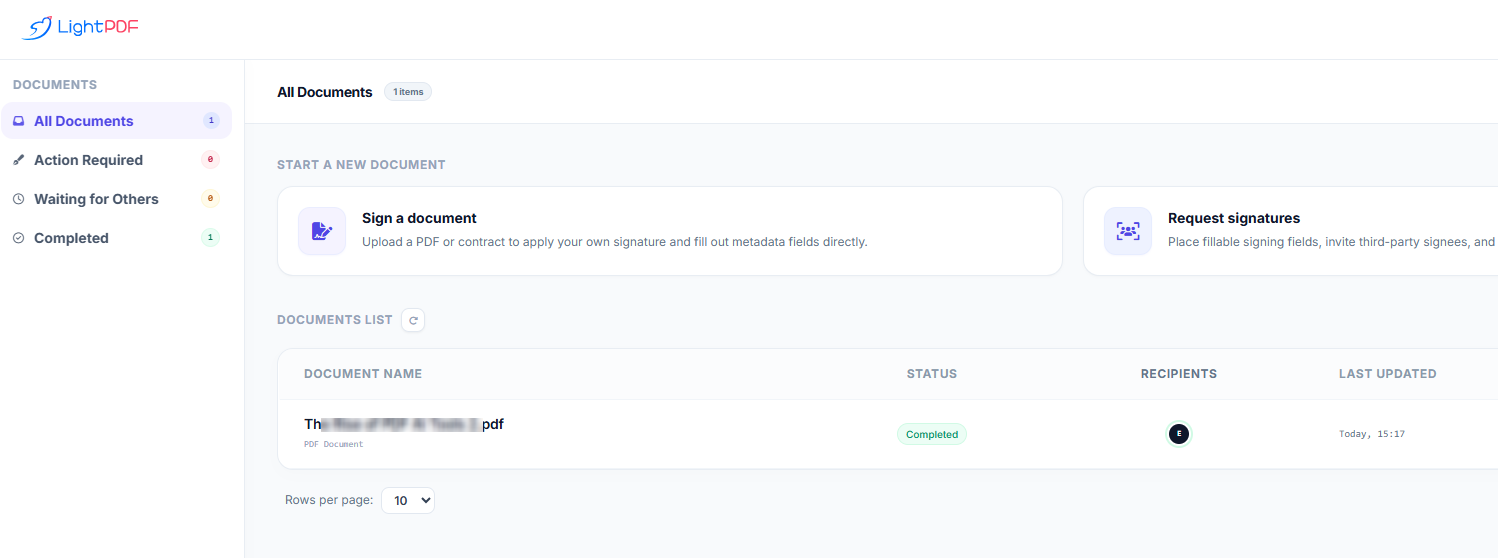
Select Finish in the lower right-hand corner to finalize the document. Click Go to Dashboard to instantly review, monitor response status from your team, and download the finished, encrypted file.
Part.3 Alternative PDF Signers
While LightPDF is an incredibly agile, web-first choice, the digital signing market has a few legacy giants. Depending on your specific volume or regulatory needs, you might encounter other platforms. Here is an honest, no-fluff comparison to help you find the right free online pdf signer for your daily work.
1. DocuSign
The absolute corporate heavy hitter. If you are dealing with multi-million dollar real estate deals or enterprise-level compliance, DocuSign is usually the default legal requirement. However, for everyday creators or independent teams, its interface is notoriously bloated, and their free tier locks almost every useful tracking feature behind an aggressive paywall.
2. Adobe Acrobat Sign
The industry pioneer. Because almost everyone has opened an Adobe file at some point, its name carries instant trust. But if you have ever tried to figure out how to send adobe pdf for signature without accidentally triggering a subscription popup, you know how frustrating their paywalls can be. It is heavy, requires a steep learning curve, and runs best only on powerful desktop setups.
3. Dropbox Sign (Formerly HelloSign)
A very clean, minimalist tool that integrates directly into your cloud storage. It is great if your entire life is already inside Dropbox. The downside? Their free version limits you to just three document signatures per month, which is completely useless if you are managing a high-volume pipeline like creative releases or weekly client approvals.
Part.4 Comparing the Top Online Document Signers
Here is how these platforms compare when you need to sign pdf documents online quickly, without getting trapped in a subscription loops:
| PDF Signer Online | Best For | Free Tier Limitations | Interface Friction |
| LightPDF | Rapid web signing, creators, and international translation teams. | Generous daily use; advanced AI features require tokens. | Very Low — Drag, drop, and export in seconds. |
| DocuSign | Enterprise corporations and high-stakes legal compliance. | Extremely strict; mostly limited to “sign-only” recipients. | High — Built for corporate legal teams, not casual users. |
| Adobe Sign | Users deeply embedded in the Adobe Creative Cloud ecosystem. | Requires paid Acrobat plans for advanced multi-party routing. | Medium — Heavy desktop application bias. |
| Dropbox Sign | Quick signatures on files already stored in Dropbox folders. | Hard cap of 3 signed documents per month on the free plan. | Low — Very clean but highly restrictive on volume. |
The Verdict for Content Creators: If you are signing standard business contracts, freelancer agreements, or scanlation NDAs, paying premium prices every year for Adobe or DocuSign makes zero sense. A dedicated, cloud-native tool like LightPDF keeps your overhead at zero while giving you the exact same legal validity.
Part.5 Beyond Signing: Smart Utilities for Contract Review
If you handle contracts frequently, your document needs go beyond just collecting standard electronic signatures. You are often forced to deal with international copyright permissions, messy paper receipts, or contract drafts written entirely in foreign languages.
Instead of forcing you to use three different apps to read, translate, and verify these files before you safely add signature to PDF agreements, LightPDF packages two crucial backend utilities directly into its ecosystem to help you review before you sign:
1. High-Fidelity OCR Scanning (Verify Physical Receipts or Forms)
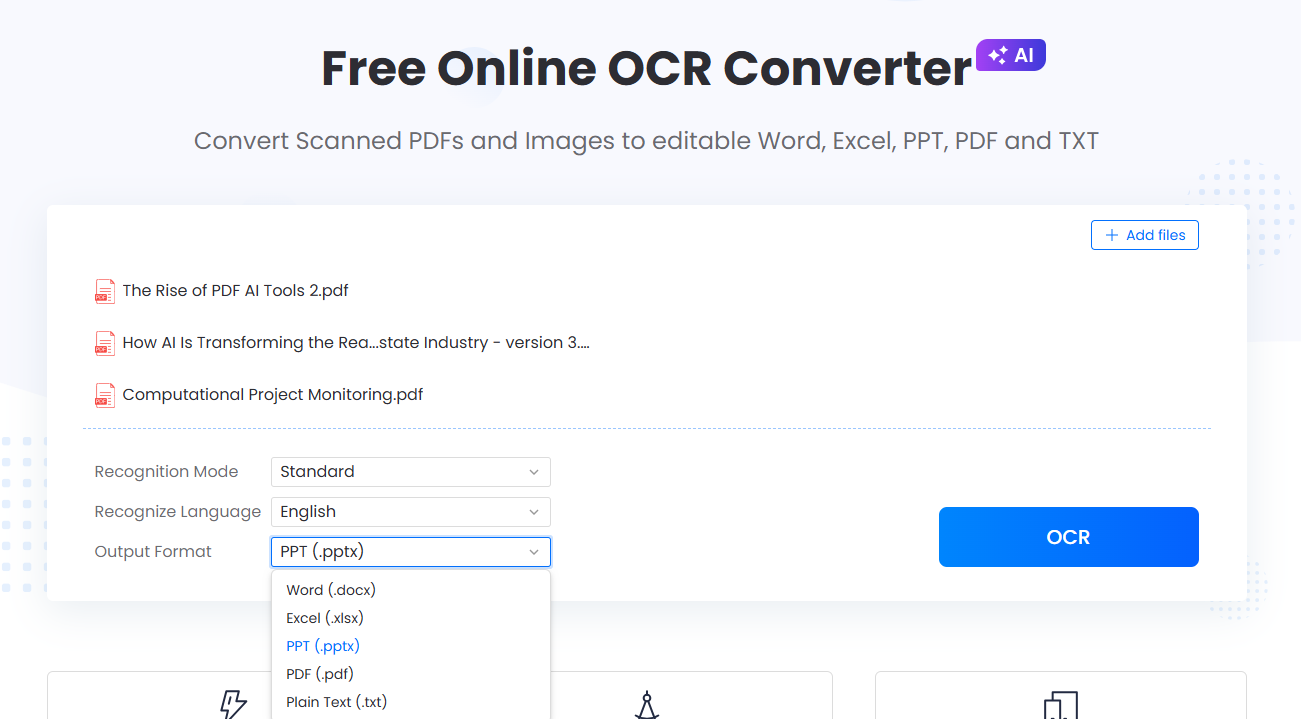
When working with offline contractors, you might receive handwritten invoices, signed physical model releases, or printed notes that need immediate digital authorization. LightPDF’s built-in OCR (Optical Character Recognition) lets you snap a quick photo of any physical page with your phone. The system instantly isolates the text characters and converts that messy raw image into a clean, digital document that is immediately ready for formatting, editing, or contract routing.
2. Layout-Preserving AI PDF Translator (Read Foreign Contracts Instantly)
If your work requires dealing with licensing agreements, nondisclosure forms, or raw distribution permissions written in languages like Korean, Japanese, or Spanish, you shouldn’t sign them blindly. You can drop these foreign-language documents directly into the smart document translator tool. It processes the translation seamlessly so you can read every clause in your native language, but here is the key feature: it completely retains the original visual alignment, margins, and layout structure of the pages so your formatting never breaks.

Part.6 FAQ
Are electronic signatures legally binding across different countries?
Yes. Electronic signatures processed through an established pdf signer online hold the same legal weight as a physical pen stroke in most major global regions (under frameworks like the US ESIGN Act and Europe’s eIDAS regulations). The platform creates a permanent audit trail that proves who signed and when.
How to send adobe pdf for signature if you don’t have an Acrobat plan?
If you are wondering how to send adobe pdf for signature without paying a massive monthly fee for premium desktop applications, simply import your file into LightPDF’s web platform. Pick the “Request Others” setup option, insert your business partner’s email address, and send the file off instantly through your web browser.
Can I safely add signature to PDF files on a smartphone or tablet?
Absolutely. Cloud e-sign engines are built with mobile responsive designs. When you open the application link on a mobile browser, you can draw a clean, stylized mark right on your phone screen with a stylus or finger, resize it to fit the dotted line, and apply it directly without an app install.
What happens if I accidentally place a signature box in the wrong place?
Don’t worry about misplacing a field. Until you click the final “Finish” button to lock down the document, you can click on any text box or date stamp to move it, adjust its boundaries, or delete it entirely. The top toolbar lets you reset your current workspace layout instantly.
Will the formatting of my tables look weird after I sign online?
No. Unlike older software that accidentally shifts paragraph text or destroys table alignments during a merge, modern secure platforms inject signature layers cleanly on top of your existing document elements, ensuring your original layouts and borders stay intact.


Leave a Comment