


Part.1 | Generate a PDF with Table of Contents
When starting from scratch, manual formatting takes up most of your drafting time. AI generation skips the layout phase by building document outlines and writing section content simultaneously.
If you want a ready-to-use document without fiddling with structural margins, the LightPDF online generator automates the setup.

- Open the online generator page.
- Enter your core document topic or specific prompt.
- Choose your target language and select the document length (Default or Long length).
- Click Send icon. The tool generates a fully styled PDF complete with a table of contents at the beginning.
Part.2 | Make Table of Contents in an Existing PDF
Pre-existing PDFs often strip out structural metadata during compression. If you’ve inherited a 50-page document where section headers behave like plain images or static shapes, editing internal links directly inside standard viewers feels like fighting the file format.
The fastest workaround is converting the file back to editable text, building the heading tree, and re-exporting it.
- Convert the document: Drag the static file into an online pdf to word converter. This transforms raw layout blocks into editable paragraphs while preserving image alignment.
- Re-tag section headers: Open the file in Word. Select major headers and mark them as formal Headings.
- Insert the navigation block: Click References > Table of Contents to auto-populate page numbers and jump links.
- Save back to PDF: Go to File > Save As, pick PDF, and verify that heading-based bookmarks remain enabled.
Part.3 | How to Add Table of Contents in Word
Drafting long-form reports directly in desktop word processors gives you precise control over structural tags. Search volume for add a table of contents in word stays consistently high because Word’s native heading tags translate cleanly into active PDF bookmarks during export.
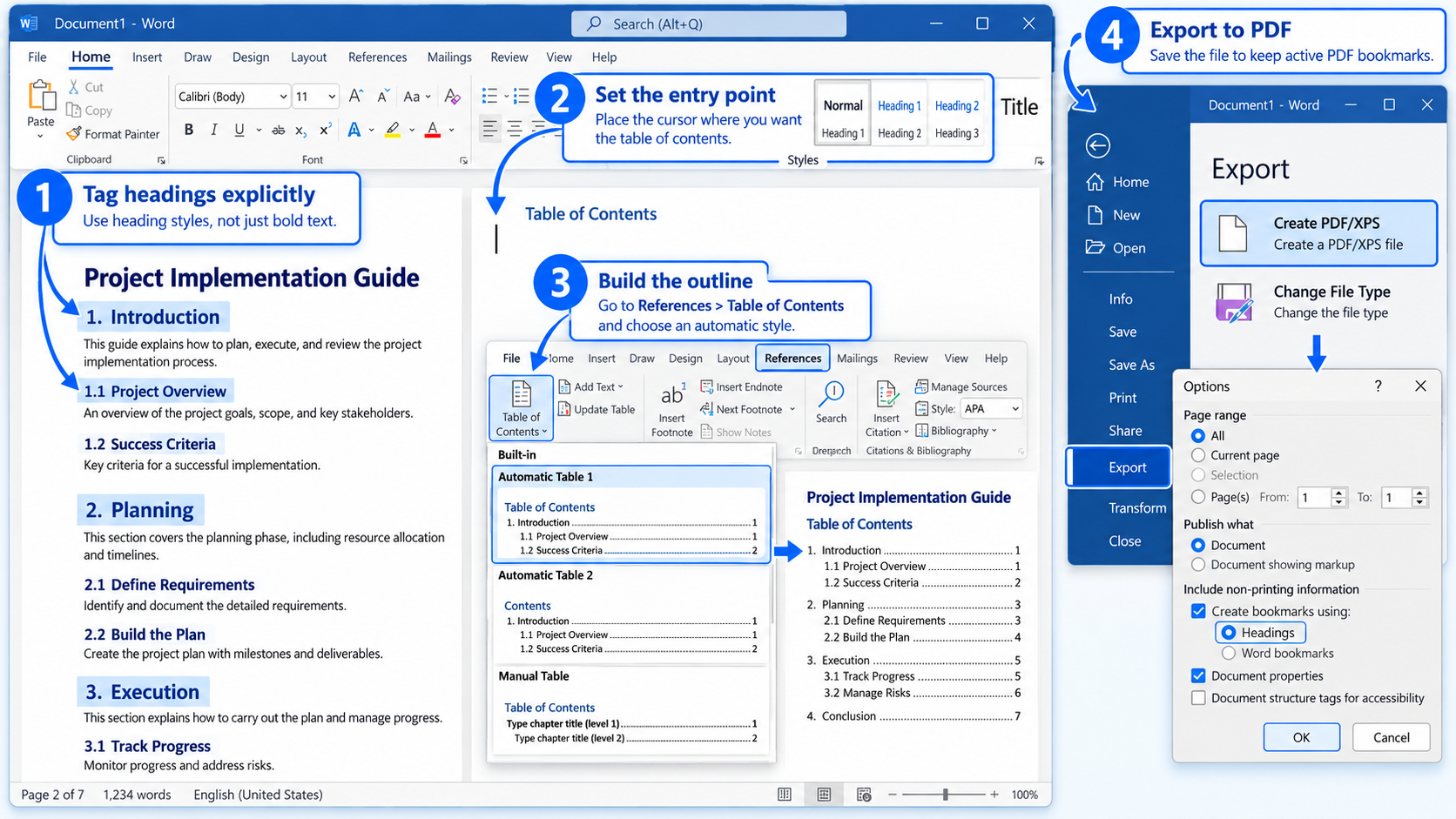
Step-by-Step Instructions
- Tag headings explicitly: Highlight main section titles and apply Heading 1, Heading 2, or Heading 3 from the ribbon menu. Skip raw bold text—PDF exports rely on formal tag hierarchies, not visual font weight.
- Set the entry point: Place the cursor on a blank page at the top of the file.
- Build the outline: Click References > Table of Contents and pick an Automatic Table layout.
- Export to PDF:
- Click File > Export > Create PDF/XPS.
- Open the Options menu before saving.
- Check Create bookmarks using: Headings. Save the file.
Part.4 | Best Workflows by Document Scenario
| Document Goal & Scenario | Key Requirement | Recommended Workflow | Key Advantage |
| Instant Draft Generation | Topic-to-PDF output without manual design | AI Online PDF Generator | Outlines content and inserts clickable jump links in one click |
| Original Content Drafting | Precise structural styling before publishing | Word Heading Mapping → Export | Preserves formal nested heading levels and custom typography |
| Legacy PDF Restructuring | Adding navigation to pre-existing static PDFs | PDF-to-Word Conversion → Re-export | Unlocks plain text elements to build clean heading tags |
| Desktop Layout Fine-Tuning | Adjusting specific page links without text edits | PDF Editor Bookmark Panel | Creates direct bookmark trees directly on native PDF pages |
Part.5 | Real-World Edge Cases & Layout Gotchas
- Scanned Contracts vs. Native PDFs: Converted scanned documents won’t generate a table of contents automatically until you run OCR. Without text recognition, headers are just raw pixel grids.
- Complex Multi-Column Whitepapers: Sidebars and callout boxes often trigger fake heading tags. Clean up orphaned sidebar titles in Word before generating your final contents page, or your jump links will clutter the sidebar tree.
- Deeply Nested Technical Docs: Avoid going beyond Heading Level 3 for PDF navigation. Deeper levels cause link truncation on mobile PDF readers.
Part.6 | FAQ
How do I make a table of contents in PDF files clickable on mobile viewers?
Mobile PDF apps depend on embedded bookmark metadata. If your document relies on manual underline hyperlinking instead of native structural headings (Heading 1, Heading 2), mobile readers usually fail to parse page jumps. Generate the document through structured tools like Word or LightPDF to retain explicit tag structures.
Why are my navigation links missing after I convert Word to PDF?
This almost always happens when exporting via the generic Print to PDF command. The standard virtual printer flattens structural metadata. Always use Save As or Export inside Word, and confirm Create bookmarks using: Headings is checked in the options menu.
Can I add a table of contents to an encrypted or read-only PDF?
No. Permissions must allow content editing. If security settings lock the file structure, unlock the document with its administrative password or recreate the editable layout via conversion before adding a table of contents.


Leave a Comment