


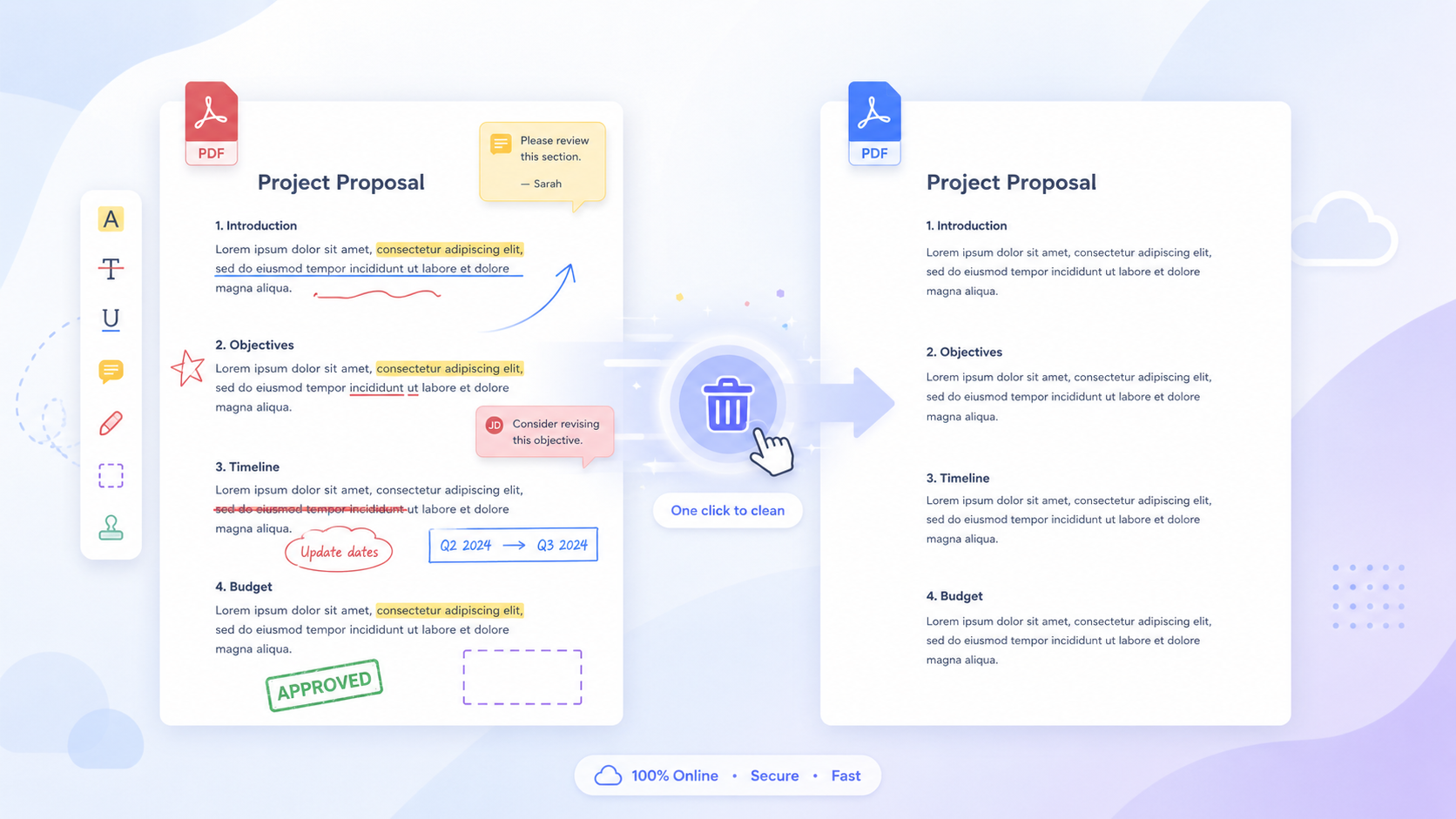
Looking for an instant way to remove annotations from pdf files without downloading software or registering for an account? Whether you need to clear text highlights, strikeout marks, or sticky note comments, this online guide shows you how to clean your documents in a single click.
Key Takeaways
- Direct Solution: Quickly remove annotations from PDF files online using a dedicated PDF annotation remover without downloading heavy software.
- Granular Category Filtering: Easily delete PDF annotations across 14 distinct markup types (highlights, strikeouts, comments, drawings, stamps, shapes, carets, etc.).
- Zero Cost & Secure: Safe, 100% web-based tool that deletes your processed files automatically after download.
PART.1 How to Remove Annotations from PDF Online
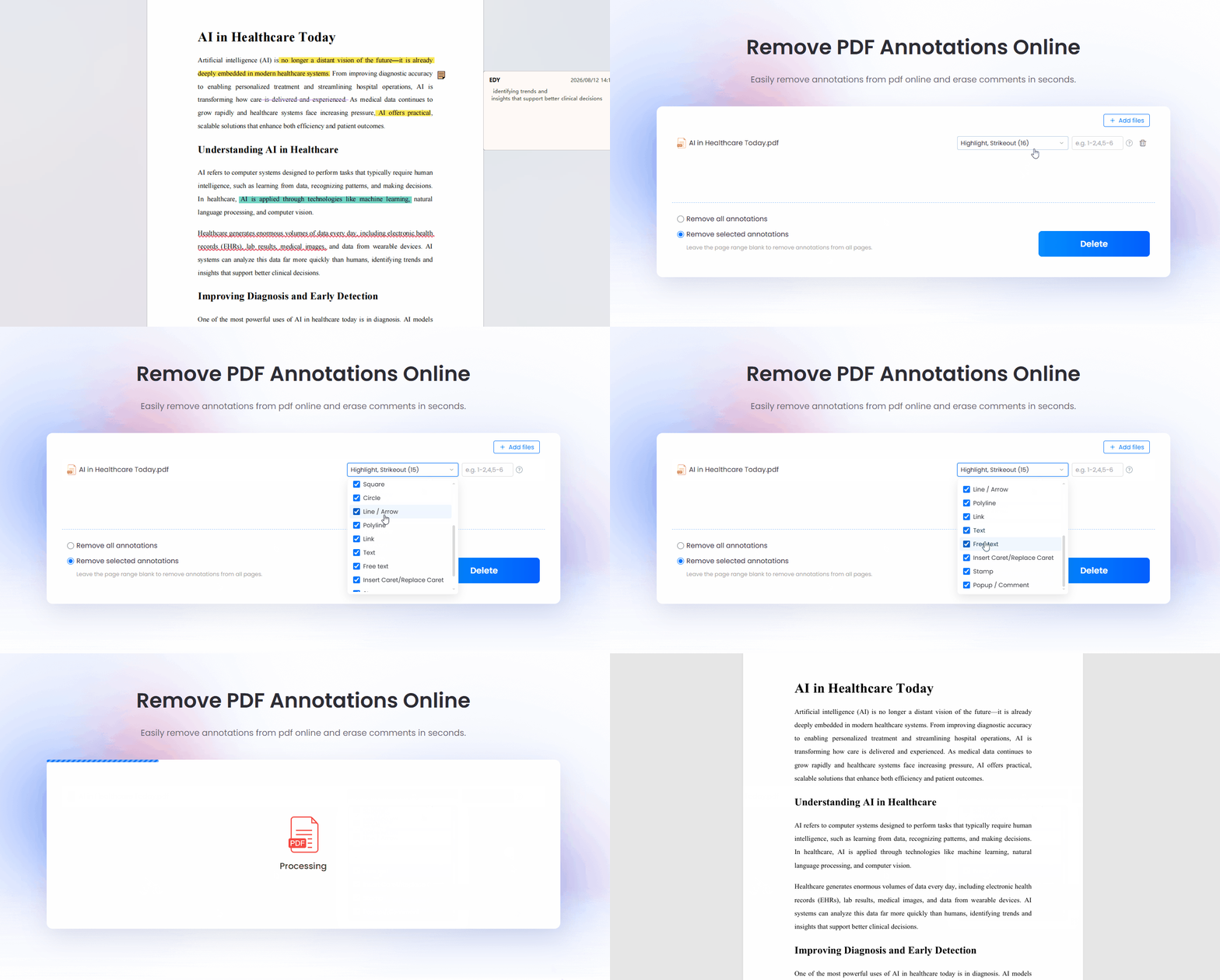
If you need an immediate tool to pdf remove annotations, LightPDF provides a direct, web-based solution that runs right in your browser. It accurately targets embedded comments, text markups, shapes, and freehand ink lines so you can delete lines from pdf pages without altering your original text content.
Step-by-Step Guide
- Visit the Online PDF Annotations Remover
- Open the official pdf annotation remover on any desktop or mobile web browser.
- Upload Your PDF File
- Drag and drop your file into the upload zone. You can also click “+Add files” to upload multiple documents for batch cleaning.
- Choose Your Removal Mode
- Select the mode that fits your specific needs:
- Remove All Annotations: A single click to erase every markup item in the document simultaneously.
- Remove Selected Annotations: Selectively check or uncheck exact categories you want removed. The tool supports granular filtering across all major markup types:
- Select the mode that fits your specific needs:
| Text & Markups | Shapes & Lines | Notes & Elements |
| • Highlight | • Polygon | • Link |
| • Strikeout | • Square | • Stamp |
| • Underline | • Circle | • Popup / Comment |
| • Squiggly | • Line / Arrow | • Insert Caret / Replace Caret |
| • Text / Free text | • Polyline / Ink Draw |
- Execute Deletion
- Click the Delete button. The cloud engine will process the file and remove comment from pdf elements automatically.
- Download Your File
- Click Download Files to save your clean PDF straight to local storage.
PART.2 Alternatives
| Feature / Capability | LightPDF (Recommended) | Adobe Acrobat Pro | PDF2Go | Smallpdf |
| Granular Category Removal | Yes (14+ toggle options) | Manual element-by-element | Limited | Basic (All or Nothing) |
| Delete Lines & Freehand Ink | Yes (Line/Arrow, Ink/Draw, Polyline) | Manual selection | Partial | No |
| Batch File Cleaning | Yes (+Add files supported) | Requires Action Wizard | Limited | Paid feature only |
| No Installation Needed | Yes (100% Cloud Web Tool) | No (Heavy desktop client) | Yes | Yes |
| Ease of Use | Instant (3-step process) | Complex toolbars | Moderate | Easy |
PART.3 More Handy PDF Tools
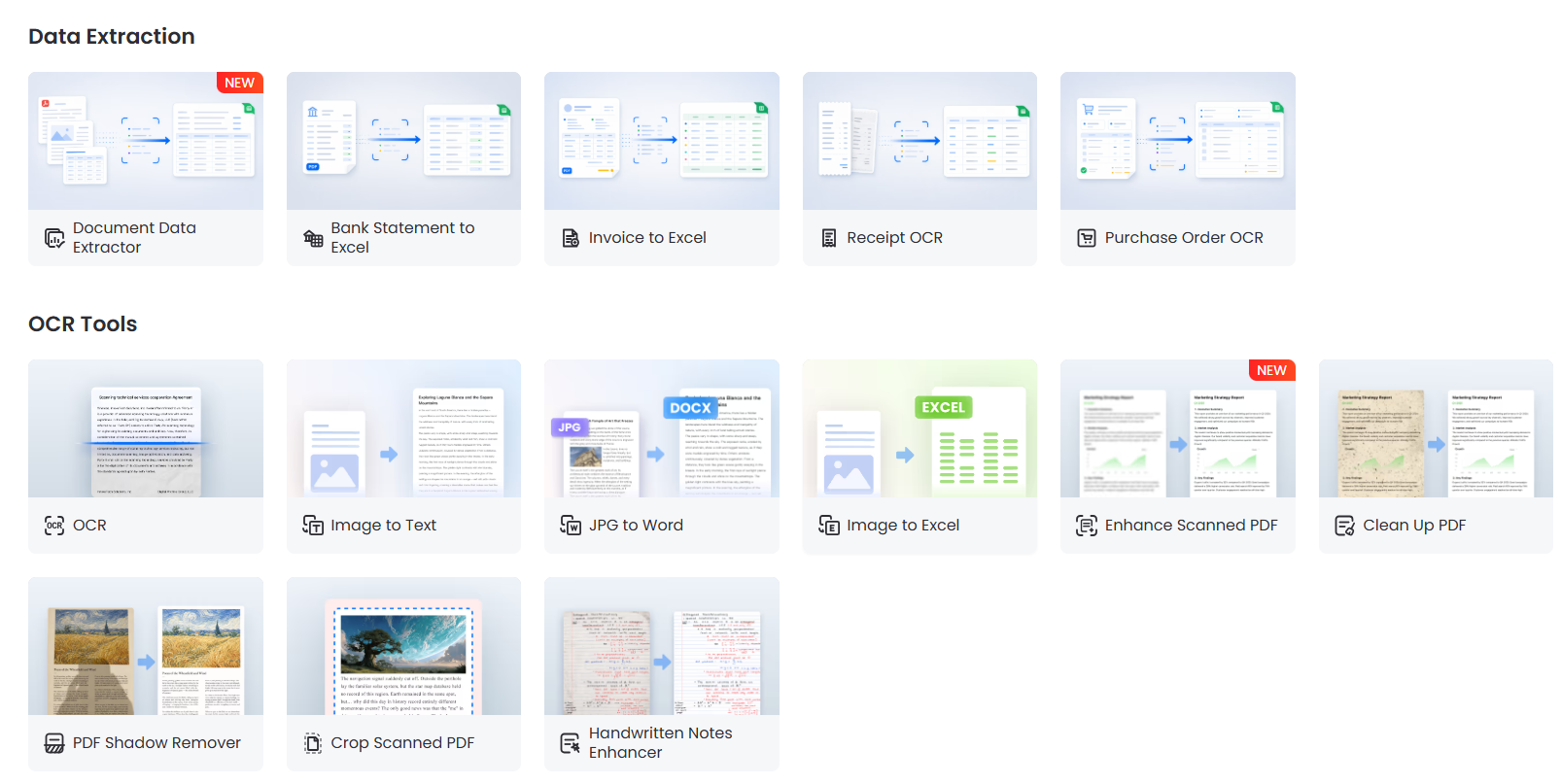
- Clean Up PDF: Effortlessly erase background noise, scanning dust spots, dark border shadows, and unwanted page margins from scanned files. It restores dirty or aged scanned documents into crisp, presentation-ready PDFs with clean white backgrounds.
- Enhance PDF Quality: Powered by advanced image-processing algorithms, this tool automatically sharpens blurry text, boosts low-contrast scans, and increases file resolution. It transforms hard-to-read, low-quality documents into clear, professional-grade PDFs.
- Remove PDF Shadow: Eliminate dark book-spine shadows, page curvature distortions, and uneven phone camera glares commonly found in mobile scans. It flattens visual lighting, giving your digitized pages a clean, flatbed scanner appearance.
- Handwritten Enhancer: Intelligently isolate, clean up, and sharpen handwritten signatures, notes, and pen drawings. It smoothes rough ink strokes, increases contrast against the background, and ensures all written entries remain bold.
PART.4 Common Community QA
Q1: How do I remove flattened annotations that cannot be selected?
A: Flattened annotations are merged directly into the image background layer. Using LightPDF’s specialized pdf annotation remover helps analyze the file structure and strip away flattened layer elements without damaging original document text.
Q2: Will removing comments delete the text underneath my highlights?
A: No. When you remove comment from pdf files using LightPDF, only the top overlay graphic (highlight shade, underline mark, or comment icon) is removed. The underlying text remains completely intact.
Q3: How do I delete lines from PDF files without losing other text edits?
A: Choose Remove Selected Annotations mode. Select only Line / Arrow, Polyline, or Ink / Draw, and leave text options unchecked. This allows you to delete lines from pdf pages without touching your text notes.
Q4: Is it safe to remove annotations from pdf online with private documents?
A: Yes. LightPDF processes files through encrypted 256-bit SSL connections and automatically removes uploaded files permanently after processing to safeguard user privacy.



Leave a Comment